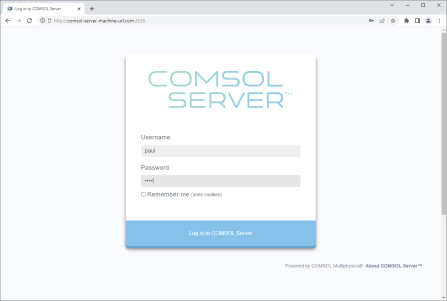
Using a web browser, you can point directly to the computer name and port number of a COMSOL Server web interface — for example, http://comsol-server-machine-url.com:2036, assuming that port number
2036 is used by your COMSOL Server installation. You need to provide a username and password to log in. If you are running COMSOL Server locally, the address field will typically be
localhost:2036.
When logged in, the Application Library page displays a list of applications to run.
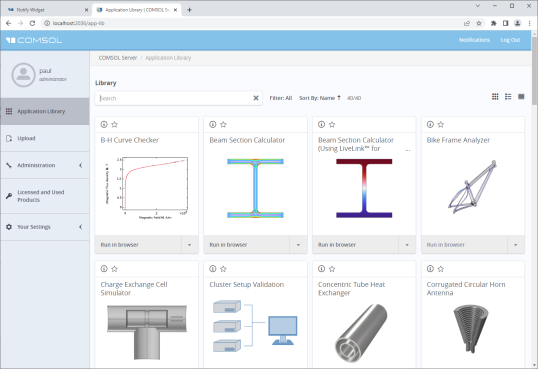
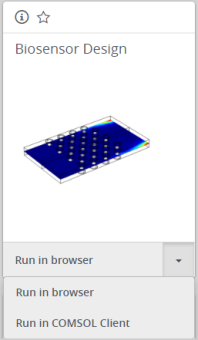
Click Run in browser to run an application. Applications are run in separate tabs in the browser.
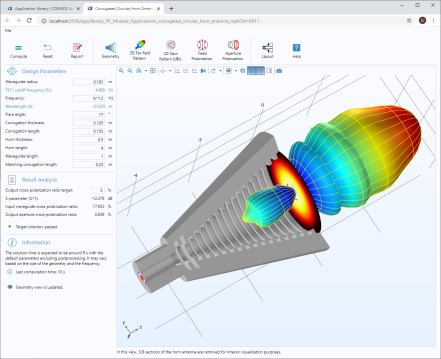
When you create applications to run in a web browser, make sure you use the grid layout mode in the Application Builder; See Sketch and Grid Layout. This will ensure that the user interface layout adapts to the size and aspect ratio of the browser window. For low-resolution displays, make sure to test the user interface layout in the target platform to check that all form objects are visible. Applications that contain resizable graphics forms may not fit in low-resolution displays. In such cases, use graphics with fixed width and height to make sure all form objects fit in the target browser window. Depending on the type of web browser and the graphics card, there may be restrictions on how many graphics objects can be used in an application. You can get around such limitations by, instead of using multiple graphics objects, reuse the same graphics object by switching its source.
If the application allows the user to make selections, such as clicking on boundaries to set boundary conditions, running in a web browser is different from running in COMSOL Multiphysics or the COMSOL Client for Windows®. In a web browser, boundaries are not automatically highlighted when hovering. Instead, it is required to click once to highlight a boundary. A second click will make the selection. A third click will highlight for deselection and a fourth click will deselect. The process is similar for domains, edges, and points.
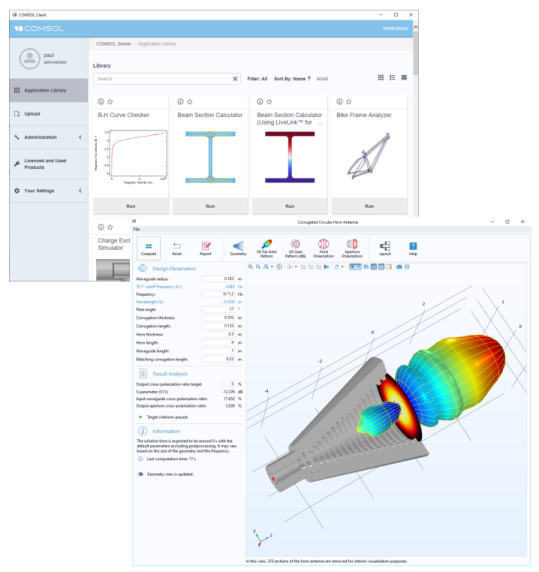
As an alternative to using a web browser for running applications, the COMSOL Client for Windows® can be used to connect to COMSOL Server for running applications natively in the Windows
® operating system. This typically gives better graphics performance and supports more sophisticated graphics rendering in 1D, 2D, and 3D. In addition, the COMSOL Client for Windows
® allows running applications that require a LiveLink™ product for CAD, provided that the COMSOL Server you connect to has the required licenses. You can open an application with the COMSOL Client for Windows
® in two different ways:
Using the COMSOL Client, applications run as native Windows® applications in separate windows. For example, applications run in the COMSOL Client may have a Windows
® ribbon with tabs. When run in a web browser, ribbons are represented by a toolbar.
For more information on COMSOL Server, see the COMSOL Server Manual available with a COMSOL Server installation or from
www.comsol.com/documentation.
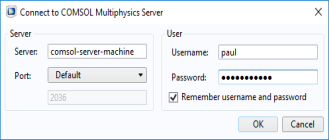 If you have the COMSOL Client for Windows® already installed, a desktop shortcut will be available. You can double-click its desktop icon and before you can use the COMSOL Client to run applications, you will be prompted to log into a COMSOL Server with a valid username and password. After login, the COMSOL Client displays a COMSOL Server web interface identical to that seen when logging in from a web browser.