Generate Material
When modeling a fixed composition mixture, it is convenient to use a material because the default behavior in physics interfaces is to use properties from the domain material. Ready-to-use materials can be selected from the available Material libraries, or generated from Thermodynamics. In this model, first generate a material node for the coolant, using the Thermodynamic System (Vapor-Liquid System 1). Later on we will use the Material library to create a Material for the Solid Parts of the geometry. Both these materials are then assigned to the relevant selections in the geometry. This allows the physics interfaces in these selections to access the material properties
Use Thermodynamic System (Vapor-Liquid System 1) to create a Material node for the properties of the mixture.
1
In the Model Builder window, under
Global Definitions >
Thermodynamics right-click
Vapor-Liquid System 1 (pp1) and choose
Generate Material. This opens the Generate Material Wizard.
2
In to the Select Phase window, choose
Liquid
from the list.
Click Next in the window toolbar.
3
In the Select Species window, notice how both species are already added to the Selected species list.
4
In the Material composition subsection, click the Mass fraction button and keep the default composition. The composition will be redefined later in the generated Material.
5
Click
Next in the window toolbar.
6
In the Select Properties window, use the default properties.
7
Click
Next in the window toolbar.
8
In the Define Material window, add the material to Component 1. Also keep the Function type set to Thermodynamics. This means that material properties will directly use functions defined by the Vapor-Liquid System. It is also possible to create interpolation functions and use these in the material properties.
9
Click
Finish in the window toolbar to create the material.
 Global Definitions >
  Thermodynamics right-click
  Vapor-Liquid System 1 (pp1) and choose
  Generate Material. This opens the Generate Material Wizard.
 Click Next in the window toolbar.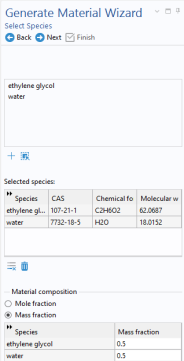
 Next in the window toolbar.
 Next in the window toolbar.
 Finish in the window toolbar to create the material.