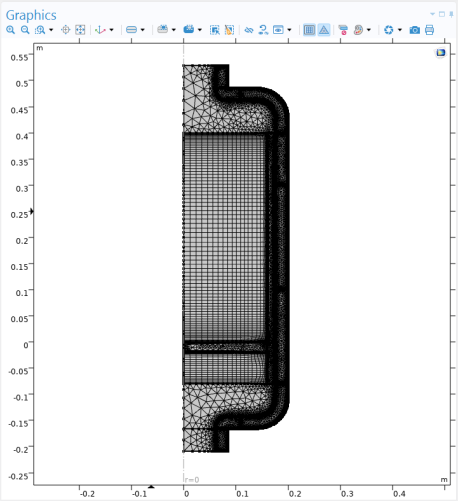
Mesh
Use a Free Triangular mesh for the supportive mat, the metal shell, and the insulating air, and use a mapped mesh for the monoliths. Finally, add a boundary layer mesh to the monoliths, the mat, and the free flow domain.
1
In the Model Builder window, under Monolith Reactor Model click Mesh 1.
2
In the Settings window for Mesh, locate the Sequence Type section.
3
From the list, choose User-controlled mesh.
Size
1
In the Model Builder window, under Monolith Reactor Model > Mesh 1 click Size.
2
In the Settings window for Size, locate the Element Size section.
3
From the Predefined list, choose Coarser.
Size 1
1
In the Mesh toolbar, click
Sizing and choose Size.
2
Drag and drop below Size.
3
In the Settings window for Size, locate the Geometric Entity Selection section.
4
From the Geometric entity level list, choose Domain.
5
Select Domain 4 only.
6
Locate the Element Size section. From the Calibrate for list, choose Fluid dynamics.
7
From the Predefined list, choose Finer.
Mapped 1
1
In the Mesh toolbar, click
Mapped.
2
In the Settings window for Mapped, locate the Domain Selection section.
3
From the Geometric entity level list, choose Domain.
4
From the Selection list, choose ASC Catalyst.
5
Click
Clear Selection.
6
Select Domains 3 and 5 only.
Distribution 1
1
In the Mesh toolbar, click
Distribution.
2
Select Boundaries 6, 8, 10, and 12 only.
3
In the Settings window for Distribution, locate the Distribution section.
4
From the Distribution type list, choose Predefined.
5
In the Number of elements text field, type
20
.
6
In the Element ratio text field, type
3
.
Distribution 2
1
In the Mesh toolbar, click
Distribution.
2
Select Boundaries 9 and 47 only.
3
In the Settings window for Distribution, locate the Distribution section.
4
From the Distribution type list, choose Predefined.
5
In the Number of elements text field, type
80
.
6
In the Element ratio text field, type
10
.
7
Select the Symmetric distribution checkbox.
Distribution 3
1
In the Mesh toolbar, click
Distribution.
2
Select Boundaries 5 and 44 only.
3
In the Settings window for Distribution, locate the Distribution section.
4
From the Distribution type list, choose Predefined.
5
In the Number of elements text field, type
20
.
6
In the Element ratio text field, type
3
.
7
Select the Symmetric distribution checkbox.
Distribution 4
In the Mesh toolbar, click
Distribution.
Size 1
1
In the Model Builder window, right-click Free Triangular 1 and choose Size.
2
In the Settings window for Size, locate the Geometric Entity Selection section.
3
From the Geometric entity level list, choose Domain.
4
Select Domain 7 only.
Boundary Layers 1
1
In the Mesh toolbar, click
Boundary Layers.
2
Drag and drop below Boundary Layers 1.
3
In the Settings window for Boundary Layers, locate the Domain Selection section.
4
From the Geometric entity level list, choose Domain.
5
Select Domains 3–5 and 14 only.
Boundary Layer Properties
1
In the Model Builder window, click Boundary Layer Properties.
2
Select Boundaries 8, 10, 44, 46, and 47 only.
3
In the Settings window for Boundary Layer Properties, locate the Layers section.
4
In the Number of layers text field, type
6
.
5
In the Stretching factor text field, type
1.3
.
Boundary Layers 1
1
In the Model Builder window, click Boundary Layers 1.
2
Drag and drop below Free Triangular 1.
3
In the Settings window for Boundary Layers, click
Build All, then click the Zoom Extents button
in the Graphics toolbar to view the entire geometry.
 Sizing and choose Size.
 Mapped.
 Clear Selection.
 Distribution.
 Distribution.
 Distribution.
 Distribution.
 Boundary Layers.
 Build All, then click the Zoom Extents button
  in the Graphics toolbar to view the entire geometry.