|
2
|
|
2
|
Type Monolith Reactor Model in the Label text field.
|
|
3
|
Browse to the model’s Application Libraries folder and double-click the file monolith_reactor_geom_sequence.mph.
|
|
domain 5
|
|
|
domain 3
|
|
|
domain 14
|
|
|
domain 7, 15
|
|
|
boundary 12
|
|
|
boundary 6
|
|
|
domain 4
|
|
|
domain 8-13,16-18
|
 , it is also possible to add Union Selection
  . Such selections combine one or more Explicit Selections. This is shown later in section Union Selections in this modeling instructions.
|
4
|
Browse to the model’s Application Libraries folder and double-click the file monolith_reactor_temperature_monolith_parameters.txt.
|
|
6
|
Browse to the model’s Application Libraries folder and double-click the file monolith_reactor_SCR_kinetics_variables.txt.
|
|
7
|
In the Label text field, type Variables: SCR Kinetics.
|
|
2
|
In the Settings window for Variables, type Variables: ASC Kinetics in the Label text field.
|
|
3
|
|
6
|
Browse to the model’s Application Libraries folder and double-click the file monolith_reactor_ASC_kinetics_variables.txt.
|
|
2
|
In the Settings window for Variables, type Variables: Postprocessing in the Label text field.
|
|
4
|
Browse to the model’s Application Libraries folder and double-click the file monolith_reactor_postprocessing_variables.txt.
|
|
10
|
In the Settings window for Chemistry, type Chemistry: ASC in the Label text field.
|
 .
. Build All.
 features added to the geometry makes this process more efficient. The imported geometry sequence contains eight predefined Explicit Selection nodes. The names and the selected entities of these selections are seen in the table below.
 menu in the Geometry toolbar.
 Load from File.
 and choose Local variables. Optionally, go to the Model Builder window, expand the Monolith Reactor Model, right-click Definitions
  , and choose Variables
  .
. Load from File.
 Load from File.
 Load from File.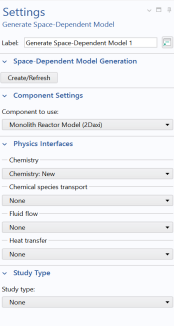
 Generate Space-Dependent Model.