|
6
|
|
1
|
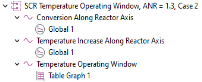
In the Settings window for 1D Plot Group, type Conversion Along Reactor Axis in the Label text field.
|
|
3
|
In the Settings window for 1D Plot Group, type Temperature Increase Along Reactor Axis in the Label text field.
|
|
2
|
In the Settings window for Evaluation Group, type Temperature Operating Window in the Label text field.
|
|
16
|
In the Settings window for 1D Plot Group, type Temperature Operating Window in the Label text field.
|
|
3
|
In the Settings window for Group, type SCR Temperature Operating Window, ANR = 1.3, Case 2 in the Label text field.
|
 Clear Table.
 Zoom Extents button in the Graphics toolbar.
 Plot.
Plot. Zoom Extents button in the Graphics toolbar.
 Plot.
Plot. Evaluation Group.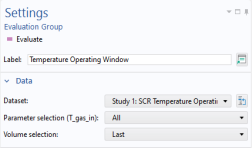
 Clear Table.
 Evaluate.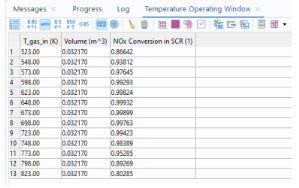
 Table Graph button in the window toolbar.
 Zoom Extents button in the Graphics toolbar.
 Plot.
Plot.