Creating an Explicit Selection
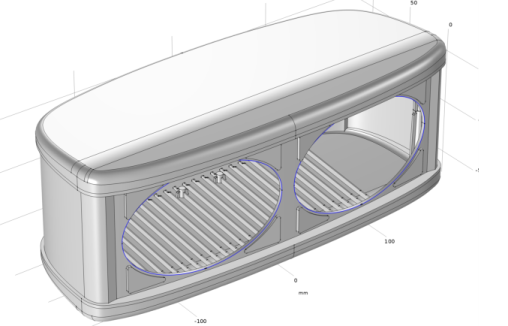
The Cap Faces operation, which you will use to create a domain inside the enclosure, needs an input in form of the bounding edges of the empty volume that should be turned into a solid. For this geometry these are the edges highlighted in the figure below.
You could select these edges directly in the Cap Faces operation, however a more efficient way, which only requires the selection of one segment from each edge loop, is to use an Explicit Selection where you have the option to automatically include continuous edges in the selection.
1
In the Geometry toolbar click Selections
and choose Explicit Selection
.
2
In the Settings window for Explicit Selection select Edge from the Geometric entity level list.
3
Also select the Group by continuous tangent checkbox.
4
From the Graphics window select one edge each from the two edge loops highlighted in the figure above. Continuous edges are automatically added to the selection. When done check that all edges are highlighted.
5
Switch to the Selection List window, or open it again, to check that Explicit Selection 1 now appears under Edge Selections.
 and choose Explicit Selection
  .
.