Use the toolbar at the top of the Settings window for navigating between the different steps.
Click Create to create and build a new Partition with Ball operation in the selected meshing sequence. Click
Refresh to refresh the available options of the ball
Radius list after activating or deactivating clipping.
In the Target section, from
Mesh list you can specify the meshing sequence for which the Partition with Ball node should be created. You can only select meshes that define their own geometric model, and are not locked or empty. The list contains the applicable meshes from the current component.
The options for the ball Radius include three different methods for specifying the radius of the Partition with Ball operation.
Select Automatic to calculate the radius as twice the average mesh size.
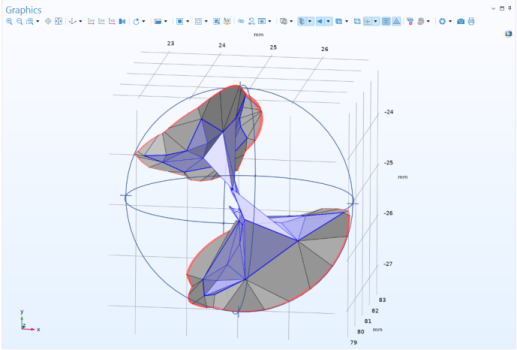
The Manual option allows you to enter a user-defined value for the radius, as shown in the figure below.
With a From Clip Sphere option the radius is set to be the same as the radius of the clip sphere from the graphics window. Adjust the clip sphere to the desired size, before creating the Partition with Ball feature.For the Partition with Ball feature that is created, the center of the ball is set to the center of the clip sphere if
Radius is set to
From Clip Sphere. When
Radius is
Automatic or
Manual, the center of the ball is set to the center of rotation in the Graphics window. To modify the center of rotation, you can middle-click on the canvas, or click the
Center at Coordinates button in an Error or Information node in the meshing sequence. Note that setting the rotation point in the Graphics windows and using Clip Sphere is only supported for the OpenGL renderer.
From the Include element if ball contains list select the condition for which a mesh element is considered enclosed by the specified ball. Choose
All vertices to enclose only the elements that have all of their vertices inside the ball, or choose
Some vertex to enclose the elements with at least one vertex inside the ball.
In the Information section, you will find a short description of the add-in functionality.