Impedance Boundary Condition
The Impedance Boundary Condition provides a boundary condition that is useful at exterior boundaries, where the electromagnetic field penetrates only a short distance outside the boundary. The boundary condition approximates this penetration to avoid the need to include another domain in the model. The material properties that appear in the equation are those for the conductive material excluded from the model.
The impedance boundary condition is a valid approximation if the skin depth is small compared to the size of the conductor. The source electric field Es can be used to specify an additional source surface current on the boundary.
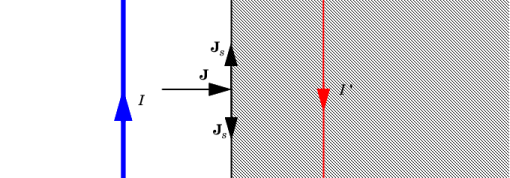
The impedance boundary condition is used on exterior boundaries representing the surface of a lossy domain. The shaded (lossy) region is not part of the model. The effective induced image currents are of reduced magnitude due to losses. Any current flowing into the boundary is perfectly balanced by induced surface currents as for the perfect electric conductor boundary condition. The tangential magnetic field and the surface current at the boundary are relates as
where n is an outer normal. In frequency domain, the surface current can be related to the tangential electric field using the following admittance form:
where
and the surface admittance is computed as
where ω = 2πf, and
is the wave number (complex-valued).
The skin depth (that is, the distance where the electromagnetic field has decreased by a factor e1) can be computed as
For a good conductor, the expression simplifies into
For time domain and eigenfrequency computations, the surface admittance is approximated using the partial fraction fit. The frequency-dependent relations for the surface currents are replaced by a number of distributed ODE solved in time domain for auxiliary variables that represent time-dependent contributions to the tangential electric fields.
Thus
where the skin depth is computed at a certain reference frequency ωc. The surface current is computed then as
where the auxiliary electric fields satisfy the equations
The Harmonic Perturbation subnode (it is of the exclusive type) is available from the context menu (right-click the parent node) or in the Physics toolbar, click the Attributes menu and select Harmonic Perturbation. You can use it to specify a perturbation source electric field Es. For more information see Harmonic Perturbation — Exclusive and Contributing Nodes in the COMSOL Multiphysics Reference Manual.
Impedance Boundary Condition
The following material properties can be defined for the domain outside the boundary, which this boundary condition approximates. The default use the values From material. For User defined enter different values or expressions.
Relative permittivity, εrb (dimensionless)
Relative permeability, μrb (dimensionless)
Electric conductivity, σb (SI unit: S/m)
Based on space dimension, enter coordinate values or expressions for the Source electric field Es (SI unit: V/m).
Time Domain and Eigenfrequency
Use this section to configure and compute approximation of the surface admittance, which is needed for time domain and eigenfrequency computations.
For Frequency range, you can specify either Bandwidth and center (default) or Minimum and maximum.
Enter either
Center frequency, fc (SI unit: Hz)
Bandwidth (decades), nd (dimensionless)
or alternatively
Minimum frequency, fmin (SI unit: Hz)
Maximum frequency, fmax (SI unit: Hz)
In both cases, you can specify the approximation Accuracy. Note that both higher accuracy and wider frequency range can require using more auxiliary variables together with the corresponding ODEs to be solved during time domain and eigenfrequency computations.
The approximation computation needs to be done as a preprocessing step. Use the Compute approximation () action button available in the upper-right corner of Time Domain and Eigenfrequency section. The approximation computation is quick, and it will also compute and show the skin depth value at the center frequency. Once the computation has been performed, you can preview it using the Preview plot () action button that will become active at the section. You can also check the Show approximation data checkbox to inspect the actual computed values.