. The Study node automatically defines a solution sequence for the simulation based on the selected physics and study type. In this case, the simulation only takes a few seconds to solve. During the solution process, two Convergence plots are generated and are available from tabs next to the Graphics window. These plots show the convergence progress of the different solver algorithms engaged by the Study. Once it is finished, several default plots will show under the Results node.
 button in the Graphics toolbar.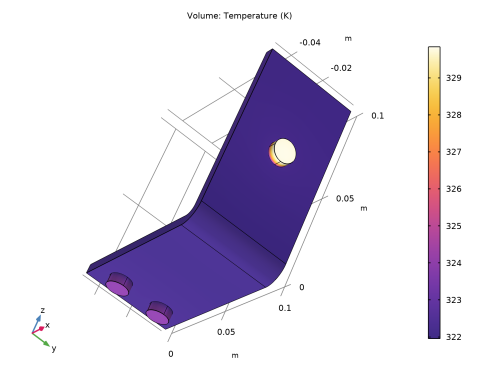
 .
. button in the Graphics toolbar.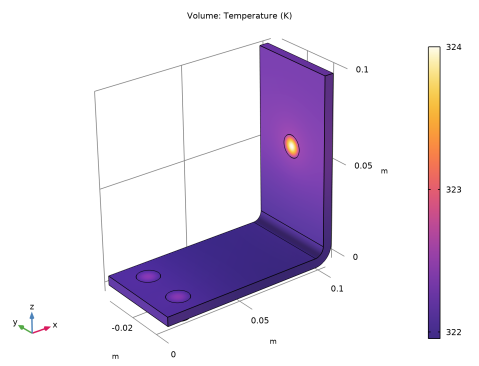
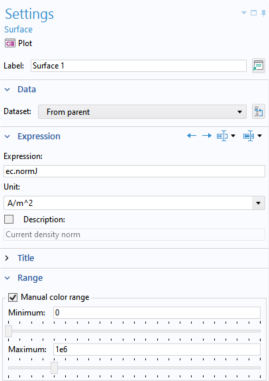
 to display it in the Graphics window. As it can be seen, the plot is almost uniform in color due to the high current density at the contact edges with the bolts. The next step is to manually change the color table range to visualize the current density distribution. Click to expand the Range section. Select the Manual color range checkbox.
 . The resulting plot shows that the current takes the shortest path in the 90-degree bend in the busbar. Notice that the edges of the busbar outside of the bolts are hardly carrying any current.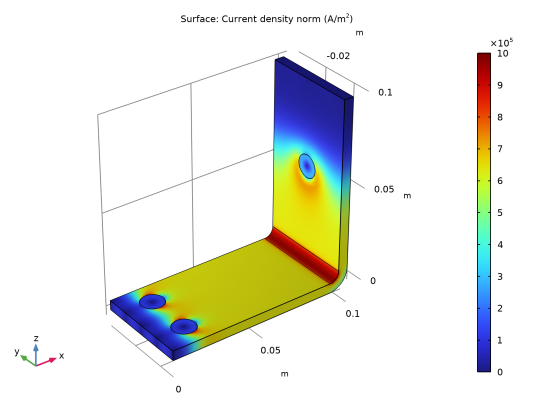
 .
.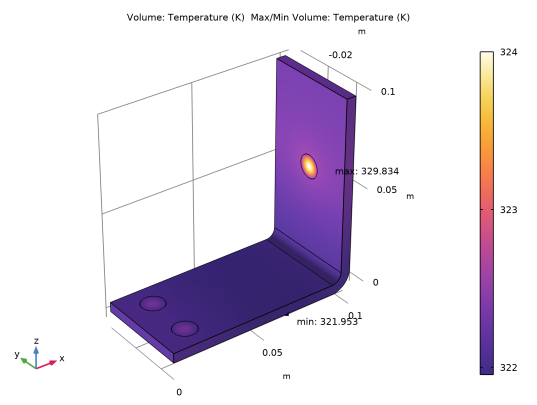
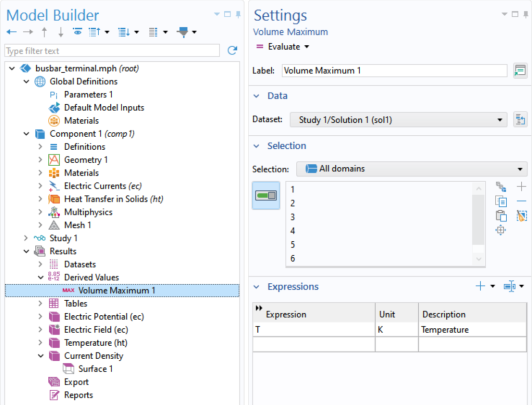
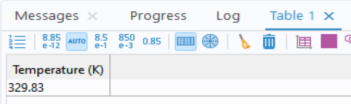
 button and a table will show up and display the value of the maximum temperature.