PDF

In-Plane Switching of a Liquid Crystal Cell
Introduction
Liquid crystals (LCs) are liquid organic materials showing a certain degree of ordering, either positional and/or orientational.
Many types of liquid-crystal materials exist, like nematic, smectic, and cholesteric. Both nematic and smectic LCs line up in the same direction. However, smectic LCs form layers of aligned molecules, whereas nematic LCs do not. For cholesteric LCs, on the other hand, the molecules align in thin layers, but each layer has a slightly different orientation relative the neighboring layers.
Most of the applications for LCs are related to displays. Examples are screens for TVs, laptops, and mobile phones. Other nondisplay applications are laser beam steering and wavelength tunable filters.
Nematic LCs can be used in many different configuration. Typically the LC material is placed between a polarizer and an analyzer. The polarizer and analyzer only transmit light having linear polarization in a certain direction. For most cases, the polarizer and the analyzer polarization directions are orthogonal. So, unless the LC material rotates the polarization of the electromagnetic wave passing through it, the total transmittance through the device will be very low. This configuration is the normally-black mode. However, if the LC material rotates the polarization plane of the transmitted wave by 90 degrees, the device will be configured in the normally-white mode.
In LC devices, the surfaces next to the liquid crystal are rubbed to align the molecules in a specific direction. It is said that the molecules are anchored to the adjacent boundary.
For twisted nematic LC cells, the molecules are anchored to the two opposing boundaries at an angle of 90 degrees. Thus, without any applied field, the molecules in the LC will spiral around axes that are aligned between the top and bottom boundaries. An input wave, with a polarization aligned with the anchoring angle at the LC entrance boundary, will have its polarization plane rotate 90 degrees as the wave propagates through the LC layer. Thereby, the analyzer will transmit the wave and the device operates in the normally-white mode.
For a twisted nematic LC cell, the transmittance is controlled by applying a voltage difference between the top and bottom boundaries. When the electric field is large enough, the molecules will align with the electric field, and thereby the polarization plane for the optical wave will no longer rotate as the wave passes the LC layer. Then the analyzer will block the wave and the pixel will appear black.
For nonnormal propagation, the zero-field polarization rotation will be smaller and thereby the pixel will appear less white. Thus, a problem with twisted nematic LC displays is that they have a limited viewing angle.
To improve the viewing angle, many new LC display configurations have been invented. In this model, the in-plane switching (IPS) configuration will be used. Here, the anchoring angles for the top and bottom boundaries are the same, forming a nominally-black configuration.
In the IPS configuration, the control electrodes are placed on the same boundary. Thus, when a voltage is applied to one of the electrodes, the electric field between the electrodes will be parallel to the boundaries. This will make the molecules rotate to follow the electric field direction. Now, when the optical wave passes through the LC layer, the polarization state will change so a substantial part of the wave will be transmitted through the analyzer.
Model Definition
In this model, the Oseen–Frank theory for the liquid crystal material will be used. The starting point for this theory is that the local molecule directions in the liquid crystal can be described by a unit vector n(r) — the director field.
Since this director field is of unit length, two angles can parameterize the vector field,
.
The director field is used in the Oseen–Frank free energy density for nematic LCs,
.
Here, K11, K22, and K33 are the Frank elastic constants describing the splay, twist, and bend contributions, respectively. The values for these constants depend on the particular material, but have values of the order of 1 pN.
When an electric field is applied, the electric energy density,
is subtracted from the elastic free energy. Here, D is the electric displacement field, defined by
Here, ε and ε|| are the relative permittivity values when the field is orthogonal or parallel to the director direction, respectively. This equation represents the electric displacement field for the statically applied electric field.
The relative permittivity is also anisotropic for the optical field. In this case, the orthogonal value is called the relative permittivity for ordinary polarization and the parallel value is called the relative permittivity for the extraordinary polarization.
To solve for the director field and the electrostatic field, a Weak Form PDE interface is used for minimizing the energies and the Electrostatics interface is used for solving for the electric potential. Solving for the director field and the electric potential is done self-consistently, forming a nonlinear equation system.
The weak expression used for minimizing the free energy is test(F)-var(es.W,theta,phi). COMSOL Multiphysics integrates this expression over the LC domain and the test and var operators take the derivatives of the degrees of freedom for the dependent variables — the angles theta and phi — to find the equations that minimizes the energy. Here, F is the Oseen–Frank free energy density, previously defined, and es.W is the electric energy density, as defined by the Electrostatics interface (having the tag es). The reason test is used in the first term and var is used in the second term, is because we only want to take the derivatives with respect to the degrees of freedom for the director angles. If we would have used the test operator also on es.W, also the derivatives of the degrees of freedom for the electric potential would have been included. However, with the var operator, it is possible to specify with respect to what dependent variables you would like to perform the derivatives.
The model is inspired by the IPS device discussed in Ref. 1.
Results and Discussion
Figure 1 shows the distribution of the director field in the LC. At 5 V, the field in the region between the electrodes is almost tangential to the top and bottom boundaries. This makes the directors rotate in that region and almost align with the electric field direction.
Figure 1: The arrow plot at the top shows the x and y components of the director field. The middle surface plot shows the distribution of the angle phi and the bottom plot shows the distribution of the angle theta. The applied voltage is 5 V.
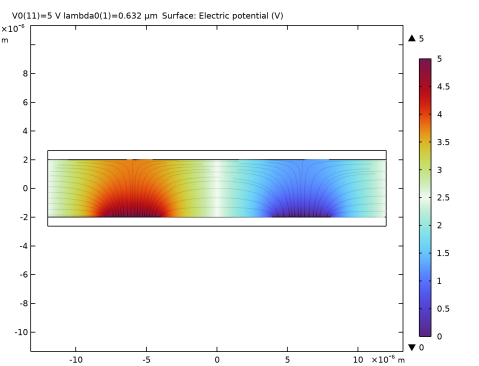
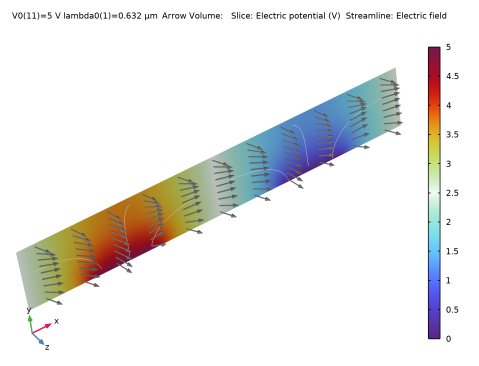
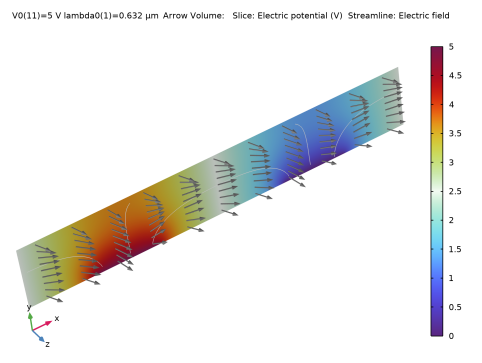
The 3D plot in Figure 2 more clearly shows how the directors rotates and almost align with the applied electric field in the region between the electrodes.
Figure 2: This 3D plot shows the director distribution (gray arrows). The slice plot shows the electric potential distribution and the stream lines follow the electric field. The applied voltage is 5 V.
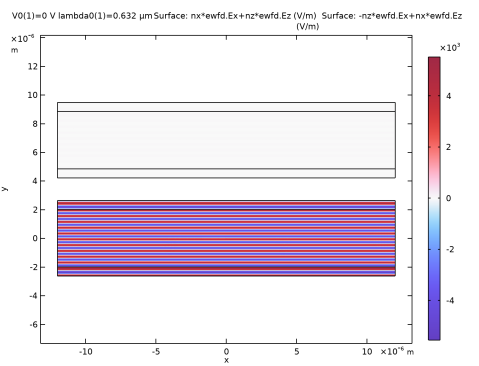
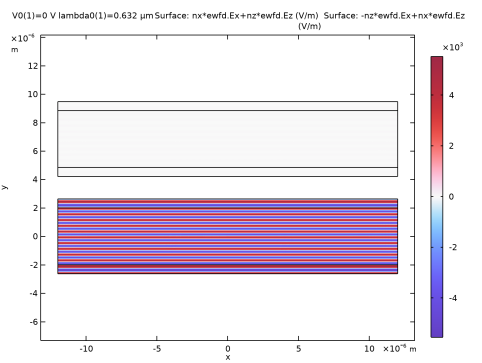
Figure 3 shows the electric field of the optical wave when no voltage is applied. As there is no change of the polarization state, when the wave propagates through the LC layer, the analyzer, oriented at an angle of 90 degrees relative the polarizer, will absorb all light. Thus, this device operates in a normally-black mode.
Figure 3: The bottom plot shows the electric field component for the same polarization as the input wave. The top plot shows the electric field component for a polarization that is orthogonal to the input wave polarization. No voltage is applied.
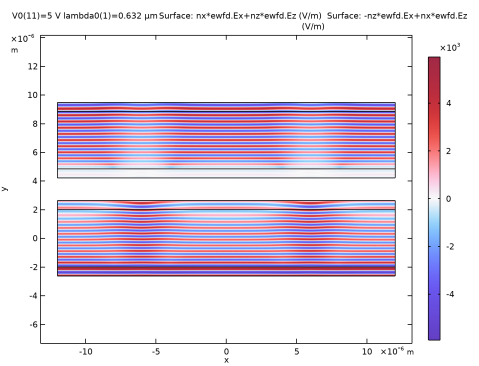
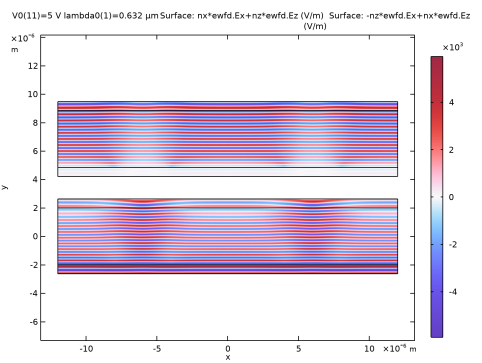
In Figure 4, the applied voltage is 5 V. Now, it is clear that the field with an orthogonal polarization relative the input field (top) is strong. Thus, a large change of the polarization state happens when the wave passes the LC.
The field is not uniform in the x direction. This indicates that diffraction to higher-order modes appear, due to the inhomogeneous refractive index distribution.
Figure 4: A similar plot as in Figure 3, but now the applied voltage is 5 V.
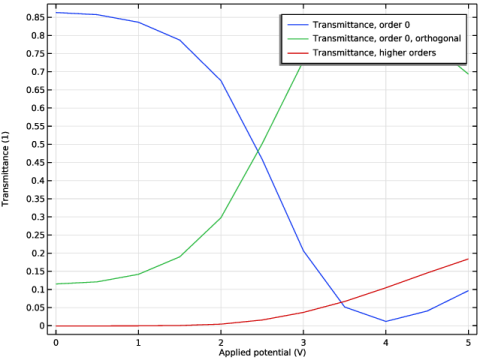
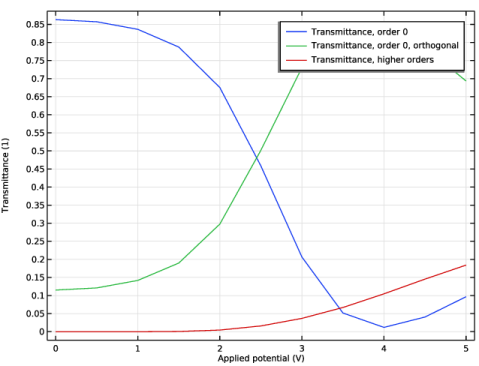
The behavior displayed in Figure 3 and Figure 4 is also confirmed when inspecting the transmittances in Figure 5. The transmittance for the field component having the same polarization as the input wave decreases with an increasing applied potential, whereas the transmittance for the field component with a polarization orthogonal to the input wave increases with increasing applied potential. In addition, the diffraction due to higher-order modes with increasing applied potential is also noticeable from the red curve.
As the analyzer is aligned with the direction orthogonal to the input wave polarization, the transmittance for the device can change from a very low value at zero applied voltage to a fairly high value at the higher applied voltages. Thereby, this device can have a high dynamic range.
Figure 5: The transmittance for the wave having the same polarization as the input wave (blue) and the transmittance for the wave having a polarization orthogonal to the input wave (green). The red curve displays diffraction to higher-order modes, propagating in nonnormal directions.
Reference
1. R. Lu and others, “Ultrawide-View Liquid Crystal Displays,” J. Displ. Technol., vol. 1, no. 1, pp. 3–14, 2005.
Application Library path: Wave_Optics_Module/Modulators_and_Switches/in_plane_switching_liquid_crystal_cell
Modeling Instructions
From the File menu, choose New.
New
In the New window, click  Model Wizard.
Model Wizard
1
In the Model Wizard window, click  2D.
2
In the Select Physics tree, select Mathematics > PDE Interfaces > Weak Form PDE (w).
3
Click Add.
4
In the Select Physics tree, select AC/DC > Electric Fields and Currents > Electrostatics (es).
5
Click Add.
6
In the Select Physics tree, select Optics > Wave Optics > Electromagnetic Waves, Frequency Domain (ewfd).
7
Click Add.
8
Click  Study.
9
In the Select Study tree, select Preset Studies for Some Physics Interfaces > Stationary.
10
Global Definitions
Next, load some parameters that define the material properties and the geometry from files.
General Parameters
1
In the Model Builder window, under Global Definitions click Parameters 1.
2
In the Settings window for Parameters, type General Parameters in the Label text field.
3
Locate the Parameters section. Click  Load from File.
4
Browse to the model’s Application Libraries folder and double-click the file in_plane_switching_liquid_crystal_cell_general_parameters.txt.
Material Parameters
1
In the Home toolbar, click  Parameters and choose Add > Parameters.
2
In the Settings window for Parameters, type Material Parameters in the Label text field.
3
Locate the Parameters section. Click  Load from File.
4
Browse to the model’s Application Libraries folder and double-click the file in_plane_switching_liquid_crystal_cell_material_parameters.txt.
Geometry Parameters
1
In the Home toolbar, click  Parameters and choose Add > Parameters.
2
In the Settings window for Parameters, type Geometry Parameters in the Label text field.
3
Locate the Parameters section. Click  Load from File.
4
Browse to the model’s Application Libraries folder and double-click the file in_plane_switching_liquid_crystal_cell_geometry_parameters.txt.
Geometry 1
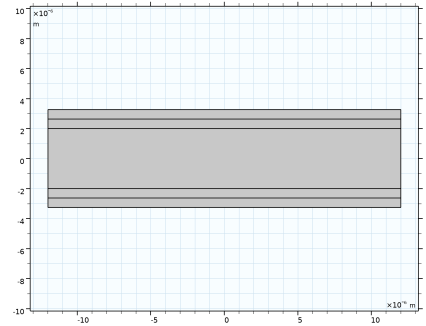
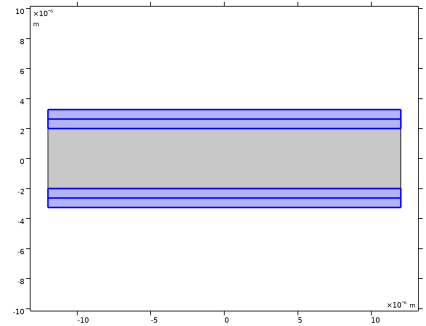
Now, add the geometry, consisting of a rectangle representing the liquid crystal layer and the surrounding glass layers. Furthermore, polygons are used for representing the electrodes.
Rectangle 1 (r1)
1
In the Geometry toolbar, click  Rectangle.
2
In the Settings window for Rectangle, locate the Size and Shape section.
3
In the Width text field, type width.
4
In the Height text field, type height.
5
Locate the Position section. From the Base list, choose Center.
6
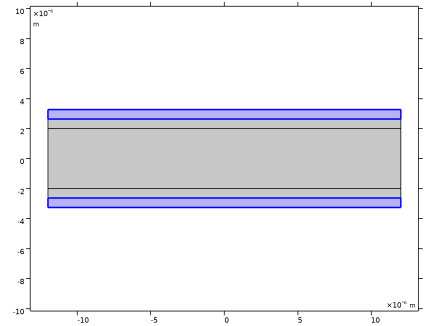
Click to expand the Layers section. In the table, enter the following settings:
7
Select the Layers on top checkbox.
8
Click  Build All Objects.
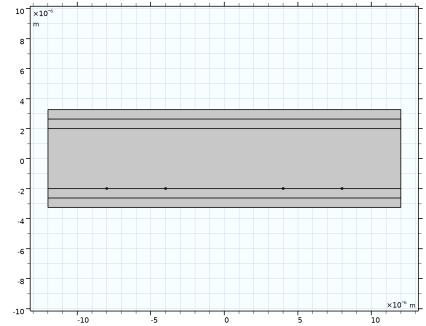
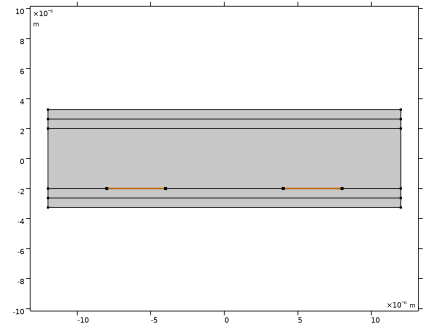
Polygon 1 (pol1)
1
In the Geometry toolbar, click  Polygon.
2
In the Settings window for Polygon, locate the Coordinates section.
3
4
Locate the Selections of Resulting Entities section. Find the Cumulative selection subsection. Click New.
5
In the New Cumulative Selection dialog, type Electric Potential in the Name text field.
6
7
In the Settings window for Polygon, click  Build Selected.
Polygon 2 (pol2)
1
Right-click Polygon 1 (pol1) and choose Duplicate.
2
In the Settings window for Polygon, locate the Coordinates section.
3
4
Locate the Selections of Resulting Entities section. Find the Cumulative selection subsection. Click New.
5
In the New Cumulative Selection dialog, type Ground in the Name text field.
6
7
In the Settings window for Polygon, click  Build All Objects.
Definitions
Add some selections that will be used when defining the physics, materials, mesh, and plots.
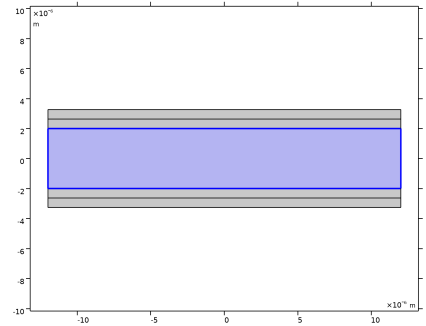
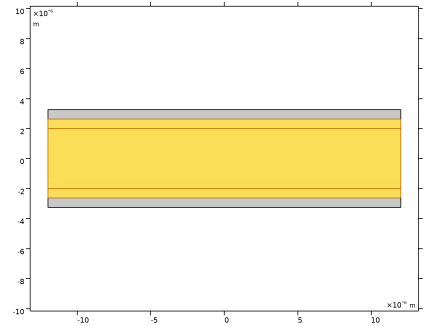
Liquid Crystal
1
In the Definitions toolbar, click  Explicit.
2
In the Settings window for Explicit, type Liquid Crystal in the Label text field.
3
PML
1
In the Definitions toolbar, click  Explicit.
2
In the Settings window for Explicit, type PML in the Label text field.
3
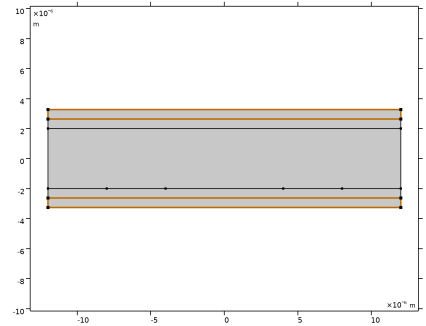
Glass
1
In the Definitions toolbar, click  Explicit.
2
In the Settings window for Explicit, type Glass in the Label text field.
3
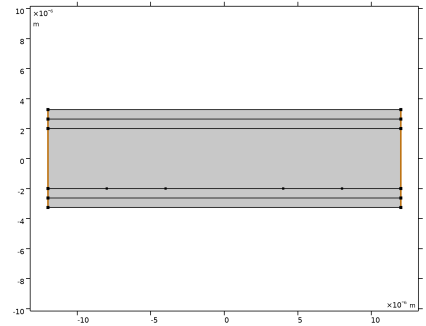
The electromagnetic wave will propagate both in the liquid crystal and in the surrounding glass layers.
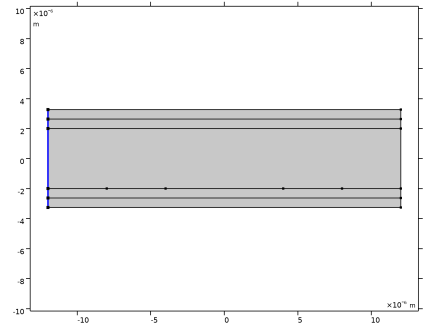
Left Periodic Boundary
1
In the Definitions toolbar, click  Explicit.
2
In the Settings window for Explicit, type Left Periodic Boundary in the Label text field.
3
Locate the Input Entities section. From the Geometric entity level list, choose Boundary.
4
Click the  Select Box button in the Graphics toolbar.
5
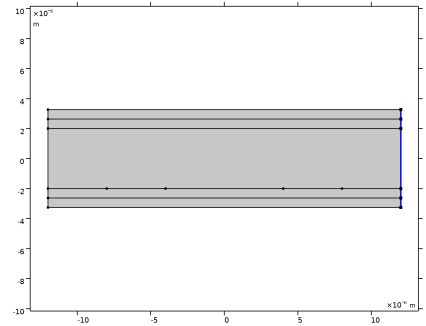
Right Periodic Boundary
1
In the Definitions toolbar, click  Explicit.
2
In the Settings window for Explicit, type Right Periodic Boundary in the Label text field.
3
Locate the Input Entities section. From the Geometric entity level list, choose Boundary.
4
Click the  Select Box button in the Graphics toolbar.
5
Periodic Boundaries
1
In the Definitions toolbar, click  Union.
2
In the Settings window for Union, type Periodic Boundaries in the Label text field.
3
Locate the Geometric Entity Level section. From the Level list, choose Boundary.
4
Locate the Input Entities section. Under Selections to add, click  Add.
5
In the Add dialog, in the Selections to add list, choose Left Periodic Boundary and Right Periodic Boundary.
6
PML Boundaries
1
In the Definitions toolbar, click  Adjacent.
2
In the Settings window for Adjacent, type PML Boundaries in the Label text field.
3
Locate the Input Entities section. Under Input selections, click  Add.
4
In the Add dialog, select PML in the Input selections list.
5
PML Distribution Boundaries
1
In the Definitions toolbar, click  Intersection.
2
In the Settings window for Intersection, type PML Distribution Boundaries in the Label text field.
3
Locate the Geometric Entity Level section. From the Level list, choose Boundary.
4
Locate the Input Entities section. Under Selections to intersect, click  Add.
5
In the Add dialog, in the Selections to intersect list, choose Periodic Boundaries and PML Boundaries.
6
Non-PML
1
In the Definitions toolbar, click  Difference.
2
In the Settings window for Difference, type Non-PML in the Label text field.
3
Locate the Input Entities section. Under Selections to add, click  Add.
4
In the Add dialog, in the Selections to add list, choose Liquid Crystal and Glass.
5
6
In the Settings window for Difference, locate the Input Entities section.
7
Under Selections to subtract, click  Add.
8
In the Add dialog, select PML in the Selections to subtract list.
9
Electrodes
1
In the Definitions toolbar, click  Union.
2
In the Settings window for Union, type Electrodes in the Label text field.
3
Locate the Geometric Entity Level section. From the Level list, choose Boundary.
4
Locate the Input Entities section. Under Selections to add, click  Add.
5
In the Add dialog, in the Selections to add list, choose Electric Potential and Ground.
6
Liquid Crystal Domain Variables
Before adding the Oseen–Frank equations to the Weak Form PDE interface, add variables representing the elastic free energy density of the liquid crystal material.
1
In the Model Builder window, right-click Definitions and choose Variables.
2
In the Settings window for Variables, type Liquid Crystal Domain Variables in the Label text field.
3
Locate the Geometric Entity Selection section. From the Geometric entity level list, choose Domain.
4
From the Selection list, choose Liquid Crystal.
5
Locate the Variables section. Click  Load from File.
6
Browse to the model’s Application Libraries folder and double-click the file in_plane_switching_liquid_crystal_cell_domain_variables.txt.
Some of the expressions added above are colored orange, to warn that all variables included are not yet defined. These variables will be defined in a later step.
Oseen-Frank
1
In the Model Builder window, under Component 1 (comp1) click Weak Form PDE (w).
2
In the Settings window for Weak Form PDE, type Oseen-Frank in the Label text field.
3
Locate the Domain Selection section. From the Selection list, choose Liquid Crystal.
The dependent variables will be two angles that defines the directions for the liquid crystal director field.
4
Locate the Units section. Click  Select Dependent Variable Quantity.
5
In the Physical Quantity dialog, type Plane in the text field.
6
In the tree, select General > Plane angle (rad).
7
8
In the Settings window for Weak Form PDE, click to expand the Dependent Variables section.
9
In the Number of dependent variables text field, type 2.
10
In the Dependent variables (rad) table, enter the following settings:
Weak Form PDE 1
1
In the Model Builder window, under Component 1 (comp1) > Oseen-Frank (w) click Weak Form PDE 1.
2
In the Settings window for Weak Form PDE, locate the Weak Expressions section.
3
In the weak text-field array, type test(F) on the first row.
4
In the weak text-field array, type -var(es.W,theta,phi) on the second row.
These two weak expressions are added and results in a minimization of the Oseen–Frank free energy with respect to the two angles, the dependent variables theta and phi.
Strong Anchoring
1
In the Physics toolbar, click  Boundaries and choose Dirichlet Boundary Condition.
At the top and bottom boundaries, the director angles are fixed. This is called a Strong anchoring condition.
2
In the Settings window for Dirichlet Boundary Condition, type Strong Anchoring in the Label text field.
3
4
Locate the Dirichlet Boundary Condition section. In the r1 text field, type theta_anchoring.
5
In the r2 text field, type phi_anchoring.
Periodic Condition 1
1
In the Physics toolbar, click  Boundaries and choose Periodic Condition.
2
In the Settings window for Periodic Condition, locate the Boundary Selection section.
3
From the Selection list, choose Periodic Boundaries.
Electrostatics (es)
1
In the Model Builder window, under Component 1 (comp1) click Electrostatics (es).
2
In the Settings window for Electrostatics, locate the Domain Selection section.
3
From the Selection list, choose Liquid Crystal.
Charge Conservation in Fluids 1
1
In the Physics toolbar, click  Domains and choose Charge Conservation in Fluids.
2
In the Settings window for Charge Conservation in Fluids, locate the Domain Selection section.
3
From the Selection list, choose Liquid Crystal.
4
Locate the Constitutive Relation D-E section. From the εr list, choose User defined. From the list, choose Symmetric.
5
Specify the εr matrix as
This relative permittivity will be used when solving the electrostatics problem.
Ground 1
1
In the Physics toolbar, click  Boundaries and choose Ground.
2
In the Settings window for Ground, locate the Boundary Selection section.
3
From the Selection list, choose Ground.
Electric Potential 1
1
In the Physics toolbar, click  Boundaries and choose Electric Potential.
2
In the Settings window for Electric Potential, locate the Boundary Selection section.
3
From the Selection list, choose Electric Potential.
4
Locate the Electric Potential section. In the V0 text field, type V0.
Periodic Condition 1
1
In the Physics toolbar, click  Boundaries and choose Periodic Condition.
2
In the Settings window for Periodic Condition, locate the Boundary Selection section.
3
From the Selection list, choose Periodic Boundaries.
Definitions
Perfectly Matched Layer 1 (pml1)
1
In the Definitions toolbar, click  Perfectly Matched Layer.
2
In the Settings window for Perfectly Matched Layer, locate the Domain Selection section.
3
From the Selection list, choose PML.
Electromagnetic Waves, Frequency Domain (ewfd)
Periodic Structure 1
1
In the Physics toolbar, click  Domains and choose Periodic Structure.
The Periodic Structure node automatically adds and configures Periodic Port and Floquet Periodic Condition subnodes, and also adds Wave Equation, Electric and Perfect Electric Conductor default subnodes.
Wave Equation, Electric 1
1
In the Model Builder window, expand the Periodic Structure 1 node, then click Wave Equation, Electric 1.
2
In the Settings window for Wave Equation, Electric, locate the Electric Displacement Field section.
3
From the Electric displacement field model list, choose Relative permittivity.
Now, the materials will request values for the relative permittivity, the relative permeability, and the electric conductivity.
Materials
Liquid Crystal
1
In the Model Builder window, under Component 1 (comp1) right-click Materials and choose Blank Material.
2
In the Settings window for Material, type Liquid Crystal in the Label text field.
3
Locate the Geometric Entity Selection section. From the Selection list, choose Liquid Crystal.
4
Locate the Material Contents section. In the table, click to select the cell at row number 1 and column number 3.
5
Right-click the Relative permittivity row and choose Edit.
6
In the Relative permittivity dialog, choose Symmetric from the list.
7
8
9
In the Settings window for Material, locate the Material Contents section.
10
The material properties above will only be used by the Electromagnetic Waves, Frequency Domain interface. The relative permittivity for the Electrostatics interface has already been added to the Charge Conservation node as a user-defined material property.
Glass
1
Right-click Materials and choose Blank Material.
2
In the Settings window for Material, type Glass in the Label text field.
3
Locate the Geometric Entity Selection section. From the Selection list, choose Glass.
4
Locate the Material Contents section. In the table, enter the following settings:
Using the extraordinary refractive index will reduce reflections at the boundaries between the liquid crystal and the glass.
Definitions
Port Mode Field Polarization Variables
1
In the Model Builder window, under Component 1 (comp1) right-click Definitions and choose Variables.
2
In the Settings window for Variables, type Port Mode Field Polarization Variables in the Label text field.
3
Locate the Geometric Entity Selection section. From the Geometric entity level list, choose Domain.
4
From the Selection list, choose Glass.
5
Locate the Variables section. Click  Load from File.
6
Browse to the model’s Application Libraries folder and double-click the file in_plane_switching_liquid_crystal_cell_boundary_variables.txt.
Defining the liquid crystal anchoring directions also in the glass layers, facilitates the definition of the port mode polarizations.
Electromagnetic Waves, Frequency Domain (ewfd)
Periodic Structure 1
1
In the Model Builder window, under Component 1 (comp1) > Electromagnetic Waves, Frequency Domain (ewfd) click Periodic Structure 1.
2
In the Settings window for Periodic Structure, locate the Excited Port Selection section.
3
Click to select the  Activate Selection toggle button.
4
5
Locate the Port Mode Settings section. From the Linear polarization list, choose Mixed.
6
In the ηP text field, type (nx/nz)^2.
Mesh 1
Since the relative permittivity is inhomogeneous and anisotropic, physics-controlled meshing cannot be used. Instead, the mesh will be built manually.
Distribution 1
1
In the Model Builder window, under Component 1 (comp1) right-click Mesh 1 and choose Distribution.
2
In the Settings window for Distribution, locate the Boundary Selection section.
3
From the Selection list, choose PML Distribution Boundaries.
4
Locate the Distribution section. In the Number of elements text field, type 10.
Size
1
In the Model Builder window, click Size.
2
In the Settings window for Size, locate the Element Size section.
3
Click the Custom button.
4
Locate the Element Size Parameters section. In the Maximum element size text field, type lda0/n_e/6, to make sure that the electromagnetic wave is properly resolved.
Identical Mesh 1
1
In the Mesh toolbar, click  More Attributes and choose Identical Mesh.
2
In the Settings window for Identical Mesh, locate the First Entity Group section.
3
From the Selection list, choose Left Periodic Boundary.
4
Locate the Second Entity Group section. From the Selection list, choose Right Periodic Boundary.
The Identical Mesh feature makes the edge meshes on the two opposing periodic boundaries identical.
Free Triangular 1
1
In the Mesh toolbar, click  Free Triangular.
2
In the Settings window for Free Triangular, locate the Domain Selection section.
3
From the Geometric entity level list, choose Domain.
4
From the Selection list, choose Non-PML.
Mapped 1
1
In the Mesh toolbar, click  Mapped.
2
In the Settings window for Mapped, click  Build All.
Study 1
Parametric Sweep
1
In the Study toolbar, click  Parametric Sweep.
2
In the Settings window for Parametric Sweep, locate the Study Settings section.
3
4
5
Click  Range.
6
In the Range dialog, type 0[V] in the Start text field.
7
In the Step text field, type 0.5[V].
8
In the Stop text field, type 5[V].
9
Click Add.
10
In the Settings window for Parametric Sweep, click to expand the Advanced Settings section.
11
Select the Reuse solution from previous step checkbox, to reduce the number of nonlinear iterations.
Step 2: Wavelength Domain
1
In the Study toolbar, click  Study Steps and choose Frequency Domain > Wavelength Domain.
2
In the Settings window for Wavelength Domain, locate the Study Settings section.
3
In the Wavelengths text field, type lda0.
4
Locate the Physics and Variables Selection section. In the Solve for column of the table, under Component 1 (comp1), clear the checkboxes for Oseen-Frank (w) and Electrostatics (es).
5
In the Study toolbar, click  Compute.
Results
We will not be interested in plotting any result from the PML domains, so those domains can be removed from the dataset.
Study 1/Parametric Solutions 1 (sol3)
In the Model Builder window, expand the Results > Datasets node, then click Study 1/Parametric Solutions 1 (sol3).
Selection
1
In the Results toolbar, click  Attributes and choose Selection.
2
In the Settings window for Selection, locate the Geometric Entity Selection section.
3
From the Geometric entity level list, choose Domain.
4
From the Selection list, choose Non-PML.
Oseen-Frank
1
In the Model Builder window, under Results click Oseen-Frank.
2
In the Settings window for 2D Plot Group, locate the Color Legend section.
3
Select the Show maximum and minimum values checkbox.
4
Click to expand the Plot Array section. Select the Enable checkbox.
5
From the Array axis list, choose y.
The last settings will make it possible to plot multiple plots in the same Graphics window.
Surface 1
1
In the Model Builder window, expand the Oseen-Frank node, then click Surface 1.
2
In the Settings window for Surface, locate the Expression section.
3
From the Unit list, choose °.
4
Locate the Coloring and Style section. From the Color table list, choose Dipole.
5
From the Scale list, choose Linear symmetric.
Surface 2
1
Right-click Results > Oseen-Frank > Surface 1 and choose Duplicate.
2
In the Settings window for Surface, locate the Expression section.
3
In the Expression text field, type phi.
4
Click to expand the Inherit Style section. From the Plot list, choose Surface 1.
Arrow Surface 1
1
In the Model Builder window, right-click Oseen-Frank and choose Arrow Surface.
2
In the Settings window for Arrow Surface, locate the Expression section.
3
In the x-component text field, type nx.
4
In the y-component text field, type ny.
5
Locate the Arrow Positioning section. Find the x grid points subsection. In the Points text field, type 25.
Oseen-Frank
Add Line plots to indicate the positions of the electrodes.
Line 1
1
Right-click Oseen-Frank and choose Line.
2
In the Settings window for Line, locate the Expression section.
3
In the Expression text field, type 1.
4
Locate the Coloring and Style section. From the Line type list, choose Tube.
5
In the Tube radius expression text field, type 2.
6
From the Coloring list, choose Uniform.
7
From the Color list, choose Black.
8
Click to expand the Plot Array section. Select the Manual indexing checkbox.
Selection 1
1
Right-click Line 1 and choose Selection.
2
In the Settings window for Selection, locate the Selection section.
3
From the Selection list, choose Electrodes.
Line 2
1
In the Model Builder window, under Results > Oseen-Frank right-click Line 1 and choose Duplicate.
2
In the Settings window for Line, locate the Plot Array section.
3
In the Index text field, type 1.
Line 3
1
Right-click Line 2 and choose Duplicate.
2
In the Settings window for Line, locate the Plot Array section.
3
In the Index text field, type 2.
4
In the Oseen-Frank toolbar, click  Plot.
5
Click the  Zoom Extents button in the Graphics toolbar.
Notice that the angles theta and phi are anchored to 2 and 80 degrees, respectively, at both the top and bottom boundaries.
Furthermore, between the two electrodes, the angle phi as at its minimum value and the angle theta is zero. So, the directors are almost aligned with the electric field in this region.
Oseen-Frank
1
In the Model Builder window, click Oseen-Frank.
2
In the Settings window for 2D Plot Group, click  Plot First.
With no applied electric field, the directors are pointing in the anchoring direction.
Electric Potential (es)
1
In the Model Builder window, click Electric Potential (es).
2
In the Electric Potential (es) toolbar, click  Plot.
3
Click the  Zoom Extents button in the Graphics toolbar.
As expected, the electric field is almost parallel to the electrodes in the region between the electrodes. Thereby, the liquid crystal directors will align in the x direction at the larger applied voltages.
Electric Field (ewfd)
1
In the Model Builder window, click Electric Field (ewfd).
2
In the Settings window for 2D Plot Group, locate the Plot Settings section.
3
Select the x-axis label checkbox. In the associated text field, type x.
4
Select the y-axis label checkbox. In the associated text field, type y.
5
Locate the Plot Array section. Select the Enable checkbox.
6
From the Array axis list, choose y.
With the settings above, plots of different electric field components can be presented in the same Graphics window.
Surface 1
1
In the Model Builder window, expand the Electric Field (ewfd) node, then click Surface 1.
2
In the Settings window for Surface, locate the Expression section.
3
In the Expression text field, type nx*ewfd.Ex+nz*ewfd.Ez. This expression corresponds to the input field polarization.
4
Locate the Coloring and Style section. From the Color table list, choose WaveLight.
Surface 2
1
Right-click Results > Electric Field (ewfd) > Surface 1 and choose Duplicate.
2
In the Settings window for Surface, locate the Expression section.
3
In the Expression text field, type -nz*ewfd.Ex+nx*ewfd.Ez. This expression corresponds to a polarization orthogonal to the input field.
4
Locate the Inherit Style section. From the Plot list, choose Surface 1.
5
Click the  Zoom Extents button in the Graphics toolbar.
6
In the Electric Field (ewfd) toolbar, click  Plot.
Notice that the field with a polarization orthogonal to the input field (the top plot) is generated as the wave propagates in the y direction. Furthermore, diffraction effects happen above the electrodes, where the liquid crystal directors mostly align in the y direction.
As the analyzer is set to let the orthogonal polarization through, the pixel will appear bright at this applied voltage.
7
Click  Plot First.
Now, the orthogonal polarization is almost zero. So, at zero applied voltage the pixel will appear black.
Transmittance (ewfd)
The reflectance will be very small, so it is more important to display the transmittances for the different modes.
1
In the Model Builder window, under Results click Reflectance, Transmittance, and Absorptance (ewfd).
2
In the Settings window for 1D Plot Group, type Transmittance (ewfd) in the Label text field.
3
Locate the Plot Settings section. In the y-axis label text field, type Transmittance (1).
Global 1
1
In the Model Builder window, expand the Transmittance (ewfd) node, then click Global 1.
2
In the Settings window for Global, locate the y-Axis Data section.
3
4
Click  Delete.
5
In the Expression text field, type 1-ewfd.RTtotal.
6
In the Description text field, type Transmittance, higher orders.
7
In the Transmittance (ewfd) toolbar, click  Plot.
Notice that the orthogonal polarization (that will pass through the analyzer) is almost zero at zero applied voltage and larger than 70% at 4.5 V. Thus, this cell will have a large dynamic range.
The red curve indicates that diffraction to higher orders, propagating in nonnormal directions, occurs as the applied voltage is increased.
Polarization Plot (ewfd)
1
In the Model Builder window, under Results click Polarization Plot (ewfd).
2
In the Settings window for 1D Plot Group, locate the Data section.
3
In the Parameter values (V0 (V)) list, choose 0 and 4.5.
Polarization 1
1
In the Model Builder window, expand the Polarization Plot (ewfd) node.
2
Right-click Polarization 1 and choose Delete.
Polarization 2
1
In the Settings window for Polarization, click to expand the Coloring and Style section.
2
Find the Line style subsection. From the Line list, choose Cycle.
3
Click to expand the Legends section. In the table, enter the following settings:
4
In the Polarization Plot (ewfd) toolbar, click  Plot.
The polarization plot shows that the field is linearly polarized at zero applied voltage and elliptically polarized at 4.5 V.
Study 1/Parametric Solutions 1 (sol3)
Finally, make a 3D plot displaying the director orientations and the applied electric field.
Study 1/Parametric Solutions 1 (4) (sol3)
In the Model Builder window, under Results > Datasets right-click Study 1/Parametric Solutions 1 (sol3) and choose Duplicate.
Selection
1
In the Model Builder window, expand the Study 1/Parametric Solutions 1 (4) (sol3) node, then click Selection.
2
In the Settings window for Selection, locate the Geometric Entity Selection section.
3
From the Selection list, choose Liquid Crystal.
Extrusion 2D 1
1
In the Results toolbar, click  More Datasets and choose Extrusion 2D.
2
In the Settings window for Extrusion 2D, locate the Data section.
3
From the Dataset list, choose Study 1/Parametric Solutions 1 (4) (sol3).
4
Locate the Extrusion section. In the z maximum text field, type t_LC.
Directors and Applied Field
1
In the Results toolbar, click  3D Plot Group.
2
In the Settings window for 3D Plot Group, type Directors and Applied Field in the Label text field.
Arrow Volume 1
1
Right-click Directors and Applied Field and choose Arrow Volume.
2
In the Settings window for Arrow Volume, locate the Expression section.
3
In the x-component text field, type nx.
4
In the y-component text field, type ny.
5
In the z-component text field, type nz.
6
Locate the Arrow Positioning section. Find the x grid points subsection. In the Points text field, type 11.
7
Find the y grid points subsection. In the Points text field, type 9.
8
Find the z grid points subsection. In the Points text field, type 1.
9
Locate the Coloring and Style section. From the Color list, choose Custom.
10
11
Click Define custom colors.
12
13
Click Add to custom colors.
14
Click Show color palette only or OK on the cross-platform desktop.
Slice 1
1
In the Model Builder window, right-click Directors and Applied Field and choose Slice.
2
In the Settings window for Slice, click Replace Expression in the upper-right corner of the Expression section. From the menu, choose Component 1 (comp1) > Electrostatics > Electric > V - Electric potential - V.
3
Locate the Plane Data section. From the Plane list, choose xy-planes.
4
In the Planes text field, type 1.
5
Locate the Coloring and Style section. From the Color table list, choose Dipole.
Directors and Applied Field
1
In the Model Builder window, click Directors and Applied Field.
2
In the Settings window for 3D Plot Group, locate the Plot Settings section.
3
Clear the Plot dataset edges checkbox.
4
Click the  Show Grid button in the Graphics toolbar.
Streamline 1
1
Right-click Directors and Applied Field and choose Streamline.
2
In the Settings window for Streamline, click Replace Expression in the upper-right corner of the Expression section. From the menu, choose Component 1 (comp1) > Electrostatics > Electric > es.Ex,es.Ey,es.Ez - Electric field.
3
Locate the Streamline Positioning section. From the Positioning list, choose Uniform density.
4
Locate the Coloring and Style section. Find the Point style subsection. From the Color list, choose Gray.
5
6
In the Directors and Applied Field toolbar, click  Plot.
This plot shows that the liquid crystal directors rotate and almost align with the electric field in the region between the electrodes.