






PDF

Linear Buckling Analysis of a Truss Tower with Dead Loads
Introduction
Trusses are commonly used to create light structures that can support heavy loads. When designing such a structure, it is important to ensure its safety. For a tower made of bars, buckling can cause the structure to collapse due to compressive loads that come from external vertical loading and from the self weight of the structure. Linear buckling analysis is a common way to calculate the critical buckling load. The calculated critical load factor is usually interpreted as a common multiplicative factor on all loads. Sometimes, you want to evaluate the critical value for a specific load, keeping some other loads constant. Distinguishing between constant (dead) loads and varying (live) loads makes it possible to get the critical load factor for only certain loads.
This example shows how to perform a linear bucking analysis with dead loads on a guyed truss tower where the pretension force in the guy wires and the gravity force are the dead loads. The vertical force at the top of the tower is the live load.
Model Definition
The model geometry consists of a 19 m tall truss tower with a rectangular section. The critical buckling load is computed using the linear buckling analysis available in the Truss interface.
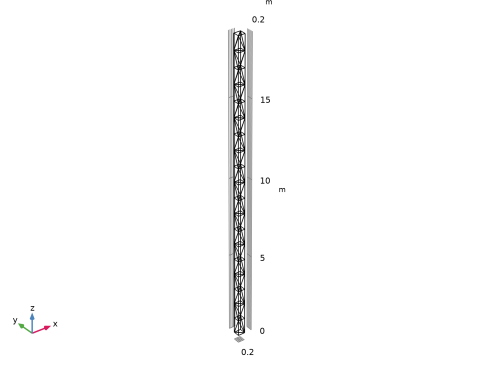
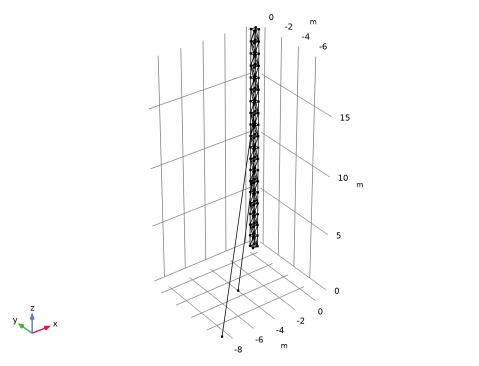
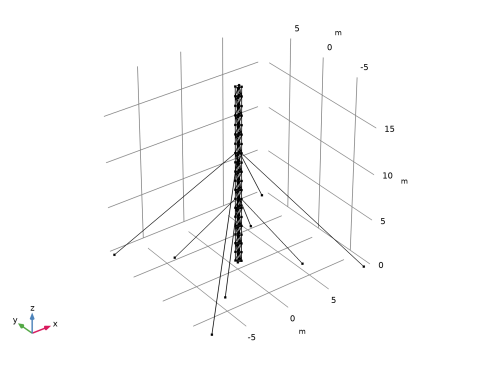
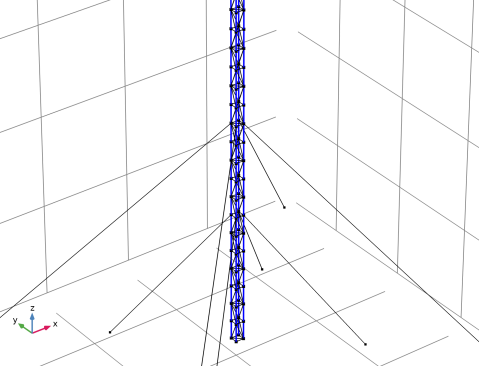
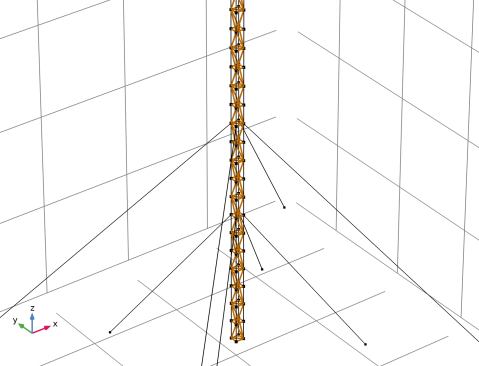
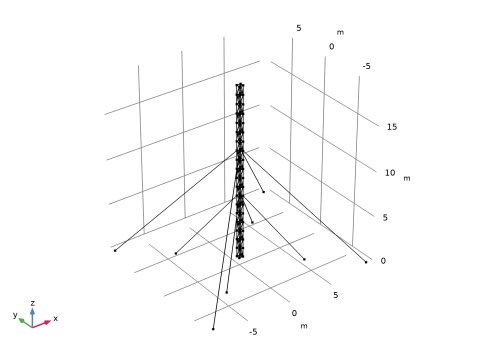
The geometry is the periodic structure represented in Figure 1. It consists of 19 blocks of trusses. Each block has a width of 0.45 m, a depth of 0.40 m and a height of 1.0 m. The trusses that are perpendicular to the ground are thicker and have an outer radius of 15 mm and an inner radius of 10 mm. The remaining trusses have an outer radius of 10 mm and an inner radius of 7 mm. The tower is made out of structural steel, which is one of the predefined materials in the material library. Two sets of four guys are fixed at each corner of the tower, at two different heights. The tower and guys are fixed at the ground level, the guys are prestressed at 4 kN. Gravity is applied to the structure. A vertical load is applied at the four top points, one fourth of the unit load each. Hence, the critical load factor returned by the linear buckling analysis corresponds to the external load that would cause the collapse of the structure.
The guys are modeled using the Wire interface. As long as the guys are in tension, they act as bars, so it would also have been possible to model them in the Truss interface.
Figure 1: Geometry of the guyed truss tower.
In linear buckling theory the stiffness matrix K is separated into a linear part and a linearized nonlinear part which is proportional to the applied load
In the presence of dead loads, the loads are separated into constant dead loads Q0 and live loads P0
.
For a better linearization of nonlinear problems, the live loads are not calculated separately, but associated with the dead loads. Hence, an initial stationary solution is calculated with dead loads only. Then, a second solution is calculated with dead and live loads. The stiffness matrix is then
These two solutions are then selected as the linearization point and live load solution in the linear buckling study step.
Local Buckling
In addition to the buckling of the whole structure, the safety against buckling of individual truss members must be studied. The critical compressive load for an individual bar can be calculated from material properties and the geometry of the bar:
Here, Imin is the moment of inertia in the weakest direction, based on the cross section data, and Lbar is the length of the bar. In this case the effective length factor Kbar is kept to its default value of 1, which corresponds to a pinned-pinned configuration. From this critical force and the compressive axial force N, the failure index fi and the local buckling safety factor sf can be calculated:
In presence of dead loads, the aim is to find the multiplicative factor to live loads which is needed to reach the critical force:
Thus, the safety factor of the live load can be calculated from the live and dead load solutions:
Results and Discussion
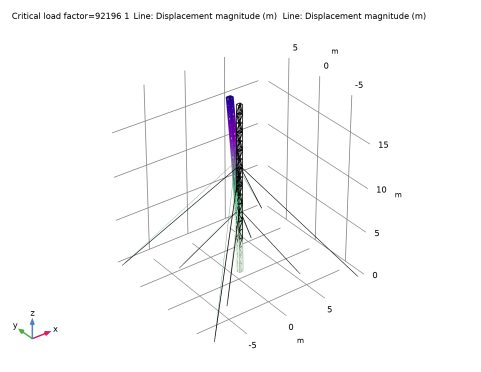
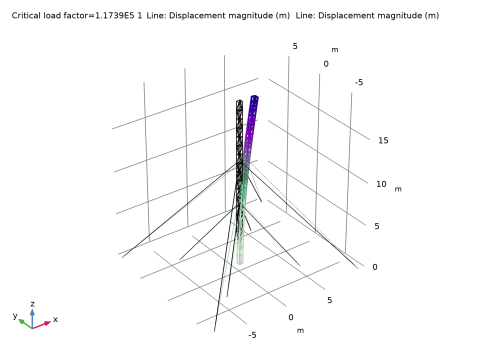
The two first buckling modes, corresponding respectively to buckling in the depth direction (y direction) and width direction, are shown in Figure 2 and Figure 3. The prestressed guys make it possible to increase the critical load factor up to 92 kN and 117 kN, respectively.
Figure 2: First buckling mode.
Figure 3: Second buckling mode.
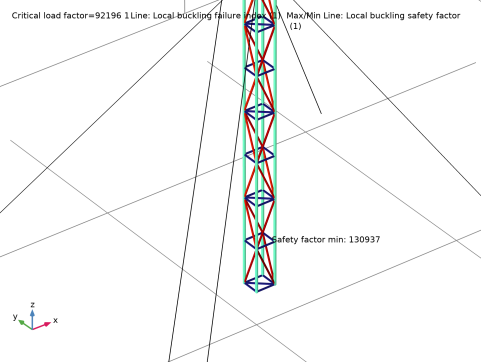
Figure 4 plots the local buckling index for live loads in the tower. The calculated minimal value for safety factor is 131 kN for the diagonal bars at the base of the tower.
Figure 4: Maximum local buckling index, with value of minimal safety factor.
Notes About the COMSOL Implementation
The Linear Buckling study step has a section for setting the linearization point and the live load solutions. In the absence of dead loads, only one solution is needed, so the live load option must be kept at the default setting Same as linearization point. When dead loads are present, two different solutions must be selected. They can come, for example, from two different study steps, from two different parameter values of an auxiliary sweep, or from two load cases. In this model, two stationary study steps are used, the first one with live load disabled.
Application Library path: Structural_Mechanics_Module/Buckling_and_Wrinkling/truss_tower_buckling_guys
Modeling Instructions
From the File menu, choose New.
New
In the New window, click  Model Wizard.
Model Wizard
1
In the Model Wizard window, click  3D.
2
In the Select Physics tree, select Structural Mechanics > Truss (truss).
3
Click Add.
4
In the Select Physics tree, select Structural Mechanics > Wire (wire).
5
Click Add.
6
Click  Study.
7
In the Select Study tree, select Preset Studies for Selected Physics Interfaces > Linear Buckling.
8
Global Definitions
Tower Geometric Parameters
1
In the Model Builder window, under Global Definitions click Parameters 1.
2
In the Settings window for Parameters, type Tower Geometric Parameters in the Label text field.
3
Locate the Parameters section. Click  Load from File.
4
Guy Geometric Parameters
1
In the Home toolbar, click  Parameters and choose Add > Parameters.
2
In the Settings window for Parameters, type Guy Geometric Parameters in the Label text field.
3
Locate the Parameters section. In the table, enter the following settings:
Geometry 1
1
In the Geometry toolbar, click Insert Sequence and choose Insert Sequence.
2
3
In the Geometry toolbar, click  Build All.
4
In the Model Builder window, under Component 1 (comp1) click Geometry 1.
Array 1 (arr1), Array 2 (arr2), Block 1 (blk1), Convert to Curve 1 (ccur1), Line Segment 1 (ls1), Line Segment 2 (ls2), Mirror 1 (mir1), Polygon 1 (pol1)
1
In the Model Builder window, under Component 1 (comp1) > Geometry 1, Ctrl-click to select Block 1 (blk1), Polygon 1 (pol1), Line Segment 1 (ls1), Line Segment 2 (ls2), Convert to Curve 1 (ccur1), Mirror 1 (mir1), Array 1 (arr1), and Array 2 (arr2).
2
Tower
In the Settings window for Group, type Tower in the Label text field.
Line Segment 3 (ls3)
1
In the Geometry toolbar, click  More Primitives and choose Line Segment.
2
In the Settings window for Line Segment, locate the Starting Point section.
3
From the Specify list, choose Coordinates.
4
In the z text field, type guy_height1-mod(guy_height1,height).
5
Locate the Endpoint section. From the Specify list, choose Coordinates.
6
In the x text field, type -gnd_attach_guy1*width/sqrt(width^2+depth^2).
7
In the y text field, type -gnd_attach_guy1*depth/sqrt(width^2+depth^2).
8
Locate the Selections of Resulting Entities section. Find the Cumulative selection subsection. Click New.
9
In the New Cumulative Selection dialog, type Guy 1 in the Name text field.
10
11
In the Settings window for Line Segment, click  Build All Objects.
Line Segment 4 (ls4)
1
In the Geometry toolbar, click  More Primitives and choose Line Segment.
2
In the Settings window for Line Segment, locate the Starting Point section.
3
From the Specify list, choose Coordinates.
4
In the z text field, type guy_height2-mod(guy_height2,height).
5
Locate the Endpoint section. From the Specify list, choose Coordinates.
6
In the x text field, type -gnd_attach_guy2*width/sqrt(width^2+depth^2).
7
In the y text field, type -gnd_attach_guy2*depth/sqrt(width^2+depth^2).
8
Locate the Selections of Resulting Entities section. Find the Cumulative selection subsection. Click New.
9
In the New Cumulative Selection dialog, type Guy 2 in the Name text field.
10
11
In the Settings window for Line Segment, click  Build All Objects.
Mirror 2 (mir2)
1
In the Geometry toolbar, click  Transforms and choose Mirror.
2
Select the objects ls3 and ls4 only.
3
In the Settings window for Mirror, locate the Input section.
4
Select the Keep input objects checkbox.
5
Locate the Point on Plane of Reflection section. In the x text field, type width/2.
6
Locate the Normal Vector to Plane of Reflection section. In the x text field, type 1.
7
In the z text field, type 0.
8
Click  Build All Objects.
Mirror 3 (mir3)
1
In the Geometry toolbar, click  Transforms and choose Mirror.
2
Select the objects ls3, ls4, mir2(1), and mir2(2) only.
3
In the Settings window for Mirror, locate the Input section.
4
Select the Keep input objects checkbox.
5
Locate the Point on Plane of Reflection section. In the y text field, type depth/2.
6
Locate the Normal Vector to Plane of Reflection section. In the y text field, type 1.
7
In the z text field, type 0.
8
Click  Build All Objects.
9
Click the  Go to Default View button in the Graphics toolbar.
Line Segment 3 (ls3), Line Segment 4 (ls4), Mirror 2 (mir2), Mirror 3 (mir3)
1
In the Model Builder window, under Component 1 (comp1) > Geometry 1, Ctrl-click to select Line Segment 3 (ls3), Line Segment 4 (ls4), Mirror 2 (mir2), and Mirror 3 (mir3).
2
Guys
1
In the Settings window for Group, type Guys in the Label text field.
Definitions
Vertical Edges
1
In the Definitions toolbar, click  Explicit.
2
In the Settings window for Explicit, type Vertical Edges in the Label text field.
3
Locate the Input Entities section. From the Geometric entity level list, choose Edge.
4
5
Select the Group by continuous tangent checkbox.
Transversal Truss Edges
1
In the Definitions toolbar, click  Complement.
2
In the Settings window for Complement, type Transversal Truss Edges in the Label text field.
3
Locate the Geometric Entity Level section. From the Level list, choose Edge.
4
Locate the Input Entities section. Under Selections to invert, click  Add.
5
In the Add dialog, in the Selections to invert list, choose Vertical Edges, Guy 1, and Guy 2.
6
Tower
1
In the Definitions toolbar, click  Union.
2
In the Settings window for Union, type Tower in the Label text field.
3
Locate the Geometric Entity Level section. From the Level list, choose Edge.
4
Locate the Input Entities section. Under Selections to add, click  Add.
5
In the Add dialog, in the Selections to add list, choose Vertical Edges and Transversal Truss Edges.
6
Guys
1
In the Definitions toolbar, click  Union.
2
In the Settings window for Union, type Guys in the Label text field.
3
Locate the Geometric Entity Level section. From the Level list, choose Edge.
4
Locate the Input Entities section. Under Selections to add, click  Add.
5
In the Add dialog, in the Selections to add list, choose Guy 1 and Guy 2.
6
Truss (truss)
1
In the Model Builder window, under Component 1 (comp1) click Truss (truss).
2
In the Settings window for Truss, locate the Edge Selection section.
3
From the Selection list, choose Tower.
Cross-Section Data (Vertical Edges)
1
In the Model Builder window, under Component 1 (comp1) > Truss (truss) click Cross-Section Data 1.
2
In the Settings window for Cross-Section Data, type Cross-Section Data (Vertical Edges) in the Label text field.
3
Locate the Cross-Section Definition section. From the Section type list, choose Pipe.
4
In the do text field, type do1.
5
In the di text field, type di1.
Cross-Section Data (Other Truss Edges)
1
In the Physics toolbar, click  Edges and choose Cross-Section Data.
2
In the Settings window for Cross-Section Data, locate the Edge Selection section.
3
From the Selection list, choose Transversal Truss Edges.
4
Locate the Cross-Section Definition section. From the Section type list, choose Pipe.
5
In the do text field, type do2.
6
In the di text field, type di2.
7
In the Label text field, type Cross-Section Data (Other Truss Edges).
Pinned 1
1
In the Physics toolbar, click  Points and choose Pinned.
2
Gravity 1
In the Physics toolbar, click  Global and choose Gravity.
Point Load 1
1
In the Physics toolbar, click  Points and choose Point Load.
2
3
In the Settings window for Point Load, locate the Force section.
4
From the Load type list, choose Total force.
5
Specify the Ftot vector as
Wire (wire)
1
In the Model Builder window, under Component 1 (comp1) click Wire (wire).
2
In the Settings window for Wire, locate the Edge Selection section.
3
From the Selection list, choose Guys.
Use the same dependent variable in both physics interfaces in order to share the displacement where the guys are attached to the tower.
4
Click to expand the Dependent Variables section. In the Displacement field (m) text field, type u.
Elastic Wire 1
1
In the Model Builder window, under Component 1 (comp1) > Wire (wire) click Elastic Wire 1.
2
In the Settings window for Elastic Wire, locate the Cross-Section Data section.
3
In the A text field, type guy_area.
Initial Stress and Strain 1
1
In the Physics toolbar, click  Attributes and choose Initial Stress and Strain.
2
In the Settings window for Initial Stress and Strain, locate the Edge Selection section.
3
From the Selection list, choose Guys.
4
Locate the Initial Stress and Strain section. In the Ni text field, type 4[kN].
Pinned 1
1
In the Physics toolbar, click  Points and choose Pinned.
2
Gravity 1
In the Physics toolbar, click  Global and choose Gravity.
Add Material
1
In the Materials toolbar, click  Add Material to open the Add Material window.
2
Go to the Add Material window.
3
In the tree, select Built-in > Structural steel.
4
Click the Add to Component button in the window toolbar.
5
In the Materials toolbar, click  Add Material to close the Add Material window.
Materials
Structural steel (mat1)
1
In the Settings window for Material, locate the Geometric Entity Selection section.
2
From the Selection list, choose Tower.
Wire material
1
In the Model Builder window, right-click Materials and choose Blank Material.
2
In the Settings window for Material, type Wire material in the Label text field.
3
Locate the Geometric Entity Selection section. From the Selection list, choose Guys.
4
Locate the Material Contents section. In the table, enter the following settings:
Mesh 1
Edge 1
1
In the Mesh toolbar, click  More Generators and choose Edge.
2
In the Settings window for Edge, locate the Edge Selection section.
3
From the Selection list, choose All edges.
Distribution 1
1
Right-click Edge 1 and choose Distribution.
2
In the Settings window for Distribution, locate the Edge Selection section.
3
From the Selection list, choose All edges.
4
Locate the Distribution section. In the Number of elements text field, type 1.
Distribution 2
1
In the Model Builder window, right-click Edge 1 and choose Distribution.
2
In the Settings window for Distribution, locate the Edge Selection section.
3
From the Selection list, choose Guy 1.
4
Locate the Distribution section. In the Number of elements text field, type 10.
Distribution 3
1
Right-click Edge 1 and choose Distribution.
2
In the Settings window for Distribution, locate the Edge Selection section.
3
From the Selection list, choose Guy 2.
4
Locate the Distribution section. In the Number of elements text field, type 10.
5
Click  Build All.
The buckling study requires two stationary study steps to compute live and dead load solutions.
Study 1
Step 3: Stationary 2
1
In the Study toolbar, click  Study Steps and choose Stationary > Stationary.
2
Right-click Step 3: Stationary 2 and choose Move Up.
Use the first stationary study step to solve for the dead loads only.
Stationary, Dead Loads Only
1
In the Model Builder window, click Step 1: Stationary.
2
In the Settings window for Stationary, type Stationary, Dead Loads Only in the Label text field.
3
Locate the Physics and Variables Selection section. Select the Modify model configuration for study step checkbox.
4
In the tree, select Component 1 (comp1) > Truss (truss) > Point Load 1.
5
Click  Disable.
In the second stationary study step, both live and dead loads are applied.
Stationary, Dead + Live Loads
1
In the Model Builder window, under Study 1 click Step 2: Stationary 2.
2
In the Settings window for Stationary, type Stationary, Dead + Live Loads in the Label text field.
You need to generate the solver sequence to enable the selection of solutions in the linear buckling steps.
Solution 1 (sol1)
In the Study toolbar, click  Show Default Solver.
Step 3: Linear Buckling
1
In the Model Builder window, under Study 1 click Step 3: Linear Buckling.
2
In the Settings window for Linear Buckling, locate the Study Settings section.
3
In the Desired number of buckling modes text field, type 2.
4
Locate the Values of Linearization Point section. From the Settings list, choose User controlled.
5
From the Use list, choose Solution Store 1 (sol2).
6
Locate the Live Loads Solution section. From the Settings list, choose User controlled.
7
In the Study toolbar, click  Compute.
Results
Line 1
1
In the Model Builder window, expand the Mode Shape (truss) node, then click Line 1.
2
In the Settings window for Line, locate the Coloring and Style section.
3
In the Radius scale factor text field, type 6.
Line 1
1
In the Model Builder window, expand the Results > Mode Shape (wire) node.
2
Right-click Line 1 and choose Copy.
Line 2
1
In the Model Builder window, right-click Mode Shape (truss) and choose Paste Line.
2
In the Settings window for Line, click to expand the Inherit Style section.
3
From the Plot list, choose Line 1.
Mode Shape (truss)
1
In the Model Builder window, click Mode Shape (truss).
2
In the Mode Shape (truss) toolbar, click  Plot.
Add variables to assess the risk of local buckling.
Definitions
Variables 1
1
In the Model Builder window, under Component 1 (comp1) right-click Definitions and choose Variables.
2
In the Settings window for Variables, locate the Variables section.
3
Study 1
In the Study toolbar, click  Update Solution.
Results
Local Buckling
1
In the Results toolbar, click  3D Plot Group.
2
In the Settings window for 3D Plot Group, type Local Buckling in the Label text field.
Line 1
1
Right-click Local Buckling and choose Line.
2
In the Settings window for Line, locate the Expression section.
3
In the Expression text field, type lbf_i.
4
Locate the Coloring and Style section. Clear the Color legend checkbox.
5
From the Line type list, choose Tube.
6
In the Tube radius expression text field, type truss.re.
7
Select the Radius scale factor checkbox. In the associated text field, type 2.
8
Click to expand the Quality section. From the Smoothing list, choose None.
9
In the Local Buckling toolbar, click  Plot.
Local Buckling
In the Model Builder window, click Local Buckling.
Max/Min Line 1
1
In the Local Buckling toolbar, click  More Plots and choose Max/Min Line.
2
In the Settings window for Max/Min Line, locate the Expression section.
3
In the Expression text field, type lbs_f.
4
Locate the Display section. From the Display list, choose Min.
5
Locate the Text Format section. In the Prefix text field, type Safety factor .
6
In the Local Buckling toolbar, click  Plot.