PDF

Pratt Truss Bridge
Introduction
This example is inspired by a classic bridge type called a Pratt truss bridge. You can identify a Pratt truss by its diagonal members, which (except for the outermost ones) all slant down in span-wise direction toward the bridge’s center. All the diagonal members are subject to tension forces only, while the shorter vertical members handle the compressive forces. Since there is no buckling risk in the tension-loaded diagonal members, they can be thinner resulting in an overall more economic design.
A truss structure supports only tension and compression forces in its members and you would normally model it using bars, but as this model uses 3D beams it can also to some extent sustain bending moments in the frame structure. In the model, shell elements represent the roadway.
Model Definition
BASIC DIMENSIONS
The length of the bridge is 40 m, and the width of the roadway is 7 m. The main distance between the truss members is m.
Analysis Types
The model includes two different analyses of the bridge:
Loads and Constraints
To suppress rigid body motions of the bridge, it is important to add sufficient constraints. All translational degrees of freedom are constrained at the leftmost horizontal edge. Constraints at the right-most horizontal edge prevent it from moving in the vertical and transverse directions, but allow the bridge to expand or contract in the axial direction. This difference would however only be important if thermal expansion were studied.
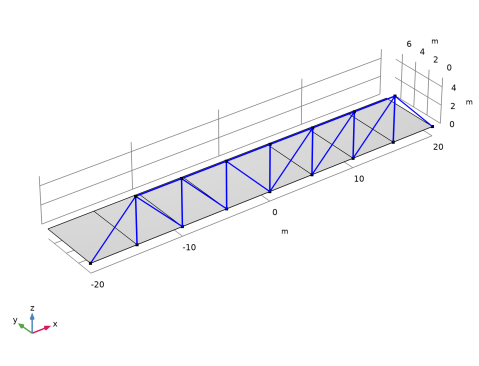
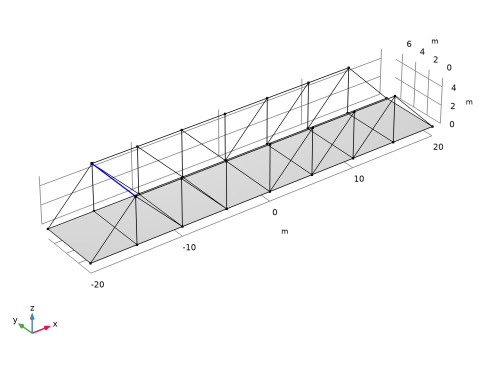
Figure 1 shows the bridge geometry.
Figure 1: Bridge geometry.
The first study combines several load cases. Firstly, it covers the case of self-weight only. Secondly, the case of two trucks moving over the bridge is superposed. The weight of each truck is 12,000 kg, the wheelbase is 6 m, the axle track is m, and the weight is distributed with one third on the front axle and two thirds on the rear axle. The truck’s right wheels are moving parallel to the edge of the bridge with a distance of 1 m.
In the second study the natural frequencies of the bridge are computed.
Material Properties and cross section data
The frame structure is made of structural steel. The roadway material is concrete; additional reinforcements are ignored. The frame members have different cross sections:
The main beams along the bridge have square box profiles with a height 200 mm and a thickness 16 mm. This is also true for the outermost diagonal members.
The diagonal and vertical members have a rectangular box section of size 200 mm-by-100 mm and a thickness of 12.5 mm. The larger dimension is in the transverse direction of the bridge.
Results and Discussion
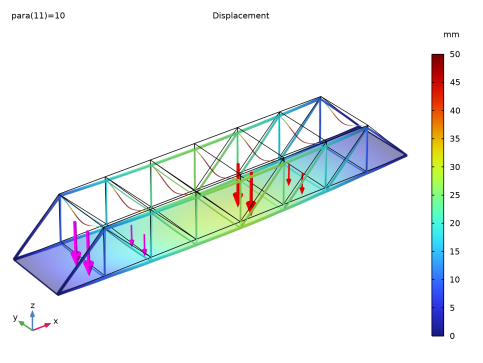
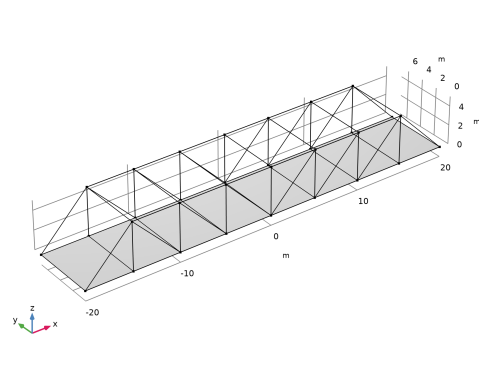
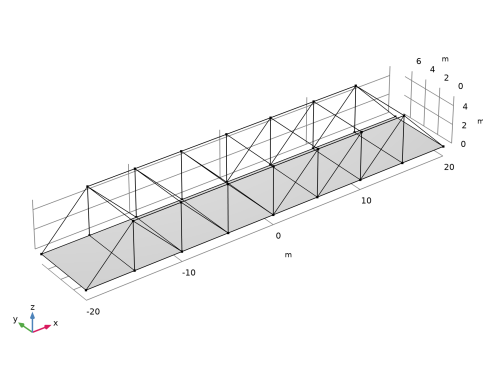
Figure 2 and Figure 3 show the bridge deformation for different load cases. Figure 2 shows the displacements under self-weight, where the maximum deflection amounts to 25 mm on the roadway. Figure 3 shows a maximum displacement of 30 mm on the roadway under self-weight and the truck load. The figure shows the positions of the two trucks (as load arrows) when the maximum displacement occurs.
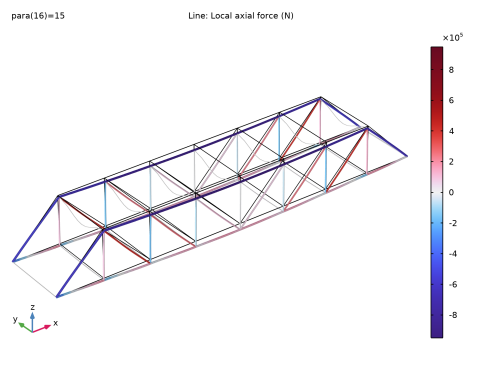
The distribution of axial forces (Figure 4) demonstrates the function of the frame: The interplay of members in tension and compression contributes to the load carrying function. The upper horizontal members are in compression and the lower in tension. The force in the lower members is much smaller, since the load is also shared by the roadway in this example. The diagonal members are subject to tension forces only, while the shorter vertical members handle the compressive forces.
Figure 2: Deformation under self-weight.
Figure 3: Maximum deformation under truck load.
Figure 4: The axial forces in the beams. Red is tension and blue is compression.
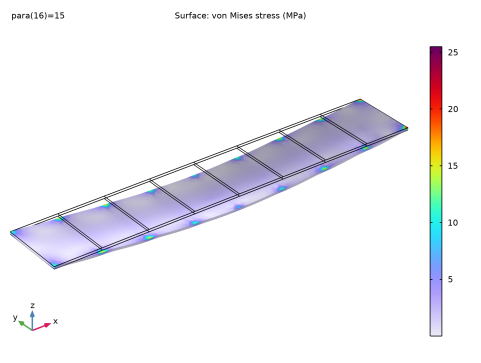
To study the effects of trucks moving over the bridge, several parameter cases represent the position of the trucks. The trucks are moved 3 m along the bridge for each parameter case. Figure 5 shows the stress distribution in the roadway when the first truck front wheels have passed the bridge and the second truck rear wheels are at center of the bridge deck.
Figure 5: Truck load analysis: Stresses in the bridge deck with two trucks on the bridge.
The study of eigenfrequencies is important with respect to the excitation and frequency content from various loads such as wind loads and earthquakes.
Figure 6 shows the 10th eigenmode of the bridge, which is the fundamental mode for the roadway. The first eight eigenmodes only involve displacements of the weak struts at the top of the truss.
Figure 6: The 10th eigenmode.
Notes About the COMSOL Implementation
The truck’s movement along the bridge deck can be modeled using the Point Load, Free feature. The tire positions modeled as load points are parameterized. In order to study the self-weight case, the truck’s position is placed outside the span of bridge giving zero load contributions.
When combining two different physics interfaces, each has individual sets of degrees of freedom (DOFs) by default. In structural mechanics, these DOFs should be set equal, where the structure is connected. You can set up such connections across various structural mechanics interfaces using built-in multiphysics connection features. In this model, the Shell-Beam Connection features under the Multiphysics node are used to set up the connection between the two interfaces.
Application Library path: Structural_Mechanics_Module/Beams_and_Shells/pratt_truss_bridge
Modeling Instructions
From the File menu, choose New.
New
In the New window, click  Model Wizard.
Model Wizard
1
In the Model Wizard window, click  3D.
2
In the Select Physics tree, select Structural Mechanics > Shell (shell).
3
Click Add.
4
In the Select Physics tree, select Structural Mechanics > Beam (beam).
5
Click Add.
6
Click  Study.
7
In the Select Study tree, select General Studies > Stationary.
8
Geometry 1
The geometry sequence for the model (see Figure 1) is available in a file. If you want to create it from scratch yourself, you can follow the instructions in the Appendix — Geometry Modeling Instructions section. Otherwise, insert the geometry sequence as follows:
1
In the Geometry toolbar, click Insert Sequence and choose Insert Sequence.
2
3
In the Geometry toolbar, click  Build All.
Global Definitions
Parameters 1
Enter additional model parameters.
1
In the Model Builder window, under Global Definitions click Parameters 1.
2
In the Settings window for Parameters, locate the Parameters section.
3
Definitions
Create groups for the different beam sections.
Beams, Bottom Transverse
1
In the Definitions toolbar, click  Box.
2
In the Settings window for Box, type Beams, Bottom Transverse in the Label text field.
3
Locate the Geometric Entity Level section. From the Level list, choose Edge.
4
Locate the Box Limits section. In the x minimum text field, type -(length/2+1).
5
In the x maximum text field, type length/2+1.
6
In the y minimum text field, type 1.
7
In the y maximum text field, type width-1.
8
In the z minimum text field, type -1.
9
In the z maximum text field, type 1.
Beams, Bottom All
1
Right-click Beams, Bottom Transverse and choose Duplicate.
2
In the Settings window for Box, type Beams, Bottom All in the Label text field.
3
Locate the Box Limits section. In the y minimum text field, type -1.
4
In the y maximum text field, type width+1.
5
Locate the Output Entities section. From the Include entity if list, choose Entity inside box.
Beams, Top Transverse
1
In the Definitions toolbar, click  Box.
2
In the Settings window for Box, type Beams, Top Transverse in the Label text field.
3
Locate the Geometric Entity Level section. From the Level list, choose Edge.
4
Locate the Box Limits section. In the x minimum text field, type -(length/2+1).
5
In the x maximum text field, type length/2+1.
6
In the y minimum text field, type 1.
7
In the y maximum text field, type width-1.
8
In the z minimum text field, type height-1.
9
In the z maximum text field, type height+1.
Beams, Diagonal
1
In the Definitions toolbar, click  Box.
2
In the Settings window for Box, type Beams, Diagonal in the Label text field.
3
Locate the Geometric Entity Level section. From the Level list, choose Edge.
4
Locate the Box Limits section. In the x minimum text field, type -(length/2-spacing+1).
5
In the x maximum text field, type length/2-spacing+1.
6
In the y minimum text field, type -1.
7
In the y maximum text field, type width+1.
8
In the z minimum text field, type 1.
9
In the z maximum text field, type 2.
Beams, All
1
In the Definitions toolbar, click  Explicit.
2
In the Settings window for Explicit, type Beams, All in the Label text field.
3
Locate the Input Entities section. From the Geometric entity level list, choose Edge.
4
Select the All edges checkbox.
Beams, Main
1
In the Definitions toolbar, click  Difference.
2
In the Settings window for Difference, type Beams, Main in the Label text field.
3
Locate the Geometric Entity Level section. From the Level list, choose Edge.
4
Locate the Input Entities section. Under Selections to add, click  Add.
5
In the Add dialog, select Beams, All in the Selections to add list.
6
7
In the Settings window for Difference, locate the Input Entities section.
8
Under Selections to subtract, click  Add.
9
In the Add dialog, in the Selections to subtract list, choose Beams, Bottom Transverse, Beams, Top Transverse, and Beams, Diagonal.
10
Add the materials.
Add Material
1
In the Materials toolbar, click  Add Material to open the Add Material window.
2
Go to the Add Material window.
3
In the tree, select Built-in > Concrete.
4
Click the Add to Component button in the window toolbar.
5
In the tree, select Built-in > Structural steel.
6
Click the Add to Component button in the window toolbar.
7
In the Materials toolbar, click  Add Material to close the Add Material window.
Materials
Structural steel (mat2)
1
In the Settings window for Material, locate the Geometric Entity Selection section.
2
From the Geometric entity level list, choose Edge.
3
From the Selection list, choose All edges.
Shell (shell)
Thickness and Offset 1
1
In the Model Builder window, under Component 1 (comp1) > Shell (shell) click Thickness and Offset 1.
2
In the Settings window for Thickness and Offset, locate the Thickness and Offset section.
3
In the d0 text field, type 0.25.
Add self-weight for the bridge deck.
Gravity 1
In the Physics toolbar, click  Global and choose Gravity.
Pinned 1
1
In the Physics toolbar, click  Edges and choose Pinned.
2
Prescribed Displacement/Rotation 1
1
In the Physics toolbar, click  Edges and choose Prescribed Displacement/Rotation.
2
3
In the Settings window for Prescribed Displacement/Rotation, locate the Prescribed Displacement section.
4
From the Displacement in y direction list, choose Prescribed.
5
From the Displacement in z direction list, choose Prescribed.
Add two Point Load, Free nodes to apply loads from the two trucks. Parameterize the position in order to track the truck movements.
Point Load, Free [First Truck]
1
In the Physics toolbar, click  Global and choose Point Load, Free.
2
In the Settings window for Point Load, Free, type Point Load, Free [First Truck] in the Label text field.
3
Locate the Location, Force and Moment section. Click  Add.
4
5
6
7
8
9
10
Point Load, Free [Second Truck]
1
Right-click Point Load, Free [First Truck] and choose Duplicate.
2
In the Settings window for Point Load, Free, type Point Load, Free [Second Truck] in the Label text field.
3
Locate the Location, Force and Moment section. In the table, enter the following settings:
Beam (beam)
Assign different cross-section properties to different members of the frame structure.
Cross Section, Main
1
In the Model Builder window, under Component 1 (comp1) > Beam (beam) click Cross-Section Data 1.
2
In the Settings window for Cross-Section Data, type Cross Section, Main in the Label text field.
3
Locate the Cross-Section Definition section. From the Section type list, choose Box.
4
In the hy text field, type 200[mm].
5
In the hz text field, type 200[mm].
6
In the ty text field, type 16[mm].
7
In the tz text field, type 16[mm].
Section Orientation 1
1
In the Model Builder window, click Section Orientation 1.
2
In the Settings window for Section Orientation, locate the Section Orientation section.
3
From the Orientation method list, choose Orientation vector.
4
Specify the V vector as
Cross Section, Diagonal
1
In the Physics toolbar, click  Edges and choose Cross-Section Data.
2
In the Settings window for Cross-Section Data, type Cross Section, Diagonal in the Label text field.
3
Locate the Edge Selection section. From the Selection list, choose Beams, Diagonal.
4
Locate the Cross-Section Definition section. From the Section type list, choose Box.
5
In the hy text field, type 200[mm].
6
In the hz text field, type 100[mm].
7
In the ty text field, type 12.5[mm].
8
In the tz text field, type 12.5[mm].
Section Orientation 1
1
In the Model Builder window, click Section Orientation 1.
2
In the Settings window for Section Orientation, locate the Section Orientation section.
3
From the Orientation method list, choose Orientation vector.
4
Specify the V vector as
Cross Section, Bottom Transverse
1
In the Physics toolbar, click  Edges and choose Cross-Section Data.
2
In the Settings window for Cross-Section Data, type Cross Section, Bottom Transverse in the Label text field.
3
Locate the Edge Selection section. From the Selection list, choose Beams, Bottom Transverse.
4
Locate the Cross-Section Definition section. From the Section type list, choose H-profile.
5
In the hy text field, type 96[mm].
6
In the hz text field, type 100[mm].
7
In the ty text field, type 8[mm].
8
In the tz text field, type 5[mm].
Section Orientation 1
1
In the Model Builder window, click Section Orientation 1.
2
In the Settings window for Section Orientation, locate the Section Orientation section.
3
From the Orientation method list, choose Orientation vector.
4
Specify the V vector as
Cross Section, Top Transverse
1
In the Physics toolbar, click  Edges and choose Cross-Section Data.
2
In the Settings window for Cross-Section Data, type Cross Section, Top Transverse in the Label text field.
3
Locate the Edge Selection section. From the Selection list, choose Beams, Top Transverse.
4
Locate the Cross-Section Definition section. From the Section type list, choose Rectangle.
5
In the hy text field, type 100[mm].
6
In the hz text field, type 25[mm].
Section Orientation 1
1
In the Model Builder window, click Section Orientation 1.
2
In the Settings window for Section Orientation, locate the Section Orientation section.
3
From the Orientation method list, choose Orientation vector.
4
Specify the V vector as
Add the self-weight of the beams.
Gravity 1
In the Physics toolbar, click  Global and choose Gravity.
Create connections between beams and shells.
Multiphysics
Shell–Beam Connection 1 (shbc1)
1
In the Physics toolbar, click  Multiphysics Couplings and choose Global > Shell–Beam Connection.
2
In the Settings window for Shell–Beam Connection, locate the Connection Settings section.
3
From the Connection type list, choose Shared edges.
4
Select the Manual control of selections checkbox.
5
Locate the Edge Selection section. Click  Clear Selection.
6
7
Locate the Connection Settings section. From the Offset definition list, choose Offset vector.
8
Specify the d0 vector as
Shell–Beam Connection 2 (shbc2)
1
Right-click Shell–Beam Connection 1 (shbc1) and choose Duplicate.
2
In the Settings window for Shell–Beam Connection, locate the Edge Selection section.
3
Click  Clear Selection.
4
5
Locate the Connection Settings section. Specify the d0 vector as
Shell–Beam Connection 3 (shbc3)
1
In the Physics toolbar, click  Multiphysics Couplings and choose Global > Shell–Beam Connection.
2
In the Settings window for Shell–Beam Connection, locate the Connection Settings section.
3
From the Connection type list, choose Shared edges.
4
Select the Manual control of selections checkbox.
5
Locate the Edge Selection section. From the Selection list, choose Beams, Bottom Transverse.
6
Locate the Connection Settings section. From the Offset definition list, choose Offset vector.
7
Specify the d0 vector as
Mesh 1
1
In the Model Builder window, under Component 1 (comp1) click Mesh 1.
2
In the Settings window for Mesh, locate the Physics-Controlled Mesh section.
3
In the table, clear the Use checkbox for Geometric Analysis, Detail Size.
4
Locate the Sequence Type section. From the list, choose User-controlled mesh.
Size
1
In the Model Builder window, under Component 1 (comp1) > Mesh 1 click Size.
2
In the Settings window for Size, locate the Element Size section.
3
From the Predefined list, choose Extremely fine.
Distribution 1
1
In the Model Builder window, right-click Edge 1 and choose Distribution.
2
In the Settings window for Distribution, locate the Distribution section.
3
In the Number of elements text field, type 2.
4
Click  Build All.
5
Click the  Zoom Extents button in the Graphics toolbar.
Study 1
Step 1: Stationary
1
In the Model Builder window, under Study 1 click Step 1: Stationary.
2
In the Settings window for Stationary, click to expand the Study Extensions section.
3
Select the Auxiliary sweep checkbox.
4
5
6
In the Study toolbar, click  Compute.
Results
Stress (shell)
The default plot is the stress plot for the shells using the last load case, see Figure 5.
Surface 1
1
In the Model Builder window, expand the Stress (shell) node, then click Surface 1.
2
In the Settings window for Surface, locate the Expression section.
3
From the Unit list, choose MPa.
4
Click the  Zoom Extents button in the Graphics toolbar.
5
Click the  Show Grid button in the Graphics toolbar.
6
In the Stress (shell) toolbar, click  Plot.
Add a new plot containing both shell and beam results, and examine the self-weight load case.
Displacement
1
In the Results toolbar, click  3D Plot Group.
2
In the Settings window for 3D Plot Group, type Displacement in the Label text field.
3
Locate the Color Legend section. Select the Show units checkbox.
4
Locate the Data section. From the Parameter value (para) list, choose 0.
5
Click to expand the Title section. From the Title type list, choose Label.
Surface 1
1
Right-click Displacement and choose Surface.
2
In the Settings window for Surface, locate the Expression section.
3
From the Unit list, choose mm.
4
Click to expand the Range section. Select the Manual color range checkbox.
5
In the Maximum text field, type 50.
Deformation 1
Right-click Surface 1 and choose Deformation.
Transparency 1
In the Model Builder window, right-click Surface 1 and choose Transparency.
Surface 2
1
In the Model Builder window, right-click Displacement and choose Surface.
2
In the Settings window for Surface, locate the Data section.
3
From the Dataset list, choose Beam.
4
From the Solution parameters list, choose From parent.
5
Locate the Expression section. In the Expression text field, type beam.disp.
6
From the Unit list, choose mm.
7
Click to expand the Inherit Style section. From the Plot list, choose Surface 1.
Deformation 1
1
Right-click Surface 2 and choose Deformation.
2
In the Settings window for Deformation, locate the Expression section.
3
In the x-component text field, type u2.
4
In the y-component text field, type v2.
5
In the z-component text field, type w2.
Transparency 1
In the Model Builder window, right-click Surface 2 and choose Transparency.
Displacement
1
Click the  Zoom Extents button in the Graphics toolbar.
2
In the Displacement toolbar, click  Plot.
Now add a new plot for when both trucks are on the bridge and the deformation is at its maximum on the roadway.
In the Model Builder window, under Results click Displacement.
Point Trajectories 1
1
In the Displacement toolbar, click  More Plots and choose Point Trajectories.
2
In the Settings window for Point Trajectories, locate the Trajectory Data section.
3
In the X-expression text field, type shell.plf1.Xp1.
4
In the Y-expression text field, type shell.plf1.Yp1.
5
Locate the Coloring and Style section. Find the Line style subsection. From the Type list, choose None.
6
Find the Point style subsection. From the Type list, choose Arrow.
7
In the Arrow, Z-component text field, type Fz.
8
From the Arrow base list, choose Head.
9
Select the Scale factor checkbox. In the associated text field, type 12E-5.
10
Click to expand the Inherit Style section. From the Plot list, choose Surface 1.
Deformation 1
1
Right-click Point Trajectories 1 and choose Deformation.
2
In the Settings window for Deformation, locate the Expression section.
3
In the X-component text field, type shell.plf1.u_1.
4
In the Y-component text field, type shell.plf1.v_1.
5
In the Z-component text field, type shell.plf1.w_1.
6
Displacement
1
In the Model Builder window, under Results click Displacement.
2
In the Settings window for 3D Plot Group, locate the Data section.
3
From the Parameter value (para) list, choose 10.
4
In the Displacement toolbar, click  Plot.
Create an animation of the trucks passing the bridge.
Animation 1
1
In the Results toolbar, click  Animation and choose Player.
2
In the Settings window for Animation, locate the Scene section.
3
From the Subject list, choose Displacement.
4
Locate the Frames section. In the Number of frames text field, type 9.
5
In the Frame number text field, type 9.
6
Locate the Playing section. In the Display each frame for text field, type 0.5.
Now plot the axial force in beams like in Figure 4.
Investigate the forces in the beams.
Result Templates
1
In the Results toolbar, click  Result Templates to open the Result Templates window.
2
Go to the Result Templates window.
3
In the tree, select Study 1/Solution 1 (sol1) > Beam > Section Forces (beam) > Axial Force (beam).
4
Click the Add Result Template button in the window toolbar.
5
In the Results toolbar, click  Result Templates to close the Result Templates window.
Results
Axial Force (beam)
1
Click the  Zoom Extents button in the Graphics toolbar.
2
In the Axial Force (beam) toolbar, click  Plot.
Axial Force (beam), Displacement, Stress (shell), Stress, 3D (beam)
1
In the Model Builder window, under Results, Ctrl-click to select Stress (shell), Stress, 3D (beam), Displacement, and Axial Force (beam).
2
Stationary Results
In the Settings window for Group, type Stationary Results in the Label text field.
Now add an eigenfrequency study.
Add Study
1
In the Home toolbar, click  Add Study to open the Add Study window.
2
Go to the Add Study window.
3
Find the Studies subsection. In the Select Study tree, select General Studies > Eigenfrequency.
4
Click the Add Study button in the window toolbar.
5
In the Home toolbar, click  Add Study to close the Add Study window.
Study 2
Step 1: Eigenfrequency
1
In the Settings window for Eigenfrequency, locate the Study Settings section.
2
Select the Desired number of eigenfrequencies checkbox. In the associated text field, type 12.
3
In the Study toolbar, click  Compute.
Results
Mode Shape (shell)
Select the first mode involving the roadway, see Figure 6.
1
In the Settings window for 3D Plot Group, locate the Data section.
2
From the Eigenfrequency (Hz) list, choose 3.6097.
3
Locate the Plot Settings section. Clear the Plot dataset edges checkbox.
4
In the Model Builder window, expand the Mode Shape (shell) node.
Line 1
1
In the Model Builder window, expand the Results > Mode Shape (beam) node.
2
Right-click Line 1 and choose Copy.
Line 1
1
In the Model Builder window, right-click Mode Shape (shell) and choose Paste Line.
2
In the Settings window for Line, locate the Data section.
3
From the Dataset list, choose Study 2/Solution 2 (sol2).
4
From the Solution parameters list, choose From parent.
5
Click to expand the Inherit Style section. From the Plot list, choose Surface 1.
6
Click to expand the Title section. From the Title type list, choose None.
7
Click the  Zoom Extents button in the Graphics toolbar.
8
In the Mode Shape (shell) toolbar, click  Plot.
Mode Shape (beam), Mode Shape (shell)
1
In the Model Builder window, under Results, Ctrl-click to select Mode Shape (shell) and Mode Shape (beam).
2
Eigenfrequency Results
1
In the Settings window for Group, type Eigenfrequency Results in the Label text field.
Prepare a file export of the beam section forces and stresses at element level for the main beams.
Study 1/Solution 1 (3) (sol1)
1
In the Model Builder window, expand the Results > Datasets node.
2
Right-click Results > Datasets > Study 1/Solution 1 (sol1) and choose Duplicate.
Selection
1
In the Results toolbar, click  Attributes and choose Selection.
2
In the Settings window for Selection, locate the Geometric Entity Selection section.
3
From the Geometric entity level list, choose Edge.
4
From the Selection list, choose Beams, Main.
Data 1
1
In the Model Builder window, under Results > Datasets right-click Study 1/Solution 1 (3) (sol1) and choose Add Data to Export.
2
In the Settings window for Data, locate the Data section.
3
From the Parameter selection (para) list, choose From list.
4
In the Parameter values (para) list, select 0.
5
Locate the Expressions section. In the table, enter the following settings:
6
Locate the Output section. From the Geometry level list, choose Line.
7
Click to expand the Advanced section. Clear the Full precision checkbox.
 
Appendix — Geometry Modeling Instructions
If you want to create the geometry yourself, follow these steps.
Global Definitions
Parameters 1
1
In the Model Builder window, under Global Definitions click Parameters 1.
2
In the Settings window for Parameters, locate the Parameters section.
3
Geometry 1
Work Plane 1 (wp1)
1
In the Geometry toolbar, click  Work Plane.
2
In the Settings window for Work Plane, click  Go to Plane Geometry.
Work Plane 1 (wp1) > Plane Geometry
1
In the Model Builder window, click Plane Geometry.
Create the bridge deck.
Work Plane 1 (wp1) > Rectangle 1 (r1)
1
In the Work Plane toolbar, click  Rectangle.
2
In the Settings window for Rectangle, locate the Size and Shape section.
3
In the Width text field, type spacing.
4
In the Height text field, type width.
5
Locate the Position section. In the xw text field, type -length/2.
6
In the Work Plane toolbar, click  Build All.
Work Plane 1 (wp1) > Array 1 (arr1)
1
In the Work Plane toolbar, click  Transforms and choose Array.
2
In the Settings window for Array, locate the Size section.
3
From the Array type list, choose Linear.
4
5
In the Size text field, type length/spacing.
6
Locate the Displacement section. In the xw text field, type spacing.
7
In the Work Plane toolbar, click  Build All.
8
Click the  Zoom Extents button in the Graphics toolbar.
9
In the Model Builder window, right-click Geometry 1 and choose Build All.
10
Click the  Zoom Extents button in the Graphics toolbar.
Start creating the truss.
Work Plane 2 (wp2)
1
In the Geometry toolbar, click  Work Plane.
2
In the Settings window for Work Plane, locate the Plane Definition section.
3
From the Plane list, choose xz-plane.
4
Click  Go to Plane Geometry.
Work Plane 2 (wp2) > Polygon 1 (pol1)
1
In the Work Plane toolbar, click  Polygon.
2
In the Settings window for Polygon, locate the Object Type section.
3
From the Type list, choose Open curve.
4
Locate the Coordinates section. From the Data source list, choose Vectors.
5
In the xw text field, type 0 spacing spacing spacing.
6
In the yw text field, type 0 height height 0.
Work Plane 2 (wp2) > Line Segment 1 (ls1)
1
In the Work Plane toolbar, click  More Primitives and choose Line Segment.
2
In the Settings window for Line Segment, locate the Starting Point section.
3
From the Specify list, choose Coordinates.
4
Locate the Endpoint section. From the Specify list, choose Coordinates.
5
Locate the Starting Point section. In the yw text field, type height.
6
Locate the Endpoint section. In the xw text field, type spacing and yw to height.
7
In the Work Plane toolbar, click  Build All.
Work Plane 2 (wp2) > Array 1 (arr1)
1
In the Work Plane toolbar, click  Transforms and choose Array.
2
In the Settings window for Array, locate the Size section.
3
From the Array type list, choose Linear.
4
Click in the Graphics window and then press Ctrl+A to select both objects.
5
In the Size text field, type length/(2*spacing)-1.
6
Locate the Displacement section. In the xw text field, type spacing.
7
In the Work Plane toolbar, click  Build All.
Work Plane 2 (wp2) > Line Segment 2 (ls2)
1
In the Work Plane toolbar, click  More Primitives and choose Line Segment.
2
In the Settings window for Line Segment, locate the Starting Point section.
3
From the Specify list, choose Coordinates.
4
Locate the Endpoint section. From the Specify list, choose Coordinates.
5
Locate the Starting Point section. In the xw text field, type length/2-spacing and yw to height.
6
Locate the Endpoint section. In the xw text field, type length/2.
7
In the Work Plane toolbar, click  Build All.
Work Plane 2 (wp2) > Mirror 1 (mir1)
1
In the Work Plane toolbar, click  Transforms and choose Mirror.
2
Click in the Graphics window and then press Ctrl+A to select all objects.
3
In the Settings window for Mirror, locate the Input section.
4
Select the Keep input objects checkbox.
5
In the Work Plane toolbar, click  Build All.
6
Click the  Zoom Extents button in the Graphics toolbar.
Work Plane 2 (wp2) > Line Segment 3 (ls3)
1
In the Work Plane toolbar, click  More Primitives and choose Line Segment.
2
In the Settings window for Line Segment, locate the Starting Point section.
3
From the Specify list, choose Coordinates.
4
Locate the Endpoint section. From the Specify list, choose Coordinates.
5
In the yw text field, type height.
6
In the Work Plane toolbar, click  Build All.
7
Right-click Geometry 1 and choose Build All.
Copy 1 (copy1)
1
In the Geometry toolbar, click  Transforms and choose Copy.
2
In the Settings window for Copy, locate the Displacement section.
3
In the y text field, type width.
4
5
Click  Build All Objects.
Line Segment 1 (ls1)
1
In the Geometry toolbar, click  More Primitives and choose Line Segment.
2
In the Settings window for Line Segment, locate the Starting Point section.
3
From the Specify list, choose Coordinates.
4
Locate the Endpoint section. From the Specify list, choose Coordinates.
5
Locate the Starting Point section. In the x text field, type -length/2+spacing.
6
Locate the Endpoint section. In the x text field, type -length/2+spacing, y to width, and z to height.
7
Click  Build All Objects.
Array 1 (arr1)
1
In the Geometry toolbar, click  Transforms and choose Array.
2
3
In the Settings window for Array, locate the Size section.
4
From the Array type list, choose Linear.
5
Locate the Displacement section. In the x text field, type spacing.
6
Locate the Size section. In the Size text field, type length/spacing-1.
7
Click  Build All Objects.