


PDF

Postbuckling Analysis of an Aircraft Fuselage
Introduction
In this model, an aircraft fuselage structure made of a skin–stringer assembly connected by rivets is studied. Frames and stringers reinforce the structure in the hoop and axial directions, respectively. In the case of compressive axial forces, such a lightweight structure can be subject to failure due to local buckling.
A postbuckling analysis of the structure is performed. An important part of this example is to show how to use the Fasteners feature to connect boundaries in the Shell interface.
Model Definition
The full geometry consists of C-shape frames connected with U-shape stringers and surrounded by a 1 mm thick skin sheet. All parts of the assembly are made of aluminum. The diameter of the fuselage is 4 m.
The frames have a 0.5 m spacing in the longitudinal direction and there are 60 stringers in the circumferential direction. The beams, made of aluminum, have dimensions 60 mm by 20 mm for the frames, and 30 mm by 20 mm for the stringers. Both have the thickness 1.3 mm.
All parts of the assembly are joined using steel rivets with a diameter of 6 mm. For the skin–stringer connection, the rivet pitch is chosen to be 50 mm to avoid inter-rivet buckling. The rivet holes are represented in the geometry.
A 15 mm high L-shape clip is used for the connection between the frame and the stringers.
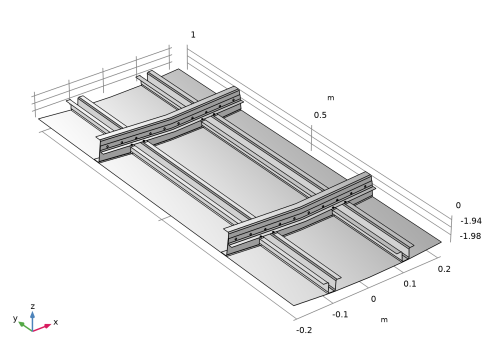
The model geometry is a section of the full geometry including two frame segments and two stringers. As shown in Figure 1, the section cut is 1 m long and 1/30th in the circumferential direction.
Figure 1: Model geometry of an aircraft fuselage panel.
The rivets connect all parts by transmitting normal and tangential forces. When buckling occurs, it is important to also include contact forces to avoid that parts overlap away from the rivet holes.
The fuselage skin is pressurized at p = 0.5 atm. In an ideal cylinder with radius R and thickness t, this pressure generates an axial stress (σa) and a hoop stress (σh) with the relation
(1)
In the current geometry, the force is shared between the skin and the stiffening elements, but the same relation applies between the resultant circumferential and axial forces.
In the axial direction, an additional compressive load is added to study the structure when buckling occurs. The relation between the axial force, Fa, and the force in the hoop direction, Fh, is then
(2):
where Aa and Ah are the areas in the axial and hoop directions, respectively, and k is a biaxial loading parameter varying from 0.5 (nominal pressure condition) to 1 (compressive loading condition).
The edges in the plane normal to the hoop direction are constrained using symmetry conditions.
The edges in the plane normal to the axial direction are also given symmetry conditions. On one side, a standard symmetry condition is used, while on the opposite side the normal displacement is constant but nonzero. Instead, the axial force is prescribed, using the axial force Fa from Equation 2.
The following safety criterion is evaluated to check whether or not the rivets can sustain the transmitted force:
(3)
Here, Fn,max is the critical normal force defined as function of the rivet yield stress σ0 and rivet diameter d as
(4)
The form of Equation 3 essentially implies a Tresca yield criterion for the rivets.
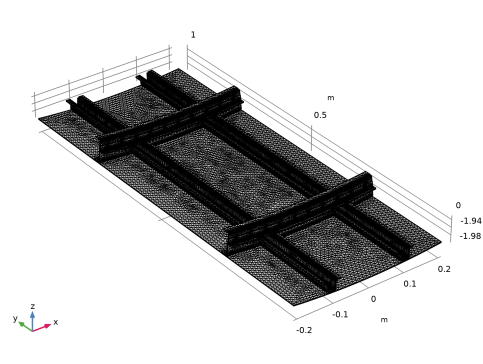
The mesh size is set with a maximum element size of 10 mm, and a minimum element size of 3 mm, giving the mesh shown in Figure 2.
Figure 2: Model mesh.
With the chosen element size, there are at least eight elements around the each rivet hole.
Results and Discussion
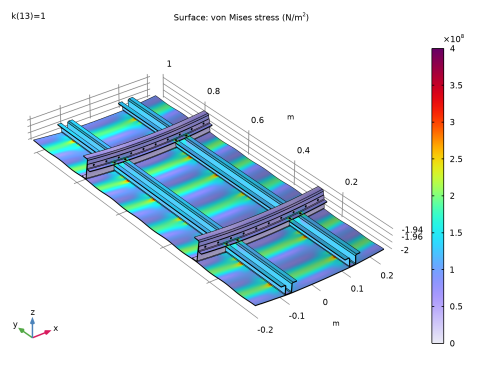
Figure 3 below shows the von Mises stress for the fully compressive loading case. The pattern clearly shows the buckling in the skin. Note that high stress values occur around the rivet holes. This is because the forces between the joined plates are transmitted by the hole edges. The stress at some distance away from a rivet hole is, however, not affected by this local singularity.
Figure 3: von Mises Stress under compressive loading.
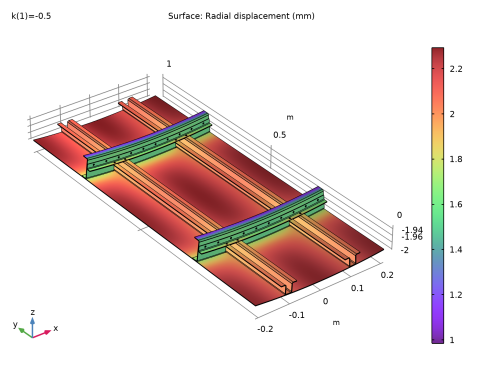
Figure 4 shows the displacement in the radial direction for the nominal pressure loading condition. The stiffening effect of the stringers is clearly visible.
Figure 4: Radial displacement at nominal pressure.
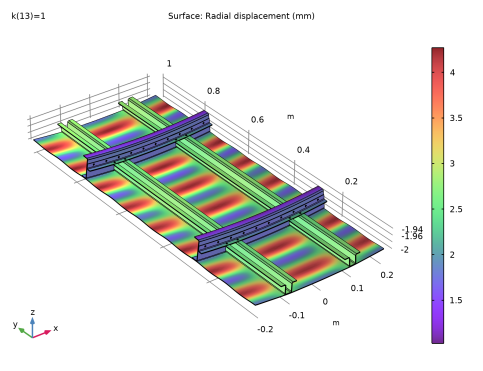
Figure 5 shows the radial displacement at maximum compressive load when the skin has started to buckle.
Figure 5: Radial displacement after buckling.
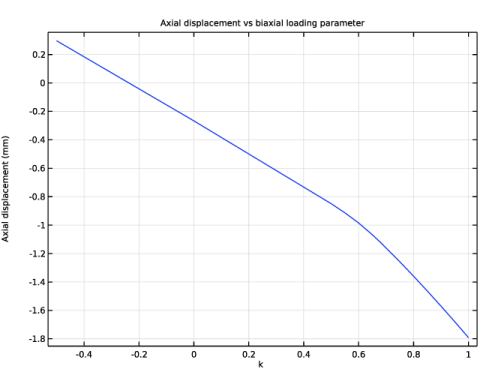
Figure 6 shows the axial displacement variation with respect to the biaxial loading parameter. For the nominal pressure condition (on the left), the axial displacement is positive and slightly decrease as the compressive axial force increase. Around 0.6 the slope of the curve changes since buckling occurs.
Figure 6: Axial displacement versus biaxial loading parameter.
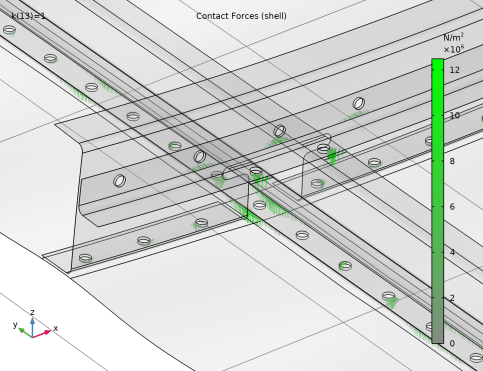
Figure 7 shows the contact pressure at the frame–stringer intersection under maximum compressive loading.
Figure 7: Contact pressure.
Notes About the COMSOL Implementation
The Fasteners feature is intended to model ideal local joint connection between two shell boundaries. The axial, shear, and bending forces transmitted by the fasteners are directly applied at the edges of the connected fastener holes. By default, the fastener flexibilities are evaluated based on a beam idealization. They can be tuned by the user. Alternatively, you can provide user-defined normal and tangential stiffness values.
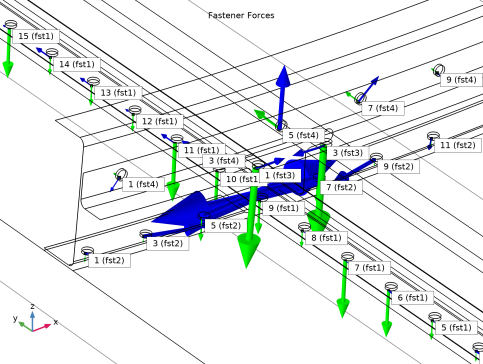
Once the solution is available, you can visualize and evaluate the fastener forces by using result templates for plots and evaluation groups. Figure 8 shows some of the forces acting on the rivets. The tangential forces are shown in blue and the axial forces in green. An annotation is included for each fastener to make them easily identifiable. In Figure 8, the rivets with the highest tangential forces are marked with 5 (fst2) and 7 (fst2). This should be interpreted as the fasteners with number 5 and 7, respectively, defined in the Fasteners node with the tag fst2. In the Fastener Forces evaluation group you can find the values, which are about 860 N.
Figure 8: Forces acting on rivets for the compressive loading case.
If a Safety subnode has been added to a Fasteners node, the arrows are colored red for fasteners that do not satisfy the safety criterion.
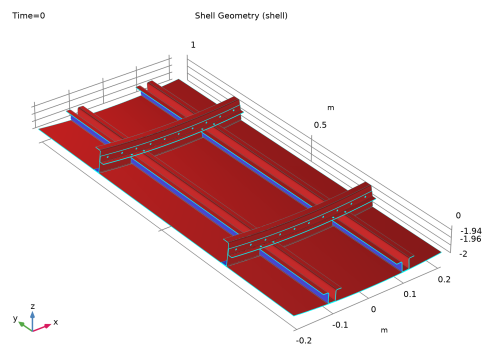
As shell elements are defined on embedded faces in 3D, there is no geometric distinction between the physical top and bottom surfaces. When connecting two shells, for instance using contact or fasteners, you need to specify the physical surfaces in order to evaluate the connecting forces accurately. In the Contact node, the selection of the physical contact surface is done manually and one can use the Shell Geometry plot from results templates to determine the orientation of the shell. In Figure 9, the top surface is colored in red while the bottom surface is colored in blue.
Figure 9: Shell geometry and orientation.
The Fasteners node includes an automatic detection of the connected location because it is assumed that there are no topology changes during the analysis. For a complex geometry with a large number of boundaries, this can induce an extra cost in terms of computational time. The automatic detection algorithm may also fail in cases where the same boundary is both a top and bottom surface for the same Fasteners node. In this example, the manual definition of the connected location is chosen as it anyway has to be done for the contact feature.
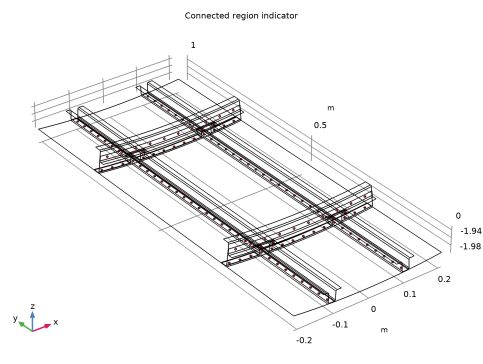
In addition, the Fasteners feature includes an automatic detection of the fasteners location based on the holes in the geometry. It automatically pairs source and destination holes that, within a tolerance, have the same radius, the same axis orientation, and centers on the same axis. The fasteners forces are then evaluated and applied to the adjacent edges of the holes. To visualize where the fasteners are active, you can use the Connected Region Indicator plot from the result templates. This plot is shown in Figure 9 for the current model.
Figure 10: Active fasteners in the model.
Application Library path: Structural_Mechanics_Module/Beams_and_Shells/fuselage_buckling
Modeling Instructions
From the File menu, choose New.
New
In the New window, click  Model Wizard.
Model Wizard
1
In the Model Wizard window, click  3D.
2
In the Select Physics tree, select Structural Mechanics > Shell (shell).
3
Click Add.
4
Click  Study.
5
In the Select Study tree, select General Studies > Stationary.
6
Geometry 1
1
In the Geometry toolbar, click Insert Sequence and choose Insert Sequence.
2
3
In the Geometry toolbar, click  Build All.
4
Click the  Zoom Extents button in the Graphics toolbar.
Global Definitions
Parameters 2
1
In the Home toolbar, click  Parameters and choose Add > Parameters.
2
In the Settings window for Parameters, locate the Parameters section.
3
Click  Load from File.
4
Add Material from Library
In the Home toolbar, click  Windows and choose Add Material from Library.
Add Material
1
Go to the Add Material window.
2
In the tree, select Built-in > Aluminum 6063-T83.
3
Click the Add to Component button in the window toolbar.
4
In the Home toolbar, click  Add Material to close the Add Material window.
Shell (shell)
Thickness and Offset 1
1
In the Settings window for Thickness and Offset, locate the Thickness and Offset section.
2
In the d0 text field, type th2.
Thickness and Offset 2
1
In the Physics toolbar, click  Boundaries and choose Thickness and Offset.
2
In the Settings window for Thickness and Offset, locate the Boundary Selection section.
3
From the Selection list, choose Skin.
4
Locate the Thickness and Offset section. In the d0 text field, type th1.
Face Load 1
1
In the Physics toolbar, click  Boundaries and choose Face Load.
2
In the Settings window for Face Load, locate the Boundary Selection section.
3
From the Selection list, choose Skin.
4
Locate the Through-Thickness Location section. From the list, choose Bottom surface.
5
Locate the Force section. From the Load type list, choose Pressure.
6
In the p text field, type p0.
Symmetry 1
1
In the Physics toolbar, click  Edges and choose Symmetry.
2
In the Settings window for Symmetry, in the Graphics window toolbar, clicknext to  Select Edges, then choose Group by Continuous Tangent.
3
Symmetry 2
1
In the Physics toolbar, click  Edges and choose Symmetry.
2
Click the  Go to Default View button in the Graphics toolbar.
3
Definitions
Integration 1 (intop1)
1
In the Definitions toolbar, click  Nonlocal Couplings and choose Integration.
2
In the Settings window for Integration, locate the Source Selection section.
3
From the Geometric entity level list, choose Edge.
4
Integration 2 (intop2)
1
In the Definitions toolbar, click  Nonlocal Couplings and choose Integration.
2
In the Settings window for Integration, locate the Source Selection section.
3
From the Geometric entity level list, choose Edge.
4
Integration 3 (intop3)
1
In the Definitions toolbar, click  Nonlocal Couplings and choose Integration.
2
In the Settings window for Integration, locate the Source Selection section.
3
From the Geometric entity level list, choose Edge.
4
Integration 4 (intop4)
1
In the Definitions toolbar, click  Nonlocal Couplings and choose Integration.
2
In the Settings window for Integration, locate the Source Selection section.
3
From the Geometric entity level list, choose Edge.
4
Variables 1
1
In the Model Builder window, right-click Definitions and choose Variables.
2
In the Settings window for Variables, locate the Variables section.
3
Shell (shell)
Symmetry 3
1
In the Physics toolbar, click  Edges and choose Symmetry.
2
3
In the Settings window for Symmetry, click to expand the Normal Direction Condition section.
4
From the list, choose Prescribed force.
5
In the Fn text field, type k*Fh*Aa/Ah.
6
Click the  Show More Options button in the Model Builder toolbar.
7
In the Show More Options dialog, select Physics > Advanced Physics Options in the tree.
8
In the tree, select the checkbox for the node Physics > Advanced Physics Options.
9
10
In the Settings window for Symmetry, click to expand the Constraint Settings section.
11
From the Constraint list, choose Weak constraints.
Definitions
Contact Pair: Skin/Stringer
1
In the Definitions toolbar, click  Pairs and choose Contact Pair.
2
In the Settings window for Pair, type Contact Pair: Skin/Stringer in the Label text field.
3
In the Graphics window toolbar, clicknext to  Select Boundaries, then choose Group by Continuous Tangent.
4
5
Locate the Source Boundaries section. Click  Create Selection.
6
In the Create Selection dialog, type Skin_Stringer_Src in the Selection name text field.
7
8
In the Settings window for Pair, locate the Destination Boundaries section.
9
Click to select the  Activate Selection toggle button.
10
11
Click  Create Selection.
12
In the Create Selection dialog, type Skin_Stringer_Dst in the Selection name text field.
13
Contact Pair: Skin/Frame
1
In the Definitions toolbar, click  Pairs and choose Contact Pair.
2
In the Settings window for Pair, type Contact Pair: Skin/Frame in the Label text field.
3
4
Locate the Source Boundaries section. Click  Create Selection.
5
In the Create Selection dialog, type Skin_Frame_Src in the Selection name text field.
6
7
In the Settings window for Pair, locate the Destination Boundaries section.
8
Click to select the  Activate Selection toggle button.
9
10
Click  Create Selection.
11
In the Create Selection dialog, type Skin_Frame_Dst in the Selection name text field.
12
Contact Pair: Stringer/Clip
1
In the Definitions toolbar, click  Pairs and choose Contact Pair.
2
In the Settings window for Pair, type Contact Pair: Stringer/Clip in the Label text field.
3
4
Locate the Source Boundaries section. Click  Create Selection.
5
In the Create Selection dialog, type Stringer_Clip_Src in the Selection name text field.
6
7
In the Settings window for Pair, locate the Destination Boundaries section.
8
Click to select the  Activate Selection toggle button.
9
10
Click  Create Selection.
11
In the Create Selection dialog, type Stringer_Clip_Dst in the Selection name text field.
12
Contact Pair: Frame/Clip
1
In the Definitions toolbar, click  Pairs and choose Contact Pair.
2
In the Settings window for Pair, type Contact Pair: Frame/Clip in the Label text field.
3
4
Locate the Source Boundaries section. Click  Create Selection.
5
In the Create Selection dialog, type Frame_Clip_Src in the Selection name text field.
6
7
In the Settings window for Pair, locate the Destination Boundaries section.
8
Click to select the  Activate Selection toggle button.
9
10
Click  Create Selection.
11
In the Create Selection dialog, type Frame_Clip_Dst in the Selection name text field.
12
Shell (shell)
Contact 1
1
In the Model Builder window, under Component 1 (comp1) > Shell (shell) click Contact 1.
2
In the Settings window for Contact, locate the Contact Surface section.
3
From the Contact surface, destination list, choose Bottom.
4
Locate the Contact Pressure Penalty Factor section. From the Penalty factor control list, choose Automatic, soft.
Contact 1a
1
In the Physics toolbar, click  Pairs and choose Contact.
2
In the Settings window for Contact, locate the Pair Selection section.
3
4
In the Add dialog, select Contact Pair: Skin/Frame (p2) in the Pairs list.
5
6
In the Settings window for Contact, locate the Contact Pressure Penalty Factor section.
7
From the Penalty factor control list, choose Automatic, soft.
Fasteners 1
1
In the Physics toolbar, click  Boundaries and choose Fasteners.
2
In the Settings window for Fasteners, locate the Boundary Selection section.
3
From the Selection list, choose Skin_Stringer_Src.
4
Locate the Boundary Selection, Destination section. From the Selection list, choose Skin_Stringer_Dst.
5
Locate the Location section. From the Connected location list, choose Manual.
6
Locate the Fastener Stiffness section. In the df text field, type d_r.
Safety 1
1
In the Physics toolbar, click  Attributes and choose Safety.
2
In the Settings window for Safety, click to expand the Equation section.
3
Locate the Safety section. In the fn,max text field, type fnmax.
4
In the αn text field, type 2.
5
In the fs,max text field, type fsmax.
6
In the αs text field, type 2.
Fasteners 2
1
In the Physics toolbar, click  Boundaries and choose Fasteners.
2
In the Settings window for Fasteners, locate the Boundary Selection section.
3
From the Selection list, choose Skin_Frame_Src.
4
Locate the Boundary Selection, Destination section. From the Selection list, choose Skin_Frame_Dst.
5
Locate the Location section. From the Connected location list, choose Manual.
6
From the Source list, choose Top surface.
7
Locate the Fastener Stiffness section. In the df text field, type d_r.
Safety 1
1
In the Physics toolbar, click  Attributes and choose Safety.
2
In the Settings window for Safety, locate the Safety section.
3
In the fn,max text field, type fnmax.
4
In the αn text field, type 2.
5
In the fs,max text field, type fsmax.
6
In the αs text field, type 2.
Fasteners 3
1
In the Physics toolbar, click  Boundaries and choose Fasteners.
2
In the Settings window for Fasteners, locate the Boundary Selection section.
3
From the Selection list, choose Stringer_Clip_Src.
4
Locate the Boundary Selection, Destination section. From the Selection list, choose Stringer_Clip_Dst.
5
Locate the Location section. From the Connected location list, choose Manual.
6
Locate the Fastener Stiffness section. In the df text field, type d_r.
Safety 1
1
In the Physics toolbar, click  Attributes and choose Safety.
2
In the Settings window for Safety, locate the Safety section.
3
In the fn,max text field, type fnmax.
4
In the αn text field, type 2.
5
In the fs,max text field, type fsmax.
6
In the αs text field, type 2.
Fasteners 4
1
In the Physics toolbar, click  Boundaries and choose Fasteners.
2
In the Settings window for Fasteners, locate the Boundary Selection section.
3
From the Selection list, choose Frame_Clip_Src.
4
Locate the Boundary Selection, Destination section. From the Selection list, choose Frame_Clip_Dst.
5
Locate the Location section. From the Connected location list, choose Manual.
6
Locate the Fastener Stiffness section. In the df text field, type d_r.
Safety 1
1
In the Physics toolbar, click  Attributes and choose Safety.
2
In the Settings window for Safety, locate the Safety section.
3
In the fn,max text field, type fnmax.
4
In the αn text field, type 2.
5
In the fs,max text field, type fsmax.
6
In the αs text field, type 2.
Mesh 1
Free Triangular 1
1
In the Mesh toolbar, click  More Generators and choose Free Triangular.
2
In the Settings window for Free Triangular, locate the Boundary Selection section.
3
From the Selection list, choose All boundaries.
Size
1
In the Model Builder window, click Size.
2
In the Settings window for Size, locate the Element Size section.
3
Click the Custom button.
4
Locate the Element Size Parameters section. In the Maximum element size text field, type 1e-2.
5
In the Minimum element size text field, type 3e-3.
6
Click  Build All.
Definitions
Cylindrical System 2 (sys2)
1
In the Definitions toolbar, click  Coordinate Systems and choose Cylindrical System.
2
In the Settings window for Cylindrical System, locate the Settings section.
3
Find the Origin subsection. In the table, enter the following settings:
4
Find the Longitudinal axis subsection. In the table, enter the following settings:
5
Click the  Show More Options button in the Model Builder toolbar.
6
In the Show More Options dialog, select General > Variable Utilities in the tree.
7
8
Vector Transform 1 (vectr1)
1
In the Definitions toolbar, click  Variable Utilities and choose Vector Transform.
2
In the Settings window for Vector Transform, locate the Geometric Entity Selection section.
3
From the Geometric entity level list, choose Boundary.
4
From the Selection list, choose All boundaries.
5
Locate the Input section. In the table, enter the following settings:
6
Locate the Output section. From the Coordinate system list, choose Cylindrical System 2 (sys2).
Study 1
Step 1: Stationary
1
In the Model Builder window, under Study 1 click Step 1: Stationary.
2
In the Settings window for Stationary, click to expand the Study Extensions section.
3
Select the Auxiliary sweep checkbox.
4
5
6
In the Study toolbar, click  Get Initial Value.
Result Templates
1
In the Home toolbar, click  Result Templates to open the Result Templates window.
2
Go to the Result Templates window.
3
In the tree, select Study 1/Solution 1 (sol1) > Shell > Shell Geometry (shell).
4
Click the Add Result Template button in the window toolbar.
Result Templates
1
Go to the Result Templates window.
2
In the tree, select Study 1/Solution 1 (sol1) > Shell > Connected Region Indicator (shell).
3
Click the Add Result Template button in the window toolbar.
Result Templates
1
Go to the Result Templates window.
2
In the tree, select Study 1/Solution 1 (sol1) > Shell > Displacement (shell).
3
Click the Add Result Template button in the window toolbar.
4
In the Home toolbar, click  Result Templates to close the Result Templates window.
Results
Surface 1
1
In the Model Builder window, expand the Displacement (shell) node, then click Surface 1.
2
In the Settings window for Surface, locate the Expression section.
3
In the Expression text field, type vectr1.vr.
4
From the Unit list, choose mm.
5
Select the Description checkbox. In the associated text field, type Radial displacement.
Radial Displacement (shell)
1
In the Model Builder window, under Results click Displacement (shell).
2
In the Settings window for 3D Plot Group, type Radial Displacement (shell) in the Label text field.
Definitions
Global Variable Probe 1 (var1)
1
In the Definitions toolbar, click  Probes and choose Global Variable Probe.
2
In the Settings window for Global Variable Probe, locate the Expression section.
3
In the Expression text field, type -shell.sym3.un.
4
From the Table and plot unit list, choose mm.
5
Select the Description checkbox. In the associated text field, type Axial displacement.
Study 1
Step 1: Stationary
1
In the Model Builder window, under Study 1 click Step 1: Stationary.
2
In the Settings window for Stationary, click to expand the Results While Solving section.
3
Select the Plot checkbox.
4
From the Plot group list, choose Radial Displacement (shell).
5
From the Update at list, choose Steps taken by solver.
Solver Configurations
In the Model Builder window, expand the Study 1 > Solver Configurations node.
Solution 1 (sol1)
1
In the Model Builder window, expand the Study 1 > Solver Configurations > Solution 1 (sol1) > Dependent Variables 1 node, then click Displacement Field (comp1.u).
2
In the Settings window for Field, locate the Scaling section.
3
In the Scale text field, type 1e-3.
4
In the Model Builder window, click Normal Displacement (comp1.shell.sym3.un).
5
In the Settings window for State, locate the Scaling section.
6
In the Scale text field, type 1e-3.
Step 1: Stationary
In the Study toolbar, click  Compute.
Results
Surface 1
1
In the Model Builder window, expand the Stress (shell) node, then click Surface 1.
2
In the Settings window for Surface, click to expand the Range section.
3
Select the Manual color range checkbox.
4
Set the Maximum value to 4E8.
5
In the Stress (shell) toolbar, click  Plot.
Radial Displacement (shell)
1
In the Model Builder window, under Results click Radial Displacement (shell).
2
In the Settings window for 3D Plot Group, click  Plot First.
3
In the Radial Displacement (shell) toolbar, click  Plot.
4
Click  Plot Last.
5
In the Radial Displacement (shell) toolbar, click  Plot.
Axial Displacement
1
In the Model Builder window, under Results click Probe Plot Group 5.
2
In the Settings window for 1D Plot Group, type Axial Displacement in the Label text field.
3
Click to expand the Title section. From the Title type list, choose Manual.
4
In the Title text area, type Axial displacement vs biaxial loading parameter.
5
Locate the Legend section. Clear the Show legends checkbox.
Result Templates
1
In the Home toolbar, click  Result Templates to open the Result Templates window.
2
Go to the Result Templates window.
3
In the tree, select Study 1/Solution 1 (sol1) > Shell > Fastener Forces (shell).
4
Click the Add Result Template button in the window toolbar.
Result Templates
1
Go to the Result Templates window.
2
In the tree, select Study 1/Solution 1 (sol1) > Shell > Fastener Forces (Study 1) (shell).
3
Click the Add Result Template button in the window toolbar.
Results
Fastener Forces (Study 1) (shell)
1
In the Settings window for Evaluation Group, locate the Data section.
2
From the Parameter selection (k) list, choose Last.
3
In the Fastener Forces (Study 1) (shell) toolbar, click  Evaluate.
Result Templates
1
Go to the Result Templates window.
2
In the tree, select Study 1/Solution 1 (sol1) > Shell > Contact Forces (shell).
3
Click the Add Result Template button in the window toolbar.
4
In the Home toolbar, click  Result Templates to close the Result Templates window.
Geometry Modeling Instructions
If you want to create the geometry yourself, follow these steps.
From the File menu, choose New.
New
In the New window, click  Model Wizard.
Model Wizard
1
In the Model Wizard window, click  3D.
2
Global Definitions
Geometry
1
In the Model Builder window, under Global Definitions click Parameters 1.
2
In the Settings window for Parameters, type Geometry in the Label text field.
3
Locate the Parameters section. Click  Load from File.
4
Geometry 1
Work Plane 1 (wp1)
1
In the Geometry toolbar, click  Work Plane.
2
In the Settings window for Work Plane, locate the Plane Definition section.
3
From the Plane list, choose xz-plane.
4
Click to expand the Local Coordinate System section. In the yw-displacement text field, type -R.
Work Plane 1 (wp1) > Plane Geometry
In the Model Builder window, click Plane Geometry.
Work Plane 1 (wp1) > Polygon 1 (pol1)
1
In the Work Plane toolbar, click  Polygon.
2
In the Settings window for Polygon, locate the Object Type section.
3
From the Type list, choose Open curve.
4
Locate the Coordinates section. In the table, enter the following settings:
Work Plane 1 (wp1) > Fillet 1 (fil1)
1
In the Work Plane toolbar, click  Fillet.
2
On the object pol1, select Points 2–5 only.
3
In the Settings window for Fillet, locate the Radius section.
4
In the Radius text field, type fillet.
5
Click  Build Selected.
Extrude 1 (ext1)
1
In the Model Builder window, under Component 1 (comp1) > Geometry 1 right-click Work Plane 1 (wp1) and choose Extrude.
2
In the Settings window for Extrude, locate the Distances section.
3
4
Select the Reverse direction checkbox.
5
Locate the Selections of Resulting Entities section. Find the Cumulative selection subsection. Click New.
6
In the New Cumulative Selection dialog, type Stringer in the Name text field.
7
8
In the Settings window for Extrude, click  Build Selected.
9
Click the  Zoom Extents button in the Graphics toolbar.
Work Plane 2 (wp2)
1
In the Geometry toolbar, click  Work Plane.
2
In the Settings window for Work Plane, locate the Plane Definition section.
3
From the Plane type list, choose Face parallel.
4
On the object ext1, select Boundary 9 only.
5
Locate the Local Coordinate System section. From the Origin list, choose Vertex projection.
6
On the object ext1, select Point 1 only.
Work Plane 2 (wp2) > Plane Geometry
In the Model Builder window, click Plane Geometry.
Work Plane 2 (wp2) > Rectangle 1 (r1)
1
In the Work Plane toolbar, click  Rectangle.
2
In the Settings window for Rectangle, locate the Size and Shape section.
3
In the Width text field, type 5/2*l_s.
4
In the Height text field, type l_clip.
5
Locate the Position section. In the yw text field, type L/4-l_f/2-l_clip.
Work Plane 2 (wp2) > Move 1 (mov1)
1
In the Work Plane toolbar, click  Transforms and choose Move.
2
3
In the Settings window for Move, locate the Displacement section.
4
In the yw text field, type L/2.
5
Locate the Input section. Select the Keep input objects checkbox.
6
Click  Build Selected.
7
Click the  Zoom Extents button in the Graphics toolbar.
Partition Objects 1 (par1)
1
In the Model Builder window, right-click Geometry 1 and choose Booleans and Partitions > Partition Objects.
2
3
In the Settings window for Partition Objects, locate the Partition Objects section.
4
Click to select the  Activate Selection toggle button for Tool objects.
5
Work Plane 3 (wp3)
1
In the Geometry toolbar, click  Work Plane.
2
In the Settings window for Work Plane, locate the Plane Definition section.
3
From the Plane list, choose yz-plane.
4
Locate the Local Coordinate System section. In the yw-displacement text field, type -R.
Work Plane 3 (wp3) > Plane Geometry
In the Model Builder window, click Plane Geometry.
Work Plane 3 (wp3) > Polygon 1 (pol1)
1
In the Work Plane toolbar, click  Polygon.
2
In the Settings window for Polygon, locate the Object Type section.
3
From the Type list, choose Open curve.
4
Locate the Coordinates section. In the table, enter the following settings:
Work Plane 3 (wp3) > Polygon 2 (pol2)
1
In the Work Plane toolbar, click  Polygon.
2
In the Settings window for Polygon, locate the Object Type section.
3
From the Type list, choose Open curve.
4
Locate the Coordinates section. In the table, enter the following settings:
Work Plane 3 (wp3) > Fillet 1 (fil1)
1
In the Work Plane toolbar, click  Fillet.
2
On the object pol1, select Points 2 and 3 only.
3
On the object pol2, select Point 2 only.
4
In the Settings window for Fillet, locate the Radius section.
5
In the Radius text field, type fillet.
Work Plane 3 (wp3) > Line Segment 1 (ls1)
1
In the Work Plane toolbar, click  More Primitives and choose Line Segment.
2
In the Settings window for Line Segment, locate the Starting Point section.
3
From the Specify list, choose Coordinates.
4
In the yw text field, type th1/2.
5
Locate the Endpoint section. From the Specify list, choose Coordinates.
6
In the xw text field, type L.
7
In the yw text field, type th1/2.
Work Plane 3 (wp3) > Line Segment 2 (ls2)
1
In the Work Plane toolbar, click  More Primitives and choose Line Segment.
2
In the Settings window for Line Segment, locate the Starting Point section.
3
From the Specify list, choose Coordinates.
4
In the xw text field, type L/4-l_f/2.
5
In the yw text field, type th1/2.
6
Locate the Endpoint section. From the Specify list, choose Coordinates.
7
In the xw text field, type L/4+l_f/2.
8
In the yw text field, type th1/2.
Work Plane 3 (wp3) > Move 1 (mov1)
1
In the Work Plane toolbar, click  Transforms and choose Move.
2
Select the objects fil1(1), fil1(2), and ls2 only.
3
In the Settings window for Move, locate the Displacement section.
4
In the xw text field, type L/2.
5
Locate the Input section. Select the Keep input objects checkbox.
Work Plane 3 (wp3) > Union 1 (uni1)
1
In the Work Plane toolbar, click  Booleans and Partitions and choose Union.
2
Select the objects ls1, ls2, and mov1(3) only.
Work Plane 3 (wp3)
1
In the Model Builder window, under Component 1 (comp1) > Geometry 1 click Work Plane 3 (wp3).
2
In the Settings window for Work Plane, locate the Unite Objects section.
3
Clear the Unite objects checkbox.
Revolve 1 (rev1)
1
In the Geometry toolbar, click  Revolve.
2
In the Settings window for Revolve, locate the General section.
3
4
Click the  Remove from Selection button for Input objects.
5
Locate the Revolution Angles section. Click the Angles button.
6
In the Start angle text field, type -alpha.
7
In the End angle text field, type alpha.
8
Locate the Revolution Axis section. From the Axis type list, choose 3D.
9
Locate the Selections of Resulting Entities section. Find the Cumulative selection subsection. Click New.
10
In the New Cumulative Selection dialog, type Frame in the Name text field.
11
Revolve 2 (rev2)
1
In the Geometry toolbar, click  Revolve.
2
In the Settings window for Revolve, locate the General section.
3
From the Input object handling list, choose Keep.
4
Locate the Revolution Angles section. Click the Angles button.
5
In the Start angle text field, type -alpha.
6
In the End angle text field, type alpha.
7
Locate the Revolution Axis section. From the Axis type list, choose 3D.
8
Locate the Selections of Resulting Entities section. Find the Cumulative selection subsection. Click New.
9
In the New Cumulative Selection dialog, type Skin in the Name text field.
10
11
In the Settings window for Revolve, click  Build Selected.
12
Click the  Zoom Extents button in the Graphics toolbar.
Revolve 3 (rev3)
1
Right-click Revolve 2 (rev2) and choose Duplicate.
2
In the Settings window for Revolve, locate the General section.
3
From the Input object handling list, choose Unite with.
4
Locate the Revolution Angles section. In the Start angle text field, type -alpha/20.
5
In the End angle text field, type alpha/20.
6
Locate the Selections of Resulting Entities section. Find the Cumulative selection subsection. From the Contribute to list, choose Stringer.
Cylinder 1 (cyl1)
1
In the Geometry toolbar, click  Cylinder.
2
In the Settings window for Cylinder, locate the Size and Shape section.
3
In the Radius text field, type d_r/2.
4
In the Height text field, type th1+th2.
5
Locate the Position section. In the y text field, type L/4.
6
In the z text field, type -R.
7
Locate the Selections of Resulting Entities section. Find the Cumulative selection subsection. Click New.
8
In the New Cumulative Selection dialog, type Rivet in the Name text field.
9
Move 1 (mov1)
1
In the Geometry toolbar, click  Transforms and choose Move.
2
In the Settings window for Move, locate the Input section.
3
From the Input objects list, choose Rivet.
4
Locate the Displacement section. In the y text field, type range(-8,1,8)*L/2/17.
Ball Selection 1 (ballsel1)
1
In the Geometry toolbar, click  Selections and choose Ball Selection.
2
In the Settings window for Ball Selection, locate the Geometric Entity Level section.
3
From the Level list, choose Object.
4
Locate the Ball Center section. In the y text field, type L/4.
5
In the z text field, type -R.
6
Locate the Ball Radius section. In the Radius text field, type 2*d_r.
7
Click  Build Selected.
8
Locate the Output Entities section. From the Include entity if list, choose Entity inside ball.
Rotate 1 (rot1)
1
In the Geometry toolbar, click  Transforms and choose Rotate.
2
In the Settings window for Rotate, locate the Input section.
3
From the Input objects list, choose Ball Selection 1.
4
Locate the Rotation section. From the Axis type list, choose y-axis.
5
In the Angle text field, type range(-3,1,3)/7*alpha.
6
Locate the Selections of Resulting Entities section. Find the Cumulative selection subsection. From the Contribute to list, choose Rivet.
Cylinder 2 (cyl2)
1
In the Geometry toolbar, click  Cylinder.
2
In the Settings window for Cylinder, locate the Size and Shape section.
3
In the Radius text field, type d_r/2.
4
In the Height text field, type th1+th2.
5
Locate the Position section. In the x text field, type l_s*7/8.
6
In the y text field, type L/4-l_f/2-l_clip/2-th2.
7
In the z text field, type -R+th1/2-th2+h_s.
8
Locate the Selections of Resulting Entities section. Find the Cumulative selection subsection. From the Contribute to list, choose Rivet.
Mirror 1 (mir1)
1
In the Geometry toolbar, click  Transforms and choose Mirror.
2
3
In the Settings window for Mirror, locate the Normal Vector to Plane of Reflection section.
4
In the x text field, type 1.
5
In the z text field, type 0.
6
Locate the Selections of Resulting Entities section. Find the Cumulative selection subsection. From the Contribute to list, choose Rivet.
7
Locate the Input section. Select the Keep input objects checkbox.
Cylinder 3 (cyl3)
1
In the Geometry toolbar, click  Cylinder.
2
In the Settings window for Cylinder, locate the Size and Shape section.
3
In the Radius text field, type d_r/2.
4
In the Height text field, type th1+th2.
5
Locate the Position section. In the y text field, type L/4-l_f/2-th1/2-th2.
6
In the z text field, type -R+th1+h_s+th2+l_clip/2.
7
Locate the Axis section. From the Axis type list, choose y-axis.
Rotate 2 (rot2)
1
In the Geometry toolbar, click  Transforms and choose Rotate.
2
3
In the Settings window for Rotate, locate the Rotation section.
4
From the Axis type list, choose y-axis.
5
In the Angle text field, type range(-2,1,2)*alpha/5.
6
Locate the Selections of Resulting Entities section. Find the Cumulative selection subsection. From the Contribute to list, choose Rivet.
Move 2 (mov2)
1
In the Geometry toolbar, click  Transforms and choose Move.
2
In the Settings window for Move, locate the Input section.
3
From the Input objects list, choose Rivet.
4
Select the Keep input objects checkbox.
5
Locate the Displacement section. In the y text field, type L/2.
Work Plane 4 (wp4)
1
In the Geometry toolbar, click  Work Plane.
2
In the Settings window for Work Plane, locate the Plane Definition section.
3
From the Plane list, choose xz-plane.
4
In the y-coordinate text field, type L/4-l_f/2-l_clip.
5
Locate the Local Coordinate System section. In the yw-displacement text field, type -R.
Work Plane 4 (wp4) > Plane Geometry
In the Model Builder window, click Plane Geometry.
Work Plane 4 (wp4) > Rectangle 1 (r1)
1
In the Work Plane toolbar, click  Rectangle.
2
In the Settings window for Rectangle, locate the Size and Shape section.
3
In the Width text field, type l_c.
4
In the Height text field, type h_c.
5
Locate the Position section. In the xw text field, type -l_c/2.
6
In the yw text field, type th1.
Work Plane 4 (wp4) > Rectangle 2 (r2)
1
Right-click Component 1 (comp1) > Geometry 1 > Work Plane 4 (wp4) > Plane Geometry > Rectangle 1 (r1) and choose Duplicate.
2
In the Settings window for Rectangle, locate the Size and Shape section.
3
In the Width text field, type l_c/4.
4
In the Height text field, type h_c-2*fillet.
Work Plane 4 (wp4) > Mirror 1 (mir1)
1
In the Work Plane toolbar, click  Transforms and choose Mirror.
2
3
In the Settings window for Mirror, locate the Input section.
4
Select the Keep input objects checkbox.
Work Plane 4 (wp4) > Difference 1 (dif1)
1
In the Work Plane toolbar, click  Booleans and Partitions and choose Difference.
2
3
In the Settings window for Difference, locate the Difference section.
4
Click to select the  Activate Selection toggle button for Objects to subtract.
5
Select the objects mir1 and r2 only.
Work Plane 4 (wp4) > Fillet 1 (fil1)
1
In the Work Plane toolbar, click  Fillet.
2
In the Settings window for Fillet, locate the Points section.
3
Click to select the  Activate Selection toggle button for Vertices to fillet.
4
On the object dif1, select Points 1, 2, 4, and 6–8 only.
5
Locate the Radius section. In the Radius text field, type fillet.
6
Click  Build Selected.
Extrude 2 (ext2)
1
In the Model Builder window, under Component 1 (comp1) > Geometry 1 right-click Work Plane 4 (wp4) and choose Extrude.
2
In the Settings window for Extrude, locate the Distances section.
3
4
Select the Reverse direction checkbox.
5
Locate the Selections of Resulting Entities section. Find the Cumulative selection subsection. Click New.
6
In the New Cumulative Selection dialog, type Stringer cut in the Name text field.
7
Move 3 (mov3)
1
In the Geometry toolbar, click  Transforms and choose Move.
2
In the Settings window for Move, locate the Input section.
3
From the Input objects list, choose Stringer cut.
4
Select the Keep input objects checkbox.
5
Locate the Displacement section. In the y text field, type L/2.
Rotate 3 (rot3)
1
In the Geometry toolbar, click  Transforms and choose Rotate.
2
In the Settings window for Rotate, locate the Input section.
3
From the Input objects list, choose Stringer.
4
Locate the Rotation section. From the Axis type list, choose y-axis.
5
In the Angle text field, type range(-1/2,1,1/2)*alpha.
Rotate 4 (rot4)
1
In the Geometry toolbar, click  Transforms and choose Rotate.
2
In the Settings window for Rotate, locate the Input section.
3
From the Input objects list, choose Rivet.
4
Locate the Rotation section. From the Axis type list, choose y-axis.
5
In the Angle text field, type range(-1/2,1,1/2)*alpha.
Rotate 5 (rot5)
1
In the Geometry toolbar, click  Transforms and choose Rotate.
2
In the Settings window for Rotate, locate the Input section.
3
From the Input objects list, choose Stringer cut.
4
Locate the Rotation section. From the Axis type list, choose y-axis.
5
In the Angle text field, type range(-1/2,1,1/2)*alpha.
Difference 1 (dif1)
1
In the Geometry toolbar, click  Booleans and Partitions and choose Difference.
2
In the Settings window for Difference, locate the Difference section.
3
From the Objects to add list, choose Frame.
4
From the Objects to subtract list, choose Stringer cut.
Union Selection 1 (unisel1)
1
In the Geometry toolbar, click  Selections and choose Union Selection.
2
In the Settings window for Union Selection, locate the Geometric Entity Level section.
3
From the Level list, choose Object.
4
Locate the Input Entities section. Click  Add.
5
In the Add dialog, in the Selections to add list, choose Stringer, Frame, and Skin.
6
Difference 2 (dif2)
1
In the Geometry toolbar, click  Booleans and Partitions and choose Difference.
2
In the Settings window for Difference, locate the Difference section.
3
From the Objects to add list, choose Union Selection 1.
4
From the Objects to subtract list, choose Rivet.
5
Click  Build Selected.