PDF

Superlattice Band Gap Tool
The Superlattice Band Gap Tool model helps the design of periodic structures made of two alternating semiconductor materials (superlattices). The model uses the effective mass Schrödinger equation to estimate the electron and hole ground state energy levels in a given superlattice structure. Device engineers can use the model to quickly compute the effective band gap for a given periodic structure and iterate the design parameters until they reach a desired band gap value.
Introduction
A superlattice is constructed from multiple thin layers of alternating material compositions. It finds applications in HEMTs, LEDs, lasers, and photodetectors. (Ref. 1)
The superlattice in the model is composed of layers of GaAs and AlGaAs. The envelope function approximation (Chap. 1, Sec. 1.7 in Ref. 2) can be employed to justify the use of the single-particle Schrödinger equation. Note that not only the electron potential energy, but also the effective mass, is a function of material composition. To properly take care of the discontinuity in the effective mass, the Schrödinger Equation physics interface applies the BenDaniel–Duke boundary condition (Chap. 2, Sec. 2.6 in Ref. 2) by default.
Model Definition
The band gap energies of the well and the barrier materials are 1.424 and 2.168 eV, respectively. The conduction band offset is 0.283 eV. The electron effective masses of the well and the barrier materials are 0.063 and 0.71, respectively. The hole effective masses of the well and the barrier materials are 0.51 and 0.76, respectively. The widths of the well and the barrier are both 5 nm. The modeling domain consists of one unit cell.
Two Schrödinger Equation physics interfaces are set up to solve for the electron and hole ground state wave functions and energy levels, in two separate studies, respectively. Periodic boundary condition of the Continuity type is used at the two ends of the unit cell. The solutions from the two studies are combined to compute the effective band gap and to generate the plot of electron and hole wave functions. The Array 1D dataset is used to extend the solutions from one to three unit cells for plotting.
Results and Discussion
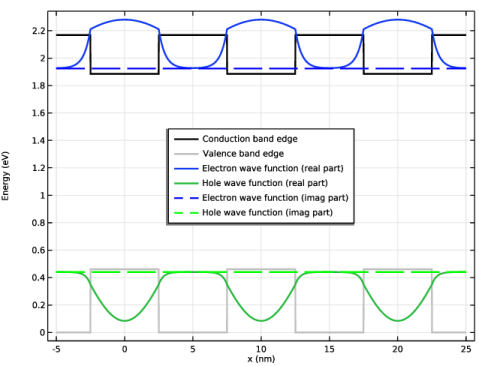
Figure 1 summarizes the result by plotting the conduction and valence band edges, and the real and imaginary parts of the electron and hole ground state wave functions. The wave functions are shifted to the corresponding ground state energy levels.
Figure 1: Summary plot for the superlattice, including the conduction and valence band edges, and the real and imaginary parts of the electron and hole ground state wave functions.
The Global Evaluations show that the electron ground state energy level is 0.039 eV from the conduction band edge, and the one for the hole is 0.021 eV. This leads to the effective band gap of 1.484 eV for the superlattice structure.
References
1. S. M. Sze and K.K. Ng, Physics of Semiconductor Devices, 3rd ed., John Wiley & Sons, Inc., 2007.
2. P. Harrison, Quantum Wells, Wires and Dots, 3rd ed., John Wiley & Sons, Inc., 2009.
Application Library path: Semiconductor_Module/Quantum_Systems/superlattice_band_gap_tool
Modeling Instructions
From the File menu, choose New.
New
In the New window, click  Model Wizard.
Model Wizard
1
In the Model Wizard window, click  1D.
2
In the Select Physics tree, select Semiconductor > Schrödinger Equation (schr).
3
Click Add.
4
Click  Study.
5
In the Select Study tree, select Preset Studies for Selected Physics Interfaces > Eigenvalue.
6
Geometry 1
The Model Wizard exits and starts the COMSOL Desktop at the Geometry node. We can set the length scale here right away. Then import some model parameters from a text file.
1
In the Model Builder window, under Component 1 (comp1) click Geometry 1.
2
In the Settings window for Geometry, locate the Units section.
3
From the Length unit list, choose nm.
Global Definitions
Parameters 1
1
In the Model Builder window, under Global Definitions click Parameters 1.
2
In the Settings window for Parameters, locate the Parameters section.
3
Click  Load from File.
4
Create the geometry for one unit cell of the superlattice.
Geometry 1
Interval 1 (i1)
1
In the Model Builder window, under Component 1 (comp1) right-click Geometry 1 and choose Interval.
2
In the Settings window for Interval, locate the Interval section.
3
From the Specify list, choose Interval lengths.
4
In the Left endpoint text field, type -lw/2-lb/2.
5
6
Click  Build All Objects.
Add physics for the electrons in the conduction band. Use two separate nodes for the different potential energy and effective mass values in the well and barrier regions. Since we are only interested in the ground state, use the default Continuity option for the Periodic Condition at the exterior boundaries of the unit cell.
Schrödinger Equation e-
1
In the Model Builder window, under Component 1 (comp1) click Schrödinger Equation (schr).
2
In the Settings window for Schrödinger Equation, type Schrödinger Equation e- in the Label text field.
3
In the Name text field, type schre.
4
Click to expand the Dependent Variables section. In the Wave functions (1) table, enter the following settings:
Effective Mass 1
1
In the Model Builder window, under Component 1 (comp1) > Schrödinger Equation e- (schre) click Effective Mass 1.
2
In the Settings window for Effective Mass, locate the Effective Mass section.
3
In the meff,e,11 text field, type meb*me_const.
Electron Potential Energy 1
1
In the Model Builder window, click Electron Potential Energy 1.
2
In the Settings window for Electron Potential Energy, locate the Electron Potential Energy section.
3
From the Ve list, choose User defined. In the associated text field, type Egb*e_const.
Effective Mass 2
1
In the Physics toolbar, click  Domains and choose Effective Mass.
2
3
In the Settings window for Effective Mass, locate the Effective Mass section.
4
In the meff,e,11 text field, type mew*me_const.
Electron Potential Energy 2
1
In the Physics toolbar, click  Domains and choose Electron Potential Energy.
2
3
In the Settings window for Electron Potential Energy, locate the Electron Potential Energy section.
4
From the Ve list, choose User defined. In the associated text field, type -CBO*e_const.
Periodic Condition 1
1
In the Physics toolbar, click  Boundaries and choose Periodic Condition.
2
In the Settings window for Periodic Condition, locate the Boundary Selection section.
3
From the Selection list, choose All boundaries.
Add physics for the holes in the valence band in a similar way.
Add Physics
1
In the Physics toolbar, click  Add Physics to open the Add Physics window.
2
Go to the Add Physics window.
3
In the tree, select Recently Used > Schrödinger Equation (schr).
4
Click the Add to Component 1 button in the window toolbar.
5
In the Physics toolbar, click  Add Physics to close the Add Physics window.
Schrödinger Equation hole
1
In the Settings window for Schrödinger Equation, type Schrödinger Equation hole in the Label text field.
2
In the Name text field, type schrh.
3
Locate the Model Properties section. From the Particle type list, choose Holes.
4
Locate the Dependent Variables section. In the Wave functions (1) table, enter the following settings:
Effective Mass 1
1
In the Model Builder window, under Component 1 (comp1) > Schrödinger Equation hole (schrh) click Effective Mass 1.
2
In the Settings window for Effective Mass, locate the Effective Mass section.
3
In the meff,h,11 text field, type mhb*me_const.
Electron Potential Energy 1
1
In the Model Builder window, click Electron Potential Energy 1.
2
In the Settings window for Electron Potential Energy, locate the Electron Potential Energy section.
3
From the Vh list, choose User defined. In the associated text field, type 0.
Effective Mass 2
1
In the Physics toolbar, click  Domains and choose Effective Mass.
2
3
In the Settings window for Effective Mass, locate the Effective Mass section.
4
In the meff,h,11 text field, type mhw*me_const.
Electron Potential Energy 2
1
In the Physics toolbar, click  Domains and choose Electron Potential Energy.
2
3
In the Settings window for Electron Potential Energy, locate the Electron Potential Energy section.
4
From the Vh list, choose User defined. In the associated text field, type VBO*e_const.
Periodic Condition 1
1
In the Physics toolbar, click  Boundaries and choose Periodic Condition.
2
In the Settings window for Periodic Condition, locate the Boundary Selection section.
3
From the Selection list, choose All boundaries.
Create the mesh.
Mesh 1
Edge 1
In the Mesh toolbar, click  Edge.
Size
1
In the Model Builder window, click Size.
2
In the Settings window for Size, locate the Element Size section.
3
Click the Custom button.
4
Locate the Element Size Parameters section. In the Maximum element size text field, type hmax.
5
Click  Build All.
Study 1
Step 1: Eigenvalue
1
In the Model Builder window, under Study 1 click Step 1: Eigenvalue.
2
In the Settings window for Eigenvalue, locate the Study Settings section.
3
In the Desired number of eigenvalues text field, type 1.
4
In the Search for eigenvalues around shift text field, type (Egb-CBO)[1/V].
5
Locate the Physics and Variables Selection section. In the Solve for column of the table, under Component 1 (comp1), clear the checkbox for Schrödinger Equation hole (schrh).
Use two studies, one for each carrier type. Then combine the solutions to inspect the result.
6
In the Model Builder window, click Study 1.
7
In the Settings window for Study, locate the Study Settings section.
8
Clear the Generate default plots checkbox.
9
In the Study toolbar, click  Compute.
Add Study
1
In the Study toolbar, click  Add Study to open the Add Study window.
2
Go to the Add Study window.
3
Find the Studies subsection. In the Select Study tree, select Preset Studies for Selected Physics Interfaces > Eigenvalue.
4
Find the Physics interfaces in study subsection. In the table, clear the Solve checkbox for Schrödinger Equation e- (schre).
5
Click the Add Study button in the window toolbar.
6
In the Study toolbar, click  Add Study to close the Add Study window.
Study 2
1
In the Settings window for Eigenvalue, locate the Study Settings section.
2
In the Desired number of eigenvalues text field, type 1.
3
In the Search for eigenvalues around shift text field, type -VBO[1/V].
4
In the Model Builder window, click Study 2.
5
In the Settings window for Study, locate the Study Settings section.
6
Clear the Generate default plots checkbox.
7
In the Study toolbar, click  Compute.
Results
In the Model Builder window, expand the Results node.
Join 1
1
In the Model Builder window, expand the Results > Datasets node.
2
Right-click Results > Datasets and choose Join.
3
In the Settings window for Join, locate the Data 1 section.
4
From the Data list, choose Study 1/Solution 1 (sol1).
5
From the Solutions list, choose One.
6
Locate the Data 2 section. From the Data list, choose Study 2/Solution 2 (sol2).
7
From the Solutions list, choose One.
8
Locate the Combination section. From the Method list, choose Explicit.
Array 1D 1
1
In the Results toolbar, click  More Datasets and choose Array 1D.
2
In the Settings window for Array 1D, locate the Data section.
3
From the Dataset list, choose Join 1.
4
Locate the Array Size section. In the X size text field, type 3.
5
Click to expand the Advanced section. Select the Define variables checkbox.
Global Evaluation 1
1
In the Results toolbar, click  Global Evaluation.
2
In the Settings window for Global Evaluation, locate the Data section.
3
From the Dataset list, choose Join 1.
4
Locate the Expressions section. In the table, enter the following settings:
5
Click  Evaluate.
Global Evaluation 2
1
In the Results toolbar, click  Global Evaluation.
2
In the Settings window for Global Evaluation, locate the Data section.
3
From the Dataset list, choose Join 1.
4
Locate the Expressions section. In the table, enter the following settings:
5
Click  Evaluate.
Global Evaluation 3
1
In the Results toolbar, click  Global Evaluation.
2
In the Settings window for Global Evaluation, locate the Data section.
3
From the Dataset list, choose Join 1.
4
Locate the Expressions section. In the table, enter the following settings:
5
Click  Evaluate.
1D Plot Group 1
1
In the Results toolbar, click  1D Plot Group.
2
In the Settings window for 1D Plot Group, locate the Data section.
3
From the Dataset list, choose Array 1D 1.
4
Click to expand the Title section. From the Title type list, choose None.
5
Locate the Plot Settings section.
6
Select the x-axis label checkbox. In the associated text field, type x (nm).
7
Select the y-axis label checkbox. In the associated text field, type Energy (eV).
8
Locate the Legend section. From the Position list, choose Center.
Ve
1
Right-click 1D Plot Group 1 and choose Line Graph.
2
In the Settings window for Line Graph, type Ve in the Label text field.
3
Locate the y-Axis Data section. In the Expression text field, type data1(schre.V)/e_const.
4
Select the Description checkbox. In the associated text field, type Conduction band edge.
5
Locate the x-Axis Data section. From the Parameter list, choose Expression.
6
In the Expression text field, type arr1x.
7
Click to expand the Coloring and Style section. From the Color list, choose Black.
8
From the Width list, choose 2.
9
Click to expand the Quality section. From the Smoothing list, choose Everywhere.
10
From the Resolution list, choose Extra fine.
11
Click to expand the Legends section. Select the Show legends checkbox.
12
From the Legends list, choose Manual.
13
Vh
1
Right-click Ve and choose Duplicate.
2
In the Settings window for Line Graph, type Vh in the Label text field.
3
Locate the y-Axis Data section. In the Expression text field, type data2(-schrh.V)/e_const.
4
In the Description text field, type Valence band edge.
5
Locate the Coloring and Style section. From the Color list, choose Gray.
6
Locate the Legends section. In the table, enter the following settings:
psie
1
Right-click Vh and choose Duplicate.
2
In the Settings window for Line Graph, type psie in the Label text field.
3
Locate the y-Axis Data section. In the Expression text field, type data1(schre.Psi*Egw/4/schre.plot_fac+schre.Ei/e_const).
4
In the Description text field, type e- wave function.
5
Locate the Coloring and Style section. From the Color list, choose Cycle.
6
Locate the Legends section. In the table, enter the following settings:
psih
1
Right-click psie and choose Duplicate.
2
In the Settings window for Line Graph, type psih in the Label text field.
3
Locate the y-Axis Data section. In the Expression text field, type data2(-schrh.Psi*Egw/4/schrh.plot_fac-schrh.Ei/e_const).
4
In the Description text field, type hole wave function.
5
Locate the Legends section. In the table, enter the following settings:
Im(psie)
1
In the Model Builder window, right-click psie and choose Duplicate.
2
In the Settings window for Line Graph, type Im(psie) in the Label text field.
3
Locate the y-Axis Data section. In the Expression text field, type data1(imag(schre.Psi)*Egw/4/schre.plot_fac+schre.Ei/e_const).
4
Locate the Coloring and Style section. Find the Line style subsection. From the Line list, choose Dashed.
5
From the Color list, choose Blue.
6
Locate the Legends section. In the table, enter the following settings:
Im(psih)
1
In the Model Builder window, right-click psih and choose Duplicate.
2
In the Settings window for Line Graph, type Im(psih) in the Label text field.
3
Locate the y-Axis Data section. In the Expression text field, type data2(-imag(schrh.Psi)*Egw/4/schrh.plot_fac-schrh.Ei/e_const).
4
Locate the Coloring and Style section. Find the Line style subsection. From the Line list, choose Dashed.
5
From the Color list, choose Green.
6
Locate the Legends section. In the table, enter the following settings:
7
In the 1D Plot Group 1 toolbar, click  Plot.