|
|
|
|
•
|
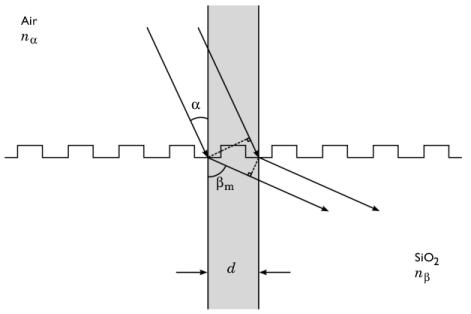
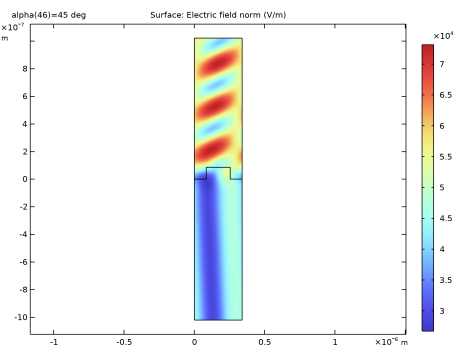
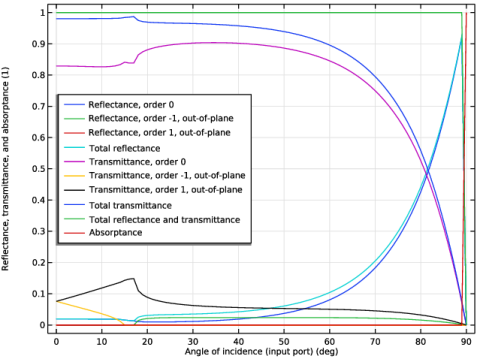
First, the transmittance and reflectance of each diffraction order are computed using the Electromagnetic Waves, Frequency Domain interface on a single unit cell of the grating. For this part of the model it is necessary to fully resolve the wavelength. A Parametric Sweep is used to compute the transmittance and reflectance as functions of the angle of incidence.
|
|
•
|
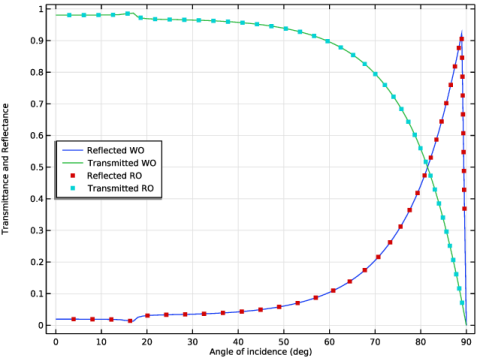
The second part demonstrates how the transmittance and reflectance values can be used to generate a set of interpolation functions that can be used with the Grating feature of the Geometrical Optics interface.
|




|
•
|
For the Diffraction Order (m = 0) node, the specified Reflectance and Transmittance are R0(alpha_ro) and T0(alpha_ro), respectively. Here alpha_ro is a variable for the angle of incidence of each ray, measured counterclockwise from the surface normal.
|
|
•
|
For the Diffraction Order (m = -1) node, the specified Reflectance is Rm1(alpha_ro) and the specified Transmittance is T1(alpha_ro). The m = −1 order for reflected rays corresponds to the m = −1 order for reflected waves, but the m = −1 order for transmitted rays corresponds to the m = +1 order for transmitted waves.
|
|
•
|
For the Diffraction Order (m = 1) node, the specified Reflectance is R1(alpha_ro) and the specified Transmittance is T1(alpha_ro). The m = +1 order for reflected rays corresponds to the m = +1 order for reflected waves, but the m = +1 order for transmitted rays corresponds to the m = −1 order for transmitted waves.
|
|
1
|
|
2
|
In the Select Physics tree, select Optics > Wave Optics > Electromagnetic Waves, Frequency Domain (ewfd).
|
|
3
|
Click Add.
|
|
4
|
Click
 Study. Study. |
|
5
|
|
6
|
Click
 Done. Done. |
|
1
|
|
2
|
|
1
|
In the Model Builder window, under Global Definitions right-click Materials and choose Blank Material.
|
|
2
|
|
3
|
Click to expand the Material Properties section. In the Material properties tree, select Electromagnetic Models > Refractive Index > Refractive index, real part (n).
|
|
4
|
Click
 Add to Material. Add to Material. |
|
5
|
Locate the Material Contents section. In the table, enter the following settings:
|
|
1
|
|
2
|
|
3
|
Click to expand the Material Properties section. In the Material properties tree, select Electromagnetic Models > Refractive Index > Refractive index, real part (n).
|
|
4
|
Click
 Add to Material. Add to Material. |
|
5
|
Locate the Material Contents section. In the table, enter the following settings:
|
|
1
|
|
2
|
|
3
|
|
4
|
|
5
|
|
1
|
|
2
|
|
3
|
|
4
|
|
5
|
|
1
|
|
2
|
|
3
|
|
4
|
|
5
|
|
1
|
|
2
|
|
3
|
|
4
|
Clear the Keep interior boundaries checkbox.
|
|
1
|
In the Model Builder window, under Component 1 (comp1) right-click Materials and choose More Materials > Material Link.
|
|
1
|
|
3
|
|
4
|
|
1
|
|
2
|
|
3
|
|
1
|
In the Model Builder window, under Component 1 (comp1) click Electromagnetic Waves, Frequency Domain (ewfd).
|
|
2
|
|
3
|
|
1
|
|
3
|
|
4
|
|
5
|
|
6
|
Locate the Automatic Diffraction Order Calculation section. From the Diffraction order specification list, choose All angles, to add Diffraction Order nodes that are propagating for non-normal incidence.
|
|
1
|
|
3
|
|
4
|
|
1
|
|
2
|
|
3
|
Click Add Diffraction Orders.
|
|
1
|
|
3
|
|
4
|
|
5
|
|
1
|
|
2
|
|
3
|
Click
 Add. Add. |
|
5
|
|
1
|
|
2
|
|
3
|
|
1
|
|
2
|
|
4
|
Click
 Evaluate. The resulting table shows the reflectance and transmittance values as functions of the angle of incidence. Evaluate. The resulting table shows the reflectance and transmittance values as functions of the angle of incidence. |
|
1
|
In the Model Builder window, under Results click Reflectance, Transmittance, and Absorptance (ewfd).
|
|
2
|
|
1
|
|
2
|
|
3
|
|
4
|
|
5
|
|
1
|
|
2
|
|
3
|
|
4
|
|
5
|
|
6
|
|
7
|
Click
 Build All Objects. Build All Objects. |
|
1
|
|
2
|
|
3
|
|
4
|
Locate the Data Column Settings section. In the table, enter the following settings:
|
|
6
|
|
8
|
|
9
|
|
11
|
|
12
|
|
14
|
|
15
|
|
17
|
|
18
|
|
20
|
|
21
|
|
23
|
|
24
|
|
1
|
|
2
|
Go to the Add Physics window.
|
|
3
|
|
4
|
Click the Add to Component 2 button in the window toolbar.
|
|
5
|
|
1
|
In the Model Builder window, under Component 2 (comp2) right-click Materials and choose More Materials > Material Link.
|
|
1
|
|
3
|
|
4
|
|
1
|
|
2
|
|
3
|
|
4
|
Locate the Ray Release and Propagation section. In the Maximum number of secondary rays text field, type 4505.
|
|
1
|
In the Model Builder window, under Component 2 (comp2) > Geometrical Optics (gop) click Ray Properties 1.
|
|
2
|
|
3
|
|
4
|
|
1
|
In the Model Builder window, under Component 2 (comp2) right-click Definitions and choose Variables.
|
|
2
|
|
1
|
|
3
|
|
4
|
|
5
|
Select the Store total transmitted power checkbox.
|
|
6
|
Select the Store total reflected power checkbox.
|
|
1
|
|
2
|
|
3
|
|
4
|
|
1
|
|
2
|
|
3
|
|
4
|
|
5
|
|
1
|
|
2
|
|
3
|
|
4
|
|
1
|
|
2
|
|
3
|
In the qy,0 text field, type 1e-6. The ray will be released an extremely short distance above the grating so that even rays at very large angles of incidence will reach the boundary fairly quickly.
|
|
4
|
|
5
|
|
6
|
|
7
|
Specify the r vector as
|
|
8
|
|
9
|
Locate the Initial Polarization section. From the Initial polarization type list, choose Fully polarized.
|
|
10
|
|
11
|
In the az,0 text field, type 1. The released ray is S-polarized. This is consistent with the use of TE waves in the previous study.
|
|
1
|
|
2
|
Go to the Add Study window.
|
|
3
|
Find the Physics interfaces in study subsection. In the table, clear the Solve checkbox for Electromagnetic Waves, Frequency Domain (ewfd).
|
|
4
|
Find the Studies subsection. In the Select Study tree, select Preset Studies for Selected Physics Interfaces > Ray Tracing.
|
|
5
|
Click the Add Study button in the window toolbar.
|
|
6
|
In the Model Builder window, click the root node.
|
|
7
|
|
1
|
|
2
|
|
3
|
|
4
|
|
1
|
|
2
|
In the Settings window for 1D Plot Group, type Transmittance and Reflectance (ewfd and gop) in the Label text field.
|
|
3
|
|
4
|
Locate the Plot Settings section.
|
|
5
|
|
6
|
|
7
|
|
1
|
|
2
|
|
4
|
|
5
|
|
6
|
|
7
|
|
1
|
|
2
|
|
3
|
|
4
|
|
5
|
|
6
|
|
7
|
|
8
|
|
9
|
Click to expand the Coloring and Style section. Find the Line style subsection. From the Line list, choose None.
|
|
10
|
|
11
|
|
12
|
|
13
|
|
14
|
|
1
|
|
2
|
|
3
|
|
4
|
Locate the Legends section. In the table, enter the following settings:
|
|
5
|