PDF

Lightning Surge on a Power Transmission Tower
Introduction
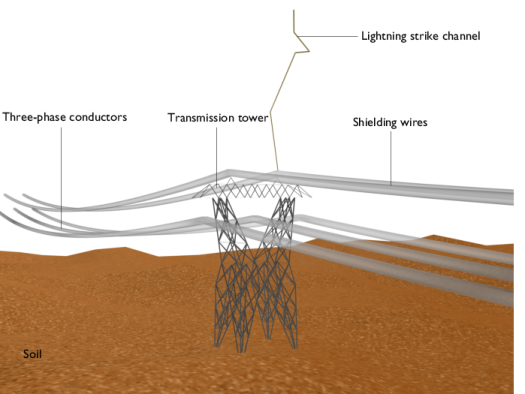
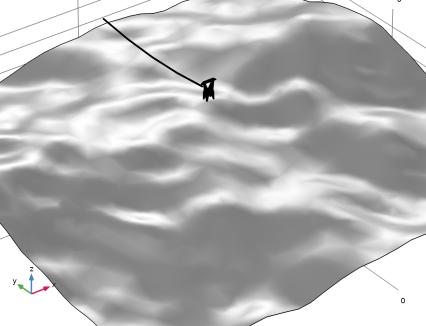
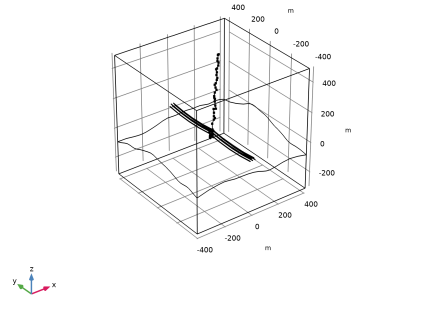
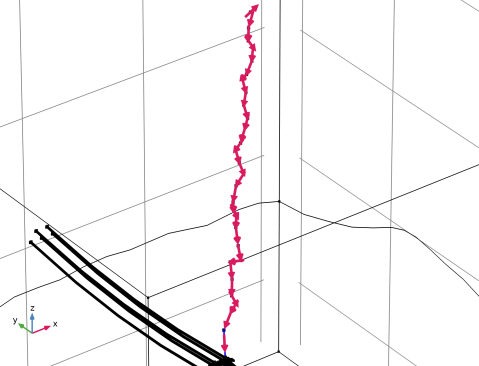
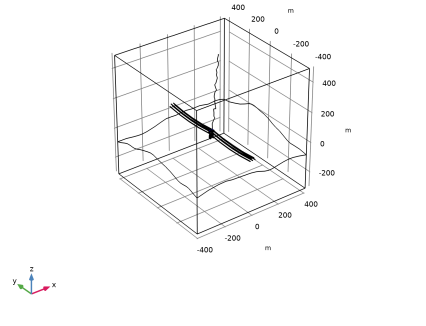
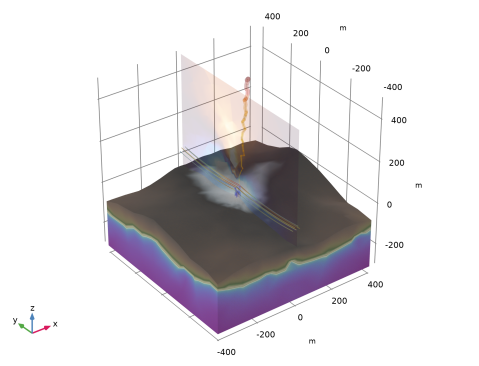
In the realm of high-voltage transmission systems, the resilience of power infrastructure against lightning strikes is of paramount importance. Lightning strikes can cause transient overvoltages that lead to system failures, equipment damage, and even disruption of power supply. This model aims to address these concerns by simulating the effects of lightning surges on high-voltage transmission line towers. By examining the induced voltage on three-phase conductors resulting from a lightning strike, it allows for the assessment of potential overvoltages and helps in designing effective protection measures. This model specifically focuses on lightning carrying a current of 10 kA that strikes one of the tower’s shielded wires. The induced voltage on the three-phase conductors is computed through rigorous simulation techniques. Noteworthy aspects of the model include the accurate representation of the transmission tower geometry, the complex parabolic shape of the hanging transmission lines, and the irregularities of the ground surface. Additionally, the model enables users to define the lightning strike channel arbitrarily and automates the definition of the propagating strike current.
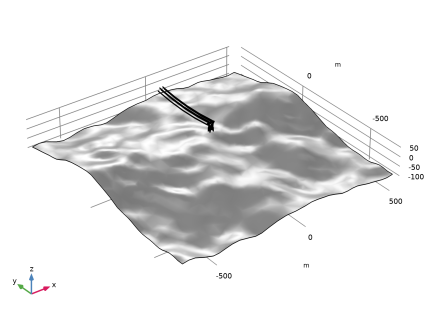
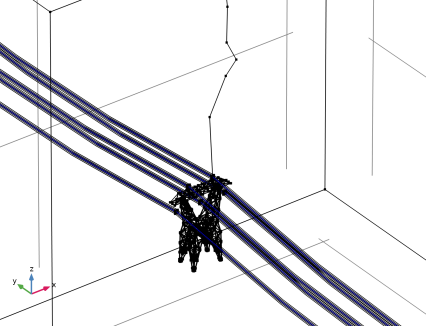
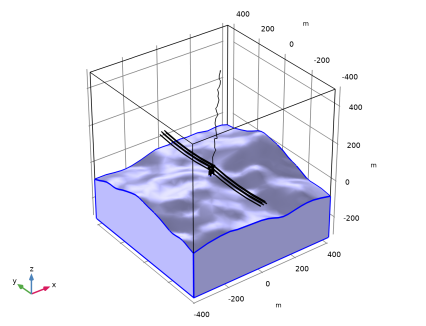
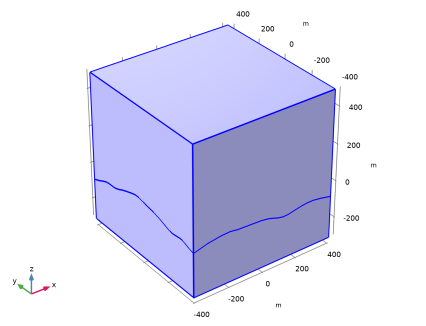
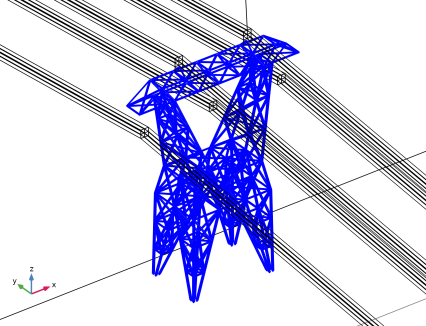
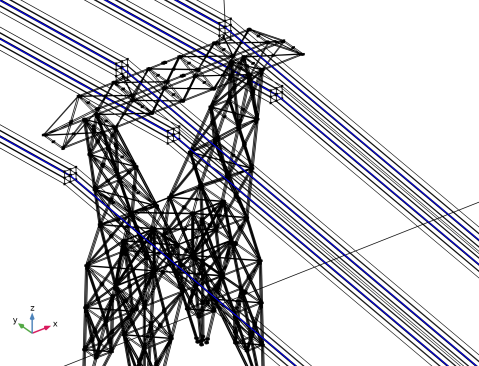
Figure 1: A tower positioned over the soil is connected to two shielding wires and three three-phase conductors.
Model Definition
The example model incorporates a realistic representation of a high-voltage transmission line tower. The geometry captures the tower structure, including its cross-arms, and conductors while insulators are omitted. The transmission lines are modeled with a parabolic shape, which affects the distribution of induced voltages during a lightning surge. The ground surface is also accounted for, considering its irregularities that impact the surge propagation.
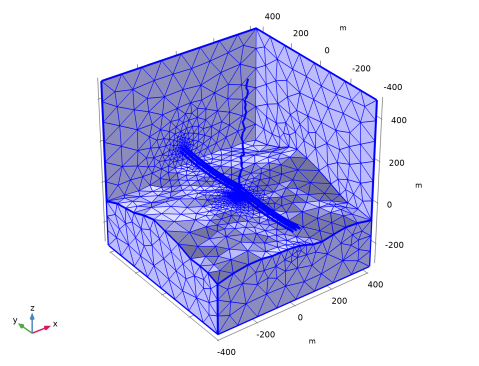
A customized meshing is conducted to ensure numerical stability and accuracy. Fine meshing near critical areas such as conductor-to-air interfaces and areas of significant electric field variation ensures reliable results.
The model employs electromagnetic and transient physics modules to simulate the lightning surge phenomenon. Maxwell’s equations are solved to analyze the electromagnetic fields induced by the lightning strike. The boundary conditions encompass numerical representations of the wire conductors, tower surfaces, and lightning channel. Transient analysis captures the time-dependent behavior of the lightning surge, considering the rapid transient changes caused by the strike.
One of the model’s strengths is the flexibility in defining the lightning strike channel. Users can input various strike paths, allowing for a wide range of scenarios and strike angles to be considered. This feature accommodates different lightning behavior patterns and enables thorough exploration of potential outcomes.
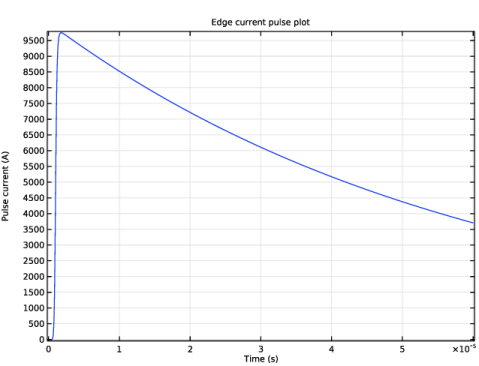
The edge current feature also incorporates an automated definition of the propagating strike current. This current distribution follows the principles of lightning physics, considering factors such as the leader progression and return stroke characteristics. The dynamic nature of the propagating current adds another layer of realism to the simulation.
The tower body is treated as a perfect electric conductor, under the assumption that the loss from the metal’s finite conductivity is insignificant. The outer boundary of the model domain adopts a scattering boundary condition to reduce any reflections, simulating an expansive open space.
Concerning the modeling techniques for the wires, including the construction of geometry and meshing used in this example, the model Lightning-Induced Voltage of an Overhead Line Over Lossy Ground — also included in the RF Module Application Library — provides a comprehensive overview of the efficient numerical modeling process.
Results and Discussion
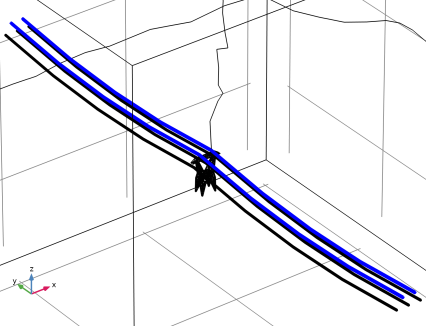
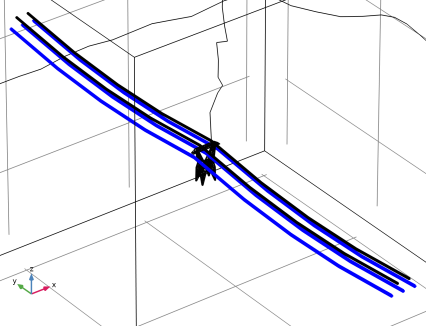
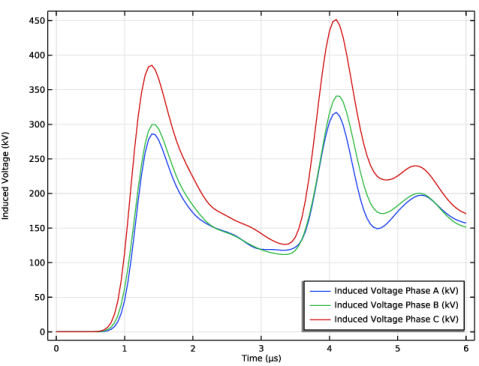
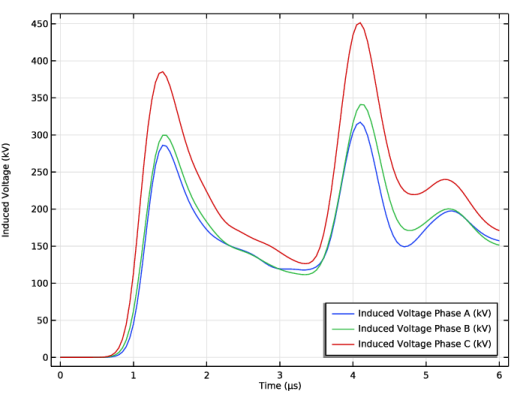
The primary output of the simulation is the induced voltage at the three-phase conductors of the transmission tower. These induced voltages (Figure 2) are critical indicators of potential overvoltages that might affect the power system. Analyzing the magnitude and distribution of these induced voltages offers insights into areas of vulnerability and aids in designing appropriate protection measures.
Figure 2: The induced voltage plot of three-phase conductors.
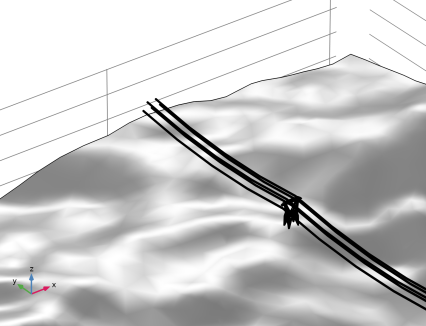
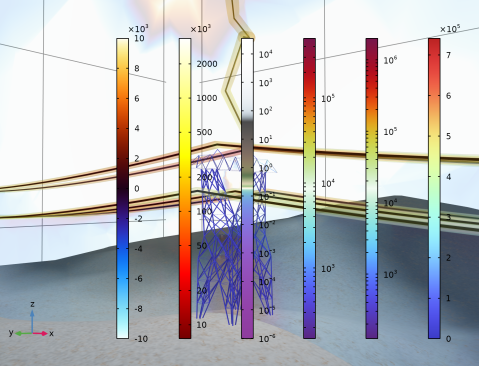
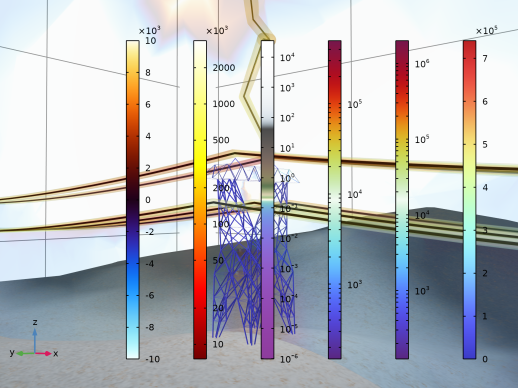
Insights into the electric field distribution, current flow paths, and potential points of high stress help refine tower design for better lightning resilience. For illustrative purposes, the magnitude of the electric fields is displayed on the lightning channel, tower, soil, and wires in the Figure 3.
Figure 3: The norm of the electric field distribution caused by a lightning strike.
This model stands as a guidance for investigating the effects of lightning surges on high-voltage transmission line towers. Its capabilities in representing tower geometry, strike channel definition, and propagating strike current automate the analysis process while maintaining a fidelity. By comprehensively assessing induced voltages and their distribution, the resilience of power infrastructure against lightning-induced disruptions can be enhanced.
Application Library path: RF_Module/ESD_and_Lightning_Surge/lightning_surge_tower
Modeling Instructions
From the File menu, choose New.
New
In the New window, click  Model Wizard.
Model Wizard
1
In the Model Wizard window, click  3D.
2
In the Select Physics tree, select Radio Frequency > Electromagnetic Waves, Transient (temw).
3
Click Add.
4
Click  Study.
5
In the Select Study tree, select General Studies > Time Dependent.
6
Global Definitions
Parameters 1
1
In the Model Builder window, under Global Definitions click Parameters 1.
2
In the Settings window for Parameters, locate the Parameters section.
3
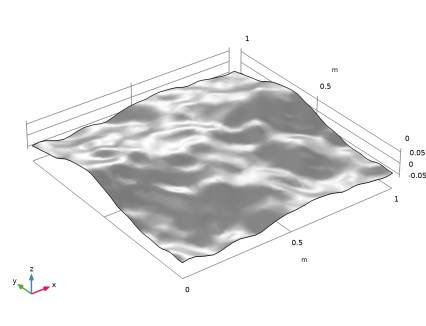
Add a part that will be used for the soil surface.
4
In the Model Builder window, right-click Global Definitions and choose Geometry Parts > Part Libraries.
Part Libraries
1
In the Part Libraries window, select COMSOL Multiphysics > Random Surfaces > random_flat_surface in the tree.
2
Click  Add to Model.
3
In the Select Part Variant dialog, select Specify amplitude scale factor in the Select part variant list.
4
Random Flat Surface
In the Model Builder window, under Global Definitions > Geometry Parts click Random Flat Surface.
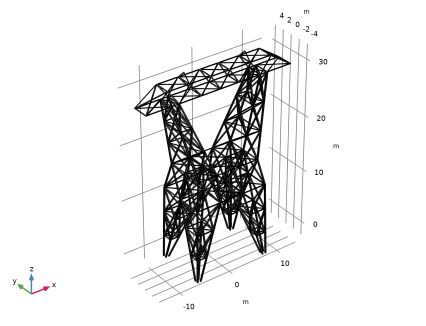
Import the power transmission tower geometry.
Geometry 1
Import 1 (imp1)
1
In the Geometry toolbar, click  Import.
2
In the Settings window for Import, locate the Source section.
3
From the Source list, choose COMSOL Multiphysics file.
4
In the Filename text field, type lightning_surge_tower_geom.mphbin.
5
Click  Build Selected.
6
Locate the Selections of Resulting Entities section. Find the Cumulative selection subsection. Click New.
7
In the New Cumulative Selection dialog, Cumulative selection helps configure boundaries condition and material properties.
8
type Tower in the Name text field.
9
Scale 1 (sca1)
1
In the Geometry toolbar, click  Transforms and choose Scale.
2
3
In the Settings window for Scale, locate the Scale Factor section.
4
In the Factor text field, type 1.5.
5
Click  Build Selected.
Add the part representing the soil surface.
Random Flat Surface 1 (pi1)
1
In the Geometry toolbar, click  Part Instance and choose Random Flat Surface.
2
In the Settings window for Part Instance, locate the Position and Orientation of Output section.
3
Find the Displacement subsection. In the xwi text field, type -0.6.
4
In the ywi text field, type -0.6.
5
Click  Build Selected.
6
Click the  Go to Default View button in the Graphics toolbar.
Scale 2 (sca2)
1
In the Geometry toolbar, click  Transforms and choose Scale.
2
3
In the Settings window for Scale, locate the Scale Factor section.
4
In the Factor text field, type 1200.
5
Click  Build Selected.
6
Click the  Go to Default View button in the Graphics toolbar.
Move 1 (mov1)
1
In the Geometry toolbar, click  Transforms and choose Move.
2
3
In the Settings window for Move, locate the Displacement section.
4
In the x text field, type 35.
5
In the y text field, type 10.
6
In the z text field, type -40.
7
Click  Build Selected.
Draw a wire using a Parametric Curve.
Parametric Curve 1 (pc1)
1
In the Geometry toolbar, click  More Primitives and choose Parametric Curve.
2
In the Settings window for Parametric Curve, locate the Parameter section.
3
In the Minimum text field, type -200.
4
In the Maximum text field, type 200.
5
Locate the Expressions section. In the x text field, type -18.
6
In the y text field, type s.
7
In the z text field, type s^2/3e3+23.
8
Locate the Position section. In the y text field, type 200.
By sweeping a small square patch along the wire, create an effective area of a transmission line.
Work Plane 1 (wp1)
1
In the Geometry toolbar, click  Work Plane.
2
In the Settings window for Work Plane, locate the Plane Definition section.
3
From the Plane list, choose xz-plane.
Work Plane 1 (wp1) > Plane Geometry
In the Model Builder window, click Plane Geometry.
Work Plane 1 (wp1) > Square 1 (sq1)
1
In the Work Plane toolbar, click  Square.
2
In the Settings window for Square, locate the Size section.
3
In the Side length text field, type 2.
4
Locate the Position section. From the Base list, choose Center.
5
In the xw text field, type -18.
6
In the yw text field, type 23+40/3.
7
Click to expand the Layers section. In the table, enter the following settings:
8
Select the Layers to the left checkbox.
Work Plane 1 (wp1)
1
In the Model Builder window, under Component 1 (comp1) > Geometry 1 click Work Plane 1 (wp1).
2
In the Settings window for Work Plane, click  Build Selected.
Sweep 1 (swe1)
1
In the Geometry toolbar, click  Sweep.
2
On the object wp1, select Boundaries 1–4 only.
3
In the Settings window for Sweep, locate the Spine Curve section.
4
Click to select the  Activate Selection toggle button for Edges to follow.
5
On the object pc1, select Edge 1 only.
6
Locate the Input Object Handling section. Clear the Keep input objects checkbox.
7
Click  Build Selected.
Copy the wire representation to add one for a shield wire.
Copy 1 (copy1)
In the Geometry toolbar, click  Transforms and choose Copy.
Sweep 1 (swe1)
1
In the Model Builder window, click Sweep 1 (swe1).
2
Copy 1 (copy1)
1
In the Model Builder window, click Copy 1 (copy1).
2
3
Click the  Zoom to Selection button in the Graphics toolbar.
4
Click the  Zoom Out button in the Graphics toolbar.
5
In the Settings window for Copy, locate the Displacement section.
6
In the x text field, type 9.
7
In the z text field, type 14.
8
Click  Build Selected.
Using an Array, create three three-phase conductors.
Array 1 (arr1)
1
In the Geometry toolbar, click  Transforms and choose Array.
2
3
In the Settings window for Array, locate the Size section.
4
In the x size text field, type 3.
5
Locate the Displacement section. In the x text field, type 18.
6
Click  Build Selected.
7
Locate the Selections of Resulting Entities section. Find the Cumulative selection subsection. Click New.
8
In the New Cumulative Selection dialog, Cumulative selection helps configure boundaries condition and material properties.
9
type Phase Conductor in the Name text field.
10
11
In the Settings window for Array, click  Build Selected.
Using an Array, create two shield wires.
Array 2 (arr2)
1
In the Geometry toolbar, click  Transforms and choose Array.
2
3
In the Settings window for Array, locate the Size section.
4
In the x size text field, type 2.
5
Locate the Displacement section. In the x text field, type 18.
6
Click  Build Selected.
7
Locate the Selections of Resulting Entities section. Find the Cumulative selection subsection. Click New.
8
In the New Cumulative Selection dialog, Cumulative selection helps configure boundaries condition and material properties.
9
type Shielding Wire in the Name text field.
10
Added small strips to connect the shield wired to the tower.
Work Plane 2 (wp2)
1
In the Geometry toolbar, click  Work Plane.
2
In the Settings window for Work Plane, locate the Plane Definition section.
3
From the Plane list, choose xz-plane.
Work Plane 2 (wp2) > Plane Geometry
In the Model Builder window, click Plane Geometry.
Work Plane 2 (wp2) > Rectangle 1 (r1)
1
In the Work Plane toolbar, click  Rectangle.
2
In the Settings window for Rectangle, locate the Size and Shape section.
3
In the Width text field, type 2.
4
In the Height text field, type 40/3-12.
5
Locate the Position section. In the xw text field, type -10.
6
In the yw text field, type 48.
Complete the three-phase conductors and shield wires by mirroring all array objects.
Work Plane 2 (wp2) > Mirror 1 (mir1)
1
In the Work Plane toolbar, click  Transforms and choose Mirror.
2
3
In the Settings window for Mirror, locate the Input section.
4
Select the Keep input objects checkbox.
Work Plane 2 (wp2)
1
In the Model Builder window, under Component 1 (comp1) > Geometry 1 click Work Plane 2 (wp2).
2
In the Settings window for Work Plane, click  Build Selected.
Mirror 1 (mir1)
1
In the Geometry toolbar, click  Transforms and choose Mirror.
2
Select the objects arr1(1,1,1), arr1(2,1,1), arr1(3,1,1), arr2(1,1,1), and arr2(2,1,1) only.
3
In the Settings window for Mirror, locate the Input section.
4
Select the Keep input objects checkbox.
5
Locate the Normal Vector to Plane of Reflection section. In the y text field, type -1.
6
In the z text field, type 0.
7
Click  Build Selected.
8
Click the  Zoom Extents button in the Graphics toolbar.
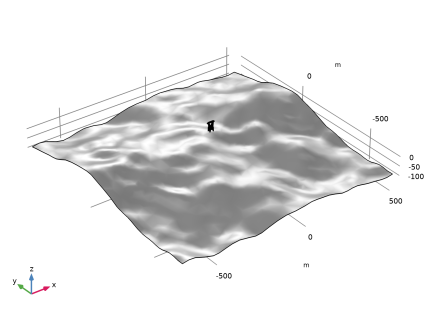
Enclose all objects by a block to make the air and soil domains.
Block 1 (blk1)
1
In the Geometry toolbar, click  Block.
2
In the Settings window for Block, locate the Size and Shape section.
3
In the Width text field, type 810.
4
In the Depth text field, type 810.
5
In the Height text field, type 800.
6
Locate the Position section. From the Base list, choose Center.
7
In the z text field, type 100.
8
Click  Build Selected.
Partition Objects 1 (par1)
1
In the Geometry toolbar, click  Booleans and Partitions and choose Partition Objects.
2
3
In the Settings window for Partition Objects, locate the Partition Objects section.
4
Click to select the  Activate Selection toggle button for Tool objects.
5
6
Click  Build Selected.
7
Click the  Wireframe Rendering button in the Graphics toolbar.
Use a Polygon to create a lightning channel path.
Lightning Channel
1
In the Geometry toolbar, click  More Primitives and choose Polygon.
2
In the Settings window for Polygon, type Lightning Channel in the Label text field.
3
Locate the Coordinates section. Click  Load from File.
4
5
Locate the Selections of Resulting Entities section. Select the Resulting objects selection checkbox.
6
Click  Build Selected.
The following Explicit selection will be used to deploy numerical characteristics of the three-phase conductors and shield wires.
Definitions
All Wires
1
In the Definitions toolbar, click  Explicit.
2
In the Settings window for Explicit, type All Wires in the Label text field.
3
Locate the Input Entities section. From the Geometric entity level list, choose Edge.
4
Click  Paste Selection.
5
In the Paste Selection dialog, type 67, 75, 1365, 1375, 2624, 2654, 4127, 4137, 5205, 5213 in the Selection text field.
6
Add Material
1
In the Materials toolbar, click  Add Material to open the Add Material window.
2
Go to the Add Material window.
3
In the tree, select Built-in > Air.
4
Click the Add to Component button in the window toolbar.
5
In the Materials toolbar, click  Add Material to close the Add Material window.
Materials
Soil
1
In the Model Builder window, under Component 1 (comp1) right-click Materials and choose Blank Material.
2
In the Settings window for Material, type Soil in the Label text field.
3
4
Locate the Material Contents section. In the table, enter the following settings:
Shielding Wire Domains
1
Right-click Materials and choose Blank Material.
2
In the Settings window for Material, type Shielding Wire Domains in the Label text field.
3
Locate the Geometric Entity Selection section. From the Selection list, choose Shielding Wire.
4
Locate the Material Contents section. In the table, enter the following settings:
Phase Conductor Domains
1
Right-click Materials and choose Blank Material.
2
In the Settings window for Material, type Phase Conductor Domains in the Label text field.
3
Locate the Geometric Entity Selection section. From the Selection list, choose Phase Conductor.
4
Locate the Material Contents section. In the table, enter the following settings:
Use the Linear discretization to reduce computational costs, though this might compromise accuracy. The model is designed for demonstration with an emphasis on minimizing computational resources.
Electromagnetic Waves, Transient (temw)
1
In the Model Builder window, under Component 1 (comp1) click Electromagnetic Waves, Transient (temw).
2
In the Settings window for Electromagnetic Waves, Transient, click to expand the Discretization section.
3
From the Magnetic vector potential list, choose Linear.
Scattering Boundary Condition 1
1
In the Physics toolbar, click  Boundaries and choose Scattering Boundary Condition.
The concept of an open space can be represented using the Scattering Boundary Condition.
2
In the Settings window for Scattering Boundary Condition, locate the Boundary Selection section.
3
Click  Paste Selection.
4
In the Paste Selection dialog, type 1-5, 7-9, 2307, 2308 in the Selection text field.
5
Perfect Electric Conductor 2
1
In the Physics toolbar, click  Boundaries and choose Perfect Electric Conductor.
To add Pointwise Constraints, Equation-Based Contributions needs to be triggered.
2
In the Settings window for Perfect Electric Conductor, locate the Boundary Selection section.
3
From the Selection list, choose Tower.
4
Click the  Show More Options button in the Model Builder toolbar.
5
In the Show More Options dialog, select Physics > Equation-Based Contributions in the tree.
6
In the tree, select the checkbox for the node Physics > Equation-Based Contributions.
7
Pointwise Constraint 1
1
In the Physics toolbar, click  Edges and choose Pointwise Constraint.
2
In the Settings window for Pointwise Constraint, locate the Edge Selection section.
3
From the Selection list, choose All Wires.
4
Locate the Pointwise Constraint section. In the Constraint expression text field, type 0-tAx.
Pointwise Constraint 2
1
In the Physics toolbar, click  Edges and choose Pointwise Constraint.
2
In the Settings window for Pointwise Constraint, locate the Edge Selection section.
3
From the Selection list, choose All Wires.
4
Locate the Pointwise Constraint section. In the Constraint expression text field, type 0-tAy.
Pointwise Constraint 3
1
In the Physics toolbar, click  Edges and choose Pointwise Constraint.
2
In the Settings window for Pointwise Constraint, locate the Edge Selection section.
3
From the Selection list, choose All Wires.
4
Locate the Pointwise Constraint section. In the Constraint expression text field, type 0-tAz.
Edge Current 1
1
In the Physics toolbar, click  Edges and choose Edge Current.
Edge Current feature describes the behavior of a lightning strike.
2
In the Settings window for Edge Current, locate the Edge Selection section.
3
From the Selection list, choose Lightning Channel.
4
Locate the Edge Current section. From the Edge current type list, choose Lightning.
5
In the I0 text field, type 10[kA].
6
In the τ1 text field, type 1[us].
7
In the τ2 text field, type 60[us].
8
In the vp text field, type c_const/3.
9
Select the Reverse direction checkbox.
10
Click the Plot Pulse Shape button in the window toolbar.
Perfect Electric Conductor 3
1
In the Physics toolbar, click  Boundaries and choose Perfect Electric Conductor.
2
Mesh 1
1
In the Model Builder window, under Component 1 (comp1) click Mesh 1.
2
In the Settings window for Mesh, locate the Physics-Controlled Mesh section.
3
In the table, clear the Use checkbox for Geometric Analysis, Detail Size.
4
Locate the Electromagnetic Waves, Transient (temw) section. In the Maximum element size in free space text field, type 200.
5
Locate the Sequence Type section. From the list, choose User-controlled mesh.
Size
1
In the Model Builder window, under Component 1 (comp1) > Mesh 1 click Size.
2
In the Settings window for Size, locate the Element Size Parameters section.
3
In the Maximum element size text field, type 100.
4
In the Minimum element size text field, type 15.
Swept 1
1
In the Mesh toolbar, click  Swept.
2
In the Settings window for Swept, locate the Domain Selection section.
3
From the Geometric entity level list, choose Domain.
4
From the Selection list, choose Phase Conductor.
5
Swept 2
1
Right-click Swept 1 and choose Duplicate.
2
In the Settings window for Swept, locate the Domain Selection section.
3
From the Selection list, choose Shielding Wire.
4
In the Graphics window toolbar, clicknext to  Select Domains, then choose Select Boundaries.
5
Click the  Click and Hide button in the Graphics toolbar.
6
7
8
9
Click the  Click and Hide button in the Graphics toolbar.
Free Tetrahedral 2
1
In the Mesh toolbar, click  Free Tetrahedral.
2
In the Settings window for Free Tetrahedral, locate the Domain Selection section.
3
From the Geometric entity level list, choose Domain.
4
From the Selection list, choose Tower.
Free Tetrahedral 1
In the Model Builder window, right-click Free Tetrahedral 1 and choose Build All.
Study 1
Step 1: Time Dependent
1
In the Model Builder window, under Study 1 click Step 1: Time Dependent.
2
In the Settings window for Time Dependent, locate the Study Settings section.
3
From the Time unit list, choose µs.
4
In the Output times text field, type range(0,0.05,6).
Solution 1 (sol1)
1
In the Study toolbar, click  Show Default Solver.
2
In the Model Builder window, expand the Solution 1 (sol1) node, then click Time-Dependent Solver 1.
3
In the Settings window for Time-Dependent Solver, click to expand the Time Stepping section.
4
From the Steps taken by solver list, choose Manual.
5
In the Time step text field, type 0.02[us].
6
In the Study toolbar, click  Compute.
Results
Cut Line 3D 1
1
In the Results toolbar, click  Cut Line 3D.
2
In the Settings window for Cut Line 3D, locate the Line Data section.
3
In row Point 1, set X to -18.
4
In row Point 1, set Z to 40/3+23.
5
In row Point 2, set X to -18.
6
In row Point 2, set Z to 43.
Cut Line 3D 2
1
Right-click Cut Line 3D 1 and choose Duplicate.
2
In the Settings window for Cut Line 3D, locate the Line Data section.
3
In row Point 1, set X to 0.
4
In row Point 2, set X to 0.
Cut Line 3D 3
1
Right-click Cut Line 3D 2 and choose Duplicate.
2
In the Settings window for Cut Line 3D, locate the Line Data section.
3
In row Point 1, set X to 18.
4
In row Point 2, set X to 18.
Line Integration 1
1
In the Results toolbar, click  More Derived Values and choose Integration > Line Integration.
2
In the Settings window for Line Integration, locate the Data section.
3
From the Dataset list, choose Cut Line 3D 1.
4
Locate the Expressions section. In the table, enter the following settings:
5
Click  Evaluate.
Line Integration 2
1
Right-click Line Integration 1 and choose Duplicate.
2
In the Settings window for Line Integration, locate the Data section.
3
From the Dataset list, choose Cut Line 3D 2.
4
Locate the Expressions section. In the table, enter the following settings:
5
Click  Evaluate.
Line Integration 3
1
Right-click Line Integration 2 and choose Duplicate.
2
In the Settings window for Line Integration, locate the Data section.
3
From the Dataset list, choose Cut Line 3D 3.
4
Locate the Expressions section. In the table, enter the following settings:
5
Click  Evaluate.
1D Plot Group 2
In the Results toolbar, click  1D Plot Group.
Table Graph 1
1
Right-click 1D Plot Group 2 and choose Table Graph.
2
In the Settings window for Table Graph, click to expand the Legends section.
3
Select the Show legends checkbox.
1D Plot Group 2
1
In the Model Builder window, click 1D Plot Group 2.
2
In the Settings window for 1D Plot Group, locate the Plot Settings section.
3
Select the y-axis label checkbox. In the associated text field, type Induced Voltage (kV).
4
Locate the Legend section. From the Position list, choose Lower right.
5
In the 1D Plot Group 2 toolbar, click  Plot.
The subsequent instructions will guide you on enhancing the default plot through visualization effects.
Multislice 1
1
In the Model Builder window, expand the Results > 3D Plot Group 1 node, then click Multislice 1.
2
In the Settings window for Multislice, locate the Expression section.
3
In the Expression text field, type temw.Ez.
4
Locate the Multiplane Data section. Find the Y-planes subsection. In the Planes text field, type 0.
5
Find the Z-planes subsection. In the Planes text field, type 0.
6
Click to expand the Range section. Select the Manual color range checkbox.
7
In the Minimum text field, type -10000.
8
In the Maximum text field, type 10000.
9
Locate the Coloring and Style section. From the Color table list, choose ThermalWaveDark.
Transparency 1
1
Right-click Multislice 1 and choose Transparency.
2
In the Settings window for Transparency, locate the Transparency section.
3
Set the Transparency value to 0.85.
Line 1
1
In the Model Builder window, right-click 3D Plot Group 1 and choose Line.
2
In the Settings window for Line, locate the Coloring and Style section.
3
From the Line type list, choose Tube.
4
In the Tube radius expression text field, type z/40.
5
Select the Radius scale factor checkbox.
6
From the Color table list, choose ThermalLightClassic.
7
From the Scale list, choose Logarithmic.
Transparency 1
1
Right-click Line 1 and choose Transparency.
2
In the Settings window for Transparency, locate the Transparency section.
3
Set the Transparency value to 0.85.
Selection 1
1
In the Model Builder window, right-click Line 1 and choose Selection.
2
In the Settings window for Selection, locate the Selection section.
3
From the Selection list, choose Lightning Channel.
Volume 1
1
In the Model Builder window, right-click 3D Plot Group 1 and choose Volume.
2
In the Settings window for Volume, locate the Coloring and Style section.
3
From the Color table list, choose GaiaLight.
4
From the Scale list, choose Logarithmic.
Selection 1
1
Right-click Volume 1 and choose Selection.
2
Material Appearance 1
1
In the Model Builder window, right-click Volume 1 and choose Material Appearance.
2
In the Settings window for Material Appearance, locate the Appearance section.
3
From the Appearance list, choose Custom.
4
From the Material type list, choose Soil.
5
Locate the Color section. Select the Use the plot’s color checkbox.
Volume 2
1
In the Model Builder window, right-click 3D Plot Group 1 and choose Volume.
2
In the Settings window for Volume, locate the Coloring and Style section.
3
From the Color table list, choose Dipole.
4
From the Scale list, choose Logarithmic.
Selection 1
1
Right-click Volume 2 and choose Selection.
2
In the Settings window for Selection, locate the Selection section.
3
From the Selection list, choose Phase Conductor.
Transparency 1
1
In the Model Builder window, right-click Volume 2 and choose Transparency.
2
In the Settings window for Transparency, locate the Transparency section.
3
Set the Transparency value to 0.75.
Volume 3
Right-click Volume 2 and choose Duplicate.
Selection 1
1
In the Model Builder window, expand the Volume 3 node, then click Selection 1.
2
In the Settings window for Selection, locate the Selection section.
3
From the Selection list, choose Shielding Wire.
Surface 1
In the Model Builder window, right-click 3D Plot Group 1 and choose Surface.
Selection 1
1
In the Model Builder window, right-click Surface 1 and choose Selection.
2
In the Settings window for Selection, locate the Selection section.
3
From the Selection list, choose Tower.
Line 2
1
In the Model Builder window, right-click 3D Plot Group 1 and choose Line.
2
In the Settings window for Line, locate the Expression section.
3
In the Expression text field, type 1.
4
Locate the Coloring and Style section. From the Line type list, choose Tube.
5
Select the Radius scale factor checkbox. In the associated text field, type 0.3.
Selection 1
1
Right-click Line 2 and choose Selection.
2
In the Settings window for Selection, locate the Selection section.
3
From the Selection list, choose Lightning Channel.
Material Appearance 1
1
In the Model Builder window, right-click Line 2 and choose Material Appearance.
2
In the Settings window for Material Appearance, locate the Appearance section.
3
From the Appearance list, choose Custom.
4
From the Material type list, choose Gold.
Line 3
1
In the Model Builder window, right-click 3D Plot Group 1 and choose Line.
2
In the Settings window for Line, locate the Expression section.
3
In the Expression text field, type 1.
4
Locate the Coloring and Style section. From the Line type list, choose Tube.
5
Select the Radius scale factor checkbox. In the associated text field, type 0.3.
6
From the Coloring list, choose Uniform.
7
From the Color list, choose Black.
Selection 1
1
Right-click Line 3 and choose Selection.
2
In the Settings window for Selection, locate the Selection section.
3
From the Selection list, choose All Wires.
4
In the 3D Plot Group 1 toolbar, click  Plot.
3D Plot Group 1
1
In the Model Builder window, under Results click 3D Plot Group 1.
2
In the Settings window for 3D Plot Group, locate the Data section.
3
From the Time (µs) list, choose 5.
4
Click to expand the Title section. From the Title type list, choose None.
5
Locate the Plot Settings section. Clear the Plot dataset edges checkbox.
6
Locate the Color Legend section. Clear the Show legends checkbox.
7
In the 3D Plot Group 1 toolbar, click  Plot.
By adjusting the 3D camera settings, the plot can be made even more visually striking.
Definitions
Camera
1
In the Model Builder window, expand the View 1 node, then click Camera.
2
In the Settings window for Camera, locate the Camera section.
3
In the Zoom angle text field, type 50.
4
Locate the Position section. In the x text field, type -130.
5
In the y text field, type -100.
6
In the z text field, type 35.
7
Locate the Target section. In the x text field, type 5000.
8
In the y text field, type 4500.
9
In the z text field, type 200.
10
Locate the Up Vector section. In the x text field, type 0.
11
In the y text field, type 0.
12
In the z text field, type 1.
13
Locate the Center of Rotation section. In the x text field, type -20.
14
In the y text field, type -18.
15
In the z text field, type 34.
16
Locate the View Offset section. In the x text field, type -0.09.
17
In the y text field, type 0.00.
18
Click  Update.
Results
3D Plot Group 1
In the Model Builder window, under Results click 3D Plot Group 1.