PDF

Modeling of Dipole Antenna Array Using the Boundary Element Method
Introduction
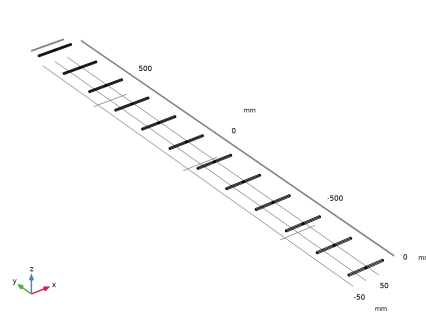
This example of a dipole antenna array demonstrates a cost-effective analysis using the Boundary Element Method (BEM). When dealing with a large array made of metallic radiators, the Finite Element Method (FEM) would necessitate greater computational resources. The simulation results depict the radiation patterns of a 12-by-1 array, consisting of metallic half-wave dipole antennas resonant at 1 GHz.
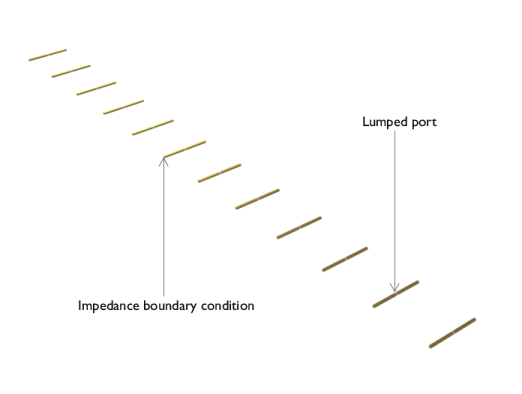
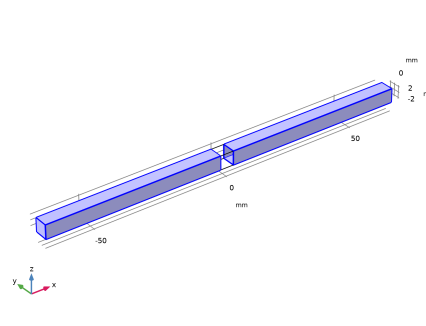
Figure 1: 12-by-1 half-wave dipole antenna array.
Model Definition
The model begins by constructing a single metallic half-wave dipole antenna. The radiator of this antenna has a rectangular rod shape, and an impedance boundary condition is applied to account for losses due to the finite conductivity of copper. Given that the simulation frequency is set at 1 GHz, these losses are negligible. A lumped port is placed at the center of the antenna to excite the radiator and to compute antenna parameters, such as input impedance and S-parameter. The antenna’s length is not exactly half the wavelength of the given frequency; instead, it is slightly reduced to achieve better impedance matching with the reference characteristic impedance of 50 ohms. A far-field calculation boundary condition is enforced on the external boundaries for the near-field to far-field transformation.
After analyzing the single antenna, the original geometry is extended to form a 12-by-1 antenna array. Extra lumped ports are integrated to activate all 12 antenna components. The configurations for other boundary conditions are then automatically adjusted based on the updated 12-by-1 antenna array geometry.
Results and Discussion
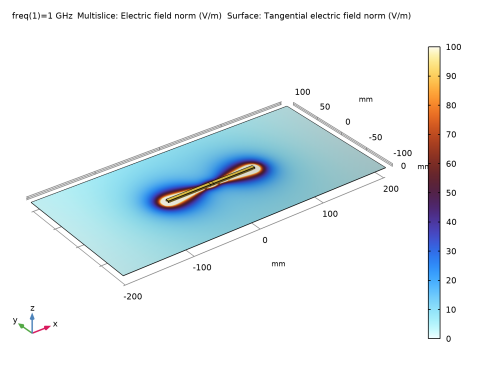
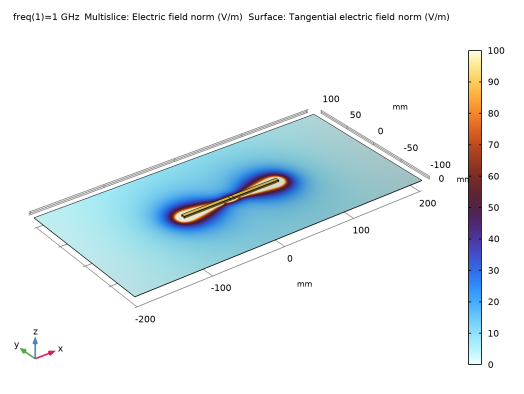
Figure 2 displays the updated default plot with the modified Grid dataset for visualizing the norm of electric fields outside the antenna radiator. Adjustments have also been made to the manual color range and color table to more clearly depict the resonant near-field surrounding the single dipole antenna.
Figure 2: The norm of electric field around the single dipole antenna.
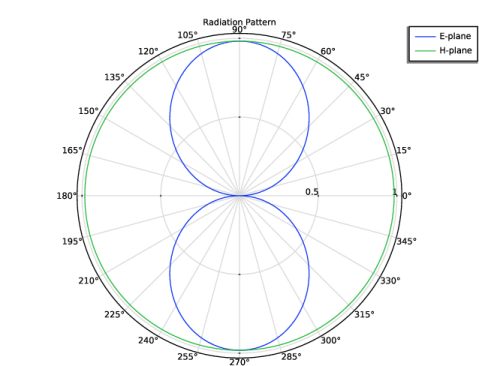
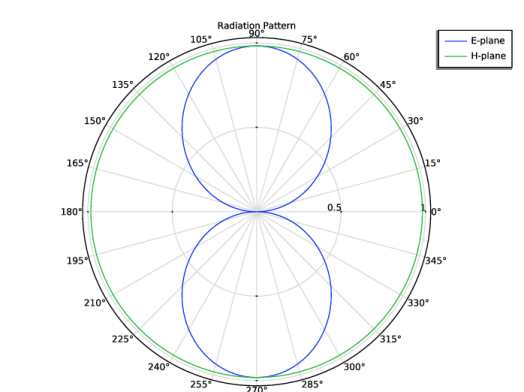
The polar-formatted E- and H-plane patterns are shown in the Figure 3. The E-plane is defined with a plane in which the dominant antenna polarization is included while the H-plane is perpendicular to the antenna polarization.
Figure 3: E-plane (blue) and H-plane (green) radiation patterns.
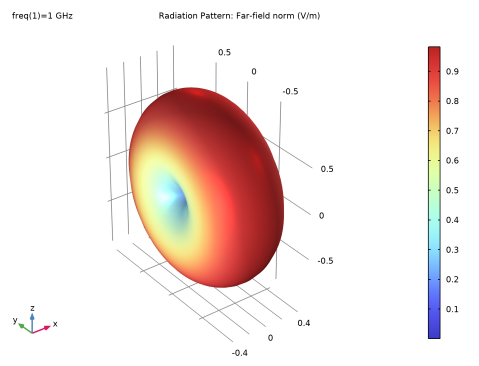
Figure 4 displays the 3D far-field pattern, illustrating a typical dipole antenna radiation pattern: an omni-directional pattern around the radiator with nulls in the direction of each pole.
For the 12-by-1 dipole antenna array, the analysis of the computed results repeats that of the single dipole antenna, covering aspects such as the norm of the electric field surrounding the antenna structure, the polar-formatted patterns for both the E- and H-planes, and 3D far-field pattern.
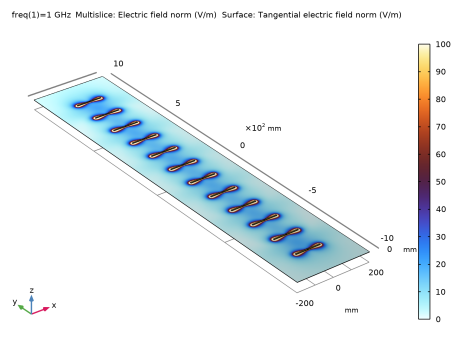
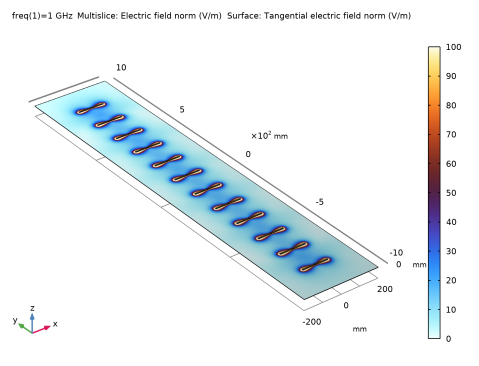
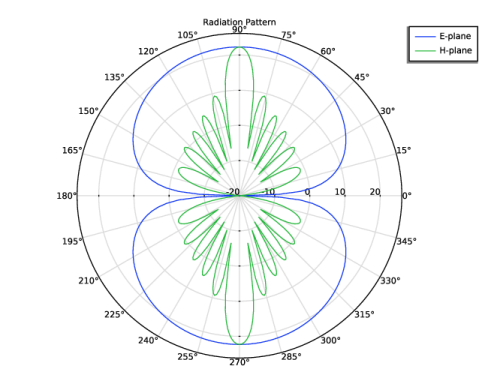
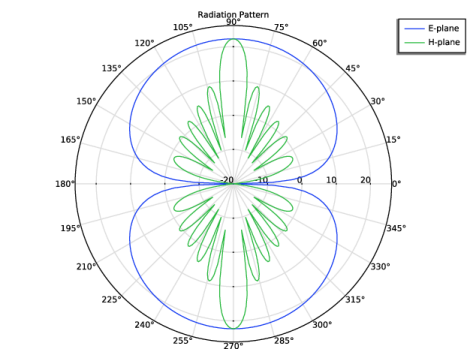
Figure 5 depicts the norm of the electric field for the antenna array, and Figure 6 visualizes the radiation patterns in the E- and H-planes, respectively.
Figure 4: The 3D far-field radiation pattern of the single dipole antenna.
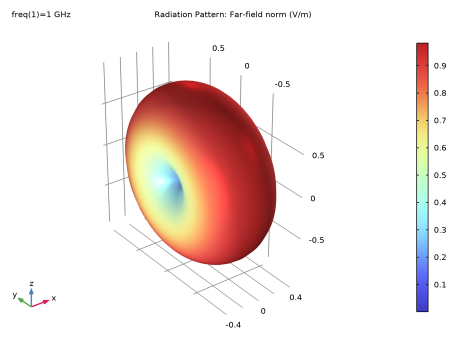
Figure 5: The norm of electric field for 12-by-1 dipole antenna array.
Figure 6: E-plane (blue) and H-plane (green) radiation patterns of the 12-by-1 dipole antenna array.
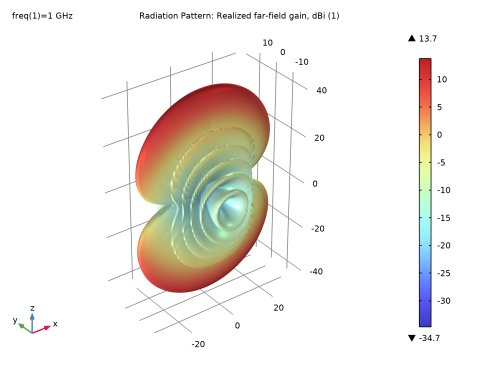
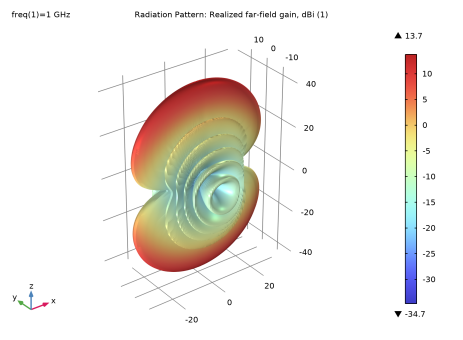
Figure 7: The 3D far-field realized gain pattern of the 12-by-1 dipole antenna array.
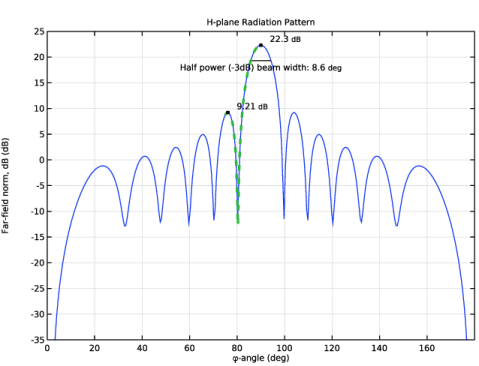
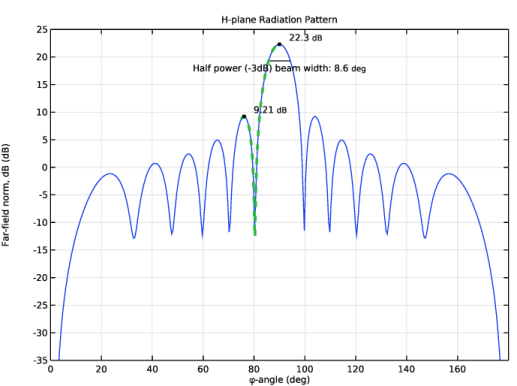
Figure 8: H-plane pattern analysis using graph markers.
Figure 7 displays the realized gain pattern on a dB scale. Owing to the orientation of the array geometry, a directive radiation pattern emerges along the z-axis, with a notably sharp beam width relative to the y-axis.
Radiation patterns can be depicted not only in polar plot groups but also in 1D plot groups. For the latter, graph marker subfeatures are useful for swiftly analyzing maximum, minimum, and bandwidth values. Figure 8 highlights the half-power beam width, as well as the maximum values of the main lobe and the first sidelobe, within the H-plane pattern.
Notes About the COMSOL Implementation
For this type of metallic antenna simulation using the BEM, it is required to set the domain selection for the Electromagnetic Waves, Boundary Elements interface to All voids.
Application Library path: RF_Module/Antenna_Arrays/dipole_antenna_array
Modeling Instructions
From the File menu, choose New.
New
In the New window, click  Model Wizard.
Model Wizard
1
In the Model Wizard window, click  3D.
2
In the Select Physics tree, select Radio Frequency > Electromagnetic Waves, Boundary Elements (embe).
3
Click Add.
4
Click  Study.
5
In the Select Study tree, select General Studies > Frequency Domain.
6
Geometry 1
1
In the Model Builder window, under Component 1 (comp1) click Geometry 1.
2
In the Settings window for Geometry, locate the Units section.
3
From the Length unit list, choose mm.
Block 1 (blk1)
1
In the Geometry toolbar, click  Block.
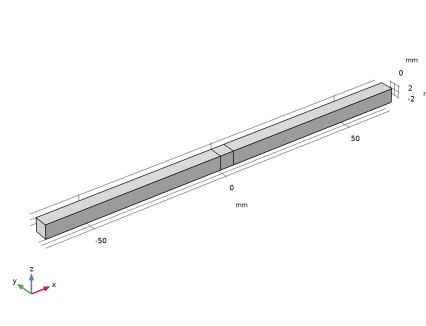
First, build a single dipole antenna geometry.
2
In the Settings window for Block, locate the Size and Shape section.
3
In the Width text field, type 135.
4
In the Depth text field, type 5.
5
In the Height text field, type 5.
6
Locate the Position section. From the Base list, choose Center.
Block 2 (blk2)
1
Right-click Block 1 (blk1) and choose Duplicate.
2
In the Settings window for Block, locate the Size and Shape section.
3
In the Width text field, type 5.
4
Click  Build All Objects.
Electromagnetic Waves, Boundary Elements (embe)
1
In the Model Builder window, under Component 1 (comp1) click Electromagnetic Waves, Boundary Elements (embe).
2
In the Settings window for Electromagnetic Waves, Boundary Elements, locate the Domain Selection section.
3
From the Selection list, choose All voids.
Lumped Port 1
1
In the Physics toolbar, click  Boundaries and choose Lumped Port.
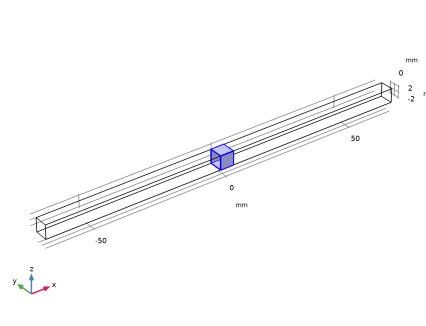
Add a Lumped Port at the center of the antenna structure.
2
Click the  Wireframe Rendering button in the Graphics toolbar.
3
4
In the Settings window for Lumped Port, locate the Lumped Port Properties section.
5
In the hport text field, type 5[mm].
6
In the wport text field, type 20[mm].
7
Specify the ah vector as
8
From the Wave excitation at this port list, choose On.
Add a lossy conducting boundary condition.
Impedance Boundary Condition 1
1
In the Physics toolbar, click  Boundaries and choose Impedance Boundary Condition.
2
Define the area where the near-field to far-field transformation should be performed for radiation pattern analyses.
Far-Field Calculation 1
In the Physics toolbar, click  Boundaries and choose Far-Field Calculation.
Materials
Material 1 (mat1)
1
In the Model Builder window, under Component 1 (comp1) right-click Materials and choose Blank Material.
2
In the Settings window for Material, locate the Geometric Entity Selection section.
3
From the Selection list, choose All voids.
4
Locate the Material Contents section. In the table, enter the following settings:
Add Material
1
In the Home toolbar, click  Add Material to open the Add Material window.
2
Go to the Add Material window.
3
In the tree, select Built-in > Copper.
4
Click the Add to Component button in the window toolbar.
5
In the Home toolbar, click  Add Material to close the Add Material window.
Materials
Copper (mat2)
1
In the Settings window for Material, locate the Geometric Entity Selection section.
2
From the Geometric entity level list, choose Boundary.
3
Mesh 1
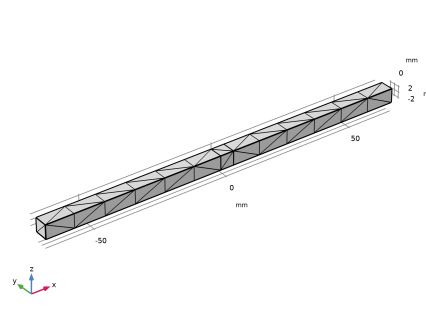
In the Model Builder window, under Component 1 (comp1) right-click Mesh 1 and choose Build All.
Study 1
Step 1: Frequency Domain
In the Study toolbar, click  Compute.
Results
Adjust the Grid 3D dataset range where the computed solutions can be visualized outside the simulation surfaces.
Grid 3D 1
1
In the Model Builder window, expand the Results > Datasets node, then click Grid 3D 1.
2
In the Settings window for Grid 3D, locate the Parameter Bounds section.
3
Find the Second parameter subsection. In the Minimum text field, type -100.
4
In the Maximum text field, type 100.
5
Find the Third parameter subsection. In the Minimum text field, type 0.
6
In the Maximum text field, type 0.
7
Click to expand the Grid section. In the x resolution text field, type 100.
8
In the y resolution text field, type 100.
9
In the z resolution text field, type 2.
Multislice 1
1
In the Model Builder window, expand the Results > Electric Field, Domains (embe) node, then click Multislice 1.
2
In the Settings window for Multislice, locate the Multiplane Data section.
3
Find the x-planes subsection. In the Planes text field, type 0.
4
Find the y-planes subsection. In the Planes text field, type 0.
5
Locate the Coloring and Style section. From the Color table list, choose ThermalWave.
6
Click to expand the Range section. Select the Manual color range checkbox.
7
In the Minimum text field, type 0.
8
In the Maximum text field, type 100.
Material Appearance 1
1
In the Model Builder window, right-click Surface 1 and choose Material Appearance.
2
In the Settings window for Material Appearance, locate the Appearance section.
3
From the Appearance list, choose Custom.
4
From the Material type list, choose Gold.
5
In the Electric Field, Domains (embe) toolbar, click  Plot.
Radiation Pattern 1
1
In the Model Builder window, expand the Results > 2D Far Field (embe) node, then click Radiation Pattern 1.
2
In the Settings window for Radiation Pattern, click to expand the Legends section.
3
From the Legends list, choose Manual.
4
Radiation Pattern 2
1
Right-click Results > 2D Far Field (embe) > Radiation Pattern 1 and choose Duplicate.
2
In the Settings window for Radiation Pattern, locate the Evaluation section.
3
Find the Normal vector subsection. In the x text field, type 1.
4
In the z text field, type 0.
5
Find the Reference direction subsection. In the x text field, type 0.
6
In the y text field, type 1.
7
Locate the Legends section. In the table, enter the following settings:
8
In the 2D Far Field (embe) toolbar, click  Plot.
2D Far Field (embe)
1
In the Model Builder window, click 2D Far Field (embe).
2
In the Settings window for Polar Plot Group, click to expand the Title section.
3
From the Title type list, choose Manual.
4
In the Title text area, type Radiation Pattern.
3D Far-Field, Single Dipole
1
In the Results toolbar, click  3D Plot Group.
2
In the Settings window for 3D Plot Group, type 3D Far-Field, Single Dipole in the Label text field.
Radiation Pattern 1
1
In the 3D Far-Field, Single Dipole toolbar, click  More Plots and choose Radiation Pattern.
2
In the Settings window for Radiation Pattern, locate the Evaluation section.
3
Find the Angles subsection. In the Number of elevation angles text field, type 45.
4
In the Number of azimuth angles text field, type 45.
5
In the 3D Far-Field, Single Dipole toolbar, click  Plot.
Global Evaluation 1
1
In the Results toolbar, click  Global Evaluation.
2
In the Settings window for Global Evaluation, locate the Expressions section.
3
4
Click  Evaluate.
Geometry 1
Move 1 (mov1)
1
In the Geometry toolbar, click  Transforms and choose Move.
2
Click in the Graphics window and then press Ctrl+A to select both objects.
3
In the Settings window for Move, locate the Displacement section.
4
In the y text field, type -5.5*15[cm].
Array 1 (arr1)
1
In the Geometry toolbar, click  Transforms and choose Array.
2
Click in the Graphics window and then press Ctrl+A to select both objects.
3
In the Settings window for Array, locate the Size section.
4
In the y size text field, type 12.
5
Locate the Displacement section. In the y text field, type 15[cm].
6
Click  Build All Objects.
7
Click the  Go to Default View button in the Graphics toolbar.
Electromagnetic Waves, Boundary Elements (embe)
Lumped Port 1
1
In the Model Builder window, under Component 1 (comp1) > Electromagnetic Waves, Boundary Elements (embe) click Lumped Port 1.
2
In the Settings window for Lumped Port, click the Split by Connectivity button in the window toolbar.
Add Study
1
In the Home toolbar, click  Add Study to open the Add Study window.
2
Go to the Add Study window.
3
Find the Studies subsection. In the Select Study tree, select General Studies > Frequency Domain.
4
Click the Add Study button in the window toolbar.
5
In the Home toolbar, click  Add Study to close the Add Study window.
Study 2
Step 1: Frequency Domain
In the Study toolbar, click  Compute.
Results
Grid 3D 2
1
In the Settings window for Grid 3D, locate the Parameter Bounds section.
2
Find the First parameter subsection. In the Minimum text field, type -200.
3
In the Maximum text field, type 200.
4
Find the Second parameter subsection. In the Minimum text field, type -1000.
5
In the Maximum text field, type 1000.
6
Find the Third parameter subsection. In the Minimum text field, type 0.
7
In the Maximum text field, type 0.
8
Locate the Grid section. In the x resolution text field, type 400.
9
In the y resolution text field, type 800.
10
In the z resolution text field, type 2.
Multislice 1
1
In the Model Builder window, expand the Results > Electric Field, Domains (embe) 1 node, then click Multislice 1.
2
In the Settings window for Multislice, locate the Multiplane Data section.
3
Find the x-planes subsection. In the Planes text field, type 0.
4
Find the y-planes subsection. In the Planes text field, type 0.
5
Locate the Coloring and Style section. From the Color table list, choose ThermalWave.
6
Locate the Range section. Select the Manual color range checkbox.
7
In the Minimum text field, type 0.
8
In the Maximum text field, type 100.
Material Appearance 1
1
In the Model Builder window, right-click Surface 1 and choose Material Appearance.
2
In the Settings window for Material Appearance, locate the Appearance section.
3
From the Appearance list, choose Custom.
4
From the Material type list, choose Gold.
5
In the Electric Field, Domains (embe) 1 toolbar, click  Plot.
Radiation Pattern 1
1
In the Model Builder window, expand the Results > 2D Far Field (embe) 1 node, then click Radiation Pattern 1.
2
In the Settings window for Radiation Pattern, locate the Evaluation section.
3
Find the Normal vector subsection. In the y text field, type 1.
4
In the z text field, type 0.
5
Locate the Expression section. In the Expression text field, type embe.normdBEfar.
6
Locate the Legends section. From the Legends list, choose Manual.
7
8
In the 2D Far Field (embe) 1 toolbar, click  Plot.
Radiation Pattern 2
1
Right-click Results > 2D Far Field (embe) 1 > Radiation Pattern 1 and choose Duplicate.
2
In the Settings window for Radiation Pattern, locate the Evaluation section.
3
Find the Normal vector subsection. In the x text field, type 1.
4
In the y text field, type 0.
5
Find the Reference direction subsection. In the x text field, type 0.
6
In the y text field, type 1.
7
Locate the Legends section. In the table, enter the following settings:
8
In the 2D Far Field (embe) 1 toolbar, click  Plot.
2D Far Field (embe) 1
1
In the Model Builder window, click 2D Far Field (embe) 1.
2
In the Settings window for Polar Plot Group, locate the Axis section.
3
Select the Manual axis limits checkbox.
4
In the r minimum text field, type -20.
5
In the 2D Far Field (embe) 1 toolbar, click  Plot.
Radiation Pattern 2
1
In the Model Builder window, click Radiation Pattern 2.
2
In the Settings window for Radiation Pattern, locate the Evaluation section.
3
Find the Angles subsection. In the Number of angles text field, type 360.
2D Far Field (embe) 1
1
In the Model Builder window, click 2D Far Field (embe) 1.
2
In the Settings window for Polar Plot Group, locate the Title section.
3
From the Title type list, choose Manual.
4
In the Title text area, type Radiation Pattern.
5
In the 2D Far Field (embe) 1 toolbar, click  Plot.
3D Far-Field, Dipole Array
1
In the Results toolbar, click  3D Plot Group.
2
In the Settings window for 3D Plot Group, type 3D Far-Field, Dipole Array in the Label text field.
3
Locate the Data section. From the Dataset list, choose Study 2/Solution 2 (sol2).
4
Locate the Color Legend section. Select the Show maximum and minimum values checkbox.
Radiation Pattern 1
1
In the 3D Far-Field, Dipole Array toolbar, click  More Plots and choose Radiation Pattern.
2
In the Settings window for Radiation Pattern, click Replace Expression in the upper-right corner of the Expression section. From the menu, choose Component 1 (comp1) > Electromagnetic Waves, Boundary Elements > Far field > embe.rGaindBEfar - Realized far-field gain, dBi - 1.
3
Locate the Expression section.
4
Select the Threshold checkbox. In the associated text field, type -30.
5
Locate the Evaluation section. Find the Angles subsection. In the Number of elevation angles text field, type 180.
6
In the Number of azimuth angles text field, type 180.
7
In the 3D Far-Field, Dipole Array toolbar, click  Plot.
8
Click the  Zoom Extents button in the Graphics toolbar.
2D Far-Field, Dipole Array, H-Plane
1
In the Results toolbar, click  1D Plot Group.
2
In the Settings window for 1D Plot Group, type 2D Far-Field, Dipole Array, H-Plane in the Label text field.
3
Locate the Data section. From the Dataset list, choose Study 2/Solution 2 (sol2).
4
Locate the Axis section. Select the Manual axis limits checkbox.
5
In the x minimum text field, type 0.
6
In the x maximum text field, type 180.
7
In the y minimum text field, type -35.
8
In the y maximum text field, type 25.
Radiation Pattern 1
1
In the 2D Far-Field, Dipole Array, H-Plane toolbar, click  More Plots and choose Radiation Pattern.
2
In the Settings window for Radiation Pattern, locate the Expression section.
3
In the Expression text field, type embe.normdBEfar.
4
Locate the Evaluation section. Find the Angles subsection. In the Number of angles text field, type 360.
5
From the Restriction list, choose Manual.
6
In the ϕ range text field, type 180.
7
Find the Normal vector subsection. In the x text field, type 1.
8
In the z text field, type 0.
9
Find the Reference direction subsection. In the x text field, type 0.
10
In the y text field, type 1.
11
In the 2D Far-Field, Dipole Array, H-Plane toolbar, click  Plot.
"Use a Graph Marker to add additional information to the generated plot.
Graph Marker 1
1
Right-click Radiation Pattern 1 and choose Graph Marker.
2
In the Settings window for Graph Marker, locate the Display section.
3
From the Display mode list, choose Width.
4
From the Cutoff mode list, choose Offset from peak.
5
Click to expand the Coloring and Style section. Locate the Text Format section. In the Precision text field, type 2.
6
Select the Include unit checkbox.
7
In the Prefix text field, type Half power (-3dB) beam width: .
8
Locate the Coloring and Style section. From the Background color list, choose None.
9
From the Anchor point list, choose Upper middle.
10
In the 2D Far-Field, Dipole Array, H-Plane toolbar, click  Plot.
Radiation Pattern 2
1
In the Model Builder window, under Results > 2D Far-Field, Dipole Array, H-Plane right-click Radiation Pattern 1 and choose Duplicate.
2
In the Settings window for Radiation Pattern, locate the Evaluation section.
3
Find the Angles subsection. In the ϕ start text field, type 75.
4
In the ϕ range text field, type 15.
5
Click to expand the Coloring and Style section. Find the Line style subsection. From the Line list, choose Dotted.
6
In the 2D Far-Field, Dipole Array, H-Plane toolbar, click  Plot.
7
From the Width list, choose 3.
Graph Marker 1
1
In the Model Builder window, expand the Radiation Pattern 2 node, then click Graph Marker 1.
2
In the Settings window for Graph Marker, locate the Display section.
3
From the Display mode list, choose Min and max.
4
From the Display list, choose Max.
5
From the Scope list, choose Local.
6
Locate the Text Format section. In the Precision text field, type 3.
7
Clear the Prefix text field.
8
In the 2D Far-Field, Dipole Array, H-Plane toolbar, click  Plot.
2D Far-Field, Dipole Array, H-Plane
1
In the Model Builder window, under Results click 2D Far-Field, Dipole Array, H-Plane.
2
In the Settings window for 1D Plot Group, click to expand the Title section.
3
From the Title type list, choose Manual.
4
In the Title text area, type H-plane Radiation Pattern.
5
In the 2D Far-Field, Dipole Array, H-Plane toolbar, click  Plot.