
PDF

Inertial Focusing Between Two Parallel Walls
Introduction
As neutrally buoyant particles are carried by a fluid in a cylindrical pipe, they are focused to a ring with a radius of approximately 0.6 times the pipe radius R. The ring of particles, which is caused by a combination of lift and drag forces, is sometimes called the Segré-Silberberg annulus in honor of Segré and Silberberg’s oft-cited observations of this effect (Ref. 1). The phenomenon by which particles migrate to this equilibrium position is called inertial focusing. Ho and Leal (Ref. 2) have derived expressions for the forces that cause a similar migration in a two-dimensional parabolic flow between two parallel walls.
In this example, the Particle Tracing for Fluid Flow interface is used to compute the trajectories of particles in a two-dimensional Poiseuille flow. This example uses built-in corrections to the lift force and drag force to account for the presence of the walls. A time dependent study demonstrates that the particles converge toward distances of 0.2D from either wall, where D is the distance between the walls, regardless of their initial positions.
Model Definition
The total force on the neutrally buoyant particles in a creeping flow consists of a drag force and lift force, since by definition the gravitational and buoyant forces cancel each other out. The particles experience a drag force given by Stokes’ law.
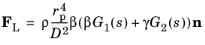
Where rp (SI unit m) is the particle radius, μ (SI unit Pa·s) is the fluid viscosity, u (SI unit m/s) is the fluid velocity, and v (SI unit m/s) is the particle velocity. The lift force is given by Ref. 2:
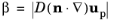
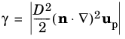
where
I (dimensionless) is the identity matrix,
n (dimensionless) is the wall normal at the nearest point on the reference wall,
D (SI unit: m) is the distance between the channel walls,
s is the normalized distance from the particle to the reference wall, divided by D so that 0 < s < 1 for particles in the channel
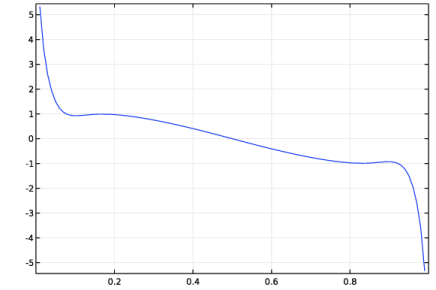
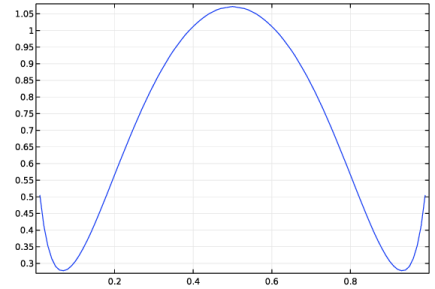
G1 and G2 are dimensionless functions of the normalized wall distance, given in Ref. 2. These functions are plotted in Figure 1 and Figure 2.
The lift force only acts in the direction perpendicular to the velocity of the fluid. The spherical particles are further assumed to be small compared to the channel width and rotationally rigid.
The velocity field u is first computed using the Laminar Flow physics interface, then coupled to the Particle Tracing for Fluid Flow physics interface using the Drag Force node. The Laminar inflow boundary condition is used to automatically compute a fully developed fluid velocity profile at the Inlet boundary. It is well-known that the fully developed velocity profile for the laminar flow of a Newtonian fluid between two parallel walls is parabolic, so in this example it would have also been possible to enter the analytic expression for the fluid velocity directly. However, the velocity has instead been computed using the Laminar Flow physics interface to demonstrate a workflow that is appropriate for a more general geometry.
Figure 1: The function G1(s) used to define the wall-induced lift force.
Figure 2: The function G2(s) used to define the wall-induced lift force.
Results and Discussion
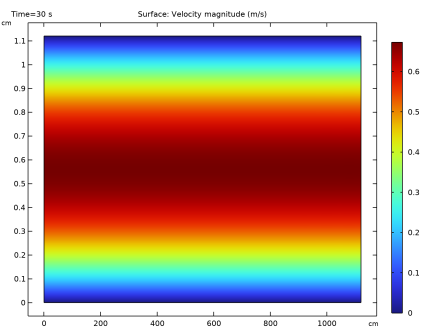
The fluid velocity magnitude is plotted in Figure 3. Note that the plots are not drawn to scale; the channel length is much greater than the channel width. As expected for a laminar flow between two parallel walls, the velocity profile is parabolic.
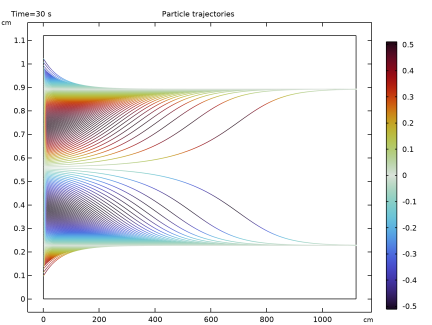
The trajectories of the neutrally buoyant particles are plotted in Figure 4. The color expression is the y-component of the particle velocity in mm/s. All of the particles seem to approach equilibrium positions at distances of about 0.3D on either side of the channel center, where D is the channel width. Particles that are released near the center of the channel take more time to approach these equilibrium positions because they are released where the velocity gradient has the lowest magnitude, so the initial lift force is weaker.
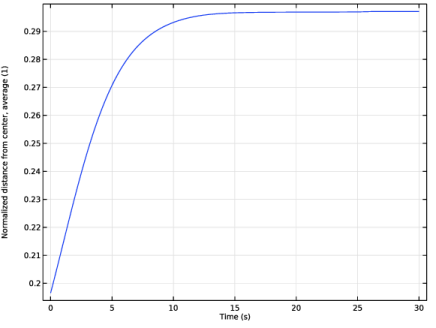
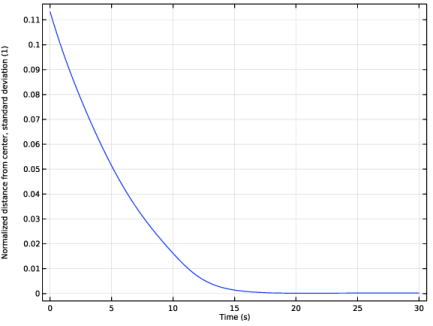
The average and standard deviation of the normalized distance from the particles to the channel center are plotted in Figure 5 and Figure 6, respectively. This confirms that the equilibrium distance from the channel center is about 0.3D.
Figure 3: Parabolic fluid velocity profile in a channel bounded by two parallel walls.
Figure 4: Particle trajectories in the channel. The color expression is the y-component of the particle velocity in mm/s.
Figure 5: Average normalized distance of particles from the center of the channel.
Figure 6: Standard deviation of the normalized distance of particles from the center of the channel.
References
1. G. Segré, and A. Silberberg, “Behaviour of macroscopic rigid spheres in Poiseuille flow. Part 1. Determination of local concentration by statistical analysis of particle passages through crossed light beams,” J. Fluid Mech., vol. 14, pp. 115–135, 1962.
2. B.P. Ho and L.G. Leal. “Inertial migration of rigid spheres in two-dimensional unidirectional flows,” J. Fluid Mech., vol. 65, no. 2, pp. 365–400, 1974.
Application Library path: Particle_Tracing_Module/Fluid_Flow/inertial_focusing
Modeling Instructions
From the File menu, choose New.
New
In the New window, click  Model Wizard.
Model Wizard
1
In the Model Wizard window, click  2D.
2
In the Select Physics tree, select Fluid Flow > Single-Phase Flow > Laminar Flow (spf).
3
Click Add.
4
Click  Study.
5
In the Select Study tree, select General Studies > Stationary.
6
Global Definitions
Parameters 1
1
In the Model Builder window, under Global Definitions click Parameters 1.
2
In the Settings window for Parameters, locate the Parameters section.
3
Click  Load from File.
4
Definitions
Variables 1
1
In the Model Builder window, under Component 1 (comp1) right-click Definitions and choose Variables.
2
In the Settings window for Variables, locate the Variables section.
3
These variables will be used during postprocessing to observe how the neutrally buoyant particles are focused by lift forces in the channel.
Axis
1
In the Model Builder window, expand the Component 1 (comp1) > Definitions > View 1 node, then click Axis.
2
In the Settings window for Axis, locate the Axis section.
3
From the View scale list, choose Automatic. This allows the geometry, which has an extremely high aspect ratio, to be viewed more easily.
Geometry 1
1
In the Model Builder window, under Component 1 (comp1) click Geometry 1.
2
In the Settings window for Geometry, locate the Units section.
3
From the Length unit list, choose cm.
Rectangle 1 (r1)
1
In the Geometry toolbar, click  Rectangle.
2
In the Settings window for Rectangle, locate the Size and Shape section.
3
In the Width text field, type L.
4
In the Height text field, type d.
5
Click  Build All Objects.
Materials
Material 1 (mat1)
1
In the Model Builder window, under Component 1 (comp1) right-click Materials and choose Blank Material.
2
In the Settings window for Material, locate the Material Contents section.
3
Use the Laminar Flow interface to compute the fluid velocity profile in the channel.
Laminar Flow (spf)
1
In the Model Builder window, under Component 1 (comp1) click Laminar Flow (spf).
2
In the Settings window for Laminar Flow, click to expand the Discretization section.
3
From the Discretization of fluids list, choose P2+P1. The lift force depends on the spatial derivatives of the fluid velocity components. Therefore, increasing the discretization order is required for accurate calculation of the particle trajectories.
Inlet 1
1
In the Physics toolbar, click  Boundaries and choose Inlet.
2
3
In the Settings window for Inlet, locate the Boundary Condition section.
4
From the list, choose Fully developed flow.
5
Locate the Fully Developed Flow section. In the Uav text field, type Vav.
Outlet 1
1
In the Physics toolbar, click  Boundaries and choose Outlet.
2
To ensure that one unique solution exists, the pressure must be fixed at a point in the geometry.
Pressure Point Constraint 1
1
In the Physics toolbar, click  Points and choose Pressure Point Constraint.
2
Now that the boundary conditions for the Laminar Flow interface have been set up, use the Particle Tracing for Fluid Flow interface to compute the trajectories of the particles.
Add Physics
1
In the Home toolbar, click  Add Physics to open the Add Physics window.
2
Go to the Add Physics window.
3
In the tree, select Fluid Flow > Particle Tracing > Particle Tracing for Fluid Flow (fpt).
4
At the bottom of the Add Physics section, clear the checkbox next to Study 1. The particle trajectories are not solved for in the Stationary study step.
5
Click the Add to Component 1 button in the window toolbar.
6
In the Home toolbar, click  Add Physics to close the Add Physics window.
Particle Tracing for Fluid Flow (fpt)
The particles are assumed to be neutrally buoyant, so they must have the same density as the fluid.
Particle Properties 1
1
In the Model Builder window, under Component 1 (comp1) > Particle Tracing for Fluid Flow (fpt) click Particle Properties 1.
2
In the Settings window for Particle Properties, locate the Particle Properties section.
3
From the ρp list, choose User defined. In the associated text field, type rhof.
4
In the dp text field, type dp.
Release particles at the inlet boundary.
Inlet 1
1
In the Physics toolbar, click  Boundaries and choose Inlet.
2
3
In the Settings window for Inlet, locate the Initial Position section.
4
From the Initial position list, choose Density.
5
In the N text field, type 200.
6
In the ρ text field, type y>0.1*d&&y<0.9*dThis density-based expression prevents particles from being released too close to the wall. Because the model uses a lift force based on the distance from each particle to the nearest wall, a particle released less than one particle radius from the boundary will produce nonsensical results.
7
Locate the Initial Velocity section. From the u list, choose Velocity field (spf).
Outlet 1
1
In the Physics toolbar, click  Boundaries and choose Outlet.
2
Lift Force 1
1
In the Physics toolbar, click  Domains and choose Lift Force.
2
In the Settings window for Lift Force, locate the Domain Selection section.
3
From the Selection list, choose All domains.
4
Locate the Lift Force section. From the Lift law list, choose Wall induced.
5
From the u list, choose Velocity field (spf).
6
From the μ list, choose Dynamic viscosity (spf/fp1).
Select the two adjacent walls. The Lift Force feature uses the distance and direction from the closest point on each wall to compute the lift force.
7
Locate the Parallel Boundary 1 section. Click to select the  Activate Selection toggle button.
8
9
Locate the Parallel Boundary 2 section. Click to select the  Activate Selection toggle button.
10
Next, set up the drag force. Like the lift force, the drag force on the particles is also affected by the presence of nearby walls.
Drag Force 1
1
In the Physics toolbar, click  Domains and choose Drag Force.
2
In the Settings window for Drag Force, locate the Domain Selection section.
3
From the Selection list, choose All domains.
4
Locate the Drag Force section. From the u list, choose Velocity field (spf).
5
From the μ list, choose Dynamic viscosity (spf/fp1).
6
Select the Include wall corrections checkbox.
Mesh 1
Because of the high aspect ratio of the geometry, a structured mesh should be used.
Mapped 1
In the Mesh toolbar, click  Mapped.
Distribution 1
1
Right-click Mapped 1 and choose Distribution.
2
Adjust the mesh element distribution so that the mesh is finer close to the channel walls.
3
In the Settings window for Distribution, locate the Distribution section.
4
From the Distribution type list, choose Predefined.
5
In the Number of elements text field, type 20.
6
In the Element ratio text field, type 4.
7
Select the Symmetric distribution checkbox.
Study 1
Step 2: Time Dependent
1
In the Study toolbar, click  Study Steps and choose Time Dependent > Time Dependent.
2
In the Physics interfaces in study section, clear the checkbox next to Laminar Flow (spf), which will not be solved for in this study step.
3
In the Settings window for Time Dependent, locate the Study Settings section.
4
Click  Range.
5
In the Range dialog, type 0.2 in the Step text field.
6
In the Stop text field, type 30.
7
Click Replace.
8
In the Study toolbar, click  Compute.
Results
Velocity (spf)
The default plot of the velocity norm should look like Figure 3.
Plot the particle trajectories as lines to see how the particles get focused as they move through the channel.
Particle Trajectories 1
1
In the Model Builder window, expand the Particle Trajectories (fpt) node, then click Particle Trajectories 1.
2
In the Settings window for Particle Trajectories, locate the Coloring and Style section.
3
Find the Line style subsection. From the Type list, choose Line.
Color Expression 1
1
In the Model Builder window, expand the Particle Trajectories 1 node, then click Color Expression 1.
2
In the Settings window for Color Expression, locate the Expression section.
3
In the Expression text field, type fpt.vy.
4
From the Unit list, choose mm/s.
5
Locate the Coloring and Style section. From the Color table list, choose DipoleDark.
6
In the Particle Trajectories (fpt) toolbar, click  Plot. The plot should look like Figure 4.
Set up 1D plots of the average and standard deviation of the distance of the particles from the center of the channel.
Mean
1
In the Results toolbar, click  1D Plot Group.
2
In the Settings window for 1D Plot Group, type Mean in the Label text field.
3
Locate the Data section. From the Dataset list, choose Particle 1.
4
Click to expand the Title section. From the Title type list, choose None.
5
Locate the Legend section. Clear the Show legends checkbox.
Global 1
1
Right-click Mean and choose Global.
2
In the Settings window for Global, locate the y-Axis Data section.
3
4
In the Mean toolbar, click  Plot. The plot should look like Figure 5.
Standard Deviation
1
In the Results toolbar, click  1D Plot Group.
2
In the Settings window for 1D Plot Group, type Standard Deviation in the Label text field.
3
Locate the Data section. From the Dataset list, choose Particle 1.
4
Locate the Title section. From the Title type list, choose None.
5
Locate the Legend section. Clear the Show legends checkbox.
Global 1
1
Right-click Standard Deviation and choose Global.
2
In the Settings window for Global, locate the y-Axis Data section.
3
4
In the Standard Deviation toolbar, click  Plot. The plot should look like Figure 6.