
|
|
|
|
1
|
|
2
|
|
3
|
Click Add.
|
|
4
|
Click
 Study. Study. |
|
5
|
|
6
|
Click
 Done. Done. |
|
1
|
|
2
|
|
1
|
|
2
|
|
1
|
|
2
|
|
3
|
|
4
|
Locate the Coordinates section. In the table, enter the following settings:
|
|
1
|
|
2
|
|
3
|
|
4
|
|
5
|
|
1
|
|
2
|
|
3
|
|
4
|
|
5
|
|
6
|
|
1
|
|
2
|
Go to the Add Material window.
|
|
3
|
|
4
|
Click Add to Global Materials in the window toolbar.
|
|
5
|
|
1
|
In the Model Builder window, under Component 1 (comp1) right-click Solid Mechanics (solid) and choose Fixed Constraint.
|
|
1
|
|
3
|
|
4
|
|
5
|
|
1
|
In the Model Builder window, under Component 1 (comp1) right-click Definitions and choose Physics Utilities > Mass Properties.
|
|
2
|
|
3
|
|
1
|
|
2
|
|
3
|
|
1
|
|
2
|
|
3
|
|
4
|
|
5
|
|
6
|
|
1
|
|
2
|
|
3
|
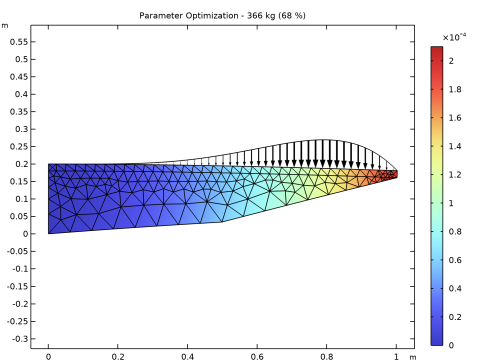
In the Title text area, type Parameter Optimization - eval(mass1.mass) kg (eval(mass1.mass/M0*100,,%d) %).
|
|
4
|
|
5
|
|
6
|
|
1
|
|
2
|
|
3
|
|
4
|
|
5
|
|
6
|
|
7
|
|
1
|
|
2
|
|
3
|
|
1
|
|
2
|
|
3
|
|
1
|
|
2
|
|
3
|
|
1
|
|
2
|
|
3
|
|
4
|
|
5
|
|
1
|
|
2
|
In the Settings window for Deformation, click Add Expression in the upper-right corner of the Expression section. From the menu, choose Component 1 (comp1) > Solid Mechanics > Load > solid.fax,solid.fay - Force per deformed area (spatial frame).
|
|
3
|
|
4
|
|
5
|
Locate the Scale section.
|
|
6
|
|
1
|
|
2
|
|
3
|
|
4
|
|
5
|
|
6
|
|
7
|
|
8
|
|
1
|
|
2
|
|
3
|
|
4
|
|
1
|
|
2
|
|
3
|
|
4
|
Click Add Expression in the upper-right corner of the Objective Function section. From the menu, choose Component 1 (comp1) > Definitions > Mass Properties 1 > comp1.mass1.mass - Mass - kg.
|
|
5
|
Locate the Objective Function section. From the Objective scaling list, choose Initial solution based.
|
|
6
|
|
8
|
Click Add Expression in the upper-right corner of the Constraints section. From the menu, choose Component 1 (comp1) > Definitions > comp1.pnt_disp - Tip Displacement - m.
|
|
9
|
Locate the Constraints section. In the table, enter the following settings:
|
|
10
|
|
11
|
|
12
|
Locate the Optimization Solver section. Find the Solver settings subsection. From the Keep solutions list, choose Only last.
|
|
13
|
|
14
|
|
15
|
Clear the Generate default plots checkbox.
|
|
16
|
|
1
|
|
2
|
|
3
|
|
4
|
Click to expand the Continuity section. From the Preserve continuity of normals over symmetry boundaries list, choose Disabled.
|
|
5
|
|
6
|
|
1
|
|
2
|
|
3
|
|
1
|
|
2
|
Go to the Add Study window.
|
|
3
|
|
4
|
Click Add Study in the window toolbar.
|
|
5
|
|
1
|
|
2
|
|
3
|
|
4
|
|
5
|
Clear the Generate default plots checkbox.
|
|
6
|
|
7
|
|
1
|
|
2
|
|
3
|
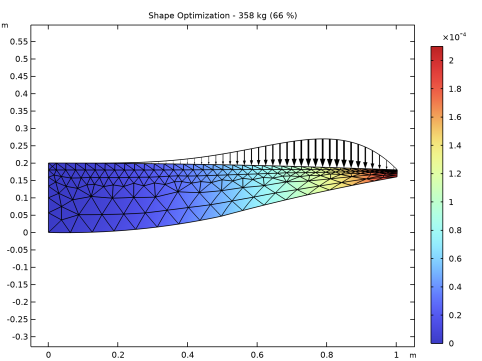
Locate the Title section. In the Title text area, type Shape Optimization - eval(mass1.mass) kg (eval(mass1.mass/M0*100,,%d) %).
|
|
4
|
|
5
|
|
6
|
Locate the Data section. From the Dataset list, choose Study 2: Shape Optimization/Solution 4 (sol4).
|
|
1
|
|
2
|
|
3
|
Click Add Expression in the upper-right corner of the Objective Function section. From the menu, choose Component 1 (comp1) > Definitions > Mass Properties 1 > comp1.mass1.mass - Mass - kg.
|
|
4
|
Locate the Objective Function section. From the Objective scaling list, choose Initial solution based.
|
|
5
|
Click Add Expression in the upper-right corner of the Constraints section. From the menu, choose Component 1 (comp1) > Definitions > comp1.pnt_disp - Tip Displacement - m.
|
|
6
|
Locate the Constraints section. In the table, enter the following settings:
|
|
7
|
|
8
|
Select the Plot checkbox.
|
|
9
|
|
10
|
|
1
|
|
2
|
|
1
|
|
3
|
|
4
|
|
5
|
|
1
|
|
1
|
In the Model Builder window, under Component 1 (comp1) right-click Materials and choose More Materials > Topology Link.
|
|
2
|
|
3
|
|
4
|
|
1
|
|
1
|
|
2
|
|
3
|
Click
 Build All. Build All. |
|
1
|
|
2
|
Go to the Add Study window.
|
|
3
|
|
4
|
Click Add Study in the window toolbar.
|
|
5
|
|
1
|
|
2
|
|
1
|
|
2
|
|
3
|
In the Solve for column of the table, under Component 1 (comp1), clear the checkbox for Deformed Geometry.
|
|
4
|
|
5
|
|
1
|
|
2
|
|
3
|
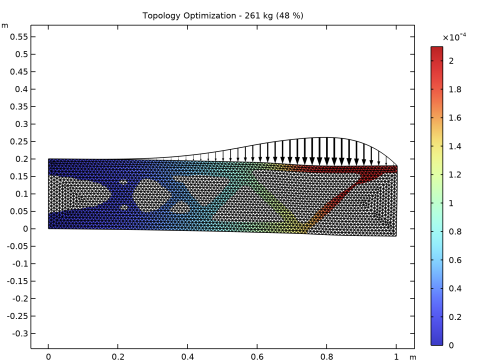
Locate the Title section. In the Title text area, type Topology Optimization - eval(mass1.mass) kg (eval(mass1.mass/M0*100,,%d) %).
|
|
4
|
|
5
|
|
6
|
Locate the Data section. From the Dataset list, choose Study 3: Topology Optimization/Solution 5 (sol5).
|
|
1
|
|
2
|
|
3
|
|
4
|
|
1
|
|
2
|
|
3
|
|
4
|
Click Add Expression in the upper-right corner of the Objective Function section. From the menu, choose Component 1 (comp1) > Definitions > Mass Properties 1 > comp1.mass1.mass - Mass - kg.
|
|
5
|
Locate the Objective Function section. From the Objective scaling list, choose Initial solution based.
|
|
6
|
Locate the Control Variables section. In the table, clear the Solve for checkbox for Polynomial Boundary 1.
|
|
7
|
Click Add Expression in the upper-right corner of the Constraints section. From the menu, choose Component 1 (comp1) > Definitions > comp1.pnt_disp - Tip Displacement - m.
|
|
8
|
Locate the Constraints section. In the table, enter the following settings:
|
|
9
|
|
10
|
Select the Plot checkbox.
|
|
11
|
|
12
|
|
1
|
|
2
|
|
3
|
In the table, clear the Solve for checkboxes for Density Model 1 (dtopo1) and Polynomial Boundary 1.
|
|
1
|
|
2
|
|
3
|
|
1
|
|
2
|
|
3
|
Select the Modify model configuration for study step checkbox.
|
|
4
|
|
5
|
Click
 Disable in Solvers. Disable in Solvers. |
|
6
|
|
7
|
Click
 Disable in Solvers. Disable in Solvers. |
|
1
|
|
2
|
|
3
|
Select the Modify model configuration for study step checkbox.
|
|
4
|
|
5
|
Click
 Disable in Solvers. Disable in Solvers. |


