PDF

Thermal Bridges in Building Construction — 3D Structure Between Two Floors
Introduction
The European standard EN ISO 10211:2017 for thermal bridges in building constructions provides four test cases — two 2D and two 3D — for validating a numerical method (Ref. 1). If the values obtained by a method conform to the results of all these four cases, the method is classified as a three-dimensional steady-state high precision method.
COMSOL Multiphysics successfully passes all the test cases described by the standard and is hence classified as a three-dimensional steady-state high precision method. This document presents an implementation of the first 3D model (Case 3).
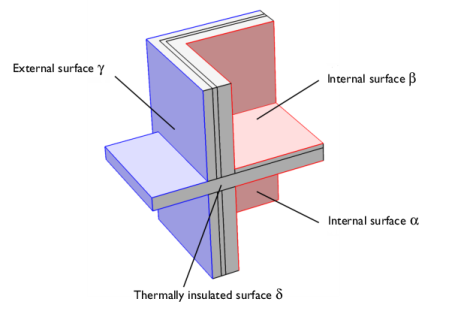
Figure 1: Geometry and boundary conditions of ISO 10211:2017 test case 3.
This tutorial studies the heat conduction in a building structure separating two floors from the external environment. The structure’s surfaces are divided into four parts:
The values of interest for validation are the lowest temperatures at surfaces α and β, and the heat fluxes through α, β, and γ.
Model Definition
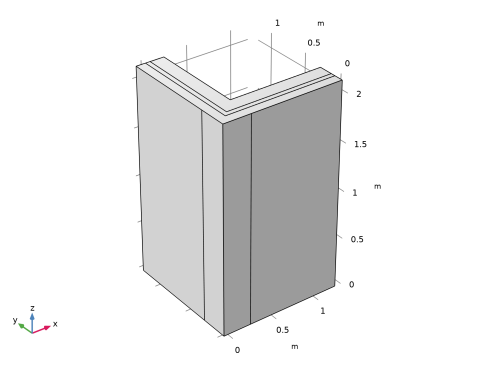
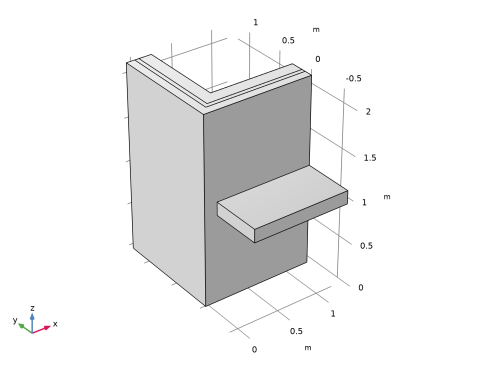
Figure 1 illustrates the geometry. The external surface is at 0°C and the interior surface is at 20°C. Four materials with distinct thermal conductivities k are used in the structure. The horizontal block separating the two floors has the highest thermal conductivity (2.5 W/(m·K)). It crosses the wall, thereby creating a thermal bridge in the structure.
The surfaces α, β, and γ are subject to convective heat flux. The ISO 10211:2017 standard specifies the values of the thermal resistance, R, which is related to the heat transfer coefficient, h, according to
Results and Discussion
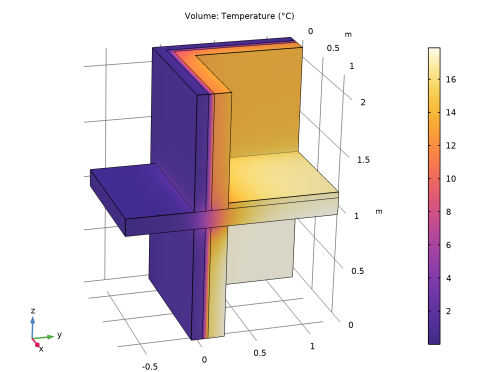
Figure 2 shows the temperature profile. The heat losses are greater near the thermal bridge formed by the horizontal block that crosses the wall.
Figure 2: Temperature distribution of ISO 10211:2017 test case 3.
The numerical results of COMSOL Multiphysics are compared with the expected values provided by ISO 10211:2017 (Ref. 1) in Table 1.
The maximum permissible differences to pass this test case are 0.1°C for temperature and 1% for heat flux. The measured values are completely consistent and meet the validation criteria. Note that they may change slightly depending on geometry representation and operating system.
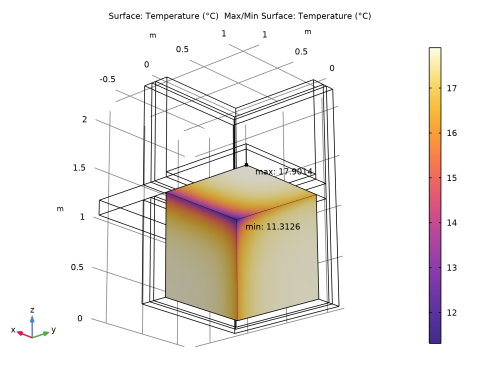
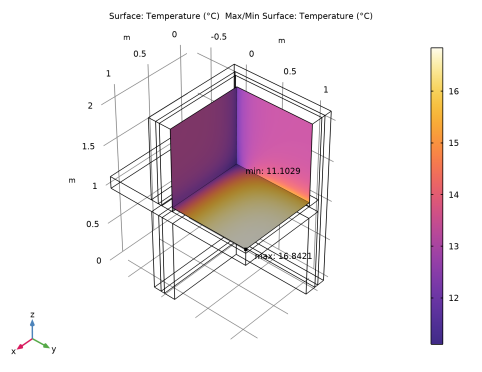
As shown in Figure 3 and Figure 4, the minimum temperature of the surfaces α and β are located at their respective corners.
Figure 3: Minimum and maximum temperatures on surface α, ISO 10211:2017 test case 3.
Figure 4: Minimum and maximum temperatures on surface β, ISO 10211:2017 test case 3.
Reference
1. European Committee for Standardization, EN ISO 10211, Thermal bridges in building construction – Heat flows and surface temperatures – Detailed calculations (ISO 10211:2017), Appendix A, pp. 54–60, 2017.
Application Library path: Heat_Transfer_Module/Buildings_and_Constructions/thermal_bridge_3d_two_floors
Modeling Instructions
From the File menu, choose New.
New
In the New window, click  Model Wizard.
Model Wizard
1
In the Model Wizard window, click  3D.
2
In the Select Physics tree, select Heat Transfer > Heat Transfer in Solids (ht).
3
Click Add.
4
Click  Study.
5
In the Select Study tree, select General Studies > Stationary.
6
Global Definitions
Define the geometrical parameters.
Parameters 1
1
In the Model Builder window, under Global Definitions click Parameters 1.
2
In the Settings window for Parameters, locate the Parameters section.
3
Parameters - Physics
1
In the Home toolbar, click  Parameters and choose Add > Parameters.
2
In the Settings window for Parameters, type Parameters - Physics in the Label text field.
3
Locate the Parameters section. Click  Load from File.
4
Geometry 1
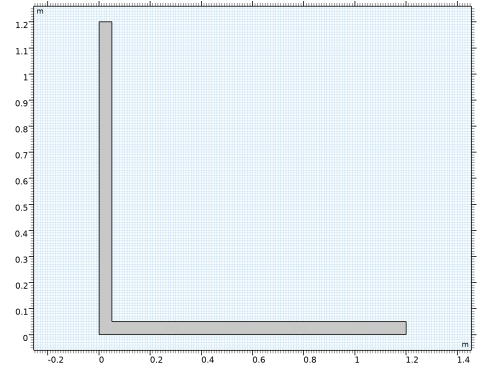
To build the walls separating the external and internal surfaces, create the cross section geometry and extrude it.
Work Plane 1 (wp1)
1
In the Geometry toolbar, click  Work Plane.
2
In the Settings window for Work Plane, click  Go to Plane Geometry.
Work Plane 1 (wp1) > Plane Geometry
1
In the Model Builder window, click Plane Geometry.
The first two rectangles below correspond to the insulation layer of the wall.
Work Plane 1 (wp1) > Rectangle 1 (r1)
1
In the Work Plane toolbar, click  Rectangle.
2
In the Settings window for Rectangle, locate the Size and Shape section.
3
In the Width text field, type rect1.
4
In the Height text field, type wall_t1.
5
Click  Build Selected.
Work Plane 1 (wp1) > Rectangle 2 (r2)
1
In the Work Plane toolbar, click  Rectangle.
2
In the Settings window for Rectangle, locate the Size and Shape section.
3
In the Width text field, type wall_t1.
4
In the Height text field, type rect1.
5
Click  Build Selected.
6
Click the  Zoom Extents button in the Graphics toolbar.
Work Plane 1 (wp1) > Union 1 (uni1)
1
In the Work Plane toolbar, click  Booleans and Partitions and choose Union.
2
Click in the Graphics window and then press Ctrl+A to select both objects.
3
In the Settings window for Union, locate the Union section.
4
Clear the Keep interior boundaries checkbox.
5
Click  Build Selected.
Work Plane 1 (wp1) > Plane Geometry
Build the remaining layers of the walls in a similar manner.
Work Plane 1 (wp1) > Rectangle 3 (r3)
1
In the Work Plane toolbar, click  Rectangle.
2
In the Settings window for Rectangle, locate the Size and Shape section.
3
In the Width text field, type rect2.
4
In the Height text field, type wall_t2.
5
Locate the Position section. In the xw text field, type rect_shift.
6
In the yw text field, type rect_shift.
7
Click  Build Selected.
Work Plane 1 (wp1) > Rectangle 4 (r4)
1
In the Work Plane toolbar, click  Rectangle.
2
In the Settings window for Rectangle, locate the Size and Shape section.
3
In the Width text field, type wall_t2.
4
In the Height text field, type rect2.
5
Locate the Position section. In the xw text field, type rect_shift.
6
In the yw text field, type rect_shift.
7
Click  Build Selected.
Work Plane 1 (wp1) > Union 2 (uni2)
1
In the Work Plane toolbar, click  Booleans and Partitions and choose Union.
2
Select the objects r3 and r4 only.
3
In the Settings window for Union, locate the Union section.
4
Clear the Keep interior boundaries checkbox.
5
Click  Build Selected.
Extrude 1 (ext1)
1
In the Model Builder window, right-click Geometry 1 and choose Extrude.
2
In the Settings window for Extrude, locate the Distances section.
3
4
Click  Build Selected.
5
Click the  Zoom Extents button in the Graphics toolbar.
Block 1 (blk1)
1
In the Geometry toolbar, click  Block.
This block separates the two floors of the structure.
2
In the Settings window for Block, locate the Size and Shape section.
3
In the Width text field, type blk_w.
4
In the Depth text field, type blk_d.
5
In the Height text field, type blk_h.
6
Locate the Position section. In the x text field, type blk_shiftx.
7
In the y text field, type blk_shifty.
8
In the z text field, type blk_shiftz.
9
Click  Build Selected.
To avoid unnecessary edges, remove the intersection of the block with the walls. To do so, use the boolean operation Difference to subtract a copy of the block from the walls. Begin by creating the copy.
Block 2 (blk2)
Right-click Block 1 (blk1) and choose Duplicate.
Difference 1 (dif1)
1
In the Geometry toolbar, click  Booleans and Partitions and choose Difference.
2
The object labeled ext1 is made up of the walls previously obtained by extrusion.
3
In the Settings window for Difference, locate the Difference section.
4
Click to select the  Activate Selection toggle button for Objects to subtract.
5
6
Click  Build Selected.
Block 3 (blk3)
1
In the Geometry toolbar, click  Block.
This block corresponds to the floor of the inside upper level.
2
In the Settings window for Block, locate the Size and Shape section.
3
In the Width text field, type sq_l.
4
In the Depth text field, type sq_l.
5
In the Height text field, type sq_h.
6
Locate the Position section. In the x text field, type sq_shift.
7
In the y text field, type sq_shift.
8
In the z text field, type blk_shiftz+blk_h.
9
Click  Build Selected.
Ignore Edges 1 (ige1)
1
In the Geometry toolbar, click  Virtual Operations and choose Ignore Edges.
In the first steps of the geometry sequence, six unused vertical edges were created on the walls. They are responsible for unnecessary constraints on the mesh and they generate extra boundaries by splitting some faces. For these reasons, follow the instructions below to remove them.
2
On the object fin, select Edges 6, 17, 33, 38, 60, and 63 only.
3
To reach the edges, click the Wireframe Rendering button in the Graphics toolbar. Note that you can make the selection by clicking the Paste Selection button and typing the indices in the dialog that opens.
4
In the Settings window for Ignore Edges, click  Build Selected.
Interior wall
1
In the Geometry toolbar, click  Selections and choose Explicit Selection.
2
On the object ige1, select Domains 4 and 5 only.
3
In the Settings window for Explicit Selection, type Interior wall in the Label text field.
Isolation
1
In the Geometry toolbar, click  Selections and choose Explicit Selection.
2
On the object ige1, select Domain 2 only.
3
In the Settings window for Explicit Selection, type Isolation in the Label text field.
Exterior wall
1
In the Geometry toolbar, click  Selections and choose Explicit Selection.
2
In the Settings window for Explicit Selection, type Exterior wall in the Label text field.
3
On the object ige1, select Domain 1 only.
Horizontal Structure
1
In the Geometry toolbar, click  Selections and choose Explicit Selection.
2
In the Settings window for Explicit Selection, type Horizontal Structure in the Label text field.
3
On the object ige1, select Domain 3 only.
Floor
1
In the Geometry toolbar, click  Selections and choose Explicit Selection.
2
In the Settings window for Explicit Selection, type Floor in the Label text field.
3
On the object ige1, select Domain 6 only.
Alpha
1
In the Geometry toolbar, click  Selections and choose Explicit Selection.
2
In the Settings window for Explicit Selection, type Alpha in the Label text field.
3
Locate the Entities to Select section. From the Geometric entity level list, choose Boundary.
4
On the object ige1, select Boundaries 33–35 only.
Beta
1
In the Geometry toolbar, click  Selections and choose Explicit Selection.
2
In the Settings window for Explicit Selection, type Beta in the Label text field.
3
Locate the Entities to Select section. From the Geometric entity level list, choose Boundary.
4
On the object ige1, select Boundaries 39–41 only.
Gamma
1
In the Geometry toolbar, click  Selections and choose Explicit Selection.
2
In the Settings window for Explicit Selection, type Gamma in the Label text field.
3
Locate the Entities to Select section. From the Geometric entity level list, choose Boundary.
4
On the object ige1, select Boundaries 1, 2, and 11–14 only.
Materials
Interior Wall
1
In the Materials toolbar, click  Blank Material.
2
In the Settings window for Material, type Interior Wall in the Label text field.
3
Locate the Geometric Entity Selection section. From the Selection list, choose Interior wall.
4
Locate the Material Contents section. In the table, enter the following settings:
Isolation
1
In the Materials toolbar, click  Blank Material.
2
In the Settings window for Material, type Isolation in the Label text field.
3
Locate the Geometric Entity Selection section. From the Selection list, choose Isolation.
4
Locate the Material Contents section. In the table, enter the following settings:
Exterior Wall
1
In the Materials toolbar, click  Blank Material.
2
In the Settings window for Material, type Exterior Wall in the Label text field.
3
Locate the Geometric Entity Selection section. From the Selection list, choose Exterior wall.
4
Locate the Material Contents section. In the table, enter the following settings:
Horizontal Structure
1
In the Materials toolbar, click  Blank Material.
2
In the Settings window for Material, type Horizontal Structure in the Label text field.
3
Locate the Geometric Entity Selection section. From the Selection list, choose Horizontal Structure.
4
Locate the Material Contents section. In the table, enter the following settings:
Floor
1
In the Materials toolbar, click  Blank Material.
2
In the Settings window for Material, type Floor in the Label text field.
3
Locate the Geometric Entity Selection section. From the Selection list, choose Floor.
4
Locate the Material Contents section. In the table, enter the following settings:
Heat Transfer in Solids (ht)
Heat Flux - Alpha
1
In the Physics toolbar, click  Boundaries and choose Heat Flux.
2
In the Settings window for Heat Flux, type Heat Flux - Alpha in the Label text field.
3
Locate the Boundary Selection section. From the Selection list, choose Alpha.
4
Locate the Heat Flux section. From the Flux type list, choose Convective heat flux.
5
In the h text field, type h_alpha.
6
In the Text text field, type T_alpha.
Heat Flux - Beta
1
In the Physics toolbar, click  Boundaries and choose Heat Flux.
2
In the Settings window for Heat Flux, type Heat Flux - Beta in the Label text field.
3
Locate the Boundary Selection section. From the Selection list, choose Beta.
4
Locate the Heat Flux section. From the Flux type list, choose Convective heat flux.
5
In the h text field, type h_beta.
6
In the Text text field, type T_beta.
Heat Flux - Gamma
1
In the Physics toolbar, click  Boundaries and choose Heat Flux.
2
3
In the Settings window for Heat Flux, type Heat Flux - Gamma in the Label text field.
4
Locate the Boundary Selection section. From the Selection list, choose Gamma.
5
Locate the Heat Flux section. From the Flux type list, choose Convective heat flux.
6
In the h text field, type h_gamma.
7
In the Text text field, type T_gamma.
Mesh 1
1
In the Model Builder window, under Component 1 (comp1) click Mesh 1.
2
In the Settings window for Mesh, locate the Physics-Controlled Mesh section.
3
In the table, clear the Use checkbox for Geometric Analysis, Detail Size.
4
Click  Build All.
Study 1
In the Study toolbar, click  Compute.
Results
Change the unit of the temperature results to degrees Celsius.
Preferred Units 1
1
In the Results toolbar, click  Configurations and choose Preferred Units.
2
In the Settings window for Preferred Units, locate the Units section.
3
Click  Add Physical Quantity.
4
In the Physical Quantity dialog, select General > Temperature (K) in the tree.
5
6
In the Settings window for Preferred Units, locate the Units section.
7
8
Click  Apply.
Temperature (ht)
The first plot group shows the temperature distribution; compare with Figure 2.
Volume 1
1
In the Model Builder window, expand the Temperature (ht) node, then click Volume 1.
2
In the Temperature (ht) toolbar, click  Plot.
Follow the steps below to find the minimum temperatures on α and β as well as the heat fluxes through α, β, and γ.
Surface Minimum 1
1
In the Results toolbar, click  More Derived Values and choose Minimum > Surface Minimum.
2
In the Settings window for Surface Minimum, locate the Selection section.
3
From the Selection list, choose Alpha.
4
Click  Evaluate.
The displayed value should be close to 11.3°C.
Surface Minimum 2
1
In the Results toolbar, click  More Derived Values and choose Minimum > Surface Minimum.
2
In the Settings window for Surface Minimum, locate the Selection section.
3
From the Selection list, choose Beta.
4
Click  Evaluate.
The displayed value should be close to 11.1°C.
Surface Integration 1
1
In the Results toolbar, click  More Derived Values and choose Integration > Surface Integration.
2
In the Settings window for Surface Integration, locate the Selection section.
3
From the Selection list, choose Alpha.
4
Click Replace Expression in the upper-right corner of the Expressions section. From the menu, choose Component 1 (comp1) > Heat Transfer in Solids > Boundary fluxes > ht.q0 - Inward heat flux - W/m².
5
Click  Evaluate.
The displayed value should be close to 46.2 W.
Surface Integration 2
1
In the Results toolbar, click  More Derived Values and choose Integration > Surface Integration.
2
In the Settings window for Surface Integration, locate the Selection section.
3
From the Selection list, choose Beta.
4
Click Replace Expression in the upper-right corner of the Expressions section. From the menu, choose Component 1 (comp1) > Heat Transfer in Solids > Boundary fluxes > ht.q0 - Inward heat flux - W/m².
5
Click  Evaluate.
The displayed value should be close to 13.9 W.
Surface Integration 3
1
In the Results toolbar, click  More Derived Values and choose Integration > Surface Integration.
2
In the Settings window for Surface Integration, locate the Selection section.
3
From the Selection list, choose Gamma.
4
Click Replace Expression in the upper-right corner of the Expressions section. From the menu, choose Component 1 (comp1) > Heat Transfer in Solids > Boundary fluxes > ht.q0 - Inward heat flux - W/m².
5
Click  Evaluate.
Table 5
1
Go to the Table 5 window.
The displayed value should be close to 60.1 W.
Results
Temperature (ht)
To plot the location of the minimum temperature on α, follow the instructions below.
The resulting dataset is restricted to the surfaces α.
Minimum Temperature on Alpha
1
In the Model Builder window, expand the Results > Datasets node.
2
Right-click Results and choose 3D Plot Group.
3
In the Settings window for 3D Plot Group, type Minimum Temperature on Alpha in the Label text field.
4
Locate the Plot Settings section. From the View list, choose New view.
5
In the Minimum Temperature on Alpha toolbar, click  Plot.
This generates a dedicated view for the plot.
Surface 1
1
In the Minimum Temperature on Alpha toolbar, click  Surface.
2
In the Settings window for Surface, locate the Coloring and Style section.
3
From the Color table list, choose HeatCameraLight.
Selection 1
1
In the Minimum Temperature on Alpha toolbar, click  Selection.
2
In the Settings window for Selection, locate the Selection section.
3
From the Selection list, choose Alpha.
Minimum Temperature on Alpha
In the Model Builder window, under Results click Minimum Temperature on Alpha.
Max/Min Surface 1
In the Minimum Temperature on Alpha toolbar, click  More Plots and choose Max/Min Surface.
Selection 1
1
In the Minimum Temperature on Alpha toolbar, click  Selection.
2
In the Settings window for Selection, locate the Selection section.
3
From the Selection list, choose Alpha.
4
In the Minimum Temperature on Alpha toolbar, click  Plot.
As shown in Figure 3, the minimum temperature is at the corner of α.
5
Now plot the location of the minimum temperature on β.
Minimum Temperature on Beta
1
Right-click Minimum Temperature on Alpha and choose Duplicate.
2
In the Settings window for 3D Plot Group, type Minimum Temperature on Beta in the Label text field.
3
Locate the Plot Settings section. From the View list, choose New view.
4
In the Minimum Temperature on Beta toolbar, click  Plot.
5
In the Model Builder window, expand the Minimum Temperature on Beta node.
Selection 1
1
In the Model Builder window, expand the Results > Minimum Temperature on Beta > Surface 1 node, then click Selection 1.
2
In the Settings window for Selection, locate the Selection section.
3
From the Selection list, choose Beta.
Selection 1
1
In the Model Builder window, expand the Results > Minimum Temperature on Beta > Max/Min Surface 1 node, then click Selection 1.
2
In the Settings window for Selection, locate the Selection section.
3
From the Selection list, choose Beta.
4
In the Minimum Temperature on Beta toolbar, click  Plot.
5
Click the  Zoom Extents button in the Graphics toolbar.