|
|
|

 (dimensionless), and λ are interrelated using an empirical expression the Nafion material node in the material library as, shown in Figure 2.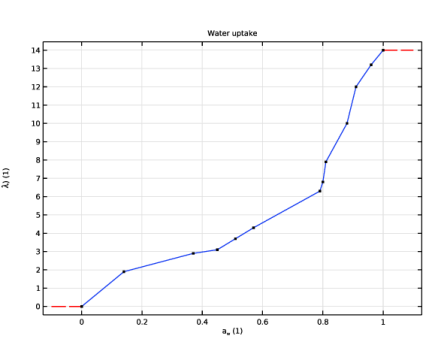
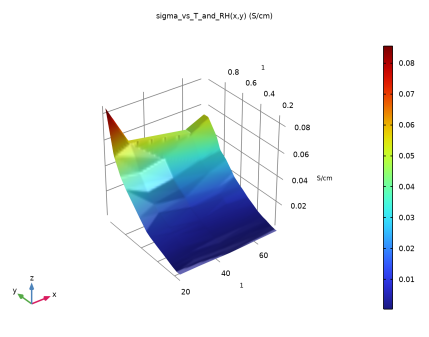





|
1
|
|
2
|
In the Select Physics tree, select Electrochemistry > Hydrogen Fuel Cells > Proton Exchange Membrane (fc).
|
|
3
|
Click Add.
|
|
4
|
|
5
|
Click Add.
|
|
6
|
Click
 Study. Study. |
|
7
|
In the Select Study tree, select Preset Studies for Selected Physics Interfaces > Hydrogen Fuel Cell > Stationary with Initialization.
|
|
8
|
Click
 Done. Done. |
|
1
|
|
2
|
|
3
|
Click
 Load from File. Load from File. |
|
4
|
Browse to the model’s Application Libraries folder and double-click the file pem_mea_1d_parameters.txt.
|
|
1
|
|
2
|
|
3
|
Locate the Interval section. In the table, enter the following settings:
|
|
4
|
Locate the Selections of Resulting Entities section. Select the Resulting objects selection checkbox.
|
|
1
|
|
2
|
|
3
|
Locate the Interval section. In the table, enter the following settings:
|
|
4
|
Locate the Selections of Resulting Entities section. Select the Resulting objects selection checkbox.
|
|
1
|
|
2
|
|
3
|
Locate the Interval section. In the table, enter the following settings:
|
|
4
|
Locate the Selections of Resulting Entities section. Select the Resulting objects selection checkbox.
|
|
1
|
|
2
|
|
3
|
Locate the Interval section. In the table, enter the following settings:
|
|
4
|
Locate the Selections of Resulting Entities section. Select the Resulting objects selection checkbox.
|
|
1
|
|
2
|
|
3
|
Locate the Interval section. In the table, enter the following settings:
|
|
4
|
Locate the Selections of Resulting Entities section. Select the Resulting objects selection checkbox.
|
|
1
|
|
2
|
|
3
|
Locate the Interval section. In the table, enter the following settings:
|
|
4
|
Locate the Selections of Resulting Entities section. Select the Resulting objects selection checkbox.
|
|
1
|
|
2
|
|
3
|
Locate the Interval section. In the table, enter the following settings:
|
|
4
|
Locate the Selections of Resulting Entities section. Select the Resulting objects selection checkbox.
|
|
5
|
Click
 Build All Objects. Build All Objects. |
|
6
|
|
1
|
|
2
|
|
3
|
|
4
|
|
5
|
Click OK.
|
|
1
|
|
2
|
|
3
|
|
4
|
|
5
|
Click OK.
|
|
1
|
|
2
|
|
3
|
|
4
|
|
5
|
Click OK.
|
|
1
|
|
2
|
|
3
|
|
4
|
|
5
|
Click OK.
|
|
1
|
|
2
|
|
3
|
|
4
|
|
5
|
Click OK.
|
|
1
|
|
2
|
|
3
|
|
4
|
|
5
|
Click OK.
|
|
1
|
|
2
|
Go to the Add Material window.
|
|
3
|
In the tree, select Fuel Cell and Electrolyzer > Polymer Electrolytes > Nafion®, EW 1100, Vapor Equilibrated, Protonated.
|
|
4
|
Right-click and choose Add to Component 1 (comp1).
|
|
1
|
In the Model Builder window, under Component 1 (comp1) > Materials click Nafion®, EW 1100, Vapor Equilibrated, Protonated (mat1).
|
|
2
|
|
3
|
|
1
|
Go to the Add Material window.
|
|
2
|
In the tree, select Fuel Cell and Electrolyzer > Polymer Electrolytes > Nafion®, EW 1100, Vapor Equilibrated, Protonated.
|
|
3
|
Right-click and choose Add to Component 1 (comp1).
|
|
4
|
|
1
|
|
2
|
|
1
|
|
2
|
|
3
|
Find the Transport mechanisms subsection. Select the Use Darcy’s Law for momentum transport checkbox.
|
|
4
|
|
5
|
|
6
|
Select the O2 checkbox.
|
|
7
|
Select the Electroosmotic water drag checkbox.
|
|
1
|
|
2
|
|
3
|
|
1
|
|
2
|
|
3
|
|
1
|
|
2
|
|
3
|
|
1
|
|
2
|
|
3
|
|
1
|
|
2
|
|
3
|
|
1
|
|
2
|
|
3
|
|
1
|
|
2
|
|
3
|
|
1
|
|
2
|
|
3
|
|
1
|
In the Model Builder window, under Component 1 (comp1) > Hydrogen Fuel Cell (fc) click H2 Gas Diffusion Electrode 1.
|
|
2
|
In the Settings window for H2 Gas Diffusion Electrode, locate the Electrode Charge Transport section.
|
|
3
|
|
4
|
|
5
|
|
6
|
|
1
|
|
2
|
In the Settings window for H2 Gas Diffusion Electrode Reaction, locate the Electrode Kinetics section.
|
|
3
|
|
4
|
|
1
|
In the Model Builder window, under Component 1 (comp1) > Hydrogen Fuel Cell (fc) click H2 Gas Diffusion Layer 1.
|
|
2
|
In the Settings window for H2 Gas Diffusion Layer, type H2 Gas Diffusion Layer 1 - MPL in the Label text field.
|
|
3
|
|
4
|
|
5
|
|
1
|
|
2
|
In the Settings window for H2 Gas Diffusion Layer, type H2 Gas Diffusion Layer 2 - GDL in the Label text field.
|
|
3
|
|
4
|
|
5
|
|
1
|
|
2
|
In the Settings window for O2 Gas Diffusion Electrode, locate the Electrode Charge Transport section.
|
|
3
|
|
4
|
|
5
|
|
6
|
|
1
|
|
2
|
In the Settings window for O2 Gas Diffusion Electrode Reaction, locate the Electrode Kinetics section.
|
|
3
|
|
4
|
|
5
|
|
1
|
In the Model Builder window, under Component 1 (comp1) > Hydrogen Fuel Cell (fc) click O2 Gas Diffusion Layer 1.
|
|
2
|
In the Settings window for O2 Gas Diffusion Layer, type O2 Gas Diffusion Layer 1 - MPL in the Label text field.
|
|
3
|
|
4
|
|
5
|
|
1
|
|
2
|
In the Settings window for O2 Gas Diffusion Layer, type O2 Gas Diffusion Layer 2 - GDL in the Label text field.
|
|
3
|
|
4
|
|
5
|
|
1
|
|
1
|
|
3
|
|
4
|
|
1
|
In the Model Builder window, under Component 1 (comp1) > Hydrogen Fuel Cell (fc) > H2 Gas Phase 1 click Initial Values 1.
|
|
2
|
|
3
|
|
4
|
|
5
|
|
1
|
|
1
|
In the Model Builder window, under Component 1 (comp1) > Hydrogen Fuel Cell (fc) > O2 Gas Phase 1 click Initial Values 1.
|
|
2
|
|
3
|
|
4
|
|
5
|
|
1
|
|
1
|
|
2
|
|
3
|
|
4
|
Locate the Heat Conduction, Solid section. From the k list, choose User defined. In the associated text field, type kappa_GDL.
|
|
1
|
|
2
|
|
3
|
|
4
|
Locate the Heat Conduction, Solid section. From the k list, choose User defined. In the associated text field, type kappa_MPL.
|
|
1
|
|
2
|
|
3
|
|
4
|
Locate the Heat Conduction, Solid section. From the k list, choose User defined. In the associated text field, type kappa_CL.
|
|
1
|
|
2
|
|
3
|
Locate the Thermodynamics, Solid section. From the ρ list, choose User defined. From the Cp list, choose User defined.
|
|
1
|
|
2
|
|
3
|
|
1
|
|
2
|
|
3
|
|
1
|
|
2
|
|
3
|
|
1
|
|
3
|
|
4
|
|
1
|
|
2
|
|
3
|
|
1
|
|
2
|
|
3
|
|
4
|
|
1
|
|
2
|
|
3
|
|
4
|
|
5
|
Click
 Build All. Build All. |
|
1
|
|
2
|
|
3
|
Click
 Add. Add. |
|
5
|
Click
 Add. Add. |
|
7
|
|
1
|
|
2
|
|
3
|
Select the Auxiliary sweep checkbox.
|
|
4
|
Click
 Add. Add. |
|
6
|
|
1
|
|
2
|
|
3
|
|
1
|
|
3
|
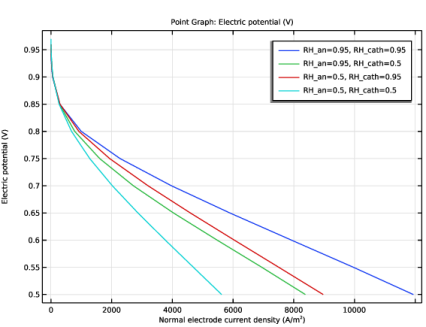
In the Settings window for Point Graph, click Replace Expression in the upper-right corner of the y-Axis Data section. From the menu, choose Component 1 (comp1) > Hydrogen Fuel Cell > fc.phis - Electric potential - V.
|
|
4
|
|
5
|
Click Replace Expression in the upper-right corner of the x-Axis Data section. From the menu, choose Component 1 (comp1) > Hydrogen Fuel Cell > fc.nIs - Normal electrode current density - A/m².
|
|
6
|
|
7
|
|
1
|
|
2
|
|
3
|
|
4
|
|
1
|
|
2
|
|
3
|
|
1
|
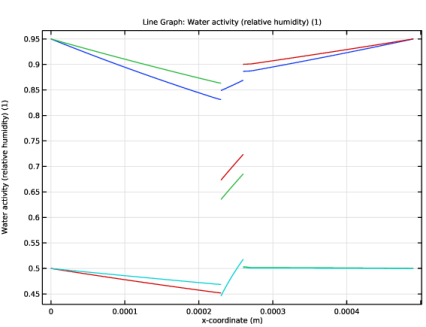
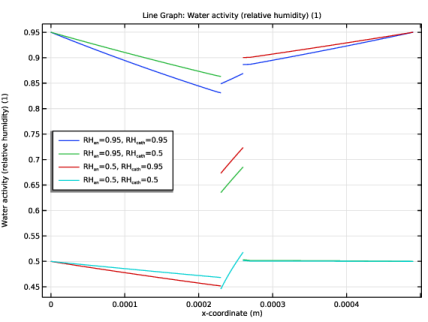
In the Model Builder window, expand the Water Activity (Relative Humidity) (fc) node, then click Line Graph 1.
|
|
2
|
|
1
|
|
2
|
|
3
|
|
4
|
|
1
|
|
2
|
|
3
|
|
4
|
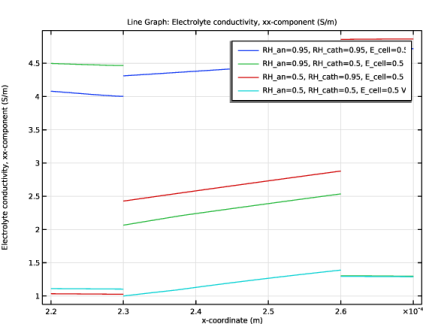
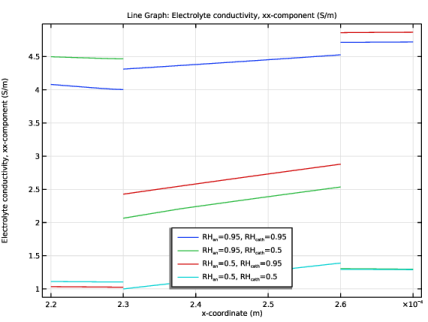
Click Replace Expression in the upper-right corner of the y-Axis Data section. From the menu, choose Component 1 (comp1) > Hydrogen Fuel Cell > Electrolyte conductivity - S/m > fc.sigmalxx - Electrolyte conductivity, xx-component.
|
|
5
|
|
6
|
|
7
|
|
8
|