|
|
|






|
1
|
|
2
|
In the Application Libraries window, select Fuel Cell and Electrolyzer Module > Fuel Cells > fuel_cell_cathode in the tree.
|
|
3
|
Click
 Open. Open. |
|
1
|
|
2
|
|
1
|
|
2
|
|
3
|
|
4
|
|
1
|
|
2
|
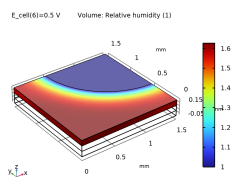
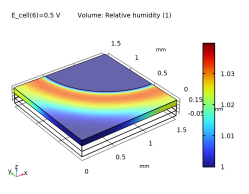
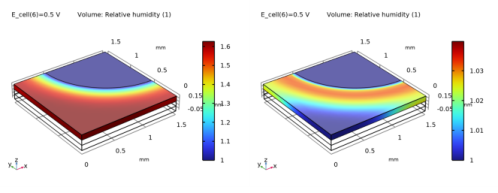
In the Settings window for Volume, click Replace Expression in the upper-right corner of the Expression section. From the menu, choose Component 1 (comp1) > Hydrogen Fuel Cell > fc.RH - Relative humidity - 1.
|
|
3
|
|
1
|
|
2
|
|
3
|
In the Settings window for Table, type Oversaturated, no liquid water transport in the Label text field.
|
|
1
|
|
2
|
Go to the Add Physics window.
|
|
3
|
In the tree, select Fluid Flow > Multiphase Flow > Phase Transport > Phase Transport in Porous Media (phtr).
|
|
4
|
Click to expand the Dependent Variables section. In the Volume fractions (1) table, enter the following settings:
|
|
5
|
Click the Add to Component 1 button in the window toolbar.
|
|
6
|
|
1
|
|
1
|
In the Model Builder window, under Component 1 (comp1) right-click Definitions and choose Variables.
|
|
2
|
|
3
|
Click
 Load from File. Load from File. |
|
4
|
Browse to the model’s Application Libraries folder and double-click the file fuel_cell_cathode_with_liquid_water_variables.txt.
|
|
1
|
|
2
|
|
3
|
|
4
|
Click
 Browse. Browse. |
|
5
|
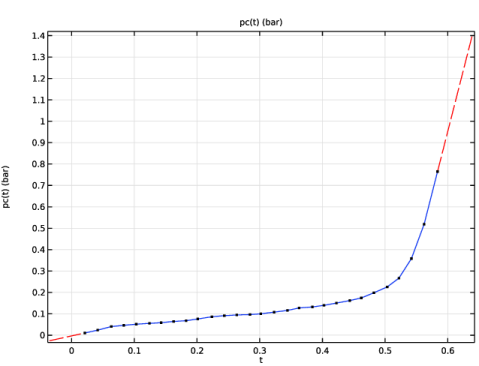
Browse to the model’s Application Libraries folder and double-click the file fuel_cell_cathode_with_liquid_water_pc.txt.
|
|
6
|
Click
 Import. Import. |
|
7
|
|
8
|
|
9
|
|
10
|
In the Function table, enter the following settings:
|
|
11
|
|
12
|
|
13
|
|
1
|
In the Model Builder window, expand the Component 1 (comp1) > Hydrogen Fuel Cell (fc) node, then click Hydrogen Fuel Cell (fc).
|
|
2
|
|
3
|
|
1
|
|
2
|
In the Settings window for Water Condensation-Evaporation, locate the Condensation-Evaporation Rate section.
|
|
3
|
|
1
|
In the Model Builder window, under Component 1 (comp1) > Hydrogen Fuel Cell (fc) click O2 Gas Diffusion Electrode 1.
|
|
2
|
|
3
|
|
1
|
In the Model Builder window, under Component 1 (comp1) click Phase Transport in Porous Media (phtr).
|
|
2
|
|
3
|
|
1
|
In the Model Builder window, under Component 1 (comp1) > Phase Transport in Porous Media (phtr) > Porous Medium 1 click Fluid 1.
|
|
2
|
|
3
|
|
4
|
|
5
|
|
6
|
|
7
|
In the text field, type s_g^2.
|
|
8
|
|
9
|
|
10
|
In the text field, type s_l^2.
|
|
1
|
|
2
|
|
3
|
|
4
|
|
1
|
|
2
|
|
3
|
|
4
|
|
5
|
|
1
|
|
2
|
|
3
|
|
1
|
|
2
|
|
3
|
|
4
|
|
1
|
|
2
|
In the Settings window for Stationary, type Stationary - Excluding Phase Transport in the Label text field.
|
|
3
|
Locate the Physics and Variables Selection section. In the Solve for column of the table, under Component 1 (comp1), clear the checkbox for Phase Transport in Porous Media (phtr).
|
|
1
|
|
2
|
In the Settings window for Stationary, type Stationary - Phase Transport Only in the Label text field.
|
|
3
|
Locate the Physics and Variables Selection section. In the Solve for column of the table, under Component 1 (comp1), clear the checkbox for Hydrogen Fuel Cell (fc).
|
|
1
|
|
2
|
|
1
|
|
2
|
|
1
|
|
2
|
|
1
|
|
2
|
|
1
|
|
2
|
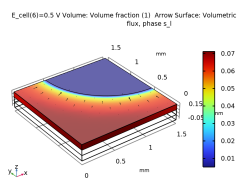
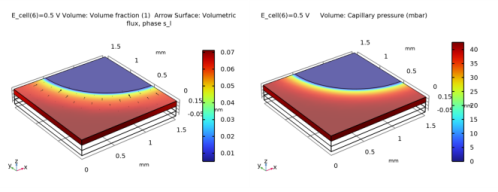
In the Settings window for Volume, click Replace Expression in the upper-right corner of the Expression section. From the menu, choose Component 1 (comp1) > Phase Transport in Porous Media > s_l - Volume fraction - 1.
|
|
3
|
|
1
|
|
2
|
In the Settings window for Arrow Surface, click Replace Expression in the upper-right corner of the Expression section. From the menu, choose Component 1 (comp1) > Phase Transport in Porous Media > phtr.ux_s_l,...,phtr.uz_s_l - Volumetric flux, phase s_l.
|
|
3
|
|
4
|
|
1
|
|
3
|
|
1
|
|
2
|
|
1
|
|
2
|
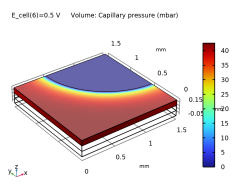
In the Settings window for Volume, click Replace Expression in the upper-right corner of the Expression section. From the menu, choose Component 1 (comp1) > Definitions > Variables > pc - Capillary pressure - Pa.
|
|
3
|
|
4
|
|
1
|
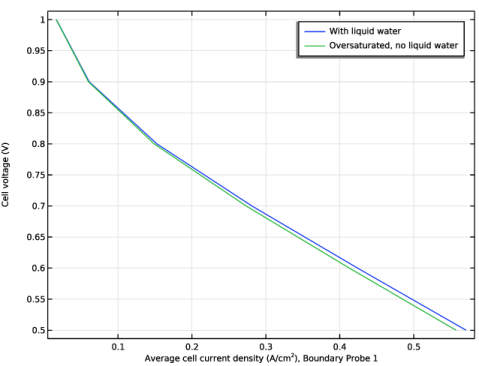
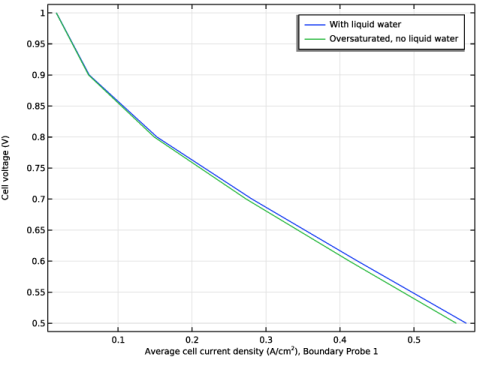
In the Model Builder window, expand the Polarization Curve node, then click Probe Table Graph: Limited O2 gas phase transport.
|
|
2
|
|
1
|
|
2
|
|
3
|
|
4
|
Locate the Legends section. In the table, enter the following settings:
|
|
5
|