|
|
|




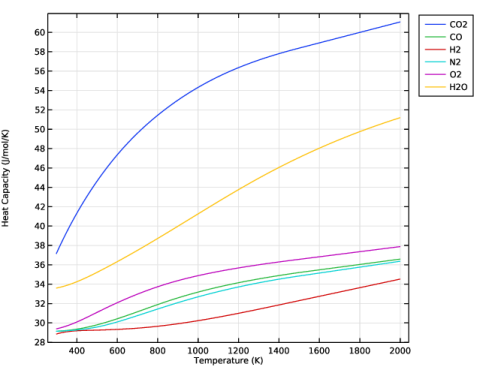

|
N2
|
||
|
H2
|
||
|
O2
|
||
|
CO2
|
|
Cp (J/mol/K)
|
Cp (J/mol/K)
|
Cp (J/mol/K)
|
Cp (J/mol/K)
|
|
|
N2
|
||||
|
H2
|
||||
|
O2
|
||||
|
CO2
|
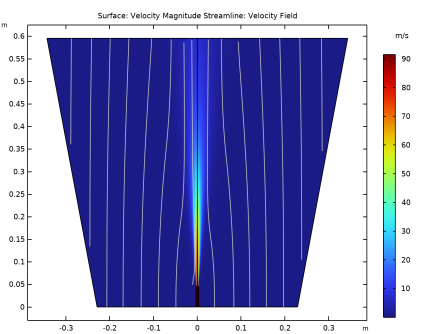
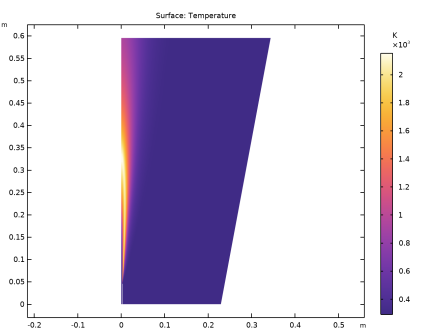
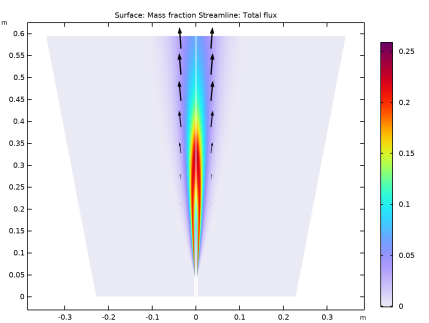
|
1
|
|
2
|
In the Select Physics tree, select Chemical Species Transport > Nonisothermal Reacting Flow > Turbulent Flow > Turbulent Flow, k-ω.
|
|
3
|
Click Add.
|
|
4
|
|
5
|
|
6
|
In the Mass fractions (1) table, enter the following settings:
|
|
7
|
Click
 Study. Study. |
|
8
|
|
9
|
Click
 Done. Done. |
|
1
|
|
2
|
|
3
|
Click
 Load from File. Load from File. |
|
4
|
Browse to the model’s Application Libraries folder and double-click the file round_jet_burner_parameters.txt.
|
|
1
|
|
2
|
|
3
|
|
4
|
|
5
|
Click
 Build Selected. Build Selected. |
|
1
|
|
2
|
|
3
|
|
4
|
|
5
|
|
6
|
Click
 Build Selected. Build Selected. |
|
1
|
|
2
|
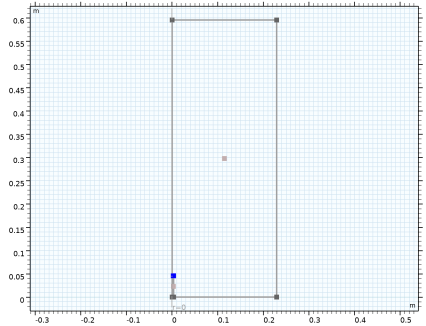
On the object r2, select Points 3 and 4 only.
|
|
3
|
|
4
|
|
5
|
Click
 Build Selected. Build Selected. |
|
6
|
|
1
|
|
2
|
|
3
|
|
4
|
|
5
|
|
6
|
Click
 Build Selected. Build Selected. |
|
1
|
|
2
|
|
3
|
|
4
|
Clear the Keep interior boundaries checkbox.
|
|
5
|
Click
 Build Selected. Build Selected. |
|
1
|
|
2
|
Select the object uni1 only.
|
|
3
|
|
4
|
|
5
|
Select the object cha1 only.
|
|
6
|
Click
 Build Selected. Build Selected. |
|
1
|
|
2
|
|
3
|
|
4
|
|
5
|
|
6
|
|
7
|
|
8
|
Click
 Build Selected. Build Selected. |
|
1
|
|
2
|
|
3
|
|
4
|
|
5
|
|
6
|
|
7
|
|
8
|
|
9
|
Click
 Build Selected. Build Selected. |
|
1
|
|
2
|
|
3
|
|
4
|
|
5
|
|
6
|
|
7
|
|
8
|
|
9
|
Click
 Build Selected. Build Selected. |
|
1
|
|
2
|
|
3
|
|
4
|
|
5
|
|
6
|
|
7
|
|
8
|
|
9
|
Click
 Build Selected. Build Selected. |
|
1
|
|
2
|
|
1
|
|
2
|
|
3
|
|
4
|
|
1
|
|
2
|
On the object mce1, select Boundaries 3 and 11 only.
|
|
3
|
|
1
|
Go to the Select System window.
|
|
2
|
Click Next in the window toolbar.
|
|
1
|
Go to the Select Species window.
|
|
2
|
|
3
|
Click
 Add Selected. Add Selected. |
|
4
|
|
5
|
Click
 Add Selected. Add Selected. |
|
6
|
|
7
|
Click
 Add Selected. Add Selected. |
|
8
|
|
9
|
Click
 Add Selected. Add Selected. |
|
10
|
|
11
|
Click
 Add Selected. Add Selected. |
|
12
|
|
13
|
Click
 Add Selected. Add Selected. |
|
14
|
Click Next in the window toolbar.
|
|
1
|
Go to the Select Thermodynamic Model window.
|
|
2
|
Click Finish in the window toolbar.
|
|
1
|
|
1
|
Go to the Select Properties window.
|
|
2
|
In the list, select Heat capacity (Cp) (J/(K*mol)).
|
|
3
|
Click
 Add Selected. Add Selected. |
|
4
|
In the list, select Enthalpy of formation (J/mol).
|
|
5
|
Click
 Add Selected. Add Selected. |
|
6
|
Click Next in the window toolbar.
|
|
1
|
Go to the Select Phase window.
|
|
2
|
Click Next in the window toolbar.
|
|
1
|
Go to the Select Species window.
|
|
2
|
Click
 Add All. Add All. |
|
3
|
Click Next in the window toolbar.
|
|
1
|
Go to the Species Property Overview window.
|
|
2
|
Click Finish in the window toolbar.
|
|
1
|
In the Model Builder window, under Component 1 (comp1) right-click Chemistry (chem) and choose Reaction.
|
|
2
|
|
3
|
|
4
|
Click Apply.
|
|
1
|
|
2
|
|
3
|
|
4
|
Click Apply.
|
|
5
|
|
1
|
|
2
|
|
3
|
|
1
|
|
2
|
|
3
|
Select the Thermodynamics checkbox.
|
|
4
|
Locate the Species Matching section. Find the Bulk species subsection. From the Species solved for list, choose Transport of Concentrated Species.
|
|
6
|
Click to expand the Calculate Transport Properties section. From the Thermal conductivity list, choose User defined.
|
|
7
|
|
8
|
|
9
|
|
1
|
|
2
|
|
3
|
|
4
|
Select the Assume infinitely fast reaction checkbox.
|
|
5
|
|
1
|
|
2
|
|
3
|
|
4
|
Select the Assume infinitely fast reaction checkbox.
|
|
5
|
|
1
|
In the Model Builder window, under Component 1 (comp1) click Transport of Concentrated Species (tcs).
|
|
2
|
In the Settings window for Transport of Concentrated Species, locate the Transport Mechanisms section.
|
|
3
|
|
4
|
|
1
|
|
3
|
|
4
|
|
5
|
|
6
|
|
7
|
|
8
|
|
1
|
|
2
|
|
3
|
|
4
|
|
5
|
|
6
|
|
7
|
|
1
|
|
3
|
|
4
|
|
5
|
|
6
|
|
7
|
|
8
|
|
9
|
|
1
|
|
2
|
|
3
|
|
4
|
|
5
|
|
6
|
|
7
|
|
1
|
|
1
|
In the Model Builder window, under Component 1 (comp1) > Turbulent Flow, k-ω (spf) click Fluid Properties 1.
|
|
2
|
|
3
|
Click Make All Model Inputs Editable in the upper-right corner of the section.
|
|
4
|
|
5
|
|
1
|
|
3
|
|
4
|
From the list, choose Fully developed flow.
|
|
5
|
|
1
|
|
3
|
|
4
|
Click the Velocity field button.
|
|
5
|
|
6
|
|
7
|
|
8
|
In the text field, type 0.1*Di.
|
|
1
|
|
3
|
|
4
|
Select the Normal flow checkbox.
|
|
1
|
In the Model Builder window, under Component 1 (comp1) > Heat Transfer in Fluids (ht) click Initial Values 1.
|
|
2
|
|
3
|
|
1
|
|
2
|
|
3
|
Click Make All Model Inputs Editable in the upper-right corner of the section.
|
|
4
|
|
5
|
|
6
|
|
7
|
|
1
|
|
3
|
|
4
|
|
1
|
|
1
|
|
2
|
|
3
|
Clear the Smooth across removed control entities checkbox.
|
|
1
|
|
3
|
|
4
|
|
5
|
|
6
|
|
7
|
|
1
|
|
3
|
|
4
|
|
5
|
|
6
|
|
7
|
|
1
|
|
3
|
|
4
|
|
5
|
|
6
|
|
7
|
|
8
|
Select the Reverse direction checkbox.
|
|
1
|
|
3
|
|
4
|
|
5
|
|
6
|
|
7
|
|
8
|
Select the Reverse direction checkbox.
|
|
1
|
|
3
|
|
4
|
|
5
|
|
6
|
|
7
|
|
1
|
|
3
|
|
4
|
|
5
|
|
6
|
|
7
|
|
8
|
Click
 Build All. Build All. |
|
9
|
|
1
|
|
2
|
In the Model Builder window, expand the Study 1 > Solver Configurations > Solution 1 (sol1) > Stationary Solver 1 > Segregated 1 node, then click Velocity u, Pressure p.
|
|
3
|
|
4
|
|
1
|
In the Model Builder window, expand the Global Definitions > Thermodynamics > Gas System 1 (pp1) > Mixture > Vapor node, then click Global Definitions > Thermodynamics > Gas System 1 (pp1) > carbon dioxide > Vapor > Enthalpy of formation 1 (EnthalpyF_carbon_dioxide_Gas12, EnthalpyF_carbon_dioxide_Gas12_Dtemperature, EnthalpyF_carbon_dioxide_Gas12_Dpressure).
|
|
2
|
|
4
|
Click
 Create Plot. Create Plot. |
|
1
|
|
2
|
|
3
|
|
4
|
|
5
|
|
6
|
|
1
|
|
1
|
In the Model Builder window, under Results, Ctrl-click to select 1D Plot Group 2, 1D Plot Group 3, 1D Plot Group 4, 1D Plot Group 5, and 1D Plot Group 6.
|
|
2
|
Right-click and choose Delete.
|
|
1
|
In the Model Builder window, under Global Definitions > Thermodynamics > Gas System 1 (pp1) > carbon dioxide > Vapor click Heat capacity (Cp) 1 (HeatCapacityCp_carbon_dioxide_Gas11, HeatCapacityCp_carbon_dioxide_Gas11_Dtemperature, HeatCapacityCp_carbon_dioxide_Gas11_Dpressure).
|
|
2
|
|
4
|
Click
 Create Plot. Create Plot. |
|
1
|
|
2
|
|
3
|
Repeat creating plots for the functions Heat capacity (Cp) 2 - Heat capacity (Cp) 6 using the same temperature limits.
|
|
1
|
|
2
|
Repeat the drag-dropping of functions 3-6 into the Heat Capacity plot group.
|
|
1
|
In the Model Builder window, under Results, Ctrl-click to select 1D Plot Group 3, 1D Plot Group 4, 1D Plot Group 5, 1D Plot Group 6, and 1D Plot Group 7.
|
|
2
|
Right-click and choose Delete.
|
|
1
|
|
2
|
|
3
|
|
4
|
Locate the Plot Settings section.
|
|
5
|
|
6
|
|
7
|
|
1
|
|
2
|
|
3
|
Select the Show legends checkbox.
|
|
4
|
|
1
|
|
2
|
|
3
|
Select the Show legends checkbox.
|
|
4
|
|
1
|
|
2
|
|
3
|
Select the Show legends checkbox.
|
|
4
|
|
1
|
|
2
|
|
3
|
Select the Show legends checkbox.
|
|
4
|
|
1
|
|
2
|
|
3
|
Select the Show legends checkbox.
|
|
4
|
|
1
|
|
2
|
|
3
|
Select the Show legends checkbox.
|
|
4
|
|
6
|
|
1
|
|
2
|
|
3
|
|
4
|
|
5
|
Locate the Plot Settings section.
|
|
6
|
|
7
|
|
8
|
|
1
|
|
2
|
|
3
|
Select the Show legends checkbox.
|
|
4
|
|
1
|
|
2
|
|
3
|
Select the Show legends checkbox.
|
|
4
|
|
1
|
|
2
|
|
3
|
Select the Show legends checkbox.
|
|
4
|
|
1
|
|
2
|
|
3
|
Select the Show legends checkbox.
|
|
4
|
|
1
|
|
2
|
|
3
|
Select the Show legends checkbox.
|
|
4
|
|
1
|
|
2
|
|
3
|
Select the Show legends checkbox.
|
|
4
|
|
6
|
|
1
|
|
1
|
|
2
|
|
3
|
Select the Transpose checkbox.
|
|
1
|
|
2
|
In the Settings window for Global Evaluation, type Enthalpy of Formation, 298 K in the Label text field.
|
|
3
|
Locate the Expressions section. In the table, enter the following settings:
|
|
1
|
|
2
|
|
1
|
|
2
|
|
3
|
Locate the Expressions section. In the table, enter the following settings:
|
|
4
|
|
1
|
|
2
|
|
3
|
Locate the Expressions section. In the table, enter the following settings:
|
|
4
|
|
1
|
In the Model Builder window, under Study 1 > Solver Configurations right-click Solution 1 (sol1) and choose Compute.
|
|
2
|
|
1
|
|
2
|
|
3
|
|
4
|
|
5
|
|
6
|
Click to expand the Advanced section. Find the Space variable subsection. In the x text field, type r_mirr20.
|
|
1
|
|
2
|
|
3
|
|
4
|
|
5
|
|
6
|
Locate the Advanced section. Find the Space variable subsection. In the x text field, type r_mirr50.
|
|
1
|
|
2
|
|
3
|
|
4
|
|
1
|
|
2
|
In the Settings window for Streamline, click Replace Expression in the upper-right corner of the Expression section. From the menu, choose Component 1 (comp1) > Heat Transfer in Fluids > Velocity and pressure > ht.ur,ht.uz - Velocity field.
|
|
3
|
|
4
|
|
5
|
Locate the Coloring and Style section. Find the Point style subsection. From the Color list, choose Gray.
|
|
6
|
|
7
|
|
1
|
|
2
|
|
3
|
|
4
|
|
1
|
|
2
|
|
3
|
|
4
|
|
1
|
|
2
|
|
3
|
|
4
|
|
1
|
|
2
|
|
3
|
|
4
|
|
5
|
|
1
|
|
2
|
|
3
|
Clear the Plot dataset edges checkbox.
|
|
1
|
|
2
|
|
3
|
|
4
|
Browse to the model’s Application Libraries folder and double-click the file round_jet_burner_chnAclY.fav.
|
|
1
|
|
2
|
|
3
|
|
4
|
Browse to the model’s Application Libraries folder and double-click the file round_jet_burner_chnAd20Y.fav.
|
|
1
|
|
2
|
|
3
|
|
4
|
Browse to the model’s Application Libraries folder and double-click the file round_jet_burner_chnAd50Y.fav.
|
|
1
|
|
2
|
|
3
|
|
4
|
Browse to the model’s Application Libraries folder and double-click the file round_jet_burner_seq1420.dat.
|
|
1
|
|
2
|
|
3
|
|
4
|
Browse to the model’s Application Libraries folder and double-click the file round_jet_burner_seq1450.dat.
|
|
1
|
|
3
|
|
4
|
|
5
|
|
6
|
|
7
|
|
8
|
|
9
|
|
1
|
|
2
|
|
3
|
|
4
|
|
5
|
|
6
|
Click to expand the Preprocessing section. Find the x-axis column subsection. From the Transformation list, choose Linear.
|
|
7
|
|
8
|
|
9
|
|
10
|
Locate the Coloring and Style section. Find the Line style subsection. From the Line list, choose None.
|
|
11
|
|
12
|
|
13
|
|
14
|
|
1
|
|
2
|
|
3
|
Locate the Plot Settings section.
|
|
4
|
|
5
|
|
6
|
|
7
|
|
8
|
|
9
|
|
10
|
|
11
|
|
12
|
|
13
|
|
14
|
|
1
|
|
2
|
|
3
|
|
1
|
|
2
|
|
3
|
|
4
|
|
5
|
|
6
|
|
7
|
|
8
|
|
9
|
|
1
|
|
2
|
|
3
|
|
4
|
|
5
|
Locate the Coloring and Style section. Find the Line style subsection. From the Line list, choose Dashed.
|
|
6
|
Locate the Legends section. In the table, enter the following settings:
|
|
7
|
|
1
|
|
2
|
|
3
|
|
4
|
|
5
|
|
6
|
|
7
|
Locate the Preprocessing section. Find the x-axis column subsection. From the Transformation list, choose Linear.
|
|
8
|
|
9
|
|
10
|
|
11
|
Locate the Coloring and Style section. Find the Line style subsection. From the Line list, choose None.
|
|
12
|
|
13
|
|
14
|
|
15
|
|
1
|
|
2
|
|
3
|
|
4
|
Locate the Coloring and Style section. Find the Line markers subsection. From the Marker list, choose Triangle.
|
|
5
|
|
6
|
Locate the Legends section. In the table, enter the following settings:
|
|
1
|
|
2
|
|
3
|
|
4
|
|
5
|
Locate the Plot Settings section.
|
|
6
|
|
7
|
|
8
|
|
9
|
|
10
|
|
11
|
|
12
|
|
13
|
|
14
|
|
1
|
|
2
|
|
1
|
|
2
|
|
3
|
|
1
|
|
2
|
|
3
|
|
1
|
|
2
|
|
3
|
|
4
|
|
5
|
|
6
|
Locate the Preprocessing section. Find the y-axis columns subsection. In the Scaling text field, type 1/Ujet.
|
|
1
|
|
2
|
|
3
|
|
4
|
|
5
|
|
6
|
Locate the Preprocessing section. Find the y-axis columns subsection. In the Scaling text field, type 1/Ujet.
|
|
1
|
|
2
|
|
3
|
|
4
|
|
5
|
|
6
|
|
7
|
|
1
|
|
2
|
|
3
|
|
4
|
|
5
|
|
6
|
|
7
|
|
1
|
|
2
|
|
3
|
|
4
|
Locate the Legends section. In the table, enter the following settings:
|
|
1
|
|
2
|
|
3
|
|
4
|
Locate the Preprocessing section. Find the y-axis columns subsection. In the Scaling text field, type 1.
|
|
5
|
Locate the Legends section. In the table, enter the following settings:
|
|
6
|
|
1
|
In the Model Builder window, under Results > CO, N2 @ centerline right-click Line Graph 1 and choose Duplicate.
|
|
2
|
|
3
|
|
4
|
Locate the Coloring and Style section. Find the Line style subsection. From the Line list, choose Dashed.
|
|
5
|
Locate the Legends section. In the table, enter the following settings:
|
|
1
|
In the Model Builder window, under Results > CO, N2 @ centerline right-click Table Graph 1 and choose Duplicate.
|
|
2
|
|
3
|
|
4
|
Locate the Coloring and Style section. Find the Line markers subsection. From the Marker list, choose Triangle.
|
|
5
|
|
6
|
Locate the Legends section. In the table, enter the following settings:
|
|
7
|
|
1
|
|
2
|
|
1
|
|
2
|
|
3
|
|
4
|
Locate the Legends section. In the table, enter the following settings:
|
|
1
|
|
2
|
|
3
|
|
4
|
Locate the Legends section. In the table, enter the following settings:
|
|
1
|
|
2
|
|
3
|
|
4
|
Locate the Legends section. In the table, enter the following settings:
|
|
1
|
|
2
|
|
3
|
|
4
|
Locate the Legends section. In the table, enter the following settings:
|
|
1
|
|
2
|
|
3
|
|
4
|
|
5
|
|
6
|
|
1
|
|
2
|
|
1
|
|
2
|
|
3
|
|
4
|
Locate the Legends section. In the table, enter the following settings:
|
|
1
|
|
2
|
|
3
|
|
4
|
Locate the Legends section. In the table, enter the following settings:
|
|
1
|
|
2
|
|
3
|
|
4
|
Locate the Legends section. In the table, enter the following settings:
|
|
1
|
|
2
|
|
3
|
|
4
|
Locate the Legends section. In the table, enter the following settings:
|
|
1
|
|
2
|
|
3
|
|
4
|
|
5
|
|
6
|
 ,
,