







PDF

Carbon Deposition in Heterogeneous Catalysis
Introduction
Carbon deposition onto the surface of solid catalysts is commonly observed in hydrocarbon processing. Carbon deposits can affect both the activity of catalysts as well as the flow of gas through a catalyst bed.
This example investigates the thermal decomposition of methane into hydrogen and solid carbon with two models. In the first model, the isothermal process occurring in an ideal reactor is simulated with the Reaction Engineering interface. The influence of carbon deposition on catalyst activity is also considered. In the second model, the effect that the carbon deposits have on the porosity and the fluid flow is studied. The second simulation takes both time and space dependencies into account.
Model Definition
CHEMISTRY
Methane decomposes over a Ni/Al2O3 catalyst according to the overall chemical reaction
(1)
Under atmospheric pressure, the temperate ranging from 490°C to 590°C and a volume fraction of hydrogen between 0 and 40%, the following reaction rate expression has been reported in the literature (Ref. 1):
(2)
where
(3)
and
The constant k0 in Equation 3 is 2.31·105 mol/(m3·s), supposing the amount of catalyst being 1 g/m3. The unit for pressure in Equation 2 is bar.
IDEAL REACTOR MODEL
This model treats the isothermal decomposition of methane (Figure 2) in a perfectly mixed batch reactor with constant volume. The species mass balances are summarized by
The rate term, Ri (SI unit: mol/(m3·s)) for each species, takes into account the reaction stoichiometry coefficients, νi, the reaction rate reported in Equation 2, r mol/(m3·s), and the catalyst activity, a:
The mass balances of the reacting species are then
The time dependence of the catalytic activity is expressed by
where
where ka0 is 8.324·106 (m3/mol)3·s. Solving the mass balances provides the evolution of the species concentrations over time. The fact that carbon is in the solid phase is taken into account by removing its effect on gas phase physical properties. The pressure in the reactor is a function of only the methane and hydrogen concentrations:
SPACE- AND TIME-DEPENDENT MODEL
The second model takes fluid flow, mass transport, heat transfer, and the chemical reaction into account. It is created by the Generate Space-Dependent Model feature available in the Reaction Engineering interface.
:
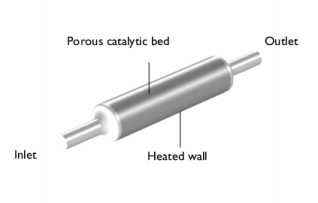
Figure 1: Methane enters from the left and reacts in the porous catalytic bed. The wall of the bed is heated.
Equations
The space-dependent model solves coupled momentum, mass, and energy balances together with a void fraction balance. The fluid flow is laminar, the concentrations high (no solvent is present), and porous media with variable porosity exist within the reactor. Additionally, the impact of heating is studied. The following physics interfaces are used in this example:
The Domain ODEs and PDEs interface solves a balance for the void fraction, or porosity, of the bed given by
where MC (kg/mol) is the carbon molar weight, and ρsoot (kg/m3) is the deposited carbon density. The equation states that the porosity decreases with the formation rate r of carbon in the pores. The porosity ε on the right hand side is needed to correct the reaction rate to pore volume base, and MC/ρsoot gives the unit 1/s. This equation can be implemented in the Domain ODEs and DAEs interface, resulting in a porosity distribution across the catalytic bed as a function of time. The initial porosity of the bed is assumed to be ε = 0.4.
The porosity is related to the permeability of the porous domain by (Ref. 2)
The reactor geometry (see Figure 1) is set up in 2D axisymmetry in the model as the angular gradients are negligible.
Results and Discussion
IDEAL REACTOR MODEL
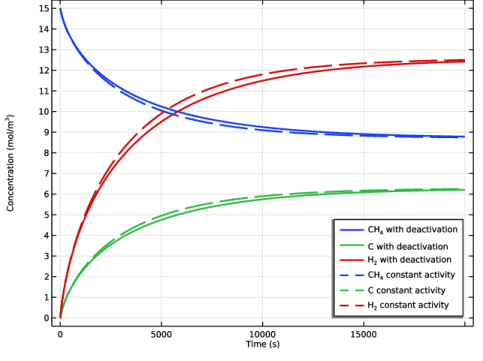
Figure 2 shows the concentration transients of methane, hydrogen, and deposited carbon as methane decomposes over a Ni/Al2O3 catalyst. The compositions are displayed both with and without catalyst deactivation. From the change in concentrations with time, the reaction rate with constant catalyst activity is higher than when catalyst deactivation is accounted for.
Figure 2: Concentration transients of methane decomposition over a Ni/Al2O3 catalyst for two catalyst conditions: 1) deactivation; 2) constant activity.
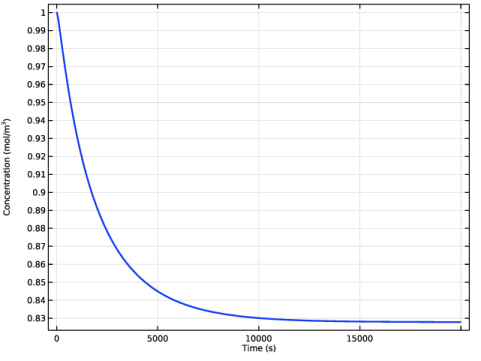
Figure 3 shows the deactivation of the catalyst activity during methane decomposition. The activity decreases rapidly at the early stage of reaction, then decreases slowly.
Figure 3: Change of catalyst activity with reacting time.
SPACE- AND TIME-DEPENDENT MODEL
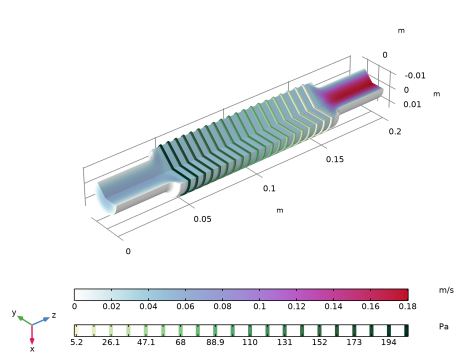
Figure 4 shows the velocity profile (surface) and pressure difference (contour) in the reactor at the end of the simulation. The flow velocity of gas is lower within the porous catalytic bed. The figure also displays the pressure drop across the bed.
Figure 4: Velocity flow field and pressure drop within the porous catalyst bed after 20,000 s. Surface plot displays the velocity (SI unit: m/s) and contour plot the pressure (SI unit: Pa).
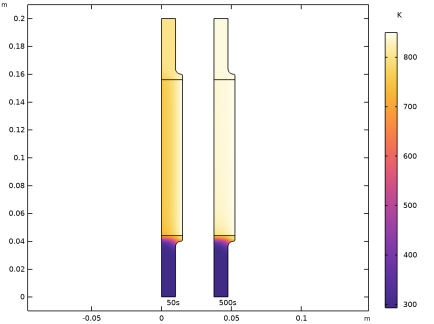
Figure 5 shows the temperature distribution after 50 s and 500  s. It takes approximately 300 s for the bed to heat up to the same temperature as the walls (850 K).
Figure 5: Temperature distribution within the reactor after 50 s and 500 s.
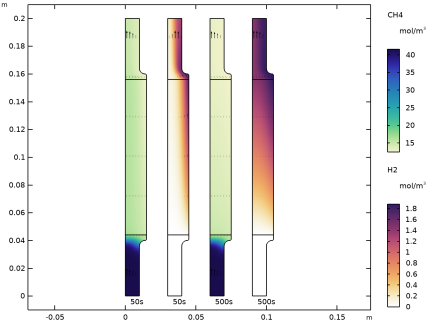
Figure 6 shows a comparison of the concentration distributions for methane and hydrogen at 50 s and 500  s. The concentration of methane decreases fast as soon as the bed is sufficiently heated (Figure 5).
Figure 6: Concentration distribution of methane within the reactor at 50 s and 500 s.
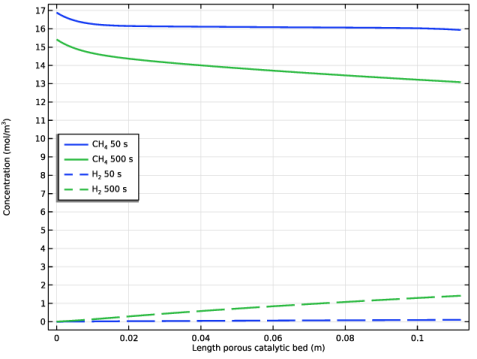
The concentration distribution of methane and hydrogen is displayed along the centerline of the porous catalyst bed in Figure 7. The figure shows in detail that the production of hydrogen varies with time and temperature.
Figure 7: Concentration distribution of CH4 and H2 along the center of the porous catalyst bed at 50 s and 500 s.
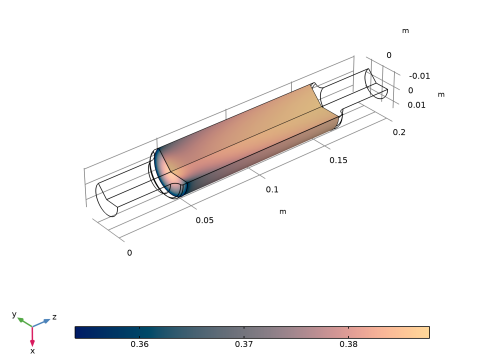
Figure 8 illustrates that the porosity varies within the bed at 20,000 s and that the pores may become completely clogged near the bed inlet with time.
Figure 8: Porosity distribution within the porous catalyst bed at 20,000 s.
References
1. S.G. Zavarukhin and G.G. Kuvshinov, “The kinetic model of formation of nanofibrous carbon from CH4–H2 mixture over a high-loaded nickel catalyst with consideration for the catalyst deactivation”, J. Appl. Catal. A, vol. 272, pp. 219–227, 2004.
2. E.A. Borisova and P.M. Adler, “Deposition in porous media and clogging on the field scale”, Phys. Rev. E, vol. 71, p. 016311-1, 2005.
Application Library path: Chemical_Reaction_Engineering_Module/Reactors_with_Porous_Catalysts/carbon_deposition
Modeling Instructions
From the File menu, choose New.
New
In the New window, click  Model Wizard.
Model Wizard
1
In the Model Wizard window, click  0D.
2
In the Select Physics tree, select Chemical Species Transport > Reaction Engineering (re).
3
Click Add.
4
Click  Study.
5
In the Select Study tree, select General Studies > Time Dependent.
6
Reaction Engineering (re)
Reaction 1
1
In the Reaction Engineering toolbar, click  Reaction.
2
In the Settings window for Reaction, locate the Reaction Formula section.
3
In the Formula text field, type CH4=>C+2H2.
Species 1
Add an individual species representing the catalyst activity.
1
In the Reaction Engineering toolbar, click  Species.
2
In the Settings window for Species, locate the Name section.
3
When a new species is created a mass balance equation is set up along with it. Note that you can remove the effect of catalyst activity from your model by selecting the Lock concentration/activity checkbox.This removes the species mass balance and sets the concentration of the species to the value entered in the Initial Values node.
Global Definitions
Load the model parameters from a text file.
Parameters 1
1
In the Model Builder window, under Global Definitions click Parameters 1.
2
In the Settings window for Parameters, locate the Parameters section.
3
Click  Load from File.
4
Definitions
Load the model variables from a text file.
Variables 1
1
In the Model Builder window, under Component 1 (comp1) right-click Definitions and choose Variables.
2
In the Settings window for Variables, locate the Variables section.
3
Click  Load from File.
4
For the k variable definition above, it is assumed that there is 1 [g/m^3] catalyst.
Reaction Engineering (re)
1: CH4 => C + 2 H2
1
In the Model Builder window, under Component 1 (comp1) > Reaction Engineering (re) click 1: CH4 => C + 2 H2.
2
In the Settings window for Reaction, locate the Reaction Rate section.
3
4
In the rj text field, type re.c_a*k*(P_CH4-P_H2^2/Kp)/(1+kH*sqrt(P_H2))^2.
Additional Source 1
1
In the Reaction Engineering toolbar, click  Additional Source.
2
In the Settings window for Additional Source, locate the Additional Rate Expression section.
3
In the Volumetric species table, enter the following settings:
Initial Values 1
1
In the Model Builder window, click Initial Values 1.
2
In the Settings window for Initial Values, locate the Volumetric Species Initial Values section.
3
4
In the Model Builder window, click Reaction Engineering (re).
5
In the Settings window for Reaction Engineering, locate the Energy Balance section.
6
In the T text field, type 850[K].
7
Locate the Mixture Properties section. From the Reactor pressure list, choose User defined.
8
In the p text field, type R_const*re.T*(re.c_CH4+re.c_H2).
Study 1
Step 1: Time Dependent
1
In the Model Builder window, under Study 1 click Step 1: Time Dependent.
2
In the Settings window for Time Dependent, locate the Study Settings section.
3
In the Output times text field, type range(0,500,20000).
4
In the Study toolbar, click  Compute.
Study 1
Solution 1 (sol1)
1
In the Model Builder window, expand the Study 1 > Solver Configurations node.
2
Right-click Solution 1 (sol1) and choose Solution > Copy.
With catalyst deactivation
1
In the Model Builder window, under Study 1 > Solver Configurations click Solution 1 - Copy 1 (sol2).
2
In the Settings window for Solution, type With catalyst deactivation in the Label text field.
Results
Catalyst Activity (re)
1
In the Model Builder window, under Results click Concentration (re).
2
In the Settings window for 1D Plot Group, locate the Data section.
3
From the Dataset list, choose Study 1/With catalyst deactivation (sol2).
4
In the Label text field, type Catalyst Activity (re).
5
Click to expand the Title section. From the Title type list, choose None.
Global 1
1
In the Model Builder window, expand the Catalyst Activity (re) node, then click Global 1.
2
In the Settings window for Global, click Replace Expression in the upper-right corner of the y-Axis Data section. From the menu, choose Component 1 (comp1) > Reaction Engineering > re.c_a - Concentration - mol/m³.
3
Click to expand the Coloring and Style section. From the Width list, choose 2.
4
Click to expand the Legends section. Clear the Show legends checkbox.
5
In the Catalyst Activity (re) toolbar, click  Plot.
Now study the reaction when the catalyst activity is held constant (initial value).
Reaction Engineering (re)
Species: a
1
In the Model Builder window, under Component 1 (comp1) > Reaction Engineering (re) click Species: a.
2
In the Settings window for Species, locate the Constant Concentration/Activity section.
3
Select the Keep concentration/activity constant checkbox.
Study 1
In the Study toolbar, click  Compute.
Solution 1 (sol1)
In the Model Builder window, under Study 1 > Solver Configurations right-click Solution 1 (sol1) and choose Solution > Copy.
Constant catalyst activity
1
In the Model Builder window, under Study 1 > Solver Configurations click Solution 1 - Copy 1 (sol3).
2
In the Settings window for Solution, type Constant catalyst activity in the Label text field.
Results
Compare the concentrations between locked (constant catalyst activity) and unlocked (with catalyst deactivation) species a.
Concentration Comparison (re)
1
In the Model Builder window, under Results click Concentration (re).
2
In the Settings window for 1D Plot Group, type Concentration Comparison (re) in the Label text field.
3
Locate the Title section. From the Title type list, choose None.
4
Locate the Legend section. From the Position list, choose Lower right.
With catalyst deactivation
1
In the Model Builder window, expand the Concentration Comparison (re) node, then click Global 1.
2
In the Settings window for Global, type With catalyst deactivation in the Label text field.
3
Locate the Data section. From the Dataset list, choose Study 1/With catalyst deactivation (sol2).
4
Locate the Coloring and Style section. From the Width list, choose 2.
5
Locate the Legends section. From the Legends list, choose Manual.
6
Constant catalyst activity
1
Right-click With catalyst deactivation and choose Duplicate.
2
In the Settings window for Global, type Constant catalyst activity in the Label text field.
3
Locate the Data section. From the Dataset list, choose Study 1/Constant catalyst activity (sol3).
4
Locate the Coloring and Style section. Find the Line style subsection. From the Line list, choose Dashed.
5
From the Color list, choose Cycle (reset).
6
Locate the Legends section. In the table, enter the following settings:
7
In the Concentration Comparison (re) toolbar, click  Plot.
Create a time- and space-dependent model from the Reaction Engineering interface. All solid species should be locked before this is done.
Reaction Engineering (re)
Species: C
1
In the Model Builder window, under Component 1 (comp1) > Reaction Engineering (re) click Species: C.
2
In the Settings window for Species, locate the Constant Concentration/Activity section.
3
Select the Keep concentration/activity constant checkbox.
Generate Space-Dependent Model 1
1
In the Reaction Engineering toolbar, click  Generate Space-Dependent Model.
2
In the Settings window for Generate Space-Dependent Model, locate the Component Settings section.
3
From the Component to use list, choose 2Daxi: New.
4
Locate the Physics Interfaces section. Find the Chemical species transport subsection. From the list, choose Transport of Concentrated Species: New.
5
Find the Heat transfer subsection. From the list, choose Heat Transfer in Porous Media: New.
6
Find the Fluid flow subsection. From the list, choose Laminar Flow: New.
7
Locate the Space-Dependent Model Generation section. Click Create/Refresh.
Definitions (comp2)
Add variables for the Chemistry node which are similar to those used in the Reaction Engineering interface.
Variables 2
1
In the Model Builder window, expand the Component 2 (comp2) node.
2
Right-click Component 2 (comp2) > Definitions and choose Variables.
3
In the Settings window for Variables, locate the Variables section.
4
Click  Load from File.
5
In order to get significant carbon deposition, the amount of catalyst is increased to 300[g/m^3]. The k value is 300 times as that in 0D.
Geometry 1(2Daxi)
Rectangle 1 (r1)
1
In the Geometry toolbar, click  Rectangle.
2
In the Settings window for Rectangle, locate the Size and Shape section.
3
In the Width text field, type 0.01.
4
In the Height text field, type 0.04.
Rectangle 2 (r2)
1
In the Geometry toolbar, click  Rectangle.
2
In the Settings window for Rectangle, locate the Size and Shape section.
3
In the Width text field, type 0.015.
4
In the Height text field, type 0.12.
5
Locate the Position section. In the z text field, type 0.04.
Rectangle 3 (r3)
1
In the Geometry toolbar, click  Rectangle.
2
In the Settings window for Rectangle, locate the Size and Shape section.
3
In the Width text field, type 0.01.
4
In the Height text field, type 0.04.
5
Locate the Position section. In the z text field, type 0.16.
6
Click  Build All Objects.
Fillet 1 (fil1)
1
In the Geometry toolbar, click  Fillet.
2
On the object r2, select Points 2 and 3 only.
3
In the Settings window for Fillet, locate the Radius section.
4
In the Radius text field, type 0.001.
5
Click  Build All Objects.
Union 1 (uni1)
1
In the Geometry toolbar, click  Booleans and Partitions and choose Union.
2
Click in the Graphics window and then press Ctrl+A to select all objects.
3
In the Settings window for Union, locate the Union section.
4
Clear the Keep interior boundaries checkbox.
5
Click  Build All Objects.
Fillet 2 (fil2)
1
In the Geometry toolbar, click  Fillet.
2
On the object uni1, select Points 6 and 7 only.
3
In the Settings window for Fillet, locate the Radius section.
4
In the Radius text field, type 0.004.
Rectangle 4 (r4)
1
In the Geometry toolbar, click  Rectangle.
2
In the Settings window for Rectangle, locate the Size and Shape section.
3
In the Width text field, type 0.015.
4
In the Height text field, type 0.112.
5
Locate the Position section. In the z text field, type 0.044.
6
Click  Build All Objects.
7
Click the  Zoom Extents button in the Graphics toolbar.
Component 2 (comp2)
Add the Domain ODE and DAE interface for modeling of the porosity change in the porous domain.
Add Physics
1
In the Home toolbar, click  Add Physics to open the Add Physics window.
2
Go to the Add Physics window.
3
In the tree, select Mathematics > ODE and DAE Interfaces > Domain ODEs and DAEs (dode).
4
Click the Add to Component 2 button in the window toolbar.
5
In the Home toolbar, click  Add Physics to close the Add Physics window.
Porosity Change
1
In the Settings window for Domain ODEs and DAEs, type Porosity Change in the Label text field.
2
Locate the Domain Selection section. Click  Clear Selection.
3
4
Locate the Units section. In the Source term quantity table, enter the following settings:
5
Click to expand the Dependent Variables section. In the Field name (1) text field, type por.
6
In the Dependent variables (1) table, enter the following settings:
Distributed ODE 1
1
In the Model Builder window, under Component 2 (comp2) > Porosity Change (dode) click Distributed ODE 1.
2
In the Settings window for Distributed ODE, locate the Source Term section.
3
In the f text field, type -por*chem.r_1*chem.M_C/rho_soot.
Initial Values 1
1
In the Model Builder window, click Initial Values 1.
2
In the Settings window for Initial Values, locate the Initial Values section.
3
In the por text field, type por0.
Chemistry (chem)
Species: CH4
1
In the Model Builder window, expand the Component 2 (comp2) > Chemistry (chem) node, then click Species: CH4.
2
In the Settings window for Species, click to expand the Transport Expressions section.
3
From the Thermal conductivity list, choose User defined.
4
In the k text field, type kt_CH4.
5
Click to expand the Thermodynamic Expressions section. From the list, choose User defined.
6
In the Cp text field, type Cp_CH4*chem.M_CH4.
7
In the h text field, type h_CH4.
8
In the s text field, type s_CH4.
Species: H2
1
In the Model Builder window, click Species: H2.
2
In the Settings window for Species, locate the Transport Expressions section.
3
From the Thermal conductivity list, choose User defined.
4
In the k text field, type kt_H2.
5
Locate the Thermodynamic Expressions section. From the list, choose User defined.
6
In the Cp text field, type Cp_H2*chem.M_H2.
7
In the h text field, type h_H2.
8
In the s text field, type s_H2.
Species: C
1
In the Model Builder window, click Species: C.
2
In the Settings window for Species, locate the Transport Expressions section.
3
From the Thermal conductivity list, choose User defined.
4
In the k text field, type kt_C.
5
Locate the Thermodynamic Expressions section. From the list, choose User defined.
6
In the Cp text field, type Cp_C*chem.M_C.
7
In the h text field, type h_C.
8
In the s text field, type s_C.
Species: a
1
In the Model Builder window, click Species: a.
2
In the Settings window for Species, locate the Chemical Formula section.
3
In the M text field, type M_a.
4
Locate the Transport Expressions section. From the Thermal conductivity list, choose User defined.
5
In the k text field, type kt_cat.
6
Locate the Thermodynamic Expressions section. From the list, choose User defined.
Transport of Concentrated Species (tcs)
1
In the Model Builder window, under Component 2 (comp2) click Transport of Concentrated Species (tcs).
2
In the Settings window for Transport of Concentrated Species, locate the Transport Mechanisms section.
3
Select the Mass transfer in porous media checkbox.
Fluid 1
1
In the Model Builder window, expand the Transport of Concentrated Species (tcs) node, then click Fluid 1.
2
In the Settings window for Fluid, locate the Diffusion section.
3
Reaction Sources 1
1
In the Model Builder window, click Reaction Sources 1.
2
3
In the Settings window for Reaction Sources, locate the Domain Selection section.
4
Click  Remove from Selection.
5
6
Locate the Reacting Volume section. From the Reacting volume list, choose Pore volume.
Inflow 1
1
In the Physics toolbar, click  Boundaries and choose Inflow.
2
3
In the Settings window for Inflow, locate the Inflow section.
4
In the ω0,wH2 text field, type 0.
Outflow 1
1
In the Physics toolbar, click  Boundaries and choose Outflow.
2
Porous Medium 1
1
In the Physics toolbar, click  Domains and choose Porous Medium.
2
Fluid 1
1
In the Model Builder window, click Fluid 1.
2
In the Settings window for Fluid, click to expand the Model Input section.
3
From the pA list, choose Absolute pressure (spf).
4
Locate the Convection section. From the u list, choose Velocity field (spf).
5
Locate the Diffusion section. In the table, enter the following settings:
Porous Matrix 1
1
In the Model Builder window, click Porous Matrix 1.
2
In the Settings window for Porous Matrix, locate the Matrix Properties section.
3
In the εp text field, type por.
Heat Transfer in Porous Media (ht)
Fluid 1
1
In the Model Builder window, expand the Component 2 (comp2) > Heat Transfer in Porous Media (ht) > Porous Medium 1 node, then click Fluid 1.
2
In the Settings window for Fluid, locate the Thermodynamics, Fluid section.
3
From the Mn list, choose Mean molar mass (chem).
Porous Matrix 1
1
In the Model Builder window, click Porous Matrix 1.
2
In the Settings window for Porous Matrix, locate the Matrix Properties section.
3
From the εp list, choose User defined. In the associated text field, type por.
4
From the Define list, choose Solid phase properties.
5
Locate the Heat Conduction, Porous Matrix section. From the ks list, choose User defined. In the associated text field, type kt_cat.
6
Locate the Thermodynamics, Porous Matrix section. From the ρs list, choose User defined. In the associated text field, type rho_cat.
7
From the Cp,s list, choose User defined. In the associated text field, type Cp_cat.
Heat Source 1
1
In the Model Builder window, under Component 2 (comp2) > Heat Transfer in Porous Media (ht) click Heat Source 1.
2
3
In the Settings window for Heat Source, locate the Heat Source section.
4
In the Q0 text field, type chem.Qtot*por.
Temperature 1
1
In the Physics toolbar, click  Boundaries and choose Temperature.
2
Outflow 1
1
In the Physics toolbar, click  Boundaries and choose Outflow.
2
Temperature 2
1
In the Physics toolbar, click  Boundaries and choose Temperature.
2
3
In the Settings window for Temperature, locate the Temperature section.
4
In the T0 text field, type 850[K].
Fluid 1
1
In the Physics toolbar, click  Domains and choose Fluid.
2
Laminar Flow (spf)
1
In the Model Builder window, under Component 2 (comp2) click Laminar Flow (spf).
2
In the Settings window for Laminar Flow, locate the Physical Model section.
3
Select the Enable porous media domains checkbox.
Porous Medium 1
1
In the Physics toolbar, click  Domains and choose Porous Medium.
2
Porous Matrix 1
1
In the Model Builder window, click Porous Matrix 1.
2
In the Settings window for Porous Matrix, locate the Matrix Properties section.
3
From the εp list, choose User defined. In the associated text field, type por.
4
From the κ list, choose User defined. In the associated text field, type kappa.
Inlet 1
1
In the Physics toolbar, click  Boundaries and choose Inlet.
2
3
In the Settings window for Inlet, locate the Boundary Condition section.
4
From the list, choose Fully developed flow.
5
Locate the Fully Developed Flow section. In the Uav text field, type u_in.
Outlet 1
1
In the Physics toolbar, click  Boundaries and choose Outlet.
2
Mass Source 1
1
In the Physics toolbar, click  Domains and choose Mass Source.
2
3
In the Settings window for Mass Source, locate the Mass Source section.
4
In the Qm text field, type (chem.Rw_CH4+chem.Rw_H2)*por.
Study 2
Step 1: Stationary
1
In the Model Builder window, expand the Study 2 node, then click Step 1: Stationary.
2
In the Settings window for Stationary, locate the Physics and Variables Selection section.
3
In the Solve for column of the table, under Component 2 (comp2), clear the checkboxes for Chemistry (chem), Transport of Concentrated Species (tcs), Heat Transfer in Porous Media (ht), and Porosity Change (dode).
Step 2: Time Dependent
1
In the Study toolbar, click  Study Steps and choose Time Dependent > Time Dependent.
2
In the Settings window for Time Dependent, locate the Study Settings section.
3
In the Output times text field, type range(0,50,1000) range(2000,1000,20000).
4
Locate the Physics and Variables Selection section. In the Solve for column of the table, under Component 1 (comp1), clear the checkbox for Reaction Engineering (re).
5
In the Study toolbar, click  Compute.
Begin by modifying the default plots, and making use of the available Result Templates.
Delete the default concentration plots.
Results
Concentration, CH4 (tcs), Concentration, CH4, 3D (tcs), Concentration, H2 (tcs), Concentration, H2, 3D (tcs)
1
In the Model Builder window, under Results, Ctrl-click to select Concentration, CH4 (tcs), Concentration, CH4, 3D (tcs), Concentration, H2 (tcs), and Concentration, H2, 3D (tcs).
2
Result Templates
1
In the Home toolbar, click  Windows and choose Result Templates.
2
Go to the Result Templates window.
3
In the tree, select Study 2/Solution 4 (sol4) > Transport of Concentrated Species > Plot array: Concentrations, CH4, H2 (tcs).
4
Click the Add Result Template button in the window toolbar.
Using the result template plot as a base, edit it to show how the concentration change in the system for both methane and hydrogen.
Results
Plot array: Concentrations, CH4, H2 (tcs)
1
In the Settings window for 2D Plot Group, locate the Data section.
2
From the Time (s) list, choose 50.
3
Click to expand the Title section. From the Title type list, choose None.
4
Click to expand the Plot Array section. In the Relative padding text field, type 1.
CH4
1
In the Model Builder window, expand the Plot array: Concentrations, CH4, H2 (tcs) node, then click CH4.
2
In the Settings window for Annotation, locate the Annotation section.
3
In the Text text field, type 50s.
Surface, H2
1
In the Model Builder window, click Surface, H2.
2
In the Settings window for Surface, locate the Coloring and Style section.
3
From the Color table list, choose Iodinea.
H2
1
In the Model Builder window, click H2.
2
In the Settings window for Annotation, locate the Annotation section.
3
In the Text text field, type 50s.
CH4, H2, Surface, CH4, Surface, H2, Total Flux, CH4, Total Flux, H2
1
In the Model Builder window, under Results > Plot array: Concentrations, CH4, H2 (tcs), Ctrl-click to select Surface, CH4, Total Flux, CH4, CH4, Surface, H2, Total Flux, H2, and H2.
2
Surface, CH4.1
1
In the Model Builder window, click Surface, CH4.1.
2
In the Settings window for Surface, locate the Data section.
3
From the Dataset list, choose Study 2/Solution 4 (sol4).
4
From the Time (s) list, choose 500.
5
Click to expand the Inherit Style section. From the Plot list, choose Surface, CH4.
6
Click to expand the Plot Array section. In the Index text field, type 2.
Total Flux, CH4.1
1
In the Model Builder window, click Total Flux, CH4.1.
2
In the Settings window for Arrow Surface, locate the Data section.
3
From the Dataset list, choose Study 2/Solution 4 (sol4).
4
From the Time (s) list, choose 500.
5
Click to expand the Plot Array section. In the Index text field, type 2.
CH4.1
1
In the Model Builder window, click CH4.1.
2
In the Settings window for Annotation, locate the Annotation section.
3
In the Text text field, type 500s.
4
Click to expand the Plot Array section. In the Index text field, type 2.
Surface, H2.1
1
In the Model Builder window, click Surface, H2.1.
2
In the Settings window for Surface, locate the Data section.
3
From the Dataset list, choose Study 2/Solution 4 (sol4).
4
From the Time (s) list, choose 500.
5
Locate the Plot Array section. In the Index text field, type 3.
6
Locate the Inherit Style section. From the Plot list, choose Surface, H2.
Total Flux, H2.1
1
In the Model Builder window, click Total Flux, H2.1.
2
In the Settings window for Arrow Surface, locate the Data section.
3
From the Dataset list, choose Study 2/Solution 4 (sol4).
4
From the Time (s) list, choose 500.
5
Locate the Plot Array section. In the Index text field, type 3.
H2.1
1
In the Model Builder window, click H2.1.
2
In the Settings window for Annotation, locate the Annotation section.
3
In the Text text field, type 500s.
4
Locate the Plot Array section. In the Index text field, type 3.
5
In the Plot array: Concentrations, CH4, H2 (tcs) toolbar, click  Plot.
6
Click the  Zoom Extents button in the Graphics toolbar.
Modify the default temperature 2D plot.
Temperature (ht)
1
In the Model Builder window, under Results click Temperature (ht).
2
In the Settings window for 2D Plot Group, locate the Data section.
3
From the Time (s) list, choose 50.
4
Locate the Title section. From the Title type list, choose None.
5
Locate the Color Legend section. Select the Show units checkbox.
6
Click to expand the Plot Array section. Select the Enable checkbox.
7
In the Relative padding text field, type 1.5.
CH4
1
In the Model Builder window, expand the Temperature (ht) node.
2
Right-click Results > Plot array: Concentrations, CH4, H2 (tcs) > CH4 and choose Copy.
50s
1
In the Model Builder window, right-click Temperature (ht) and choose Paste Annotation.
2
In the Settings window for Annotation, type 50s in the Label text field.
50s, Surface 1
1
In the Model Builder window, under Results > Temperature (ht), Ctrl-click to select Surface 1 and 50s.
2
Surface 2
1
In the Model Builder window, click Surface 2.
2
In the Settings window for Surface, locate the Data section.
3
From the Dataset list, choose Study 2/Solution 4 (sol4).
4
From the Solution parameters list, choose Manual.
5
From the Time (s) list, choose 500.
6
Locate the Inherit Style section. From the Plot list, choose Surface 1.
500s
1
In the Model Builder window, click 50s 1.
2
In the Settings window for Annotation, locate the Plot Array section.
3
In the Index text field, type 1.
4
In the Label text field, type 500s.
5
Locate the Annotation section. In the Text text field, type 500s.
6
Click to expand the Inherit Style section. From the Plot list, choose Surface 1.
Temperature (ht)
1
In the Model Builder window, click Temperature (ht).
2
In the Temperature (ht) toolbar, click  Plot.
3
Click the  Zoom Extents button in the Graphics toolbar.
Velocity and Pressure, 3D (spf)
1
In the Model Builder window, click Velocity, 3D (spf).
2
In the Settings window for 3D Plot Group, click to expand the Title section.
3
From the Title type list, choose None.
4
In the Label text field, type Velocity and Pressure, 3D (spf).
5
Locate the Color Legend section. Select the Show units checkbox.
6
From the Position list, choose Bottom.
7
Locate the Plot Settings section. Clear the Plot dataset edges checkbox.
Surface
1
In the Model Builder window, expand the Velocity and Pressure, 3D (spf) node, then click Surface.
2
In the Settings window for Surface, locate the Coloring and Style section.
3
From the Color table list, choose Acanthaster.
Contour 1
1
In the Model Builder window, right-click Velocity and Pressure, 3D (spf) and choose Contour.
2
In the Settings window for Contour, locate the Expression section.
3
In the Expression text field, type p.
4
Locate the Coloring and Style section. From the Contour type list, choose Tube.
5
From the Color table list, choose Bryophyta.
Velocity and Pressure, 3D (spf)
1
In the Model Builder window, click Velocity and Pressure, 3D (spf).
2
In the Settings window for 3D Plot Group, locate the Plot Settings section.
3
From the View list, choose View 3D 2.
4
In the Velocity and Pressure, 3D (spf) toolbar, click  Plot.
Cut Line 3D 1
1
In the Results toolbar, click  Cut Line 3D.
2
In the Settings window for Cut Line 3D, locate the Line Data section.
3
In row Point 1, set z to 0.044.
4
In row Point 2, set x to 0 and z to 0.156.
Concentration CH4, Porous Catalyst Bed Center
1
In the Results toolbar, click  1D Plot Group.
2
In the Settings window for 1D Plot Group, type Concentration CH4, Porous Catalyst Bed Center in the Label text field.
3
Locate the Data section. From the Dataset list, choose Cut Line 3D 1.
4
From the Time selection list, choose From list.
5
In the Times (s) list, choose 50 and 500.
6
Click to expand the Title section. From the Title type list, choose None.
7
Locate the Plot Settings section.
8
Select the x-axis label checkbox. In the associated text field, type Length porous catalytic bed (m).
9
Select the y-axis label checkbox. In the associated text field, type Concentration (mol/m<sup>3</sup>).
10
Locate the Legend section. From the Position list, choose Middle left.
Line Graph 1
1
Right-click Concentration CH4, Porous Catalyst Bed Center and choose Line Graph.
2
In the Settings window for Line Graph, click Replace Expression in the upper-right corner of the y-Axis Data section. From the menu, choose Component 2 (comp2) > Transport of Concentrated Species > Species wCH4 > tcs.c_wCH4 - Molar concentration - mol/m³.
3
Click to expand the Coloring and Style section. From the Width list, choose 2.
4
Click to expand the Legends section. Select the Show legends checkbox.
5
From the Legends list, choose Evaluated.
6
In the Legend text field, type CH<sub>4</sub> eval(t,s) s.
Line Graph 2
1
Right-click Line Graph 1 and choose Duplicate.
2
In the Settings window for Line Graph, click Replace Expression in the upper-right corner of the y-Axis Data section. From the menu, choose Component 2 (comp2) > Transport of Concentrated Species > Species wH2 > tcs.c_wH2 - Molar concentration - mol/m³.
3
Locate the Coloring and Style section. Find the Line style subsection. From the Line list, choose Dashed.
4
From the Color list, choose Cycle (reset).
5
Locate the Legends section. In the Legend text field, type H<sub>2</sub> eval(t,s) s.
6
In the Concentration CH4, Porous Catalyst Bed Center toolbar, click  Plot.
Porosity Distribution
1
In the Model Builder window, under Results click Porosity Change 1.
2
In the Settings window for 3D Plot Group, type Porosity Distribution in the Label text field.
3
Click to expand the Title section. From the Title type list, choose None.
4
Locate the Plot Settings section. From the View list, choose View 3D 2.
5
Locate the Color Legend section. From the Position list, choose Bottom.
Surface 1
1
In the Model Builder window, expand the Porosity Distribution node, then click Surface 1.
2
In the Settings window for Surface, locate the Coloring and Style section.
3
From the Color table list, choose Agama.
4
From the Color table transformation list, choose Reverse.
5
In the Porosity Distribution toolbar, click  Plot.
For future use of Study 1, turn off the interfaces associated with the space-dependent model.
Study 1
Step 1: Time Dependent
1
In the Model Builder window, expand the Study 1 node, then click Step 1: Time Dependent.
2
In the Settings window for Time Dependent, locate the Physics and Variables Selection section.
3
In the Solve for column of the table, under Component 2 (comp2), clear the checkbox for Porosity Change (dode).
The 2D plot group showing the porosity is not needed and can be deleted.
Results
Porosity Change
In the Model Builder window, under Results right-click Porosity Change and choose Delete.
The following modeling instructions explain how to set up the reactor overview plot.
Reactor Overview
1
Right-click Porosity Distribution and choose Duplicate.
2
In the Settings window for 3D Plot Group, type Reactor Overview in the Label text field.
3
Locate the Plot Settings section. Clear the Plot dataset edges checkbox.
4
Locate the Color Legend section. Clear the Show legends checkbox.
Surface 1
1
In the Model Builder window, expand the Reactor Overview node, then click Surface 1.
2
In the Settings window for Surface, locate the Coloring and Style section.
3
From the Color table type list, choose Discrete.
Material Appearance 1
1
Right-click Surface 1 and choose Material Appearance.
2
In the Settings window for Material Appearance, locate the Appearance section.
3
From the Appearance list, choose Custom.
4
From the Material type list, choose Rock.
5
Locate the Color section. Select the Use the plot’s color checkbox.
Revolution 2D 2
In the Model Builder window, under Results > Datasets right-click Revolution 2D 1 and choose Duplicate.
Selection
1
In the Results toolbar, click  Attributes and choose Selection.
2
In the Settings window for Selection, locate the Geometric Entity Selection section.
3
From the Geometric entity level list, choose Boundary.
4
Surface 2
1
In the Model Builder window, under Results > Reactor Overview right-click Surface 1 and choose Duplicate.
2
In the Settings window for Surface, locate the Data section.
3
From the Dataset list, choose Revolution 2D 2.
4
Locate the Expression section. In the Expression text field, type 1.
Material Appearance 1
1
In the Model Builder window, expand the Surface 2 node, then click Material Appearance 1.
2
In the Settings window for Material Appearance, locate the Appearance section.
3
From the Material type list, choose Steel.
4
Locate the Color section. Clear the Use the plot’s color checkbox.
Selection 1
1
In the Model Builder window, right-click Surface 2 and choose Selection.
2
Click in the Graphics window and then press Ctrl+A to select all domains.
3
In the Settings window for Selection, locate the Revolution Selection section.
4
Clear the Evaluate the start cap checkbox.
5
Clear the Evaluate the end cap checkbox.
Add a view for the reactor overview plot, and modify it according to your preferences.
View 3D 3
In the Model Builder window, under Results right-click Views and choose View 3D.
Reactor Overview
1
In the Model Builder window, under Results click Reactor Overview.
2
In the Settings window for 3D Plot Group, locate the Plot Settings section.
3
From the View list, choose View 3D 3.
4
In the Reactor Overview toolbar, click  Plot.
5
Click the  Zoom Extents button in the Graphics toolbar.
Delete the result nodes that are not needed.
Pressure (spf), Velocity (spf)
1
In the Model Builder window, under Results, Ctrl-click to select Velocity (spf) and Pressure (spf).
2