|
|
|



|
1
|
|
2
|
In the Select Physics tree, select Fluid Flow > High Mach Number Flow > Turbulent Flow > High Mach Number Flow, Spalart-Allmaras (hmnf).
|
|
3
|
Click Add.
|
|
4
|
Click
 Study. Study. |
|
5
|
In the Select Study tree, select Preset Studies for Selected Physics Interfaces > Stationary with Initialization.
|
|
6
|
Click
 Done. Done. |
|
1
|
|
2
|
|
4
|
|
1
|
|
2
|
|
3
|
Locate the Parameters section. In the table, enter the following settings:
|
|
1
|
|
2
|
|
3
|
|
4
|
Click
 Browse. Browse. |
|
5
|
Browse to the model’s Application Libraries folder and double-click the file sajben_diffuser_upper_wall.txt.
|
|
6
|
Locate the Data Column Settings section. In the table, click to select the cell at row number 2 and column number 1.
|
|
7
|
|
8
|
|
9
|
|
1
|
|
2
|
|
3
|
|
4
|
Click
 Browse. Browse. |
|
5
|
Browse to the model’s Application Libraries folder and double-click the file sajben_diffuser_ptop_weak.txt.
|
|
6
|
Locate the Data Column Settings section. In the table, click to select the cell at row number 2 and column number 1.
|
|
7
|
|
8
|
|
1
|
|
2
|
|
3
|
|
4
|
Click
 Browse. Browse. |
|
5
|
Browse to the model’s Application Libraries folder and double-click the file sajben_diffuser_ptop_strong.txt.
|
|
6
|
Locate the Data Column Settings section. In the table, click to select the cell at row number 2 and column number 1.
|
|
7
|
|
8
|
|
1
|
|
2
|
|
3
|
|
4
|
Click
 Browse. Browse. |
|
5
|
Browse to the model’s Application Libraries folder and double-click the file sajben_diffuser_u-xh4611.txt.
|
|
6
|
Locate the Data Column Settings section. In the table, click to select the cell at row number 2 and column number 1.
|
|
7
|
|
8
|
|
1
|
|
2
|
|
3
|
|
4
|
Click
 Browse. Browse. |
|
5
|
Browse to the model’s Application Libraries folder and double-click the file sajben_diffuser_u-xh6340.txt.
|
|
6
|
Locate the Data Column Settings section. In the table, click to select the cell at row number 2 and column number 1.
|
|
7
|
|
8
|
|
1
|
|
2
|
|
3
|
|
4
|
|
5
|
|
6
|
|
7
|
Click
 Build Selected. Build Selected. |
|
1
|
|
2
|
|
3
|
|
4
|
|
5
|
|
6
|
|
7
|
Click
 Build Selected. Build Selected. |
|
1
|
|
2
|
Click in the Graphics window and then press Ctrl+A to select both objects.
|
|
3
|
|
1
|
|
2
|
|
3
|
|
4
|
|
5
|
|
6
|
Click
 Build Selected. Build Selected. |
|
1
|
|
2
|
Select the object csol1 only.
|
|
3
|
|
4
|
|
5
|
Select the object r1 only.
|
|
6
|
Click
 Build Selected. Build Selected. |
|
1
|
|
2
|
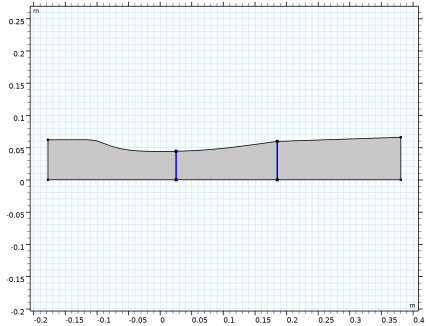
On the object fin, select Boundaries 3 and 5 only.
|
|
3
|
|
1
|
In the Model Builder window, under Component 1 (comp1) > High Mach Number Flow, Spalart-Allmaras (hmnf) click Fluid 1.
|
|
2
|
|
3
|
|
4
|
Locate the Thermodynamics section. From the Rs list, choose User defined. In the associated text field, type Rs.
|
|
5
|
|
6
|
|
7
|
|
8
|
|
1
|
|
2
|
|
3
|
Specify the u vector as
|
|
4
|
|
5
|
|
6
|
|
1
|
|
3
|
|
4
|
|
5
|
|
6
|
|
7
|
|
1
|
|
3
|
|
4
|
|
5
|
|
6
|
|
1
|
|
3
|
|
4
|
|
5
|
|
6
|
|
1
|
|
3
|
|
4
|
|
5
|
|
1
|
|
3
|
|
4
|
|
5
|
|
6
|
|
7
|
Select the Reverse direction checkbox.
|
|
1
|
|
3
|
|
4
|
|
5
|
|
6
|
|
7
|
Select the Symmetric distribution checkbox.
|
|
8
|
Click
 Build All. Build All. |
|
9
|
|
1
|
|
2
|
|
3
|
Clear the Smooth transition to interior mesh checkbox.
|
|
1
|
|
3
|
|
4
|
|
5
|
|
6
|
Click
 Build All. Build All. |
|
1
|
|
2
|
|
3
|
Click
 Add. Add. |
|
1
|
|
2
|
|
3
|
Select the Auxiliary sweep checkbox.
|
|
4
|
Click
 Add. Add. |
|
6
|
|
1
|
|
2
|
|
3
|
|
4
|
|
1
|
|
3
|
|
4
|
|
1
|
|
2
|
|
3
|
|
4
|
|
5
|
|
6
|
Clear the Color legend checkbox.
|
|
7
|
|
1
|
|
2
|
|
1
|
|
2
|
Go to the Add Study window.
|
|
3
|
Find the Studies subsection. In the Select Study tree, select Preset Studies for Selected Physics Interfaces > Stationary with Initialization.
|
|
4
|
Click the Add Study button in the window toolbar.
|
|
5
|
|
1
|
|
2
|
|
3
|
Click
 Add. Add. |
|
1
|
|
2
|
In the Settings window for Wall Distance Initialization, click to expand the Values of Dependent Variables section.
|
|
3
|
Find the Values of variables not solved for subsection. From the Settings list, choose User controlled.
|
|
4
|
|
5
|
|
6
|
|
1
|
|
2
|
|
3
|
In the Model Builder window, expand the Study 2 > Solver Configurations > Solution 5 (sol5) > Stationary Solver 2 node.
|
|
4
|
In the Model Builder window, under Study 2 > Solver Configurations > Solution 5 (sol5) > Stationary Solver 2 click Segregated 1.
|
|
5
|
|
6
|
|
7
|
|
1
|
|
2
|
|
3
|
|
4
|
|
1
|
|
2
|
In the Settings window for Streamline, click Replace Expression in the upper-right corner of the Expression section. From the menu, choose Component 1 (comp1) > High Mach Number Flow, Spalart-Allmaras (Fluid Flow) > Velocity and pressure > u,v - Velocity field.
|
|
4
|
|
1
|
|
2
|
In the Settings window for Contour, click Replace Expression in the upper-right corner of the Expression section. From the menu, choose Component 1 (comp1) > High Mach Number Flow, Spalart-Allmaras (Fluid Flow) > Velocity and pressure > Velocity field - m/s > u - Velocity field, x-component.
|
|
3
|
|
4
|
|
5
|
Clear the Color legend checkbox.
|
|
6
|
|
1
|
|
2
|
|
1
|
|
2
|
|
3
|
|
4
|
|
5
|
|
6
|
|
7
|
Click
 Plot. Plot. |
|
1
|
|
2
|
|
3
|
|
4
|
|
5
|
|
6
|
Click
 Plot. Plot. |
|
1
|
|
2
|
|
3
|
|
1
|
|
3
|
|
4
|
|
5
|
Click Replace Expression in the upper-right corner of the x-Axis Data section. From the menu, choose Component 1 (comp1) > Geometry > Coordinate > x - x-coordinate.
|
|
1
|
|
2
|
|
3
|
|
4
|
Click to expand the Coloring and Style section. Find the Line style subsection. From the Line list, choose None.
|
|
5
|
|
6
|
|
7
|
|
8
|
|
1
|
|
2
|
|
3
|
|
4
|
|
5
|
|
6
|
|
7
|
|
8
|
|
9
|
|
10
|
|
11
|
|
12
|
|
13
|
|
1
|
|
2
|
|
3
|
|
4
|
|
1
|
|
2
|
|
3
|
|
4
|
|
1
|
|
2
|
Click
 Plot. Plot. |
|
1
|
|
2
|
|
3
|
|
1
|
|
2
|
In the Settings window for Line Graph, click Replace Expression in the upper-right corner of the y-Axis Data section. From the menu, choose Component 1 (comp1) > High Mach Number Flow, Spalart-Allmaras (Fluid Flow) > Velocity and pressure > Velocity field - m/s > u - Velocity field, x-component.
|
|
3
|
|
4
|
|
1
|
|
2
|
|
3
|
|
4
|
|
5
|
|
6
|
Locate the Coloring and Style section. Find the Line style subsection. From the Line list, choose None.
|
|
7
|
|
8
|
|
9
|
|
10
|
|
1
|
|
2
|
|
3
|
|
4
|
|
5
|
Locate the Plot Settings section.
|
|
6
|
|
7
|
|
8
|
|
9
|
|
10
|
|
11
|
|
12
|
|
13
|
|
14
|
|
15
|
|
1
|
|
2
|
|
3
|
|
4
|
|
1
|
|
2
|
|
3
|
|
1
|
|
2
|
|
3
|
|
4
|
|
5
|