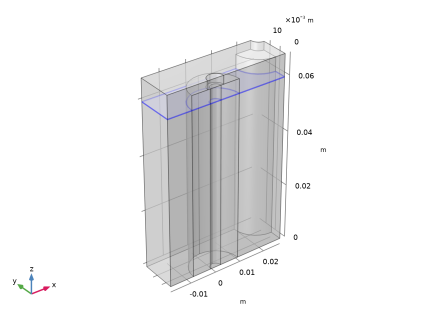
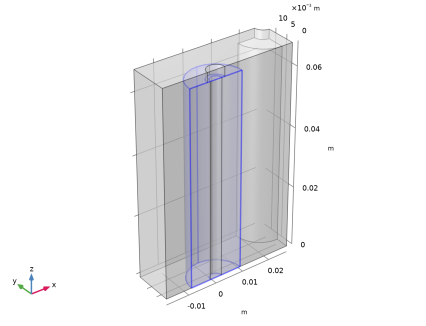
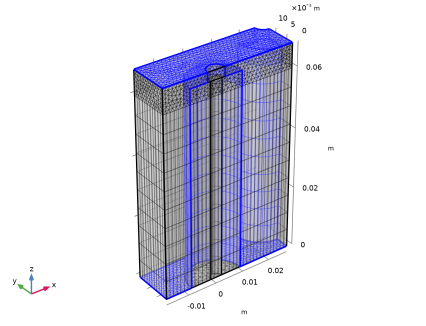
|
|
|
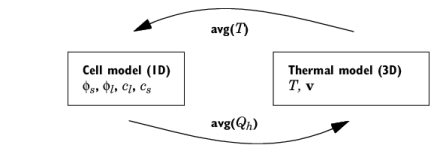
|
•
|
|
•
|
Separator (30 μm)
|
|
•
|

|
1
|
|
2
|
In the Application Libraries window, select Battery Design Module > Thermal Management > li_battery_1d_for_thermal_models in the tree.
|
|
3
|
Click
 Open. Open. |
|
1
|
|
2
|
Go to the Add Physics window.
|
|
3
|
|
4
|
Click the Add to Component 2 button in the window toolbar.
|
|
5
|
|
6
|
Click the Add to Component 2 button in the window toolbar.
|
|
7
|
|
1
|
|
2
|
|
1
|
|
2
|
|
3
|
|
4
|
|
5
|
Click
 Build Selected. Build Selected. |
|
6
|
|
1
|
|
2
|
|
3
|
|
4
|
|
1
|
|
2
|
|
3
|
|
4
|
|
5
|
|
6
|
Click
 Build Selected. Build Selected. |
|
1
|
|
2
|
Click in the Graphics window and then press Ctrl+A to select all objects.
|
|
3
|
|
1
|
|
2
|
|
3
|
|
4
|
|
5
|
|
6
|
|
7
|
Click
 Build Selected. Build Selected. |
|
1
|
|
2
|
Click in the Graphics window and then press Ctrl+A to select both objects.
|
|
3
|
|
1
|
|
2
|
|
3
|
|
4
|
|
5
|
|
6
|
|
7
|
Click
 Build Selected. Build Selected. |
|
1
|
|
2
|
|
3
|
|
4
|
|
5
|
|
6
|
|
7
|
|
8
|
Click
 Build Selected. Build Selected. |
|
1
|
|
2
|
|
3
|
|
4
|
|
5
|
|
6
|
|
7
|
Click
 Build Selected. Build Selected. |
|
1
|
|
2
|
|
3
|
|
4
|
|
5
|
|
6
|
|
7
|
|
8
|
Click
 Build Selected. Build Selected. |
|
1
|
|
2
|
|
3
|
|
4
|
|
5
|
|
6
|
Click
 Build Selected. Build Selected. |
|
1
|
|
2
|
On the object fin, select Boundaries 6, 15, and 26 only.
|
|
3
|
|
1
|
|
2
|
|
1
|
|
2
|
|
1
|
|
2
|
|
1
|
|
2
|
|
1
|
|
2
|
|
3
|
|
1
|
|
2
|
|
3
|
|
1
|
|
2
|
|
3
|
|
1
|
|
2
|
|
3
|
|
1
|
|
2
|
|
3
|
|
1
|
In the Model Builder window, expand the Component 1 (comp1) > Definitions > Shared Properties node, then click Model Input 1.
|
|
2
|
|
3
|
In the text field, type nojac(comp2.aveop1(comp2.T)).
|
|
1
|
|
2
|
|
3
|
|
1
|
|
2
|
Click the Component 2 node.
|
|
1
|
|
2
|
|
1
|
In the Model Builder window, expand the Domain Point Probe 1 node, then click Point Probe Expression 1 (CellVoltageProbe).
|
|
2
|
In the Settings window for Point Probe Expression, click to expand the Table and Window Settings section.
|
|
3
|
Click
 Add Plot Window. Add Plot Window. |
|
1
|
|
2
|
|
3
|
|
4
|
|
5
|
Click to expand the Table and Window Settings section. From the Plot window list, choose Probe Plot 1.
|
|
1
|
|
2
|
|
3
|
|
4
|
|
5
|
|
6
|
|
7
|
|
1
|
|
2
|
|
3
|
|
4
|
|
5
|
|
6
|
|
7
|
|
1
|
|
2
|
Go to the Add Material window.
|
|
3
|
|
4
|
Click the Add to Component button in the window toolbar.
|
|
5
|
|
6
|
Click the Add to Component button in the window toolbar.
|
|
7
|
|
8
|
Click the Add to Component button in the window toolbar.
|
|
9
|
|
10
|
Click the Add to Component button in the window toolbar.
|
|
11
|
|
1
|
|
2
|
|
1
|
|
2
|
|
3
|
|
1
|
|
2
|
|
3
|
|
1
|
|
2
|
|
3
|
|
4
|
|
1
|
|
2
|
|
3
|
|
4
|
Locate the Coordinate System Selection section. From the Coordinate system list, choose Cylindrical System 2 (sys2).
|
|
5
|
Locate the Heat Conduction, Solid section. From the k list, choose User defined. From the list, choose Diagonal.
|
|
6
|
Specify the k matrix as
|
|
7
|
Locate the Thermodynamics, Solid section. From the ρ list, choose User defined. In the associated text field, type rho_batt.
|
|
8
|
|
1
|
|
2
|
|
3
|
|
4
|
|
1
|
|
2
|
|
3
|
|
1
|
In the Model Builder window, under Component 2 (comp2) > Heat Transfer in Solids and Fluids (ht) click Fluid 1.
|
|
2
|
|
3
|
|
1
|
|
2
|
|
3
|
|
4
|
|
1
|
|
2
|
|
3
|
|
1
|
|
2
|
|
3
|
|
4
|
|
1
|
|
2
|
|
3
|
|
4
|
|
1
|
|
2
|
|
3
|
|
1
|
In the Model Builder window, under Component 2 (comp2) click Heat Transfer in Solids and Fluids (ht).
|
|
2
|
|
3
|
|
1
|
In the Model Builder window, under Component 2 (comp2) > Heat Transfer in Solids and Fluids (ht) click Initial Values 1.
|
|
2
|
|
3
|
|
1
|
|
2
|
|
3
|
|
4
|
|
5
|
|
6
|
|
1
|
|
2
|
|
3
|
|
5
|
Click to expand the Sweep Method section. From the Face meshing method list, choose Triangular (generate prisms).
|
|
1
|
|
2
|
|
3
|
|
4
|
Click
 Build Selected. Build Selected. |
|
1
|
|
2
|
|
3
|
Clear the Smooth across removed control entities checkbox.
|
|
4
|
Click
 Build Selected. Build Selected. |
|
1
|
|
2
|
|
3
|
|
4
|
|
1
|
|
3
|
|
4
|
|
5
|
|
6
|
|
1
|
|
2
|
|
3
|
Clear the Smooth transition to interior mesh checkbox.
|
|
4
|
Click
 Build Selected. Build Selected. |
|
1
|
|
2
|
Go to the Add Study window.
|
|
3
|
|
4
|
Click the Add Study button in the window toolbar.
|
|
5
|
In the Model Builder window, click the root node.
|
|
6
|
|
1
|
|
2
|
In the Solve for column of the table, under Component 1 (comp1), clear the checkbox for Lithium-Ion Battery (liion).
|
|
3
|
In the Solve for column of the table, under Component 2 (comp2), clear the checkbox for Heat Transfer in Solids and Fluids (ht).
|
|
4
|
In the Solve for column of the table, under Component 2 (comp2) > Multiphysics, clear the checkbox for Nonisothermal Flow 1 (nitf1).
|
|
1
|
|
2
|
|
3
|
In the Output times text field, type 0 299.95 300 599.95 600 899.95 900 1199.95 1200 1499.95 1500 2100.
|
|
4
|
Locate the Physics and Variables Selection section. In the Solve for column of the table, under Component 2 (comp2), clear the checkbox for Laminar Flow (spf).
|
|
1
|
|
2
|
|
3
|
|
4
|
|
5
|
Click to expand the Advanced section. Locate the Time Stepping section. Find the Algebraic variable settings subsection. From the Consistent initialization list, choose Off.
|
|
6
|
In the Model Builder window, expand the Study 1 > Solver Configurations > Solution 1 (sol1) > Time-Dependent Solver 1 > Segregated 1 node, then click Battery Current Distribution.
|
|
7
|
|
8
|
|
9
|
Right-click Study 1 > Solver Configurations > Solution 1 (sol1) > Time-Dependent Solver 1 > Segregated 1 > Battery Current Distribution and choose Move Up.
|
|
10
|
|
11
|
|
12
|
Clear the Generate default plots checkbox.
|
|
13
|
|
1
|
In the Model Builder window, expand the Results > Probe Plot Group 1 node, then click Probe Plot Group 1.
|
|
2
|
|
3
|
|
4
|
|
5
|
|
6
|
|
7
|
|
8
|
|
1
|
|
2
|
|
3
|
|
4
|
|
5
|
Clear the Headers checkbox.
|
|
1
|
|
2
|
|
3
|
|
4
|
|
5
|
|
6
|
|
1
|
In the Model Builder window, expand the Results > Probe Plot Group 2 node, then click Probe Plot Group 2.
|
|
2
|
|
3
|
|
4
|
|
5
|
|
6
|
|
7
|
|
8
|
|
1
|
|
2
|
|
3
|
In the Columns list, choose T-T_inlet (K), Domain Probe 1, T-T_inlet (K), Domain Probe 2, and T-T_inlet (K), Domain Probe 3.
|
|
4
|
|
6
|
|
1
|
|
2
|
|
3
|
|
4
|
|
5
|
|
6
|
|
7
|
|
8
|
Clear the Headers checkbox.
|
|
1
|
|
2
|
|
3
|
|
4
|
|
1
|
|
2
|
|
3
|
|
4
|
In the Add dialog, in the Input selections list, choose Active Battery Material, Battery Connector, and Mandrel.
|
|
5
|
Click OK.
|
|
6
|
|
7
|
Select the Interior boundaries checkbox.
|
|
8
|
|
1
|
|
2
|
|
3
|
|
1
|
|
2
|
|
3
|
|
4
|
|
5
|
|
1
|
|
2
|
|
3
|
|
4
|
|
1
|
|
2
|
|
3
|
|
4
|
|
5
|
|
6
|
|
7
|
|
1
|
|
2
|
|
3
|
|
4
|
|
5
|
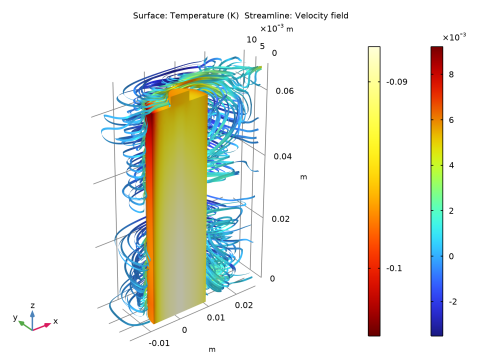
Click Replace Expression in the upper-right corner of the Expression section. From the menu, choose Component 2 (comp2) > Laminar Flow > Velocity and pressure > u,v,w - Velocity field.
|
|
6
|
|
7
|
|
8
|
Locate the Coloring and Style section. Find the Line style subsection. From the Type list, choose Ribbon.
|
|
1
|
|
2
|
In the Settings window for Color Expression, click Replace Expression in the upper-right corner of the Expression section. From the menu, choose Component 2 (comp2) > Laminar Flow > Velocity and pressure > spf.U - Velocity magnitude - m/s.
|
|
3
|
|
4
|
|
1
|
|
2
|
|
3
|
Click OK.
|
|
1
|
|
2
|
|
3
|
Click OK.
|