PDF

Optimizing the Shape of a Horn
Introduction
This example shows how to apply boundary shape optimization to a simple axisymmetric horn. For the sake of simplicity, the on-axis far-field sound pressure level is maximized for a single frequency and in a single direction. The focus is on the optimization procedure and optimization solver settings. The objective function is computed using the built-in exterior field optimization function. The deformation of the geometry is introduced using the Shape Optimization functionality of COMSOL Multiphysics.
The model was inspired by the work of Erik Bängtsson, Daniel Noreland, and Martin Berggren (Ref. 1).
Note: This application requires the Acoustics Module and the Optimization Module.
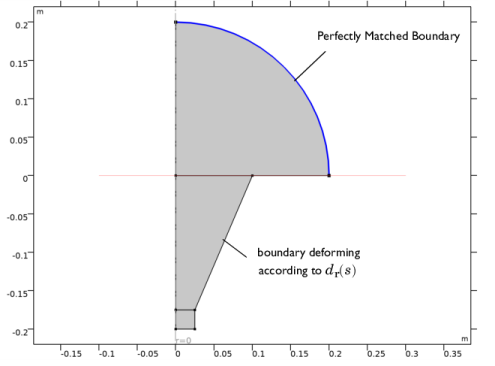
Figure 1: The initial configuration is a simple cone (the z < 0 part of the gray area) in an infinite baffle.
Model Definition
A plane-wave mode feeds an axisymmetric horn radiating from an infinite baffle toward an open half space; see Figure 1. The radius of the waveguide attached to the horn throat is assumed to be fixed, as well as the depth of the horn and the size of the horn mouth attached to the baffle. By varying the curvature of the initially conical neck of the horn, its directivity and impedance can be changed.
The surface of the horn neck is parameterized assuming that the radius and the z position of the horn deviate from the simple cone by a set of 8th-order Bernstein polynomials. The maximum displacement (in the two directions) is given by the dmax parameter. The number of optimization variables is determined by the order of the polynomial. Using a higher order gives more freedom and potentially a better final value of the objective function, but it also makes the optimization process more sensitive and can generate a shape that is less suitable for production.
The dedicated built-in optimization function for the exterior-field sound pressure level is evaluated on axis and used as objective function (the expression Lp_pext_opt(0, Lfar), where is the far-field evaluation distance). The optimization problem is solved with the MMA optimization solver with an iteration limit of 50 and no move limit.
Results and Discussion
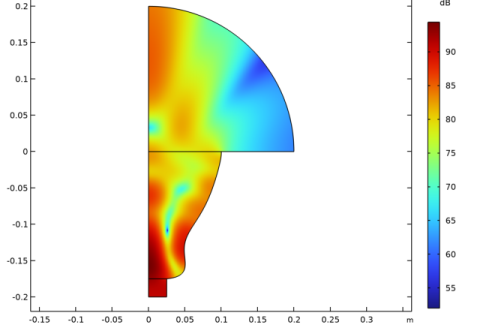
By changing the shape of the horn within the limits of the selected parameterization, the on-axis sound pressure level can be raised by about 1 dB compared to the simple cone in Figure 1.
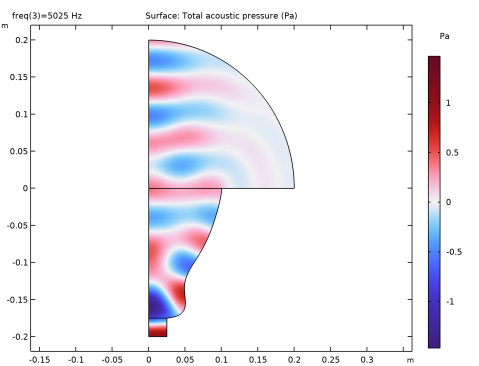
Figure 2: The final shape of the horn, optimized for on-axis SPL at 5000 Hz.
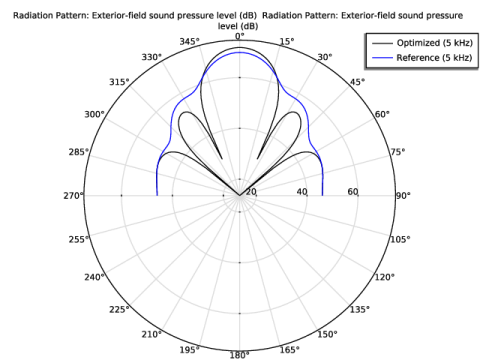
The improvement is rather small, because the initial design also shows a marked directivity, as can be seen from Figure 3. Obviously, the optimal shape with respect to on-axis SPL leads to deep undesirable minima in other directions.
Figure 3: Radiation plot of the original (dashed blue) and final (solid black) designs.
Optimizing with respect to a slight off-axis direction can give you a more uniform far-field pattern, but may also result in a deep minimum on the axis. Try for example to set the off-axis angle to 22°.
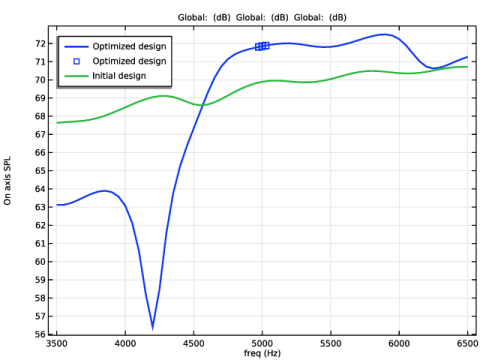
Varying the frequency reveals that the on-axis improvement is robust over a wide frequency band; see Figure 4.
Figure 4: The objective function is plotted as a function of the frequency for the initial as well as the optimized design.
To search for a stable and practically useful horn design, you might instead create a composite objective function as a weighted sum of transmission values evaluated for a number of discrete directions, or choose to minimize the deviation from the mean SPL over a range of angles. In addition, you would also want to optimize with respect to more than one frequency, and experiment with different parameterizations.
Notes About the COMSOL Implementation
COMSOL Multiphysics implements the parameterization using a Polynomial Boundary feature.The mesh is allowed to move freely in the conical part of the horn, but otherwise kept fix.
The amplitude of the boundary displacement is restricted by the maximum displacement and the polynomial order. These constraints are intended to keep the mesh element volumes positive at all times.
A time-harmonic Pressure Acoustics, Frequency Domain interface solves for the pressure field inside the horn and in a small spherical domain surrounding its opening.
Set up the optimization problem in the Shape Optimization study node.
Reference
1. E. Bängtsson, D. Noreland, and M. Berggren, “Shape Optimization of an Acoustic Horn,” Technical Report 2002-019, Department of Information Technology, Uppsala University, May 2002.
Application Library path: Acoustics_Module/Optimization/horn_shape_optimization
Modeling Instructions
From the File menu, choose New.
New
In the New window, click  Model Wizard.
Model Wizard
1
In the Model Wizard window, click  2D Axisymmetric.
2
In the Select Physics tree, select Acoustics > Pressure Acoustics > Pressure Acoustics, Frequency Domain (acpr).
3
Click Add.
4
Click  Study.
5
In the Select Study tree, select General Studies > Frequency Domain.
6
Geometry 1
Square 1 (sq1)
1
In the Geometry toolbar, click  Square.
2
In the Settings window for Square, locate the Size section.
3
In the Side length text field, type 0.025.
4
Locate the Position section. In the z text field, type -0.2.
Circle 1 (c1)
1
In the Geometry toolbar, click  Circle.
2
In the Settings window for Circle, locate the Size and Shape section.
3
In the Radius text field, type 0.2.
4
In the Sector angle text field, type 90.
5
Click  Build Selected.
6
Click the  Zoom Extents button in the Graphics toolbar.
Polygon 1 (pol1)
1
In the Geometry toolbar, click  Polygon.
2
In the Settings window for Polygon, locate the Coordinates section.
3
From the Data source list, choose Vectors.
4
In the r text field, type 0 0.1 0.1 0.025 0.025 0.
5
In the z text field, type 0 0 0 -0.175 -0.175 -0.175.
Global Definitions
Parameters 1
1
In the Model Builder window, under Global Definitions click Parameters 1.
2
In the Settings window for Parameters, locate the Parameters section.
3
Component 1 (comp1)
Free Shape Domain 1
1
In the Physics toolbar, click  Optimization and choose Shape Optimization.
2
Polynomial Boundary 1
1
In the Shape Optimization toolbar, click  Polynomial Boundary.
2
3
In the Settings window for Polynomial Boundary, locate the Control Variable Settings section.
4
From the dmax list, choose Box.
5
6
Locate the Polynomial section. In the n text field, type 8.
Add Material
1
In the Materials toolbar, click  Add Material to open the Add Material window.
2
Go to the Add Material window.
3
In the tree, select Built-in > Air.
4
Click the Add to Component button in the window toolbar.
5
In the Materials toolbar, click  Add Material to close the Add Material window.
Pressure Acoustics, Frequency Domain (acpr)
Port 1
1
In the Physics toolbar, click  Boundaries and choose Port.
2
3
In the Settings window for Port, locate the Port Properties section.
4
From the Type of port list, choose Circular.
5
Locate the Incident Mode Settings section. In the Apin text field, type 1.
This gives you a plane wave with the amplitude 1 Pa propagating in the positive z direction.
Exterior Field Calculation 1
1
In the Physics toolbar, click  Boundaries and choose Exterior Field Calculation.
2
3
In the Settings window for Exterior Field Calculation, locate the Exterior Field Calculation section.
4
From the Condition in the z = z0 plane list, choose Symmetric/Infinite sound hard boundary.
Perfectly Matched Boundary 1
1
In the Physics toolbar, click  Boundaries and choose Perfectly Matched Boundary.
2
Mesh 1
1
In the Model Builder window, under Component 1 (comp1) click Mesh 1.
2
In the Settings window for Mesh, locate the Pressure Acoustics, Frequency Domain (acpr) section.
3
From the Maximum mesh element size control parameter list, choose Frequency.
4
In the fmax text field, type f0.
5
From the Number of mesh elements per wavelength list, choose User defined.
6
7
Click  Build All.
Study 1 - Reference Solution
1
In the Model Builder window, click Study 1.
2
In the Settings window for Study, type Study 1 - Reference Solution in the Label text field.
Before starting the actual optimization, it is a good practice to check the model setup by solving the one with the default parameters. This way, you can also study the reference state which you intend to improve.
Step 1: Frequency Domain
1
In the Model Builder window, under Study 1 - Reference Solution click Step 1: Frequency Domain.
2
In the Settings window for Frequency Domain, locate the Study Settings section.
3
In the Frequencies text field, type range(3500,50,6500).
4
Locate the Physics and Variables Selection section. In the Solve for column of the table, under Component 1 (comp1), clear the checkbox for Deformed Geometry.
5
In the Study toolbar, click  Compute.
Results
Sound Pressure Level, 3D (acpr)
1
Click the  Zoom Extents button in the Graphics toolbar.
2
In the Model Builder window, under Results click Sound Pressure Level, 3D (acpr).
Radiation Pattern 1
1
In the Model Builder window, expand the Exterior-Field Sound Pressure Level (acpr) node, then click Radiation Pattern 1.
2
In the Settings window for Radiation Pattern, locate the Evaluation section.
3
Find the Evaluation distance subsection. In the Radius text field, type Lfar.
Radiation Pattern 1
1
In the Model Builder window, expand the Exterior-Field Pressure (acpr) node, then click Radiation Pattern 1.
2
In the Settings window for Radiation Pattern, locate the Evaluation section.
3
Find the Evaluation distance subsection. In the Radius text field, type Lfar.
Shape Optimization
In the Model Builder window, under Results right-click Shape Optimization and choose Delete.
Acoustic Pressure (acpr), Acoustic Pressure, 3D (acpr), Exterior-Field Pressure (acpr), Exterior-Field Sound Pressure Level (acpr), Sound Pressure Level (acpr), Sound Pressure Level, 3D (acpr)
1
In the Model Builder window, under Results, Ctrl-click to select Acoustic Pressure (acpr), Sound Pressure Level (acpr), Acoustic Pressure, 3D (acpr), Sound Pressure Level, 3D (acpr), Exterior-Field Sound Pressure Level (acpr), and Exterior-Field Pressure (acpr).
2
Reference solution
In the Settings window for Group, type Reference solution in the Label text field.
Root
Next, add a new study for the optimization.
Add Study
1
In the Home toolbar, click  Add Study to open the Add Study window.
2
Go to the Add Study window.
3
Find the Studies subsection. In the Select Study tree, select General Studies > Frequency Domain.
4
Click the Add Study button in the window toolbar.
5
In the Home toolbar, click  Add Study to close the Add Study window.
Study 2
Step 1: Frequency Domain
1
In the Settings window for Frequency Domain, locate the Study Settings section.
2
In the Frequencies text field, type f0-df/2 f0 f0+df/2.
3
In the Model Builder window, click Study 2.
4
In the Settings window for Study, type Study 2 - Optimized Solution in the Label text field.
Shape Optimization
1
In the Study toolbar, click  Optimization and choose Shape Optimization.
2
In the Settings window for Shape Optimization, locate the Optimization Solver section.
3
In the Maximum number of iterations text field, type 50.
4
Clear the Move limits checkbox.
5
Locate the Objective Function section. In the table, enter the following settings:
Set up a MaxMin problems such that frequency associated with the worst objective function is prioritized.
6
From the Type list, choose Maximization.
7
From the Solution list, choose Minimum of objectives.
8
From the Objective scaling list, choose Initial solution based.
9
In the Study toolbar, click  Get Initial Value.
By making the nonlinear tolerance stricter than that of the optimization solver, you ensure that the optimization does not fail because each solution is not sufficiently converged. An optimality tolerance of 1e-4 is still stricter than the accuracy of this low-resolution finite element model.
Step 1: Frequency Domain
1
In the Model Builder window, expand the Study 2 - Optimized Solution > Solver Configurations node, then click Study 2 - Optimized Solution > Step 1: Frequency Domain.
2
In the Settings window for Frequency Domain, locate the Study Settings section.
3
From the Tolerance list, choose User controlled.
4
In the Relative tolerance text field, type 1e-6.
Solution 2 (sol2)
1
In the Model Builder window, expand the Solution 2 (sol2) node.
2
In the Model Builder window, expand the Study 2 - Optimized Solution > Solver Configurations > Solution 2 (sol2) > Optimization Solver 1 node, then click Stationary Solver 1.
3
In the Settings window for Stationary Solver, locate the General section.
4
From the Linearity list, choose Nonlinear.
5
In the Model Builder window, expand the Study 2 - Optimized Solution > Solver Configurations > Solution 2 (sol2) > Optimization Solver 1 > Stationary Solver 1 node, then click Fully Coupled 1.
6
In the Settings window for Fully Coupled, click to expand the Method and Termination section.
7
In the Minimum damping factor text field, type 1e-4.
Shape Optimization
1
In the Model Builder window, under Study 2 - Optimized Solution click Shape Optimization.
2
In the Settings window for Shape Optimization, locate the Output While Solving section.
3
Select the Plot checkbox.
4
From the Plot group list, choose Shape Optimization.
5
In the Study toolbar, click  Compute.
Results
Acoustic Pressure (acpr) 1
The first default plot is the acoustic pressure. It should look like the image below.
Sound Pressure Level (acpr) 1
1
In the Model Builder window, click Sound Pressure Level (acpr) 1.
2
In the Sound Pressure Level (acpr) 1 toolbar, click  Plot.
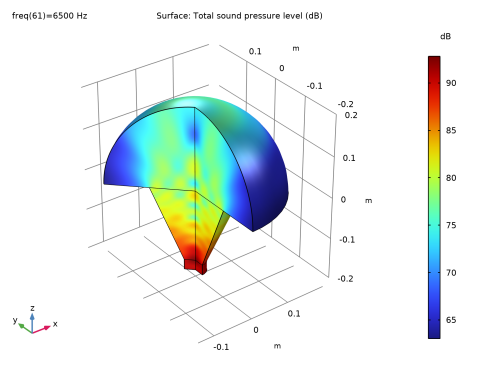
Your plot of the sound pressure level should now look like Figure 2.
To see a direct comparison of the exterior-field polar pattern before and after optimization, modify the exterior-field plot of the sound pressure level in the rz-plane. Modify it to only plot the results in the positive half plane (z > 0), increase the resolution, and change some Coloring and Style options. The resulting plot of the exterior field should look like Figure 3. Note that 0 deg on the polar graph corresponds to the vertical z-axis.
Exterior-Field Sound Pressure Level (acpr) 1
1
In the Model Builder window, click Exterior-Field Sound Pressure Level (acpr) 1.
2
In the Settings window for Polar Plot Group, locate the Data section.
3
From the Parameter selection (freq) list, choose Manual.
4
In the Parameter indices (1-3) text field, type 2.
Radiation Pattern 1
1
In the Model Builder window, expand the Exterior-Field Sound Pressure Level (acpr) 1 node, then click Radiation Pattern 1.
2
In the Settings window for Radiation Pattern, locate the Evaluation section.
3
Find the Angles subsection. From the Restriction list, choose Manual.
4
In the ϕ start text field, type -90.
5
In the ϕ range text field, type 180.
6
Find the Evaluation distance subsection. In the Radius text field, type Lfar.
7
Click to expand the Legends section. From the Legends list, choose Manual.
8
9
Click to expand the Coloring and Style section. From the Color list, choose Black.
Radiation Pattern 2
1
Right-click Results > Exterior-Field Sound Pressure Level (acpr) 1 > Radiation Pattern 1 and choose Duplicate.
2
In the Settings window for Radiation Pattern, locate the Data section.
3
From the Dataset list, choose Study 1 - Reference Solution/Solution 1 (sol1).
4
From the Parameter selection (freq) list, choose From list.
5
In the Parameter values (freq (Hz)) list, select 5000.
6
Locate the Legends section. In the table, enter the following settings:
7
Locate the Coloring and Style section. From the Color list, choose Blue.
8
In the Exterior-Field Sound Pressure Level (acpr) 1 toolbar, click  Plot.
Radiation Pattern 1
1
In the Model Builder window, expand the Exterior-Field Pressure (acpr) 1 node, then click Radiation Pattern 1.
2
In the Settings window for Radiation Pattern, locate the Evaluation section.
3
Find the Evaluation distance subsection. In the Radius text field, type Lfar.
Arrow Line 1
1
In the Model Builder window, expand the Shape Optimization node, then click Arrow Line 1.
2
In the Settings window for Arrow Line, locate the Arrow Positioning section.
3
From the Placement list, choose Mesh nodes.
Color Expression 1
1
In the Model Builder window, expand the Arrow Line 1 node, then click Color Expression 1.
2
In the Settings window for Color Expression, locate the Coloring and Style section.
3
From the Color table list, choose Rainbow.
Acoustic Pressure (acpr) 1, Acoustic Pressure, 3D (acpr) 1, Exterior-Field Pressure (acpr) 1, Exterior-Field Sound Pressure Level (acpr) 1, Shape Optimization, Sound Pressure Level (acpr) 1, Sound Pressure Level, 3D (acpr) 1
1
In the Model Builder window, under Results, Ctrl-click to select Acoustic Pressure (acpr) 1, Sound Pressure Level (acpr) 1, Acoustic Pressure, 3D (acpr) 1, Sound Pressure Level, 3D (acpr) 1, Exterior-Field Sound Pressure Level (acpr) 1, Exterior-Field Pressure (acpr) 1, and Shape Optimization.
2
Optimized solution
In the Settings window for Group, type Optimized solution in the Label text field.
Add Study
1
In the Home toolbar, click  Add Study to open the Add Study window.
2
Go to the Add Study window.
3
Find the Studies subsection. In the Select Study tree, select General Studies > Frequency Domain.
4
Click the Add Study button in the window toolbar.
5
In the Home toolbar, click  Add Study to close the Add Study window.
Study 3
Step 1: Frequency Domain
1
In the Settings window for Frequency Domain, locate the Study Settings section.
2
In the Frequencies text field, type range(3500,50,6500).
3
Click to expand the Results While Solving section. From the Probes list, choose None.
4
Locate the Physics and Variables Selection section. In the Solve for column of the table, under Component 1 (comp1), clear the checkbox for Deformed Geometry.
5
Click to expand the Values of Dependent Variables section. Find the Values of variables not solved for subsection. From the Settings list, choose User controlled.
6
From the Method list, choose Solution.
7
From the Study list, choose Study 2 - Optimized Solution, Frequency Domain.
8
In the Model Builder window, click Study 3.
9
In the Settings window for Study, type Study 3 - Frequency Sweep (Optimized) in the Label text field.
10
Locate the Study Settings section. Clear the Generate default plots checkbox.
11
In the Study toolbar, click  Compute.
Results
Optimized solution
Add 1D Plot Group showing the objective function as a function of the frequency for the initial as well as the optimized design.
Response
1
In the Results toolbar, click  1D Plot Group.
2
In the Settings window for 1D Plot Group, type Response in the Label text field.
3
Locate the Data section. From the Dataset list, choose Study 3 - Frequency Sweep (Optimized)/Solution 3 (sol3).
4
Locate the Plot Settings section.
5
Select the y-axis label checkbox. In the associated text field, type On axis SPL.
6
Locate the Legend section. From the Position list, choose Upper left.
Global 1
1
Right-click Response and choose Global.
2
In the Settings window for Global, locate the y-Axis Data section.
3
4
Click to expand the Coloring and Style section. From the Width list, choose 2.
5
Click to expand the Legends section. From the Legends list, choose Manual.
6
Global 2
1
Right-click Global 1 and choose Duplicate.
2
In the Settings window for Global, locate the Data section.
3
From the Dataset list, choose Study 2 - Optimized Solution/Solution 2 (sol2).
4
Locate the Coloring and Style section. Find the Line style subsection. From the Line list, choose None.
5
From the Color list, choose Cycle (reset).
6
Find the Line markers subsection. From the Marker list, choose Square.
Global 3
1
In the Model Builder window, under Results > Optimized solution > Response right-click Global 1 and choose Duplicate.
2
In the Settings window for Global, locate the Data section.
3
From the Dataset list, choose Study 1 - Reference Solution/Solution 1 (sol1).
4
Locate the Legends section. In the table, enter the following settings:
5
In the Response toolbar, click  Plot.