|
|
|




|
1
|
|
2
|
In the Select Physics tree, select AC/DC > Electromagnetics and Mechanics > Rotating Machinery, Magnetic (rmm).
|
|
3
|
Click Add.
|
|
4
|
Click
 Study. Study. |
|
5
|
|
6
|
Click
 Done. Done. |
|
1
|
|
2
|
Browse to the model’s Application Libraries folder and double-click the file rotating_machinery_3d_tutorial_geom_sequence.mph.
|
|
3
|
|
4
|
|
5
|
|
6
|
|
1
|
In the Model Builder window, expand the Component 1 (comp1) > Definitions node, then click Identity Boundary Pair 1 (ap1).
|
|
2
|
|
3
|
Click
 Create Selection. Create Selection. |
|
4
|
|
5
|
Click OK.
|
|
6
|
|
7
|
Click
 Create Selection. Create Selection. |
|
8
|
|
9
|
Click OK.
|
|
1
|
|
2
|
|
1
|
|
2
|
Go to the Add Material window.
|
|
3
|
|
4
|
Click the Add to Component button in the window toolbar.
|
|
5
|
|
6
|
Right-click and choose Add to Component 1 (comp1).
|
|
7
|
In the tree, select AC/DC > Hard Magnetic Materials > Sintered NdFeB Grades (Chinese Standard) > N35 (Sintered NdFeB).
|
|
8
|
Right-click and choose Add to Component 1 (comp1).
|
|
9
|
|
2
|
|
3
|
Click
 Create Selection. Create Selection. |
|
4
|
|
5
|
Click OK.
|
|
1
|
|
1
|
|
2
|
In the Settings window for Magnetic Flux Conservation, type Air, Formulation for Nonconducting Domain in the Label text field.
|
|
1
|
|
1
|
|
1
|
|
1
|
|
2
|
|
3
|
|
4
|
|
5
|
In the Show More Options dialog, in the tree, select the checkbox for the node Physics > Advanced Physics Options.
|
|
6
|
Click OK.
|
|
7
|
|
8
|
Select the Ensure constraint on value checkbox.
|
|
1
|
|
3
|
|
4
|
|
5
|
|
1
|
|
2
|
|
3
|
Click
 Add. Add. |
|
4
|
|
5
|
Click OK.
|
|
1
|
|
1
|
|
2
|
|
3
|
|
1
|
|
2
|
|
3
|
Click the Custom button.
|
|
4
|
Locate the Element Size Parameters section.
|
|
5
|
|
1
|
|
2
|
|
3
|
|
1
|
|
2
|
|
3
|
Click the Custom button.
|
|
4
|
Locate the Element Size Parameters section.
|
|
5
|
|
1
|
|
2
|
|
3
|
|
5
|
|
6
|
Locate the Element Size Parameters section.
|
|
7
|
|
1
|
|
2
|
|
3
|
|
1
|
|
2
|
|
3
|
|
4
|
|
1
|
|
3
|
|
4
|
|
5
|
|
6
|
|
7
|
|
8
|
|
1
|
|
2
|
|
1
|
|
2
|
|
1
|
|
2
|
|
3
|
|
4
|
|
1
|
|
2
|
|
3
|
Clear the Plot dataset edges checkbox.
|
|
4
|
|
5
|
|
1
|
|
2
|
|
3
|
Clear the Show grid checkbox.
|
|
1
|
In the Model Builder window, right-click Currents and Solid Domain Boundaries Representation and choose Surface.
|
|
2
|
|
3
|
|
4
|
|
5
|
|
1
|
|
1
|
In the Model Builder window, right-click Currents and Solid Domain Boundaries Representation and choose Arrow Volume.
|
|
2
|
In the Settings window for Arrow Volume, click Replace Expression in the upper-right corner of the Expression section. From the menu, choose Component 1 (comp1) > Rotating Machinery, Magnetic > Currents and charge > rmm.Jx,...,rmm.Jz - Current density (spatial frame).
|
|
3
|
Locate the Arrow Positioning section. Find the x grid points subsection. In the Points text field, type 10.
|
|
4
|
|
5
|
|
6
|
|
7
|
|
1
|
|
2
|
|
3
|
|
1
|
|
2
|
|
3
|
|
4
|
|
5
|
|
1
|
|
2
|
|
3
|
|
4
|
Locate the Expressions section. In the table, enter the following settings:
|
|
5
|
|
1
|
Go to the Table 1 window.
|
|
2
|
Click the Table Graph button in the window toolbar.
|
|
1
|
|
2
|
Go to the Add Physics window.
|
|
3
|
|
4
|
Click the Add to Component 1 button in the window toolbar.
|
|
5
|
|
1
|
|
2
|
|
3
|
|
1
|
In the Model Builder window, under Component 1 (comp1) > Electric Currents (ec) click Current Conservation 1.
|
|
2
|
|
3
|
|
1
|
|
2
|
|
3
|
|
4
|
|
1
|
|
1
|
|
1
|
|
2
|
|
3
|
|
4
|
|
1
|
|
2
|
Go to the Add Study window.
|
|
3
|
|
4
|
Click the Add Study button in the window toolbar.
|
|
5
|
|
1
|
|
2
|
|
3
|
|
1
|
|
2
|
|
3
|
Select the Modify model configuration for study step checkbox.
|
|
4
|
In the tree, select Component 1 (comp1) > Rotating Machinery, Magnetic (rmm), Controls spatial frame > External Current Density 1.
|
|
5
|
Right-click and choose Disable.
|
|
6
|
|
7
|
Right-click and choose Disable in Model.
|
|
1
|
|
2
|
|
3
|
Select the Modify model configuration for study step checkbox.
|
|
4
|
In the tree, select Component 1 (comp1) > Rotating Machinery, Magnetic (rmm), Controls spatial frame > External Current Density 1.
|
|
5
|
Right-click and choose Disable.
|
|
6
|
|
7
|
Right-click and choose Disable in Model.
|
|
1
|
|
2
|
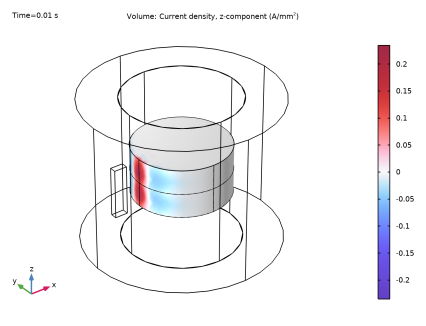
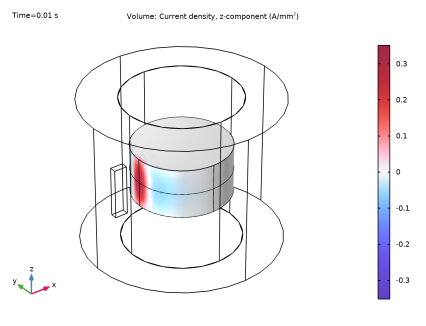
In the Settings window for 3D Plot Group, type Current Perpendicular to the Insulating Plane in the Label text field.
|
|
3
|
|
4
|
|
1
|
|
2
|
|
3
|
|
4
|
|
5
|
|
6
|
|
7
|
|
8
|
Click
 Plot. Plot. |
|
1
|
|
2
|
|
3
|
|
4
|
|
1
|
In the Model Builder window, under Results > Derived Values right-click Volume Integration 1 and choose Duplicate.
|
|
2
|
|
3
|
|
4
|
|
1
|
|
2
|
|
3
|
Select the Show legends checkbox.
|
|
4
|
|
1
|
|
2
|
|
3
|
|
4
|
|
5
|
|
6
|
|
7
|
|
1
|
|
2
|
|
3
|
|
1
|
|
2
|
|
3
|
In the tree, select Component 1 (comp1) > Rotating Machinery, Magnetic (rmm), Controls spatial frame > Passive Conductor 1.
|
|
4
|
Click
 Disable. Disable. |
|
1
|
|
2
|
|
3
|
In the tree, select Component 1 (comp1) > Rotating Machinery, Magnetic (rmm), Controls spatial frame > Passive Conductor 1.
|
|
4
|
Click
 Disable. Disable. |
|
1
|
|
2
|
|
3
|
Select the Modify model configuration for study step checkbox.
|
|
4
|
In the tree, select Component 1 (comp1) > Rotating Machinery, Magnetic (rmm), Controls spatial frame > Passive Conductor 1.
|
|
5
|
Click
 Disable. Disable. |
|
1
|
|
2
|
|
3
|
Select the Modify model configuration for study step checkbox.
|
|
4
|
In the tree, select Component 1 (comp1) > Rotating Machinery, Magnetic (rmm), Controls spatial frame > Passive Conductor 1.
|
|
5
|
Click
 Disable. Disable. |
|
1
|
|
2
|
Go to the Add Study window.
|
|
3
|
|
4
|
Click the Add Study button in the window toolbar.
|
|
5
|
|
1
|
|
2
|
In the Solve for column of the table, under Component 1 (comp1), clear the checkbox for Electric Currents (ec).
|
|
3
|
Select the Modify model configuration for study step checkbox.
|
|
4
|
In the tree, select Component 1 (comp1) > Rotating Machinery, Magnetic (rmm), Controls spatial frame > External Current Density 1.
|
|
5
|
Click
 Disable. Disable. |
|
1
|
|
2
|
|
3
|
|
4
|
Locate the Physics and Variables Selection section. In the Solve for column of the table, under Component 1 (comp1), clear the checkbox for Electric Currents (ec).
|
|
5
|
Select the Modify model configuration for study step checkbox.
|
|
6
|
In the tree, select Component 1 (comp1) > Rotating Machinery, Magnetic (rmm), Controls spatial frame > External Current Density 1.
|
|
7
|
Click
 Disable. Disable. |
|
8
|
|
9
|
In the Settings window for Study, type Laminated Copper Disk with Passive Conductor in the Label text field.
|
|
10
|
|
1
|
In the Model Builder window, under Results > Derived Values right-click Volume Integration 2 and choose Duplicate.
|
|
2
|
|
3
|
|
4
|
Click
 Evaluate. Evaluate. |
|
1
|
|
2
|
|
4
|






 next to



 next to