
PDF

Magnetic Field from Power Lines
Introduction
Power lines are commonly used as a means of transmitting electric power across large distances. In this tutorial, two towers transmitting high voltage three-phase AC power are modeled, and the resulting magnetic field is computed. Specifically, the current is set to 1000 A in this model. In transmission lines with such a high voltage, the phase lines are usually using bundled conductors. For simplicity, a single conductor for each phase line is used in this model, but its radius is larger in order to simulate the effective radius of a bundled conductor. The towers also have two shielding lines above the phase lines, which protect the tower from lightning strikes.
Model Definition
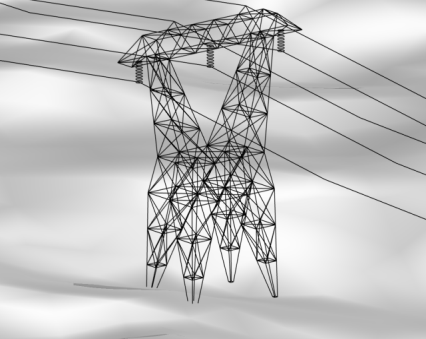
The geometry of one of the towers is shown in Figure 1. It is imported from an external file in the model due to its complexity. The ground level in this geometry is created using a geometry part from the Part Library, which creates a flat surface that is randomly perturbed. The air around the power lines is modeled using the default Free Space feature in the magnetic fields interface.
Figure 1: The geometry of the transmission tower. The two shielding lines can be seen on top, while the three phase lines are held by the insulators.
To solve the problem, use the 3D Magnetic Fields interface in the AC/DC Module. Since the model is solved in the frequency domain, the equation governing the problem is
where A is the magnetic vector potential, J is the current density, μ is the magnetic permeability, ε0 is the permittivity of free space, and ω is the angular frequency. The magnetic field H and the magnetic flux density B are given by the potential as
On the phase lines in the model, the Edge Current feature sets the specified current, each one phase shifted with respect to the others. The default Magnetic Insulation boundary condition n × A = 0 is imposed on all the boundaries in the model.
Results
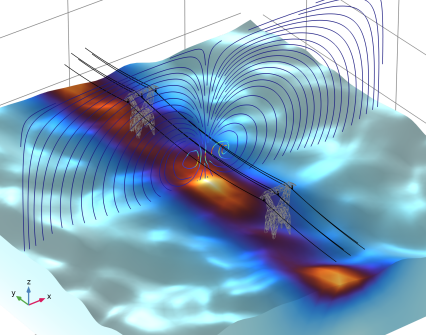
The magnetic field norm from the wires at ground level is shown Figure 2, along with streamlines showing the direction of the magnetic field.
Figure 2: The magnetic field norm (surface) and the magnetic field (streamlines) from the transmission lines.
Application Library path: ACDC_Module/Devices,_Inductive/power_line_magnetic_field
Modeling Instructions
From the File menu, choose New.
New
In the New window, click  Model Wizard.
Model Wizard
1
In the Model Wizard window, click  3D.
2
In the Select Physics tree, select AC/DC > Electromagnetic Fields > Magnetic Fields (mf).
3
Click Add.
4
Click  Study.
5
In the Select Study tree, select General Studies > Frequency Domain.
6
First, define some parameters that will be used when building the model.
Global Definitions
Parameters 1
1
In the Model Builder window, under Global Definitions click Parameters 1.
2
In the Settings window for Parameters, locate the Parameters section.
3
For the sake of simplicity, the geometry of the model will be imported from an external file.
Geometry 1
Import 1 (imp1)
1
In the Geometry toolbar, click  Import.
2
In the Settings window for Import, locate the Source section.
3
Click  Browse.
4
5
Click  Import.
Block 1 (blk1)
1
In the Geometry toolbar, click  Block.
2
In the Settings window for Block, locate the Size and Shape section.
3
In the Width text field, type 300.
4
In the Depth text field, type 300.
5
In the Height text field, type 150.
6
Locate the Position section. In the x text field, type -150.
7
In the y text field, type -150.
8
In the z text field, type -50.
Magnetic Fields (mf)
The air surrounding the power lines is represented by the Free Space feature. This adds a small value of stabilization conductivity to ensure the numerical solver converges well. In this case, a small value of 1e-3[S/m] is sufficient.
Free Space 1
1
In the Model Builder window, under Component 1 (comp1) > Magnetic Fields (mf) click Free Space 1.
2
In the Settings window for Free Space, locate the Stabilization section.
3
From the σstab list, choose User defined. In the associated text field, type 1e-3.
Add Ampère’s Law in solids to the soil.
Ampère’s Law in Solids 1
1
In the Physics toolbar, click  Domains and choose Ampère’s Law in Solids.
2
In the physics interface, add currents to the three phase lines.
Edge Current 1
1
In the Physics toolbar, click  Edges and choose Edge Current.
2
3
In the Settings window for Edge Current, locate the Edge Current section.
4
In the I0 text field, type I0.
Edge Current 2
1
In the Physics toolbar, click  Edges and choose Edge Current.
2
In the Settings window for Edge Current, locate the Edge Selection section.
3
Click  Paste Selection.
4
In the Paste Selection dialog, type 812,830,866 in the Selection text field.
5
6
In the Settings window for Edge Current, locate the Edge Current section.
7
In the I0 text field, type I0*exp(i*2*pi/3).
Edge Current 3
1
In the Physics toolbar, click  Edges and choose Edge Current.
2
In the Settings window for Edge Current, locate the Edge Selection section.
3
Click  Paste Selection.
4
In the Paste Selection dialog, type 1560,1569,1588 in the Selection text field.
5
6
In the Settings window for Edge Current, locate the Edge Current section.
7
In the I0 text field, type I0*exp(i*4*pi/3).
Add the material properties for the soil.
Materials
Soil
1
In the Model Builder window, under Component 1 (comp1) right-click Materials and choose Blank Material.
2
Right-click Material 1 (mat1) and choose Rename.
3
In the Rename Material dialog, type Soil in the New label text field.
4
5
6
In the Settings window for Material, locate the Material Contents section.
7
Before solving, refine the mesh in order to properly resolve the geometry. This also makes the resulting plots more detailed.
Mesh 1
1
In the Model Builder window, under Component 1 (comp1) click Mesh 1.
2
In the Settings window for Mesh, locate the Physics-Controlled Mesh section.
3
From the Element size list, choose Finer.
4
Locate the Sequence Type section. From the list, choose User-controlled mesh.
Size
1
In the Model Builder window, under Component 1 (comp1) > Mesh 1 click Size.
2
In the Settings window for Size, locate the Element Size Parameters section.
3
In the Minimum element size text field, type 0.1.
4
Click  Build All.
Study 1
Step 1: Frequency Domain
1
In the Model Builder window, under Study 1 click Step 1: Frequency Domain.
2
In the Settings window for Frequency Domain, locate the Study Settings section.
3
In the Frequencies text field, type 50.
4
In the Model Builder window, click Study 1.
5
In the Settings window for Study, locate the Study Settings section.
6
Clear the Generate default plots checkbox.
7
In the Study toolbar, click  Compute.
Results
In the Model Builder window, expand the Results node.
Magnetic Field Norm
1
In the Model Builder window, expand the Results > Datasets node.
2
Right-click Results and choose 3D Plot Group.
3
In the Settings window for 3D Plot Group, type Magnetic Field Norm in the Label text field.
4
Click to expand the Title section. From the Title type list, choose None.
5
Locate the Color Legend section. Clear the Show legends checkbox.
6
Locate the Plot Settings section. Clear the Plot dataset edges checkbox.
Line 1
1
Right-click Magnetic Field Norm and choose Line.
2
In the Settings window for Line, locate the Data section.
3
From the Dataset list, choose Study 1/Solution 1 (sol1).
4
Locate the Expression section. In the Expression text field, type 1.
5
Locate the Coloring and Style section. From the Line type list, choose Tube.
6
In the Tube radius expression text field, type 0.1.
7
Select the Radius scale factor checkbox.
8
From the Coloring list, choose Uniform.
9
From the Color list, choose Black.
Selection 1
1
Right-click Line 1 and choose Selection.
2
In the Settings window for Selection, locate the Selection section.
3
Click  Paste Selection.
4
In the Paste Selection dialog, type 14-31, 65, 66, 69, 70, 72-75, 86, 87, 105, 106, 116, 118, 120, 122-466, 468-476, 478-483, 485-493, 495-507, 509-517, 519-779, 813-820, 828, 831, 832, 840, 842-848, 851, 852, 854, 856, 864, 867, 868, 876, 878-1248, 1250-1264, 1266-1287, 1289-1519, 1553, 1554, 1557, 1558, 1570, 1571, 1589, 1590, 1599-1602, 1604, 1606, 1608, 1610-1612 in the Selection text field.
5
Material Appearance 1
1
In the Model Builder window, right-click Line 1 and choose Material Appearance.
2
In the Settings window for Material Appearance, locate the Appearance section.
3
From the Appearance list, choose Custom.
4
From the Material type list, choose Steel.
Line 2
1
In the Model Builder window, right-click Magnetic Field Norm and choose Line.
2
In the Settings window for Line, locate the Data section.
3
From the Dataset list, choose Study 1/Solution 1 (sol1).
4
Locate the Expression section. In the Expression text field, type 1.
5
Locate the Coloring and Style section. From the Line type list, choose Tube.
6
In the Tube radius expression text field, type 0.1.
7
Select the Radius scale factor checkbox.
8
From the Coloring list, choose Uniform.
9
From the Color list, choose Black.
Selection 1
1
Right-click Line 2 and choose Selection.
2
In the Settings window for Selection, locate the Selection section.
3
Click  Paste Selection.
4
In the Paste Selection dialog, type 32-64, 67, 68, 71, 77-84, 88-103, 107-115, 117, 119, 121, 780-811, 821-827, 829, 833-839, 841, 857-863, 865, 869-875, 877, 1520-1552, 1555, 1556, 1559, 1561-1568, 1572-1587, 1591-1598, 1603, 1605, 1607, 1609 in the Selection text field.
5
Line 3
1
In the Model Builder window, right-click Magnetic Field Norm and choose Line.
2
In the Settings window for Line, locate the Data section.
3
From the Dataset list, choose Study 1/Solution 1 (sol1).
4
Locate the Expression section. In the Expression text field, type 1.
5
Locate the Coloring and Style section. From the Coloring list, choose Uniform.
6
From the Color list, choose Black.
Selection 1
1
Right-click Line 3 and choose Selection.
2
In the Settings window for Selection, locate the Selection section.
3
Click  Paste Selection.
4
In the Paste Selection dialog, type 76, 85, 104, 477, 494, 518, 812, 830, 866, 1249, 1265, 1288, 1560, 1569, 1588 in the Selection text field.
5
Volume 1
1
In the Model Builder window, right-click Magnetic Field Norm and choose Volume.
2
In the Settings window for Volume, locate the Coloring and Style section.
3
From the Color table list, choose ThermalWave.
Selection 1
1
Right-click Volume 1 and choose Selection.
2
Magnetic Field Norm
In the Model Builder window, under Results click Magnetic Field Norm.
Streamline Multislice 1
1
In the Magnetic Field Norm toolbar, click  More Plots and choose Streamline Multislice.
2
In the Settings window for Streamline Multislice, locate the Multiplane Data section.
3
Find the x-planes subsection. In the Planes text field, type 0.
4
Find the z-planes subsection. In the Planes text field, type 0.
5
Locate the Streamline Positioning section. From the Positioning list, choose Uniform density.
6
In the Separating distance text field, type 0.02.
Color Expression 1
Right-click Streamline Multislice 1 and choose Color Expression.
Magnetic Field Norm
In the Magnetic Field Norm toolbar, click  Plot.