


PDF

Iron Sphere in a Magnetic Field — Static Field
Introduction
This tutorial is part of a series on modeling an iron sphere in a background magnetic field within the Introduction to Electromagnetics tutorial group. The focus here is on the case of a magnetically permeable iron sphere in a static, spatially uniform magnetic field. Two approaches to numerically modeling the sphere are investigated and compared to the analytical solution for a range of permeability values of the sphere material.
This tutorial starts with the base model constructed in the introduction section of this tutorial series. The user can begin either by opening the completed introduction model or by following the model construction steps outlined in the introduction.
Model Definition
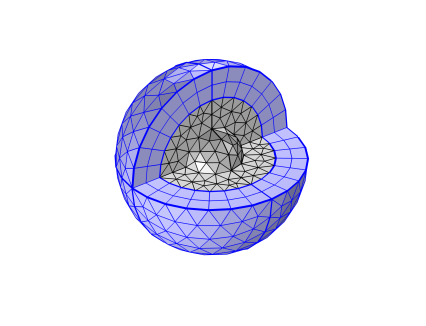
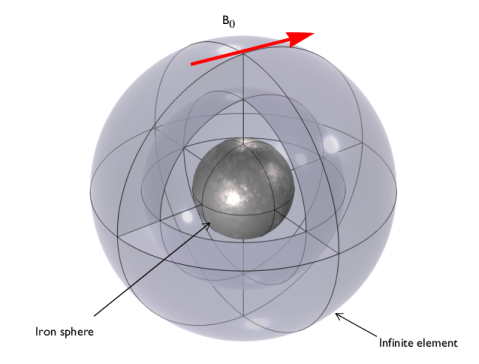
Figure 1: A magnetically permeable iron sphere in a spatially uniform background magnetic field. The sphere at the center is surrounded by air and enclosed in a region of Infinite Elements. The middle layer is the region of interest and defined as the analysis domain.
This model, as well as the others in this series, uses the same basic structure illustrated in Figure 1. It consists of a 0.25 mm diameter iron sphere placed in a spatially uniform background magnetic field of strength B0 = 1 mT.
In this tutorial, the relative permeability of the sphere is varied from μr = 2 to μr = 4000. The analytic solution for the field inside a permeable sphere exposed to a uniform magnetic field is:
(1),
where B0 is the background magnetic field.
There are two ways in which this problem can be formulated using either a scalar or vector potential approach.
Scalar Potential Formulation
The scalar potential formulation, used in the Magnetic Fields, No Currents (mfnc) interface, solves the magnetic flux conservation equation:
(2).
It uses a partial differential equation for the magnetic scalar potential field, Vm:
(3),
where the background field is specified in terms of the H-field, Hb. The B-field is then computed from the H-field: B = μrμ0H. The magnetic field is in turn computed from the gradient of the magnetic scalar potential. Because the governing equation evaluates the gradients of a scalar field, the Lagrange element formulation is used. In this formulation, the background field and boundary conditions for this problem are specified purely in terms of derivatives of the Vm field, and the solution is unique up to a constant. To remove this indeterminacy, the value of the magnetic scalar potential must be constrained at one point in the model, to fix the value of the constant.
Vector Potential Formulation
The vector potential formulation, used in the Magnetic Fields (mf) interface, solves an equation for the magnetic vector potential, A:
(4),
where the B-field is the curl of the (A + Ab) field. In this approach, the background field and boundary conditions are specified directly in terms of the A-field. Here, the governing equation takes the curl of a vector valued field, and this problem is solved using a Curl element formulation. This formulation does not require as fine of a mesh as the Lagrange element formulation to achieve the same accuracy.
Results and Discussion
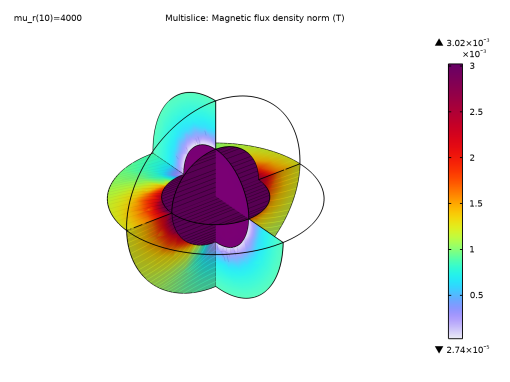
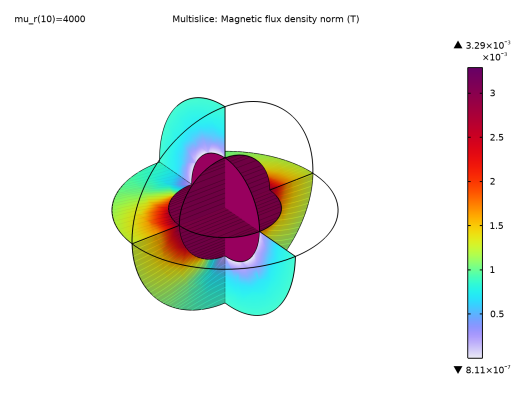
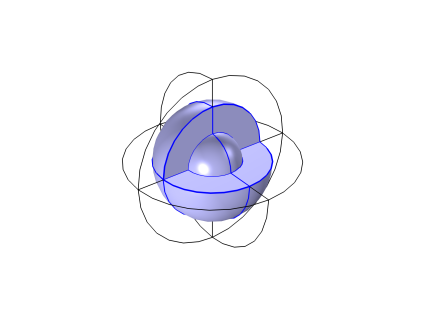
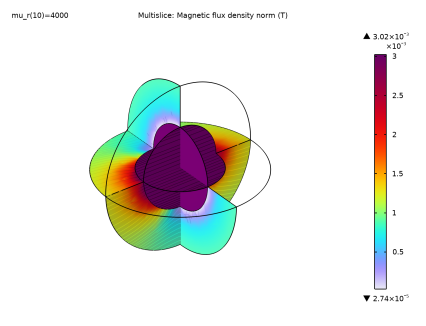
Figure 2 plots the magnetic flux density calculated using the vector potential formulation from the Magnetic Fields (mf) interface, and Figure 3 shows the results computed using the scalar potential formulation from Magnetic Fields, No Currents (mfnc) interface, both for the μr = 4000 case. The fields in the Infinite Element region are not plotted, as these do not have any physical significance.
Figure 2: The magnetic field calculated using the vector potential formulation from the Magnetic Fields (mf) interface. Note: three segments of the multislice are hidden in this plot to improve visibility of all the regions. This was accomplished by hiding a region of the sphere from view during the model construction in the introduction.
Figure 3: The magnetic field calculated using the scalar potential formulation from the Magnetic Fields, No Currents (mfnc) interface.
Flux Density as a Function of μr
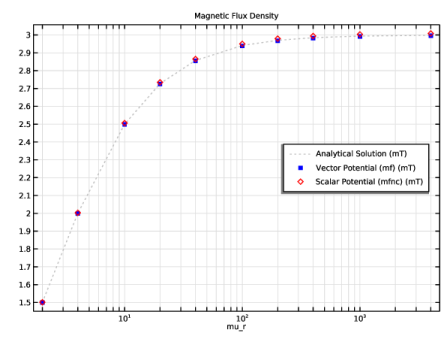
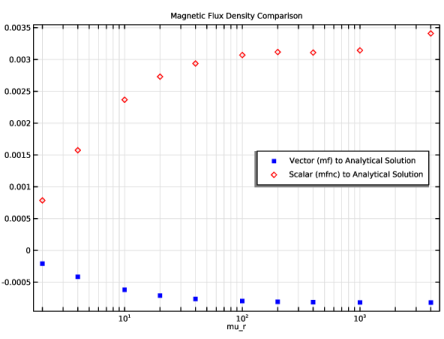
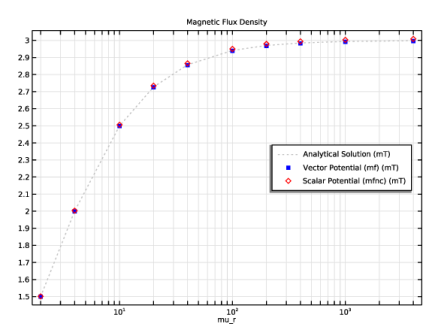
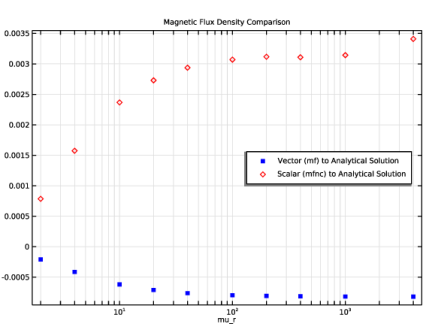
Figure 4 shows the field enhancement versus the permeability for both cases, along with the analytic solution. The relative difference is plotted in Figure 5. In the limit as the mesh is refined the solutions agree within numerical precision.
Figure 4: The magnetic flux density calculated using all three methods.
Figure 5: Relative difference of the flux density compared to the analytical solution.
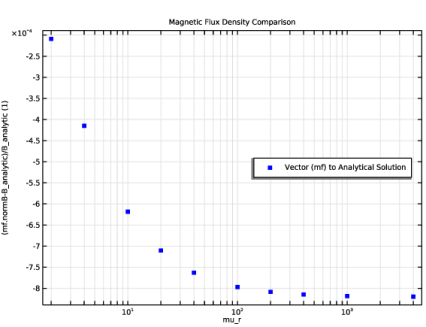
There are some differences between the two formulations. In this case, the Magnetic Fields interface slightly underestimates the field strength, while the Magnetic Fields, No Current interface overestimates it. The agreement with the analytic solution for both formulations improves with increasing mesh refinement. Although the Magnetic Fields, No Currents interface requires a finer mesh for approximately the same level of accuracy, it does use less total memory. Its drawback is that it cannot be used to model situations where there is any current flowing in the model, or any variation with respect to time.
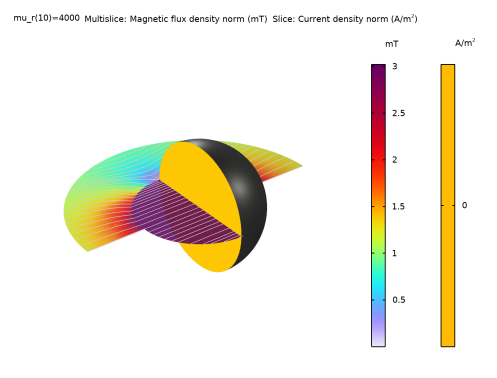
Figure 6: A cross section of the iron sphere showing no current flowing in the sphere and the magnetic flux of the background magnetic field.
Application Library path: ACDC_Module/Introductory_Electromagnetics/iron_sphere_bfield_01_static
Modeling Instructions
This tutorial will demonstrate the physics of an iron sphere in a static, spatially uniform magnetic field. The instructions on the following pages will help you to build, configure, solve, and analyze the model. If anything seems out of order, please retrace your steps. The finalized model — available in the model’s Application Libraries folder — can help you out. You can compare it directly to your current model by means of the Compare option in the Developer toolbar.
The geometry, materials, and selections have been prepared in the Introduction tutorial (chapter 1). They have been saved in the file iron_sphere_bfield_00_introduction.mph. You can start by opening this file and saving it under a new name.
Hint: if you are new to COMSOL Multiphysics, it is worthwhile to check out the Introduction tutorial first.
1
From the File menu, choose Open.
2
3
From the File menu, choose Save As.
4
Global Definitions
Parameters 1
To begin, enter the parameters specific for this model. Namely, the value for the relative permeability of the iron sphere and the analytic calculation of the magnetic field in the sphere. The study will sweep these parameters to get a range of results.
1
In the Model Builder window, under Global Definitions click Parameters 1.
2
In the Settings window for Parameters, locate the Parameters section.
3
Materials
Iron (mat2)
1
In the Model Builder window, under Component 1 (comp1) > Materials click Iron (mat2).
2
In the Settings window for Material, locate the Material Contents section.
3
This vector potential formulation does not require much detail in the outer layers so we can adjust the mesh to optimize calculation time.
Mesh 1
1
In the Model Builder window, under Component 1 (comp1) click Mesh 1.
2
In the Settings window for Mesh, locate the Physics-Controlled Mesh section.
3
From the Element size list, choose Fine.
4
Locate the Sequence Type section. From the list, choose User-controlled mesh.
Distribution 1
1
In the Model Builder window, expand the Component 1 (comp1) > Mesh 1 > Swept 1 node, then click Distribution 1.
2
In the Settings window for Distribution, locate the Distribution section.
3
In the Number of elements text field, type 2.
4
Click  Build All.
5
Click the  Zoom Extents button in the Graphics toolbar.
Note: In the introduction modeling steps, the nearest upper quarter sphere was hidden to improve visibility in the result plots. This allows the visibility of the mesh layers of the Infinite Element Domain and the Analysis Domain.
Study 1
Step 1: Frequency Domain
As this particular model has a static background magnetic field, the Frequency Domain study is removed and replaced it with a Stationary study.
1
In the Model Builder window, expand the Study 1 node.
2
Right-click Study 1 > Step 1: Frequency Domain and choose Disable.
Step 2: Stationary
1
In the Study toolbar, click  Study Steps and choose Stationary > Stationary.
2
In the Settings window for Stationary, click to expand the Study Extensions section.
3
Select the Auxiliary sweep checkbox.
4
5
6
In the Study toolbar, click  Compute.
Results
Next, add a selection to the output plots to only look at the analysis domain as this is the area of interest.
Study 1/Solution 1 (sol1)
In the Model Builder window, expand the Results > Datasets node, then click Study 1/Solution 1 (sol1).
Selection
1
In the Results toolbar, click  Attributes and choose Selection.
2
In the Settings window for Selection, locate the Geometric Entity Selection section.
3
From the Geometric entity level list, choose Domain.
4
From the Selection list, choose Analysis domain.
5
Click the  Zoom to Selection button in the Graphics toolbar.
This sets the default plot to only show the analysis domain.
Magnetic Flux Density (mf)
1
In the Model Builder window, under Results click Magnetic Flux Density (mf).
2
In the Magnetic Flux Density (mf) toolbar, click  Plot.
3
Click the  Zoom Extents button in the Graphics toolbar.
Make a Cut Point at the origin position. This will be used to evaluate the magnetic flux density a the center of the iron sphere.
Cut Point 3D 1
1
In the Results toolbar, click  Cut Point 3D.
2
In the Settings window for Cut Point 3D, locate the Point Data section.
3
In the x text field, type 0.
4
In the y text field, type 0.
5
In the z text field, type 0.
Magnetic Flux Density
1
In the Results toolbar, click  1D Plot Group.
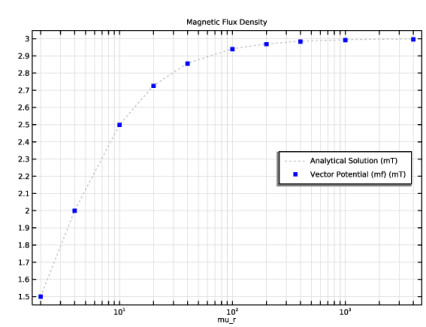
The Cut Point can be used to plot the magnetic flux density evaluated at that point from both the analytic value, B_analytic, and the numerically computed result, mf.normB, for each value of mu_r.
2
In the Settings window for 1D Plot Group, type Magnetic Flux Density in the Label text field.
3
Locate the Axis section. Select the x-axis log scale checkbox.
4
Click to expand the Title section. From the Title type list, choose Label.
5
Locate the Legend section. From the Position list, choose Middle right.
Analytical Solution
1
Right-click Magnetic Flux Density and choose Point Graph.
2
In the Settings window for Point Graph, type Analytical Solution in the Label text field.
3
Locate the y-Axis Data section. In the Expression text field, type B_analytic.
4
From the Unit list, choose mT.
5
Click to expand the Coloring and Style section. Find the Line style subsection. From the Line list, choose Dotted.
6
From the Color list, choose Gray.
7
Locate the Data section. From the Dataset list, choose Cut Point 3D 1.
8
Click to expand the Title section. From the Title type list, choose Label.
9
Click to expand the Legends section. Select the Show legends checkbox.
10
Find the Include subsection. Select the Label checkbox.
11
Clear the Solution checkbox.
12
Clear the Point checkbox.
13
Select the Unit checkbox.
14
In the Magnetic Flux Density toolbar, click  Plot.
Vector Potential (mf)
1
In the Model Builder window, right-click Magnetic Flux Density and choose Point Graph.
2
In the Settings window for Point Graph, type Vector Potential (mf) in the Label text field.
3
Locate the Data section. From the Dataset list, choose Cut Point 3D 1.
4
Locate the y-Axis Data section. From the Unit list, choose mT.
5
Locate the Coloring and Style section. Find the Line style subsection. From the Line list, choose None.
6
Find the Line markers subsection. From the Marker list, choose Point.
7
From the Color list, choose Blue.
8
Locate the Title section. From the Title type list, choose Label.
9
Locate the Legends section. Select the Show legends checkbox.
10
Find the Include subsection. Select the Label checkbox.
11
Clear the Solution checkbox.
12
Clear the Point checkbox.
13
Select the Unit checkbox.
14
In the Magnetic Flux Density toolbar, click  Plot.
15
Click the  Zoom Extents button in the Graphics toolbar.
The Magnetic Flux Density increases with the permeability of the iron sphere, reaching a maximum value of ~3 mT at mu_r = 4000. This is the permeability value used in the other tutorials in this series. The numerical results are very close to the analytical solution. To look at the difference more closely, we can now plot the difference between these data points.
Magnetic Flux Density Comparison
1
In the Results toolbar, click  1D Plot Group.
2
In the Settings window for 1D Plot Group, type Magnetic Flux Density Comparison in the Label text field.
3
Locate the Title section. From the Title type list, choose Label.
4
Locate the Legend section. From the Position list, choose Middle right.
5
Locate the Axis section. Select the x-axis log scale checkbox.
Vector (mf) to Analytical Solution
1
Right-click Magnetic Flux Density Comparison and choose Point Graph.
2
In the Settings window for Point Graph, locate the Data section.
3
From the Dataset list, choose Cut Point 3D 1.
4
Locate the y-Axis Data section. In the Expression text field, type (mf.normB-B_analytic)/B_analytic.
5
Locate the Title section. From the Title type list, choose Label.
6
Locate the Coloring and Style section. Find the Line style subsection. From the Line list, choose None.
7
Find the Line markers subsection. From the Marker list, choose Point.
8
From the Color list, choose Blue.
9
Click to expand the Legends section. In the Label text field, type Vector (mf) to Analytical Solution.
10
Locate the Legends section. Select the Show legends checkbox.
11
Find the Include subsection. Select the Label checkbox.
12
Clear the Point checkbox.
13
Clear the Solution checkbox.
14
In the Magnetic Flux Density Comparison toolbar, click  Plot.
15
Click the  Zoom Extents button in the Graphics toolbar.
The vector potential formulation slightly underestimates the magnetic flux density when compared to the analytically solved case.
Add Physics
The vector potential formulation is very close to the analytical solution. However, using a scalar formulation for the magnetic flux density can be less computationally expensive. The next section will demonstrate how to compute the solution with this.
1
In the Home toolbar, click  Add Physics to open the Add Physics window.
2
Go to the Add Physics window.
3
In the tree, select AC/DC > Magnetic Fields, No Currents > Magnetic Fields, No Currents (mfnc).
4
Click the Add to Component 1 button in the window toolbar.
5
In the Home toolbar, click  Add Physics to close the Add Physics window.
Magnetic Fields, No Currents (mfnc)
1
In the Settings window for Magnetic Fields, No Currents, locate the Background Magnetic Field section.
2
From the Solve for list, choose Reduced field.
3
Specify the Hb vector as
Magnetic Flux Conservation in Solids 1
1
In the Physics toolbar, click  Domains and choose Magnetic Flux Conservation in Solids.
2
In the Settings window for Magnetic Flux Conservation in Solids, locate the Domain Selection section.
3
From the Selection list, choose Iron Sphere.
Zero Magnetic Scalar Potential 1
1
In the Physics toolbar, click  Points and choose Zero Magnetic Scalar Potential.
2
So far the magnetic potential is not constrained anywhere and the solution can only be computed up to a constant. This model uses a zero magnetic scalar potential applied to a point on the surface of the air domain. This provides a reference point enabling the numerical solver to produce a unique solution.
Component 1 (comp1)
For the second study a mesh with greater detail is required. The default mesh parameters using a "fine" element size provides suitable detail for the scalar potential formulation.
Mesh 2
1
In the Mesh toolbar, click Add Mesh and choose Add Mesh.
2
In the Settings window for Mesh, locate the Physics-Controlled Mesh section.
3
From the Element size list, choose Fine.
4
In the table, clear the Use checkbox for Magnetic Fields (mf).
5
Click  Build All.
6
Click the  Zoom Extents button in the Graphics toolbar.
Study 1
The mfnc interface is only used in the second study of this tutorial. This interface can be removed from the first solver in case the user wishes to rerun the first study at a later point.
Step 2: Stationary
1
In the Model Builder window, under Study 1 click Step 2: Stationary.
2
In the Settings window for Stationary, locate the Physics and Variables Selection section.
3
In the Solve for column of the table, under Component 1 (comp1), clear the checkbox for Magnetic Fields, No Currents (mfnc).
Add Study
Next, add a study that only uses the mfnc interface to obtain the solution using the vector potential formulation.
1
In the Study toolbar, click  Add Study to open the Add Study window.
2
Go to the Add Study window.
3
Find the Studies subsection. In the Select Study tree, select General Studies > Stationary.
4
Click the Add Study button in the window toolbar.
5
In the Study toolbar, click  Add Study to close the Add Study window.
Study 2
Scalar potential formulation
1
In the Settings window for Stationary, type Scalar potential formulation in the Label text field.
2
Locate the Study Extensions section. Select the Auxiliary sweep checkbox.
3
4
5
Locate the Physics and Variables Selection section. In the Solve for column of the table, under Component 1 (comp1), clear the checkbox for Magnetic Fields (mf).
Magnetic Flux Density (mfnc)
In the Study toolbar, click  Compute.
Study 2/Solution 2 (sol2)
In the Model Builder window, under Results > Datasets click Study 2/Solution 2 (sol2).
Selection
1
In the Results toolbar, click  Attributes and choose Selection.
2
In the Settings window for Selection, locate the Geometric Entity Selection section.
3
From the Geometric entity level list, choose Domain.
4
From the Selection list, choose Analysis domain.
Magnetic Flux Density (mfnc)
1
In the Model Builder window, under Results click Magnetic Flux Density (mfnc).
2
In the Magnetic Flux Density (mfnc) toolbar, click  Plot.
3
Click the  Zoom Extents button in the Graphics toolbar.
Create a second Cut Point to evaluate the second data set from the new study.
Cut Point 3D 2
1
In the Results toolbar, click  Cut Point 3D.
2
In the Settings window for Cut Point 3D, locate the Data section.
3
From the Dataset list, choose Study 2/Solution 2 (sol2).
4
Locate the Point Data section. In the x text field, type 0.
5
In the y text field, type 0.
6
In the z text field, type 0.
7
Scalar Potential (mfnc)
1
In the Model Builder window, right-click Magnetic Flux Density and choose Point Graph.
2
In the Settings window for Point Graph, type Scalar Potential (mfnc) in the Label text field.
3
Locate the Data section. From the Dataset list, choose Cut Point 3D 2.
4
Locate the y-Axis Data section. In the Expression text field, type mfnc.normB.
5
From the Unit list, choose mT.
6
Locate the Title section. From the Title type list, choose Label.
7
Locate the Coloring and Style section. Find the Line style subsection. From the Line list, choose None.
8
Find the Line markers subsection. From the Marker list, choose Diamond.
9
From the Color list, choose Red.
10
Locate the Legends section. Select the Show legends checkbox.
11
Find the Include subsection. Select the Label checkbox.
12
Clear the Point checkbox.
13
Clear the Solution checkbox.
14
Select the Unit checkbox.
15
In the Magnetic Flux Density toolbar, click  Plot.
16
Click the  Zoom Extents button in the Graphics toolbar.
Add the difference between the scalar potential formulation and the analytical solution
Scalar (mfnc) to Analytical Solution
1
In the Model Builder window, right-click Magnetic Flux Density Comparison and choose Point Graph.
2
In the Settings window for Point Graph, type Scalar (mfnc) to Analytical Solution in the Label text field.
3
Locate the Data section. From the Dataset list, choose Cut Point 3D 2.
4
Locate the y-Axis Data section. In the Expression text field, type (mfnc.normB-B_analytic)/B_analytic.
5
Locate the Coloring and Style section. Find the Line style subsection. From the Line list, choose None.
6
Find the Line markers subsection. From the Marker list, choose Diamond.
7
From the Color list, choose Red.
8
Locate the Legends section. Select the Show legends checkbox.
9
Find the Include subsection. Select the Label checkbox.
10
Clear the Point checkbox.
11
Clear the Solution checkbox.
12
In the Magnetic Flux Density Comparison toolbar, click  Plot.
13
Click the  Zoom Extents button in the Graphics toolbar.
This plot shows the Scalar Potential formulation overestimates the magnetic flux density compared to the analytical solution.
The Scalar Potential formulation used by the Magnetic Fields, No Currents (mfnc) physics interface has the advantages of having a faster computing time. These can be compared by looking in the information in the respective Study Settings windows. However, this comes at the cost requiring a finer mesh while still achieving a less accurate result when compared to the Vector Potential formulation used by the Magnetic Fields (mf) physics interface. The mfnc interface also is limited to stationary studies and does not include current changes overtime. These are factors that require considering when designing simulations in using these physics modules.