|
1
|
|
2
|
|
3
|
|
4
|
|
5
|
|
6
|
|
7
|
|
8
|
|
9
|
|
10
|
|
11
|
|
16
|
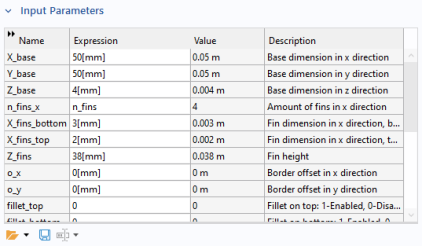
In the Settings window for Part Instance, locate the row for the parameter n_fins_x in the Input Parameters section and enter n_fins as value expression. Then define X_fins_bottom and X_fins_top to 3[mm] and 2[mm]respectively.
 |
|
18
|
|
19
|
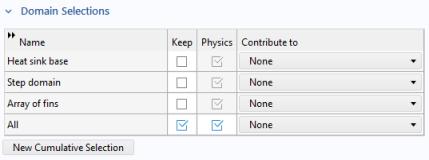
Click to expand the Domain Selections section. For row number 4 labeled All in the table, click to select the Keep checkbox to make the domain selection available in the physics interfaces. This selection corresponds to all the geometrical domains of the heat sink.
 |
|
21
|
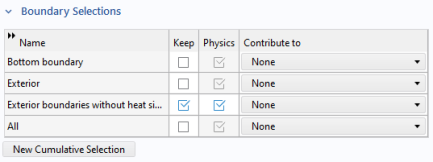
Click to expand the Boundary Selections section. For row number 3 labeled Exterior boundaries without heat sink base in the table, click to select the Keep checkbox.
 |
 and select Parameters 1.
 .
.
 .
. .
.
 .
.
 .
. .
.