Loft
To create a lofted object from a set of profiles in 3D, in the Geometry toolbar, click Loft (). You can also right-click the Geometry node and add this node from the context menu. Enter the properties of the loft operation according to the following sections.
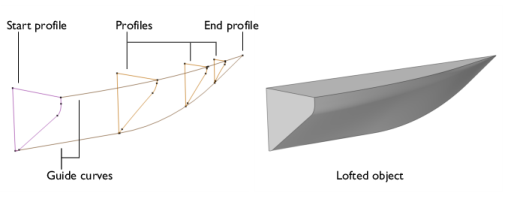
Each profile is a chain or loop of edges, also called a profile curve. The profiles must be all open or all closed, and they must have the same number of edges. The output is a loft surface, which consists of one or several faces that interpolate the profiles. In the closed curve case, a profile can optionally contain a set of faces (with manifold topology) that is bounded by the profile curve. These faces can be added to the loft surface to give the resulting object. The start and end profiles can degenerate to a point. Also, in the closed profile case, the start and end profiles can degenerate to an open curve. The loft can be periodic, which means that the end profile should not be specified because it equals the start profile (in this case the degenerate profiles are not allowed).
There can also be curves in the lofting direction that the loft surface should interpolate; these are called guide curves. If there are no guide curves, there must be at least two profiles.
General
Select or clear the following checkboxes as needed.
Select the Periodic loft checkbox to create a periodic loft, for which the start and end profiles coincide.
If the Unite with input objects checkbox is selected, the resulting object is the union of the loft surface with the objects containing the start and end profiles and the objects containing the start and end guide curves. The faces that might exist in the start and end profiles are always included in the resulting object.
Select Remove redundant profile vertices to remove vertices that separate edges with identical curves before generating the loft. This option is useful when the outputs of Interpolation Curve features is used as profiles for the loft.
If the Keep intermediate profile faces checkbox is selected, faces in the intermediate profile objects are added to the resulting object. Any faces belonging to the start and end profiles are always kept.
Select an Object typeSolid (the default) or Surface. This determines whether domains should be created in the resulting object.
Select a Face partitioning:
-
If Minimal (the default) is selected, the loft surface is divided along the loft direction only at vertices where the profile curve has a tangent discontinuity.
-
If Columns is selected, the loft surface is divided along the loft direction at each vertex of the profile curves.
-
If Grid is selected, in addition to the Columns partitioning, the loft surface is divided by the profile curves. The loft surface is always partitioned by the profile faces when Keep intermediate profile faces is selected.
Profiles
This section specifies the profiles that are not specified in the Start Profile or End Profile sections.
Select the objects that you want to use as profiles in the Graphics window. You can select a set of connected surface objects, curve objects, or point objects. Surface objects must have manifold topology and be bounded by a single edge loop. Curve objects must be a single edge loop or chain. Point objects are only allowed for use as start or end profiles and must have a single vertex. The selected objects appear in the Profile objects list. If the geometry sequence includes user-defined selections above the Loft node, choose Manual to select objects, or choose one of the selection nodes from the list next to Profile objects.
Click the Active button to toggle between turning ON and OFF the Profile objects selection.
Start Profile
Use this section to specify the start profile in the following cases:
In other cases, you can specify the start profile in the Profiles section, and leave the selection in the Start Profile section empty.
Select a Geometric entity level for the profile — Object, Point, Edge, or Boundary. Click to select the entities in the Graphics window. An object selection must fulfill the requirements detailed in the Profiles section. A point selection must consist of a single point. An edge selection must form a single edge loop or chain. A boundary selection must have manifold topology and be bounded by a single edge loop. The selected entities appear in the Start profile list. If the geometry sequence includes user-defined selections above the Loft node, choose Manual to select objects or entities, or choose one of the selection nodes from the list next to Input objects.
Click the Active button to toggle between turning ON and OFF the Start profile selection.
Select a Loft directionNot prescribed (the default), Parallel, Perpendicular, or At angle. For Parallel the loft direction is prescribed along the profile curve, while for Perpendicular or At angle it is only prescribed at the vertices on the profile curve.
Select Relative toAdjacent faces (the default), Profile faces, or Profile edges’ plane. When At angle is selected, also enter an Angle (SI unit: deg).
End Profile
The settings for this section are analogous to the Start Profile section. This section should not be used if the loft is periodic.
Guide Curves
Use this section if you want to specify guide curves for the lofted object.
Select the objects that you want to use as guides in the Graphics window. You can select a set of curve objects. In the nonperiodic case, each guide object must be a single edge chain. In the periodic case, each guide object must be a single edge loop. Each guide object must have continuous tangents and intersect each profile exactly once. The objects appear in the Guide objects list. If the geometry sequence includes user-defined selections above the Loft node, choose Manual to select objects, or choose one of the selection nodes from the list next to Guide objects.
Click the Active button to toggle between turning ON and OFF the Guide objects selection.
Start Guide Curves
Use this section to specify the start guide curve in the following cases:
In other cases, you can specify the start guide curve in the Guide Curves section, and leave the selection in the Start Guide Curve section empty.
The selected set of edges must form a single edge loop or chain, and fulfill the other requirements on a guide curve. Click the Active button to toggle between turning ON and OFF the Edges selection.
Select a Loft surface directionNot prescribed (the default) or Parallel to adjacent faces, which means that the loft surface is prescribed to be tangent to the adjacent faces along the guide curve.
End Guide Curves
The settings for this section are analogous to the Start Guide Curve. This section should not be used in the closed profile case.
Selections of Resulting Entities
If you want to make the resulting entities contribute to a cumulative selection, select a cumulative selection from the Contribute to list (the default, None, gives no contribution), or click the New button to create a new cumulative selection (see Cumulative Selections in the COMSOL Multiphysics Reference Manual).
Select the Resulting objects selection checkbox to create predefined selections (for all levels — objects, domains, boundaries, edges, and points — that are applicable) in subsequent nodes in the geometry sequence. To also make all or one of the types of resulting entities (domains, boundaries, edges, and points) that the resulting objects consist of available as selections in all applicable selection lists (in physics and materials settings, for example), choose an option from the Show in physics list: All levels, Domain selection, Boundary selection, Edge selection, or Point selection. The default is Domain selection, which is suitable for use with materials and physics defined in domains. For use with a boundary condition, for example, choose Boundary selection. These selections do not appear as separate selection nodes in the model tree. Select Off to not make any selection available outside of the geometry sequence.
Selections on Input Objects
If you have Named Selections that include entities on the input objects, select the Propagate selections to resulting objects (selected by default) checkbox to update the selections to corresponding entities on the output objects, when possible. Clear the checkbox to not propagate the selection to the resulting objects. Selecting this option can be useful in combination with clearing the Unite with input objects checkbox so that the selections refer only to the input objects.
Assigned Attributes
From the Construction geometry list choose On to make the resulting objects available only in the feature’s geometry sequence. The default option Inherit from input means that the resulting objects become construction geometry if all input objects are construction geometry. Choose Off to never output construction geometry objects. For more information see Construction Geometry in the COMSOL Multiphysics Reference Manual.