) menu, select Fillet (
 ). You can also right-click the Geometry node and add this node from the context menu.) menu, select Fillet (). You can also right-click the Geometry node and add this node from the context menu.
|
•
|
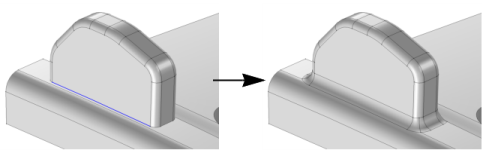
For Constant radius, the fillet surface is generated by rolling a ball of the given radius so that it is tangent to the faces adjacent to the edge. When you build the feature, the faces adjacent to the selected edges are shrunk and a fillet face is inserted in between.
 |
|
•
|
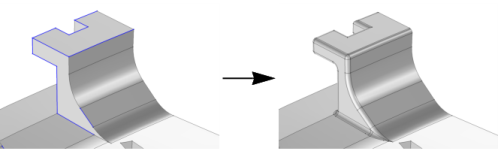
For Constant width, the fillet face is generated in a way that the distance between the two edges that separate the fillet face from the adjacent faces is constant.
|
|
•
|
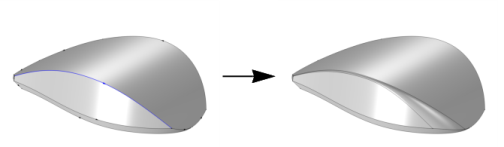
For Variable radius, you can specify the radius at chosen locations along the selected edges. The fillet radius is then interpolated between the given radius values.
 |
|
•
|
The Edge column displays the edge numbers for the selected edges. When you select a row in the table the corresponding edge is highlighted in the Graphics window.
|
|
•
|
In the Parameter column enter the relative arc length parameter where the radius is specified along an edge. The parameter can have values between 0 (at the start vertex of the edge) and 1 (at the end vertex of the edge). See the direction arrows displayed in the Graphics window for determining the edge orientations.
|
|
•
|
In the Radius column enter the value for the radius to be applied at the location along the edge specified by the parameter. The radius value can be a positive number or 0. An empty cell (the default) means that the radius is not defined, and that the row for the corresponding location is ignored when creating the fillet.
|
|
•
|
Select the checkbox (cleared by default) in the Clamp column to constrain to zero the derivative of the fillet radius with respect to the relative arc length parameter at this point along the edge.
|
 ) or Insert Below (
 ) button to add rows to the table for specifying radius values at additional locations along an edge. Select a row and click Delete (
 ) to remove it from the table. Only rows that do not correspond to the first and last points of an open ended chain are possible to delete. You can also leave a radius field empty to ignore a row when creating the fillet.
 ) to insert one row for each fillet edge that is missing from the table, and to sort the table. The Delete Rows Without Radius (
 ) button is useful to compact the table in case there are many rows with empty radius values. Rows that correspond to the first and last points of an open edge chain are not deleted since you need to specify a radius for these. For a better overview of the specified radius values click the Sort Edge Chains (
 ) button. The table is then sorted primarily on the edge chains, secondly on the natural order of the edges, and thirdly on the parameters in the chain’s direction.
|
•
|
If the Propagate to tangent edges checkbox is selected, the fillet is propagated to edges that have continuous tangent to the edges selected in Edges to fillet. This checkbox is available only when Type is Constant radius or Constant width.
|
|
•
|
If the Preserve overlapped entities checkbox is selected, geometric features such as holes and bosses on faces that are overlapped by the fillet surface are preserved.
|
|
•
|
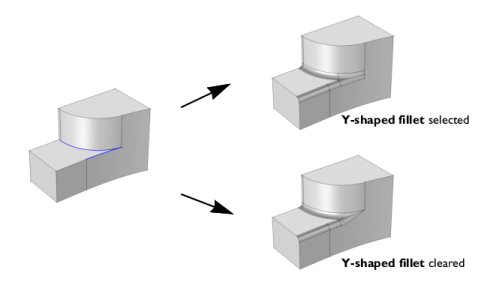
Select the Y-shaped fillet checkbox to get a y-shaped fillet at a vertex where three or more edges meet and there are two fillet surfaces of different convexity. This option is not available when the fillet Type is Constant width. In some cases, using this option is necessary for the operation to succeed.
 |
|
•
|
Select the Fillet sharp edges at vertices checkbox to get a smooth fillet surface at vertices where two filleted edges intersect at an angle. This option is not available when the fillet Type is Constant width.
|