The Java Shell and Data Viewer Windows
The Java Shell window is an interactive environment that provides a command prompt for running Java code, supporting all the features of the Method Editor such as code completion, syntax highlighting, and more. This functionality can be used to quickly modify a model through the COMSOL API for Java, without needing to create a method first. It can be used to, for example, prototype code for methods, bulk create features, inspect properties, or change declaration variables. It is also useful for debugging methods, allowing you to perform code evaluations while stopped at a breakpoint.
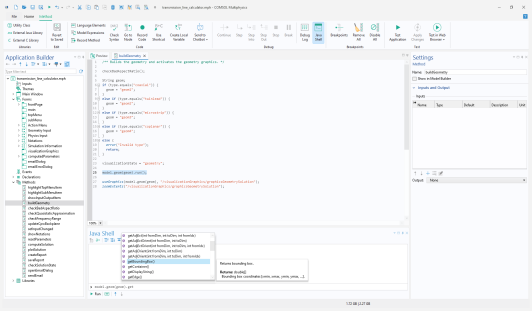
The Java Shell window can be accessed from the Model Builder, Application Builder, and Model Manager, by selecting it from the Windows menu in the Home tab. The figure below shows the Java Shell window used to debug the buildGeometry method in the Transmission Line Calculator tutorial app.
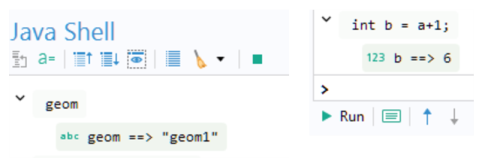
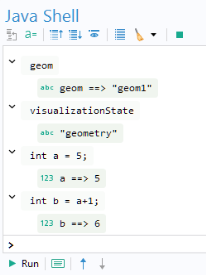
The Data Viewer window is used to display and edit parameters, declarations, and Java variables when stopped at a breakpoint. The Data Viewer window is always accessible, including in the Model Builder workspace, allowing for quick viewing and updating of parameters and declarations no matter where you are in the user interface. The window also shows Java variables from the Java Shell window. The Java Shell window can also be used to define temporary Java variables, as illustrated in the figure below where the temporary integer variables a and b are initialized and used.
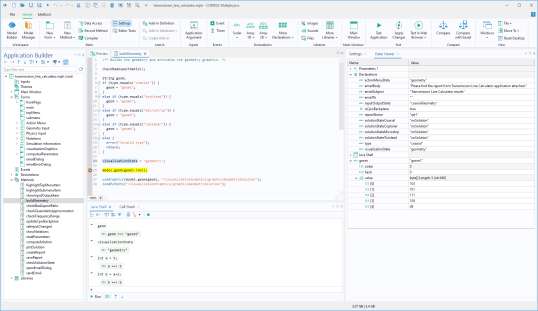
This functionality can be helpful when debugging code. Note that all Application Builder variables as well as temporary Java Shell window variables are displayed in the Data Viewer window, as shown in the figure below.
At the top and bottom of the Java Shell window are two toolbars used to access different features.
These toolbars contain the following buttons:
Go to Node: Jumps to the corresponding node in the model tree.
Data Viewer: Opens the Data Viewer window.
Collapse All: Collapses all content.
Expand All: Expands all content.
Only List Input: Displays only the input commands in the output area.
Display Session Content: Displays the entire session content in the output area.
Clear Output Area: Clears all content from the output area; however, no shell variables are removed.
Reset Session: Clears all content from the output area and removes shell variables.
Stop: Stops code execution.
Run: Runs code entered at the command prompt. Alternatively, you can press Enter.
Multiline Input: Makes it possible to add and then run multiple lines of commands. To run the code you can click the Run button or press Ctrl+Enter.
Previous in History: Moves up in the command history.
Next in History: Moves down in the command history.
Note that you get additional options by right-clicking the output area.
The Java Shell session is reset when you open or start a new model and no content is saved between sessions. To make persistent changes, you need to change the model object and then save the model or use declarations in the Application Builder.
To interact with the model tree, commands should begin with model. and continue with the appropriate methods. Code completion is available as a tooltip, suggesting possible completions. For example, if you type model.bas, the tooltip displays model.baseSystem() and model.baseSystem(String name) as options. You can also activate code completion using Ctrl+Space.
For instance, if you enter
model.baseSystem("mpa");
and run the command, the Unit System in the root node updates from SI to MPa.
The Java Shell automatically generates local shell variables for output associated with the model object. By default, these variables have the same names as the tags of the model object. For example, if you type:
model.geom().create("geom1",3)
you will see the following output:
geom1 ==> Geometry 1
A local variable named geom1 is created in the shell, allowing you to use:
geom1.angularUnit("deg")
instead of:
model.geom("geom1").angularUnit("deg")
from that point forward.
You can select text in a message, then right-click and choose Copy (or press Ctrl+C) to copy the text. To copy the content of any output from that input, select Copy Children. You can also right-click to delete it from the output area by choosing Delete (or press Delete).
To re-run code, right-click and select Run. Additionally, you can send the message content to the input area or the Chatbot window by choosing Send to Input or Send to Chatbot, respectively. For a detailed view, right-click and select Details to open the message in a separate window that can be resized. The Details window supports both inputs and outputs. Input code is displayed with syntax highlighting and search functionality is provided in a panel that you open by pressing Ctrl+F.
If you encounter errors, sending them to the Chatbot window can help you get improved code suggestions. Note that when writing to standard output or standard error in the Java Shell window, the output appears in the same window. For example:
System.out.println("Foo");
However, this behavior differs when running a method created in the Method Editor. In this case, standard output and standard error are not displayed. In an upcoming version, these outputs will instead be directed to the Debug Log window.