You are viewing the documentation for an older COMSOL version. The latest version is available here.
PDF

Optimization of a Photonic Crystal for Demultiplexing
Introduction
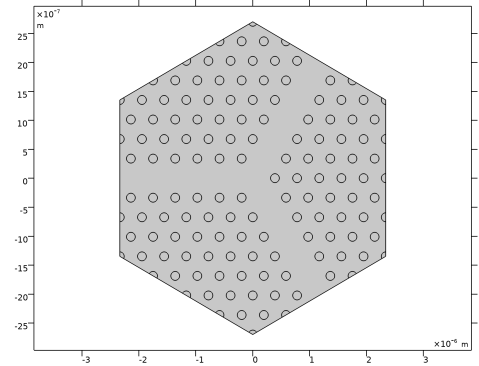
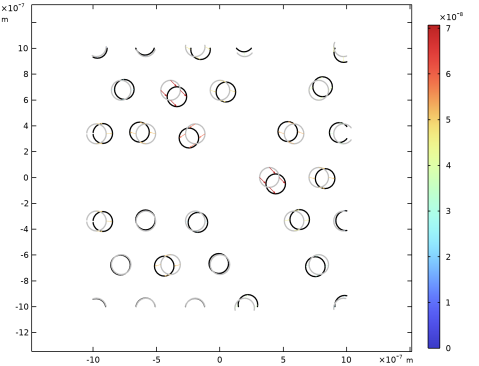
Photonic crystal devices are periodic structures of alternating layers of materials with different refractive indices. This model demonstrates how to apply shape optimization to a photonic crystal. The objective function is to maximize the output power ratio between two narrow frequency bands, while constraining the loss from below. This is achieved by letting GaAs pillars change position but not shape. The implementation makes use of the Free Shape Domain and Transformation features, so that gradient-based optimization can be applied.
Model Definition
The objective function is defined in terms of the average magnitude of the output powers for a given wavelength, λ:
with the following constants: ψ = 0.25 nW/m, m = 0.05 nW/m, n = 1.99 and the bandwidth λΔ = 0.01 μm. The wavelengths λ1 and λ2 are equal to 1 μm and 1.1 μm, respectively. The power outflow is denoted by Pout.
The objective thus is to minimize the maximum of a list of objective functions. The MMA optimization solver is well suited for such problems. The topology of the mesh is fixed to allow for gradient-based optimization. To simplify manufacturing, the shape of the cylinder is also fixed. Thus, the only thing that is allowed to change is the cylinder positions. If they are allowed to move far, they might collide and cause error messages about inverted elements or NaN/Inf values. To avoid this, the cylinders are constrained to move 50 nm in the x and y directions.
Results and Discussion
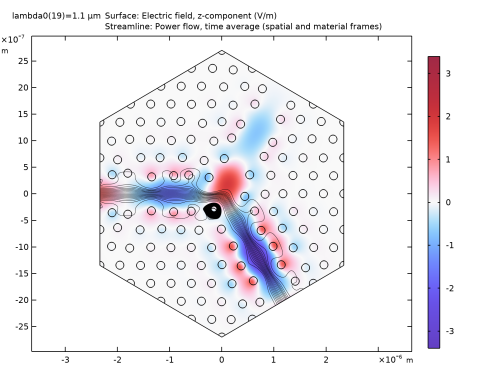
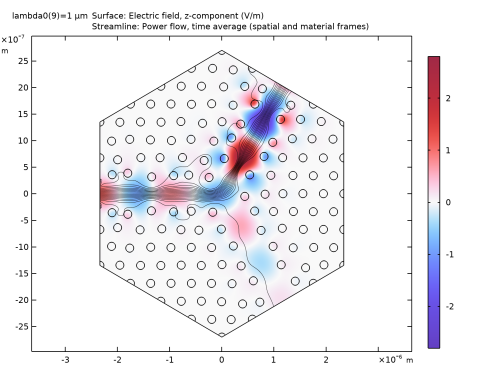
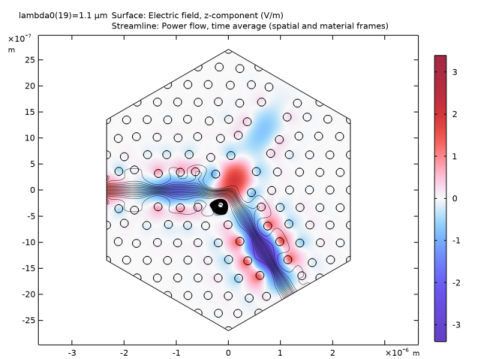
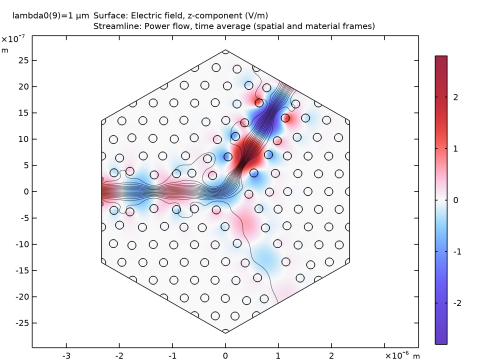
Figure 1 and Figure 2 show the z-component of the electric field in the optimized geometry for the two of the wavelengths.
Figure 1: The z-component of the electric field for the lower frequency band. The wave propagates to the lower output.
Figure 2: The z-component of the electric field for the higher frequency band. The wave propagates to the upper output.
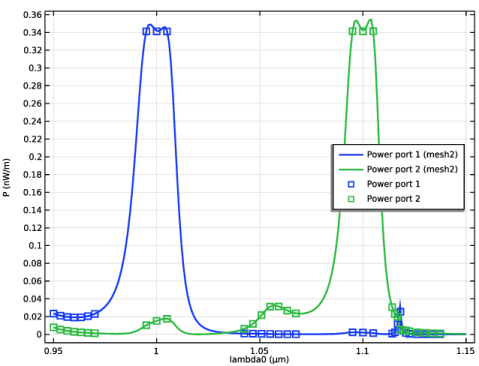
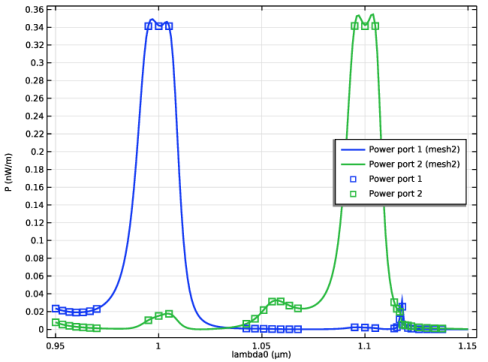
The graphs in Figure 3 are based on an analysis, where the mesh has been regenerated in the deformed configuration. The purpose of this is to ensure that the optimization result does not rely on unphysical numerical effects.
Figure 3: The two auxiliary objective functions are plotted as a function of the frequency. The points indicate the frequencies used to approximate the two frequency bands.
Reference
1. J.D. Joannopoulos, R.D. Meade, and J.N. Winn, Photonic Crystals (Modeling the Flow of Light), Princeton University Press, 1995.
Application Library path: Wave_Optics_Module/Waveguides_and_Couplers/photonic_crystal_demultiplexer_optimization
Modeling Instructions
From the File menu, choose New.
New
In the New window, click  Model Wizard.
Model Wizard
1
In the Model Wizard window, click  2D.
2
In the Select Physics tree, select Optics>Wave Optics>Electromagnetic Waves, Frequency Domain (ewfd).
3
Click Add.
4
Click  Study.
5
In the Select Study tree, select Preset Studies for Selected Physics Interfaces>Wavelength Domain.
6
Geometry 1
Create the geometry. To simplify this step, insert a prepared geometry sequence.
1
In the Geometry toolbar, click Insert Sequence and choose Insert Sequence.
2
Browse to the model’s Application Libraries folder and double-click the file photonic_crystal_demultiplexer_optimization_geom_sequence.mph.
3
In the Geometry toolbar, click  Build All.
4
Click the  Zoom Extents button in the Graphics toolbar.
5
In the Model Builder window, collapse the Geometry 1 node.
Materials
Air
1
In the Model Builder window, under Component 1 (comp1) right-click Materials and choose Blank Material.
2
In the Settings window for Material, type Air in the Label text field.
3
Locate the Material Contents section. In the table, enter the following settings:
The pillars are made of Gallium arsenide (GaAs), which is available in the Optical Material Database. Follow the instructions below to add it to the model. Note that the refractive index of GaAs depends on the frequency.
Add Material
1
In the Home toolbar, click  Add Material to open the Add Material window.
2
Go to the Add Material window.
3
In the tree, select Optical>Inorganic Materials>As - Arsenides>Experimental data>GaAs (Gallium arsenide) (Papatryfonos et al. 2021: n,k 0.260-1.88 um).
4
Click Add to Component in the window toolbar.
5
In the Home toolbar, click  Add Material to close the Add Material window.
Materials
GaAs (Gallium arsenide) (Papatryfonos et al. 2021: n,k 0.260-1.88 um) (mat2)
1
In the Settings window for Material, locate the Geometric Entity Selection section.
2
From the Selection list, choose Circle 1.
Electromagnetic Waves, Frequency Domain (ewfd)
1
In the Model Builder window, under Component 1 (comp1) click Electromagnetic Waves, Frequency Domain (ewfd).
2
In the Settings window for Electromagnetic Waves, Frequency Domain, locate the Components section.
3
From the Electric field components solved for list, choose Out-of-plane vector.
Scattering Boundary Condition 1
1
In the Physics toolbar, click  Boundaries and choose Scattering Boundary Condition.
2
In the Settings window for Scattering Boundary Condition, locate the Boundary Selection section.
3
From the Selection list, choose All boundaries.
Scattering Boundary Condition 2
1
In the Physics toolbar, click  Boundaries and choose Scattering Boundary Condition.
2
In the Settings window for Scattering Boundary Condition, locate the Boundary Selection section.
3
From the Selection list, choose Input Port.
4
Locate the Scattering Boundary Condition section. From the Incident field list, choose Wave given by E field.
5
Specify the E0 vector as
Mesh 1
In the Model Builder window, under Component 1 (comp1) right-click Mesh 1 and choose Build All.
Definitions
Power Port 1
1
In the Definitions toolbar, click  Probes and choose Boundary Probe.
2
In the Settings window for Boundary Probe, type Power Port 1 in the Label text field.
3
In the Variable name text field, type obj1.
4
Locate the Probe Type section. From the Type list, choose Integral.
5
Locate the Source Selection section. From the Selection list, choose Output Port 1.
6
Click Replace Expression in the upper-right corner of the Expression section. From the menu, choose Component 1 (comp1)>Electromagnetic Waves, Frequency Domain>Energy and power>ewfd.nPoav - Power outflow, time average - W/m².
Power Port 2
1
Right-click Power Port 1 and choose Duplicate.
2
In the Settings window for Boundary Probe, type Power Port 2 in the Label text field.
3
In the Variable name text field, type obj2.
4
Locate the Source Selection section. From the Selection list, choose Output Port 2.
Global Definitions
Wave Parameters
1
In the Home toolbar, click  Parameters and choose Add>Parameters.
2
In the Settings window for Parameters, type Wave Parameters in the Label text field.
3
Locate the Parameters section. In the table, enter the following settings:
Mesh 1
1
In the Model Builder window, under Component 1 (comp1) click Mesh 1.
2
In the Settings window for Mesh, locate the Sequence Type section.
3
From the list, choose User-controlled mesh.
Size
1
In the Model Builder window, under Component 1 (comp1)>Mesh 1 click Size.
2
In the Settings window for Size, locate the Element Size Parameters section.
3
In the Maximum element size text field, type meshsz.
4
In the Minimum element size text field, type meshsz/2.
5
In the Curvature factor text field, type Inf.
Size 1
1
In the Model Builder window, click Size 1.
2
In the Settings window for Size, locate the Geometric Entity Selection section.
3
From the Selection list, choose Circle 1.
4
Locate the Element Size Parameters section. In the Maximum element size text field, type meshsz/2.
5
In the Minimum element size text field, type meshsz/4.
6
Clear the Maximum element growth rate check box.
7
Clear the Curvature factor check box.
8
Clear the Resolution of narrow regions check box.
9
Click  Build All.
Study 1
Step 1: Wavelength Domain
1
In the Model Builder window, under Study 1 click Step 1: Wavelength Domain.
2
In the Settings window for Wavelength Domain, locate the Study Settings section.
3
From the Wavelength unit list, choose m.
4
In the Wavelengths text field, type range(lambda1-50[nm],1[nm],lambda2+50[nm]).
5
Click to expand the Results While Solving section. From the Probes list, choose None.
6
In the Model Builder window, click Study 1.
7
In the Settings window for Study, type Initial Design in the Label text field.
8
In the Home toolbar, click  Compute.
Component 1 (comp1)
Free Shape Domain 1
1
In the Definitions toolbar, click  Optimization and choose Shape Optimization>Free Shape Domain.
2
In the Settings window for Free Shape Domain, locate the Domain Selection section.
3
Click  Paste Selection.
4
In the Paste Selection dialog box, type 2 in the Selection text field.
5
Transformation 1
1
In the Definitions toolbar, click  Optimization and choose Shape Optimization>Transformation.
2
In the Settings window for Transformation, locate the Geometric Entity Selection section.
3
From the Selection list, choose Moving Domains.
4
Locate the Translation section. In the table, enter the following settings:
5
Locate the Scaling section. From the Scaling type list, choose No scaling.
Definitions
Objectives
1
In the Model Builder window, under Component 1 (comp1) right-click Definitions and choose Variables.
2
In the Settings window for Variables, type Objectives in the Label text field.
3
Locate the Variables section. In the table, enter the following settings:
Add Study
1
In the Home toolbar, click  Add Study to open the Add Study window.
2
Go to the Add Study window.
3
Find the Studies subsection. In the Select Study tree, select Preset Studies for Selected Physics Interfaces>Wavelength Domain.
4
Click Add Study in the window toolbar.
Add also an empty study that will be edited and used later.
5
In the Select Study tree, select Empty Study.
6
Click Add Study in the window toolbar.
7
In the Home toolbar, click  Add Study to close the Add Study window.
Initial Design
Disable the shape optimization for the first study.
Step 1: Wavelength Domain
1
In the Model Builder window, under Initial Design click Step 1: Wavelength Domain.
2
In the Settings window for Wavelength Domain, locate the Physics and Variables Selection section.
3
Study 2
Step 1: Wavelength Domain
1
In the Model Builder window, under Study 2 click Step 1: Wavelength Domain.
2
In the Settings window for Wavelength Domain, locate the Study Settings section.
3
In the Wavelengths text field, type range(lambda3-dWave3/2,dWave/(dWaveN3-1),lambda3+dWave3/2) range(lambda1-dWave/2,dWave/(dWaveN-1),lambda1+dWave/2) range(lambda4-dWave4/2,dWave4/(dWaveN4-1),lambda4+dWave4/2) range(lambda2-dWave/2,dWave/(dWaveN-1),lambda2+dWave/2) range(lambda5-dWave5/2,dWave5/(dWaveN5-1),lambda5+dWave5/2) range(lambda6-dWave6/2,dWave6/(dWaveN6-1),lambda6+dWave6/2).
4
Locate the Results While Solving section. From the Probes list, choose None.
Shape Optimization
1
In the Study toolbar, click  Optimization and choose Shape Optimization.
2
In the Settings window for Shape Optimization, locate the Optimization Solver section.
3
In the Maximum number of iterations text field, type 50.
4
Click Add Expression in the upper-right corner of the Objective Function section. From the menu, choose Component 1 (comp1)>Definitions>Variables>comp1.obj - Objective function.
5
Locate the Objective Function section. From the Solution list, choose Maximum of objectives.
This causes the solver to identify the frequency associated with the maximum objective function and prioritize this over the other frequencies (while still taking all frequencies into account).
6
Locate the Output While Solving section. From the Probes list, choose None.
7
In the Model Builder window, click Study 2.
8
In the Settings window for Study, type Shape Optimization in the Label text field.
9
In the Study toolbar, click  Get Initial Value.
10
In the Model Builder window, click Shape Optimization.
11
In the Settings window for Shape Optimization, locate the Output While Solving section.
12
Select the Plot check box.
13
From the Plot group list, choose Shape Optimization.
Solver Configurations
It is easier to converge the problem using a Segregated solver.
In the Model Builder window, expand the Shape Optimization>Solver Configurations node.
Solution 2 (sol2)
1
In the Model Builder window, expand the Shape Optimization>Solver Configurations>Solution 2 (sol2) node, then click Optimization Solver 1.
2
In the Settings window for Optimization Solver, click to expand the Advanced section.
3
From the Compensate for nojac terms list, choose Off.
4
In the Model Builder window, expand the Shape Optimization>Solver Configurations>Solution 2 (sol2)>Optimization Solver 1>Stationary 1 node.
5
Right-click Stationary 1 and choose Segregated.
6
In the Settings window for Segregated, locate the General section.
7
From the Termination technique list, choose Iterations, to reduce the computational time.
8
Right-click Segregated 1 and choose Segregated Step.
9
In the Settings window for Segregated Step, type Optimization in the Label text field.
10
Locate the General section. In the Variables list, select Electric field (spatial and material frames) (comp1.E).
11
Under Variables, click  Delete.
12
In the Model Builder window, under Shape Optimization>Solver Configurations>Solution 2 (sol2)>Optimization Solver 1>Stationary 1>Segregated 1 click Segregated Step 1.
13
In the Settings window for Segregated Step, type Electric Fields in the Label text field.
14
Locate the General section. Under Variables, click  Add.
15
In the Add dialog box, in the Variables list, choose Electric field (spatial and material frames) (comp1.E) and Translation (geometry frame) (comp1.tsf1.move).
16
17
In the Settings window for Segregated Step, click  Compute.
Results
Shape Optimization/Solution 2 (sol2)
1
In the Model Builder window, expand the Results>Datasets node.
2
Right-click Results>Datasets>Shape Optimization/Solution 2 (sol2) and choose Remesh Deformed Configuration.
Initial Design
Step 1: Wavelength Domain
In the Model Builder window, under Initial Design right-click Step 1: Wavelength Domain and choose Copy.
Study 3
In the Model Builder window, right-click Study 3 and choose Paste Wavelength Domain.
Step 1: Wavelength Domain
1
In the Settings window for Wavelength Domain, locate the Physics and Variables Selection section.
2
In the table, clear the Solve for check box for Deformed geometry (Component 1).
3
Click to expand the Values of Dependent Variables section. Find the Values of variables not solved for subsection. From the Settings list, choose User controlled.
4
From the Method list, choose Solution.
5
From the Study list, choose Shape Optimization, Wavelength Domain.
6
Find the Store fields in output subsection. From the Settings list, choose For selections.
7
Under Selections, click  Add.
8
In the Add dialog box, in the Selections list, choose Output Port 1 and Output Port 2.
9
10
In the Settings window for Wavelength Domain, click to expand the Mesh Selection section.
11
12
In the Model Builder window, click Study 3.
13
In the Settings window for Study, type Verification in the Label text field.
14
Locate the Study Settings section. Clear the Generate default plots check box.
15
In the Home toolbar, click  Compute.
Results
Electric Field (initial)
1
In the Model Builder window, under Results click Electric Field (ewfd).
2
In the Settings window for 2D Plot Group, type Electric Field (initial) in the Label text field.
Surface 1
1
In the Model Builder window, expand the Electric Field (initial) node, then click Surface 1.
2
In the Settings window for Surface, click Replace Expression in the upper-right corner of the Expression section. From the menu, choose Component 1 (comp1)>Electromagnetic Waves, Frequency Domain>Electric>Electric field - V/m>ewfd.Ez - Electric field, z-component.
3
Locate the Coloring and Style section. Click  Change Color Table.
4
In the Color Table dialog box, select Wave>WaveLight in the tree.
5
Streamline 1
1
In the Model Builder window, right-click Electric Field (ewfd) 1 and choose Streamline.
2
In the Settings window for Streamline, click Replace Expression in the upper-right corner of the Expression section. From the menu, choose Component 1 (comp1)>Electromagnetic Waves, Frequency Domain>Energy and power>ewfd.Poavx,ewfd.Poavy - Power flow, time average (spatial and material frames).
3
Locate the Selection section. From the Selection list, choose Input Port.
4
Locate the Coloring and Style section. Find the Line style subsection. From the Type list, choose Tube.
5
Select the Radius scale factor check box.
6
In the Tube radius expression text field, type 3e-9.
Surface 1
1
In the Model Builder window, click Surface 1.
2
In the Settings window for Surface, click Replace Expression in the upper-right corner of the Expression section. From the menu, choose Component 1 (comp1)>Electromagnetic Waves, Frequency Domain>Electric>Electric field (spatial and material frames) - V/m>ewfd.Ez - Electric field, z-component.
3
Locate the Coloring and Style section. From the Scale list, choose Linear symmetric.
4
Click  Change Color Table.
5
In the Color Table dialog box, select Wave>WaveLight in the tree.
6
Electric Field (optimized)
1
In the Model Builder window, under Results click Electric Field (ewfd) 1.
2
In the Settings window for 2D Plot Group, type Electric Field (optimized) in the Label text field.
3
Locate the Data section. From the Parameter value (lambda0 (µm)) list, choose 1.1.
4
In the Electric Field (optimized) toolbar, click  Plot.
5
Click the  Zoom Extents button in the Graphics toolbar.
6
From the Parameter value (lambda0 (µm)) list, choose 1.
7
In the Electric Field (optimized) toolbar, click  Plot.
Create a new plot 1D Plot Group for the spectrum.
Spectrum
1
In the Home toolbar, click  Add Plot Group and choose 1D Plot Group.
2
In the Settings window for 1D Plot Group, type Spectrum in the Label text field.
3
Locate the Data section. From the Dataset list, choose Verification/Solution 3 (sol3).
4
Click to expand the Title section. From the Title type list, choose None.
5
Locate the Plot Settings section.
6
Select the y-axis label check box. In the associated text field, type P (nW/m).
7
Locate the Legend section. From the Position list, choose Middle right.
Global 1
1
Right-click Spectrum and choose Global.
2
In the Settings window for Global, click Add Expression in the upper-right corner of the y-Axis Data section. From the menu, choose Component 1 (comp1)>Definitions>obj1 - Power Port 1 - W/m.
3
Click Add Expression in the upper-right corner of the y-Axis Data section. From the menu, choose Component 1 (comp1)>Definitions>obj2 - Power Port 2 - W/m.
4
Locate the y-Axis Data section. In the table, enter the following settings:
5
Locate the x-Axis Data section. From the Unit list, choose µm.
6
Click to expand the Coloring and Style section. From the Width list, choose 2.
Global 2
1
Right-click Global 1 and choose Duplicate.
2
In the Settings window for Global, locate the Data section.
3
From the Dataset list, choose Shape Optimization/Solution 2 (sol2).
4
Locate the Coloring and Style section. Find the Line style subsection. From the Line list, choose None.
5
Find the Line markers subsection. From the Marker list, choose Square.
6
From the Color list, choose Cycle (reset).
7
Locate the y-Axis Data section. In the table, enter the following settings:
8
In the Spectrum toolbar, click  Plot.
9
Click the  Zoom Extents button in the Graphics toolbar.
Shape Optimization
Finally, create a new 2D Plot Group for the thumbnail.
Thumbnail
1
In the Model Builder window, right-click Shape Optimization and choose Duplicate.
2
In the Settings window for 2D Plot Group, type Thumbnail in the Label text field.
3
Locate the Plot Settings section. Clear the Plot dataset edges check box.
Line 1
1
In the Model Builder window, expand the Thumbnail node, then click Line 1.
2
In the Settings window for Line, locate the Coloring and Style section.
3
From the Line type list, choose Tube.
4
In the Tube radius expression text field, type 5e-9.
5
Select the Radius scale factor check box.
Line 2
1
Right-click Results>Thumbnail>Line 1 and choose Duplicate.
2
In the Settings window for Line, locate the Coloring and Style section.
3
From the Color list, choose Gray.
Deformation 1
1
Right-click Line 2 and choose Deformation.
2
In the Settings window for Deformation, click Replace Expression in the upper-right corner of the Expression section. From the menu, choose Component 1 (comp1)>Definitions>Transformation 1>tsf1.dXg,tsf1.dYg - Boundary displacement (geometry frame).
3
Locate the Expression section. In the X-component text field, type -tsf1.dXg.
4
In the Y-component text field, type -tsf1.dYg.
5
Locate the Scale section.
6
Select the Scale factor check box. In the associated text field, type 1.
Color Expression 1
1
In the Model Builder window, expand the Results>Thumbnail>Translation (Transformation 1) node, then click Color Expression 1.
2
In the Settings window for Color Expression, locate the Expression section.
3
In the Expression text field, type sqrt(material.dX^2+material.dY^2).
4
Click to expand the Range section. Clear the Manual color range check box.
Filter 1
1
In the Model Builder window, right-click Line 1 and choose Filter.
2
In the Settings window for Filter, locate the Element Selection section.
3
In the Logical expression for inclusion text field, type (abs(X)<1e-6)*(abs(Y)<1e-6).
4
Right-click Filter 1 and choose Copy.
Filter 1
In the Model Builder window, right-click Translation (Transformation 1) and choose Paste Filter.
Filter 1
1
In the Model Builder window, right-click Line 2 and choose Paste Filter.
2
In the Thumbnail toolbar, click  Plot.
3
Click the  Zoom Extents button in the Graphics toolbar.
4
Click the  Zoom In button in the Graphics toolbar.
Geometry Modeling Instructions
From the File menu, choose New.
New
In the New window, click  Blank Model.
Global Definitions
Parameters 1
1
In the Model Builder window, under Global Definitions click Parameters 1.
2
In the Settings window for Parameters, locate the Parameters section.
3
Add Component
In the Home toolbar, click  Add Component and choose 2D.
Geometry 1
Polygon 1 (pol1)
1
In the Geometry toolbar, click  Polygon.
2
In the Settings window for Polygon, locate the Coordinates section.
3
4
Locate the Selections of Resulting Entities section. Select the Resulting objects selection check box.
Circle 1 (c1)
1
In the Geometry toolbar, click  Circle.
2
In the Settings window for Circle, locate the Size and Shape section.
3
In the Radius text field, type rHole.
4
Locate the Position section. In the x text field, type -W/2.
5
In the y text field, type -2*dPeriod*sin(pi/3)*round(W/dPeriod/sin(pi/3)/3).
6
Locate the Selections of Resulting Entities section. Select the Resulting objects selection check box.
Move 1 (mov1)
1
In the Geometry toolbar, click  Transforms and choose Move.
2
In the Settings window for Move, locate the Input section.
3
From the Input objects list, choose Circle 1.
4
Select the Keep input objects check box.
5
Locate the Displacement section. In the x text field, type cos(pi/3)*dPeriod.
6
In the y text field, type sin(pi/3)*dPeriod.
Array 1 (arr1)
1
In the Geometry toolbar, click  Transforms and choose Array.
2
In the Settings window for Array, locate the Input section.
3
From the Input objects list, choose Circle 1.
4
Locate the Size section. In the x size text field, type round(W/dPeriod)+1.
5
In the y size text field, type round(W/dPeriod).
6
Locate the Displacement section. In the x text field, type dPeriod.
7
In the y text field, type 2*sin(pi/3)*dPeriod.
All Objects
1
In the Geometry toolbar, click  Selections and choose Box Selection.
2
In the Settings window for Box Selection, type All Objects in the Label text field.
3
Locate the Geometric Entity Level section. From the Level list, choose Object.
Circles to Delete, Row 1
1
In the Geometry toolbar, click  Selections and choose Box Selection.
2
In the Settings window for Box Selection, type Circles to Delete, Row 1 in the Label text field.
3
Locate the Box Limits section. In the x maximum text field, type 2*rHole.
4
In the y minimum text field, type -rHole*1.01.
5
In the y maximum text field, type rHole*1.01.
6
Locate the Output Entities section. From the Include entity if list, choose Entity inside box.
Rotate 1 (rot1)
1
In the Geometry toolbar, click  Transforms and choose Rotate.
2
In the Settings window for Rotate, locate the Input section.
3
From the Input objects list, choose Circle 1.
4
Locate the Rotation section. In the Angle text field, type 120.
Circles to Delete, Row 2
1
In the Model Builder window, under Component 1 (comp1)>Geometry 1 right-click Circles to Delete, Row 1 (boxsel2) and choose Duplicate.
2
In the Settings window for Box Selection, type Circles to Delete, Row 2 in the Label text field.
Rotate 2 (rot2)
In the Model Builder window, under Component 1 (comp1)>Geometry 1 right-click Rotate 1 (rot1) and choose Duplicate.
Circles to Delete, Row 3
1
In the Model Builder window, under Component 1 (comp1)>Geometry 1 right-click Circles to Delete, Row 2 (boxsel3) and choose Duplicate.
2
In the Settings window for Box Selection, type Circles to Delete, Row 3 in the Label text field.
Rotate 3 (rot3)
In the Model Builder window, under Component 1 (comp1)>Geometry 1 right-click Rotate 2 (rot2) and choose Duplicate.
Circles to Delete, Rows
1
In the Geometry toolbar, click  Selections and choose Union Selection.
2
In the Settings window for Union Selection, type Circles to Delete, Rows in the Label text field.
3
Locate the Input Entities section. Click  Add.
4
In the Add dialog box, in the Selections to add list, choose Circles to Delete, Row 1, Circles to Delete, Row 2, and Circles to Delete, Row 3.
5
Delete Entities 1 (del1)
1
In the Model Builder window, right-click Geometry 1 and choose Delete Entities.
2
In the Settings window for Delete Entities, locate the Entities or Objects to Delete section.
3
From the Geometric entity level list, choose Domain.
4
From the Selection list, choose Circles to Delete, Rows.
Union 1 (uni1)
1
In the Geometry toolbar, click  Booleans and Partitions and choose Union.
2
In the Settings window for Union, locate the Union section.
3
From the Input objects list, choose All Objects.
Difference Selection 1 (difsel1)
1
In the Geometry toolbar, click  Selections and choose Difference Selection.
2
In the Settings window for Difference Selection, locate the Input Entities section.
3
4
In the Add dialog box, select Circle 1 in the Selections to add list.
5
6
In the Settings window for Difference Selection, locate the Input Entities section.
7
8
In the Add dialog box, select Polygon 1 in the Selections to subtract list.
9
Delete Entities 2 (del2)
1
Right-click Geometry 1 and choose Delete Entities.
2
In the Settings window for Delete Entities, locate the Entities or Objects to Delete section.
3
From the Geometric entity level list, choose Domain.
4
From the Selection list, choose Difference Selection 1.
Input Port
1
In the Geometry toolbar, click  More Primitives and choose Line Segment.
2
In the Settings window for Line Segment, type Input Port in the Label text field.
3
Locate the Starting Point section. From the Specify list, choose Coordinates.
4
In the x text field, type -W/2.
5
In the y text field, type -dPeriod/2.
6
Locate the Endpoint section. From the Specify list, choose Coordinates.
7
In the x text field, type -W/2.
8
In the y text field, type dPeriod/2.
9
Locate the Selections of Resulting Entities section. Select the Resulting objects selection check box.
Output Port 1
1
Right-click Input Port and choose Duplicate.
2
In the Settings window for Line Segment, type Output Port 1 in the Label text field.
3
Locate the Starting Point section. In the x text field, type W/4-dPeriod/2*cos(pi*5/6).
4
In the y text field, type (W/2*2/sqrt(3)+sin(1/6*pi)*W/2*2/sqrt(3))/2-dPeriod/2*sin(pi*5/6).
5
Locate the Endpoint section. In the x text field, type W/4+dPeriod/2*cos(pi*5/6).
6
In the y text field, type (W/2*2/sqrt(3)+sin(1/6*pi)*W/2*2/sqrt(3))/2+dPeriod/2*sin(pi*5/6).
Output Port 2
1
Right-click Output Port 1 and choose Duplicate.
2
In the Settings window for Line Segment, type Output Port 2 in the Label text field.
3
Locate the Starting Point section. In the y text field, type (-W/2*2/sqrt(3)-sin(1/6*pi)*W/2*2/sqrt(3))/2-dPeriod/2*sin(-pi*5/6).
4
Locate the Endpoint section. In the y text field, type (-W/2*2/sqrt(3)-sin(1/6*pi)*W/2*2/sqrt(3))/2+dPeriod/2*sin(-pi*5/6).
Circle Boundaries
1
In the Geometry toolbar, click  Selections and choose Adjacent Selection.
2
In the Settings window for Adjacent Selection, type Circle Boundaries in the Label text field.
3
Locate the Input Entities section. Click  Add.
4
In the Add dialog box, select Circle 1 in the Input selections list.
5
Polygon Boundaries
1
In the Geometry toolbar, click  Selections and choose Adjacent Selection.
2
In the Settings window for Adjacent Selection, type Polygon Boundaries in the Label text field.
3
Locate the Input Entities section. Click  Add.
4
In the Add dialog box, select Polygon 1 in the Input selections list.
5
Domain Boundaries
1
In the Geometry toolbar, click  Selections and choose Adjacent Selection.
2
In the Settings window for Adjacent Selection, type Domain Boundaries in the Label text field.
3
Locate the Input Entities section. From the Geometric entity level list, choose Boundary.
4
5
In the Add dialog box, select Polygon Boundaries in the Input selections list.
6
7
In the Settings window for Adjacent Selection, locate the Output Entities section.
8
From the Geometric entity level list, choose Adjacent domains.
Moving Domains
1
In the Geometry toolbar, click  Selections and choose Complement Selection.
2
In the Settings window for Complement Selection, type Moving Domains in the Label text field.
3
Locate the Input Entities section. Click  Add.
4
In the Add dialog box, select Domain Boundaries in the Selections to invert list.
5
Free Shape Domains
1
In the Geometry toolbar, click  Selections and choose Disk Selection.
2
In the Settings window for Disk Selection, type Free Shape Domains in the Label text field.
Form Union (fin)
1
In the Model Builder window, click Form Union (fin).
2
In the Settings window for Form Union/Assembly, click  Build Selected.
3
Click the  Zoom Extents button in the Graphics toolbar.
The model geometry is now complete.