







You are viewing the documentation for an older COMSOL version. The latest version is available here.
PDF

Nonlinear Magnetostrictive Transducer
Introduction
Magnetostriction describes the change in dimensions of a material due to a change in its magnetization. This phenomenon is a manifestation of magnetoelastic coupling, which is exhibited by all magnetic materials to some extent. The effects related to magnetoelastic coupling are described by various names. The Joule effect describes the change in length due to a change in the magnetization state of the material. This magnetostrictive effect is used in transducers for applications in sonars, acoustic devices, active vibration control, position control, and fuel injection systems.
Magnetostriction has a quantum-mechanical origin. The magneto-mechanical coupling takes place at the atomic level due to spin-orbit coupling. From a system level, the material can be assumed to consist of a number of tiny ellipsoidal magnets which rotate due to the torque produced by the externally applied magnetic field. The rotation of these elemental magnets produces a dimensional change leading to free strain in the material. The strain (or magnetostriction) has a nonlinear dependence on the magnetic field and the mechanical stress in the material.
This tutorial demonstrates how to model the nonlinear response of a magnetostrictive material.
Model Definition
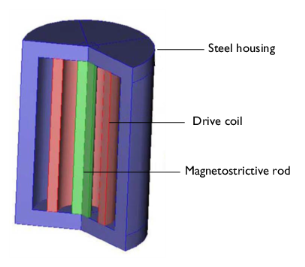
A typical magnetostrictive transducer shown in Figure 1 has a steel housing enclosing a drive coil. A magnetostrictive material is placed in the core that works as an actuator when a magnetic field is applied by passing a current through the drive coil.
Figure 1: Sectional view of a cylindrical transducer.
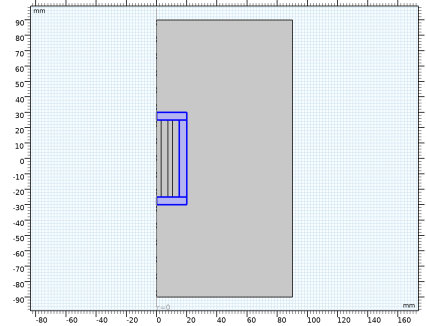
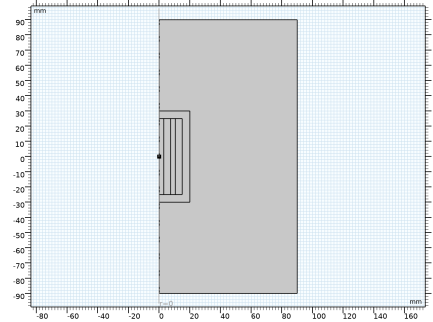
Due to the rotational symmetry of the geometry, the problem is solved as a 2D axisymmetric model, which leads to reduced computation time. The corresponding 2D axisymmetric geometry is shown in Figure 2.
Figure 2: 2D axisymmetric view of a magnetostrictive transducer surrounded by an air domain. The geometric dimensions are in millimeters.
It is assumed that the current in the coil is DC, and hence it can be solved as a stationary problem. The first study performed considers a constant current density of 106 A/m2 in the coil. A second study is set up where the current density in the drive coil is varied from 0 to 107 A/m2 using the parametric sweep feature in COMSOL. The solution from this parametric sweep is then used to generate the characteristic nonlinear magnetostriction (λ) vs. magnetic field (H) curve. The ramping of current density using the parametric sweep option is performed under the assumption that the current in the coil changes quasi-statically without producing any inductive effect.
Notes on the magnetic and magnetoelastic problems
An air domain is created around the transducer to realistically model the magnetic flux path. The boundaries of this air domain are magnetically insulated which ensures that flux does not diverge out of the modeling domain. An alternative technique of implementing this air domain in COMSOL Multiphysics involves the use of infinite elements. For more information on infinite elements, please refer to the AC/DC Module User’s Guide.
The drive coil is modeled as a homogenized current-carrying domain. Individual wires and their electrical conductivity are not resolved. It is assumed that the externally applied current density in the coil is known a priori. In a 2D axisymmetric model, the external current density is the total current through the coil divided by the longitudinal cross-section area (coil length times coil thickness). The coil can also be modeled alternately using the Multiturn Coil Domain feature available in the AC/DC Module. Please refer to the AC/DC Module User’s Guide for more details on using this alternative technique.
Traditionally, the magnetic flux density (also called the B-field) is obtained as a function of the applied magnetic field (the H-field). Such relationship is usually called a B-H curve. The steel housing used in this example is designed to create a closed magnetic flux path, thereby minimizing flux leakage. The nonlinear magnetic behavior of the steel housing is modeled by using a B-H curve to specify the magnetic constitutive relation in the material. The nonlinear B-H curve is obtained by choosing the material Soft Iron (Without Losses) from the AC/DC material library. Incorporation of a nonlinear B-H curve helps in modeling magnetic saturation effects at a sufficiently high magnetic field. Furthermore, you can examine the results of the model to find out specific locations in a material where magnetic saturation has taken place whereas other regions of that material have remained unsaturated.
The stress in the magnetostrictive material is modeled as
The material is assumed to be isotropic, so that the elasticity tensor CH can be represented in terms of two parameters, Young’s modulus and Poisson’s ratio.
The magnetostrictive strain is modeled as the following quadratic isotropic function of the magnetization field M:
where λs is the saturation magnetostriction, which is the maximum magnetostrictive strain reached at the saturation magnetization Ms. The tensor product of two vectors is defined as
Note that the magnetostrictive strain is represented by a deviatoric tensor. This is because the deformation can be related to the magnetic domain rotation associated with the magnetization of the material; such process should not change the material volume.
Nonlinear magnetization in the magnetostrictive material is found from the nonlinear relation
where L is the Langevin function
with χ0 being the magnetic susceptibility in the initial linear region, and the effective magnetic field in the material is given by
where Sdev =  dev(Sel) is the deviatoric part of the elastic stress tensor. The second term in the above relation represents the mechanical stress contribution to the effective field, and thus to the material magnetization, which is called the Villari effect. Note that the term is also proportional to magnetization, which implies that some applied magnetic field is needed for the Villari effect to occur. Thus, pure mechanics load cannot produce any magnetization of the material.
In addition, the magnetization and magnetic field are related to each other and to the B-field by
The effective tangential piezomagnetic coupling coefficients can be computed as
where
is the tangential magnetic susceptibility. An important observation from the above formula is that the piezomagnetic coefficients should reach their maximum (or minimum) at certain strength of the applied bias field. This is because M is zero at zero applied field, while χ tends to zero at large applied field magnitudes because of saturation.
The piezomagnetic coupling tensor d is a third order tensor. Due to the symmetry, it can be conventionally represented by a 3-by-6 matrix dHT with only a few nonzero components.
The material properties used to describe the magnetostrictive material are shown in Table 1.
60·109 Pa
ν
ρ
σ
εr
λs
 Ms
1.5·106 A/m
The lower end of the magnetostrictive rod is modeled as fixed, while the upper one can be mechanically loaded in order to study the Villari effect.
Coupling the Magnetic and Structural Problems
The implementation is straightforward as you make use of a predefined multiphysics coupling interface available in COMSOL called Nonlinear Magnetostriction.
Selecting this interface in the Model Wizard adds Structural Mechanics and Magnetic Fields interfaces together with the corresponding multiphysics coupling feature, Nonlinear Magnetostriction.
Most of the settings you need to configure the coupling are found in the Settings window for either the coupling feature or the Ampère’s Law, Nonlinear Magnetostrictive feature added under the Magnetic Fields interface.
Results and Discussion
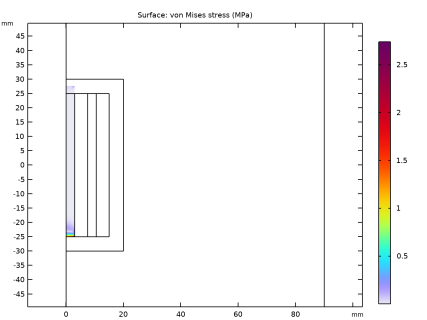
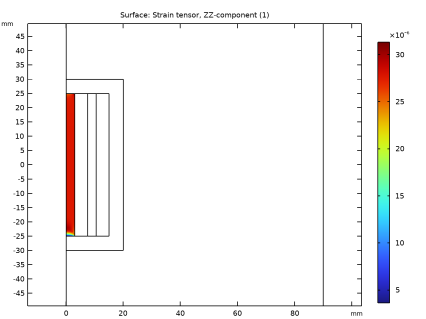
The results obtained from the first study, where a constant external current density of 106 A/m2 is applied to the coil. Figure 3 shows the von Mises stress in the magnetostrictive material as a surface plot. This plot indicates that the stress due to magnetostriction is uniformly zero everywhere except the region near the bottom surface of the rod due to the fixed constraint boundary condition that was applied to this end of the rod. This is because the free strain due to magnetostriction should not produce any stress unless the material is mechanically constrained. Figure 4 shows that the corresponding strain field caused by the magnetostriction is also fairly uniform in the material except at the fixed end of the rod.
Figure 3: Surface plot of the von Mises stress and a scaled deformation plot of the displacement.
Figure 4: Surface plot of the axial strain component.
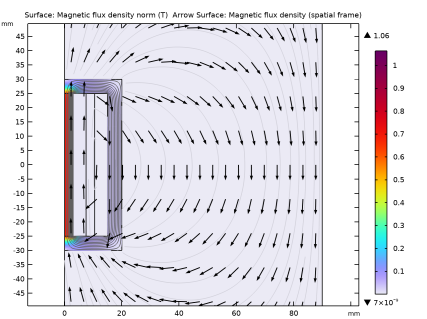
Figure 5 shows the magnetic flux concentration in the magnetostrictive core due to the closed magnetic path provided by the steel housing. The magnetic flux density in the rod is mostly uniform. Fringe effects can be seen at both ends of the rod where majority of the magnetic flux is forced to curl into the steel housing.
Figure 5: Surface plot of the norm of the magnetic flux density and a normalized arrow plot of its r and z-components showing the closed flux path in the model.
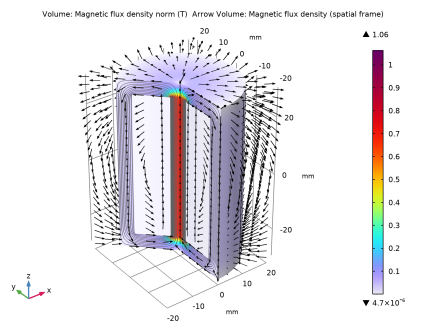
Figure 6 shows an interesting postprocessing feature in COMSOL Multiphysics. The solution obtained from the 2D axisymmetric model has been revolved by 225 degrees for 3D visualization of the solution. On solving a 2D axisymmetry model, COMSOL Multiphysics automatically creates a 3D solution dataset by revolving the solution, which is then plotted as a 3D plot.
Figure 6: A 225 degree sectional view in 3D of the norm of the magnetic flux density in the magnetostrictive rod, steel housing and in the region within the housing. The solution in the outer air domain has been suppressed to get a better view. The normalized arrow plot shows the direction of the magnetic flux density.
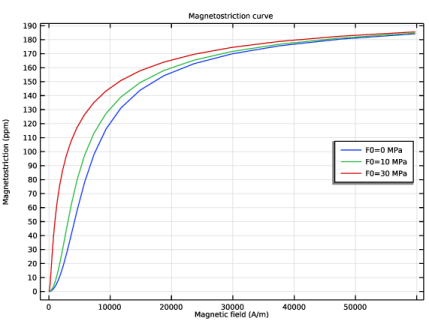
Figure 7 shows the magnetostriction curve of the material obtained from the parametric study that simulated a quasi-static ramping up of the current density in the coil for three different values of the mechanical load. The corresponding B-H curve is shown in Figure 8. Because the magnetic field is oriented mostly along the axial direction, only the Z-components of the corresponding vectors are plotted. Note the significantly nonlinear behavior in the region where the magnetic field Hz varies between 5 to 20 kA/m.
Figure 7: Magnetostriction versus magnetic field (at a point on the magnetostrictive material.
Figure 8: Magnetic flux density versus magnetic field at a point on the magnetostrictive material.
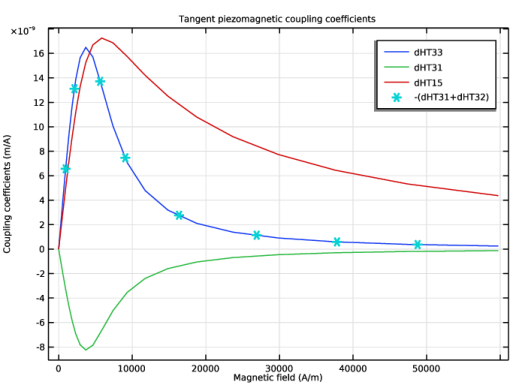
Finally, Figure 9 shows the components of the tangential piezomagnetic coupling matrix in case of no mechanical loading.
Figure 9: Tangential piezomagnetic coupling coefficients at a point on the magnetostrictive material.
Reference
1. S. Chikazumi, Physics of Ferromagnetism, Oxford University Press, New York, 1997.
Application Library path: Structural_Mechanics_Module/Magnetomechanics/nonlinear_magnetostriction
Modeling Instructions
From the File menu, choose New.
New
In the New window, click  Model Wizard.
Model Wizard
1
In the Model Wizard window, click  2D Axisymmetric.
2
In the Select Physics tree, select Structural Mechanics>Electromagnetics-Structure Interaction>Magnetostriction>Nonlinear Magnetostriction.
3
Click Add.
4
Click  Study.
5
In the Select Study tree, select General Studies>Stationary.
6
Geometry 1
1
In the Model Builder window, under Component 1 (comp1) click Geometry 1.
2
In the Settings window for Geometry, locate the Units section.
3
From the Length unit list, choose mm.
Rectangle 1 (r1)
1
In the Geometry toolbar, click  Rectangle.
2
In the Settings window for Rectangle, locate the Size and Shape section.
3
In the Width text field, type 3.
4
In the Height text field, type 50.
5
Locate the Position section. In the z text field, type -25.
6
Click  Build Selected.
Copy 1 (copy1)
1
In the Geometry toolbar, click  Transforms and choose Copy.
2
3
In the Settings window for Copy, locate the Displacement section.
4
In the r text field, type 7.5.
5
Click  Build Selected.
Rectangle 2 (r2)
1
In the Geometry toolbar, click  Rectangle.
2
In the Settings window for Rectangle, locate the Size and Shape section.
3
In the Width text field, type 20.
4
In the Height text field, type 5.
5
Locate the Position section. In the z text field, type -30.
6
Click  Build Selected.
Copy 2 (copy2)
1
In the Geometry toolbar, click  Transforms and choose Copy.
2
3
In the Settings window for Copy, locate the Displacement section.
4
In the z text field, type 55.
5
Click  Build Selected.
Rectangle 3 (r3)
1
In the Geometry toolbar, click  Rectangle.
2
In the Settings window for Rectangle, locate the Size and Shape section.
3
In the Width text field, type 5.
4
In the Height text field, type 50.
5
Locate the Position section. In the r text field, type 15.
6
In the z text field, type -25.
7
Click  Build Selected.
Rectangle 4 (r4)
1
In the Geometry toolbar, click  Rectangle.
2
In the Settings window for Rectangle, locate the Size and Shape section.
3
In the Width text field, type 90.
4
In the Height text field, type 180.
5
Locate the Position section. In the z text field, type -90.
6
Click  Build Selected.
7
Click the  Zoom Extents button in the Graphics toolbar.
Union 1 (uni1)
1
In the Geometry toolbar, click  Booleans and Partitions and choose Union.
See the figure below for the objects that need to be selected in the next step.
2
Select the objects copy2, r2, and r3 only.
3
In the Settings window for Union, locate the Union section.
4
Clear the Keep interior boundaries check box.
Point 1 (pt1)
1
In the Geometry toolbar, click  Point.
2
In the Settings window for Point, click  Build All Objects.
3
Click the  Zoom Extents button in the Graphics toolbar.
Global Definitions
Parameters 1
1
In the Model Builder window, under Global Definitions click Parameters 1.
2
In the Settings window for Parameters, locate the Parameters section.
3
Solid Mechanics (solid)
1
In the Model Builder window, under Component 1 (comp1) click Solid Mechanics (solid).
2
In the Settings window for Solid Mechanics, locate the Domain Selection section.
3
Click  Clear Selection.
4
The solid mechanics equations will be solved only in the magnetostrictive material.
Magnetic Fields (mf)
In the Model Builder window, under Component 1 (comp1) click Magnetic Fields (mf).
Ampère’s Law 2
1
In the Physics toolbar, click  Domains and choose Ampère’s Law.
2
3
In the Settings window for Ampère’s Law, locate the Material Type section.
4
From the Material type list, choose Solid.
5
Locate the Constitutive Relation B-H section. From the Magnetization model list, choose B-H curve.
Ampère’s Law, Nonlinear Magnetostrictive 1
1
In the Model Builder window, click Ampère’s Law, Nonlinear Magnetostrictive 1.
2
In the Settings window for Ampère’s Law, Nonlinear Magnetostrictive, locate the Domain Selection section.
3
From the Selection list, choose Manual.
4
Click  Clear Selection.
5
External Current Density 1
1
In the Physics toolbar, click  Domains and choose External Current Density.
2
3
In the Settings window for External Current Density, locate the External Current Density section.
4
Specify the Je vector as
Add Material
1
In the Home toolbar, click  Add Material to open the Add Material window.
2
Go to the Add Material window.
3
4
Right-click and choose Add to Component 1 (comp1).
5
In the tree, select AC/DC>Soft Iron (Without Losses).
6
Right-click and choose Add to Component 1 (comp1).
7
In the Home toolbar, click  Add Material to close the Add Material window.
Materials
Air (mat1)
Select Domains 1 and 4–6 only.
Soft Iron (Without Losses) (mat2)
1
In the Model Builder window, click Soft Iron (Without Losses) (mat2).
2
Magnetostrictive
1
In the Model Builder window, right-click Materials and choose Blank Material.
2
In the Settings window for Material, type Magnetostrictive in the Label text field.
3
4
Locate the Material Contents section. In the table, enter the following settings:
Solid Mechanics (solid)
In the Model Builder window, under Component 1 (comp1) click Solid Mechanics (solid).
Fixed Constraint 1
1
In the Physics toolbar, click  Boundaries and choose Fixed Constraint.
2
This boundary condition simulates that the lower surface of the magnetostrictive rod is fixed to the base of the transducer housing.
Mesh 1
Free Quad 1
1
In the Mesh toolbar, click  Free Quad.
2
In the Settings window for Free Quad, locate the Domain Selection section.
3
From the Geometric entity level list, choose Domain.
4
Size 1
1
Right-click Free Quad 1 and choose Size.
2
In the Settings window for Size, locate the Element Size section.
3
Click the Custom button.
4
Locate the Element Size Parameters section.
5
Select the Maximum element size check box. In the associated text field, type 0.75.
Free Triangular 1
1
In the Mesh toolbar, click  Free Triangular.
2
In the Settings window for Free Triangular, click  Build All.
Study 1
In the Home toolbar, click  Compute.
Definitions
View 1
In the Model Builder window, expand the Component 1 (comp1)>Definitions node.
Axis
1
In the Model Builder window, expand the View 1 node, then click Axis.
2
In the Settings window for Axis, locate the Axis section.
3
In the r maximum text field, type 60.
4
In the r minimum text field, type -52.
5
In the z minimum text field, type -45.
6
In the z maximum text field, type 45.
7
Click  Update.
Results
Surface 1
1
In the Model Builder window, expand the Stress (solid) node, then click Surface 1.
2
In the Settings window for Surface, locate the Expression section.
3
From the Unit list, choose MPa.
4
Locate the Coloring and Style section. From the Color table transformation list, choose Nonlinear.
5
Set the Color calibration parameter value to -1.
The first default plot shows the von Mises stress in the magnetostrictive core along with a scaled deformation plot, which should be similar to that shown in Figure 3.
Surface 1
1
In the Model Builder window, expand the Stress, 3D (solid) node, then click Surface 1.
2
In the Settings window for Surface, locate the Expression section.
3
From the Unit list, choose MPa.
4
Locate the Coloring and Style section. From the Color table transformation list, choose Nonlinear.
5
Set the Color calibration parameter value to -1.
Follow the steps outlined below to create Figure 4.
Strain (solid)
1
In the Home toolbar, click  Add Plot Group and choose 2D Plot Group.
2
In the Settings window for 2D Plot Group, type Strain (solid) in the Label text field.
Surface 1
1
Right-click Strain (solid) and choose Surface.
2
In the Settings window for Surface, click Replace Expression in the upper-right corner of the Expression section. From the menu, choose Component 1 (comp1)>Solid Mechanics>Strain>Strain tensor (material and geometry frames)>solid.eZZ - Strain tensor, ZZ-component.
3
In the Strain (solid) toolbar, click  Plot.
Compare the resulting plot with that in Figure 4.
Follow the steps outlined below to create Figure 5.
Arrow Surface 1
1
In the Model Builder window, right-click Magnetic Flux Density Norm (mf) and choose Arrow Surface.
2
In the Settings window for Arrow Surface, locate the Expression section.
3
In the r-component text field, type mf.Br.
4
In the z-component text field, type mf.Bz.
5
Locate the Arrow Positioning section. Find the r grid points subsection. In the Points text field, type 20.
6
Locate the Coloring and Style section. From the Arrow length list, choose Normalized.
7
From the Color list, choose Black.
8
In the Magnetic Flux Density Norm (mf) toolbar, click  Plot.
Compare the resulting plot with that in Figure 5.
Follow the steps outlined below to create Figure 6.
Filter 1
1
In the Model Builder window, expand the Magnetic Flux Density Norm, Revolved Geometry (mf) node.
2
Right-click Volume 1 and choose Filter.
3
In the Settings window for Filter, locate the Element Selection section.
4
In the Logical expression for inclusion text field, type dom!=1.
This excludes the outer air domain from the plot.
Magnetic Flux Density Norm, Revolved Geometry (mf)
1
In the Model Builder window, under Results click Magnetic Flux Density Norm, Revolved Geometry (mf).
2
In the Settings window for 3D Plot Group, locate the Plot Settings section.
3
Clear the Plot dataset edges check box.
Arrow Volume 1
1
Right-click Magnetic Flux Density Norm, Revolved Geometry (mf) and choose Arrow Volume.
2
In the Settings window for Arrow Volume, locate the Expression section.
3
In the r-component text field, type mf.Br.
4
In the phi-component text field, type mf.Bphi.
5
In the z-component text field, type mf.Bz.
6
Locate the Arrow Positioning section. Find the x grid points subsection. From the Entry method list, choose Coordinates.
7
In the Coordinates text field, type range(-20,4,20).
8
Find the y grid points subsection. From the Entry method list, choose Coordinates.
9
In the Coordinates text field, type range(-20,4,20).
10
Find the z grid points subsection. From the Entry method list, choose Coordinates.
11
In the Coordinates text field, type range(-30,2.5,30).
12
Locate the Coloring and Style section. From the Arrow length list, choose Normalized.
13
Select the Scale factor check box. In the associated text field, type 5.
14
From the Color list, choose Black.
15
In the Magnetic Flux Density Norm, Revolved Geometry (mf) toolbar, click  Plot.
Solid Mechanics (solid)
Boundary Load 1
1
In the Physics toolbar, click  Boundaries and choose Boundary Load.
2
3
In the Settings window for Boundary Load, locate the Force section.
4
Specify the FA vector as
Next, perform an auxiliary continuation sweep on the external current density for three different values of the mechanical load and plot the solution to view the saturation effect in the magnetostrictive core.
Add Study
1
In the Home toolbar, click  Add Study to open the Add Study window.
2
Go to the Add Study window.
3
Find the Studies subsection. In the Select Study tree, select General Studies>Stationary.
4
Click Add Study in the window toolbar.
5
In the Home toolbar, click  Add Study to close the Add Study window.
Study 2
1
In the Model Builder window, click Study 2.
2
In the Settings window for Study, locate the Study Settings section.
3
Clear the Generate default plots check box.
Step 1: Stationary
1
In the Model Builder window, under Study 2 click Step 1: Stationary.
2
In the Settings window for Stationary, click to expand the Study Extensions section.
3
Select the Auxiliary sweep check box.
4
5
From the list in the Parameter name column, choose J0 (Current density).
6
Click  Range.
7
In the Range dialog box, type 0 in the Start text field.
8
In the Step text field, type 0.1.
9
In the Stop text field, type 7.3.
10
From the Function to apply to all values list, choose exp10(x) – Exponential function (base 10).
11
Click Add.
Parametric Sweep
1
In the Study toolbar, click  Parametric Sweep.
2
In the Settings window for Parametric Sweep, locate the Study Settings section.
3
4
Running the entire parametric study based on the settings above will take a few minutes. The exact solution time will vary depending on the specification of the computer being used.
5
In the Study toolbar, click  Compute.
Results
Follow the instructions below to create Figure 7 and Figure 8.
Magnetostriction
1
In the Home toolbar, click  Add Plot Group and choose 1D Plot Group.
2
In the Settings window for 1D Plot Group, type Magnetostriction in the Label text field.
3
Locate the Data section. From the Dataset list, choose Study 2/Parametric Solutions 1 (sol3).
4
Click to expand the Title section. From the Title type list, choose Manual.
5
In the Title text area, type Magnetostriction curve.
6
Locate the Plot Settings section.
7
Select the x-axis label check box. In the associated text field, type Magnetic field (A/m).
8
Select the y-axis label check box. In the associated text field, type Magnetostriction (ppm).
9
Locate the Legend section. From the Position list, choose Middle right.
Point Graph 1
1
Right-click Magnetostriction and choose Point Graph.
2
In the Settings window for Point Graph, locate the Selection section.
3
Click  Paste Selection.
4
In the Paste Selection dialog box, type 4 in the Selection text field.
5
6
In the Settings window for Point Graph, click Replace Expression in the upper-right corner of the y-Axis Data section. From the menu, choose Component 1 (comp1)>Multiphysics>Strain>Magnetostrictive strain tensor>npzm1.emeZZ - Magnetostrictive strain tensor, ZZ-component.
7
Locate the y-Axis Data section. From the Unit list, choose ppm.
8
Locate the x-Axis Data section. From the Parameter list, choose Expression.
9
Click Replace Expression in the upper-right corner of the x-Axis Data section. From the menu, choose Component 1 (comp1)>Magnetic Fields>Magnetic>Magnetic field (material and geometry frames) - A/m>mf.HZ - Magnetic field, Z-component.
10
Click to expand the Legends section. Select the Show legends check box.
11
Find the Include subsection. Clear the Point check box.
12
In the Magnetostriction toolbar, click  Plot.
BH Curve
1
In the Model Builder window, right-click Magnetostriction and choose Duplicate.
2
In the Settings window for 1D Plot Group, type BH Curve in the Label text field.
3
Locate the Title section. In the Title text area, type BH curve.
4
Locate the Plot Settings section. In the y-axis label text field, type Magnetic flux density (T).
Point Graph 1
1
In the Model Builder window, expand the BH Curve node, then click Point Graph 1.
2
In the Settings window for Point Graph, click Replace Expression in the upper-right corner of the y-Axis Data section. From the menu, choose Component 1 (comp1)>Magnetic Fields>Magnetic>Magnetic flux density (material and geometry frames) - T>mf.BZ - Magnetic flux density, Z-component.
3
In the BH Curve toolbar, click  Plot.
Piezomagnetic Coefficients
1
In the Home toolbar, click  Add Plot Group and choose 1D Plot Group.
2
In the Settings window for 1D Plot Group, type Piezomagnetic Coefficients in the Label text field.
3
Locate the Data section. From the Dataset list, choose Study 2/Parametric Solutions 1 (sol3).
4
From the Parameter selection (F0) list, choose First.
5
Locate the Title section. From the Title type list, choose Manual.
6
In the Title text area, type Tangent piezomagnetic coupling coefficients.
7
Locate the Plot Settings section.
8
Select the x-axis label check box. In the associated text field, type Magnetic field (A/m).
9
Select the y-axis label check box. In the associated text field, type Coupling coefficients (m/A).
Point Graph 1
1
Right-click Piezomagnetic Coefficients and choose Point Graph.
2
In the Settings window for Point Graph, locate the Selection section.
3
Click  Paste Selection.
4
In the Paste Selection dialog box, type 4 in the Selection text field.
5
6
In the Settings window for Point Graph, click Replace Expression in the upper-right corner of the y-Axis Data section. From the menu, choose Component 1 (comp1)>Multiphysics>Effective properties>Tangent piezomagnetic coupling matrix, Voigt notation - m/A>npzm1.dHT33 - Tangent piezomagnetic coupling matrix, Voigt notation, 33-component.
7
Locate the x-Axis Data section. From the Parameter list, choose Expression.
8
In the Expression text field, type mf.HZ.
9
Click to expand the Legends section. Select the Show legends check box.
10
From the Legends list, choose Manual.
11
Point Graph 2
1
Right-click Point Graph 1 and choose Duplicate.
2
In the Settings window for Point Graph, locate the y-Axis Data section.
3
In the Expression text field, type npzm1.dHT31.
4
Locate the Legends section. In the table, enter the following settings:
Point Graph 3
1
Right-click Point Graph 2 and choose Duplicate.
2
In the Settings window for Point Graph, locate the y-Axis Data section.
3
In the Expression text field, type npzm1.dHT15.
4
Locate the Legends section. In the table, enter the following settings:
Point Graph 4
1
Right-click Point Graph 3 and choose Duplicate.
2
In the Settings window for Point Graph, locate the y-Axis Data section.
3
In the Expression text field, type -(npzm1.dHT31+npzm1.dHT32).
4
Locate the Legends section. In the table, enter the following settings:
5
Click to expand the Coloring and Style section. Find the Line style subsection. From the Line list, choose None.
6
Find the Line markers subsection. From the Marker list, choose Cycle.
7
From the Positioning list, choose Interpolated.
8
In the Piezomagnetic Coefficients toolbar, click  Plot.