You are viewing the documentation for an older COMSOL version. The latest version is available here.
PDF

Prestress of Main Bearing Cap Bolts
Introduction
Many mechanical parts are joined by bolted connections. Such connections can be modeled with different levels of approximation depending on the purpose of the analysis.
At the most detailed level, you could consider modeling the external and internal bolt threads. Such a model will however be extremely expensive in terms of computer resources. In most cases, it is actually sufficient to model the bolt without threads and use special techniques to compute the stress around the bolt connection.
In this model, a stress analysis is performed for a main bearing cap. The bolts holding the main cap to the engine block are modeled without threads. Two different connections are used to model the bolt, and a comparison of the stresses is performed.
Model Definition
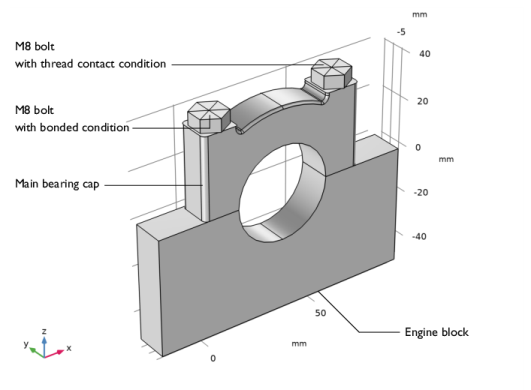
The model geometry consists of an assembly made of the main bearing cap, the engine block and two M8 hexahedral bolts.
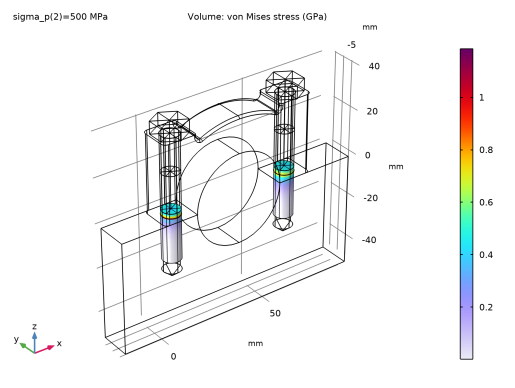
Figure 1: Main bearing assembly.
The bolts hold the parts together with pretension stress of 500 MPa.
For computational performance reasons, the bolt threads are not represented in detail, and only the force transmitted by the bolts to the engine block are computed. Using one technique, the bolt is bonded to the engine block. In this case, both the normal and tangential force components are transmitted. A second technique uses a special contact condition between the bolt and the engine block, which takes into account the thread design when computing the contact pressure. Figure 1 shows the modeling technique used for the bolt in the geometry; the first technique (continuity condition) is used in the bolt on the left side, while the second technique (thread contact condition) is used on the right side.
Results and Discussion
Figure 2 shows the equivalent stresses on the bolt boundaries that correspond to the threads. One can notice a difference at the transition between the engine block and the main cap. For the bolt modeled with a continuity pair condition (on the left-hand side), there is a singularity in the displacement constraint which explains the high local stress. For the bolt modeled with a bolt thread contact condition, the equivalent stress is smoother at this transition.
Figure 2: Von Mises stress along thread boundaries using a bonded bolt (left) and a thread bolt contact (right).
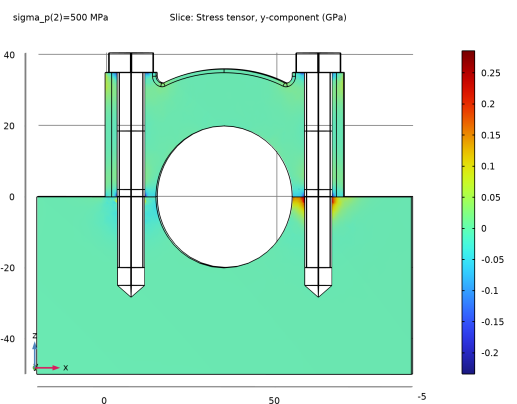
Figure 3 shows the hoop stress in the engine block and main cap. It is clear that the bolt modeled with a thread contact condition generates significant tensile hoop stresses around the bolt hole. This is caused by the contact pressure between the threads that push the walls of the bolt hole outward.
Figure 3: Hoop stress using a bonded bolt (left) and a thread bolt contact (right).
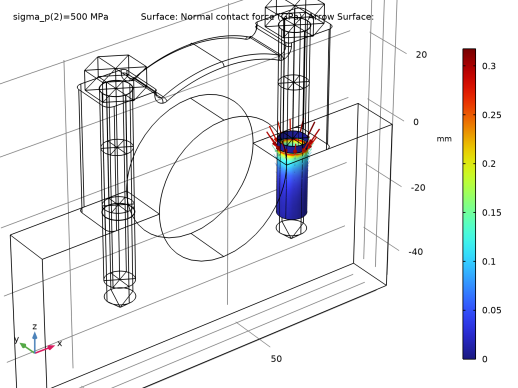
Figure 4 shows the computed contact force in the thread.
Figure 4: Computed thread contact pressure magnitude (surface plot) and its orientation (arrow plot).
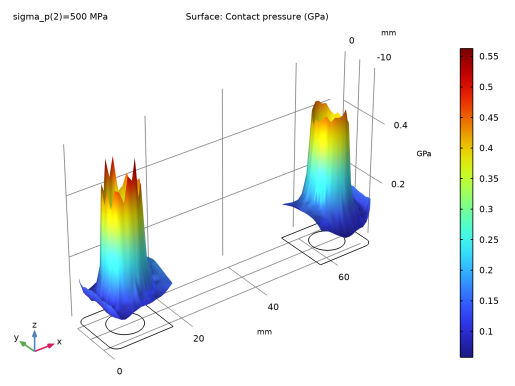
Figure 5 shows the contact pressure between the main cap and the engine block.
Figure 5: Contact pressure between the main cap and the engine block.
Notes About the COMSOL Implementation
When you use Bolt Thread Contact, you model the face of both the bolt and the bolt hole as cylinders. The actual geometry of the thread is taken care of by the mathematical formulation of the contact condition. The most important parameter is the thread angle, because it determines the direction of the contact forces.
As for a boundary contact condition, a bolt modeled using a bolt thread contact condition, may not be properly constrained. To improve computation stability, you can use a temporary weak spring at the beginning of the simulation to hold the bolt in place.
Application Library path: Structural_Mechanics_Module/Contact_and_Friction/main_bearing_cap
Modeling Instructions
From the File menu, choose New.
New
In the New window, click  Model Wizard.
Model Wizard
1
In the Model Wizard window, click  3D.
2
In the Select Physics tree, select Structural Mechanics>Solid Mechanics (solid).
3
4
Click  Study.
5
In the Select Study tree, select Preset Studies for Selected Physics Interfaces>Bolt Pretension.
6
Geometry 1
1
In the Model Builder window, under Component 1 (comp1) click Geometry 1.
2
In the Settings window for Geometry, locate the Units section.
3
From the Length unit list, choose mm.
Import 1 (imp1)
1
In the Home toolbar, click  Import.
2
In the Settings window for Import, locate the Import section.
3
Click  Browse.
4
5
Click  Import.
Work Plane 1 (wp1)
1
In the Geometry toolbar, click  Work Plane.
2
In the Settings window for Work Plane, locate the Plane Definition section.
3
From the Plane type list, choose Face parallel.
4
On the object imp1(1), select Boundary 4 only.
It might be easier to select the correct boundary by using the Selection List window. To open this window, in the Home toolbar click Windows and choose Selection List. (If you are running the cross-platform desktop, you find Windows in the main menu.)
Part Libraries
1
In the Geometry toolbar, click  Parts and choose Part Libraries.
2
In the Model Builder window, click Geometry 1.
3
In the Part Libraries window, select Structural Mechanics Module>Bolts>hex_bolt_drill in the tree.
4
Click  Add to Geometry.
Geometry 1
M8 1
1
In the Model Builder window, under Component 1 (comp1)>Geometry 1 click Hex Bolt, With Drill 1 (pi1).
2
In the Settings window for Part Instance, type M8 1 in the Label text field.
3
Locate the Input Parameters section. In the table, enter the following settings:
4
Locate the Position and Orientation of Output section. Find the Coordinate system in part subsection. From the Work plane in part list, choose Head inner plane (wp1).
5
Find the Coordinate system to match subsection. From the Work plane list, choose Work Plane 1 (wp1).
6
Click to expand the Domain Selections section. Click New Cumulative Selection.
7
In the New Cumulative Selection dialog box, type Bolts in the Name text field.
8
9
In the Settings window for Part Instance, locate the Domain Selections section.
10
11
Click to expand the Boundary Selections section. In the table, enter the following settings:
12
Click  Build Selected.
M8 2
1
Right-click M8 1 and choose Duplicate.
2
In the Settings window for Part Instance, type M8 2 in the Label text field.
3
Locate the Position and Orientation of Output section. Find the Displacement subsection. In the xw text field, type 55.
Difference 1 (dif1)
1
In the Geometry toolbar, click  Booleans and Partitions and choose Difference.
2
Select the object imp1(2) only.
3
In the Settings window for Difference, locate the Difference section.
4
Find the Objects to subtract subsection. Click to select the  Activate Selection toggle button.
5
Select the objects pi1(2) and pi2(2) only.
6
Click  Build Selected.
Form Union (fin)
1
In the Model Builder window, under Component 1 (comp1)>Geometry 1 click Form Union (fin).
2
In the Settings window for Form Union/Assembly, locate the Form Union/Assembly section.
3
From the Action list, choose Form an assembly.
4
In the Geometry toolbar, click  Build All.
5
Click the  Zoom Extents button in the Graphics toolbar.
Global Definitions
Parameters 1
1
In the Model Builder window, under Global Definitions click Parameters 1.
2
In the Settings window for Parameters, locate the Parameters section.
3
4
Click the  Wireframe Rendering button in the Graphics toolbar.
Definitions
Thread Boundaries
1
In the Definitions toolbar, click  Union.
2
In the Settings window for Union, type Thread Boundaries in the Label text field.
3
Locate the Geometric Entity Level section. From the Level list, choose Boundary.
4
Locate the Input Entities section. Under Selections to add, click  Add.
5
In the Add dialog box, in the Selections to add list, choose Thread (M8 1) and Thread (M8 2).
6
Stress Area Reduced Domains Domains
1
In the Definitions toolbar, click  Adjacent.
2
In the Settings window for Adjacent, type Stress Area Reduced Domains Domains in the Label text field.
3
Locate the Input Entities section. From the Geometric entity level list, choose Boundary.
4
Locate the Output Entities section. From the Geometric entity level list, choose Adjacent domains.
5
Locate the Input Entities section. Under Input selections, click  Add.
6
In the Add dialog box, select Thread Boundaries in the Input selections list.
7
Thread Bolt Domains
1
In the Definitions toolbar, click  Adjacent.
2
In the Settings window for Adjacent, type Thread Bolt Domains in the Label text field.
3
Locate the Input Entities section. From the Geometric entity level list, choose Boundary.
4
Locate the Output Entities section. From the Geometric entity level list, choose Adjacent domains.
5
Locate the Input Entities section. Under Input selections, click  Add.
6
In the Add dialog box, in the Input selections list, choose Thread (M8 1) and Thread (M8 2).
7
Add Material
1
In the Home toolbar, click  Add Material to open the Add Material window.
2
Go to the Add Material window.
3
In the tree, select Built-in>Structural steel.
4
Right-click and choose Add to Component 1 (comp1).
5
In the Home toolbar, click  Add Material to close the Add Material window.
Materials
Steel, Stress area reduced
1
In the Model Builder window, under Component 1 (comp1)>Materials right-click Structural steel (mat1) and choose Duplicate.
2
In the Settings window for Material, type Steel, Stress area reduced in the Label text field.
3
Locate the Geometric Entity Selection section. From the Selection list, choose Stress Area Reduced Domains Domains.
4
Locate the Material Contents section. In the table, enter the following settings:
Definitions
Identity Boundary Pair 1 (ap1)
1
In the Model Builder window, under Component 1 (comp1)>Definitions click Identity Boundary Pair 1 (ap1).
2
In the Settings window for Pair, locate the Pair Type section.
3
Select the Manual control of selections and pair type check box.
4
From the Pair type list, choose Contact pair.
5
Locate the Source Boundaries section. Click  Create Selection.
6
In the Create Selection dialog box, type src in the Selection name text field.
7
8
In the Settings window for Pair, locate the Destination Boundaries section.
9
Click  Create Selection.
10
In the Create Selection dialog box, type dst in the Selection name text field.
11
12
In the Settings window for Pair, locate the Advanced section.
13
From the Mapping method list, choose Initial configuration.
14
In the Extrapolation tolerance text field, type 1e-2.
Identity Boundary Pair 3 (ap3)
1
In the Model Builder window, click Identity Boundary Pair 3 (ap3).
2
In the Settings window for Pair, locate the Pair Type section.
3
Select the Manual control of selections and pair type check box.
4
From the Pair type list, choose Contact pair.
5
Locate the Advanced section. From the Mapping method list, choose Initial configuration.
Solid Mechanics (solid)
Contact 1
1
In the Model Builder window, under Component 1 (comp1)>Solid Mechanics (solid) click Contact 1.
2
In the Settings window for Contact, locate the Contact Method section.
3
From the list, choose Augmented Lagrangian.
4
Locate the Contact Pressure Penalty Factor section. From the Tuned for list, choose Speed.
5
Locate the Initial Value section. In the Tn text field, type 1e8.
Fixed Constraint 1
1
In the Physics toolbar, click  Boundaries and choose Fixed Constraint.
2
Bolt Pretension 1
1
In the Physics toolbar, click  Global and choose Bolt Pretension.
2
In the Settings window for Bolt Pretension, locate the Bolt Pretension section.
3
From the Pretension type list, choose Pretension stress.
4
In the σp text field, type sigma_p.
Bolt Selection 1
1
In the Model Builder window, expand the Bolt Pretension 1 node, then click Bolt Selection 1.
2
In the Settings window for Bolt Selection, locate the Boundary Selection section.
3
From the Selection list, choose Pretension cut (M8 1).
Bolt Pretension 1
In the Model Builder window, click Bolt Pretension 1.
Bolt Selection 2
1
In the Physics toolbar, click  Attributes and choose Bolt Selection.
2
In the Settings window for Bolt Selection, locate the Boundary Selection section.
3
From the Selection list, choose Pretension cut (M8 2).
Bolt Thread Contact 1
1
In the Physics toolbar, click  Pairs and choose Bolt Thread Contact.
2
In the Settings window for Bolt Thread Contact, locate the Pair Selection section.
3
Under Pairs, click  Add.
4
In the Add dialog box, select Contact Pair 3 (ap3) in the Pairs list.
5
6
In the Settings window for Bolt Thread Contact, locate the Bolt Geometry section.
7
In the l text field, type 1.25[mm].
8
Select the Direction adjustment check box.
9
Specify the ea,approx vector as
10
Locate the Contact section. In the μ text field, type 0.1.
11
From the Contact orientation list, choose Up.
Add a spring foundation to keep the bolt in place when computing with the first parameter value (before the contact in the thread is properly evaluated).
Spring Foundation 1
1
In the Physics toolbar, click  Boundaries and choose Spring Foundation.
2
3
In the Settings window for Spring Foundation, locate the Spring section.
4
In the kA text field, type 1e15*(sigma_p<200[MPa]).
Mesh 1
Swept 1
1
In the Mesh toolbar, click  Swept.
2
In the Settings window for Swept, locate the Domain Selection section.
3
From the Geometric entity level list, choose Domain.
4
From the Selection list, choose Bolts.
Distribution 1
1
Right-click Swept 1 and choose Distribution.
2
In the Settings window for Distribution, locate the Domain Selection section.
3
From the Selection list, choose Stress Area Reduced Domains Domains.
4
Locate the Distribution section. From the Distribution type list, choose Predefined.
5
In the Number of elements text field, type 10.
6
In the Element ratio text field, type 3.
7
Select the Reverse direction check box.
Free Tetrahedral 1
In the Mesh toolbar, click  Free Tetrahedral.
Size 1
1
Right-click Free Tetrahedral 1 and choose Size.
2
In the Settings window for Size, locate the Geometric Entity Selection section.
3
From the Geometric entity level list, choose Boundary.
4
From the Selection list, choose dst.
5
Locate the Element Size section. Click the Custom button.
6
Locate the Element Size Parameters section.
7
Select the Maximum element size check box. In the associated text field, type 1[mm].
Size 2
1
In the Model Builder window, right-click Free Tetrahedral 1 and choose Size.
2
In the Settings window for Size, locate the Geometric Entity Selection section.
3
From the Geometric entity level list, choose Boundary.
4
From the Selection list, choose src.
5
Locate the Element Size section. Click the Custom button.
6
Locate the Element Size Parameters section.
7
Select the Maximum element size check box. In the associated text field, type 2[mm].
8
Click  Build All.
Study 1
Step 1: Bolt Pretension
1
In the Model Builder window, under Study 1 click Step 1: Bolt Pretension.
2
In the Settings window for Bolt Pretension, click to expand the Study Extensions section.
3
Select the Auxiliary sweep check box.
4
5
Solution 1 (sol1)
1
In the Study toolbar, click  Show Default Solver.
2
In the Model Builder window, expand the Solution 1 (sol1) node.
3
In the Model Builder window, expand the Study 1>Solver Configurations>Solution 1 (sol1)>Stationary Solver 1>Segregated 1 node, then click Solid Mechanics.
4
In the Settings window for Segregated Step, click to expand the Method and Termination section.
5
From the Nonlinear method list, choose Automatic (Newton).
6
Click  Compute.
Results
Volume 1
1
In the Model Builder window, expand the Stress (solid) node, then click Volume 1.
2
In the Settings window for Volume, locate the Expression section.
3
From the Unit list, choose GPa.
Selection 1
1
Right-click Volume 1 and choose Selection.
2
In the Settings window for Selection, locate the Selection section.
3
From the Selection list, choose Thread Bolt Domains.
4
In the Stress (solid) toolbar, click  Plot.
Add a plot to visualize the hoop stress around the bolts.
Hoop Stress
1
In the Home toolbar, click  Add Plot Group and choose 3D Plot Group.
2
In the Settings window for 3D Plot Group, type Hoop Stress in the Label text field.
Slice 1
1
Right-click Hoop Stress and choose Slice.
2
In the Settings window for Slice, locate the Expression section.
3
In the Expression text field, type solid.sy.
4
From the Unit list, choose GPa.
5
Locate the Plane Data section. From the Plane list, choose ZX-planes.
6
In the Planes text field, type 1.
Selection 1
1
Right-click Slice 1 and choose Selection.
2
3
In the Hoop Stress toolbar, click  Plot.
Look at the contact force at the modeled thread surface.
Thread Contact
1
In the Home toolbar, click  Add Plot Group and choose 3D Plot Group.
2
In the Settings window for 3D Plot Group, type Thread Contact in the Label text field.
Surface 1
1
Right-click Thread Contact and choose Surface.
2
In the Settings window for Surface, click Replace Expression in the upper-right corner of the Expression section. From the menu, choose Component 1 (comp1)>Solid Mechanics>Bolts>Bolt thread contact>solid.Fn_up - Normal contact force - N/m².
3
Locate the Expression section. From the Unit list, choose GPa.
Arrow Surface 1
1
In the Model Builder window, right-click Thread Contact and choose Arrow Surface.
2
In the Settings window for Arrow Surface, locate the Expression section.
3
In the X-component text field, type -solid.btc1.en_upX*solid.Fn_up.
4
In the Y-component text field, type -solid.btc1.en_upY*solid.Fn_up.
5
In the Z-component text field, type -solid.btc1.en_upZ*solid.Fn_up.
6
Locate the Coloring and Style section. From the Arrow base list, choose Head.
7
Locate the Arrow Positioning section. From the Placement list, choose Mesh nodes.
8
Click to expand the Inherit Style section. From the Plot list, choose Surface 1.
Color Expression 1
1
Right-click Arrow Surface 1 and choose Color Expression.
2
In the Settings window for Color Expression, locate the Expression section.
3
In the Expression text field, type solid.Fn_up.
4
From the Unit list, choose GPa.
5
In the Thread Contact toolbar, click  Plot.
Finally, look at the contact pressure between the caps.
Surface 1
1
In the Results toolbar, click  More Datasets and choose Surface.
2
In the Settings window for Surface, locate the Parameterization section.
3
From the x- and y-axes list, choose XY-plane.
4
Locate the Selection section. From the Selection list, choose dst.
Contact Pressure Between Caps
1
In the Results toolbar, click  2D Plot Group.
2
In the Settings window for 2D Plot Group, type Contact Pressure Between Caps in the Label text field.
Surface 1
1
Right-click Contact Pressure Between Caps and choose Surface.
2
In the Settings window for Surface, click Replace Expression in the upper-right corner of the Expression section. From the menu, choose Component 1 (comp1)>Solid Mechanics>Contact>solid.Tn - Contact pressure - N/m².
3
Locate the Expression section. From the Unit list, choose GPa.
Height Expression 1
1
Right-click Surface 1 and choose Height Expression.
2
In the Contact Pressure Between Caps toolbar, click  Plot.