You are viewing the documentation for an older COMSOL version. The latest version is available here.
PDF

Self-Consistent Schrödinger-Poisson Results for a GaAs Nanowire
This benchmark model simulates a GaAs nanowire using the self-consistent Schrödinger-Poisson theory to compute the electron density and the confining potential profiles. The predefined Schrödinger-Poisson multiphysics coupling feature is combined with the dedicated Schrödinger-Poisson study type to provide streamlined procedure for model setup and automated creation of self-consistent iterations with tunable parameters for optimizing the convergence under different conditions. The computed electron density and confining potential profiles compare well with the figures in the reference paper, with both profiles reproducing the distinct Friedel-type spatial oscillations at low temperatures.
Introduction
As the semiconductor fabrication technology progresses to miniaturize devices, the effect of quantum confinement becomes more and more important. This tutorial follows the Schrödinger-Poisson theory described in Ref. 1 to compute the self-consistent electron density distribution and confining potential profile for a GaAs nanowire.
Model Definition
The nanowire is assumed to be infinitely long and axially symmetric by the authors of Ref. 1. Thus a 1D axisymmetric geometry is used. Not all simulation parameters are detailed in the paper, especially the material properties. When a parameter is not available, a typical value found in the literature is used in the model.
The radius of the nanowire is assumed to be 50 nm. The electron effective mass is assumed to be 0.067 times free electron mass (as suggested by the Fermi temperature computation result shown in the paper), and the dielectric constant is assumed to be 12.9. The Fermi energy level in the model is set to 0 V and the electric potential at the wall to 0.7 V, to be consistent with the Fermi level pinning boundary condition described in the paper.
We model the case of 2·1018 cm3 uniform ionized dopants at the temperature of 10 K, to compare with the Fig. 2 and 3 in the paper.
The numbers above are entered as global parameters in the model.
Following the approach of the paper, we first solve for the Thomas-Fermi approximate solution. Then use it as the initial condition for the fully coupled Schrödinger-Poisson equation.
See the comments in the section Modeling Instructions for more discussions on the model construction, solution process, and result visualization.
Results and Discussion
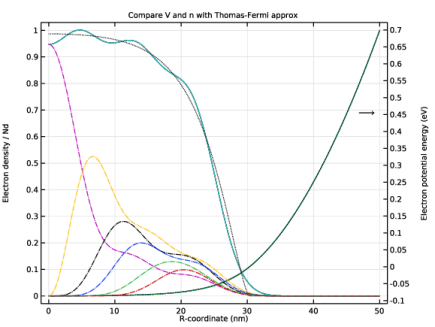
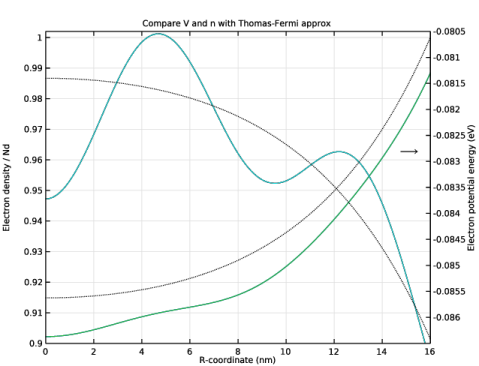
Figure 1 and Figure 2 show the electron density and confining potential, which compare well with Fig. 2 (lower panel) and 3 in Ref. 1, respectively.
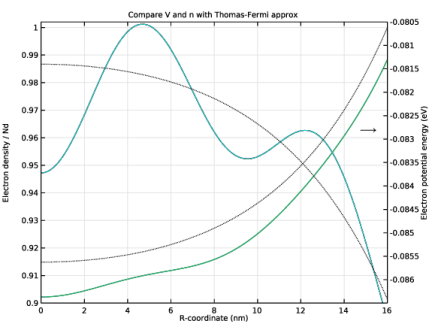
Figure 1: Zoomed-in plot to show the Friedel-type spatial oscillations.
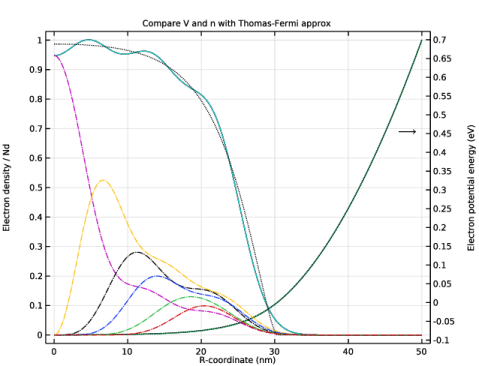
Figure 2: Zoomed-out plot with partial contributions from azimuthal quantum numbers.
Reference
1. J.H. Luscombe, A.M. Bouchard, and M. Luban, “Electron confinement in quantum nanostructures: Self-consistent Poisson-Schrödinger theory,” Phys. Rev. B, vol. 46, no. 16, p. 10262, 1992.
Application Library path: Semiconductor_Module/Quantum_Systems/schrodinger_poisson_nanowire
Modeling Instructions
From the File menu, choose New.
New
In the New window, click  Model Wizard.
Model Wizard
1
In the Model Wizard window, click  1D Axisymmetric.
2
In the Select Physics tree, select Semiconductor>Schrödinger-Poisson Equation.
3
Click Add.
4
Click  Study.
Since we will first solve for the Thomas-Fermi approximate solution, select the Stationary study type. We will add the dedicated Schrödinger-Poisson study later.
5
In the Select Study tree, select General Studies>Stationary.
6
Geometry 1
The Model Wizard starts the COMSOL Desktop at the Geometry node. Use this chance to select a convenient length unit.
1
In the Model Builder window, under Component 1 (comp1) click Geometry 1.
2
In the Settings window for Geometry, locate the Units section.
3
From the Length unit list, choose nm.
Load global parameters and local (spatially dependent) variables from files.
Global Definitions
Parameters 1
1
In the Model Builder window, under Global Definitions click Parameters 1.
2
In the Settings window for Parameters, locate the Parameters section.
3
Click  Load from File.
4
Definitions
Variables 1
1
In the Model Builder window, under Component 1 (comp1) right-click Definitions and choose Variables.
2
In the Settings window for Variables, locate the Variables section.
3
Click  Load from File.
4
The cross section of the nanowire is a simple radial line segment in the 1D axisymmetric geometry.
Geometry 1
Interval 1 (i1)
1
In the Model Builder window, under Component 1 (comp1) right-click Geometry 1 and choose Interval.
2
In the Settings window for Interval, locate the Interval section.
3
Create a blank material and enter the dielectric constant of GaAs defined as a global parameter previously.
Materials
Material 1 (mat1)
1
In the Model Builder window, under Component 1 (comp1) right-click Materials and choose Blank Material.
2
In the Settings window for Material, locate the Material Contents section.
3
Enter the global parameter m for the azimuthal quantum number into the corresponding input field in the Schrödinger Equation physics node, so that later we can use the Auxiliary sweep option in the study settings to solve for multiple values of the quantum number.
Schrödinger Equation (schr)
1
In the Model Builder window, under Component 1 (comp1) click Schrödinger Equation (schr).
2
In the Settings window for Schrödinger Equation, locate the Model Properties section.
3
In the m text field, type m.
Enter the global parameter meff for the effective mass.
Effective Mass 1
1
In the Model Builder window, under Component 1 (comp1)>Schrödinger Equation (schr) click Effective Mass 1.
2
In the Settings window for Effective Mass, locate the Effective Mass section.
3
In the meff,e,11 text field, type meff.
Since the electron potential energy will be provided by the Schrödinger-Poisson multiphysics coupling, set it to zero in the physics feature.
Electron Potential Energy 1
1
In the Model Builder window, click Electron Potential Energy 1.
2
In the Settings window for Electron Potential Energy, locate the Electron Potential Energy section.
3
From the Ve list, choose User defined. In the associated text field, type 0.
Set up the boundary condition for the electrostatics physics at the wall of the nanowire given by the Fermi level pinning at 0.7 V as discussed in the reference paper. Enable Advanced Physics Options to choose the Use weak constraints option to obtain accurate displacement field computation for the electrical neutrality check later after solving.
Electrostatics (es)
In the Model Builder window, under Component 1 (comp1) click Electrostatics (es).
Electric Potential 1
1
In the Physics toolbar, click  Boundaries and choose Electric Potential.
2
3
In the Settings window for Electric Potential, locate the Electric Potential section.
4
In the V0 text field, type V_R0.
5
Click the  Show More Options button in the Model Builder toolbar.
6
In the Show More Options dialog box, in the tree, select the check box for the node Physics>Advanced Physics Options.
7
8
In the Settings window for Electric Potential, click to expand the Constraint Settings section.
9
Select the Use weak constraints check box.
Add the space charge density contribution from the uniform distribution of ionized dopants.
Space Charge Density 1: Ionized dopants
1
In the Physics toolbar, click  Domains and choose Space Charge Density.
2
In the Settings window for Space Charge Density, type Space Charge Density 1: Ionized dopants in the Label text field.
3
Locate the Domain Selection section. From the Selection list, choose All domains.
4
Locate the Space Charge Density section. In the ρv text field, type e_const*Nd.
Add the space charge density contribution from the electrons under the Thomas-Fermi approximation. This contribution will be replaced by a statistically weighted sum of the probability densities of the eigenstates when solving the coupled Schrödinger-Poisson equation.
Space Charge Density 2: Thomas Fermi
1
In the Physics toolbar, click  Domains and choose Space Charge Density.
2
In the Settings window for Space Charge Density, type Space Charge Density 2: Thomas Fermi in the Label text field.
3
Locate the Domain Selection section. From the Selection list, choose All domains.
4
Locate the Space Charge Density section. In the ρv text field, type rho_TF.
For the Particle Density Computation section, the default option of Fermi-Dirac statistics with parabolic band approximation is suitable to compute the statistically weighted sum of the probability densities of the eigenstates for the electrons in the nanowire. Enter the previously defined global parameters for the temperature, Fermi energy level, and effective mass. To take into account the pairs of degenerate azimuthal quantum numbers, use the formula 1+(m>0) for the degeneracy factor, which evaluates to 1 for m=0 and 2 for m>0.
Multiphysics
Schrödinger-Poisson Coupling 1 (schrp1)
1
In the Model Builder window, under Component 1 (comp1)>Multiphysics click Schrödinger-Poisson Coupling 1 (schrp1).
2
In the Settings window for Schrödinger-Poisson Coupling, locate the Model Input section.
3
In the T text field, type T.
4
Locate the Particle Density Computation section. In the Ef text field, type Ef.
5
In the md text field, type meff.
6
In the gi text field, type 1+(m>0).
For the Charge Density Computation section, leave the charge number at the default of -1, appropriate for electrons. The formula for the Modified Gummel iteration is based on the limiting case of high temperature, nondegenerate systems. For systems at lower temperatures, convergence of the iteration can be accelerated with a judicious increase of the tuning parameter α. The default expression for the global error variable (schrp1.max(abs(V-schrp1.V_old)))/1[V] computes the max difference between the electric potential fields from the two most recent iterations, in the unit of V.
7
Locate the Charge Density Computation section. In the α text field, type 4.
Create a reasonably fine mesh.
Mesh 1
Edge 1
In the Mesh toolbar, click  Edge.
Distribution 1
1
Right-click Edge 1 and choose Distribution.
2
In the Settings window for Distribution, locate the Distribution section.
3
In the Number of elements text field, type 200.
The first study solves for the Thomas-Fermi approximate solution, which is fully configured in the Electrostatics physics interface, so we clear the check boxes for the Schrödinger Equation and the Schrödinger-Poisson Coupling in the study settings.
Study 1: Thomas-Fermi
1
In the Model Builder window, click Study 1.
2
In the Settings window for Study, type Study 1: Thomas-Fermi in the Label text field.
Step 1: Stationary
1
In the Model Builder window, under Study 1: Thomas-Fermi click Step 1: Stationary.
2
In the Settings window for Stationary, locate the Physics and Variables Selection section.
3
In the table, clear the Solve for check box for Schrödinger Equation (schr).
4
In the table, clear the Solve for check box for Schrödinger-Poisson Coupling 1 (schrp1).
5
In the Home toolbar, click  Compute.
Results
Electric Potential (es)
Now add the dedicated Schrödinger-Poisson study.
Add Study
1
In the Home toolbar, click  Add Study to open the Add Study window.
2
Go to the Add Study window.
3
Find the Studies subsection. In the Select Study tree, select Preset Studies for Selected Multiphysics>Schrödinger-Poisson.
4
Click Add Study in the window toolbar.
5
In the Home toolbar, click  Add Study to close the Add Study window.
Study 2
Step 1: Schrödinger-Poisson
For a completely new problem, it is often necessary to use the default Manual search option to find the range of the eigenenergies. Once the range is found, switch to the Region search option with appropriate settings for the range and number of eigenvalues, in order to ensure that all significant eigenstates are found by the solver. Here the estimated energy range is between -0.15 and 0.05 eV. Disable the contribution to the charge density from the Thomas-Fermi approximation as discussed earlier.
1
In the Settings window for Schrödinger-Poisson, locate the Study Settings section.
2
From the Eigenvalue search method list, choose Region.
3
Find the Search region subsection. In the Smallest real part text field, type -0.15.
4
In the Largest real part text field, type 0.05.
5
Locate the Physics and Variables Selection section. Select the Modify model configuration for study step check box.
6
In the tree, select Component 1 (comp1)>Electrostatics (es)>Space Charge Density 2: Thomas Fermi.
7
Click  Disable.
The default iteration method Minimization of global variable updates a table displaying the history of a global error variable after each iteration during the solution process. The built-in global error variable schrp1.global_err computes the max difference between the electric potential fields from the two most recent iterations, in the unit of V, as already configured in the Schrödinger-Poisson Coupling multiphysics node earlier. (Note that the prefix for the variable, in this case schrp1, should match the Name input field of the Schrödinger-Poisson Coupling multiphysics node.) Setting the tolerance to 1e-6 thus means the iteration ends after the max difference is less than 1 uV. Use the Thomas-Fermi approximate solution as the initial condition for this study.
8
Click to expand the Values of Dependent Variables section. Find the Initial values of variables solved for subsection. From the Settings list, choose User controlled.
9
From the Method list, choose Solution.
10
From the Study list, choose Study 1: Thomas-Fermi, Stationary.
Use the Auxiliary sweep functionality to solve for a list of nonnegative azimuthal quantum numbers. The negative ones are taken into account using the formula 1+(m>0) for the degeneracy factor as discussed earlier. The dedicated solver sequence automatically performs the statistically weighted sum of the probability densities of all the eigenstates.
11
Click to expand the Study Extensions section. Select the Auxiliary sweep check box.
12
13
Get initial value to generate default plots to be modified and plotted while solving.
14
In the Model Builder window, click Study 2.
15
In the Settings window for Study, type Study 2: Schrödinger-Poisson in the Label text field.
16
In the Study toolbar, click  Get Initial Value.
Results
Probability Density (schr)
For the plot group Probability Density (schr) to show the probability density of each eigenstate, point the dataset to the solution that stores the wave functions.
1
In the Settings window for 1D Plot Group, locate the Data section.
2
From the Dataset list, choose Study 2: Schrödinger-Poisson/Solution Store: Store Wave Function (sol4).
3
In the Probability Density (schr) toolbar, click  Plot.
Modify the plot group Compare n and V with Previous Iteration (schrp1) to be compared with the figures in the reference paper: Change the generic labels to be more specific to this model. Normalize the electron density with the ionized dopant concentration Nd.
Compare V and n with Thomas-Fermi approx
1
In the Model Builder window, right-click Compare n and V with Previous Iteration (schrp1) and choose Move Up four times.
2
In the Settings window for 1D Plot Group, type Compare V and n with Thomas-Fermi approx in the Label text field.
3
Click to expand the Title section. In the Title text area, type Compare V and n with Thomas-Fermi approx.
4
Locate the Plot Settings section. In the y-axis label text field, type Electron density / Nd.
5
In the Secondary y-axis label text field, type Electron potential energy (eV).
Electron Potential Energy
1
In the Model Builder window, expand the Compare V and n with Thomas-Fermi approx node, then click Potential Energy.
2
In the Settings window for Line Graph, type Electron Potential Energy in the Label text field.
3
Locate the y-Axis Data section.
4
Select the Description check box. In the associated text field, type Electron Potential Energy.
Electron Potential Energy from Previous Iteration
1
In the Model Builder window, under Results>Compare V and n with Thomas-Fermi approx click Potential Energy from Previous Iteration.
2
In the Settings window for Line Graph, type Electron Potential Energy from Previous Iteration in the Label text field.
3
Locate the y-Axis Data section.
4
Select the Description check box. In the associated text field, type Electron Potential Energy, Previous Iteration.
Electron Density from Weighted Sum
1
In the Model Builder window, under Results>Compare V and n with Thomas-Fermi approx click Particle Density from Weighted Sum.
2
In the Settings window for Line Graph, type Electron Density from Weighted Sum in the Label text field.
3
Locate the y-Axis Data section. In the Expression text field, type schrp1.n_sum/Nd.
4
Select the Description check box. In the associated text field, type Electron Density, Weighted Sum.
Electron Density
1
In the Model Builder window, under Results>Compare V and n with Thomas-Fermi approx click Particle Density.
2
In the Settings window for Line Graph, type Electron Density in the Label text field.
3
Locate the y-Axis Data section. In the Expression text field, type schrp1.rhoq/schrp1.q/Nd.
4
Select the Description check box. In the associated text field, type Electron Density.
Electron Density from Previous Iteration
1
In the Model Builder window, under Results>Compare V and n with Thomas-Fermi approx click Particle Density from Previous Iteration.
2
In the Settings window for Line Graph, type Electron Density from Previous Iteration in the Label text field.
3
Locate the y-Axis Data section. In the Expression text field, type schrp1.rhoq_old/schrp1.q/Nd.
4
Select the Description check box. In the associated text field, type Electron Density, Previous Iteration.
Add the electron density and potential energy profile from the Thomas-Fermi approximation for comparison. Since two y-axes are used, add an arrow to indicate that the potential energy profile uses the vertical scale on the right hand side.
Electron Density from Thomas-Fermi Approx
1
Right-click Electron Density from Previous Iteration and choose Duplicate.
2
In the Settings window for Line Graph, type Electron Density from Thomas-Fermi Approx in the Label text field.
3
Locate the Data section. From the Dataset list, choose Study 1: Thomas-Fermi/Solution 1 (sol1).
4
Locate the y-Axis Data section. In the Expression text field, type n_TF/Nd.
5
In the Description text field, type Electron Density, Thomas-Fermi.
6
Click to expand the Coloring and Style section. Find the Line style subsection. From the Line list, choose Dotted.
7
From the Color list, choose Black.
Electron Potential Energy from Thomas-Fermi Approx
1
Right-click Electron Density from Thomas-Fermi Approx and choose Duplicate.
2
In the Settings window for Line Graph, type Electron Potential Energy from Thomas-Fermi Approx in the Label text field.
3
Locate the y-Axis section. Select the Plot on secondary y-axis check box.
4
Locate the y-Axis Data section. In the Expression text field, type -V.
5
In the Description text field, type Electron Potential Energy, Thomas-Fermi.
Annotation 1
1
In the Model Builder window, right-click Compare V and n with Thomas-Fermi approx and choose Annotation.
2
In the Settings window for Annotation, locate the y-Axis section.
3
Select the Plot on secondary y-axis check box.
4
Locate the Annotation section. In the Text text field, type $\longrightarrow$.
5
Locate the Position section. In the r text field, type 46.
6
In the z text field, type 0.47.
7
Locate the Coloring and Style section. Clear the Show point check box.
8
Locate the Annotation section. Select the LaTeX markup check box.
Add the plot to be plotted while solving, then click compute and watch the progress of the iteration in the plot and in the table of absolute errors.
Study 2: Schrödinger-Poisson
Solver Configurations
In the Model Builder window, expand the Study 2: Schrödinger-Poisson>Solver Configurations node.
Solution 2 (sol2)
1
In the Model Builder window, expand the Study 2: Schrödinger-Poisson>Solver Configurations>Solution 2 (sol2)>Stationary Solver 2: Solve for Electric Potential node, then click Fully Coupled 1.
2
In the Settings window for Fully Coupled, click to expand the Results While Solving section.
3
Select the Plot check box.
4
From the Plot group list, choose Compare V and n with Thomas-Fermi approx.
5
In the Home toolbar, click  Compute.
Results
Compare V and n with Thomas-Fermi approx
Add a zoomed-in version of the plot to compare with Fig. 2 in the reference paper. Move the arrow indicator to a proper position.
Compare V and n with Thomas-Fermi approx 1
1
Right-click Compare V and n with Thomas-Fermi approx and choose Duplicate.
2
Right-click Compare V and n with Thomas-Fermi approx 1 and choose Move Up four times.
3
In the Settings window for 1D Plot Group, locate the Axis section.
4
Select the Manual axis limits check box.
5
In the x minimum text field, type 0.
6
In the x maximum text field, type 16.
7
In the y minimum text field, type 0.9.
8
In the y maximum text field, type 1.002.
9
In the Secondary y minimum text field, type -86.5e-3.
10
In the Secondary y maximum text field, type -80.5e-3.
Annotation 1
1
In the Model Builder window, expand the Compare V and n with Thomas-Fermi approx 1 node, then click Annotation 1.
2
In the Settings window for Annotation, locate the Position section.
3
In the r text field, type 14.5.
4
In the z text field, type -0.0827.
5
In the Compare V and n with Thomas-Fermi approx 1 toolbar, click  Plot.
Optionally, add the contribution to the electron density from each azimuthal quantum number to the original plot, to compare with Fig. 3 in the reference paper. The expression for the plot is slightly complicated but is only needed for visualizing the sub-contributions. Use the solution from the Solution Store: Store Wave Function (sol4) node in the solver sequence to provide data for the statistically weighted partial sums. The sum operator is used to do the summation and the withsol operator is used to select the solutions with the desired quantum number m to be summed over the eigenvalue lambda. Detailed discussions on the withsol operator can be found in the COMSOL Multiphysics Reference Manual.
Electron Density from m=0
1
In the Model Builder window, right-click Electron Density from Thomas-Fermi Approx and choose Duplicate.
2
In the Settings window for Line Graph, type Electron Density from m=0 in the Label text field.
3
Locate the y-Axis Data section. In the Expression text field, type sum(withsol('sol4',schrp1.ni,setval(m,0),setind(lambda,jj)),jj,1,4)/Nd.
4
In the Description text field, type m=0.
5
Locate the Coloring and Style section. Find the Line style subsection. From the Line list, choose Dash-dot.
6
From the Color list, choose Cycle.
Electron Density from m=+/-1
1
Right-click Electron Density from m=0 and choose Duplicate.
2
In the Settings window for Line Graph, type Electron Density from m=+/-1 in the Label text field.
3
Locate the y-Axis Data section. In the Expression text field, type sum(withsol('sol4',schrp1.ni,setval(m,1),setind(lambda,jj)),jj,1,4)/Nd.
4
In the Description text field, type |m|=1.
Electron Density from m=+/-2
1
Right-click Electron Density from m=+/-1 and choose Duplicate.
2
In the Settings window for Line Graph, type Electron Density from m=+/-2 in the Label text field.
3
Locate the y-Axis Data section. In the Expression text field, type sum(withsol('sol4',schrp1.ni,setval(m,2),setind(lambda,jj)),jj,1,4)/Nd.
4
In the Description text field, type |m|=2.
Electron Density from m=+/-3
1
Right-click Electron Density from m=+/-2 and choose Duplicate.
2
In the Settings window for Line Graph, type Electron Density from m=+/-3 in the Label text field.
3
Locate the y-Axis Data section. In the Expression text field, type sum(withsol('sol4',schrp1.ni,setval(m,3),setind(lambda,jj)),jj,1,3)/Nd.
4
In the Description text field, type |m|=3.
Electron Density from m=+/-4
1
Right-click Electron Density from m=+/-3 and choose Duplicate.
2
In the Settings window for Line Graph, type Electron Density from m=+/-4 in the Label text field.
3
Locate the y-Axis Data section. In the Expression text field, type sum(withsol('sol4',schrp1.ni,setval(m,4),setind(lambda,jj)),jj,1,3)/Nd.
4
In the Description text field, type |m|=4.
Electron Density from m=+/-5
1
Right-click Electron Density from m=+/-4 and choose Duplicate.
2
In the Settings window for Line Graph, type Electron Density from m=+/-5 in the Label text field.
3
Locate the y-Axis Data section. In the Expression text field, type sum(withsol('sol4',schrp1.ni,setval(m,5),setind(lambda,jj)),jj,1,2)/Nd.
4
In the Description text field, type |m|=5.
5
In the Compare V and n with Thomas-Fermi approx toolbar, click  Plot.
Finally check the charge neutrality as discussed in the reference paper. The built-in integration operator schrp1.int is used to compute the number of electrons per unit length inside the nanowire. This number is added to the contribution from the surface charge density given by the electric displacement field at the nanowire surface. The sum is then divided by the total number of ionized dopants per unit length. The ratio is subtracted by 1 to obtain the relative error.
Point Evaluation 1: check charge neutrality
1
In the Results toolbar, click  Point Evaluation.
2
In the Settings window for Point Evaluation, type Point Evaluation 1: check charge neutrality in the Label text field.
3
Locate the Data section. From the Dataset list, choose Study 2: Schrödinger-Poisson/Solution 2 (sol2).
4
5
Locate the Expressions section. In the table, enter the following settings:
6
Click  Evaluate.
We see that the relative error for charge neutrality is less than 1e-6.