You are viewing the documentation for an older COMSOL version. The latest version is available here.
PDF

Cascade Impactor
Introduction
A cascade impactor is an inertial particle separation device which separates the particles in aerosol based on their sizes. It has multiple stages, each of which can trap particles on a flat collector plate and is connected to the other stages by small nozzles. The nozzles become finer as the particles progress from the top stage to the bottom stage. Particle-laden air enters from the top inlet and pass through nozzles. The air jets from these nozzles impact on collector plates and each stage collects finer particles than its predecessor.
Model Definition
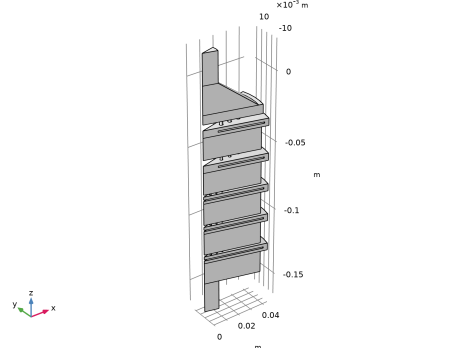
The geometry consists of an inlet at top attached to pre-separator stage followed by five stages with collector plates. These stages and collector plates are numbered from 0-4 starting from the top. Each collector stage has two parts, the upper part which contains the collector plates and the hollow lower part to let the aerosol flow downward. The diameters of collector plates at each stage are identical. The collector plates at stages 0 and 1 have a hole in the center which allows the aerosol with smaller particles to flow through the center and periphery of collector plates. The pre-separator stage and collector stages are connected by number of cylindrical nozzles. The top two stages and pre-separators are connected by larger nozzles while the bottom three stages are connected to each other by more finer nozzles. The outlet is located at the bottom of impactor. All the dimensions mentioned here can be changed by editing the parameters of geometry.
The aerosol containing spherical particles of density 2200 kg/m3 and sizes ranging from 1 μm to 5 μm enters the inlet at the flow rate of 3 l/min. The Gravity feature is used to apply gravitational force. The geometry is axially symmetrical so only a sector of geometry of 30° is built as shown in Figure 1 and the Symmetry feature is used which highly reduces the computational time. Drag and lift forces are applied in entire domain using the Drag Force and the Lift Force features.
Figure 1: Model geometry of a cascade impactor device.
Notes on COMSOL Implementation
The model is solved in two steps. First, the fluid velocity and pressure are solved using the Laminar Flow interface and Stationary study step. Then the particle trajectories are solved for using the Particle Tracing for Fluid Flow interface and Time Dependent study step.
A total of 2000 particles are released having random diameter between 1 μm and 5 μm. The particles are released along the inlet boundary with number density proportional to the fluid velocity magnitude. To release particles with random diameters, Specify particle diameter needs to be chosen from the Particle size distribution options in the Additional Variables section of the Particle Tracing for Fluid Flow interface. The Bounce wall condition is applied at the boundaries of all nozzles using the Wall feature to stop an inordinate amount of particles from getting frozen as they pass through the nozzles.
The relaxation time, τp, of particles in the Stokes drag law is given by
where
μ is the fluid viscosity (SI unit: Pa·s),
ρp is the particle density (SI unit: kg/m3), and
dp is the particle diameter (SI unit: m).
For the smallest particles in this model, the relaxation time is approximately 7 μs, which is about thousands times smaller than the maximum output time. However, the default time-dependent solver for most particle tracing models is a second-order implicit method that handles numerically stiff problems rather well, even when taking time steps that are larger than the relaxation time. Nevertheless, the smallest particles are still the main driver of the computational cost of transient inertial particle tracing simulations. In the Time Dependent study step, a time step of 0.008 s is used to reduce the number of result outputs. This time step is very large and can be a source of instability in the solution. So, a constant Maximum step constraint of 0.1 ms is used in the Time-Dependent Solver node under the Solver Configurations under the Study which limits the maximum time step size taken by the solver.
Results and Discussion
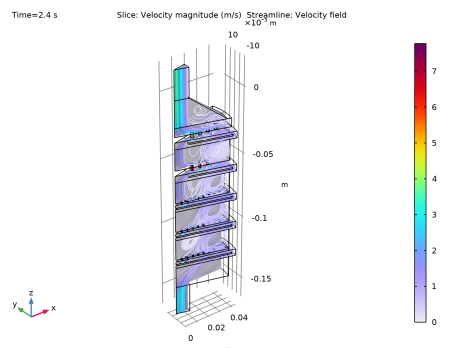
The velocity field and the streamlines are shown in Figure 2. As the flow is fully developed, velocity at center of inlet is higher. Fluid velocity further increases at nozzles due to smaller cross-sectional area. Fluid follows a specific path from inlet to outlet so laminar flow assumption works well. Some randomness in fluid path might occur for larger flow rate at inlet. In such situation, Turbulent Flow interface must be used.
Figure 2: Velocity field and streamlines for the fluid flow.
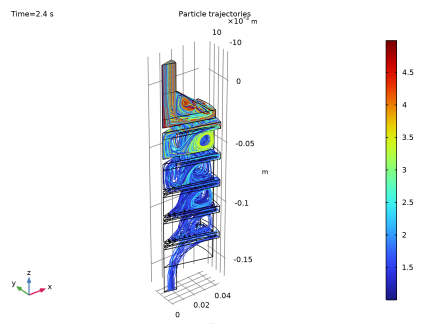
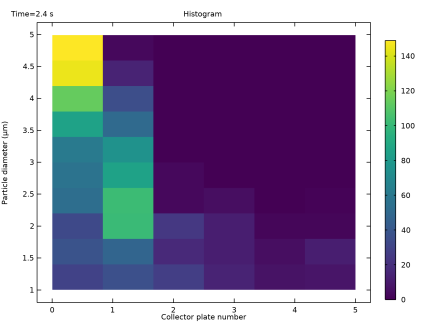
Larger particles are carried by air for shorter distance and ends up at the collector plates at stages 0 and 1 while smaller particles are carried to the deeper stages (Figure 3). This inertial particle separation is basic principle used in a cascade impactor. Different ranges of particles can be separated by adjusting the geometry and inlet fluid flow rate. Figure 4 is a 2D histogram that shows the particle sizes collected at different collector plates.
Because the model is fully parameterized, a natural extension would be to use a Parametric Sweep or some optimization functionality to study effect of different sized nozzles or varying inlet flow rate on the range of particle sizes collected at different stages.
Figure 3: Particle trajectories colored by particle size.
Figure 4: 2D histogram showing the range of particle size collected at each collector plates.
Application Library path: Particle_Tracing_Module/Fluid_Flow/cascade_impactor
Modeling Instructions
From the File menu, choose New.
New
In the New window, click  Model Wizard.
Model Wizard
1
In the Model Wizard window, click  3D.
2
In the Select Physics tree, select Fluid Flow>Single-Phase Flow>Laminar Flow (spf).
3
Click Add.
4
In the Select Physics tree, select Fluid Flow>Particle Tracing>Particle Tracing for Fluid Flow (fpt).
5
Click Add.
6
Click  Study.
7
In the Select Study tree, select Preset Studies for Some Physics Interfaces>Stationary.
8
Geometry 1
Insert the prepared geometry sequence from file. You can read the instructions for creating the geometry in the appendix.
1
In the Geometry toolbar, click  Insert Sequence.
2
3
In the Geometry toolbar, click  Build All. The geometry should look like Figure 1.
Definitions
Symmetry Boundaries
1
In the Definitions toolbar, click  Explicit.
2
In the Settings window for Explicit, type Symmetry Boundaries in the Label text field.
3
Locate the Input Entities section. From the Geometric entity level list, choose Boundary.
4
Next define a variable to indicate which plate, if any, each particle hits. The variable will be assigned different values for different boundary selections.
Variables 1
1
In the Definitions toolbar, click  Local Variables.
2
In the Settings window for Variables, locate the Geometric Entity Selection section.
3
From the Geometric entity level list, choose Boundary.
4
5
Locate the Variables section. In the table, enter the following settings:
Variables 2
1
Right-click Variables 1 and choose Duplicate.
2
3
In the Settings window for Variables, locate the Variables section.
4
Variables 3
1
Right-click Variables 2 and choose Duplicate.
2
3
In the Settings window for Variables, locate the Variables section.
4
Variables 4
1
Right-click Variables 3 and choose Duplicate.
2
3
In the Settings window for Variables, locate the Variables section.
4
Variables 5
1
Right-click Variables 4 and choose Duplicate.
2
3
In the Settings window for Variables, locate the Variables section.
4
Variables 6
1
Right-click Variables 5 and choose Duplicate.
2
3
In the Settings window for Variables, locate the Variables section.
4
Add Material
1
In the Home toolbar, click  Add Material to open the Add Material window.
2
Go to the Add Material window.
3
4
Click Add to Component in the window toolbar.
5
In the Home toolbar, click  Add Material to close the Add Material window.
Laminar Flow (spf)
1
In the Model Builder window, under Component 1 (comp1) click Laminar Flow (spf).
2
In the Settings window for Laminar Flow, locate the Physical Model section.
3
Select the Include gravity check box.
Inlet 1
1
In the Physics toolbar, click  Boundaries and choose Inlet.
2
3
In the Settings window for Inlet, locate the Boundary Condition section.
4
From the list, choose Fully developed flow.
5
Locate the Fully Developed Flow section. Click the Flow rate button.
6
In the V0 text field, type 3[l/min].
Outlet 1
1
In the Physics toolbar, click  Boundaries and choose Outlet.
2
Symmetry 1
1
In the Physics toolbar, click  Boundaries and choose Symmetry.
2
In the Settings window for Symmetry, locate the Boundary Selection section.
3
From the Selection list, choose Symmetry Boundaries.
Particle Tracing for Fluid Flow (fpt)
Allow particles to be released with a distribution of different sizes. The default behavior is to release particles with uniform diameter.
1
In the Model Builder window, under Component 1 (comp1) click Particle Tracing for Fluid Flow (fpt).
2
In the Settings window for Particle Tracing for Fluid Flow, locate the Additional Variables section.
3
From the Particle size distribution list, choose Specify particle diameter.
Particle Properties 1
1
In the Model Builder window, under Component 1 (comp1)>Particle Tracing for Fluid Flow (fpt) click Particle Properties 1.
2
In the Settings window for Particle Properties, locate the Particle Properties section.
3
From the ρp list, choose User defined. Use the default value of the particle density.
Wall 2
1
In the Physics toolbar, click  Boundaries and choose Wall.
2
In the Settings window for Wall, locate the Boundary Selection section.
3
From the Selection list, choose All Nozzles.
4
Locate the Wall Condition section. From the Wall condition list, choose Bounce.
Inlet 1
1
In the Physics toolbar, click  Boundaries and choose Inlet.
2
3
In the Settings window for Inlet, locate the Initial Position section.
4
From the Initial position list, choose Density.
5
In the N text field, type 2000.
6
In the ρ text field, type spf.U.
7
Locate the Initial Velocity section. From the u list, choose Velocity field (spf).
8
Locate the Initial Particle Diameter section. From the Distribution function list, choose Uniform.
9
From the Sampling from distribution list, choose Random.
10
In the dp,max text field, type 5[um].
For the minimum diameter, the default value is used.
Outlet 1
1
In the Physics toolbar, click  Boundaries and choose Outlet.
2
Symmetry 1
1
In the Physics toolbar, click  Boundaries and choose Symmetry.
Symmetry in a particle tracing context amounts to specular reflection with the assumption that for every particle that leaves the model geometry, a different particle enters the geometry with equal speed.
2
In the Settings window for Symmetry, locate the Boundary Selection section.
3
From the Selection list, choose Symmetry Boundaries.
Drag Force 1
1
In the Physics toolbar, click  Domains and choose Drag Force.
2
In the Settings window for Drag Force, locate the Domain Selection section.
3
From the Selection list, choose All domains.
4
Locate the Drag Force section. From the u list, choose Velocity field (spf).
Lift Force 1
1
In the Physics toolbar, click  Domains and choose Lift Force.
2
In the Settings window for Lift Force, locate the Domain Selection section.
3
From the Selection list, choose All domains.
4
Locate the Lift Force section. From the u list, choose Velocity field (spf).
Gravity Force 1
1
In the Physics toolbar, click  Domains and choose Gravity Force.
2
In the Settings window for Gravity Force, locate the Domain Selection section.
3
From the Selection list, choose All domains.
Study 1
Time Dependent
1
In the Study toolbar, click  Study Steps and choose Time Dependent>Time Dependent.
2
In the Settings window for Time Dependent, locate the Study Settings section.
3
In the Output times text field, type range(0,0.008,2.4).
4
Locate the Physics and Variables Selection section. In the table, enter the following settings:
Solution 1 (sol1)
1
In the Study toolbar, click  Show Default Solver.
2
In the Model Builder window, expand the Solution 1 (sol1) node, then click Time-Dependent Solver 1.
3
In the Settings window for Time-Dependent Solver, click to expand the Time Stepping section.
4
From the Maximum step constraint list, choose Constant.
5
In the Maximum step text field, type 0.0001.
The inertial particle tracing problem is numerically stiff, so a small time step is needed to resolve the acceleration of the particles.
6
In the Study toolbar, click  Compute.
Results
Slice
1
In the Model Builder window, expand the Results>Velocity (spf) node, then click Slice.
2
In the Settings window for Slice, locate the Plane Data section.
3
From the Plane list, choose zx-planes.
4
In the Planes text field, type 1.
5
Locate the Coloring and Style section. Click  Change Color Table.
6
In the Color Table dialog box, select Rainbow>Prism in the tree.
7
Velocity (spf)
In the Velocity (spf) toolbar, click  Streamline.
Streamline 1
1
In the Settings window for Streamline, locate the Streamline Positioning section.
2
From the Positioning list, choose Starting-point controlled.
3
In the Points text field, type 100.
4
Click to expand the Inherit Style section. From the Plot list, choose Slice.
Color Expression 1
1
In the Velocity (spf) toolbar, click  Color Expression.
2
Click  Plot. The plot should look like Figure 2.
Particle Trajectories 1
1
In the Model Builder window, expand the Results>Particle Trajectories (fpt) node, then click Particle Trajectories 1.
2
In the Settings window for Particle Trajectories, locate the Coloring and Style section.
3
Find the Line style subsection. From the Type list, choose Line.
Color Expression 1
1
In the Model Builder window, expand the Particle Trajectories 1 node, then click Color Expression 1.
2
In the Settings window for Color Expression, locate the Expression section.
3
In the Expression text field, type fpt.dp.
4
From the Unit list, choose µm.
5
In the Particle Trajectories (fpt) toolbar, click  Plot. The plot should look like Figure 3.
Histogram
1
In the Home toolbar, click  Add Plot Group and choose 2D Plot Group.
2
In the Settings window for 2D Plot Group, type Histogram in the Label text field.
3
Locate the Data section. From the Dataset list, choose Particle 1.
Histogram 1
1
In the Histogram toolbar, click  More Plots and choose Histogram.
2
In the Settings window for Histogram, locate the x-Expression section.
3
In the Expression text field, type bndenv(pn).
4
Select the Description check box. In the associated text field, type Collector plate number.
5
Locate the y-Expression section. In the Expression text field, type fpt.dp.
6
From the Unit list, choose µm.
7
Locate the Bins section. Find the x bins subsection. In the Number text field, type 6.
8
Locate the Output section. From the Function list, choose Discrete.
9
Locate the Coloring and Style section. Click  Change Color Table.
10
In the Color Table dialog box, select Linear>Viridis in the tree.
11
12
In the Histogram toolbar, click  Plot.
13
Click the  Zoom Extents button in the Graphics toolbar. The plot should look like Figure 4.
 
Appendix: Geometry Instructions
From the File menu, choose New.
New
In the New window, click  Model Wizard.
Model Wizard
1
In the Model Wizard window, click  3D.
2
Global Definitions
Parameters 1
1
In the Model Builder window, under Global Definitions click Parameters 1.
2
In the Settings window for Parameters, locate the Parameters section.
3
Click  Load from File.
4
Geometry 1
Work Plane 1 (wp1)
1
In the Geometry toolbar, click  Work Plane.
2
In the Settings window for Work Plane, locate the Plane Definition section.
3
From the Plane list, choose xz-plane.
Work Plane 1 (wp1)>Plane Geometry
In the Model Builder window, click Plane Geometry.
Work Plane 1 (wp1)>Rectangle 1 (r1)
1
In the Work Plane toolbar, click  Rectangle.
2
In the Settings window for Rectangle, locate the Size and Shape section.
3
In the Width text field, type Ri.
4
In the Height text field, type Ti.
5
Click  Build Selected.
6
Click the  Zoom Extents button in the Graphics toolbar.
Work Plane 1 (wp1)>Rectangle 2 (r2)
1
In the Work Plane toolbar, click  Rectangle.
2
In the Settings window for Rectangle, locate the Size and Shape section.
3
In the Width text field, type Rpsb.
4
In the Height text field, type Tpsb.
5
Locate the Position section. In the yw text field, type -Tps.
6
Click  Build Selected.
7
Click the  Zoom Extents button in the Graphics toolbar.
Work Plane 1 (wp1)>Polygon 1 (pol1)
1
In the Work Plane toolbar, click  Polygon.
2
In the Settings window for Polygon, locate the Coordinates section.
3
4
Click  Build Selected.
Work Plane 1 (wp1)>Rectangle 3 (r3)
1
In the Work Plane toolbar, click  Rectangle.
2
In the Settings window for Rectangle, locate the Size and Shape section.
3
In the Width text field, type Rch.
4
In the Height text field, type Tch.
5
Locate the Position section. In the yw text field, type -Tps-L0-Tch.
6
Click  Build Selected.
7
Click the  Zoom Extents button in the Graphics toolbar.
Work Plane 1 (wp1)>Rectangle 4 (r4)
1
In the Work Plane toolbar, click  Rectangle.
2
In the Settings window for Rectangle, locate the Size and Shape section.
3
In the Width text field, type Rc.
4
In the Height text field, type Tc.
5
Locate the Position section. In the yw text field, type -Tps-L0-Tch-Tc.
6
Click  Build Selected.
7
Click the  Zoom Extents button in the Graphics toolbar.
Work Plane 1 (wp1)>Rectangle 5 (r5)
1
In the Work Plane toolbar, click  Rectangle.
2
In the Settings window for Rectangle, locate the Size and Shape section.
3
In the Width text field, type Rcol12.
4
In the Height text field, type Tcol.
5
Locate the Position section. In the xw text field, type Rcol35-Rcol12.
6
In the yw text field, type -Tps-L0-Gap0-Tcol.
7
Click  Build Selected.
Work Plane 1 (wp1)>Difference 1 (dif1)
1
In the Work Plane toolbar, click  Booleans and Partitions and choose Difference.
2
3
In the Settings window for Difference, locate the Difference section.
4
Find the Objects to subtract subsection. Click to select the  Activate Selection toggle button.
5
6
Click  Build Selected.
Work Plane 1 (wp1)>Array 1 (arr1)
1
In the Work Plane toolbar, click  Transforms and choose Array.
2
Select the objects dif1 and r4 only.
3
In the Settings window for Array, locate the Size section.
4
In the yw size text field, type 2.
5
Locate the Displacement section. In the yw text field, type -L1-Tch-Tc.
6
Click  Build Selected.
7
Click the  Zoom Extents button in the Graphics toolbar.
Work Plane 1 (wp1)>Rectangle 6 (r6)
1
In the Work Plane toolbar, click  Rectangle.
2
In the Settings window for Rectangle, locate the Size and Shape section.
3
In the Width text field, type Rch.
4
In the Height text field, type Tch.
5
Locate the Position section. In the yw text field, type -Tps-L0-L1-L24-3*Tch-2*Tc.
6
Click  Build Selected.
7
Click the  Zoom Extents button in the Graphics toolbar.
Work Plane 1 (wp1)>Rectangle 7 (r7)
1
In the Work Plane toolbar, click  Rectangle.
2
In the Settings window for Rectangle, locate the Size and Shape section.
3
In the Width text field, type Rc.
4
In the Height text field, type Tc.
5
Locate the Position section. In the yw text field, type -Tps-L0-L1-L24-3*Tch-3*Tc.
6
Click  Build Selected.
7
Click the  Zoom Extents button in the Graphics toolbar.
Work Plane 1 (wp1)>Rectangle 8 (r8)
1
In the Work Plane toolbar, click  Rectangle.
2
In the Settings window for Rectangle, locate the Size and Shape section.
3
In the Width text field, type Rcol35.
4
In the Height text field, type Tcol.
5
Locate the Position section. In the yw text field, type -Tps-L0-L1-L24-2*Tch-2*Tc-Gap1-Tcol.
6
Click  Build Selected.
Work Plane 1 (wp1)>Difference 2 (dif2)
1
In the Work Plane toolbar, click  Booleans and Partitions and choose Difference.
2
3
In the Settings window for Difference, locate the Difference section.
4
Find the Objects to subtract subsection. Click to select the  Activate Selection toggle button.
5
6
Click  Build Selected.
Work Plane 1 (wp1)>Array 2 (arr2)
1
In the Work Plane toolbar, click  Transforms and choose Array.
2
Select the objects dif2 and r7 only.
3
In the Settings window for Array, locate the Size section.
4
In the yw size text field, type 3.
5
Locate the Displacement section. In the yw text field, type -L24-Tch-Tc.
6
Click  Build Selected.
7
Click the  Zoom Extents button in the Graphics toolbar.
Work Plane 1 (wp1)>Rectangle 9 (r9)
1
In the Work Plane toolbar, click  Rectangle.
2
In the Settings window for Rectangle, locate the Size and Shape section.
3
In the Width text field, type Re.
4
In the Height text field, type Te.
5
Locate the Position section. In the yw text field, type -Tps-L0-L1-3*L24-5*Tch-5*Tc-Te.
6
Click  Build Selected.
7
Click the  Zoom Extents button in the Graphics toolbar.
Revolve 1 (rev1)
1
In the Model Builder window, right-click Geometry 1 and choose Revolve.
2
In the Settings window for Revolve, locate the Revolution Angles section.
3
Click the Angles button.
4
In the Start angle text field, type -15.
5
In the End angle text field, type 15.
6
Click  Build Selected.
7
Click the  Zoom Extents button in the Graphics toolbar.
Cumulative Selections
In the Geometry toolbar, click  Selections and choose Cumulative Selections.
All Nozzles
1
Right-click Cumulative Selections and choose Cumulative Selection.
2
In the Settings window for Selection, type All Nozzles in the Label text field.
Thin Nozzles
1
In the Model Builder window, right-click Cumulative Selections and choose Cumulative Selection.
2
In the Settings window for Selection, type Thin Nozzles in the Label text field.
Cylinder 1 (cyl1)
1
In the Geometry toolbar, click  Cylinder.
2
In the Settings window for Cylinder, locate the Size and Shape section.
3
In the Radius text field, type R0.
4
In the Height text field, type L0.
5
Locate the Position section. In the x text field, type 14[mm].
6
In the z text field, type -Tps-L0.
7
Click  Build Selected.
Array 1 (arr1)
1
In the Geometry toolbar, click  Transforms and choose Array.
2
3
In the Settings window for Array, locate the Size section.
4
In the x size text field, type 4.
5
Locate the Displacement section. In the x text field, type D12.
6
Locate the Selections of Resulting Entities section. Find the Cumulative selection subsection. From the Contribute to list, choose All Nozzles.
7
Click  Build Selected.
Cylinder 2 (cyl2)
1
In the Geometry toolbar, click  Cylinder.
2
In the Settings window for Cylinder, locate the Size and Shape section.
3
In the Radius text field, type R1.
4
In the Height text field, type L1.
5
Locate the Position section. In the x text field, type 14[mm].
6
In the z text field, type -Tps-L0-Tch-Tc-L1.
7
Click  Build Selected.
Array 2 (arr2)
1
In the Geometry toolbar, click  Transforms and choose Array.
2
3
In the Settings window for Array, locate the Size section.
4
In the x size text field, type 4.
5
Locate the Displacement section. In the x text field, type D12.
6
Locate the Selections of Resulting Entities section. Find the Cumulative selection subsection. From the Contribute to list, choose All Nozzles.
7
Click  Build Selected.
Cylinder 3 (cyl3)
1
In the Geometry toolbar, click  Cylinder.
2
In the Settings window for Cylinder, locate the Size and Shape section.
3
In the Radius text field, type R2.
4
In the Height text field, type L24.
5
Locate the Position section. In the x text field, type 5[mm].
6
In the z text field, type -Tps-L0-L1-2*Tch-2*Tc-L24.
7
Click  Build Selected.
Array 3 (arr3)
1
In the Geometry toolbar, click  Transforms and choose Array.
2
3
In the Settings window for Array, locate the Size section.
4
In the x size text field, type 8.
5
Locate the Displacement section. In the x text field, type D35.
6
Locate the Selections of Resulting Entities section. Find the Cumulative selection subsection. From the Contribute to list, choose Thin Nozzles.
7
Click  Build Selected.
Array 4 (arr4)
1
In the Geometry toolbar, click  Transforms and choose Array.
2
In the Settings window for Array, locate the Input section.
3
From the Input objects list, choose Thin Nozzles.
4
Locate the Size section. In the z size text field, type 3.
5
Locate the Displacement section. In the z text field, type -L24-Tch-Tc.
6
Locate the Selections of Resulting Entities section. Find the Cumulative selection subsection. From the Contribute to list, choose Thin Nozzles.
7
Click  Build Selected.
Rotate 1 (rot1)
1
In the Geometry toolbar, click  Transforms and choose Rotate.
2
In the Settings window for Rotate, locate the Input section.
3
From the Input objects list, choose Thin Nozzles.
4
Locate the Rotation section. In the Angle text field, type -7.5 7.5.
5
Locate the Selections of Resulting Entities section. Find the Cumulative selection subsection. From the Contribute to list, choose All Nozzles.
6
Click  Build Selected.
Union 1 (uni1)
1
In the Geometry toolbar, click  Booleans and Partitions and choose Union.
2
Click the  Select All button in the Graphics toolbar.
3
In the Settings window for Union, locate the Union section.
4
Clear the Keep interior boundaries check box.
Form Union (fin)
In the Geometry toolbar, click  Build All.