
You are viewing the documentation for an older COMSOL version. The latest version is available here.
PDF

Topology Optimization of a Beam
with Milling Constraints
Introduction
This model is based on the Design Optimization of a Beam model. The model uses the Density Model feature to solve a structural topology optimization problem with milling constraints.
Model Definition
The model geometry (Figure 1) consists of two regions: A fixed domain on which a distributed load is applied and a design domain.
Figure 1: The model geometry with the Prescribed Material domain at the top.
The beam is made of aluminum and the displacement field is calculated under the assumption of linear elasticity. The displacement of the upper-right corner is constrained to be less than 0.2 mm.
For a detailed introduction to the use of structural topology optimization and how to use a Helmholtz filter for regularization, see the model Topology Optimization of an MBB Beam. The main points are that Young’s modulus varies spatially to reflect the material distribution. It is not possible to set zero void stiffness, as this causes the void displacement field to become undefined. This example considers milling constraints for the x and y directions, and this is implemented with two PDEs (n = 2):
The approach is inspired by Ref. 1, which uses a finite volume discretization, but in this case a stabilized finite element method is used to solve the convective equations.
Results and Discussion
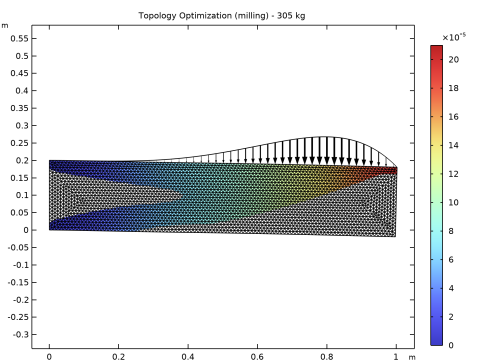
Figure 2 displays the result of optimization together with the distributed load and the mesh. The displacement field is shown in colors and the maximum value is located near the end of the beam.
Figure 2: The optimization removes material from both milling directions to reduce the mass as much as possible without violating the displacement constraint in the upper right corner.
Notes About the COMSOL Implementation
This model combines the Topology Optimization and Solid Mechanics interfaces. In this case, the default values of the Density Model work well, but for more complicated 3D problems it might be beneficial to apply a continuation strategy in p, β, and pmil. The model opts for smooth results in postprocessing by using a linear discretization for the milling variables, , but you can also use a constant discretization.
The model is nonlinear but only in the sense that it consists of a series of linear coupled problems. Therefore a Segregated solver can compute the solution in a single iteration.
Finally, the Optimization study step is recycled from the Design Optimization of a Beam model, but one could equally well have used a Topology Optimization study step in which case the move limit could be defined in that step. Using MMA instead of (the default) GCMMA would still require changing a setting on the Optimization Solver node. However, this is not strictly necessary, so the model can be solved without editing the solver sequence if a longer computational time is acceptable.
Reference
1. L Høghøj and E.A. Träff, “An advection–diffusion based filter for machinable designs in topology optimization,” Comp. Meth. App. Mech. & Eng., vol. 391, p. 114488, 2022.
Application Library path: Optimization_Module/Topology_Optimization/beam_optimization_milling
Modeling Instructions
Application Libraries
1
From the File menu, choose Application Libraries.
2
In the Application Libraries window, select Optimization Module>Design Optimization>beam_optimization in the tree.
3
Parameter Optimization, Shape Optimization
1
In the Model Builder window, Ctrl-click to select Parameter Optimization and Shape Optimization.
2
Component 1 (comp1)
In the Model Builder window, expand the Component 1 (comp1) node.
Shape Optimization
In the Model Builder window, expand the Component 1 (comp1)>Shape Optimization node.
Free Shape Domain 1, Polynomial Boundary 1, Symmetry/Roller 1
1
In the Model Builder window, under Component 1 (comp1)>Shape Optimization, Ctrl-click to select Free Shape Domain 1, Polynomial Boundary 1, and Symmetry/Roller 1.
2
3
Right-click Shape Optimization and choose Delete.
Global Definitions
Parameters 1
1
In the Model Builder window, expand the Topology Optimization node, then click Global Definitions>Parameters 1.
2
In the Settings window for Parameters, locate the Parameters section.
3
Topology Optimization
Density Model 1 (dtopo1)
1
In the Model Builder window, under Component 1 (comp1)>Topology Optimization click Density Model 1 (dtopo1).
2
In the Settings window for Density Model, click to expand the Milling section.
3
From the Milling constraints list, choose Enabled.
4
5
6
Locate the Filtering section. From the Rmin list, choose User defined.
7
8
Locate the Projection section. From the Projection type list, choose Hyperbolic tangent projection.
9
Locate the Control Variable Initial Value section. In the θ0 text field, type 0.1.
Mesh 1
Free Triangular 2
In the Mesh toolbar, click  Free Triangular.
Size
1
In the Model Builder window, click Size.
2
In the Settings window for Size, click to expand the Element Size Parameters section.
3
In the Maximum element size text field, type meshsz.
Topology Optimization
Optimization
1
In the Model Builder window, expand the Topology Optimization node, then click Optimization.
2
In the Settings window for Optimization, locate the Optimization Solver section.
3
Find the Solver settings subsection. In the Maximum number of model evaluations text field, type 1000.
4
Click Replace Expression in the upper-right corner of the Objective Function section. From the menu, choose Component 1 (comp1)>Definitions>Density Model 1>Global>comp1.dtopo1.theta_avg - Average material volume factor.
5
Locate the Objective Function section. In the table, enter the following settings:
Solver Configurations
In the Model Builder window, expand the Topology Optimization>Solver Configurations node.
Solution 5 (sol5)
1
In the Model Builder window, expand the Topology Optimization>Solver Configurations>Solution 5 (sol5) node.
2
Right-click Dependent Variables 1 and choose Update Variables.
3
In the Settings window for Optimization Solver, locate the Optimization Solver section.
4
Select the Maximum number of outer iterations check box. In the associated text field, type 50.
5
Clear the Globally Convergent MMA check box.
6
Select the Move limits check box.
7
In the Model Builder window, expand the Topology Optimization>Solver Configurations>Solution 5 (sol5)>Optimization Solver 1>Stationary 1 node.
8
Right-click Stationary 1 and choose Segregated.
9
In the Settings window for Segregated, locate the General section.
10
From the Termination technique list, choose Iterations.
11
Right-click Segregated 1 and choose Segregated Steptwice.
12
In the Settings window for Segregated Step, type Solid Mechanics in the Label text field.
13
Locate the General section. Under Variables, click  Add.
14
In the Add dialog box, in the Variables list, choose Control material volume factor (comp1.dtopo1.theta_c) and Displacement field (comp1.u).
15
16
In the Model Builder window, under Topology Optimization>Solver Configurations>Solution 5 (sol5)>Optimization Solver 1>Stationary 1>Segregated 1 click Segregated Step 1.
17
In the Settings window for Segregated Step, type Milling in the Label text field.
18
Locate the General section. Under Variables, click  Add.
19
In the Add dialog box, in the Variables list, choose Control material volume factor (comp1.dtopo1.theta_c), Milling material volume factor (comp1.dtopo1.theta_m1), and Milling material volume factor (comp1.dtopo1.theta_m2).
20
21
In the Model Builder window, under Topology Optimization>Solver Configurations>Solution 5 (sol5)>Optimization Solver 1>Stationary 1>Segregated 1 click Segregated Step.
22
In the Settings window for Segregated Step, type Optimization in the Label text field.
23
Locate the General section. In the Variables list, choose Milling material volume factor (comp1.dtopo1.theta_m1), Displacement field (comp1.u), and Milling material volume factor (comp1.dtopo1.theta_m2).
24
Under Variables, click  Delete.
Results
Topology Optimization
1
In the Model Builder window, expand the Results node, then click Topology Optimization.
2
In the Settings window for 2D Plot Group, click to expand the Title section.
3
In the Title text area, type Topology Optimization (milling) - eval(mass1.mass) kg.
4
From the Number format list, choose Stopwatch.
5
In the Number of decimals text field, type 0.
Topology Optimization
Optimization
In the Home toolbar, click  Compute.
Results
Topology Optimization
Click the  Zoom Extents button in the Graphics toolbar.