You are viewing the documentation for an older COMSOL version. The latest version is available here.
PDF

Free Surface Mixer Level Set
Introduction
This example of turbulent two-phase flow in a partially baffled mixer shows how to set up a time dependent, turbulent two-phase flow simulation together with a rotating domain. The interface between the two fluids, water and air, is modeled using a level-set approach, and turbulence is modeled using the k-ε turbulence model. The mixer geometry used in this model corresponds to the one used by J.-P. Torré and others (Ref. 1), and the results can be compared with experiments.
Model Definition
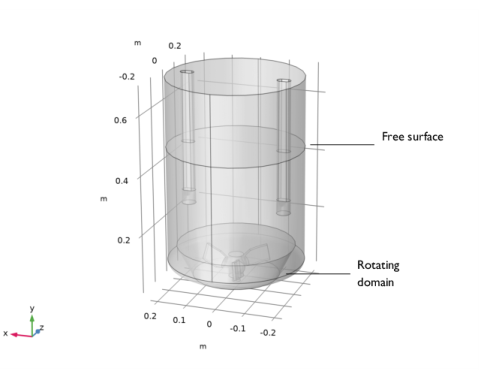
The mixer is a glass-lined, under-baffled stirred vessel. Figure 1 shows the model geometry. The mixer includes a three-bladed impeller and two beavertail baffles supported at the top of the vessel. The tank bottom is curved, allowing the three-bladed impeller to be placed close to the bottom. The cylindrical part of the tank has a diameter of 450 mm, and the initial water level is 467 mm. The two contoured baffles hang from the top of the mixer, and their lower part is 256 mm above the bottom of the vessel.
Figure 1: Geometry of the mixer with two rods and a three-bladed impeller.
The model uses a time dependent simulation starting from rest. The rotational velocity of the impeller is gradually increased until it reaches 275 rpm at t = 5 s, and the simulation is continued until t = 5.5 s. The flow in the mixer is modeled using a Two-Phase Flow, Level Set physics interface, to track the interface between water and air, with a k-ε turbulence model.
Results and Discussion
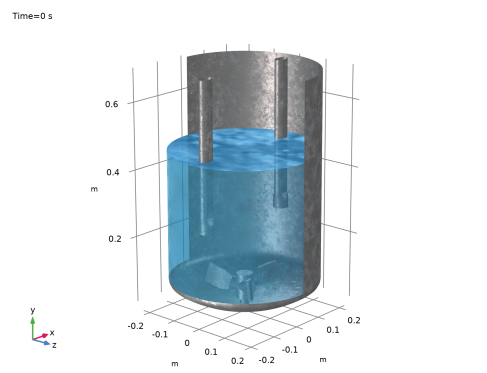
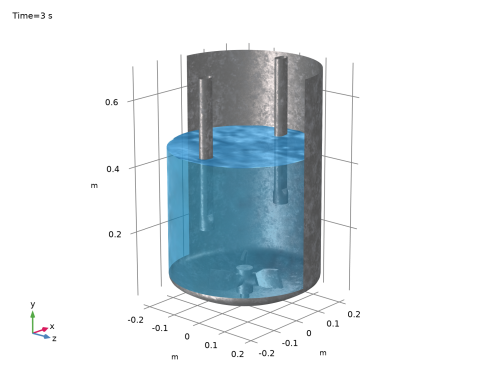
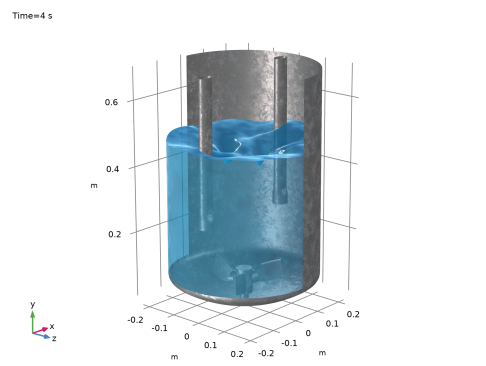
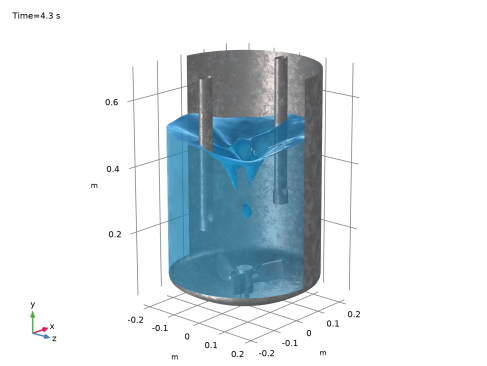
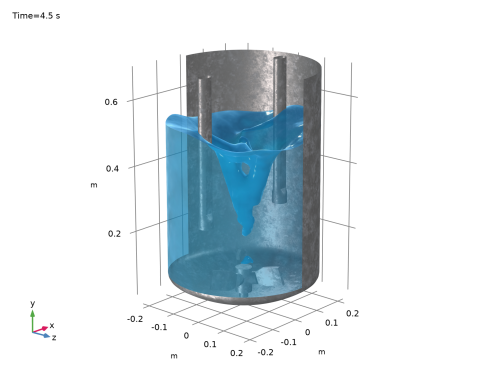
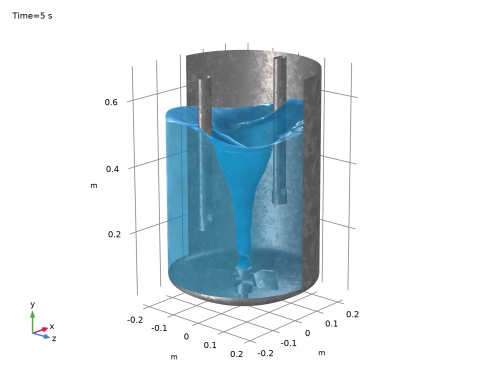
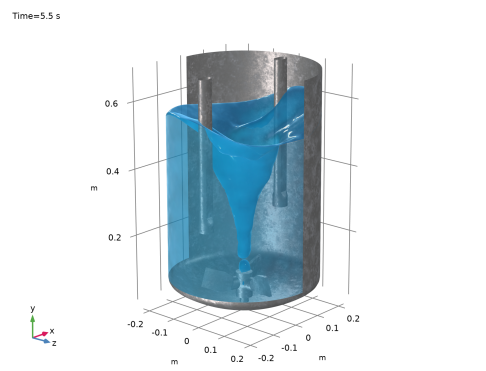
The results, presented in this section, focus on the shape of the unstable free surface. The free surface is plotted at different times in Figure 2 to Figure 8. The surface remains essentially unperturbed until, at around t = 4.0 s, it starts forming a “bath-tub vortex.” The vortex is fully developed and reaches the bottom at t = 4.5 s. Once the impeller reaches the maximum rotational velocity, at t = 5 s, the shape of the free surface agrees with the experimental and numerical results presented in Ref. 1. The vortex is more or less stable for a short while before it breaks at the impeller and air bubbles are entrained into the water bulk. This last stage is not included in this model, but can be observed if the simulation is extended for another second.
Figure 2: Water surface position at t = 0 s.
Figure 3: Water surface position at t = 3.0 s. The impeller is rotating at 187 rpm, but the rotation has not yet affected the shape of the free surface.
Figure 4: Water surface position at t = 4.0 s. The impeller is already rotating at 259 rpm, and the free surface has started to deform.
Figure 5: Water surface position at t = 4.3 s. The impeller is almost rotating at the maximum speed, and the free surface is forming a bath-tub vortex.
Figure 6: Water surface position at t = 4.5 s. The free surface has reached the impeller and the vortex remains semi-stable for about one second.
Figure 7: Water surface position at t = 5.0 s. The impeller has reached the maximum rotating velocity of 275 rpm. The vortex shape is fully developed and can be compared with experimental data.
Figure 8: Water surface position at t = 5.5 s. The mixer has been rotating at constant velocity for 0.5 s and the vortex remains more or less stable. Should the model be simulated for longer time, the vortex shape would break at the impeller and air bubbles would be shed away.
Notes About the COMSOL Implementation
The present application uses the Block-Navier–Stokes preconditioner instead of the default preconditioner for GMRES when solving the Navier–Stokes equations. This preconditioner can uncouple the pressure and velocity equations when solving, and may provide faster solutions for large time-dependent incompressible models with high Reynolds numbers or low viscosities.
Reference
1. J.-P. Torré and others, “An Experimental and Computational Study of the Vortex Shape in a Partially Baffled Agitated Vessel,” Chem. Eng. Sci., vol. 62, no. 7, pp. 1915–1926, 2007.
Application Library path: Mixer_Module/Tutorials/free_surface_mixer_ls
Modeling Instructions
From the File menu, choose New.
New
In the New window, click  Model Wizard.
Model Wizard
1
In the Model Wizard window, click  3D.
2
In the Select Physics tree, select Fluid Flow>Multiphase Flow>Rotating Machinery, Two-Phase Flow, Level Set>Turbulent Flow>Turbulent Flow, k-ε.
3
Click Add.
4
Click  Study.
5
In the Select Study tree, select Preset Studies for Selected Multiphysics>Time Dependent with Phase Initialization.
6
As the main focus will be on the physics and numerics, a detailed treatment of the geometry building procedure lies outside the scope of this tutorial. Instead, the geometry has been prepared in the file free_surface_mixer_geom_sequence.mph. You can start by inserting the geometry sequence from that file.
Geometry 1
1
In the Geometry toolbar, click  Insert Sequence.
2
3
In the Geometry toolbar, click  Build All.
Define a step function to be used when ramping up the rotational velocity.
Global Definitions
Step 1 (step1)
1
In the Home toolbar, click  Functions and choose Global>Step.
2
In the Settings window for Step, locate the Parameters section.
3
In the Location text field, type 2.5.
4
Click to expand the Smoothing section. In the Size of transition zone text field, type 5.
Moving Mesh
Rotating Domain 1
1
In the Model Builder window, under Component 1 (comp1)>Moving Mesh click Rotating Domain 1.
2
In the Settings window for Rotating Domain, locate the Domain Selection section.
3
4
Click  Remove from Selection.
5
6
Locate the Rotation section. In the f text field, type 275[rpm]*step1(t[1/s]).
7
Locate the Axis section. Specify the urot vector as
Add selections to be used when setting up the model and in the plots.
Definitions
All exterior boundaries
1
In the Definitions toolbar, click  Explicit.
2
In the Settings window for Explicit, type All exterior boundaries in the Label text field.
3
Locate the Input Entities section. Select the All domains check box.
4
Locate the Output Entities section. From the Output entities list, choose Adjacent boundaries.
Source and destination boundaries
1
In the Definitions toolbar, click  Explicit.
2
In the Settings window for Explicit, type Source and destination boundaries in the Label text field.
3
Locate the Input Entities section. From the Geometric entity level list, choose Boundary.
4
Click  Paste Selection.
5
In the Paste Selection dialog box, type 2 3 30 31 in the Selection text field.
6
Walls
1
In the Definitions toolbar, click  Difference.
2
In the Settings window for Difference, type Walls in the Label text field.
3
Locate the Geometric Entity Level section. From the Level list, choose Boundary.
4
Locate the Input Entities section. Under Selections to add, click  Add.
5
In the Add dialog box, select All exterior boundaries in the Selections to add list.
6
7
In the Settings window for Difference, locate the Input Entities section.
8
Under Selections to subtract, click  Add.
9
In the Add dialog box, select Source and destination boundaries in the Selections to subtract list.
10
Exterior boundaries to rotating domain
1
In the Definitions toolbar, click  Explicit.
2
In the Settings window for Explicit, type Exterior boundaries to rotating domain in the Label text field.
3
4
Locate the Output Entities section. From the Output entities list, choose Adjacent boundaries.
Impeller Walls
1
In the Definitions toolbar, click  Intersection.
2
In the Settings window for Intersection, type Impeller Walls in the Label text field.
3
Locate the Geometric Entity Level section. From the Level list, choose Boundary.
4
Locate the Input Entities section. Under Selections to intersect, click  Add.
5
In the Add dialog box, in the Selections to intersect list, choose Walls and Exterior boundaries to rotating domain.
6
Next, pick up the materials from the Material Library.
Add Material
1
In the Home toolbar, click  Add Material to open the Add Material window.
2
Go to the Add Material window.
3
In the tree, select Built-in>Water, liquid.
4
Click Add to Component in the window toolbar.
5
6
Click Add to Component in the window toolbar.
7
In the Home toolbar, click  Add Material to close the Add Material window.
8
Click the  Show More Options button in the Model Builder toolbar.
9
In the Show More Options dialog box, in the tree, select the check box for the node Physics>Advanced Physics Options.
10
Turbulent Flow, k-ε (spf)
1
In the Settings window for Turbulent Flow, k-ε, locate the Physical Model section.
2
Select the Include gravity check box.
3
Click to expand the Advanced Settings section. Find the Linear solver subsection. Select the Use Block Navier-Stokes preconditioner in time dependent studies check box.
Gravity 1
1
In the Model Builder window, under Component 1 (comp1)>Turbulent Flow, k-ε (spf) click Gravity 1.
2
In the Settings window for Gravity, locate the Acceleration of Gravity section.
3
Specify the g vector as
Next, set up an initial pressure that accounts for the presence of both phases.
Initial Values 1
1
In the Model Builder window, click Initial Values 1.
2
In the Settings window for Initial Values, locate the Initial Values section.
3
In the p text field, type tpf1.rho2*g_const*(0.7[m]-y)*ls.Vf2+tpf1.rho1*g_const*(0.4667[m]-y)*ls.Vf1.
4
Clear the Compensate for hydrostatic pressure check box.
Pressure Point Constraint 1
1
In the Physics toolbar, click  Points and choose Pressure Point Constraint.
2
3
In the Settings window for Pressure Point Constraint, locate the Pressure Constraint section.
4
Clear the Compensate for hydrostatic pressure check box.
Level Set (ls)
Initial Values, Fluid 2
1
In the Model Builder window, under Component 1 (comp1)>Level Set (ls) click Initial Values, Fluid 2.
2
Multiphysics
Two-Phase Flow, Level Set 1 (tpf1)
1
In the Model Builder window, under Component 1 (comp1)>Multiphysics click Two-Phase Flow, Level Set 1 (tpf1).
2
In the Settings window for Two-Phase Flow, Level Set, locate the Fluid 1 Properties section.
3
From the Fluid 1 list, choose Water, liquid (mat1).
4
Locate the Fluid 2 Properties section. From the Fluid 2 list, choose Air (mat2).
Wetted Wall, Automatic from frame
1
In the Physics toolbar, click  Multiphysics Couplings and choose Boundary>Wetted Wall.
2
In the Settings window for Wetted Wall, type Wetted Wall, Automatic from frame in the Label text field.
3
Locate the Boundary Selection section. From the Selection list, choose Walls.
4
5
Click  Remove from Selection.
The Translational velocity is set per default to Automatic from frame. This means that the boundaries adjacent to the Rotating Domain will rotate due to the angular velocity. However, boundary 32 (the base of the mixer) is adjacent to the Rotating Domain but should not rotate. Add a new Wetted Wall feature and set the Translational velocity to Zero (Fixed wall).
Wetted Wall, Fixed wall
1
In the Physics toolbar, click  Multiphysics Couplings and choose Boundary>Wetted Wall.
2
In the Settings window for Wetted Wall, type Wetted Wall, Fixed wall in the Label text field.
3
4
Locate the Wall Movement section. From the Translational velocity list, choose Zero (Fixed wall).
Mesh 1
1
In the Model Builder window, under Component 1 (comp1) click Mesh 1.
2
In the Settings window for Mesh, locate the Sequence Type section.
3
From the list, choose User-controlled mesh.
Size 1
In the Model Builder window, under Component 1 (comp1)>Mesh 1 right-click Size 1 and choose Build Selected.
Size 2
1
Right-click Component 1 (comp1)>Mesh 1>Size 1 and choose Duplicate.
2
In the Settings window for Size, locate the Geometric Entity Selection section.
3
From the Selection list, choose Impeller Walls.
Size 3
1
In the Model Builder window, right-click Mesh 1 and choose Size.
2
In the Settings window for Size, locate the Geometric Entity Selection section.
3
From the Geometric entity level list, choose Edge.
4
5
Locate the Element Size section. From the Calibrate for list, choose Fluid dynamics.
6
From the Predefined list, choose Finer.
7
Click  Build All.
Study 1
Step 2: Time Dependent
1
In the Model Builder window, under Study 1 click Step 2: Time Dependent.
2
In the Settings window for Time Dependent, locate the Study Settings section.
3
In the Output times text field, type range(0,0.1,5.5).
Solution 1 (sol1)
1
In the Study toolbar, click  Show Default Solver.
2
In the Model Builder window, expand the Solution 1 (sol1) node.
3
In the Model Builder window, expand the Study 1>Solver Configurations>Solution 1 (sol1)>Dependent Variables 2 node, then click Velocity field (spatial frame) (comp1.u).
4
In the Settings window for Field, locate the Scaling section.
5
From the Method list, choose Manual.
6
In the Scale text field, type 10.
7
In the Model Builder window, under Study 1>Solver Configurations>Solution 1 (sol1) click Time-Dependent Solver 1.
8
In the Settings window for Time-Dependent Solver, click to expand the Time Stepping section.
9
Find the Algebraic variable settings subsection. From the Consistent initialization list, choose Off.
The model starts with zero rotation velocity, so consistent initialization is not required.
10
Click  Compute.
Results
1
In the Settings window for Results, locate the Update of Results section.
2
Select the Only plot when requested check box.
Water Free Surface
1
In the Home toolbar, click  Add Plot Group and choose 3D Plot Group.
2
In the Settings window for 3D Plot Group, type Water Free Surface in the Label text field.
3
Click to expand the Title section. From the Title type list, choose Custom.
4
Find the Type and data subsection. Clear the Type check box.
5
Clear the Description check box.
6
Clear the Unit check box.
7
Locate the Plot Settings section. Clear the Plot dataset edges check box.
Surface 1
Right-click Water Free Surface and choose Surface.
Selection 1
1
In the Model Builder window, right-click Surface 1 and choose Selection.
2
In the Settings window for Selection, locate the Selection section.
3
From the Selection list, choose Walls.
4
In the list, choose 12, 16, and 18.
5
Click  Remove from Selection.
Material Appearance 1
1
In the Model Builder window, right-click Surface 1 and choose Material Appearance.
2
In the Settings window for Material Appearance, locate the Appearance section.
3
From the Appearance list, choose Custom.
4
From the Material type list, choose Iron (scratched).
Surface 2
1
In the Model Builder window, right-click Water Free Surface and choose Surface.
2
In the Settings window for Surface, click Replace Expression in the upper-right corner of the Expression section. From the menu, choose Component 1 (comp1)>Level Set>ls.Vf1 - Volume fraction of fluid 1.
3
Click to expand the Range section. Select the Manual data range check box.
4
In the Minimum text field, type 0.5.
5
In the Maximum text field, type 1.
Selection 1
1
Right-click Surface 2 and choose Selection.
2
Material Appearance 1
In the Model Builder window, right-click Surface 2 and choose Material Appearance.
Transparency 1
Right-click Surface 2 and choose Transparency.
Isosurface 1
1
In the Model Builder window, right-click Water Free Surface and choose Isosurface.
2
In the Settings window for Isosurface, locate the Expression section.
3
In the Expression text field, type ls.Vf1.
4
Locate the Levels section. In the Total levels text field, type 1.
Material Appearance 1
Right-click Isosurface 1 and choose Material Appearance.
Transparency 1
1
In the Model Builder window, right-click Isosurface 1 and choose Transparency.
2
In the Settings window for Transparency, locate the Transparency section.
3
Set the Transparency value to 0.15.
4
In the Water Free Surface toolbar, click  Plot.
Water Free Surface
1
In the Model Builder window, under Results click Water Free Surface.
2
In the Settings window for 3D Plot Group, locate the Data section.
3
From the Time (s) list, choose 5.5.
4
In the Water Free Surface toolbar, click  Plot.