You are viewing the documentation for an older COMSOL version. The latest version is available here.
PDF

A Micromachined Comb-Drive Tuning Fork Rate Gyroscope
Introduction
This tutorial model of a comb-drive tuning fork gyroscope is kindly provided by Dr. James Ransley at Veryst Engineering, LLC. The model demonstrates fully parameterized geometry, extensive use of selection features, implementation of analytic formulas for the electromechanical forces and response estimation, and comparison of numerical results with analytical estimations. In particular, extrusion operators are used to compute the distances between electrodes for force calculation. The device is loosely based on Ref. 1.
Model Definition
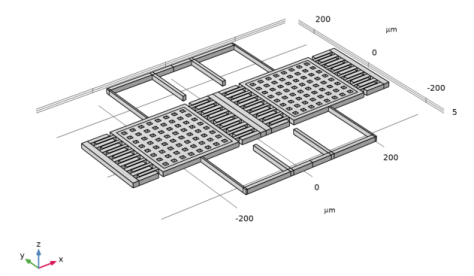
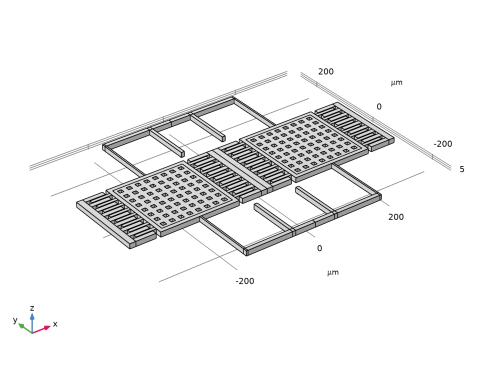
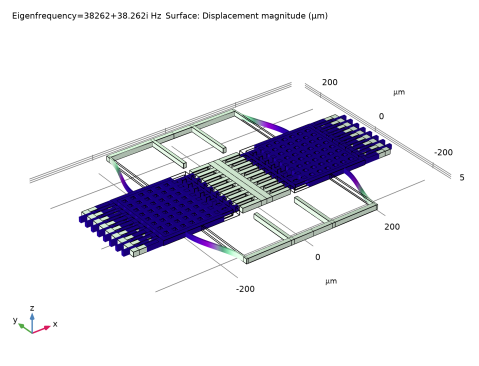
The geometry of the device is shown in the figure below. All dimensions and numbers of etch holes and comb fingers are parameterized in the model. Various selection features are used for the construction of the geometry and the setup of position-dependent variables, physics, and mesh.
Figure 1: The geometry of the gyroscope.
The gyroscope is composed of two proof masses supported by springs anchored to the substrate (not explicitly modeled). The comb drive excites the drive mode with the two masses oscillating along the X-axis in opposite directions. The device is designed to sense rotations around the Y-axis. The combination of such rotations and the drive-mode motion causes a Coriolis force in the positive and negative Z directions, which excites the out-of-plane sense-mode oscillation of the two masses. The sense-mode oscillation is picked up capacitively with electrodes in the substrate.
The combs are assumed to be DC-biased at 60 V and AC-excited at 3 V. The sense electrodes are assumed to be DC-biased at 5 V. While a predefined Electromechanics multiphysics coupling is available with the MEMS Module, this model demonstrates the use of analytic formulas for computing the electrostatic forces.
The implementation of the parallel plate capacitor forces in the model is based on the expression for the force per unit area between two parallel plates of infinite extent with a dielectric medium of relative permittivity 1 (air or vacuum) in between:
(1)
Here, ε0 is the permittivity of free space and d is the distance between the plates. This work uses this formula locally to approximate the forces between electrodes even when the plates are slightly misaligned, or near the edges of a structure where fringing fields might be important. These approximations make the model much more scalable and eliminate the need to solve for the field explicitly. They can be improved by adding empirically tuned fringing factors, determined by explicit calculations of the capacitance of the device.
The distance between the parallel plates can be determined using extrusion operators with the mesh search method set to “closest point” in the advanced settings. The operators will return the value of a given quantity at the closest point on the source surface, which is chosen to be the opposite plate of the capacitor. To ensure that the Jacobian of the operators is handled correctly, it is necessary to ensure that the dependent variables appear explicitly within the extrusion operators, which is why the coordinates of the moving surfaces are represented as X+u, and so on, in the expressions.
To understand the formulas added to implement the comb drive forces, consider the equation for the total force on any electrostatic actuator by using the equation
(2)
where C is the comb capacitance and x is the coordinate along the direction of travel of the comb. For this example, assume that the comb travels parallel to the x-axis; more sophisticated expressions can be employed to capture effects due to comb misalignment. For motion along the x-axis with a displacement of u, the corresponding capacitance per unit height of a comb face is given by
(3)
where C0 is the comb capacitance at zero displacement. The force per unit length of each vertical edge at the tip of the comb is therefore
(4)
As in the case of the parallel plate capacitors, the fidelity of the model can be improved by the calibration of fringing factors based on the accurate computation of the real capacitance of the structure.
Also note that several other techniques were used in the creation of the model. The signs of the forces are handled by assigning variables with different values to different edges or surfaces of the geometry. COMSOL’s sophisticated perturbation machinery is used to automatically add AC forces to the model by means of the linper() operator. The model also uses a parameter AC_on to zero out the perturbation terms for stationary studies so that they do not appear in a misleading fashion in the postprocessing of stationary solutions.
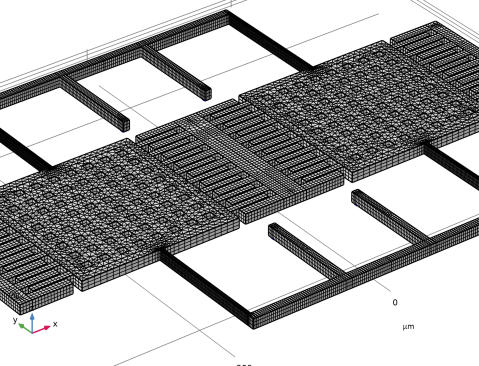
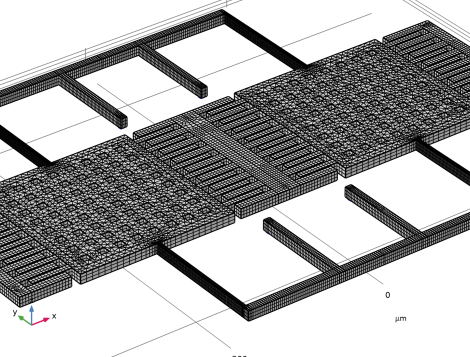
To save time and file size, a relatively coarse mesh is used. Nevertheless, the mesh is parameterized to be ready for refinement studies. In the follow-up model, Manufacturing Variation Effects in a Micromachined Comb-Drive Tuning Fork Rate Gyroscope, the Deformed Geometry feature will be used to study the effects of manufacturing variations, with the advantage that it keeps the same mesh while varying the geometry, thus avoiding unwanted variations caused by a different mesh being used for a different geometry.
Figure 2: The mesh used in the model.
Results and Discussion
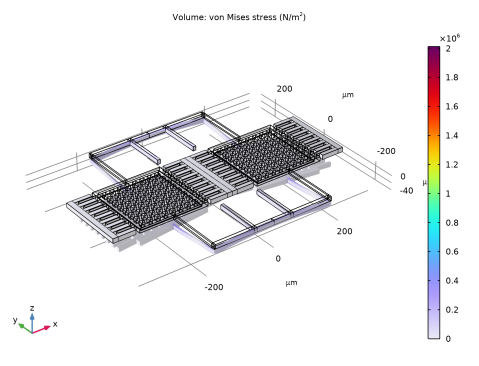
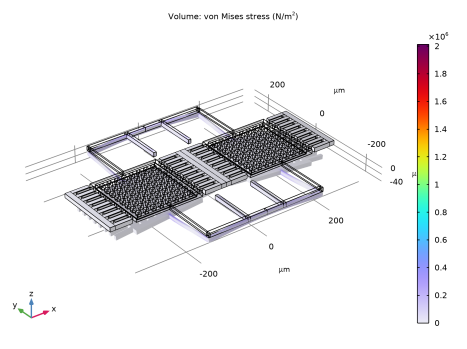
Figure 3 shows the stationary response of the device. The masses are pulled down slightly by the bias voltage of the sense electrodes. The masses do not move horizontally since the DC part of the comb drive forces for each mass are equal and in opposite directions so they cancel out.
Figure 3: Stationary response of the device.
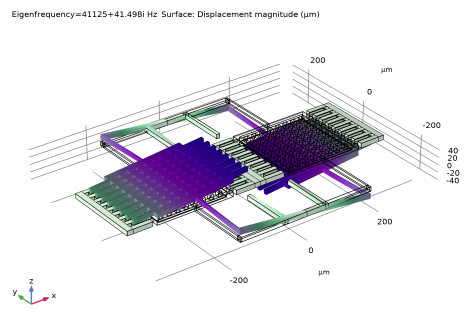
Figure 4 and Figure 5 show the eigenfrequencies and mode shapes of the in-plane drive mode and the out-of-plane sense mode, respectively.
Figure 4: Drive mode shape.
Figure 5: Sense mode shape.
The drive-mode and sense-mode resonant frequencies can be estimated with analytic formulas from standard textbooks (for example, Ref. 2). This can be done easily in a Parameters table in the model, as detailed in the Modeling Instructions section. The agreement between the numerical and analytic results is good; see Table 1.
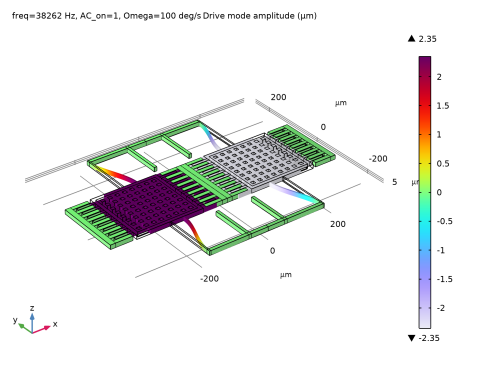
Figure 6 shows the drive-mode displacement under the simulated operation. The amplitude can be read off from the color legend.
Figure 6: The drive mode displacement.
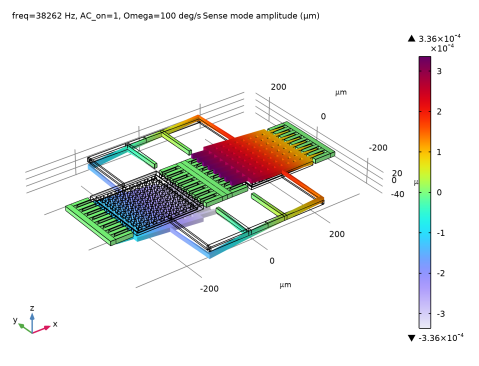
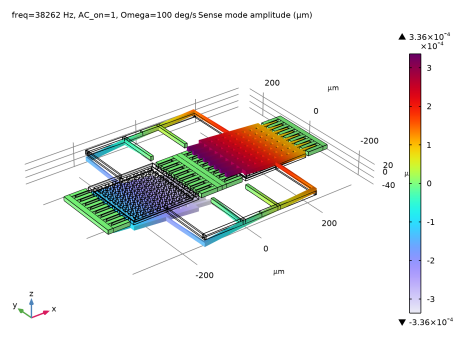
Figure 7 shows the sense-mode displacement. Due to the tilt of the masses, the amplitude is either read off the Evaluation 3D table after clicking around the centers of the masses, or evaluated using an average operator, as detailed in the Modeling Instructions section.
Figure 7: The sense-mode displacement.
The drive-mode and sense-mode amplitudes are also estimated with analytic formulas. The agreement between the numerical and analytic results is good; see Table 2.
Finally, the sensitivity in terms of the sense capacitance change per rotation rate, in the units of aF/(deg/s), is computed using two alternative methods. Both give the same value of 0.23 aF/(deg/s). The capacitance amplitude at the rotation rate of 100 deg/s is 23 aF.
Reference
1. J. Bernstein, S. Cho, A. T. King, A. Kourepenis, P. Maciel, and M. Weinberg, “A micromachined comb-drive tuning fork rate gyroscope,” Proceedings IEEE Micro Electro Mechanical Systems, Fort Lauderdale, FL, USA, 1993, pp. 143–148.
2. V. Kaajakari, Practical MEMS, Small Gear Pub. (Las Vegas, Nev.), 2009.
Application Library path: MEMS_Module/Sensors/comb_drive_tuning_fork_gyroscope
Modeling Instructions
From the File menu, choose New.
New
In the New window, click  Model Wizard.
Model Wizard
1
In the Model Wizard window, click  3D.
2
In the Select Physics tree, select Structural Mechanics>Solid Mechanics (solid).
3
Click Add.
4
Click  Study.
5
In the Select Study tree, select General Studies>Stationary.
6
Geometry 1
The Model Wizard starts the COMSOL Desktop at the Geometry node. Take the opportunity to set the length unit to microns for convenience.
1
In the Model Builder window, under Component 1 (comp1) click Geometry 1.
2
In the Settings window for Geometry, locate the Units section.
3
From the Length unit list, choose µm.
Enter model parameters in separate Parameters nodes according to the purposes of the parameters. First the ones for the geometry and mesh:
Global Definitions
Parameters 1 - Geometry & Mesh
1
In the Model Builder window, under Global Definitions click Parameters 1.
2
In the Settings window for Parameters, type Parameters 1 - Geometry & Mesh in the Label text field.
3
Locate the Parameters section. In the table, enter the following settings:
Then create a new Parameters node for the physics settings. Note the parameter AC_on will be used to control the on/off of the AC driving voltage.
Parameters 2 - Physics
1
In the Home toolbar, click  Parameters and choose Add>Parameters.
2
In the Settings window for Parameters, type Parameters 2 - Physics in the Label text field.
3
Locate the Parameters section. In the table, enter the following settings:
Create the geometry. Note how various Selection features are used to label collections of geometric objects to make it easier to set up physics and mesh later. Note how Boolean and Transform operations can inherit the Cumulative selection of their input objects. First build the proof masses.
Geometry 1
Work Plane 1 - Mass
1
In the Geometry toolbar, click  Work Plane.
2
In the Settings window for Work Plane, type Work Plane 1 - Mass in the Label text field.
Work Plane 1 - Mass (wp1)>Plane Geometry
In the Model Builder window, click Plane Geometry.
Rectangle 1 - Mass: +X
1
In the Work Plane toolbar, click  Rectangle.
2
In the Settings window for Rectangle, type Rectangle 1 - Mass: +X in the Label text field.
3
Locate the Size and Shape section. In the Width text field, type l_mass.
4
In the Height text field, type w_mass.
5
Locate the Position section. From the Base list, choose Center.
6
In the xw text field, type y_spring_l/2.
7
Locate the Selections of Resulting Entities section. Find the Cumulative selection subsection. Click New.
8
In the New Cumulative Selection dialog box, type Mass in the Name text field.
9
Work Plane 1 - Mass (wp1)>Rectangle 1 - Mass: +X 1 (r2)
1
Right-click Rectangle 1 - Mass: +X and choose Duplicate.
2
In the Settings window for Rectangle, type Rectangle 2 - Footprint of sense electrode in the Label text field.
3
Locate the Size and Shape section. In the Width text field, type electrode_ratio*l_mass.
4
In the Height text field, type electrode_ratio*w_mass.
Point 1 - For mesh copy
1
In the Work Plane toolbar, click  Point.
2
In the Settings window for Point, type Point 1 - For mesh copy in the Label text field.
3
Locate the Point section. In the xw text field, type y_spring_l/2-electrode_ratio*l_mass/2.
4
In the yw text field, type electrode_ratio*w_mass/5.
5
Locate the Selections of Resulting Entities section. Find the Cumulative selection subsection. From the Contribute to list, choose Mass.
Work Plane 1 - Mass (wp1)>Rectangle 3 (r3)
1
In the Work Plane toolbar, click  Rectangle.
2
In the Settings window for Rectangle, locate the Size and Shape section.
3
In the Width text field, type etch_dim.
4
In the Height text field, type etch_dim.
5
Locate the Position section. From the Base list, choose Center.
6
In the xw text field, type y_spring_l/2+w_mass/2-w_mass/(n_etch_x+1).
7
In the yw text field, type l_mass/2-l_mass/(n_etch_x+1).
8
Locate the Selections of Resulting Entities section. Find the Cumulative selection subsection. Click New.
9
In the New Cumulative Selection dialog box, type Subtract in the Name text field.
10
Work Plane 1 - Mass (wp1)>Array 1 (arr1)
1
In the Work Plane toolbar, click  Transforms and choose Array.
2
In the Settings window for Array, locate the Input section.
3
From the Input objects list, choose Subtract.
4
Locate the Size section. In the xw size text field, type n_etch_x.
5
In the yw size text field, type n_etch_y.
6
Locate the Displacement section. In the xw text field, type -w_mass/(n_etch_x+1).
7
In the yw text field, type -l_mass/(n_etch_x+1).
Work Plane 1 - Mass (wp1)>Difference 1 (dif1)
1
In the Work Plane toolbar, click  Booleans and Partitions and choose Difference.
2
In the Settings window for Difference, locate the Difference section.
3
From the Objects to add list, choose Mass.
4
From the Objects to subtract list, choose Subtract.
Work Plane 1 - Mass (wp1)>Mirror 1 (mir1)
1
In the Work Plane toolbar, click  Transforms and choose Mirror.
2
In the Settings window for Mirror, locate the Input section.
3
From the Input objects list, choose Mass.
4
Select the Keep input objects check box.
Extrude 1 - Mass
1
In the Model Builder window, right-click Geometry 1 and choose Extrude.
2
In the Settings window for Extrude, type Extrude 1 - Mass in the Label text field.
3
Locate the Distances section. In the table, enter the following settings:
4
Locate the Selections of Resulting Entities section. Select the Resulting objects selection check box.
5
From the Show in physics list, choose All levels.
6
Click  Build Selected.
Then build the anchors.
Work Plane 2 - Anchors
1
In the Geometry toolbar, click  Work Plane.
2
In the Settings window for Work Plane, type Work Plane 2 - Anchors in the Label text field.
Work Plane 2 - Anchors (wp2)>Plane Geometry
In the Model Builder window, click Plane Geometry.
Rectangle 1 - Spring Anchor
1
In the Work Plane toolbar, click  Rectangle.
2
In the Settings window for Rectangle, type Rectangle 1 - Spring Anchor in the Label text field.
3
Locate the Size and Shape section. In the Width text field, type w_anchor.
4
In the Height text field, type w_anchor.
5
Locate the Position section. From the Base list, choose Center.
6
In the xw text field, type tether_x.
7
In the yw text field, type l_mass/2+x_spring_l+y_spring_w/2-y_spring_w/2-tether_l+w_anchor.
8
Locate the Selections of Resulting Entities section. Find the Cumulative selection subsection. Click New.
9
In the New Cumulative Selection dialog box, type Anchors in the Name text field.
10
Work Plane 2 - Anchors (wp2)>Rectangle 1 - Spring Anchor 1 (r2)
1
Right-click Rectangle 1 - Spring Anchor and choose Duplicate.
2
In the Settings window for Rectangle, type Rectangle 2 - Stator Anchor in the Label text field.
3
Locate the Position section. In the xw text field, type y_spring_l/2+w_mass/2+w_stator_base/2+2*l_rotor-rotor_stator_overlap.
4
In the yw text field, type l_mass/2-0.5*l_mass/(n_combs+1).
Work Plane 2 - Anchors (wp2)>Mirror 1 (mir1)
1
In the Work Plane toolbar, click  Transforms and choose Mirror.
2
In the Settings window for Mirror, locate the Input section.
3
From the Input objects list, choose Anchors.
4
Select the Keep input objects check box.
Work Plane 2 - Anchors (wp2)>Rectangle 2 - Stator Anchor 1 (r3)
1
In the Model Builder window, under Component 1 (comp1)>Geometry 1>Work Plane 2 - Anchors (wp2)>Plane Geometry right-click Rectangle 2 - Stator Anchor (r2) and choose Duplicate.
2
In the Settings window for Rectangle, type Rectangle 3 - Stator Anchor 2 in the Label text field.
3
Locate the Position section. In the xw text field, type 0.
Work Plane 2 - Anchors (wp2)>Mirror 2 (mir2)
1
In the Work Plane toolbar, click  Transforms and choose Mirror.
2
In the Settings window for Mirror, locate the Input section.
3
From the Input objects list, choose Anchors.
4
Select the Keep input objects check box.
5
Locate the Normal Vector to Line of Reflection section. In the xw text field, type 0.
6
In the yw text field, type 1.
Extrude 2 - Anchors
1
In the Model Builder window, right-click Geometry 1 and choose Extrude.
2
In the Settings window for Extrude, type Extrude 2 - Anchors in the Label text field.
3
Locate the Distances section. In the table, enter the following settings:
4
Select the Reverse direction check box.
5
Locate the Selections of Resulting Entities section. Select the Resulting objects selection check box.
6
From the Show in physics list, choose All levels.
7
Click  Build Selected.
Next build the springs.
Work Plane 3 - Springs
1
In the Geometry toolbar, click  Work Plane.
2
In the Settings window for Work Plane, type Work Plane 3 - Springs in the Label text field.
Work Plane 3 - Springs (wp3)>Plane Geometry
In the Model Builder window, click Plane Geometry.
Rectangle 1 - Y Spring: +Y
1
In the Work Plane toolbar, click  Rectangle.
2
In the Settings window for Rectangle, type Rectangle 1 - Y Spring: +Y in the Label text field.
3
Locate the Size and Shape section. In the Width text field, type y_spring_l+x_spring_w.
4
In the Height text field, type y_spring_w.
5
Locate the Position section. From the Base list, choose Center.
6
In the yw text field, type l_mass/2+x_spring_l+y_spring_w/2.
7
Locate the Selections of Resulting Entities section. Find the Cumulative selection subsection. Click New.
8
In the New Cumulative Selection dialog box, type Mirror Y in the Name text field.
9
Rectangle 2 - X Spring: +X +Y
1
In the Work Plane toolbar, click  Rectangle.
2
In the Settings window for Rectangle, type Rectangle 2 - X Spring: +X +Y in the Label text field.
3
Locate the Size and Shape section. In the Width text field, type x_spring_w.
4
In the Height text field, type x_spring_l+y_spring_w.
5
Locate the Position section. From the Base list, choose Center.
6
In the xw text field, type y_spring_l/2.
7
In the yw text field, type l_mass/2+x_spring_l/2+y_spring_w/2.
8
Locate the Selections of Resulting Entities section. Find the Cumulative selection subsection. Click New.
9
In the New Cumulative Selection dialog box, type Mirror XY in the Name text field.
10
Rectangle 3 - Tether: +X +Y
1
In the Work Plane toolbar, click  Rectangle.
2
In the Settings window for Rectangle, type Rectangle 3 - Tether: +X +Y in the Label text field.
3
Locate the Size and Shape section. In the Width text field, type tether_w.
4
In the Height text field, type tether_l+y_spring_w.
5
Locate the Position section. In the xw text field, type tether_x-tether_w/2.
6
In the yw text field, type l_mass/2+x_spring_l+y_spring_w/2-y_spring_w/2-tether_l.
7
Locate the Selections of Resulting Entities section. Find the Cumulative selection subsection. From the Contribute to list, choose Mirror XY.
Work Plane 3 - Springs (wp3)>Mirror 1 (mir1)
1
In the Work Plane toolbar, click  Transforms and choose Mirror.
2
In the Settings window for Mirror, locate the Input section.
3
From the Input objects list, choose Mirror XY.
4
Select the Keep input objects check box.
5
Locate the Normal Vector to Line of Reflection section. In the xw text field, type 0.
6
In the yw text field, type 1.
Work Plane 3 - Springs (wp3)>Mirror 2 (mir2)
1
In the Work Plane toolbar, click  Transforms and choose Mirror.
2
In the Settings window for Mirror, locate the Input section.
3
From the Input objects list, choose Mirror XY.
4
Select the Keep input objects check box.
Work Plane 3 - Springs (wp3)>Mirror 3 (mir3)
1
In the Work Plane toolbar, click  Transforms and choose Mirror.
2
In the Settings window for Mirror, locate the Input section.
3
From the Input objects list, choose Mirror Y.
4
Locate the Normal Vector to Line of Reflection section. In the xw text field, type 0.
5
In the yw text field, type 1.
6
Locate the Input section. Select the Keep input objects check box.
Extrude 3 - Springs
1
In the Model Builder window, right-click Geometry 1 and choose Extrude.
2
In the Settings window for Extrude, type Extrude 3 - Springs in the Label text field.
3
Locate the Distances section. In the table, enter the following settings:
4
Locate the Selections of Resulting Entities section. Select the Resulting objects selection check box.
5
From the Show in physics list, choose All levels.
6
Click  Build Selected.
Then build the rotor combs.
Work Plane 4 - Rotors
1
In the Geometry toolbar, click  Work Plane.
2
In the Settings window for Work Plane, type Work Plane 4 - Rotors in the Label text field.
Work Plane 4 - Rotors (wp4)>Plane Geometry
In the Model Builder window, click Plane Geometry.
Rectangle 1 - 1st Comb
1
In the Work Plane toolbar, click  Rectangle.
2
In the Settings window for Rectangle, type Rectangle 1 - 1st Comb in the Label text field.
3
Locate the Size and Shape section. In the Width text field, type l_rotor.
4
In the Height text field, type w_rotor.
5
Locate the Position section. From the Base list, choose Center.
6
In the xw text field, type y_spring_l/2+w_mass/2+l_rotor/2.
7
In the yw text field, type w_mass/2-rotor_spacing-w_rotor/2.
8
Locate the Selections of Resulting Entities section. Find the Cumulative selection subsection. Click New.
9
In the New Cumulative Selection dialog box, type Rotors in the Name text field.
10
Work Plane 4 - Rotors (wp4)>Array 1 (arr1)
1
In the Work Plane toolbar, click  Transforms and choose Array.
2
In the Settings window for Array, locate the Input section.
3
From the Input objects list, choose Rotors.
4
Locate the Size section. From the Array type list, choose Linear.
5
In the Size text field, type n_combs.
6
Locate the Displacement section. In the yw text field, type -(rotor_spacing+w_rotor).
Work Plane 4 - Rotors (wp4)>Mirror 1 (mir1)
1
In the Work Plane toolbar, click  Transforms and choose Mirror.
2
In the Settings window for Mirror, locate the Input section.
3
From the Input objects list, choose Rotors.
4
Select the Keep input objects check box.
5
Locate the Point on Line of Reflection section. In the xw text field, type y_spring_l/2.
Work Plane 4 - Rotors (wp4)>Mirror 2 (mir2)
1
In the Work Plane toolbar, click  Transforms and choose Mirror.
2
In the Settings window for Mirror, locate the Input section.
3
From the Input objects list, choose Rotors.
4
Select the Keep input objects check box.
Extrude 4 - Rotors
1
In the Model Builder window, right-click Geometry 1 and choose Extrude.
2
In the Settings window for Extrude, type Extrude 4 - Rotors in the Label text field.
3
Locate the Distances section. In the table, enter the following settings:
4
Locate the Selections of Resulting Entities section. Select the Resulting objects selection check box.
5
From the Show in physics list, choose All levels.
6
Click  Build Selected.
Next build the stator combs.
Work Plane 5 - Stators
1
In the Geometry toolbar, click  Work Plane.
2
In the Settings window for Work Plane, type Work Plane 5 - Stators in the Label text field.
Work Plane 5 - Stators (wp5)>Plane Geometry
In the Model Builder window, click Plane Geometry.
Rectangle 1 - 1st Comb
1
In the Work Plane toolbar, click  Rectangle.
2
In the Settings window for Rectangle, type Rectangle 1 - 1st Comb in the Label text field.
3
Locate the Size and Shape section. In the Width text field, type l_rotor.
4
In the Height text field, type w_stator.
5
Locate the Position section. From the Base list, choose Center.
6
In the xw text field, type y_spring_l/2+w_mass/2+l_rotor/2+l_rotor-rotor_stator_overlap.
7
In the yw text field, type w_mass/2-0.5*rotor_spacing.
8
Locate the Selections of Resulting Entities section. Find the Cumulative selection subsection. Click New.
9
In the New Cumulative Selection dialog box, type Stators in the Name text field.
10
Work Plane 5 - Stators (wp5)>Array 1 (arr1)
1
In the Work Plane toolbar, click  Transforms and choose Array.
2
In the Settings window for Array, locate the Input section.
3
From the Input objects list, choose Stators.
4
Locate the Size section. From the Array type list, choose Linear.
5
In the Size text field, type n_combs+1.
6
Locate the Displacement section. In the yw text field, type -(rotor_spacing+w_rotor).
Rectangle 2 - Stator Base
1
In the Work Plane toolbar, click  Rectangle.
2
In the Settings window for Rectangle, type Rectangle 2 - Stator Base in the Label text field.
3
Locate the Size and Shape section. In the Width text field, type w_stator_base.
4
In the Height text field, type w_mass-rotor_spacing+w_stator.
5
Locate the Position section. From the Base list, choose Center.
6
In the xw text field, type y_spring_l/2+w_mass/2+w_stator_base/2+2*l_rotor-rotor_stator_overlap.
7
Locate the Selections of Resulting Entities section. Find the Cumulative selection subsection. Click New.
8
In the New Cumulative Selection dialog box, type Stator Base in the Name text field.
9
Work Plane 5 - Stators (wp5)>Mirror 1 (mir1)
1
In the Work Plane toolbar, click  Transforms and choose Mirror.
2
In the Settings window for Mirror, locate the Input section.
3
From the Input objects list, choose Stators.
4
Select the Keep input objects check box.
5
Locate the Point on Line of Reflection section. In the xw text field, type y_spring_l/2.
Work Plane 5 - Stators (wp5)>Mirror 2 (mir2)
1
In the Work Plane toolbar, click  Transforms and choose Mirror.
2
In the Settings window for Mirror, locate the Input section.
3
From the Input objects list, choose Stators.
4
Select the Keep input objects check box.
Work Plane 5 - Stators (wp5)>Mirror 3 (mir3)
1
In the Work Plane toolbar, click  Transforms and choose Mirror.
2
In the Settings window for Mirror, locate the Input section.
3
From the Input objects list, choose Stator Base.
4
Select the Keep input objects check box.
Rectangle 3 - Stator Base
1
In the Work Plane toolbar, click  Rectangle.
2
In the Settings window for Rectangle, type Rectangle 3 - Stator Base in the Label text field.
3
Locate the Size and Shape section. In the Width text field, type 2*(y_spring_l/2-l_mass/2-l_rotor-(l_rotor-rotor_stator_overlap)).
4
In the Height text field, type w_mass-rotor_spacing+w_stator.
5
Locate the Position section. From the Base list, choose Center.
6
Locate the Selections of Resulting Entities section. Find the Cumulative selection subsection. From the Contribute to list, choose Stator Base.
Extrude 5 - Stators
1
In the Model Builder window, right-click Geometry 1 and choose Extrude.
2
In the Settings window for Extrude, type Extrude 5 - Stators in the Label text field.
3
Locate the Distances section. In the table, enter the following settings:
4
Locate the Selections of Resulting Entities section. Select the Resulting objects selection check box.
5
From the Show in physics list, choose All levels.
6
Click  Build Selected.
Then build the sense electrodes.
Work Plane 6 - Sense Electrodes
1
In the Geometry toolbar, click  Work Plane.
2
In the Settings window for Work Plane, type Work Plane 6 - Sense Electrodes in the Label text field.
3
Locate the Plane Definition section. In the z-coordinate text field, type -t_anchor.
4
Locate the Selections of Resulting Entities section. Select the Resulting objects selection check box.
Work Plane 6 - Sense Electrodes (wp6)>Plane Geometry
In the Model Builder window, click Plane Geometry.
Rectangle 1 - Sense electrode
1
In the Work Plane toolbar, click  Rectangle.
2
In the Settings window for Rectangle, type Rectangle 1 - Sense electrode in the Label text field.
3
Locate the Size and Shape section. In the Width text field, type electrode_ratio*l_mass.
4
In the Height text field, type electrode_ratio*w_mass.
5
Locate the Position section. From the Base list, choose Center.
6
In the xw text field, type y_spring_l/2.
7
Locate the Selections of Resulting Entities section. Find the Cumulative selection subsection. Click New.
8
In the New Cumulative Selection dialog box, type Sense electrode in the Name text field.
9
Point 1 - For mesh copy
1
In the Work Plane toolbar, click  Point.
2
In the Settings window for Point, type Point 1 - For mesh copy in the Label text field.
3
Locate the Point section. In the xw text field, type y_spring_l/2-electrode_ratio*l_mass/2.
4
In the yw text field, type electrode_ratio*w_mass/5.
5
Locate the Selections of Resulting Entities section. Find the Cumulative selection subsection. From the Contribute to list, choose Sense electrode.
Work Plane 6 - Sense Electrodes (wp6)>Mirror 1 (mir1)
1
In the Work Plane toolbar, click  Transforms and choose Mirror.
2
In the Settings window for Mirror, locate the Input section.
3
From the Input objects list, choose Sense electrode.
4
Select the Keep input objects check box.
Finally build the symmetry plane for meshing.
Work Plane 7 - Symmetry Plane
1
In the Model Builder window, right-click Geometry 1 and choose Work Plane.
2
In the Settings window for Work Plane, type Work Plane 7 - Symmetry Plane in the Label text field.
3
Locate the Plane Definition section. From the Plane list, choose yz-plane.
Work Plane 7 - Symmetry Plane (wp7)>Plane Geometry
In the Model Builder window, click Plane Geometry.
Work Plane 7 - Symmetry Plane (wp7)>Cross Section 1 (cro1)
1
In the Work Plane toolbar, click  Cross Section.
2
In the Settings window for Cross Section, locate the Selections of Resulting Entities section.
3
Find the Cumulative selection subsection. Click New.
4
In the New Cumulative Selection dialog box, type Symmetry Plane in the Name text field.
5
Form Union (fin)
In the Home toolbar, click  Build All.
Now create additional selections to make it easy to set up the physics and mesh. Turn on wireframe rendering to see the selection more easily.
Definitions
Box 1 - Bottom of Beam
1
In the Definitions toolbar, click  Box.
2
In the Settings window for Box, type Box 1 - Bottom of Beam in the Label text field.
3
Locate the Geometric Entity Level section. From the Level list, choose Boundary.
4
Locate the Box Limits section. In the z minimum text field, type -delta.
5
In the z maximum text field, type delta.
6
Locate the Output Entities section. From the Include entity if list, choose Entity inside box.
7
Click the  Wireframe Rendering button in the Graphics toolbar.
Box 2 - Entire Beam Layer
1
In the Definitions toolbar, click  Box.
2
In the Settings window for Box, type Box 2 - Entire Beam Layer in the Label text field.
3
Locate the Box Limits section. In the z minimum text field, type t_beam/2-delta.
4
In the z maximum text field, type t_beam/2+delta.
Box 3 - Anchor base
1
In the Model Builder window, right-click Box 1 - Bottom of Beam and choose Duplicate.
2
In the Settings window for Box, type Box 3 - Anchor base in the Label text field.
3
Locate the Box Limits section. In the z minimum text field, type -t_anchor-delta.
4
In the z maximum text field, type -t_anchor+delta.
Intersection 1 - Lower Electrode
1
In the Definitions toolbar, click  Intersection.
2
In the Settings window for Intersection, type Intersection 1 - Lower Electrode in the Label text field.
3
Locate the Geometric Entity Level section. From the Level list, choose Boundary.
4
Locate the Input Entities section. Under Selections to intersect, click  Add.
5
In the Add dialog box, select Box 1 - Bottom of Beam in the Selections to intersect list.
6
7
In the Settings window for Intersection, locate the Input Entities section.
8
Under Selections to intersect, click  Add.
9
In the Add dialog box, select Extrude 1 - Mass in the Selections to intersect list.
10
Create selections for the vertical walls of the comb drives.
Box 4 - Comb vertical walls 1
1
In the Definitions toolbar, click  Box.
2
In the Settings window for Box, type Box 4 - Comb vertical walls 1 in the Label text field.
3
Locate the Geometric Entity Level section. From the Level list, choose Boundary.
4
Locate the Box Limits section. In the x minimum text field, type y_spring_l/2+w_mass/2+l_rotor/2-delta.
5
In the x maximum text field, type y_spring_l/2+w_mass/2+l_rotor/2+delta.
6
In the y minimum text field, type -w_mass/2+delta.
7
In the y maximum text field, type w_mass/2-delta.
8
In the z minimum text field, type t_beam/2.
9
In the z maximum text field, type t_beam/2+delta.
Box 5 - Comb vertical walls 2
1
Right-click Box 4 - Comb vertical walls 1 and choose Duplicate.
2
In the Settings window for Box, type Box 5 - Comb vertical walls 2 in the Label text field.
3
Locate the Box Limits section. In the x minimum text field, type -(y_spring_l/2+w_mass/2+l_rotor/2)-delta.
4
In the x maximum text field, type -(y_spring_l/2+w_mass/2+l_rotor/2)+delta.
Box 6 - Comb vertical walls 3
1
In the Model Builder window, right-click Box 4 - Comb vertical walls 1 and choose Duplicate.
2
In the Settings window for Box, type Box 6 - Comb vertical walls 3 in the Label text field.
3
Locate the Box Limits section. In the x minimum text field, type y_spring_l/2-w_mass/2-l_rotor/2 -delta.
4
In the x maximum text field, type y_spring_l/2-w_mass/2-l_rotor/2+delta.
Box 7 - Comb vertical walls 4
1
In the Model Builder window, right-click Box 5 - Comb vertical walls 2 and choose Duplicate.
2
In the Settings window for Box, type Box 7 - Comb vertical walls 4 in the Label text field.
3
Locate the Box Limits section. In the x minimum text field, type -(y_spring_l/2-w_mass/2-l_rotor/2)-delta.
4
In the x maximum text field, type -(y_spring_l/2-w_mass/2-l_rotor/2)+delta.
Union 1 - Comb Vertical Walls
1
In the Definitions toolbar, click  Union.
2
In the Settings window for Union, type Union 1 - Comb Vertical Walls in the Label text field.
3
Locate the Geometric Entity Level section. From the Level list, choose Boundary.
4
Locate the Input Entities section. Under Selections to add, click  Add.
5
In the Add dialog box, in the Selections to add list, choose Box 4 - Comb vertical walls 1, Box 5 - Comb vertical walls 2, Box 6 - Comb vertical walls 3, and Box 7 - Comb vertical walls 4.
6
Intersection 2 - Stator Vertical Walls
1
In the Definitions toolbar, click  Intersection.
2
In the Settings window for Intersection, type Intersection 2 - Stator Vertical Walls in the Label text field.
3
Locate the Geometric Entity Level section. From the Level list, choose Boundary.
4
Locate the Input Entities section. Under Selections to intersect, click  Add.
5
In the Add dialog box, in the Selections to intersect list, choose Union 1 - Comb Vertical Walls and Extrude 5 - Stators.
6
Create selections for the end edges of the comb drives.
Box 8 - Rotor tip edge 1
1
In the Model Builder window, right-click Box 4 - Comb vertical walls 1 and choose Duplicate.
2
In the Settings window for Box, type Box 8 - Rotor tip edge 1 in the Label text field.
3
Locate the Geometric Entity Level section. From the Level list, choose Edge.
4
Locate the Box Limits section. In the x minimum text field, type y_spring_l/2+w_mass/2+l_rotor-delta.
5
In the x maximum text field, type y_spring_l/2+w_mass/2+l_rotor+delta.
Box 9 - Rotor tip edge 2
1
Right-click Box 8 - Rotor tip edge 1 and choose Duplicate.
2
In the Settings window for Box, type Box 9 - Rotor tip edge 2 in the Label text field.
3
Locate the Box Limits section. In the x minimum text field, type -(y_spring_l/2+w_mass/2+l_rotor)-delta.
4
In the x maximum text field, type -(y_spring_l/2+w_mass/2+l_rotor)+delta.
Box 10 - Rotor tip edge 3
1
In the Model Builder window, right-click Box 8 - Rotor tip edge 1 and choose Duplicate.
2
In the Settings window for Box, type Box 10 - Rotor tip edge 3 in the Label text field.
3
Locate the Box Limits section. In the x minimum text field, type y_spring_l/2-w_mass/2-l_rotor -delta.
4
In the x maximum text field, type y_spring_l/2-w_mass/2-l_rotor+delta.
Box 11 - Rotor tip edge 4
1
In the Model Builder window, right-click Box 9 - Rotor tip edge 2 and choose Duplicate.
2
In the Settings window for Box, type Box 11 - Rotor tip edge 4 in the Label text field.
3
Locate the Box Limits section. In the x minimum text field, type -(y_spring_l/2-w_mass/2-l_rotor)-delta.
4
In the x maximum text field, type -(y_spring_l/2-w_mass/2-l_rotor)+delta.
Union 2 - Rotor Tip Edges +X DC
1
In the Definitions toolbar, click  Union.
2
In the Settings window for Union, type Union 2 - Rotor Tip Edges +X DC in the Label text field.
3
Locate the Geometric Entity Level section. From the Level list, choose Edge.
4
Locate the Input Entities section. Under Selections to add, click  Add.
5
In the Add dialog box, in the Selections to add list, choose Box 8 - Rotor tip edge 1 and Box 11 - Rotor tip edge 4.
6
Union 3 - Rotor Tip Edges -X DC
1
In the Definitions toolbar, click  Union.
2
In the Settings window for Union, type Union 3 - Rotor Tip Edges -X DC in the Label text field.
3
Locate the Geometric Entity Level section. From the Level list, choose Edge.
4
Locate the Input Entities section. Under Selections to add, click  Add.
5
In the Add dialog box, in the Selections to add list, choose Box 9 - Rotor tip edge 2 and Box 10 - Rotor tip edge 3.
6
Union 4 - Rotor Tip Edges +X AC
1
In the Definitions toolbar, click  Union.
2
In the Settings window for Union, type Union 4 - Rotor Tip Edges +X AC in the Label text field.
3
Locate the Geometric Entity Level section. From the Level list, choose Edge.
4
Locate the Input Entities section. Under Selections to add, click  Add.
5
In the Add dialog box, in the Selections to add list, choose Box 8 - Rotor tip edge 1 and Box 9 - Rotor tip edge 2.
6
Union 5 - Rotor Tip Edges -X AC
1
In the Definitions toolbar, click  Union.
2
In the Settings window for Union, type Union 5 - Rotor Tip Edges -X AC in the Label text field.
3
Locate the Geometric Entity Level section. From the Level list, choose Edge.
4
Locate the Input Entities section. Under Selections to add, click  Add.
5
In the Add dialog box, in the Selections to add list, choose Box 10 - Rotor tip edge 3 and Box 11 - Rotor tip edge 4.
6
Union 6 - Rotor Tip Edges
1
In the Definitions toolbar, click  Union.
2
In the Settings window for Union, type Union 6 - Rotor Tip Edges in the Label text field.
3
Locate the Geometric Entity Level section. From the Level list, choose Edge.
4
Locate the Input Entities section. Under Selections to add, click  Add.
5
In the Add dialog box, in the Selections to add list, choose Union 2 - Rotor Tip Edges +X DC and Union 3 - Rotor Tip Edges -X DC.
6
Create selections for meshing.
Box 13 - x > 0 Beam base
1
In the Definitions toolbar, click  Box.
2
In the Settings window for Box, type Box 13 - x > 0 Beam base in the Label text field.
3
Locate the Geometric Entity Level section. From the Level list, choose Boundary.
4
Locate the Box Limits section. In the x minimum text field, type -delta.
5
In the z minimum text field, type -delta.
6
In the z maximum text field, type delta.
7
Locate the Output Entities section. From the Include entity if list, choose Entity inside box.
Box 14 - x < 0 Beam base
1
Right-click Box 13 - x 0 Beam base and choose Duplicate.
2
In the Settings window for Box, type Box 14 - x < 0 Beam base in the Label text field.
3
Locate the Box Limits section. In the x minimum text field, type -Inf.
4
In the x maximum text field, type delta.
Box 15 - x > 0 Spring Anchor
1
Right-click Box 14 - x < 0 Beam base and choose Duplicate.
2
In the Settings window for Box, type Box 15 - x > 0 Spring Anchor in the Label text field.
3
Locate the Box Limits section. In the x minimum text field, type -delta+tether_x-w_anchor/2.
4
In the x maximum text field, type delta+tether_x+w_anchor/2.
Box 16 - x < 0 Spring Anchor
1
Right-click Box 15 - x 0 Spring Anchor and choose Duplicate.
2
In the Settings window for Box, type Box 16 - x < 0 Spring Anchor in the Label text field.
3
Locate the Box Limits section. In the x minimum text field, type -delta-tether_x-w_anchor/2.
4
In the x maximum text field, type delta-tether_x+w_anchor/2.
Intersection 3 - Quad Mesh - Springs Construction
1
In the Definitions toolbar, click  Intersection.
2
In the Settings window for Intersection, type Intersection 3 - Quad Mesh - Springs Construction in the Label text field.
3
Locate the Geometric Entity Level section. From the Level list, choose Boundary.
4
Locate the Input Entities section. Under Selections to intersect, click  Add.
5
In the Add dialog box, in the Selections to intersect list, choose Box 13 - x > 0 Beam base and Extrude 3 - Springs.
6
Intersection 4 - Quad Mesh - Springs Construction copy
1
In the Definitions toolbar, click  Intersection.
2
In the Settings window for Intersection, type Intersection 4 - Quad Mesh - Springs Construction copy in the Label text field.
3
Locate the Geometric Entity Level section. From the Level list, choose Boundary.
4
Locate the Input Entities section. Under Selections to intersect, click  Add.
5
In the Add dialog box, in the Selections to intersect list, choose Box 14 - x < 0 Beam base and Extrude 3 - Springs.
6
Intersection 5 - Mapped Mesh - Anchors
1
In the Definitions toolbar, click  Intersection.
2
In the Settings window for Intersection, type Intersection 5 - Mapped Mesh - Anchors in the Label text field.
3
Locate the Geometric Entity Level section. From the Level list, choose Boundary.
4
Locate the Input Entities section. Under Selections to intersect, click  Add.
5
In the Add dialog box, in the Selections to intersect list, choose Box 15 - x > 0 Spring Anchor and Extrude 2 - Anchors.
6
Intersection 6 - Mapped Mesh - Anchors copy
1
In the Definitions toolbar, click  Intersection.
2
In the Settings window for Intersection, type Intersection 6 - Mapped Mesh - Anchors copy in the Label text field.
3
Locate the Geometric Entity Level section. From the Level list, choose Boundary.
4
Locate the Input Entities section. Under Selections to intersect, click  Add.
5
In the Add dialog box, in the Selections to intersect list, choose Box 16 - x < 0 Spring Anchor and Extrude 2 - Anchors.
6
Intersection 7 - Triangular Mesh - Mass
1
In the Definitions toolbar, click  Intersection.
2
In the Settings window for Intersection, type Intersection 7 - Triangular Mesh - Mass in the Label text field.
3
Locate the Geometric Entity Level section. From the Level list, choose Boundary.
4
Locate the Input Entities section. Under Selections to intersect, click  Add.
5
In the Add dialog box, in the Selections to intersect list, choose Box 13 - x > 0 Beam base and Extrude 1 - Mass.
6
Intersection 8 - Triangular Mesh - Mass copy
1
In the Definitions toolbar, click  Intersection.
2
In the Settings window for Intersection, type Intersection 8 - Triangular Mesh - Mass copy in the Label text field.
3
Locate the Geometric Entity Level section. From the Level list, choose Boundary.
4
Locate the Input Entities section. Under Selections to intersect, click  Add.
5
In the Add dialog box, in the Selections to intersect list, choose Box 14 - x < 0 Beam base and Extrude 1 - Mass.
6
Difference 1 - Quad Mesh - Springs
1
In the Definitions toolbar, click  Difference.
2
In the Settings window for Difference, type Difference 1 - Quad Mesh - Springs in the Label text field.
3
Locate the Geometric Entity Level section. From the Level list, choose Boundary.
4
Locate the Input Entities section. Under Selections to add, click  Add.
5
In the Add dialog box, select Intersection 3 - Quad Mesh - Springs Construction in the Selections to add list.
6
7
In the Settings window for Difference, locate the Input Entities section.
8
Under Selections to subtract, click  Add.
9
In the Add dialog box, select Intersection 5 - Mapped Mesh - Anchors in the Selections to subtract list.
10
Difference 2 - Quad Mesh - Springs copy
1
In the Definitions toolbar, click  Difference.
2
In the Settings window for Difference, type Difference 2 - Quad Mesh - Springs copy in the Label text field.
3
Locate the Geometric Entity Level section. From the Level list, choose Boundary.
4
Locate the Input Entities section. Under Selections to add, click  Add.
5
In the Add dialog box, select Intersection 4 - Quad Mesh - Springs Construction copy in the Selections to add list.
6
7
In the Settings window for Difference, locate the Input Entities section.
8
Under Selections to subtract, click  Add.
9
In the Add dialog box, select Intersection 6 - Mapped Mesh - Anchors copy in the Selections to subtract list.
10
Difference 3 - Quad Mesh -Stator & Comb
1
In the Definitions toolbar, click  Difference.
2
In the Settings window for Difference, type Difference 3 - Quad Mesh -Stator & Comb in the Label text field.
3
Locate the Geometric Entity Level section. From the Level list, choose Boundary.
4
Locate the Input Entities section. Under Selections to add, click  Add.
5
In the Add dialog box, select Box 13 - x > 0 Beam base in the Selections to add list.
6
7
In the Settings window for Difference, locate the Input Entities section.
8
Under Selections to subtract, click  Add.
9
In the Add dialog box, in the Selections to subtract list, choose Box 15 - x > 0 Spring Anchor, Extrude 1 - Mass, Extrude 3 - Springs, and Work Plane 6 - Sense Electrodes.
10
Difference 4 - Quad Mesh -Stator & Comb copy
1
In the Definitions toolbar, click  Difference.
2
In the Settings window for Difference, type Difference 4 - Quad Mesh -Stator & Comb copy in the Label text field.
3
Locate the Geometric Entity Level section. From the Level list, choose Boundary.
4
Locate the Input Entities section. Under Selections to add, click  Add.
5
In the Add dialog box, select Box 14 - x < 0 Beam base in the Selections to add list.
6
7
In the Settings window for Difference, locate the Input Entities section.
8
Under Selections to subtract, click  Add.
9
In the Add dialog box, in the Selections to subtract list, choose Box 16 - x < 0 Spring Anchor, Extrude 1 - Mass, Extrude 3 - Springs, and Work Plane 6 - Sense Electrodes.
10
Box 17 - x > 0 Anchor base
1
In the Definitions toolbar, click  Box.
2
In the Settings window for Box, type Box 17 - x > 0 Anchor base in the Label text field.
3
Locate the Geometric Entity Level section. From the Level list, choose Boundary.
4
Locate the Box Limits section. In the x minimum text field, type -delta.
5
In the z minimum text field, type -delta-t_anchor.
6
In the z maximum text field, type delta-t_anchor.
7
Locate the Output Entities section. From the Include entity if list, choose Entity inside box.
Box 18 - x < 0 Anchor base
1
Right-click Box 17 - x 0 Anchor base and choose Duplicate.
2
In the Settings window for Box, type Box 18 - x < 0 Anchor base in the Label text field.
3
Locate the Box Limits section. In the x minimum text field, type -Inf.
4
In the x maximum text field, type delta.
Intersection 9 - Triangular Mesh - Sense Electrode
1
In the Definitions toolbar, click  Intersection.
2
In the Settings window for Intersection, type Intersection 9 - Triangular Mesh - Sense Electrode in the Label text field.
3
Locate the Geometric Entity Level section. From the Level list, choose Boundary.
4
Locate the Input Entities section. Under Selections to intersect, click  Add.
5
In the Add dialog box, in the Selections to intersect list, choose Box 17 - x > 0 Anchor base and Work Plane 6 - Sense Electrodes.
6
Intersection 10 - Triangular Mesh - Sense Electrode copy
1
In the Definitions toolbar, click  Intersection.
2
In the Settings window for Intersection, type Intersection 10 - Triangular Mesh - Sense Electrode copy in the Label text field.
3
Locate the Geometric Entity Level section. From the Level list, choose Boundary.
4
Locate the Input Entities section. Under Selections to intersect, click  Add.
5
In the Add dialog box, in the Selections to intersect list, choose Box 18 - x < 0 Anchor base and Work Plane 6 - Sense Electrodes.
6
Finally create selection for the effective regions of the lower electrodes.
Box 19 - x > 0 Lower electrode effective region
1
In the Definitions toolbar, click  Box.
2
In the Settings window for Box, type Box 19 - x > 0 Lower electrode effective region in the Label text field.
3
Locate the Geometric Entity Level section. From the Level list, choose Boundary.
4
Locate the Box Limits section. In the x minimum text field, type -delta+y_spring_l/2-electrode_ratio*l_mass/2.
5
In the x maximum text field, type delta+y_spring_l/2+electrode_ratio*l_mass/2.
6
In the y minimum text field, type -delta-electrode_ratio*w_mass/2.
7
In the y maximum text field, type delta+electrode_ratio*w_mass/2.
8
In the z minimum text field, type -delta.
9
In the z maximum text field, type delta.
10
Locate the Output Entities section. From the Include entity if list, choose Entity inside box.
Box 20 - x < 0 Lower electrode effective region
1
Right-click Box 19 - x 0 Lower electrode effective region and choose Duplicate.
2
In the Settings window for Box, type Box 20 - x < 0 Lower electrode effective region in the Label text field.
3
Locate the Box Limits section. In the x minimum text field, type -delta-y_spring_l/2-electrode_ratio*l_mass/2.
4
In the x maximum text field, type delta-y_spring_l/2+electrode_ratio*l_mass/2.
Union 7 - Lower electrode effective region
1
In the Definitions toolbar, click  Union.
2
In the Settings window for Union, type Union 7 - Lower electrode effective region in the Label text field.
3
Locate the Geometric Entity Level section. From the Level list, choose Boundary.
4
Locate the Input Entities section. Under Selections to add, click  Add.
5
In the Add dialog box, in the Selections to add list, choose Box 19 - x > 0 Lower electrode effective region and Box 20 - x < 0 Lower electrode effective region.
6
While a predefined, fully-coupled Electromechanics multiphysics is available, in this model we demonstrate the use of analytic formulas for computing the electrostatic forces. Create extrusion and integration operators to be used in the analytic formulas.
7
In the Model Builder window, collapse the Component 1 (comp1)>Definitions>Selections node.
General Extrusion 1 - Stator Walls
1
In the Definitions toolbar, click  Nonlocal Couplings and choose General Extrusion.
2
In the Settings window for General Extrusion, type General Extrusion 1 - Stator Walls in the Label text field.
3
In the Operator name text field, type genextcmb.
4
Locate the Source Selection section. From the Geometric entity level list, choose Boundary.
5
From the Selection list, choose Intersection 2 - Stator Vertical Walls.
6
Locate the Source section. Select the Use source map check box.
7
Click to expand the Advanced section. From the Mesh search method list, choose Closest point.
This extrusion operator will be used to compute the distance between the tips of the rotors to the vertical walls of the stators as part of the comb-drive force and capacitance calculation.
General Extrusion 2 - Sense Electrodes
1
Right-click General Extrusion 1 - Stator Walls and choose Duplicate.
2
In the Settings window for General Extrusion, type General Extrusion 2 - Sense Electrodes in the Label text field.
3
In the Operator name text field, type genextpp.
4
Locate the Source Selection section. From the Selection list, choose Work Plane 6 - Sense Electrodes.
This extrusion operator will be used to compute the distance between the sense electrodes to the bottom surfaces of the proof masses as part of the parallel-plate force and capacitance calculation.
Integration 1 - Lower Electrodes
1
In the Definitions toolbar, click  Nonlocal Couplings and choose Integration.
2
In the Settings window for Integration, type Integration 1 - Lower Electrodes in the Label text field.
3
In the Operator name text field, type intoppp.
4
Locate the Source Selection section. From the Geometric entity level list, choose Boundary.
5
From the Selection list, choose Union 7 - Lower electrode effective region.
Integration 2 - Comb Edges
1
In the Definitions toolbar, click  Nonlocal Couplings and choose Integration.
2
In the Settings window for Integration, type Integration 2 - Comb Edges in the Label text field.
3
In the Operator name text field, type intopcmb.
4
Locate the Source Selection section. From the Geometric entity level list, choose Edge.
5
From the Selection list, choose Union 6 - Rotor Tip Edges.
Now we are ready to enter the analytic formulas and other useful variables, first for the sense electrodes. Note how the extrusion operator is used to compute the gap distance between the parallel plate electrodes. Also a spatially dependent variable, sign, is created to provide the correct phase factor for the estimation of the sense mode amplitude (to be performed during postprocessing). The formula for the force on the parallel plate capacitor can be found in standard textbooks such as Ref. 2 (Chapter 15).
Variables 1 - Sense Capacitor
1
In the Model Builder window, right-click Definitions and choose Variables.
2
In the Settings window for Variables, type Variables 1 - Sense Capacitor in the Label text field.
3
Locate the Geometric Entity Selection section. From the Geometric entity level list, choose Boundary.
4
From the Selection list, choose Union 7 - Lower electrode effective region.
5
Locate the Variables section. In the table, enter the following settings:
Variables 2 - Sense Capacitor + sign AC
1
Right-click Definitions and choose Variables.
2
In the Settings window for Variables, type Variables 2 - Sense Capacitor + sign AC in the Label text field.
3
Locate the Geometric Entity Selection section. From the Geometric entity level list, choose Boundary.
4
From the Selection list, choose Box 20 - x < 0 Lower electrode effective region.
5
Locate the Variables section. In the table, enter the following settings:
Variables 3 - Sense Capacitor - sign AC
1
Right-click Variables 2 - Sense Capacitor + sign AC and choose Duplicate.
2
In the Settings window for Variables, type Variables 3 - Sense Capacitor - sign AC in the Label text field.
3
Locate the Geometric Entity Selection section. From the Selection list, choose Box 19 - x > 0 Lower electrode effective region.
4
Locate the Variables section. In the table, enter the following settings:
Then for the comb drives. Here since the force directions of the combs are different between the DC bias and the AC drive, two spatially dependent variables, sign and AC, are used to provide correct directions and phase factors. The linper operator is used to delineate the AC part of the drive voltage V_ac. In addition, the parameter AC_on is used to turn the AC drive on or off. The formula for the comb drive force can be found in standard textbooks such as Ref. 2 (Chapter 15). The formula gives the overall force from energy arguments. This overall force can be divided up into separate contributions in different parts of the model in various ways. In this model we choose to divide the overall force into edge loads at the tips of the rotors. Note how the extrusion operator is used to compute the distance between the edges and the vertical walls of the stators as part of the force calculation.
Variables 4 - Comb Drives
1
In the Model Builder window, right-click Definitions and choose Variables.
2
In the Settings window for Variables, type Variables 4 - Comb Drives in the Label text field.
3
Locate the Geometric Entity Selection section. From the Geometric entity level list, choose Edge.
4
From the Selection list, choose Union 6 - Rotor Tip Edges.
5
Locate the Variables section. In the table, enter the following settings:
Variables 5 - Comb Drives + sign DC
1
Right-click Definitions and choose Variables.
2
In the Settings window for Variables, type Variables 5 - Comb Drives + sign DC in the Label text field.
3
Locate the Geometric Entity Selection section. From the Geometric entity level list, choose Edge.
4
From the Selection list, choose Union 2 - Rotor Tip Edges +X DC.
5
Locate the Variables section. In the table, enter the following settings:
Variables 6 - Comb Drives - sign DC
1
Right-click Variables 5 - Comb Drives + sign DC and choose Duplicate.
2
In the Settings window for Variables, type Variables 6 - Comb Drives - sign DC in the Label text field.
3
Locate the Geometric Entity Selection section. From the Selection list, choose Union 3 - Rotor Tip Edges -X DC.
4
Locate the Variables section. In the table, enter the following settings:
Variables 7 - Comb Drives + sign AC
1
In the Model Builder window, right-click Definitions and choose Variables.
2
In the Settings window for Variables, type Variables 7 - Comb Drives + sign AC in the Label text field.
3
Locate the Geometric Entity Selection section. From the Geometric entity level list, choose Edge.
4
From the Selection list, choose Union 4 - Rotor Tip Edges +X AC.
5
Locate the Variables section. In the table, enter the following settings:
Variables 8 - Comb Drives - sign AC
1
Right-click Variables 7 - Comb Drives + sign AC and choose Duplicate.
2
In the Settings window for Variables, type Variables 8 - Comb Drives - sign AC in the Label text field.
3
Locate the Geometric Entity Selection section. From the Selection list, choose Union 5 - Rotor Tip Edges -X AC.
4
Locate the Variables section. In the table, enter the following settings:
Now add the Polycrystalline Silicon material from the library.
Add Material
1
In the Home toolbar, click  Add Material to open the Add Material window.
2
Go to the Add Material window.
3
In the tree, select MEMS>Semiconductors>Si - Polycrystalline silicon.
4
Click Add to Component in the window toolbar.
5
In the Home toolbar, click  Add Material to close the Add Material window.
Configure the physics settings. Use the previously defined variables for the electrostatic forces. Turn on the Coriolis Force option.
Solid Mechanics (solid)
Linear Elastic Material 1
In the Model Builder window, under Component 1 (comp1)>Solid Mechanics (solid) click Linear Elastic Material 1.
Damping 1
1
In the Physics toolbar, click  Attributes and choose Damping.
2
In the Settings window for Damping, locate the Damping Settings section.
3
From the Damping type list, choose Isotropic loss factor.
4
From the ηs list, choose User defined. In the associated text field, type 1/Q.
Fixed Constraint 1
1
In the Physics toolbar, click  Boundaries and choose Fixed Constraint.
2
In the Settings window for Fixed Constraint, locate the Boundary Selection section.
3
From the Selection list, choose Box 3 - Anchor base.
Boundary Load 1 - Sense Electrodes
1
In the Physics toolbar, click  Boundaries and choose Boundary Load.
2
In the Settings window for Boundary Load, type Boundary Load 1 - Sense Electrodes in the Label text field.
3
Locate the Boundary Selection section. From the Selection list, choose Union 7 - Lower electrode effective region.
4
Locate the Force section. Specify the FA vector as
Edge Load 1 - Comb Drives
1
In the Physics toolbar, click  Edges and choose Edge Load.
2
In the Settings window for Edge Load, type Edge Load 1 - Comb Drives in the Label text field.
3
Locate the Edge Selection section. From the Selection list, choose Union 6 - Rotor Tip Edges.
4
Locate the Force section. Specify the FL vector as
Rotating Frame 1
1
In the Physics toolbar, click  Domains and choose Rotating Frame.
2
In the Settings window for Rotating Frame, locate the Rotating Frame section.
3
From the Axis of rotation list, choose y-axis.
4
In the Ω text field, type Omega.
5
Locate the Frame Acceleration Effect section. Select the Coriolis force check box.
Set up the mesh. To save time and file size, a somewhat coarse mesh is used. Nevertheless the mesh is parameterized to be ready for refinement studies. In the followup model, the Deformed Geometry feature will be used to study the effects of manufacturing tolerances, with the advantage that it keeps the same mesh while varying the geometry, thus avoiding unwanted variations caused by a different mesh being used for a different geometry.
Mesh 1
Mapped 1
1
In the Mesh toolbar, click  Boundary and choose Mapped.
2
In the Settings window for Mapped, locate the Boundary Selection section.
3
From the Selection list, choose Box 15 - x > 0 Spring Anchor.
Size 1
1
Right-click Mapped 1 and choose Size.
2
In the Settings window for Size, locate the Element Size section.
3
Click the Custom button.
4
Locate the Element Size Parameters section.
5
Select the Maximum element size check box. In the associated text field, type mesh_factor*x_spring_w/2.
6
Select the Minimum element size check box. In the associated text field, type mesh_factor*x_spring_w/10.
Size
1
In the Model Builder window, under Component 1 (comp1)>Mesh 1 click Size.
2
In the Settings window for Size, locate the Element Size section.
3
Click the Custom button.
4
Locate the Element Size Parameters section. In the Maximum element size text field, type mesh_factor*tether_w/3.
5
In the Minimum element size text field, type mesh_factor*tether_w/30.
6
In the Maximum element growth rate text field, type 1.1+mesh_factor*0.2.
Copy Face 1
1
In the Mesh toolbar, click  Copy and choose Copy Face.
2
In the Settings window for Copy Face, locate the Source Boundaries section.
3
From the Selection list, choose Box 15 - x > 0 Spring Anchor.
4
Locate the Destination Boundaries section. From the Selection list, choose Box 16 - x < 0 Spring Anchor.
Free Quad 1
1
In the Mesh toolbar, click  Boundary and choose Free Quad.
2
In the Settings window for Free Quad, locate the Boundary Selection section.
3
From the Selection list, choose Difference 1 - Quad Mesh - Springs.
Size 1
1
Right-click Free Quad 1 and choose Size.
2
In the Settings window for Size, locate the Geometric Entity Selection section.
3
Click  Clear Selection.
4
5
Locate the Element Size section. Click the Custom button.
6
Locate the Element Size Parameters section.
7
Select the Maximum element size check box. In the associated text field, type mesh_factor*x_spring_w/3.
8
Select the Minimum element size check box. In the associated text field, type mesh_factor*x_spring_w/30.
Copy Face 2
1
In the Mesh toolbar, click  Copy and choose Copy Face.
2
In the Settings window for Copy Face, locate the Source Boundaries section.
3
From the Selection list, choose Difference 1 - Quad Mesh - Springs.
4
Locate the Destination Boundaries section. From the Selection list, choose Difference 2 - Quad Mesh - Springs copy.
5
Click  Build Selected.
Size 1
1
In the Model Builder window, right-click Size and choose Duplicate.
2
In the Settings window for Size, locate the Element Size Parameters section.
3
In the Maximum element size text field, type mesh_factor*w_rotor/2.
4
In the Minimum element size text field, type mesh_factor*w_rotor/20.
Free Quad 2
1
In the Mesh toolbar, click  Boundary and choose Free Quad.
2
In the Settings window for Free Quad, locate the Boundary Selection section.
3
From the Selection list, choose Difference 3 - Quad Mesh -Stator & Comb.
Copy Face 3
1
In the Mesh toolbar, click  Copy and choose Copy Face.
2
In the Settings window for Copy Face, locate the Source Boundaries section.
3
From the Selection list, choose Difference 3 - Quad Mesh -Stator & Comb.
4
Locate the Destination Boundaries section. From the Selection list, choose Difference 4 - Quad Mesh -Stator & Comb copy.
5
Click  Build Selected.
Size 2
1
In the Model Builder window, under Component 1 (comp1)>Mesh 1 right-click Size 1 and choose Duplicate.
2
In the Settings window for Size, locate the Element Size Parameters section.
3
In the Maximum element size text field, type mesh_factor*w_rotor.
4
In the Minimum element size text field, type mesh_factor*w_rotor/10.
Free Triangular 1
1
In the Mesh toolbar, click  Boundary and choose Free Triangular.
2
In the Settings window for Free Triangular, locate the Boundary Selection section.
3
From the Selection list, choose Intersection 7 - Triangular Mesh - Mass.
Copy Face 4
1
In the Mesh toolbar, click  Copy and choose Copy Face.
2
In the Settings window for Copy Face, locate the Source Boundaries section.
3
From the Selection list, choose Intersection 7 - Triangular Mesh - Mass.
4
Locate the Destination Boundaries section. From the Selection list, choose Intersection 8 - Triangular Mesh - Mass copy.
Free Triangular 2
1
In the Mesh toolbar, click  Boundary and choose Free Triangular.
2
In the Settings window for Free Triangular, locate the Boundary Selection section.
3
From the Selection list, choose Intersection 9 - Triangular Mesh - Sense Electrode.
Copy Face 5
1
In the Mesh toolbar, click  Copy and choose Copy Face.
2
In the Settings window for Copy Face, locate the Source Boundaries section.
3
From the Selection list, choose Intersection 9 - Triangular Mesh - Sense Electrode.
4
Locate the Destination Boundaries section. From the Selection list, choose Intersection 10 - Triangular Mesh - Sense Electrode copy.
Swept 1
1
In the Mesh toolbar, click  Swept.
2
In the Settings window for Swept, locate the Domain Selection section.
3
From the Geometric entity level list, choose Domain.
4
From the Selection list, choose Box 2 - Entire Beam Layer.
Distribution 1
1
Right-click Swept 1 and choose Distribution.
2
In the Settings window for Distribution, locate the Distribution section.
3
In the Number of elements text field, type max(1,floor(3/mesh_factor)).
Swept 2
1
In the Mesh toolbar, click  Swept.
2
In the Settings window for Swept, locate the Domain Selection section.
3
From the Geometric entity level list, choose Domain.
4
From the Selection list, choose Extrude 2 - Anchors.
Distribution 1
1
Right-click Swept 2 and choose Distribution.
2
In the Settings window for Distribution, locate the Distribution section.
3
In the Number of elements text field, type max(1,floor(3/mesh_factor)).
4
In the Mesh toolbar, click  Build Mesh.
Perform the stationary study.
Study 1 - Stationary
1
In the Model Builder window, click Study 1.
2
In the Settings window for Study, type Study 1 - Stationary in the Label text field.
3
In the Home toolbar, click  Compute.
Results
Stress (solid)
The plot shows that the masses are pulled down slightly by the bias voltage of the sense electrodes. The masses do not move horizontally since the DC part of the comb drive forces for each mass are equal and in opposite directions so they cancel out.
Next perform a prestressed eigenfrequency study to find the drive and sense mode frequencies.
Add Study
1
In the Home toolbar, click  Add Study to open the Add Study window.
2
Go to the Add Study window.
3
Find the Studies subsection. In the Select Study tree, select Preset Studies for Selected Physics Interfaces>Eigenfrequency, Prestressed.
4
Click Add Study in the window toolbar.
5
In the Home toolbar, click  Add Study to close the Add Study window.
Study 2 - Prestressed Eigenfrequency
1
In the Model Builder window, click Study 2.
2
In the Settings window for Study, type Study 2 - Prestressed Eigenfrequency in the Label text field.
Step 1: Stationary
1
In the Model Builder window, under Study 2 - Prestressed Eigenfrequency click Step 1: Stationary.
2
In the Settings window for Stationary, locate the Study Settings section.
3
Select the Include geometric nonlinearity check box.
Step 2: Eigenfrequency
1
In the Model Builder window, click Step 2: Eigenfrequency.
2
In the Settings window for Eigenfrequency, locate the Study Settings section.
3
Select the Desired number of eigenfrequencies check box. In the associated text field, type 3.
4
In the Search for eigenfrequencies around text field, type 38000[Hz].
5
From the Eigenfrequency search method around shift list, choose Larger real part.
6
In the Home toolbar, click  Compute.
Results
Mode Shape (solid)
The plot shows the drive mode, ...
1
In the Settings window for 3D Plot Group, click  Plot Next.
... and the sense mode.
Before continuing to the next study, we use analytic formulas to estimate the drive and sense mode frequencies, to compare with the numerical result. The global parameter table serves well for this kind of back-of-the-envelope calculations. In particular, the capability of including units in the calculation helps detect mistakes. First compute the drive mode. The total mass of the resonator is calculated straightforwardly. The spring constants of each segment of the spring for the drive mode is estimated using standard formulas in textbooks such as Ref. 2 (section 4.3 Spring design equations). From the mode shape of the drive mode, the formula for guided beams is used.
Global Definitions
Parameters 3 - Estimate drive mode frequency
1
In the Home toolbar, click  Parameters and choose Add>Parameters.
2
In the Settings window for Parameters, type Parameters 3 - Estimate drive mode frequency in the Label text field.
3
Locate the Parameters section. In the table, enter the following settings:
The estimated drive mode frequency of 40 kHz is not too far away from the computed value of 38 kHz. Next the sense mode, which involves both bending and twisting of the springs. Therefore the formulas for both guided beams and torsional springs are used in the estimation.
Parameters 4 - Estimate sense mode frequency
1
In the Home toolbar, click  Parameters and choose Add>Parameters.
2
In the Settings window for Parameters, type Parameters 4 - Estimate sense mode frequency in the Label text field.
3
Locate the Parameters section. In the table, enter the following settings:
The estimated sense mode frequency of 45 kHz is also not too far away from the computed value of 41 kHz, especially given the complicated bending and twisting configuration of the sense mode. Now we perform a prestressed frequency domain study to calculate the drive mode AC amplitude and the sense mode AC signal as a function of the rotation speed. First enter the drive mode frequency from the previous study result into the parameter table.
Parameters 5 - Result from Study 2
1
In the Home toolbar, click  Parameters and choose Add>Parameters.
2
In the Settings window for Parameters, type Parameters 5 - Result from Study 2 in the Label text field.
3
Locate the Parameters section. In the table, enter the following settings:
Then set up the prestressed frequency domain study. Note how the parameter AC_on is used to turn on the AC drive in the second study step (Frequency Domain Perturbation).
Add Study
1
In the Home toolbar, click  Add Study to open the Add Study window.
2
Go to the Add Study window.
3
Find the Studies subsection. In the Select Study tree, select Preset Studies for Selected Physics Interfaces>Frequency Domain, Prestressed.
4
Click Add Study in the window toolbar.
5
In the Home toolbar, click  Add Study to close the Add Study window.
Study 3 - Prestressed Frequency Domain
1
In the Model Builder window, click Study 3.
2
In the Settings window for Study, type Study 3 - Prestressed Frequency Domain in the Label text field.
Step 1: Stationary
1
In the Model Builder window, under Study 3 - Prestressed Frequency Domain click Step 1: Stationary.
2
In the Settings window for Stationary, locate the Study Settings section.
3
Select the Include geometric nonlinearity check box.
Step 2: Frequency Domain Perturbation
1
In the Model Builder window, click Step 2: Frequency Domain Perturbation.
2
In the Settings window for Frequency Domain Perturbation, locate the Study Settings section.
3
In the Frequencies text field, type fd.
4
Click to expand the Study Extensions section. Select the Auxiliary sweep check box.
5
From the Sweep type list, choose All combinations.
6
7
8
9
10
In the Home toolbar, click  Compute.
Results
Stress (solid) 1
Create some plots to examine the result. First look at the drive mode amplitude.
Imag X displacement - Drive mode amplitude
1
Right-click Stress (solid) 1 and choose Duplicate.
2
In the Settings window for 3D Plot Group, type Imag X displacement - Drive mode amplitude in the Label text field.
3
Click to expand the Title section. From the Title type list, choose Manual.
4
In the Title text area, type Drive mode amplitude (µm).
5
Locate the Plot Settings section. From the Frame list, choose Material  (X, Y, Z).
6
Locate the Color Legend section. Select the Show maximum and minimum values check box.
Volume 1
1
In the Model Builder window, expand the Imag X displacement - Drive mode amplitude node, then click Volume 1.
2
In the Settings window for Volume, locate the Expression section.
3
In the Expression text field, type imag(u).
Deformation
1
In the Model Builder window, expand the Volume 1 node, then click Deformation.
2
In the Settings window for Deformation, locate the Expression section.
3
In the x-component text field, type imag(u).
4
In the y-component text field, type imag(v).
5
In the z-component text field, type imag(w).
6
In the Imag X displacement - Drive mode amplitude toolbar, click  Plot.
We see that the drive mode amplitude is about 2.4 um. This can be compared to an estimation using an analytic formula. This gives a good estimate of 2.2 um (see instructions below). The formula for the amplitude as a function of applied force, Q factor, and spring constant can be found in standard textbooks such as Ref. 2 (Appendix B).
Global Definitions
Parameters 6 - Estimate drive mode amplitude
1
In the Home toolbar, click  Parameters and choose Add>Parameters.
2
In the Settings window for Parameters, type Parameters 6 - Estimate drive mode amplitude in the Label text field.
3
Locate the Parameters section. In the table, enter the following settings:
Create some plots to look at the sense mode response.
Results
Real Z displacement - No rotation
1
In the Model Builder window, right-click Stress (solid) 1 and choose Duplicate.
2
In the Settings window for 3D Plot Group, type Real Z displacement - No rotation in the Label text field.
3
Locate the Data section. From the Parameter value (Omega (deg/s)) list, choose 0.
4
Locate the Plot Settings section. From the Frame list, choose Material  (X, Y, Z).
5
Locate the Color Legend section. Select the Show maximum and minimum values check box.
Volume 1
1
In the Model Builder window, expand the Real Z displacement - No rotation node, then click Volume 1.
2
In the Settings window for Volume, locate the Expression section.
3
In the Expression text field, type w.
4
Clear the Compute differential check box.
Deformation
1
In the Model Builder window, expand the Volume 1 node, then click Deformation.
2
In the Settings window for Deformation, locate the Expression section.
3
In the z-component text field, type w*1e3.
4
In the Real Z displacement - No rotation toolbar, click  Plot.
Real Z Displacement - Rotation
1
In the Model Builder window, right-click Real Z displacement - No rotation and choose Duplicate.
2
In the Settings window for 3D Plot Group, type Real Z Displacement - Rotation in the Label text field.
3
Locate the Data section. From the Parameter value (Omega (deg/s)) list, choose 100.
4
In the Real Z Displacement - Rotation toolbar, click  Plot.
Real Z displacement - Net sense signal
1
Right-click Real Z Displacement - Rotation and choose Duplicate.
2
In the Settings window for 3D Plot Group, type Real Z displacement - Net sense signal in the Label text field.
3
Locate the Title section. From the Title type list, choose Manual.
4
In the Title text area, type Sense mode amplitude (µm).
Volume 1
1
In the Model Builder window, expand the Real Z displacement - Net sense signal node, then click Volume 1.
2
In the Settings window for Volume, locate the Expression section.
3
In the Expression text field, type w-withsol('sol4',w,setind(Omega,1)).
Deformation
1
In the Model Builder window, expand the Volume 1 node, then click Deformation.
2
In the Settings window for Deformation, locate the Expression section.
3
In the x-component text field, type u-withsol('sol4',u,setind(Omega,1)).
4
In the y-component text field, type v-withsol('sol4',v,setind(Omega,1)).
5
In the z-component text field, type (w-withsol('sol4',w,setind(Omega,1)))*1e3.
6
In the Real Z displacement - Net sense signal toolbar, click  Plot.
By clicking on the center of each proof mass in the plot and look at the result in the Evaluation 3D table, we see that the sense mode amplitude is about 0.20 nm. This can be compared to an estimation using an analytic formula. This gives a good estimate of 0.21 nm (see instructions below). The calculation of the Coriolis force can be found in standard textbooks such as Ref. 2 (Chapter 22).
Global Definitions
Parameters 7 - Estimate sense mode amplitude
1
In the Home toolbar, click  Parameters and choose Add>Parameters.
2
In the Settings window for Parameters, type Parameters 7 - Estimate sense mode amplitude in the Label text field.
3
Locate the Parameters section. In the table, enter the following settings:
As an alternative to reading values off the graphs, in the following steps we show how to use the Evaluation Group tool to evaluate the displacement values. First create an average operator and update the solution so that the newly created operator will be recognized by the solution dataset.
Definitions
Average 1 - Lower Electrodes
1
In the Definitions toolbar, click  Nonlocal Couplings and choose Average.
2
In the Settings window for Average, type Average 1 - Lower Electrodes in the Label text field.
3
In the Operator name text field, type aveoppp.
4
Locate the Source Selection section. From the Geometric entity level list, choose Boundary.
5
From the Selection list, choose Union 7 - Lower electrode effective region.
Study 1 - Stationary
In the Study toolbar, click  Update Solution.
Results
Evaluation Group 1 - Study 1 - Stationary
1
In the Results toolbar, click  Evaluation Group.
2
In the Settings window for Evaluation Group, type Evaluation Group 1 - Study 1 - Stationary in the Label text field.
Global Evaluation 1
1
Right-click Evaluation Group 1 - Study 1 - Stationary and choose Global Evaluation.
2
In the Settings window for Global Evaluation, locate the Expressions section.
3
4
In the Evaluation Group 1 - Study 1 - Stationary toolbar, click  Evaluate.
Continue to use the Evaluation Group tool to evaluate the drive mode and sense mode amplitudes for the prestressed frequency domain study.
In addition, compute the sensitivity in terms of the sense capacitance change per rotation rate, in the units of aF/(deg/s). Two alternatives are used below. The first one integrates the capacitance per unit area variable C_A defined earlier over the effective region of the lower electrodes. Note the use of the sign variable for the AC signal, and the use of the Compute differential check box to evaluate the correct small signal amplitude of the variable C_A, which is a nonlinear function of the dependent variables (alternatively, the lindev operator can be used with the check box cleared). The other one estimates the capacitance change by taking the derivative of the analytic parallel plate capacitance with respect to the gap size and multiplying by the sense mode amplitude. Both methods produced very similar results. It can be useful to evaluate the sense capacitance amplitude without dividing by the rotation rate, as shown in the last row of the global evaluation table.
Study 3 - Prestressed Frequency Domain
In the Study toolbar, click  Update Solution.
Results
Evaluation Group 2 - Study 3 - Prestressed Frequency Domain
1
In the Model Builder window, right-click Evaluation Group 1 - Study 1 - Stationary and choose Duplicate.
2
In the Settings window for Evaluation Group, type Evaluation Group 2 - Study 3 - Prestressed Frequency Domain in the Label text field.
3
Locate the Data section. From the Dataset list, choose Study 3 - Prestressed Frequency Domain/Solution 4 (sol4).
4
From the Parameter selection (Omega) list, choose Last.
Global Evaluation 1
1
In the Model Builder window, expand the Evaluation Group 2 - Study 3 - Prestressed Frequency Domain node, then click Global Evaluation 1.
2
In the Settings window for Global Evaluation, locate the Expressions section.
3
4
Select the Compute differential check box.
5
In the Evaluation Group 2 - Study 3 - Prestressed Frequency Domain toolbar, click  Evaluate.