You are viewing the documentation for an older COMSOL version. The latest version is available here.
PDF

Capacitive Micromachined Ultrasonic Transducer
Introduction
A capacitive micromachined ultrasonic transducer (CMUT) is a microscale receiver that converts ultrasound to an electrical signal for high-resolution imaging applications. This model analyzes a CMUT design with optimized force-displacement characteristics for increased efficiency. An important metric to improve is the displacement uniformity factor, which can be calculated using a Frequency Domain, Prestressed study. This particular design improves upon a well-established medical imaging technology dominated by piezoelectric transducers and promises miniaturization and higher resolution.
Model Definition
The device is based on the work reported in Ref. 1. It can be fabricated using well-established 0.35 μm CMOS-MEMS process technology. On a silicon substrate, alternating layers of dielectric (silicon dioxide) and metal (aluminum) are deposited and lithographically patterned in sequence. All dielectric and metal thicknesses are 1.0 μm and 0.64 μm, respectively, except for the topmost metal layer which is 1.28 μm. There are three dielectric layers, four metal layers, and one final passivation layer (silicon nitride) which is 1.0 μm. The passivation layer serves as a membrane that can respond to external pressure and protects the device from the external environment. After the deposition steps are completed, a selective and isotropic etching process removes the sacrificial material to release the membrane and the suspended mass.
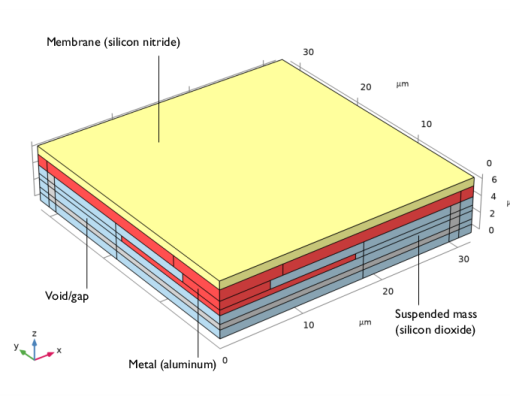
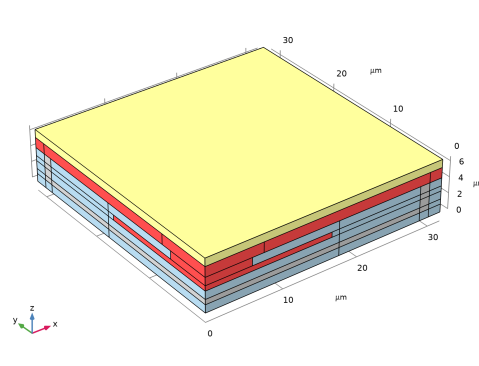
The model is a 3D model of one quadrant of the device. Because of its four-fold symmetry and the analyses needed, it is not necessary to explicitly model the entire device. Figure 1 shows the model comprising the dielectric, metal, and passivation layers. The model dimensions are:
Length: 31.75 μm (half the length of the device)
Figure 1: The model of one quadrant of the device. This 3D plot shows the materials used in the model. The membrane is silicon nitride (yellow), the top electrode and supports are metal (red), and the suspended mass is silicon dioxide (blue). The void or gap is shown in gray.
Figure 2 shows the boundary conditions. The ground plane is represented by a Ground boundary condition. The first layer of silicon dioxide is deposited over the ground plane. The gap is defined by the thickness of the sacrificial metal layer. Embedded within the suspended mass is the electrode plate connected to the silicon nitride membrane/passivation layer. As the membrane is deflected by an external pressure differential, the gap between the electrodes changes. The external stimulation is represented by a Boundary Load boundary condition using a Harmonic Perturbation. This condition is applied to the top surface of the membrane. With small bias of 5 V between the electrodes, the change in capacitance will be reflected in the output current.
Figure 2: This 3D plot shows boundary conditions used in the model. At the bottom surface of the model is Ground plate and top electrode is set to 5 V. Applied to the top surface is the Boundary Load using a Harmonic Perturbation.
The work reported in Ref. 1 aimed to increase amplified output voltage, Vout, of the CMUT as given by
where CCMUT is the static capacitance of the device, CF is the capacitance of the CI, ABF is the gain of the buffer circuit, do is the capacitor gap, h1MD is the total thickness of the dielectric between the electrodes, εr is the permittivity of the dielectric, and Δdavg is the average displacement of the electrode. The new design aims to increase Vout while keeping the same process technology so that yield can be maintained. This means that the layer thickness (do , h1MD) and the material properties (εr) are unchanged as are the external buffer circuit parameters (CF, ABF). Δdavg is the only parameter that can be changed through mask design; it increases when the electrode curvature is reduced and the suspended mass design reduces the electrode curvature. The improvement is reflected in the CMUT displacement uniformity factor, F, given by
which can be calculated using Average and Minimum coupling operators. A key feature in this design is that the suspended mass is only connected to the membrane where metal supports overlap. This means that the top electrode is partly decoupled from the membrane so the curvature on the top electrode is reduced, which in turn increases the average displacement over the electrode area.
The model geometry is fully parameterized to allow for easy changes in the device structure to target a specific resonant frequency. The model solves a multiphysics problem involving electromechanical force and calculates the frequency response of the device using a Frequency Domain, Prestressed study. The device is connected to an external circuit using the Electrical Circuit interface for calculating the output current. The model uses built-in operators to compute average and minimum displacements over the electrode surface to calculate the displacement uniformity factor.
Results and Discussion
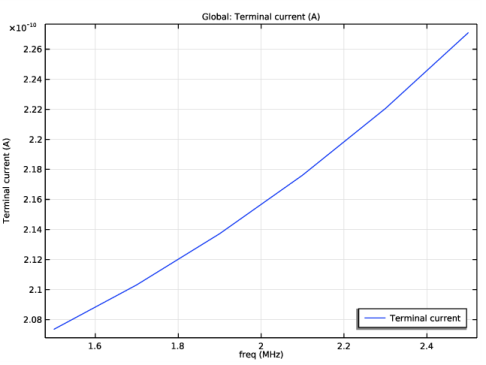
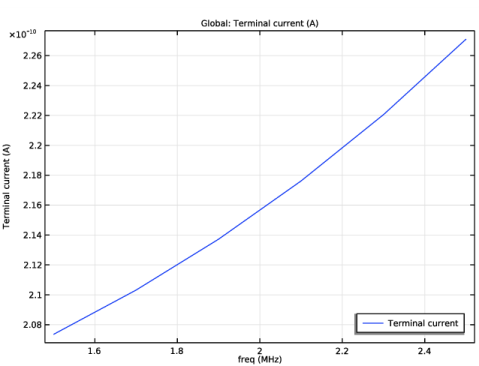
Figure 3 shows the frequency response over the range1.7–2.5 MHz to measure electrode displacement and output current.
Figure 3: Current versus frequency.
Figure 4 shows profile of the top-electrode cross section as a function of the frequency. The maximum displacement is at the center of the device and is 13 nm at 2.1 MHz.
Figure 4: Profile of the top electrode s a function of frequency. Maximum displacement is at the center of the device and is 13 nm at 2.1 MHz.
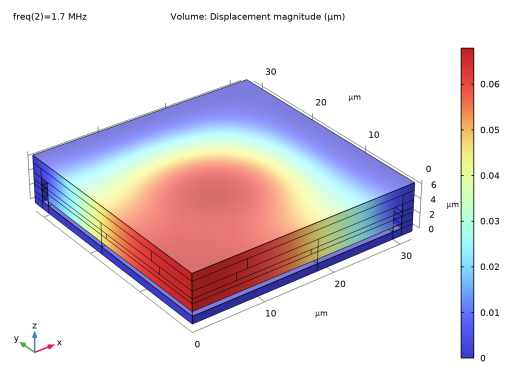
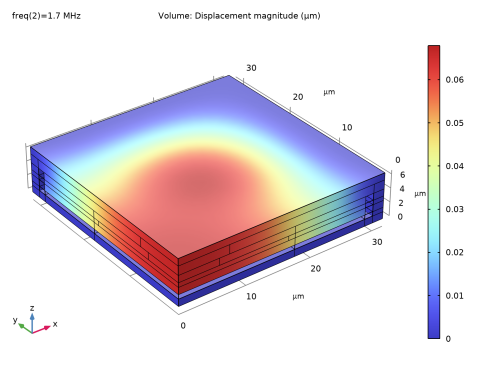
Figure 5shows the z-displacement of the structure with a harmonic perturbation at 1.7 MHz. As expected, the displacement is maximal on the symmetry planes at the center of the device. Due to the design, the corners of the suspended mass along the diagonal of the device also have large displacement, leading to the lobe extending to the corner of the device. The conventional device would have a circular pattern at the center of the device.
Figure 5: The z-displacement of the structure with a harmonic perturbation at 1.7 MHz.
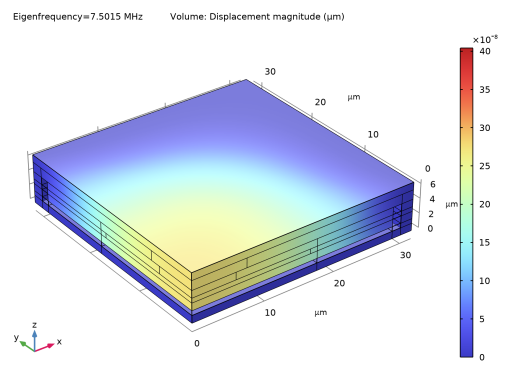
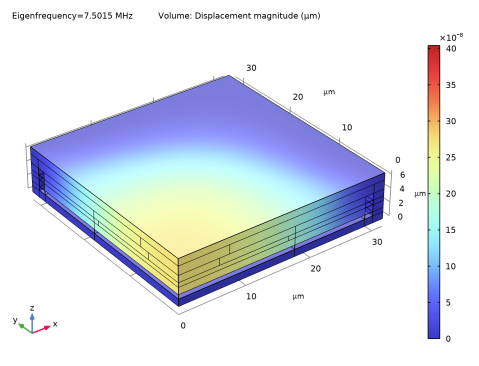
The model uses an Eigenfrequency study to determine the resonant frequency. The eigenfrequency of 7.5011 MHz matches the reported value of 7.52 MHz (Ref. 1).
Figure 6: Profile of the top electrode s a function of frequency. Maximum displacement is at the center of the device and is 13 nm at 2.1 MHz.
According Ref. 1, the F value for a conventional CMUT is 0.6 so the piston design improves the output of the device by about 40%.
Reference
1. C. Chou,P. Chen, H. Wu, T. Hsu, and M. Li, “Piston-Shaped CMOS-MEMS CMUT Front-End Featuring Force-Displacement Transduction Enhancement,” Proceedings of the 21st International Conference on Solid-State Sensors, Actuators and Microsystems (Transducers), pp. 26–29, 2021.
Application Library path: MEMS_Module/Sensors/capacitive_micromachined_ultrasonic_transducer
Modeling Instructions
Start by creating a new 3D model with Electromechanics and Electrical Circuit interfaces.
From the File menu, choose New.
New
In the New window, click  Model Wizard.
Model Wizard
1
In the Model Wizard window, click  3D.
2
In the Select Physics tree, select AC/DC>Electromagnetics and Mechanics>Electromechanics>Electromechanics.
3
Click Add.
4
In the Select Physics tree, select AC/DC>Electrical Circuit (cir).
5
Click Add.
6
Click  Study.
7
In the Select Study tree, select Preset Studies for Selected Physics Interfaces>Solid Mechanics>Frequency Domain, Prestressed.
8
Define and enter the values for the following parameters.
Global Definitions
Parameters 1
1
In the Model Builder window, under Global Definitions click Parameters 1.
2
In the Settings window for Parameters, locate the Parameters section.
3
Use microns as the geometry unit.
Geometry 1
1
In the Model Builder window, under Component 1 (comp1) click Geometry 1.
2
In the Settings window for Geometry, locate the Units section.
3
From the Length unit list, choose µm.
Work Plane 1 (wp1)
In the Geometry toolbar, click  Work Plane.
Work Plane 1 (wp1)>Plane Geometry
In the Model Builder window, click Plane Geometry.
Device
1
In the Work Plane toolbar, click  Square.
2
In the Settings window for Square, type Device in the Label text field.
3
Locate the Size section. In the Side length text field, type l/2.
Piston
1
In the Work Plane toolbar, click  Square.
2
In the Settings window for Square, type Piston in the Label text field.
3
Locate the Size section. In the Side length text field, type l_eb/2+w_ox.
Inside Wall
1
In the Work Plane toolbar, click  Square.
2
In the Settings window for Square, type Inside Wall in the Label text field.
3
Locate the Size section. In the Side length text field, type l/2-t_w/2.
Bottom Electrode
1
In the Work Plane toolbar, click  Square.
2
In the Settings window for Square, type Bottom Electrode in the Label text field.
3
Locate the Size section. In the Side length text field, type l_eb/2.
Oxide 1
1
In the Model Builder window, right-click Geometry 1 and choose Extrude.
2
In the Settings window for Extrude, type Oxide 1 in the Label text field.
3
Locate the Distances section. In the table, enter the following settings:
Metal 2
1
In the Geometry toolbar, click  Extrude.
2
In the Settings window for Extrude, type Metal 2 in the Label text field.
3
Locate the General section. From the Extrude from list, choose Faces.
4
On the object ext1, select Boundaries 4, 8, 12, and 16 only.
5
From the Input object handling list, choose Keep.
6
Locate the Distances section. In the table, enter the following settings:
Oxide 2
1
In the Geometry toolbar, click  Extrude.
2
In the Settings window for Extrude, type Oxide 2 in the Label text field.
3
Locate the General section. From the Extrude from list, choose Faces.
4
On the object ext2, select Boundaries 4, 8, 12, and 16 only.
5
From the Input object handling list, choose Keep.
6
Locate the Distances section. In the table, enter the following settings:
Metal 3
1
In the Geometry toolbar, click  Extrude.
2
In the Settings window for Extrude, type Metal 3 in the Label text field.
3
Locate the General section. From the Extrude from list, choose Faces.
4
On the object ext3, select Boundaries 4, 8, 12, and 16 only.
5
From the Input object handling list, choose Keep.
6
Locate the Distances section. In the table, enter the following settings:
Oxide 3
1
In the Geometry toolbar, click  Extrude.
2
In the Settings window for Extrude, type Oxide 3 in the Label text field.
3
Locate the General section. From the Extrude from list, choose Faces.
4
On the object ext4, select Boundaries 4, 8, 12, and 16 only.
5
From the Input object handling list, choose Keep.
6
Locate the Distances section. In the table, enter the following settings:
Work Plane 2 (wp2)
1
In the Geometry toolbar, click  Work Plane.
2
In the Settings window for Work Plane, locate the Plane Definition section.
3
In the z-coordinate text field, type t_ox+t_m2+t_ox+t_m3+t_ox.
Work Plane 2 (wp2)>Plane Geometry
In the Model Builder window, click Plane Geometry.
Support, Center
1
In the Work Plane toolbar, click  Square.
2
In the Settings window for Square, type Support, Center in the Label text field.
3
Locate the Size section. In the Side length text field, type l_m4/2.
Support, x
1
In the Work Plane toolbar, click  Rectangle.
2
In the Settings window for Rectangle, type Support, x in the Label text field.
3
Locate the Size and Shape section. In the Width text field, type l/2-l_m4/2.
4
In the Height text field, type w_b/2.
5
Locate the Position section. In the xw text field, type l_m4/2.
Support, y
1
In the Work Plane toolbar, click  Rectangle.
2
In the Settings window for Rectangle, type Support, y in the Label text field.
3
Locate the Size and Shape section. In the Width text field, type w_b/2.
4
In the Height text field, type l/2-l_m4/2.
5
Locate the Position section. In the yw text field, type l_m4/2.
Device, Upper
1
In the Work Plane toolbar, click  Square.
2
In the Settings window for Square, type Device, Upper in the Label text field.
3
Locate the Size section. In the Side length text field, type l/2.
Inside Wall, Upper
1
In the Work Plane toolbar, click  Square.
2
In the Settings window for Square, type Inside Wall, Upper in the Label text field.
3
Locate the Size section. In the Side length text field, type l/2-t_w/2.
Metal 4
1
In the Model Builder window, under Component 1 (comp1)>Geometry 1 right-click Work Plane 2 (wp2) and choose Extrude.
2
In the Settings window for Extrude, type Metal 4 in the Label text field.
3
Locate the General section. From the Input object handling list, choose Keep.
4
Locate the Distances section. In the table, enter the following settings:
Nitride
1
In the Geometry toolbar, click  Block.
2
In the Settings window for Block, type Nitride in the Label text field.
3
Locate the Size and Shape section. In the Width text field, type l/2.
4
In the Depth text field, type l/2.
5
In the Height text field, type t_np.
6
Locate the Position section. In the z text field, type t_ox+t_m2+t_ox+t_m3+t_ox+t_m4.
7
Locate the Selections of Resulting Entities section. Select the Resulting objects selection check box.
8
Find the Cumulative selection subsection. Click New.
9
In the New Cumulative Selection dialog box, type Passivation in the Name text field.
10
11
In the Settings window for Block, locate the Selections of Resulting Entities section.
12
From the Color list, choose None or — if you are running the cross-platform desktop —Custom. On the cross-platform desktop, click the Color button.
13
Click Define custom colors.
14
15
Click Add to custom colors.
16
Click Show color palette only or OK on the cross-platform desktop.
Via
1
In the Geometry toolbar, click  Block.
2
In the Settings window for Block, type Via in the Label text field.
3
Locate the Size and Shape section. In the Width text field, type l_v43/2.
4
In the Depth text field, type l_v43/2.
5
In the Height text field, type t_ox.
6
Locate the Position section. In the z text field, type t_ox+t_m2+t_ox+t_m3.
Top Electrode
1
In the Geometry toolbar, click  Block.
2
In the Settings window for Block, type Top Electrode in the Label text field.
3
Locate the Size and Shape section. In the Width text field, type l_et/2.
4
In the Depth text field, type l_et/2.
5
In the Height text field, type t_m3.
6
Locate the Position section. In the z text field, type t_ox+t_m2+t_ox.
Form Union (fin)
1
In the Model Builder window, click Form Union (fin).
2
In the Settings window for Form Union/Assembly, click  Build Selected.
Define the following selections for the Gap, Oxide, and Electrode regions.
Definitions
Gap
1
In the Definitions toolbar, click  Explicit.
2
In the Settings window for Explicit, type Gap in the Label text field.
3
Locate the Input Entities section. Click  Paste Selection.
4
In the Paste Selection dialog box, type 2 12 17 18 19 20 27 in the Selection text field.
5
Oxide
1
In the Definitions toolbar, click  Explicit.
2
In the Settings window for Explicit, type Oxide in the Label text field.
3
Locate the Input Entities section. Click  Paste Selection.
4
In the Paste Selection dialog box, type 1 3 8 10 11 13 14 15 16 21 22 23 24 25 28 in the Selection text field.
5
6
In the Settings window for Explicit, locate the Color section.
7
From the Color list, choose None or — if you are running the cross-platform desktop —Custom. On the cross-platform desktop, click the Color button.
8
Click Define custom colors.
9
10
Click Add to custom colors.
11
Click Show color palette only or OK on the cross-platform desktop.
Electrode
1
In the Definitions toolbar, click  Explicit.
2
In the Settings window for Explicit, type Electrode in the Label text field.
3
Locate the Input Entities section. Click  Paste Selection.
4
In the Paste Selection dialog box, type 4 5 6 9 26 29 30 in the Selection text field.
5
6
In the Settings window for Explicit, locate the Color section.
7
From the Color list, choose None or — if you are running the cross-platform desktop —Custom. On the cross-platform desktop, click the Color button.
8
Click Define custom colors.
9
10
Click Add to custom colors.
11
Click Show color palette only or OK on the cross-platform desktop.
Edge, Center
1
In the Definitions toolbar, click  Box.
2
In the Settings window for Box, type Edge, Center in the Label text field.
3
Locate the Geometric Entity Level section. From the Level list, choose Edge.
4
Locate the Box Limits section. In the x maximum text field, type 0.
5
In the y maximum text field, type 0.
6
Locate the Output Entities section. From the Include entity if list, choose Entity inside box.
Define the Average and Minimum operators needed for evaluation.
Average 1 (aveop1)
1
In the Definitions toolbar, click  Nonlocal Couplings and choose Average.
2
In the Settings window for Average, locate the Source Selection section.
3
From the Geometric entity level list, choose Boundary.
4
Click  Paste Selection.
5
In the Paste Selection dialog box, type 12 in the Selection text field.
6
Minimum 1 (minop1)
1
In the Definitions toolbar, click  Nonlocal Couplings and choose Minimum.
2
In the Settings window for Minimum, locate the Source Selection section.
3
From the Geometric entity level list, choose Boundary.
4
Click  Paste Selection.
5
In the Paste Selection dialog box, type 12 in the Selection text field.
6
Add materials to the model.
Add Material
1
In the Home toolbar, click  Add Material to open the Add Material window.
2
Go to the Add Material window.
3
In the tree, select MEMS>Metals>Al - Aluminum.
4
Click Add to Component in the window toolbar.
Materials
Al - Aluminum (mat1)
1
In the Settings window for Material, locate the Geometric Entity Selection section.
2
From the Selection list, choose Electrode.
3
Locate the Material Contents section. In the table, enter the following settings:
Add Material
1
Go to the Add Material window.
2
In the tree, select MEMS>Insulators>SiO2 - Silicon oxide.
3
Click Add to Component in the window toolbar.
Materials
SiO2 - Silicon oxide (mat2)
1
In the Settings window for Material, locate the Geometric Entity Selection section.
2
From the Selection list, choose Oxide.
Add Material
1
Go to the Add Material window.
2
In the tree, select MEMS>Insulators>Si3N4 - Silicon nitride.
3
Click Add to Component in the window toolbar.
Materials
Si3N4 - Silicon nitride (mat3)
1
In the Settings window for Material, locate the Geometric Entity Selection section.
2
From the Selection list, choose Passivation.
Add Material
1
Go to the Add Material window.
2
In the tree, select Liquids and Gases>Gases>Air.
3
Click Add to Component in the window toolbar.
4
In the Home toolbar, click  Add Material to close the Add Material window.
Materials
Air (mat4)
1
In the Settings window for Material, locate the Geometric Entity Selection section.
2
From the Selection list, choose Gap.
3
Locate the Material Contents section. In the table, enter the following settings:
Moving Mesh
Deforming Domain 1
1
In the Model Builder window, under Component 1 (comp1)>Moving Mesh click Deforming Domain 1.
2
In the Settings window for Deforming Domain, locate the Domain Selection section.
3
From the Selection list, choose Gap.
Symmetry/Roller 1
1
In the Model Builder window, click Symmetry/Roller 1.
2
Set up Electrostatics boundary conditions.
Electrostatics (es)
The default Charge Conservation feature was set to use solid material type. Add one more Charge Conservation feature to represent the nonsolid (air) domains.
Charge Conservation 2
1
In the Model Builder window, under Component 1 (comp1) right-click Electrostatics (es) and choose Charge Conservation.
2
In the Settings window for Charge Conservation, locate the Domain Selection section.
3
From the Selection list, choose Gap.
Terminal 1
1
In the Physics toolbar, click  Domains and choose Terminal.
2
In the Settings window for Terminal, locate the Domain Selection section.
3
From the Selection list, choose Electrode.
4
Locate the Terminal section. From the Terminal type list, choose Circuit.
Ground 1
1
In the Physics toolbar, click  Boundaries and choose Ground.
2
In the Settings window for Ground, locate the Boundary Selection section.
3
Click  Paste Selection.
4
In the Paste Selection dialog box, type 3 in the Selection text field.
5
Symmetry Plane 1
1
In the Physics toolbar, click  Boundaries and choose Symmetry Plane.
2
In the Settings window for Symmetry Plane, locate the Boundary Selection section.
3
Click  Paste Selection.
4
In the Paste Selection dialog box, type 2 5 8 11 14 17 20 105 107 113 115 117 119 121 123 126 128 130 132 134 137 139 141 143 145 147 in the Selection text field.
5
Symmetry Plane 2
1
In the Physics toolbar, click  Boundaries and choose Symmetry Plane.
2
In the Settings window for Symmetry Plane, locate the Boundary Selection section.
3
Click  Paste Selection.
4
In the Paste Selection dialog box, type 1 4 7 10 13 16 19 23 27 31 35 38 41 44 47 51 54 57 60 63 67 70 73 76 79 82 in the Selection text field.
5
Set up Solid Mechanics boundary conditions.
Solid Mechanics (solid)
In the Model Builder window, under Component 1 (comp1) click Solid Mechanics (solid).
Symmetry 1
In the Physics toolbar, click  Boundaries and choose Symmetry.
Electrostatics (es)
Symmetry Plane 1
1
In the Model Builder window, under Component 1 (comp1)>Electrostatics (es) click Symmetry Plane 1.
2
In the Settings window for Symmetry Plane, locate the Boundary Selection section.
3
In the list, choose 2, 5, 8, 11, 14, 17, 20, 105, 107, 113, 115, 117, 119, 121, 123, 126, 128, 130, 132, 134, 137, 139, 141, 143, 145, and 147.
4
Click  Copy Selection.
Solid Mechanics (solid)
Symmetry 1
1
In the Model Builder window, under Component 1 (comp1)>Solid Mechanics (solid) click Symmetry 1.
2
In the Settings window for Symmetry, locate the Boundary Selection section.
3
Click  Paste Selection.
4
In the Paste Selection dialog box, type 2 5 8 11 14 17 20 105 107 113 115 117 119 121 123 126 128 130 132 134 137 139 141 143 145 147 in the Selection text field.
5
Symmetry 2
In the Physics toolbar, click  Boundaries and choose Symmetry.
Electrostatics (es)
Symmetry Plane 2
1
In the Model Builder window, under Component 1 (comp1)>Electrostatics (es) click Symmetry Plane 2.
2
In the Settings window for Symmetry Plane, locate the Boundary Selection section.
3
In the list, choose 1, 4, 7, 10, 13, 16, 19, 23, 27, 31, 35, 38, 41, 44, 47, 51, 54, 57, 60, 63, 67, 70, 73, 76, 79, and 82.
4
Click  Copy Selection.
Solid Mechanics (solid)
Symmetry 2
1
In the Model Builder window, under Component 1 (comp1)>Solid Mechanics (solid) click Symmetry 2.
2
In the Settings window for Symmetry, locate the Boundary Selection section.
3
Click  Paste Selection.
4
In the Paste Selection dialog box, type 1 4 7 10 13 16 19 23 27 31 35 38 41 44 47 51 54 57 60 63 67 70 73 76 79 82 in the Selection text field.
5
Fixed Constraint 1
1
In the Physics toolbar, click  Boundaries and choose Fixed Constraint.
2
In the Settings window for Fixed Constraint, locate the Boundary Selection section.
3
Click  Paste Selection.
4
In the Paste Selection dialog box, type 3 37 53 69 86 87 88 89 90 91 92 103 152 153 154 155 156 157 158 159 in the Selection text field.
5
Specify a Boundary Load feature with Harmonic Perturbation to model an excitation by a pressure wave.
Boundary Load 1
1
In the Physics toolbar, click  Boundaries and choose Boundary Load.
2
In the Settings window for Boundary Load, locate the Boundary Selection section.
3
Click  Paste Selection.
4
In the Paste Selection dialog box, type 22 in the Selection text field.
5
6
In the Settings window for Boundary Load, locate the Force section.
7
From the Load type list, choose Pressure.
8
In the p text field, type p_max.
9
Right-click Boundary Load 1 and choose Harmonic Perturbation.
Set up Electrical Circuit parameters and specify how the device terminals are connected to the external circuit.
Electrical Circuit (cir)
In the Model Builder window, under Component 1 (comp1) click Electrical Circuit (cir).
External I vs. U 1 (IvsU1)
1
In the Electrical Circuit toolbar, click  External I vs. U.
2
In the Settings window for External I vs. U, locate the Node Connections section.
3
4
Locate the External Device section. From the V list, choose Terminal voltage (es/term1).
Resistor 1 (R1)
1
In the Electrical Circuit toolbar, click  Resistor.
2
In the Settings window for Resistor, locate the Node Connections section.
3
4
Locate the Device Parameters section. In the R text field, type R_load.
Voltage Source 1 (V1)
1
In the Electrical Circuit toolbar, click  Voltage Source.
2
In the Settings window for Voltage Source, locate the Node Connections section.
3
4
Locate the Device Parameters section. In the vsrc text field, type V_a.
Mesh 1
1
In the Model Builder window, under Component 1 (comp1) click Mesh 1.
2
In the Settings window for Mesh, locate the Sequence Type section.
3
From the list, choose User-controlled mesh.
Size
1
In the Model Builder window, under Component 1 (comp1)>Mesh 1 click Size.
2
In the Settings window for Size, locate the Element Size section.
3
From the Predefined list, choose Extra coarse.
Free Tetrahedral 1
In the Model Builder window, right-click Free Tetrahedral 1 and choose Build All.
Set up the steps for a Frequency Domain, Prestressed study.
Study 1
1
In the Model Builder window, click Study 1.
2
In the Settings window for Study, locate the Study Settings section.
3
Clear the Generate default plots check box.
Step 2: Frequency Domain Perturbation
1
In the Model Builder window, under Study 1 click Step 2: Frequency Domain Perturbation.
2
In the Settings window for Frequency Domain Perturbation, locate the Study Settings section.
3
From the Frequency unit list, choose MHz.
4
In the Frequencies text field, type range(1.5,0.2,2.5).
5
In the Home toolbar, click  Compute.
From the results of Study 1, plot the terminal current versus frequency.
Results
Terminal Current vs. Frequency
1
In the Home toolbar, click  Add Plot Group and choose 1D Plot Group.
2
In the Settings window for 1D Plot Group, type Terminal Current vs. Frequency in the Label text field.
3
Locate the Legend section. From the Position list, choose Lower right.
Global 1
1
Right-click Terminal Current vs. Frequency and choose Global.
2
In the Settings window for Global, locate the y-Axis Data section.
3
4
In the Terminal Current vs. Frequency toolbar, click  Plot.
From the results of Study 1, plot the electrode profile.
Electrode Profile
1
In the Home toolbar, click  Add Plot Group and choose 1D Plot Group.
2
In the Settings window for 1D Plot Group, type Electrode Profile in the Label text field.
3
Locate the Legend section. From the Position list, choose Upper left.
Line Graph 1
1
Right-click Electrode Profile and choose Line Graph.
2
3
In the Settings window for Line Graph, locate the y-Axis Data section.
4
In the Expression text field, type z.
5
Select the Description check box.
6
Locate the x-Axis Data section. From the Parameter list, choose Expression.
7
In the Expression text field, type x.
8
Select the Description check box.
9
Locate the y-Axis Data section. Select the Compute differential check box.
10
Click to expand the Legends section. Select the Show legends check box.
11
In the Electrode Profile toolbar, click  Plot.
From the results of Study 1, plot the displacement magnitude.
Displacement Magnitude
1
In the Home toolbar, click  Add Plot Group and choose 3D Plot Group.
2
In the Settings window for 3D Plot Group, type Displacement Magnitude in the Label text field.
3
Locate the Data section. From the Parameter value (freq (MHz)) list, choose 1.7.
Volume 1
1
Right-click Displacement Magnitude and choose Volume.
2
In the Settings window for Volume, click Replace Expression in the upper-right corner of the Expression section. From the menu, choose Component 1 (comp1)>Solid Mechanics>Displacement>solid.disp - Displacement magnitude - m.
3
Locate the Expression section. Select the Description check box.
4
Locate the Coloring and Style section. Click  Change Color Table.
5
In the Color Table dialog box, select Rainbow>RainbowLight in the tree.
6
7
In the Displacement Magnitude toolbar, click  Plot.
From the results of Study 1, evaluate the displacement uniformity factor.
Displacement Uniformity Factor
1
In the Results toolbar, click  Evaluation Group.
2
In the Settings window for Evaluation Group, type Displacement Uniformity Factor in the Label text field.
Global Evaluation 1
1
Right-click Displacement Uniformity Factor and choose Global Evaluation.
2
In the Settings window for Global Evaluation, locate the Expressions section.
3
4
In the Description text field, type Displacement uniformity factor.
5
In the Displacement Uniformity Factor toolbar, click  Evaluate.
Set up an Eigenfrequency study to search for an eigenfrequency around 7.5 MHz.
Add Study
1
In the Home toolbar, click  Add Study to open the Add Study window.
2
Go to the Add Study window.
3
Find the Studies subsection. In the Select Study tree, select Preset Studies for Selected Multiphysics>Eigenfrequency.
4
Click Add Study in the window toolbar.
Study 2
Step 1: Eigenfrequency
1
In the Settings window for Eigenfrequency, locate the Study Settings section.
2
Select the Desired number of eigenfrequencies check box. In the associated text field, type 1.
3
Find the Search region subsection. From the Unit list, choose MHz.
4
In the Search for eigenfrequencies around text field, type 7.5.
5
In the Model Builder window, click Study 2.
6
In the Settings window for Study, locate the Study Settings section.
7
Clear the Generate default plots check box.
8
In the Home toolbar, click  Compute.
From the results of Study 2, plot the eigenmode.
Results
Eigenmode
1
In the Home toolbar, click  Add Plot Group and choose 3D Plot Group.
2
In the Settings window for 3D Plot Group, type Eigenmode in the Label text field.
3
Locate the Data section. From the Dataset list, choose Study 2/Solution 3 (sol3).
4
From the Eigenfrequency (MHz) list, choose 7.4984.
Volume 1
1
Right-click Eigenmode and choose Volume.
2
In the Settings window for Volume, click Replace Expression in the upper-right corner of the Expression section. From the menu, choose Component 1 (comp1)>Solid Mechanics>Displacement>solid.disp - Displacement magnitude - m.
3
Locate the Expression section. Select the Description check box.
4
Locate the Coloring and Style section. Click  Change Color Table.
5
In the Color Table dialog box, select Rainbow>RainbowLight in the tree.
6
7
In the Eigenmode toolbar, click  Plot.