You are viewing the documentation for an older COMSOL version. The latest version is available here.
PDF

Vibration in a Washing Machine Assembly
Introduction
Vibration and noise, due to nonuniform distribution of clothes, is a common problem in washing machines.
This model simulates a simplified multibody dynamics model of a horizontal-axis portable washing machine. An eigenfrequency analysis is performed to compute the natural frequencies and mode shapes of the entire assembly. Transient analysis is performed to find out the vibrations induced in the housing during the spinning cycle. The housing is modeled as a flexible shell.
Note: This model requires the Multibody Dynamics Module and the Structural Mechanics Module.
Model Definition
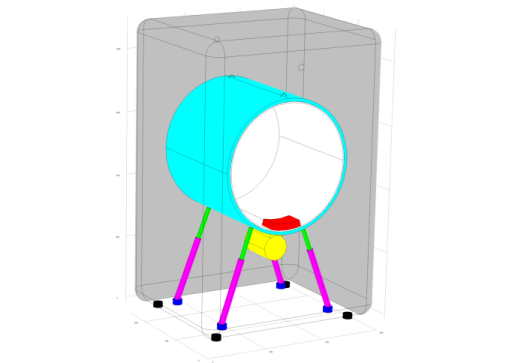
The geometry of the washing machine assembly is shown in Figure 1.
Figure 1: Model geometry (top, bottom, front, and left panels of the housing are hidden)
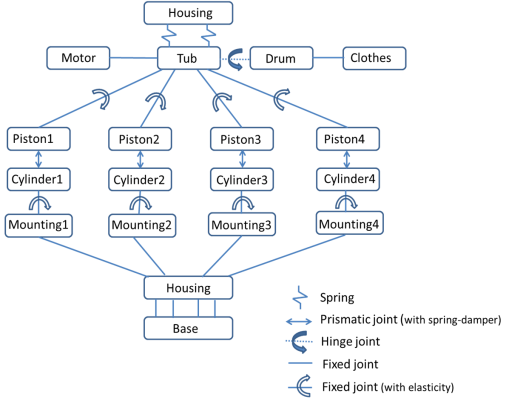
A key to the coloring of the parts constituting the washing machine is given below.
The following assumptions are used:
Connection Details
The connections of the housing to the remaining parts are as follows:
The details of all the connections in the assembly are shown below:
Results and Discussion
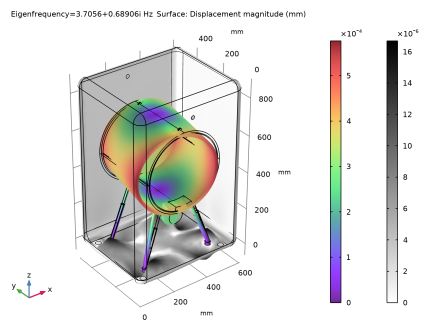
The mode shapes of the washing machine assembly can be seen in Figure 2 and Figure 3. In these figures, one of the modes showing the translation of the tub whereas the other one shows the rotation of the tub about the vertical axis. The corresponding housing deformation can also be seen. The magnitude of deformation of housing is very small compared to the motion of the tub, so a different color table is used for better clarity.
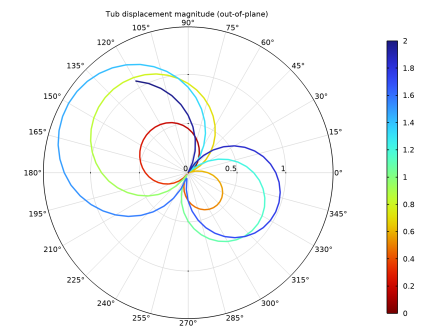
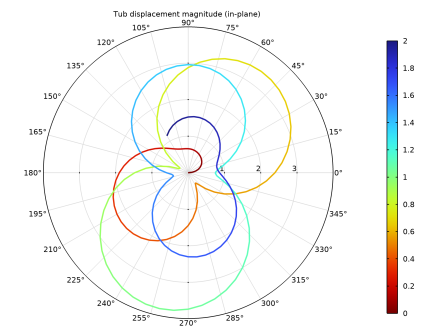
Figure 4 and Figure 5 shows the tub displacement magnitude with the drum rotation or the position of unbalanced clothes for the full time duration. The color of the trajectory has the time information representing red as the initial time and blue as final time.
Figure 2: One of the eigenmodes of the washing machine assembly (with the tub translating along vertical axis).
Figure 3: One of the eigenmodes of the washing machine assembly (with the tub rotating about vertical axis).
Figure 4: In-plane (x-z) displacement magnitude of the tub with the position of unbalanced clothes.
Figure 5: Out-of-plane (y) displacement magnitude of the tub with the position of unbalanced clothes.
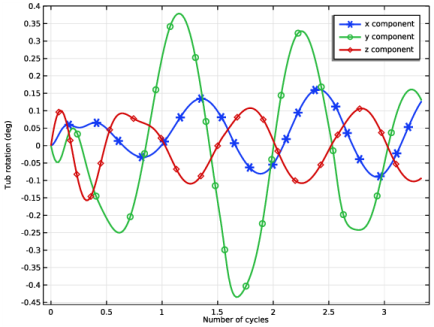
Tub rotation about all three axes with the rotation of the drum is shown in Figure 6 below.
Figure 6: Tub rotation about all three axes.
Figure 7 shows the extension in the front and back stabilizing springs with the rotation of the drum.
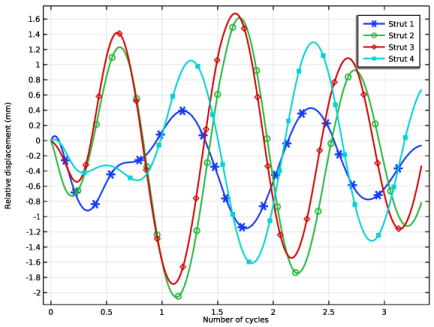
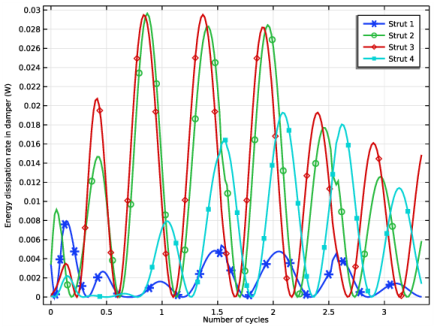
The relative displacement between the piston and the cylinder for the different struts is shown in Figure 8. The energy dissipation in the struts with the rotation of the drum is plotted in Figure 9.
The deformation of the housing in the vertical direction with the drum rotation at the locations where mountings are attached is shown in Figure 10.
Figure 7: Extension of the stabilizing springs.
Figure 8: Relative displacement between the piston and the cylinder of different struts.
Figure 9: Energy dissipation rate in different struts.
Figure 10: Vertical deformation of the housing at the mounting locations.
Figure 11 shows the deformation of the housing at a point on the right side wall.
Figure 11: Deformation of the housing in different directions at a point on the side wall.
Notes About the COMSOL Implementation
Use the Mass and Moment of Inertia subnode of the Rigid Material node to enter the inertia properties given at a certain point.
The connections set up in the model and the details of the system DOF and constraints can be seen in the Joints Summary and Rigid Body DOF Summary sections of the Multibody Dynamics node.
Use the Attachment boundary condition in the Shell interface to establish the connection to the solid objects through joints and springs.
Application Library path: Multibody_Dynamics_Module/Machinery_and_Robotics/washing_machine_vibration
Modeling Instructions
From the File menu, choose New.
New
In the New window, click  Model Wizard.
Model Wizard
1
In the Model Wizard window, click  3D.
2
In the Select Physics tree, select Structural Mechanics>Multibody Dynamics (mbd).
3
Click Add.
4
In the Select Physics tree, select Structural Mechanics>Shell (shell).
5
Click Add.
6
Click  Study.
7
In the Select Study tree, select General Studies>Eigenfrequency.
8
Global Definitions
Start by importing the model parameters and geometry.
Parameters 1
1
In the Model Builder window, under Global Definitions click Parameters 1.
2
In the Settings window for Parameters, locate the Parameters section.
3
Click  Load from File.
4
Geometry 1
1
In the Model Builder window, under Component 1 (comp1) click Geometry 1.
2
In the Settings window for Geometry, locate the Units section.
3
From the Length unit list, choose mm.
Import 1 (imp1)
1
In the Home toolbar, click  Import.
2
In the Settings window for Import, locate the Import section.
3
Click  Browse.
4
5
Click  Import.
Form Union (fin)
1
In the Model Builder window, under Component 1 (comp1)>Geometry 1 click Form Union (fin).
2
In the Settings window for Form Union/Assembly, locate the Form Union/Assembly section.
3
From the Action list, choose Form an assembly.
4
Clear the Create pairs check box.
5
In the Home toolbar, click  Build All.
Definitions
Hiding the front panels of the geometry will make it more convenient to set up the model.
View 1
1
In the Model Builder window, expand the Component 1 (comp1)>Definitions node, then click View 1.
2
In the Settings window for View, locate the View section.
3
Select the Wireframe rendering check box.
Hide for Geometry 1
1
Right-click View 1 and choose Hide for Geometry.
2
In the Settings window for Hide for Geometry, locate the Selection section.
3
From the Geometric entity level list, choose Boundary.
4
On the object fin, select Boundaries 1, 2, 5, 6, 10, 12, and 14 only.
Define some selections to be used later.
Housing
1
In the Definitions toolbar, click  Explicit.
2
In the Settings window for Explicit, type Housing in the Label text field.
3
Locate the Input Entities section. From the Geometric entity level list, choose Boundary.
4
It might be easier to select the correct boundary by using the Selection List window. To open this window, in the Home toolbar click Windows and choose Selection List. (If you are running the cross-platform desktop, you find Windows in the main menu.)
5
Select the Group by continuous tangent check box.
Strut axis 1
1
In the Definitions toolbar, click  Explicit.
2
In the Settings window for Explicit, locate the Input Entities section.
3
From the Geometric entity level list, choose Edge.
4
5
In the Label text field, type Strut axis 1.
Strut axis 2
1
Right-click Strut axis 1 and choose Duplicate.
2
In the Settings window for Explicit, type Strut axis 2 in the Label text field.
3
Locate the Input Entities section. Click  Clear Selection.
4
Strut axis 3
1
Right-click Strut axis 2 and choose Duplicate.
2
In the Settings window for Explicit, type Strut axis 3 in the Label text field.
3
Locate the Input Entities section. Click  Clear Selection.
4
Strut axis 4
1
Right-click Strut axis 3 and choose Duplicate.
2
In the Settings window for Explicit, type Strut axis 4 in the Label text field.
3
Locate the Input Entities section. Click  Clear Selection.
4
Define various components of the washing machine assembly.
Multibody Dynamics (mbd)
Clothes
1
In the Model Builder window, under Component 1 (comp1) right-click Multibody Dynamics (mbd) and choose Material Models>Rigid Material.
2
In the Settings window for Rigid Material, type Clothes in the Label text field.
3
Set the density of the selected domain to zero. Use Mass and Moment of Inertia subnode instead to specify the mass of the domain.
4
Locate the Density section. From the ρ list, choose User defined.
Mass and Moment of Inertia 1
1
In the Physics toolbar, click  Attributes and choose Mass and Moment of Inertia.
2
In the Settings window for Mass and Moment of Inertia, locate the Mass and Moment of Inertia section.
3
In the m text field, type Mc.
Use the Applied Force subnode to account for the gravitational force.
Clothes
In the Model Builder window, click Clothes.
Applied Force 1
1
In the Physics toolbar, click  Attributes and choose Applied Force.
2
In the Settings window for Applied Force, locate the Applied Force section.
3
Specify the F vector as
Drum
1
In the Physics toolbar, click  Domains and choose Rigid Material.
2
In the Settings window for Rigid Material, type Drum in the Label text field.
3
Select Force initial values in the Consistent initialization list, to enforce the parts, which are connected to the drum such as clothes, to rotate with the same angular speed.
4
Locate the Initial Values section. From the list, choose Locally defined.
5
From the Consistent initialization list, choose Force initial values.
6
Select the Translation along first axis check box.
7
Select the Translation along second axis check box.
8
Select the Translation along third axis check box.
9
Select the Total rotation check box.
Initial Values 1
1
In the Model Builder window, click Initial Values 1.
2
In the Settings window for Initial Values, locate the Center of Rotation section.
3
From the list, choose Centroid of selected entities.
4
From the Entity level list, choose Point.
5
Locate the Initial Values: Rotational section. Specify the ω vector as
Center of Rotation: Point 1
1
In the Model Builder window, click Center of Rotation: Point 1.
2
Tub
1
In the Physics toolbar, click  Domains and choose Rigid Material.
2
In the Settings window for Rigid Material, type Tub in the Label text field.
3
Motor
1
In the Physics toolbar, click  Domains and choose Rigid Material.
2
In the Settings window for Rigid Material, type Motor in the Label text field.
3
4
Locate the Density section. From the ρ list, choose User defined.
Mass and Moment of Inertia 1
1
In the Physics toolbar, click  Attributes and choose Mass and Moment of Inertia.
2
In the Settings window for Mass and Moment of Inertia, locate the Mass and Moment of Inertia section.
3
In the m text field, type Mm.
4
In the I text field, type Im.
Piston 1
1
In the Physics toolbar, click  Domains and choose Rigid Material.
2
In the Settings window for Rigid Material, type Piston 1 in the Label text field.
3
Rigid Materials
Similarly create more components by duplicating Piston 1 and resetting the inputs using the information given in the table below.
Base
In the Model Builder window, click Base.
Fixed Constraint 1
In the Physics toolbar, click  Attributes and choose Fixed Constraint.
Materials
Material 1 (mat1)
1
In the Model Builder window, under Component 1 (comp1) right-click Materials and choose Blank Material.
2
In the Settings window for Material, locate the Material Contents section.
3
Add Material
1
In the Home toolbar, click  Add Material to open the Add Material window.
2
Go to the Add Material window.
3
In the tree, select Built-in>Aluminum.
4
Click Add to Component in the window toolbar.
5
In the Home toolbar, click  Add Material to close the Add Material window.
Materials
Aluminum (mat2)
1
In the Settings window for Material, locate the Geometric Entity Selection section.
2
From the Geometric entity level list, choose Boundary.
3
From the Selection list, choose Housing.
Shell [Housing]
1
In the Model Builder window, under Component 1 (comp1) click Shell (shell).
2
In the Settings window for Shell, type Shell [Housing] in the Label text field.
3
Locate the Boundary Selection section. From the Selection list, choose Housing.
Use linear elements for the shell to reduce the computation time.
4
Click to expand the Discretization section. From the Displacement field list, choose Linear.
As the amplitude of vibration is going to be small in the shell, select the Force linear strains option in the Linear Elastic Material 1 node. This will reduce the analysis time.
Thickness and Offset 1
1
In the Model Builder window, under Component 1 (comp1)>Shell [Housing] (shell) click Thickness and Offset 1.
2
In the Settings window for Thickness and Offset, locate the Thickness and Offset section.
3
In the d0 text field, type 0.001[m].
Linear Elastic Material 1
1
In the Model Builder window, click Linear Elastic Material 1.
2
In the Settings window for Linear Elastic Material, locate the Geometric Nonlinearity section.
3
Select the Geometrically linear formulation check box.
Define the attachments in the Shell interface to couple it with the Multibody Dynamics interface.
Front spring
1
In the Physics toolbar, click  Edges and choose Attachment.
2
In the Settings window for Attachment, type Front spring in the Label text field.
3
Shell Attachments
Similarly, create more attachments by duplicating Front Spring and resetting the inputs using the information given in the table below:
Use the Spring-Damper node to model the stabilizing springs.
Multibody Dynamics (mbd)
In the Model Builder window, under Component 1 (comp1) click Multibody Dynamics (mbd).
Housing-tub (front)
1
In the Physics toolbar, click  Global and choose Spring-Damper.
2
In the Settings window for Spring-Damper, type Housing-tub (front) in the Label text field.
3
Locate the Attachment Selection section. From the Source list, choose Front spring (shell).
4
Locate the Spring-Damper section. In the k text field, type kt.
Destination Point 1
1
In the Model Builder window, expand the Housing-tub (front) node, then click Destination Point 1.
2
Housing-tub (back)
1
In the Model Builder window, right-click Housing-tub (front) and choose Duplicate.
2
In the Settings window for Spring-Damper, type Housing-tub (back) in the Label text field.
3
Locate the Attachment Selection section. From the Source list, choose Back spring (shell).
Destination Point 1
1
In the Model Builder window, expand the Component 1 (comp1)>Multibody Dynamics (mbd)>Housing-tub (back) node, then click Destination Point 1.
2
In the Settings window for Destination Point, locate the Point Selection section.
3
Click  Clear Selection.
4
Define the connection between the drum and the tub using a Hinge Joint.
Tub-drum
1
In the Physics toolbar, click  Global and choose Hinge Joint.
2
In the Settings window for Hinge Joint, type Tub-drum in the Label text field.
3
Locate the Attachment Selection section. From the Source list, choose Tub.
4
From the Destination list, choose Drum.
5
Locate the Center of Joint section. From the Entity level list, choose Point.
6
Locate the Axis of Joint section. Specify the e0 vector as
Center of Joint: Point 1
1
In the Model Builder window, click Center of Joint: Point 1.
2
Tub-drum
In the Model Builder window, click Tub-drum.
Prescribed Motion 1
1
In the Physics toolbar, click  Attributes and choose Prescribed Motion.
2
In the Settings window for Prescribed Motion, locate the Prescribed Rotational Motion section.
3
From the Prescribed motion through list, choose Angular velocity.
4
In the ωp text field, type omega.
Define Fixed Joints between motor-tub and drum-clothes.
Motor-tub
1
In the Physics toolbar, click  Global and choose Fixed Joint.
2
In the Settings window for Fixed Joint, type Motor-tub in the Label text field.
3
Locate the Attachment Selection section. From the Source list, choose Motor.
4
From the Destination list, choose Tub.
Center of Joint: Boundary 1
1
In the Model Builder window, click Center of Joint: Boundary 1.
2
Drum-clothes
1
In the Model Builder window, right-click Motor-tub and choose Duplicate.
2
In the Settings window for Fixed Joint, type Drum-clothes in the Label text field.
3
Locate the Attachment Selection section. From the Source list, choose Drum.
4
From the Destination list, choose Clothes.
Center of Joint: Boundary 1
1
In the Model Builder window, expand the Drum-clothes node, then click Center of Joint: Boundary 1.
2
In the Settings window for Center of Joint: Boundary, locate the Boundary Selection section.
3
Click  Clear Selection.
4
Model the struts using Prismatic Joints.
Cylinder 1-piston 1
1
In the Physics toolbar, click  Global and choose Prismatic Joint.
2
In the Settings window for Prismatic Joint, type Cylinder 1-piston 1 in the Label text field.
3
Locate the Attachment Selection section. From the Source list, choose Cylinder 1.
4
From the Destination list, choose Piston 1.
5
Locate the Axis of Joint section. From the list, choose Select a parallel edge.
Center of Joint: Boundary 1
1
In the Model Builder window, click Center of Joint: Boundary 1.
2
Joint Axis 1
1
In the Model Builder window, click Joint Axis 1.
2
In the Settings window for Joint Axis, locate the Edge Selection section.
3
From the Selection list, choose Strut axis 1.
Cylinder 1-piston 1
In the Model Builder window, click Cylinder 1-piston 1.
Spring and Damper 1
1
In the Physics toolbar, click  Attributes and choose Spring and Damper.
2
In the Settings window for Spring and Damper, locate the Spring and Damper: Translational section.
3
In the ku text field, type ks.
4
In the cu text field, type cs.
Prismatic Joints
Create the other three prismatic joints by duplicating Cylinder 1-piston 1 and resetting the inputs using the information given in the table below:
Tub-piston 1
1
In the Physics toolbar, click  Global and choose Fixed Joint.
2
In the Settings window for Fixed Joint, type Tub-piston 1 in the Label text field.
3
Locate the Attachment Selection section. From the Source list, choose Tub.
4
From the Destination list, choose Piston 1.
5
Locate the Axis of Joint section. From the list, choose Select a parallel edge.
6
Locate the Joint Elasticity section. From the list, choose Elastic joint.
Center of Joint: Boundary 1
1
In the Model Builder window, click Center of Joint: Boundary 1.
2
Joint Axis 1
1
In the Model Builder window, click Joint Axis 1.
2
In the Settings window for Joint Axis, locate the Edge Selection section.
3
From the Selection list, choose Strut axis 1.
Joint Elasticity 1
1
In the Model Builder window, click Joint Elasticity 1.
2
In the Settings window for Joint Elasticity, locate the Elastic Degrees of Freedom section.
3
Clear the First axis check box.
4
Clear the Second axis check box.
5
Clear the Third axis check box.
6
Locate the Spring section. In the kθ text field, type kbr.
7
Locate the Viscous Damping section. In the cθ text field, type cbr.
Fixed Joints (with Elasticity)
Similarly create seven additional bushings by duplicating Tub 1-piston 1 and resetting the inputs using the information given in the table below:
Cylinder 2-piston 2
1
In the Model Builder window, under Component 1 (comp1)>Multibody Dynamics (mbd) click Cylinder 2-piston 2.
2
In the Settings window for Prismatic Joint, locate the Axis of Joint section.
3
Select the Reverse direction check box.
Cylinder 3-piston 3
1
In the Model Builder window, click Cylinder 3-piston 3.
2
In the Settings window for Prismatic Joint, locate the Axis of Joint section.
3
Select the Reverse direction check box.
Tub-piston 2
1
In the Model Builder window, click Tub-piston 2.
2
In the Settings window for Fixed Joint, locate the Axis of Joint section.
3
Select the Reverse direction check box.
Tub-piston 3
1
In the Model Builder window, click Tub-piston 3.
2
In the Settings window for Fixed Joint, locate the Axis of Joint section.
3
Select the Reverse direction check box.
Cylinder 2-mounting 2
1
In the Model Builder window, click Cylinder 2-mounting 2.
2
In the Settings window for Fixed Joint, locate the Axis of Joint section.
3
Select the Reverse direction check box.
Cylinder 3-mounting 3
1
In the Model Builder window, click Cylinder 3-mounting 3.
2
In the Settings window for Fixed Joint, locate the Axis of Joint section.
3
Select the Reverse direction check box.
Mounting 1-housing
1
In the Model Builder window, right-click Cylinder 4-mounting 4 and choose Duplicate.
2
In the Settings window for Fixed Joint, type Mounting 1-housing in the Label text field.
3
Locate the Attachment Selection section. From the Source list, choose Mounting 1.
4
From the Destination list, choose Mounting 1 (shell).
5
Locate the Axis of Joint section. From the list, choose Specify direction.
6
Locate the Joint Elasticity section. From the list, choose Rigid joint.
7
Locate the Center of Joint section. From the list, choose Centroid of destination.
Fixed Joints (Rigid)
Similarly, create seven additional connections by duplicating Mounting 1-housing and resetting the inputs using the information given in the table below:
Mesh 1
1
In the Model Builder window, under Component 1 (comp1) click Mesh 1.
2
In the Settings window for Mesh, locate the Physics-Controlled Mesh section.
3
From the Element size list, choose Fine.
4
Click  Build All.
Study 1
Step 1: Eigenfrequency
1
In the Model Builder window, under Study 1 click Step 1: Eigenfrequency.
2
In the Settings window for Eigenfrequency, locate the Study Settings section.
3
In the Search for eigenfrequencies around text field, type 2.
4
In the Model Builder window, click Study 1.
5
In the Settings window for Study, locate the Study Settings section.
6
Clear the Generate default plots check box.
7
In the Home toolbar, click  Compute.
Use the instructions below to reproduce the mode shape shown in Figure 2.
Results
Mode Shape
1
In the Home toolbar, click  Add Plot Group and choose 3D Plot Group.
2
In the Settings window for 3D Plot Group, type Mode Shape in the Label text field.
Surface 1
1
Right-click Mode Shape and choose Surface.
2
In the Settings window for Surface, locate the Coloring and Style section.
3
Click  Change Color Table.
4
In the Color Table dialog box, select Rainbow>SpectrumLight in the tree.
5
Deformation 1
Right-click Surface 1 and choose Deformation.
Surface 2
1
In the Model Builder window, right-click Mode Shape and choose Surface.
2
In the Settings window for Surface, locate the Expression section.
3
In the Expression text field, type shell.disp.
4
Click to expand the Title section. From the Title type list, choose None.
5
Locate the Coloring and Style section. Click  Change Color Table.
6
In the Color Table dialog box, select Linear>GrayScale in the tree.
7
8
In the Settings window for Surface, locate the Coloring and Style section.
9
From the Color table transformation list, choose Reverse.
Deformation 1
1
Right-click Surface 2 and choose Deformation.
2
In the Settings window for Deformation, locate the Expression section.
3
In the X component text field, type u2.
4
In the Y component text field, type v2.
5
In the Z component text field, type w2.
Mode Shape
1
In the Model Builder window, under Results click Mode Shape.
2
In the Settings window for 3D Plot Group, locate the Data section.
3
From the Eigenfrequency (Hz) list, choose 2.6542+0.66165i.
4
In the Mode Shape toolbar, click  Plot.
5
Click the  Zoom Extents button in the Graphics toolbar.
Change the eigenfrequency to obtain the eigenmode as shown in Figure 3.
6
From the Eigenfrequency (Hz) list, choose 3.7056+0.68906i.
7
In the Mode Shape toolbar, click  Plot.
8
Click the  Zoom Extents button in the Graphics toolbar.
Before performing a transient analysis, define additional variables to use them in postprocessing.
Definitions
Variables 1
1
In the Model Builder window, under Component 1 (comp1) right-click Definitions and choose Variables.
2
In the Settings window for Variables, locate the Variables section.
3
Add Study
1
In the Home toolbar, click  Add Study to open the Add Study window.
2
Go to the Add Study window.
3
Find the Studies subsection. In the Select Study tree, select General Studies>Time Dependent.
4
Click Add Study in the window toolbar.
5
In the Home toolbar, click  Add Study to close the Add Study window.
Study 2
Step 1: Time Dependent
1
In the Settings window for Time Dependent, locate the Study Settings section.
2
In the Output times text field, type range(0,0.01,2).
3
In the Model Builder window, click Study 2.
4
In the Settings window for Study, locate the Study Settings section.
5
Clear the Generate default plots check box.
Solution 2 (sol2)
1
In the Study toolbar, click  Show Default Solver.
Modify the default solver settings in such a way that both physics are solved together.
2
In the Model Builder window, expand the Solution 2 (sol2) node, then click Time-Dependent Solver 1.
3
In the Settings window for Time-Dependent Solver, click to expand the Absolute Tolerance section.
4
From the Tolerance method list, choose Manual.
5
Click to expand the Time Stepping section. From the Steps taken by solver list, choose Intermediate.
6
Right-click Study 2>Solver Configurations>Solution 2 (sol2)>Time-Dependent Solver 1 and choose Fully Coupled.
7
In the Settings window for Fully Coupled, click to expand the Method and Termination section.
8
From the Jacobian update list, choose On every iteration.
9
In the Maximum number of iterations text field, type 15.
10
In the Model Builder window, under Study 2>Solver Configurations>Solution 2 (sol2)>Time-Dependent Solver 1 click Advanced.
11
In the Settings window for Advanced, locate the General section.
12
From the Null-space function list, choose Orthonormal.
13
In the Study toolbar, click  Compute.
Duplicate the mode shape plot and change the dataset to plot the displacement obtained in the transient analysis.
Results
Displacement
1
In the Model Builder window, right-click Mode Shape and choose Duplicate.
2
In the Settings window for 3D Plot Group, type Displacement in the Label text field.
3
Locate the Data section. From the Dataset list, choose Study 2/Solution 2 (sol2).
4
From the Time (s) list, choose 1.
5
Locate the Plot Settings section. From the Frame list, choose Spatial  (x, y, z).
6
In the Model Builder window, expand the Displacement node.
Deformation 1
1
In the Model Builder window, expand the Results>Displacement>Surface 1 node, then click Deformation 1.
2
In the Settings window for Deformation, locate the Scale section.
3
Select the Scale factor check box. In the associated text field, type 1.
Deformation 1
1
In the Model Builder window, expand the Results>Displacement>Surface 2 node, then click Deformation 1.
2
In the Settings window for Deformation, locate the Scale section.
3
Select the Scale factor check box. In the associated text field, type 1.
4
In the Displacement toolbar, click  Plot.
5
Click the  Zoom Extents button in the Graphics toolbar.
Follow the instructions below to get the polar plots of the tub displacement shown in Figure 4 and Figure 5.
Tub displacement magnitude (in-plane)
1
In the Home toolbar, click  Add Plot Group and choose Polar Plot Group.
2
In the Settings window for Polar Plot Group, type Tub displacement magnitude (in-plane) in the Label text field.
3
Locate the Data section. From the Dataset list, choose Study 2/Solution 2 (sol2).
4
Click to expand the Title section. From the Title type list, choose Label.
Global 1
1
Right-click Tub displacement magnitude (in-plane) and choose Global.
2
In the Settings window for Global, click Replace Expression in the upper-right corner of the r-Axis Data section. From the menu, choose Component 1 (comp1)>Definitions>Variables>uin_tub - Tub displacement magnitude (in-plane) - m.
3
Locate the θ Angle Data section. From the Parameter list, choose Expression.
4
Click Replace Expression in the upper-right corner of the θ Angle Data section. From the menu, choose Component 1 (comp1)>Definitions>Variables>th_drum - Drum rotation - rad.
5
Click to expand the Coloring and Style section. From the Width list, choose 2.
6
Click to expand the Legends section. Clear the Show legends check box.
Color Expression 1
1
Right-click Global 1 and choose Color Expression.
2
In the Settings window for Color Expression, click Replace Expression in the upper-right corner of the Expression section. From the menu, choose Solver>t - Time - s.
3
Locate the Coloring and Style section. From the Color table transformation list, choose Reverse.
4
In the Tub displacement magnitude (in-plane) toolbar, click  Plot.
5
Click the  Zoom Extents button in the Graphics toolbar.
Tub displacement magnitude (out-of-plane)
1
In the Model Builder window, right-click Tub displacement magnitude (in-plane) and choose Duplicate.
2
In the Settings window for Polar Plot Group, type Tub displacement magnitude (out-of-plane) in the Label text field.
Global 1
1
In the Model Builder window, expand the Tub displacement magnitude (out-of-plane) node, then click Global 1.
2
In the Settings window for Global, click Replace Expression in the upper-right corner of the r-Axis Data section. From the menu, choose Component 1 (comp1)>Definitions>Variables>uout_tub - Tub displacement magnitude (out-of-plane) - m.
3
In the Tub displacement magnitude (out-of-plane) toolbar, click  Plot.
4
Click the  Zoom Extents button in the Graphics toolbar.
Use the instructions below to generate the plot of the tub rotation and stabilizing springs extension shown in Figure 6 and Figure 7 respectively.
Tub rotation
1
In the Home toolbar, click  Add Plot Group and choose 1D Plot Group.
2
In the Settings window for 1D Plot Group, type Tub rotation in the Label text field.
3
Locate the Data section. From the Dataset list, choose Study 2/Solution 2 (sol2).
4
Click to expand the Title section. From the Title type list, choose None.
5
Locate the Plot Settings section.
6
Select the x-axis label check box. In the associated text field, type Number of cycles.
7
Select the y-axis label check box. In the associated text field, type Tub rotation (deg).
Global 1
1
Right-click Tub rotation and choose Global.
2
In the Settings window for Global, click Replace Expression in the upper-right corner of the y-Axis Data section. From the menu, choose Component 1 (comp1)>Multibody Dynamics>Rigid domains>Tub>Rigid body rotation (spatial frame) - rad>mbd.rd3.thx - Rigid body rotation, x component.
3
Click Add Expression in the upper-right corner of the y-Axis Data section. From the menu, choose Component 1 (comp1)>Multibody Dynamics>Rigid domains>Tub>Rigid body rotation (spatial frame) - rad>mbd.rd3.thy - Rigid body rotation, y component.
4
Click Add Expression in the upper-right corner of the y-Axis Data section. From the menu, choose Component 1 (comp1)>Multibody Dynamics>Rigid domains>Tub>Rigid body rotation (spatial frame) - rad>mbd.rd3.thz - Rigid body rotation, z component.
Change the units to degrees from radians.
5
Locate the y-Axis Data section. In the table, enter the following settings:
6
Click Replace Expression in the upper-right corner of the x-Axis Data section. From the menu, choose Component 1 (comp1)>Definitions>Variables>n_cycle - Number of cycles.
7
Click to expand the Coloring and Style section. From the Width list, choose 2.
8
Find the Line markers subsection. From the Marker list, choose Cycle.
9
From the Positioning list, choose Interpolated.
10
In the Number text field, type 20.
11
Click to expand the Legends section. From the Legends list, choose Manual.
12
13
In the Tub rotation toolbar, click  Plot.
To plot the strut displacement and the energy dissipation rate in the struts as shown in Figure 8 and Figure 9 respectively, follow the instructions below.
14
Click the  Zoom Extents button in the Graphics toolbar.
Stabilizing spring extension
1
In the Model Builder window, right-click Tub rotation and choose Duplicate.
2
In the Settings window for 1D Plot Group, type Stabilizing spring extension in the Label text field.
3
Locate the Plot Settings section. Clear the y-axis label check box.
4
Locate the Legend section. From the Position list, choose Lower left.
Global 1
1
In the Model Builder window, expand the Stabilizing spring extension node, then click Global 1.
2
In the Settings window for Global, click Replace Expression in the upper-right corner of the y-Axis Data section. From the menu, choose Component 1 (comp1)>Multibody Dynamics>Spring-Dampers>Housing-tub (front)>mbd.spd1.dl - Spring extension - m.
3
Click Add Expression in the upper-right corner of the y-Axis Data section. From the menu, choose Component 1 (comp1)>Multibody Dynamics>Spring-Dampers>Housing-tub (back) >mbd.spd2.dl - Spring extension - m.
4
Locate the Legends section. In the table, enter the following settings:
5
In the Stabilizing spring extension toolbar, click  Plot.
6
Click the  Zoom Extents button in the Graphics toolbar.
Strut displacement
1
In the Model Builder window, right-click Stabilizing spring extension and choose Duplicate.
2
In the Settings window for 1D Plot Group, type Strut displacement in the Label text field.
3
Locate the Legend section. From the Position list, choose Upper right.
Global 1
1
In the Model Builder window, expand the Strut displacement node, then click Global 1.
2
In the Settings window for Global, click Replace Expression in the upper-right corner of the y-Axis Data section. From the menu, choose Component 1 (comp1)>Multibody Dynamics>Prismatic joints>Cylinder 1-piston 1>mbd.prj1.u - Relative displacement - m.
3
Click Add Expression in the upper-right corner of the y-Axis Data section. From the menu, choose Component 1 (comp1)>Multibody Dynamics>Prismatic joints>Cylinder 2-piston 2>mbd.prj2.u - Relative displacement - m.
4
Click Add Expression in the upper-right corner of the y-Axis Data section. From the menu, choose Component 1 (comp1)>Multibody Dynamics>Prismatic joints>Cylinder 3-piston 3>mbd.prj3.u - Relative displacement - m.
5
Click Add Expression in the upper-right corner of the y-Axis Data section. From the menu, choose Component 1 (comp1)>Multibody Dynamics>Prismatic joints>Cylinder 4-piston 4>mbd.prj4.u - Relative displacement - m.
6
Locate the Legends section. In the table, enter the following settings:
7
In the Strut displacement toolbar, click  Plot.
8
Click the  Zoom Extents button in the Graphics toolbar.
Energy dissipation rate
1
In the Model Builder window, right-click Strut displacement and choose Duplicate.
2
In the Settings window for 1D Plot Group, type Energy dissipation rate in the Label text field.
Global 1
1
In the Model Builder window, expand the Energy dissipation rate node, then click Global 1.
2
In the Settings window for Global, locate the y-Axis Data section.
3
4
In the Energy dissipation rate toolbar, click  Plot.
5
Click the  Zoom Extents button in the Graphics toolbar.
Use the instructions below to plot the shell deformation components at the mountings and the side wall as shown in Figure 10 and Figure 11 respectively.
Shell deformation (mountings)
1
In the Model Builder window, right-click Energy dissipation rate and choose Duplicate.
2
In the Settings window for 1D Plot Group, type Shell deformation (mountings) in the Label text field.
3
Locate the Title section. From the Title type list, choose Label.
Global 1
1
In the Model Builder window, expand the Shell deformation (mountings) node, then click Global 1.
2
In the Settings window for Global, locate the y-Axis Data section.
3
4
Locate the Legends section. In the table, enter the following settings:
5
In the Shell deformation (mountings) toolbar, click  Plot.
6
Click the  Zoom Extents button in the Graphics toolbar.
Cut Point 3D 1
1
In the Results toolbar, click  Cut Point 3D.
2
In the Settings window for Cut Point 3D, locate the Data section.
3
From the Dataset list, choose Study 2/Solution 2 (sol2).
4
Locate the Point Data section. In the X text field, type 600.
5
In the Y text field, type 250.
6
In the Z text field, type 450.
7
From the Snapping list, choose Snap to closest boundary.
8
Shell deformation (side wall)
1
In the Results toolbar, click  1D Plot Group.
2
In the Settings window for 1D Plot Group, type Shell deformation (side wall) in the Label text field.
3
Locate the Data section. From the Dataset list, choose Cut Point 3D 1.
4
Locate the Title section. From the Title type list, choose Label.
5
Locate the Plot Settings section.
6
Select the x-axis label check box. In the associated text field, type Number of cycles.
7
Select the y-axis label check box. In the associated text field, type Displacement (mm).
8
Locate the Legend section. From the Position list, choose Lower left.
Point Graph 1
1
Right-click Shell deformation (side wall) and choose Point Graph.
2
In the Settings window for Point Graph, locate the y-Axis Data section.
3
In the Expression text field, type u2.
4
Click Replace Expression in the upper-right corner of the x-Axis Data section. From the menu, choose Component 1 (comp1)>Definitions>Variables>n_cycle - Number of cycles.
5
Click to expand the Coloring and Style section. From the Width list, choose 2.
6
Find the Line markers subsection. From the Marker list, choose Cycle.
7
From the Positioning list, choose Interpolated.
8
In the Number text field, type 20.
9
Click to expand the Legends section. Select the Show legends check box.
10
From the Legends list, choose Manual.
11
Point Graph 2
1
Right-click Point Graph 1 and choose Duplicate.
2
In the Settings window for Point Graph, locate the y-Axis Data section.
3
In the Expression text field, type v2.
4
Locate the Legends section. In the table, enter the following settings:
Point Graph 3
1
Right-click Point Graph 2 and choose Duplicate.
2
In the Settings window for Point Graph, locate the y-Axis Data section.
3
In the Expression text field, type w2.
4
Locate the Legends section. In the table, enter the following settings:
5
In the Shell deformation (side wall) toolbar, click  Plot.
6
Click the  Zoom Extents button in the Graphics toolbar.