
|
|
|
 ,
,
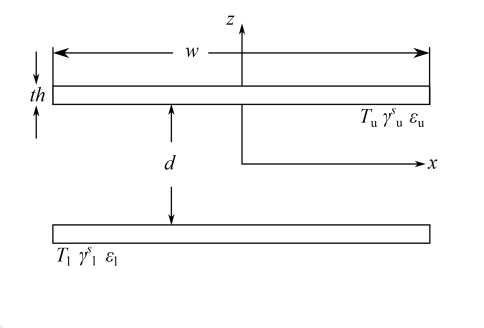

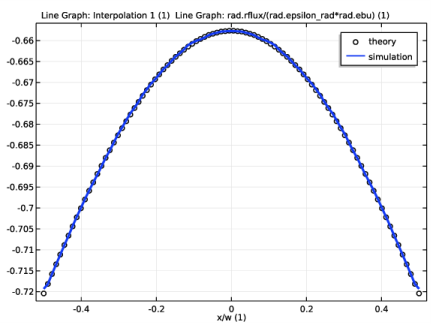
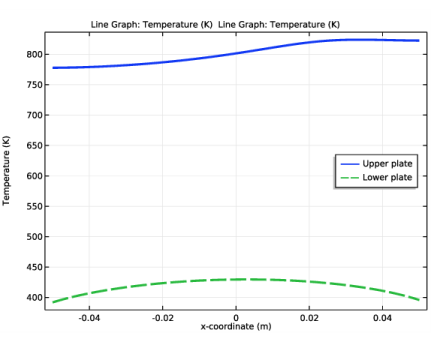
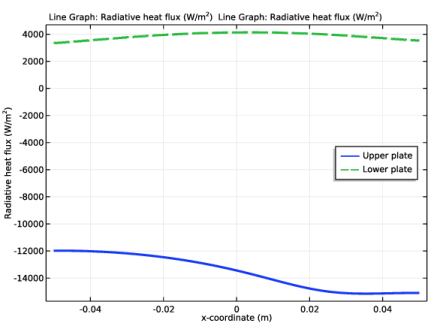
|
1
|
|
2
|
|
3
|
Click Add.
|
|
4
|
Click
 Study. Study. |
|
5
|
|
6
|
Click
 Done. Done. |
|
1
|
|
2
|
|
1
|
|
2
|
|
3
|
|
4
|
|
5
|
|
6
|
|
7
|
Locate the Selections of Resulting Entities section. Select the Resulting objects selection check box.
|
|
8
|
|
9
|
|
1
|
|
2
|
|
3
|
|
4
|
|
1
|
|
2
|
|
3
|
|
4
|
|
5
|
|
6
|
|
7
|
Locate the Variables section. In the table, enter the following settings:
|
|
1
|
|
2
|
|
3
|
|
4
|
Browse to the model’s Application Libraries folder and double-click the file parallel_plates_diffuse_specular_data.txt.
|
|
5
|
|
6
|
In the Function table, enter the following settings:
|
|
7
|
|
8
|
|
9
|
In the Show More Options dialog box, in the tree, select the check box for the node Physics>Advanced Physics Options.
|
|
10
|
Click OK.
|
|
1
|
|
2
|
|
3
|
Find the Radiation settings subsection. From the Surface-to-surface radiation method list, choose Ray shooting.
|
|
4
|
|
5
|
Click to expand the View Factor section. Find the Geometry representation subsection. Select the High order mesh elements check box. When specular radiation is present it is good practice to do this because it improves the accuracy of the specular radiation evaluation at a slight computational cost increase. Because the geometry of this model contains only flat surfaces, selecting the High order mesh elements check box has no influence on accuracy but it makes the model ready for geometries with curved surfaces.
|
|
1
|
|
2
|
|
3
|
|
4
|
Locate the Radiation Direction section. From the Emitted radiation direction list, choose Positive normal direction.
|
|
5
|
|
6
|
|
1
|
|
2
|
|
3
|
|
1
|
In the Model Builder window, under Component 1 (comp1) right-click Materials and choose Blank Material.
|
|
2
|
|
3
|
|
1
|
|
2
|
|
3
|
|
4
|
|
1
|
|
2
|
|
3
|
Click Import.
|
|
4
|
Browse to the model’s Application Libraries folder and double-click the file parallel_plates_diffuse_specular_data.txt.
|
|
1
|
|
2
|
|
3
|
|
4
|
|
5
|
|
6
|
|
7
|
|
1
|
|
3
|
|
4
|
|
5
|
|
6
|
|
7
|
Click to expand the Coloring and Style section. Find the Line style subsection. From the Line list, choose None.
|
|
8
|
|
9
|
|
10
|
|
11
|
|
12
|
|
1
|
|
3
|
|
4
|
|
5
|
|
6
|
|
7
|
|
8
|
|
9
|
|
10
|
|
1
|
|
2
|
|
3
|
|
4
|
|
5
|
|
1
|
|
2
|
|
3
|
|
4
|
|
5
|
|
1
|
In the Model Builder window, under Component 1 (comp1) right-click Materials and choose Blank Material.
|
|
2
|
|
4
|
|
1
|
|
3
|
|
4
|
|
1
|
|
2
|
|
3
|
|
4
|
|
5
|
Locate the Variables section. In the table, enter the following settings:
|
|
1
|
|
2
|
|
3
|
|
4
|
|
5
|
Locate the Variables section. In the table, enter the following settings:
|
|
1
|
|
2
|
|
3
|
|
1
|
In the Model Builder window, under Component 1 (comp1)>Heat Transfer in Solids (ht) click Initial Values 1.
|
|
2
|
|
3
|
|
1
|
|
3
|
|
4
|
|
5
|
|
6
|
|
7
|
|
1
|
|
3
|
|
4
|
Specify the e vector as
|
|
5
|
|
6
|
Specify the O vector as
|
|
7
|
|
1
|
|
2
|
|
3
|
Click OK.
|
|
1
|
|
2
|
|
3
|
|
4
|
In the tree, select Component 1 (comp1)>Definitions>Study 2, Upper plate and Component 1 (comp1)>Definitions>Study 2, Lower plate.
|
|
5
|
Right-click and choose Disable.
|
|
6
|
In the tree, select Component 1 (comp1)>Heat Transfer in Solids (ht) and Component 1 (comp1)>Multiphysics>Heat Transfer with Surface-to-Surface Radiation 1 (htrad1).
|
|
7
|
|
1
|
|
2
|
|
3
|
|
4
|
|
5
|
|
1
|
|
2
|
|
3
|
Click OK.
|
|
1
|
|
2
|
|
3
|
|
4
|
|
5
|
Right-click and choose Disable.
|
|
6
|
|
1
|
|
2
|
|
3
|
Locate the Data section. From the Dataset list, choose Study 2, with Heat Transfer/Solution 2 (sol2).
|
|
1
|
|
2
|
|
4
|
|
5
|
|
6
|
|
7
|
|
8
|
|
1
|
|
2
|
|
3
|
|
5
|
|
6
|
Locate the Coloring and Style section. Find the Line style subsection. From the Line list, choose Dashed.
|
|
7
|
Locate the Legends section. In the table, enter the following settings:
|
|
1
|
|
2
|
|
3
|
|
4
|
|
1
|
|
2
|
|
1
|
|
2
|
|
3
|
|
1
|
|
2
|
|
3
|
|
1
|
|
2
|
|
4
|
Locate the Expressions section. In the table, enter the following settings:
|
|
5
|
Click
 Evaluate. Evaluate. |
|
1
|
|
2
|
In the Settings window for Line Integration, type Relative error in radiative heat flux in the Label text field.
|
|
3
|
Locate the Expressions section. In the table, enter the following settings:
|
|
4
|
Click
 Evaluate. Evaluate. |
|
1
|
|
2
|
In the Settings window for Surface Integration, type Mean temperature, Lower plate in the Label text field.
|
|
3
|
Locate the Data section. From the Dataset list, choose Study 2, with Heat Transfer/Solution 2 (sol2).
|
|
5
|
Locate the Expressions section. In the table, enter the following settings:
|
|
6
|
Click
 Evaluate. Evaluate. |
|
1
|
|
2
|
In the Settings window for Surface Integration, type Mean temperature, Upper plate in the Label text field.
|
|
4
|
Click
 Evaluate. Evaluate. |
|
1
|
|
2
|
|
3
|
In the Settings window for Solution, type Study 1, without Heat Transfer/Solution 1, inner faces in the Label text field.
|
|
1
|
|
2
|
|
3
|
|
1
|
|
2
|
|
3
|
|
4
|
|
1
|
|
2
|
|
1
|
|
2
|
|
3
|
|
4
|
|
5
|
|
6
|
|
7
|
Click OK.
|
|
8
|
|
9
|
|
10
|
|
11
|
|
12
|
|
1
|
|
2
|
|
3
|
|
1
|
|
2
|
|
3
|
|
4
|
|
5
|
|
6
|
|
7
|
|
8
|
|
9
|
|
10
|
|
11
|
|
12
|
|
13
|
 ,
, .
. and on the differential specular view factor
  .
. 


