




You are viewing the documentation for an older COMSOL version. The latest version is available here.
PDF

Rotating Cylinder Hull Cell
Introduction
The rotating cylinder Hull (RCH) cell provides an effective experimental tool to investigate electrodeposition since a wide range of current densities and controllable hydrodynamic conditions can be achieved in a single experiment.
This model example simulates non-uniform current, potential and concentration distributions along the working electrode of the RCH cell. Primary, secondary and tertiary current distributions are compared, demonstrating how complexity can be gradually incorporated in the model. The example is based on a paper by C. T. J. Low and others (Ref. 1).
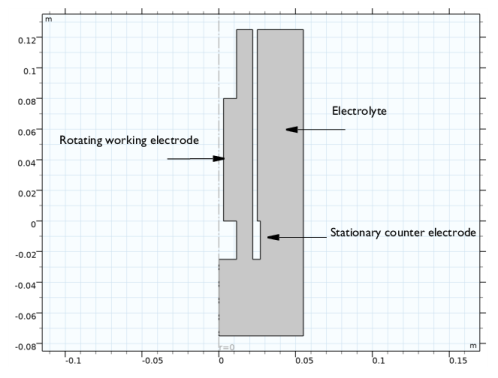
Figure 1: 2D axisymmetric geometry of the RCH cell. The Electrolyte, the rotating working electrode and the stationary counter electrode are highlighted.
Model Definition
Because of the symmetry of the RCH cell geometry, a 2D axisymmetric space dimension is used. Figure 1 shows the model geometry, where the rotating cylinder working electrode, the stationary concentric counter electrode and the electrolyte are highlighted.
Electrolyte charge transport
First, use the Primary Current Distribution interface to solve for the electrolyte potential, φl(V), according to:
where il (A/m2) is the electrolyte current density vector and σl (S/m) is the electrolyte conductivity, which is assumed to be a constant.
Use the default Insulation condition for all boundaries except the counter and working electrode surfaces:
where n is the normal vector, pointing out of the domain.
Use an Electrolyte Potential boundary condition to apply a 0 V electrolyte potential along the counter electrode boundary surfaces:
Use the Electrode Surface boundary node at the working electrode surface, and set the average current density. This boundary condition yields a constant potential at the working electrode boundary that satisfies the average current density value.
For the secondary current distribution, change the Current Distribution Type of the current distribution interface to Secondary. The Electrode Surface now sets the boundary condition for the electrode potential so that
is fulfilled, where iloc,m (A/m2) is the local individual electrode reaction current density of the depositing electrode reaction.
Use a Cathodic Tafel Expression to model the electrode reaction, this sets the local current density to
where i0 is the exchange current density, Ac (V) is the Tafel slope and the overpotential η (V) is calculated from
The φs,ext is computed in order to satisfy the average current density defined at the Electrode Surface.
For tertiary current distribution, in addition to the Secondary Current Distribution interface, solve for cupric ions concentration using a Transport of Diluted Species interface to model transport by Fickian diffusion in a 30 micrometer thick diffusion layer next to the working electrode surface:
where c (mol/m3) is the cupric ions concentration, N (mol/(m2·s)) the flux vector, and D (m2/s) the diffusion coefficient.
Use the default No Flux conditions for the top and bottom boundaries of the diffusion layer domain:
The concentration at the right boundary of the diffusion layer is set to the bulk concentration:
where cb (mol/m3) is the bulk cupric ions concentration.
On the working electrode surface, couple the cupric ions flux over the boundary to the local current density by using an Electrode-Electrolyte Interface Coupling boundary condition. This sets the flux to be proportional to the electrode current density according to Faraday’s law:
where F is Faraday’s constant (96485 C/mol), ν the stoichiometric coefficient for cupric ions in the reduction reaction and n the number of electrons in the reaction.
The sign convention for ν is that it should be negative for reactants and positive for products in a reduction reaction. A reduction reaction is one where the electrons participate as reactants. n is always positive. Set ν to -1 and n to 2 for this model.
Finally, set the electrode kinetics to be concentration dependent using the following expression:
Results and Discussion
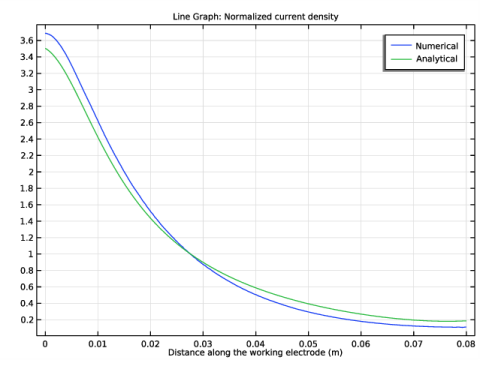
Figure 2 shows the normalized primary current density distribution along the working electrode surface obtained from the numerical model as well as from an analytical expression reported in Ref. 1. The normalized current density is found to decrease with the distance away from the counter electrode surface indicating its dependence on the geometry of RCH cell.
Figure 2: Normalized primary current density distribution obtained from the numerical model and the analytical expression.
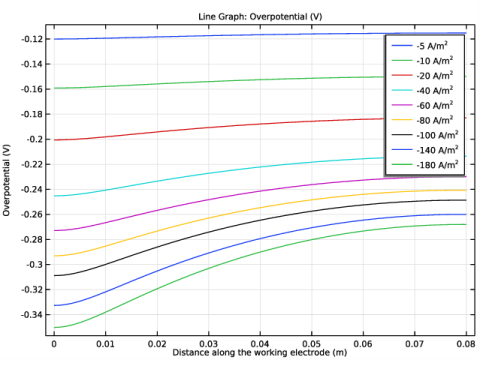
Figure 3 shows the overpotential variation along the working electrode surface obtained from the model for the varied applied current densities for the secondary current distribution. For the lower applied current densities, the overpotential is found to be quite uniform along the working electrode surface and low in magnitude. For the higher applied current densities, however, the overpotential is found to be considerably non-uniform and high in magnitude, particularly in a region closer to the counter electrode surface.
Figure 3: Overpotential variation for the varied applied current densities in the case of secondary current distribution.
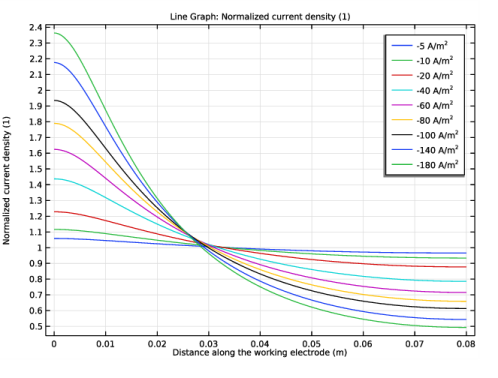
Figure 4 shows the normalized current density variation along the working electrode surface obtained from the model for the varied applied current densities in the case of secondary current distribution. The normalized current density variation is quite uniform for the lower applied current densities and non-uniform for the higher applied current densities, in correspondence to the overpotential variation.
Figure 4: Normalized current density variation for the varied applied current densities in the case of secondary current distribution.
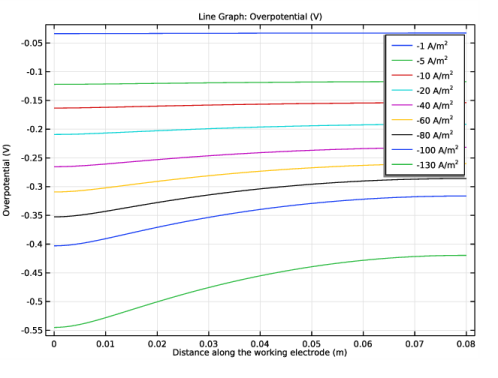
Figure 5 shows the overpotential variation along the working electrode surface obtained from the model for the varied applied current densities in the case of tertiary current distribution. The shape of overpotential variation obtained for tertiary current distribution is found to be similar to secondary current distribution. However, the magnitude of overpotential is generally higher in the former case, particularly in a region closer to the counter electrode surface.
Figure 5: Overpotential variation for the varied applied current densities in the case of tertiary current distribution.
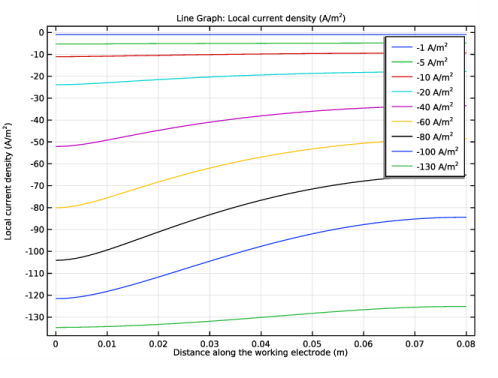
Figure 6 shows the local current density variation along the working electrode surface obtained from the model for the varied applied current densities in the case of tertiary current distribution. The local current density variation is found to be non-uniform with the increase in the applied current density, eventually approaching the limiting current density in a region closer to the counter electrode surface.
Figure 6: Local current density variation for the varied applied current densities in the case of tertiary current distribution.
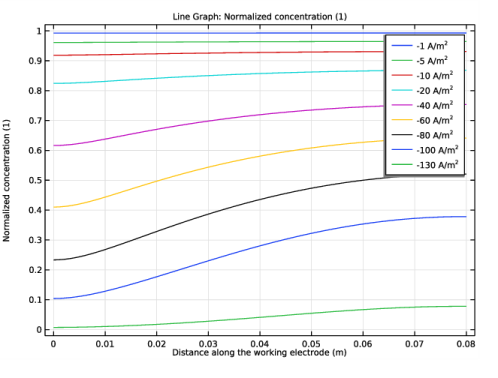
Figure 7 shows the normalized concentration variation along the working electrode surface obtained from the model for the varied applied current densities in the case of tertiary current distribution. For the lower applied current densities, the normalized concentration is close to 1 indicating that the reaction is kinetically limited and hence, secondary current distribution is good enough in this range. For the higher applied current densities, however, the normalized concentration variation is significant. For the highest applied current density, the normalized concentration is 0 in a region closer to the counter electrode surface, confirming that the electrodeposition reaction is mass transport limited. This shows that a tertiary current distribution model is required for the larger applied current densities.
Figure 7: Normalized concentration variation for varied applied current densities in the case of tertiary current distribution.
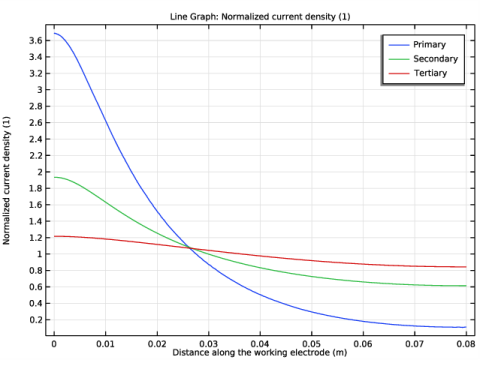
Figure 8 shows the normalized current density variation along the working electrode surface obtained from the model for primary, secondary and tertiary current distributions at the representative applied current density of 100 A/m2. The primary current distribution is the most non-uniform, followed by the secondary and then the tertiary current distribution. The primary current distribution model is not adequate for capturing the electrodeposition process under non-equilibrium conditions. The secondary current distribution is applicable for the lower applied current densities, where the electrodeposition reaction is kinetic limited. The tertiary current distribution is valid when concentration gradients cannot be neglected, which is the case for the higher applied current densities.
Figure 8: Normalized current density variation for primary, secondary and tertiary current distributions at the representative applied current density of 100 A/m2.
Notes About the COMSOL Implementation
The primary current distribution is first implemented using the Primary Current Distribution interface and the Electrode Surface node for the working electrode surface.
The secondary current distribution is then implemented by introducing the electrode kinetics for the working electrode surface using the Electrode Surface node.
Finally, the tertiary current distribution is implemented by coupling the Transport of Diluted Species interface with the Secondary Current Distribution interface.
A parametric sweep study type is used to vary the current density applied at the working electrode surface for the secondary and tertiary current distributions.
Reference
1. C.T.J. Low, E.P.L. Roberts, and F.C. Walsh, “Numerical simulation of the current, potential and concentration distributions along the cathode of a rotating cylinder Hull cell,” Electrochimica Acta, vol. 52, pp 3831–3840, 2007.
Application Library path: Electrodeposition_Module/Verification_Examples/rotating_cylinder_hull_cell
Modeling Instructions
The current distribution in the rotating cylinder Hull (RCH) cell is modeled in three steps to demonstrate how complexity can be gradually introduced in the model. In the first and second steps, the primary and secondary current distributions are modeled using the Primary or Secondary Current Distribution interface, respectively. In the third step, the tertiary current distribution is modeled by adding a Transport of Diluted Species interface. Make use of the symmetry of the system by modeling the RCH cell using a 2D axisymmetric geometry.
From the File menu, choose New.
New
In the New window, click  Model Wizard.
Model Wizard
1
In the Model Wizard window, click  2D Axisymmetric.
2
In the Select Physics tree, select Electrochemistry>Primary and Secondary Current Distribution>Primary Current Distribution (cd).
3
Click Add.
4
Click  Study.
5
In the Select Study tree, select General Studies>Stationary.
6
Geometry 1
Load the model parameters from a text file.
Global Definitions
Parameters 1
1
In the Model Builder window, under Global Definitions click Parameters 1.
2
In the Settings window for Parameters, locate the Parameters section.
3
Click  Load from File.
4
Geometry 1
Draw the cell as a polygon, insert the polygon coordinates in the table from a text file.
Polygon 1 (pol1)
1
In the Geometry toolbar, click  Polygon.
2
In the Settings window for Polygon, locate the Coordinates section.
3
Click  Load from File.
4
5
Click  Build Selected.
Boundary Layer
Draw the boundary layer as a rectangle.
1
In the Geometry toolbar, click  Rectangle.
2
In the Settings window for Rectangle, locate the Size and Shape section.
3
In the Width text field, type 30e-6.
4
In the Height text field, type H.
5
Locate the Position section. In the r text field, type 0.003.
6
In the Label text field, type Boundary Layer.
7
Locate the Selections of Resulting Entities section. Select the Resulting objects selection check box.
8
Click  Build Selected.
9
Click the  Zoom Extents button in the Graphics toolbar.
Global Definitions
Load the model variables from a text file.
Definitions
Variables 1
1
In the Home toolbar, click  Variables and choose Local Variables.
2
In the Settings window for Variables, locate the Variables section.
3
Click  Load from File.
4
Working Electrode
Add selections to the model for the working and counter electrode boundaries.
1
In the Definitions toolbar, click  Explicit.
2
In the Settings window for Explicit, locate the Input Entities section.
3
From the Geometric entity level list, choose Boundary.
4
5
In the Label text field, type Working Electrode.
Counter Electrode
1
In the Definitions toolbar, click  Explicit.
2
In the Settings window for Explicit, locate the Input Entities section.
3
From the Geometric entity level list, choose Boundary.
4
5
In the Label text field, type Counter Electrode.
Primary Current Distribution (cd)
Now specify the physics for the primary current distribution model.
Electrolyte 1
1
In the Model Builder window, under Component 1 (comp1)>Primary Current Distribution (cd) click Electrolyte 1.
2
In the Settings window for Electrolyte, locate the Electrolyte section.
3
From the σl list, choose User defined. In the associated text field, type sigma.
Electrolyte Potential 1
Set the electrolyte potential to zero (default value) for the counter electrode surface.
1
In the Physics toolbar, click  Boundaries and choose Electrolyte Potential.
2
In the Settings window for Electrolyte Potential, locate the Boundary Selection section.
3
From the Selection list, choose Counter Electrode.
Electrode Surface 1
Use an Electrode Surface feature to prescribe an average current density on the working electrode surface. The boundary condition yields a constant electrode potential, along the given boundary, that satisfies the given value of the average current density.
1
In the Physics toolbar, click  Boundaries and choose Electrode Surface.
2
In the Settings window for Electrode Surface, locate the Boundary Selection section.
3
From the Selection list, choose Working Electrode.
4
Locate the Electrode Phase Potential Condition section. From the Electrode phase potential condition list, choose Average current density.
5
In the il,average text field, type i_app.
Mesh 1
Create a mesh consisting of a mapped mesh in the boundary layer close to the working electrode, and a triangular mesh for the rest of the geometry.
Mapped 1
1
In the Mesh toolbar, click  Mapped.
2
In the Settings window for Mapped, locate the Domain Selection section.
3
From the Geometric entity level list, choose Domain.
4
From the Selection list, choose Boundary Layer.
Distribution 1
1
Right-click Mapped 1 and choose Distribution.
2
Distribution 2
1
In the Model Builder window, right-click Mapped 1 and choose Distribution.
2
3
In the Settings window for Distribution, locate the Distribution section.
4
From the Distribution type list, choose Predefined.
5
In the Number of elements text field, type 200.
6
In the Element ratio text field, type 10.
Free Triangular 1
1
In the Mesh toolbar, click  Free Triangular.
2
In the Settings window for Free Triangular, click  Build All.
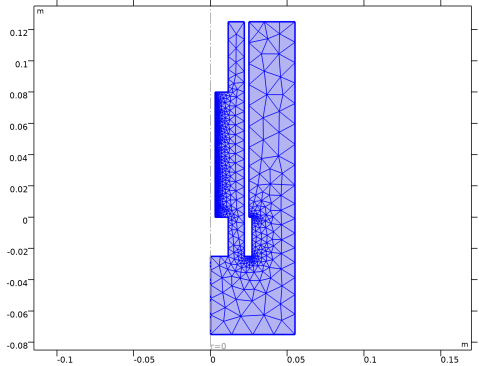
Your finished mesh should now look like this:
Study 1
Now solve the primary current distribution model.
1
In the Home toolbar, click  Compute.
Store the solution for primary current density distribution in order to compare the results with later simulations.
Solution 1 (sol1)
1
In the Model Builder window, expand the Study 1>Solver Configurations node.
2
Right-click Solution 1 (sol1) and choose Solution>Copy.
Primary
1
In the Model Builder window, right-click Solution 1 - Copy 1 (sol2) and choose Rename.
2
In the Rename Solution dialog box, type Primary in the New label text field.
3
Results
Plot the normalized current density and compare it with the analytical solution in the following way:
1D Plot Group 9
1
In the Home toolbar, click  Add Plot Group and choose 1D Plot Group.
2
In the Settings window for 1D Plot Group, locate the Data section.
3
From the Dataset list, choose Study 1/Primary (sol2).
Line Graph 1
1
Right-click 1D Plot Group 9 and choose Line Graph.
2
In the Settings window for Line Graph, locate the Selection section.
3
From the Selection list, choose Working Electrode.
4
Locate the y-Axis Data section. In the Expression text field, type cd.iloc_er1/i_app.
5
Select the Description check box. In the associated text field, type Normalized current density.
6
In the Unit field, type .
7
Locate the x-Axis Data section. From the Parameter list, choose Expression.
8
In the Expression text field, type z.
9
Select the Description check box. In the associated text field, type Distance along the working electrode.
10
Click to expand the Legends section. Select the Show legends check box.
11
From the Legends list, choose Manual.
12
13
In the 1D Plot Group 9 toolbar, click  Plot.
Line Graph 2
1
Right-click Line Graph 1 and choose Duplicate.
2
In the Settings window for Line Graph, locate the y-Axis Data section.
3
In the Expression text field, type i_analytical.
4
Click to expand the Title section. From the Title type list, choose None.
5
Locate the Legends section. In the table, enter the following settings:
6
In the 1D Plot Group 9 toolbar, click  Plot.
Normalized current density, Primary
1
In the Model Builder window, right-click 1D Plot Group 9 and choose Rename.
2
In the Rename 1D Plot Group dialog box, type Normalized current density, Primary in the New label text field.
3
Primary Current Distribution (cd)
Now, solve the secondary current distribution model by changing the Current Distribution Type setting on the physics node.
1
In the Model Builder window, under Component 1 (comp1) click Primary Current Distribution (cd).
2
In the Settings window for Primary Current Distribution, locate the Current Distribution Type section.
3
From the Current distribution type list, choose Secondary.
The secondary current distribution model includes activation losses on the electrodes. Add the parameter settings for the electrode kinetics.
Electrode Reaction 1
1
In the Model Builder window, under Component 1 (comp1)>Secondary Current Distribution (cd)>Electrode Surface 1 click Electrode Reaction 1.
2
In the Settings window for Electrode Reaction, locate the Electrode Kinetics section.
3
From the Kinetics expression type list, choose Cathodic Tafel equation.
4
In the i0 text field, type i0.
5
In the Ac text field, type Ac.
Study 1
Add an auxiliary continuation sweep to vary the applied current density.
Step 1: Stationary
1
In the Model Builder window, under Study 1 click Step 1: Stationary.
2
In the Settings window for Stationary, click to expand the Study Extensions section.
3
Select the Auxiliary sweep check box.
4
5
6
In the Home toolbar, click  Compute.
Store the solution for the secondary current distribution model. It will be used for comparison later.
Solution 1 (sol1)
In the Model Builder window, under Study 1>Solver Configurations right-click Solution 1 (sol1) and choose Solution>Copy.
Secondary
1
In the Model Builder window, right-click Solution 1 - Copy 1 (sol3) and choose Rename.
2
In the Rename Solution dialog box, type Secondary in the New label text field.
3
Results
Plot the overpotential and the normalized current density for different values of the applied current density as follows:
1D Plot Group 10
1
In the Home toolbar, click  Add Plot Group and choose 1D Plot Group.
2
In the Settings window for 1D Plot Group, locate the Data section.
3
From the Dataset list, choose Study 1/Secondary (sol3).
Line Graph 1
1
Right-click 1D Plot Group 10 and choose Line Graph.
2
In the Settings window for Line Graph, locate the Selection section.
3
From the Selection list, choose Working Electrode.
4
Click Replace Expression in the upper-right corner of the y-Axis Data section. From the menu, choose Component 1 (comp1)>Secondary Current Distribution>Electrode kinetics>cd.eta_er1 - Overpotential - V.
5
Locate the y-Axis Data section. Select the Description check box.
6
Locate the x-Axis Data section. From the Parameter list, choose Expression.
7
In the Expression text field, type z.
8
Select the Description check box. In the associated text field, type Distance along the working electrode.
9
Locate the Legends section. Select the Show legends check box.
10
In the 1D Plot Group 10 toolbar, click  Plot.
Overpotential, Secondary
1
In the Model Builder window, under Results click 1D Plot Group 10.
2
In the Settings window for 1D Plot Group, type Overpotential, Secondary in the Label text field.
Overpotential, Secondary 1
Right-click Overpotential, Secondary and choose Duplicate.
Line Graph 1
1
In the Model Builder window, expand the Overpotential, Secondary 1 node, then click Line Graph 1.
2
In the Settings window for Line Graph, locate the y-Axis Data section.
3
In the Expression text field, type cd.iloc_er1/i_app.
4
In the Description text field, type Normalized current density.
5
In the Overpotential, Secondary 1 toolbar, click  Plot.
Normalized current density, Secondary
1
In the Model Builder window, right-click Overpotential, Secondary 1 and choose Rename.
2
In the Rename 1D Plot Group dialog box, type Normalized current density, Secondary in the New label text field.
3
Component 1 (comp1)
Now, set up the tertiary current distribution model by including a Transport of Diluted Species interface, and by coupling it with the Secondary Current Distribution interface. Transport of Diluted Species is active in a very small domain (30 micrometer thick) next to the working electrode.
Add Physics
1
In the Home toolbar, click  Add Physics to open the Add Physics window.
2
Go to the Add Physics window.
3
In the tree, select Chemical Species Transport>Transport of Diluted Species (tds).
4
Click Add to Component 1 in the window toolbar.
5
In the Home toolbar, click  Add Physics to close the Add Physics window.
Transport of Diluted Species (tds)
1
In the Settings window for Transport of Diluted Species, locate the Domain Selection section.
2
From the Selection list, choose Boundary Layer.
3
Locate the Transport Mechanisms section. Clear the Convection check box.
Transport Properties 1
1
In the Model Builder window, under Component 1 (comp1)>Transport of Diluted Species (tds) click Transport Properties 1.
2
In the Settings window for Transport Properties, locate the Diffusion section.
3
In the Dc text field, type D.
Initial Values 1
1
In the Model Builder window, click Initial Values 1.
2
In the Settings window for Initial Values, locate the Initial Values section.
3
In the c text field, type cb.
Concentration 1
1
In the Physics toolbar, click  Boundaries and choose Concentration.
2
3
In the Settings window for Concentration, locate the Concentration section.
4
Select the Species c check box.
5
In the c0,c text field, type cb.
Electrode Surface Coupling 1
Use an Electrode Surface Coupling node to couple the reaction term with the local current density obtained from the Secondary Current Distribution interface.
1
In the Physics toolbar, click  Boundaries and choose Electrode Surface Coupling.
2
In the Settings window for Electrode Surface Coupling, locate the Boundary Selection section.
3
From the Selection list, choose Working Electrode.
Reaction Coefficients 1
1
In the Model Builder window, expand the Electrode Surface Coupling 1 node, then click Reaction Coefficients 1.
2
In the Settings window for Reaction Coefficients, locate the Model Inputs section.
3
From the iloc list, choose Local current density, Electrode Reaction 1 (cd/es1/er1).
4
Locate the Stoichiometric Coefficients section. In the n text field, type 2.
5
In the νc text field, type -1.
Secondary Current Distribution (cd)
The electrode kinetics is made concentration dependent by changing the exchange current density term as follows:
Electrode Reaction 1
1
In the Model Builder window, under Component 1 (comp1)>Secondary Current Distribution (cd)>Electrode Surface 1 click Electrode Reaction 1.
2
In the Settings window for Electrode Reaction, locate the Electrode Kinetics section.
3
In the i0 text field, type i0*(c/cb).
Change the applied current density values for the tertiary current distribution model.
Study 1
Step 1: Stationary
1
In the Model Builder window, under Study 1 click Step 1: Stationary.
2
In the Settings window for Stationary, locate the Study Extensions section.
3
The model is now ready to be solved.
4
In the Home toolbar, click  Compute.
Results
Electrolyte Potential (cd)
Plot the overpotential, the local current density and the normalized concentration for the tertiary current density distribution as follows:
1D Plot Group 12
In the Home toolbar, click  Add Plot Group and choose 1D Plot Group.
Line Graph 1
1
Right-click 1D Plot Group 12 and choose Line Graph.
2
In the Settings window for Line Graph, locate the Selection section.
3
From the Selection list, choose Working Electrode.
4
Click Replace Expression in the upper-right corner of the y-Axis Data section. From the menu, choose Component 1 (comp1)>Secondary Current Distribution>Electrode kinetics>cd.eta_er1 - Overpotential - V.
5
Locate the y-Axis Data section. Select the Description check box.
6
Locate the x-Axis Data section. From the Parameter list, choose Expression.
7
In the Expression text field, type z.
8
Select the Description check box. In the associated text field, type Distance along the working electrode.
9
Locate the Legends section. Select the Show legends check box.
10
In the 1D Plot Group 12 toolbar, click  Plot.
Overpotential, Tertiary
1
In the Model Builder window, under Results click 1D Plot Group 12.
2
In the Settings window for 1D Plot Group, type Overpotential, Tertiary in the Label text field.
Overpotential, Tertiary 1
Right-click Overpotential, Tertiary and choose Duplicate.
Line Graph 1
1
In the Model Builder window, expand the Overpotential, Tertiary 1 node, then click Line Graph 1.
2
In the Settings window for Line Graph, click Replace Expression in the upper-right corner of the y-Axis Data section. From the menu, choose Component 1 (comp1)>Secondary Current Distribution>Electrode kinetics>cd.iloc_er1 - Local current density - A/m².
3
Locate the y-Axis Data section. In the Description text field, type Local current density.
4
In the Overpotential, Tertiary 1 toolbar, click  Plot.
Local current density, Tertiary
1
In the Model Builder window, under Results click Overpotential, Tertiary 1.
2
In the Settings window for 1D Plot Group, type Local current density, Tertiary in the Label text field.
Local current density, Tertiary 1
Right-click Local current density, Tertiary and choose Duplicate.
Line Graph 1
1
In the Model Builder window, expand the Local current density, Tertiary 1 node, then click Line Graph 1.
2
In the Settings window for Line Graph, locate the y-Axis Data section.
3
In the Expression text field, type c/cb.
4
In the Description text field, type Normalized concentration.
5
In the Local current density, Tertiary 1 toolbar, click  Plot.
Normalized concentration, Tertiary
1
In the Model Builder window, right-click Local current density, Tertiary 1 and choose Rename.
2
In the Rename 1D Plot Group dialog box, type Normalized concentration, Tertiary in the New label text field.
3
1D Plot Group 15
Now compare the primary, secondary and tertiary current distributions by plotting the normalized current density for a representative value of applied current density.
1
In the Home toolbar, click  Add Plot Group and choose 1D Plot Group.
2
In the Settings window for 1D Plot Group, locate the Data section.
3
From the Dataset list, choose None.
Line Graph 1
1
Right-click 1D Plot Group 15 and choose Line Graph.
2
In the Settings window for Line Graph, locate the Data section.
3
From the Dataset list, choose Study 1/Primary (sol2).
4
Locate the Selection section. From the Selection list, choose Working Electrode.
5
Locate the y-Axis Data section. In the Expression text field, type cd.iloc_er1/i_app.
6
Select the Description check box. In the associated text field, type Normalized current density.
7
Locate the x-Axis Data section. From the Parameter list, choose Expression.
8
In the Expression text field, type z.
9
Select the Description check box. In the associated text field, type Distance along the working electrode.
10
Locate the Legends section. Select the Show legends check box.
11
From the Legends list, choose Manual.
12
13
In the 1D Plot Group 15 toolbar, click  Plot.
Line Graph 2
1
Right-click Line Graph 1 and choose Duplicate.
2
In the Settings window for Line Graph, locate the Data section.
3
From the Dataset list, choose Study 1/Secondary (sol3).
4
From the Parameter selection (i_app) list, choose From list.
5
In the Parameter values (i_app (A/m^2)) list, select -100.
6
Locate the Title section. From the Title type list, choose None.
7
Locate the Legends section. In the table, enter the following settings:
8
In the 1D Plot Group 15 toolbar, click  Plot.
Line Graph 3
1
Right-click Line Graph 2 and choose Duplicate.
2
In the Settings window for Line Graph, locate the Data section.
3
From the Dataset list, choose Study 1/Solution 1 (sol1).
4
In the Parameter values (i_app (A/m^2)) list, select -100.
5
Locate the Legends section. In the table, enter the following settings:
6
In the 1D Plot Group 15 toolbar, click  Plot.
Current density comparison
1
In the Model Builder window, right-click 1D Plot Group 15 and choose Rename.
2
In the Rename 1D Plot Group dialog box, type Current density comparison in the New label text field.
3
Electrolyte Potential, 3D (cd)
Click the  Zoom Extents button in the Graphics toolbar.