




You are viewing the documentation for an older COMSOL version. The latest version is available here.
PDF

Electrode Growth Next to an Insulator
Introduction
This example models electrodeposition of copper with a deforming geometry where an electrode surface is placed next to an insulator, initially at an 180 degree angle. This situation is of interest from a benchmark perspective since non-right angles between insulators and growing electrodes may introduce singularities when modeling deforming geometries (Ref. 1).
No concentration gradients in the electrolytes are assumed, and a secondary current distribution is modeled.
The model qualitatively reproduces the results of J. Deconinck (Ref. 1).
Model Definition
Geometry
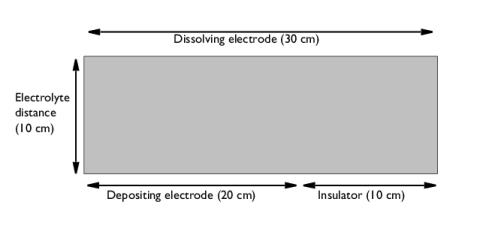
The model is made in 2D and consists of a dissolving and a depositing electrode. Only the electrolyte domain is modeled in the geometry. See Figure 1.
Figure 1: Initial modeled geometry.
Electrolyte
The electrolyte is assumed to be a 0.8 M CuSO4-0.8 M H2SO4 solution with a conductivity of σ = 0.23Ω-1cm-1, where the H2SO4 is assumed to act as a supporting electrolyte (due to the high conductivity of the protons). Concentration gradients of Cu2+ are neglected in the model and thus a secondary current distribution is assumed.
Electrodes
The electrodes both consist of copper. On the dissolving electrode, copper dissolution occurs
whereas copper is deposited on the depositing electrode
A simplified electrode kinetic model is assumed for both electrodes, with a linear relation between the overpotential, η, and electrode reaction current density, iloc, according to:
By using the copper deposition red-ox reaction as reference potential, the equilibrium potential is set to zero for both electrodes.
The depositing electrode is grounded and a electric potential of 0.778 V is set to the dissolving electrode. All other boundaries are isolated.
Deforming geometry
Due to the dissolution and deposition of copper, the electrode boundaries move during the simulation. The molar flux of copper, NCu (mol/(m2·s)), over the electrodes is described by Faraday’s law according to
where F is Faraday’s constant (96485 C/mol). The stoichiometric coefficients for copper is νCu = 1 for both electrode reactions, and the number of electrons is = 2.
The depositing velocity, vdep, directed in the normal direction of the electrode into the electrode domain, can be deduced from the molar flux, the density and the molar mass of copper
Results and Discussion
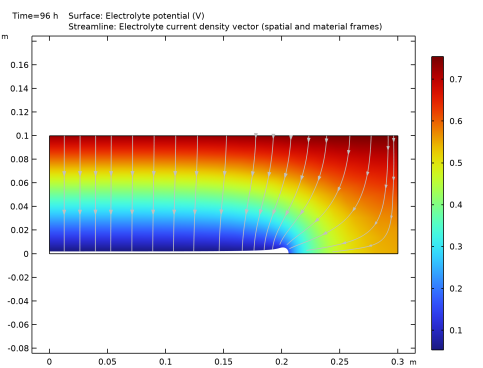
Figure 2 shows a surface plot of the electrolyte potential, and a streamline plot of the electrolyte current density, at 96 h, for the deformed geometry.
Figure 2: Electrolyte potential (surface) and electrolyte current direction (streamlines) at t=96 h.
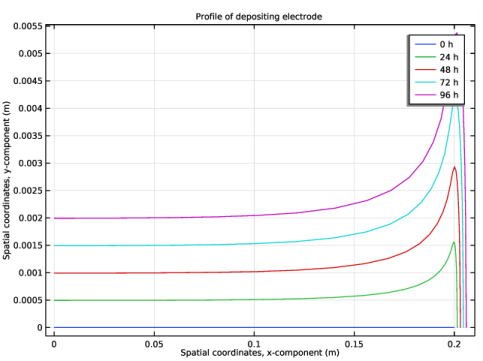
The electrode growth reaches its maximum close to the insulator-electrode edge, due to the higher electrode currents in this area. Figure 3 shows the profile change of the depositing electrode during the simulation.
Figure 3: Profile of deposited electrode at various times during the simulation.
Notes About the COMSOL Implementation
The model is set up using the Electrodeposition, Secondary interface with a single Electrolyte domain. The depositing and dissolving electrodes are modeled with the Electrode Surface boundary nodes.
A time dependent study is used to simulate the electrode growth and dissolution during 96 h.
The default Nondepositing Boundary node is used for the geometry deformation at the insulated boundaries. The boundary condition setting of the feature is changed to Zero Normal Displacement, instead of using the default Zero Normal Velocity. This improves the numerical stability of the geometry deformation on these boundaries.
Reference
1. J. Deconinck, “Mathematical modelling of electrode growth,” J. Applied Electrochemistry, vol. 24, pp. 212-218, 1994.
Application Library path: Electrodeposition_Module/Verification_Examples/electrode_insulator_growth
Modeling Instruction
From the File menu, choose New.
New
In the New window, click  Model Wizard.
Model Wizard
1
In the Model Wizard window, click  2D.
2
In the Select Physics tree, select Electrochemistry>Electrodeposition, Deformed Geometry>Electrodeposition, Secondary.
3
Click Add.
4
Click  Study.
5
In the Select Study tree, select Preset Studies for Selected Physics Interfaces>Time Dependent with Initialization.
6
Geometry 1
Draw the geometry using a rectangle and a point.
Rectangle 1 (r1)
1
In the Geometry toolbar, click  Rectangle.
2
In the Settings window for Rectangle, locate the Size and Shape section.
3
In the Width text field, type 30[cm].
4
In the Height text field, type 10[cm].
Point 1 (pt1)
1
In the Geometry toolbar, click  Point.
2
In the Settings window for Point, locate the Point section.
3
In the x text field, type 20[cm].
4
In the Geometry toolbar, click  Build All.
Secondary Current Distribution (cd)
Electrolyte 1
Now set up the electrochemical model. Start with the domain settings for the electrolyte.
1
In the Model Builder window, under Component 1 (comp1)>Secondary Current Distribution (cd) click Electrolyte 1.
2
In the Settings window for Electrolyte, locate the Electrolyte section.
3
From the σl list, choose User defined. In the associated text field, type 0.23[S/cm].
Electrode Surface 1
1
In the Physics toolbar, click  Boundaries and choose Electrode Surface.
2
3
In the Settings window for Electrode Surface, click to expand the Dissolving-Depositing Species section.
4
Electrode Reaction 1
1
In the Model Builder window, click Electrode Reaction 1.
2
In the Settings window for Electrode Reaction, locate the Stoichiometric Coefficients section.
3
In the n text field, type 2.
4
In the Stoichiometric coefficients for dissolving-depositing species: table, enter the following settings:
5
Locate the Electrode Kinetics section. From the iloc,expr list, choose User defined. In the associated text field, type cd.eta_er1*300[mA/cm^2/V].
Electrode Surface 2
1
In the Model Builder window, under Component 1 (comp1)>Secondary Current Distribution (cd) right-click Electrode Surface 1 and choose Duplicate.
2
3
In the Settings window for Electrode Surface, locate the Electrode Phase Potential Condition section.
4
In the φs,ext text field, type 0.778.
Multiphysics
Nondeforming Boundary 1 (ndbdg1)
The following applies a stronger constraint (than the default condition) for the planar nondepositing walls, in order to enforce a zero boundary movement in the normal direction.
1
In the Model Builder window, under Component 1 (comp1)>Multiphysics click Nondeforming Boundary 1 (ndbdg1).
2
In the Settings window for Nondeforming Boundary, locate the Nondeforming Boundary section.
3
From the Boundary condition list, choose Zero normal displacement.
Mesh 1
1
In the Model Builder window, under Component 1 (comp1) click Mesh 1.
2
In the Settings window for Mesh, locate the Sequence Type section.
3
From the list, choose User-controlled mesh.
Size 1
1
In the Model Builder window, right-click Free Triangular 1 and choose Size.
2
In the Settings window for Size, locate the Geometric Entity Selection section.
3
From the Geometric entity level list, choose Point.
4
5
Locate the Element Size section. Click the Custom button.
6
Locate the Element Size Parameters section.
7
Select the Maximum element size check box. In the associated text field, type 0.1[mm].
8
Click  Build All.
Study 1
Set the solver to simulate 96 hours of deposition, storing the solution every 3 hours.
Step 2: Time Dependent
1
In the Model Builder window, under Study 1 click Step 2: Time Dependent.
2
In the Settings window for Time Dependent, locate the Study Settings section.
3
From the Time unit list, choose h.
4
In the Output times text field, type range(0,3,96).
5
In the Home toolbar, click  Compute.
Results
Electrolyte Potential (cd)
A 2D plot of the electrolyte potential and the deformation is created by default. Change the frame of the dataset edges to Geometry in order to show the outline of the original (undeformed) geometry in the figure.
1
In the Settings window for 2D Plot Group, locate the Plot Settings section.
2
From the Frame list, choose Geometry  (Xg, Yg, Zg).
3
In the Electrolyte Potential (cd) toolbar, click  Plot.
4
Click the  Zoom Extents button in the Graphics toolbar.
1D Plot Group 6
1
In the Home toolbar, click  Add Plot Group and choose 1D Plot Group.
Use the following steps to create Figure 3.
2
In the Settings window for 1D Plot Group, locate the Data section.
3
From the Time selection list, choose From list.
4
In the Times (h) list, choose 0, 24, 48, 72, and 96.
5
Click to expand the Title section. From the Title type list, choose Manual.
6
In the Title text area, type Profile of depositing electrode.
Line Graph 1
1
Right-click 1D Plot Group 6 and choose Line Graph.
2
3
In the Settings window for Line Graph, locate the y-Axis Data section.
4
In the Expression text field, type y.
5
Locate the x-Axis Data section. From the Parameter list, choose Expression.
6
In the Expression text field, type x.
7
Click to expand the Legends section. Select the Show legends check box.
8
From the Legends list, choose Evaluated.
9
In the Legend text field, type eval(t,h) h.
10
In the 1D Plot Group 6 toolbar, click  Plot.