
You are viewing the documentation for an older COMSOL version. The latest version is available here.
PDF

Analysis of a Composite Blade Using a Multiple Model Method
Introduction
This model is based on the Structural Mechanics Module Application Library model Vibrations of an Impeller. The model herein, however, uses a simplified standalone blade geometry, but the boundary conditions and loading are taken from the original model. The model compares three commonly used methods for the analysis of laminated composite shells:
1
2
3
The ESL theory reduces a 3D continuum to an equivalent 2D description, thereby reducing the size and computational time involved in solving a problem. The first-order shear deformation theory (FSDT) is implemented in the Layered Linear Elastic Material model in the Shell interface.
The layerwise elasticity theory is implemented in the Layered Shell interface. The theory considers a composite as a 3D continuum, giving more accurate resolution of stresses and strains, particularly in the through-thickness direction.
The ESL and layerwise theories each have advantages and disadvantages, in terms of solution accuracy and solution time, for different types of problems. By judiciously combining the use of the two theories in a single model, it is possible to obtain high accuracy results, at a low computational cost. The approach of combining the theories in this way is called a multiple model method, or a global-local analysis. For more details regarding multiple model methods, see Ref. 1.
Model Definition
In this model, you will perform an eigenfrequency analysis and a frequency-domain analysis of a composite blade, using the three modeling approaches discussed previously:
Geometry and Boundary Conditions
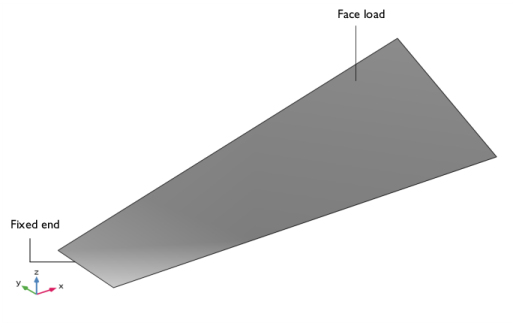
The geometry of the blade is shown in Figure 1. The boundary conditions and loading are:
using the magnitude of p0 = 104 Pa and azimuthal mode number m = 3. The excitation frequency is 10 Hz.
Figure 1: Geometry of the blade, with boundary conditions and loading.
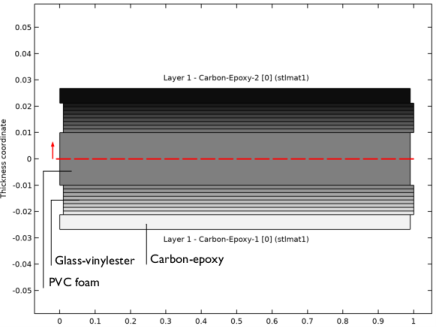
Figure 2: Through-thickness view of the laminate.
laminate Material Properties
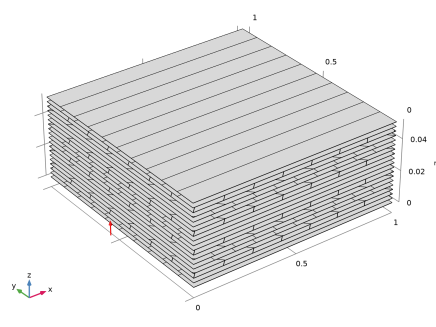
The composite blade is a sandwich structure consisting of three different material types: carbon-epoxy (outer layer), glass-vinylester, and PVC foam (core), as shown in Figure 2. The stacking sequence is shown in Figure 3. The material properties of the different laminae are taken from the model Stress and Modal Analysis of a Wind Turbine Composite Blade, also in the Composite Materials Module Application Library.
Carbon-Epoxy Layer
The outer layer of the sandwich structure is a single carbon-epoxy layer with a thickness of 5.6 mm, oriented at 0 degrees to the principal axis. The density of the layer is 1560 kg/m3. The orthotropic material properties are given in Table 1.
{E1,E2,E3}
{G12,G23,G13}
{υ12,υ23,υ13}
Glass-Vinylester Laminate
The next layer of the sandwich structure is a glass-vinylester laminate. The density of the laminate is 1890 kg/m3. The orthotropic material properties are given in Table 2.
{E1,E2,E3}
{G12,G23,G13}
{υ12,υ23,υ13}
This laminate is made of eight layers, each of 1.4 mm thickness, with the stacking sequence shown in Table 3.
PVC Foam
The core material of the sandwich structure is a PVC foam of thickness 2 cm. The density of the material is 200 kg/m3. The values of Young’s modulus and Poisson’s ratio are 250 MPa and 0.35, respectively.
Figure 3: Stacking sequence for the laminate showing the fiber orientation of each layer, from bottom to top.
Finite Element Mesh
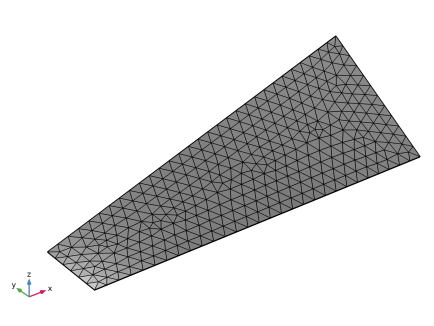
Composites modeled with the Layered Shell or Shell interfaces are discretized at two levels. The in-plane discretization in done in a standard fashion in the Mesh node in the Model Builder tree. The out-of-plane (thickness) discretization is controlled in the Layered Material node. A triangular mesh is used in the plane, as shown in Figure 4. The discretization in the laminate thickness direction (given as a number of elements) is shown in Table 4.
Figure 4: The mesh in the base selection.
Results and Discussion
The layerwise theory uses three dimensional kinematics, and has the capacity to predict stresses and strains to high accuracy. The results from using this theory are therefore used as a benchmark. The results from using the ESL theory and the multiple model method are compared with the layerwise theory predictions.
Eigenfrequency Analysis
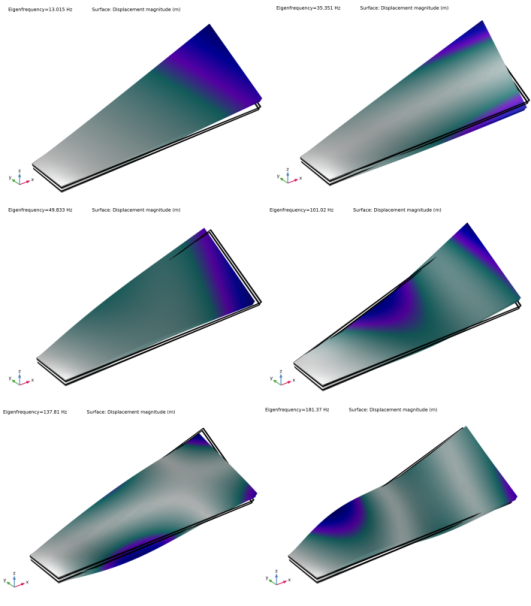
The first six eigenmodes, using the multiple model method, are shown in Figure 5. The eigenmodes using the layerwise and ESL theories are essentially indistinguishable from the multiple model method eigenmodes, and they are not shown here. However the computed eigenfrequencies differ between the different modeling approaches. The corresponding six eigenfrequencies are shown in Table 5.
It is evident that the computationally less expensive predictions from the multiple model method are in very close agreement with the layerwise values. Predictions using the ESL theory deviate significantly, likely owing to the fact that while the ESL theory is computationally inexpensive, it is less accurate for thick to moderately thick shells. This underscores the computational merit of a multiple model method, in which thicker parts of a sandwich structure are modeled using a layerwise theory, and thinner parts are modeled using the ESL theory. A performance comparison is shown in Table 6.
Frequency-DOMAIN Analysis
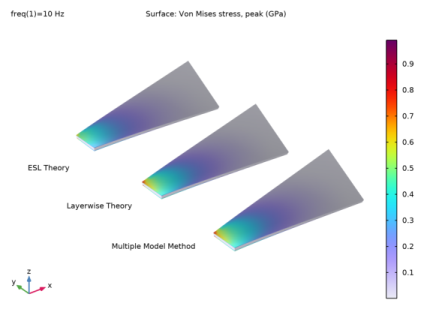
The von Mises peak stress distribution for each modeling approach is presented in Figure 6. The figure shows that the stress response from the multiple model method closely matches the layerwise case, both in distribution and in peak value. The figure also shows that the stress distribution using the ESL theory differs significantly, and most notably, the peak value is very different.
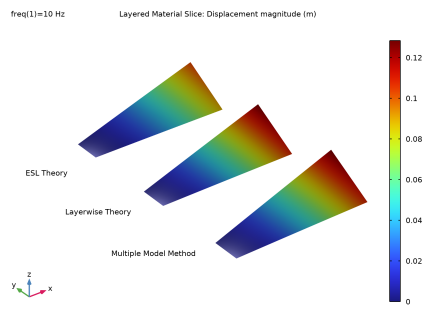
The frequency-domain results in terms of displacements are presented in Figure 7 for each modeling approach. Again, the multiple model method approach produces results that are in close agreement with the results from the layerwise theory, while the ESL theory fails to accurately predict the displacement distribution and peak value (30% difference in peak value).
Figure 5: The first six mode shapes and corresponding eigenfrequencies of the composite blade, using the multiple model method.
Figure 6: Peak von Mises stress distribution in the composite blade.
Figure 7: Displacement in the top layer of the composite blade.
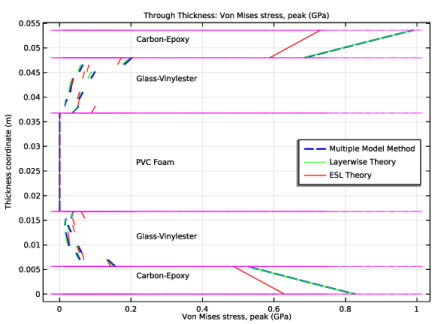
Figure 8: Through-thickness stress variation in von Mises peak stress at a particular location.
Figure 8 shows the distribution of peak von Mises stress in the through-thickness direction at a particular location. The results using the multiple model method and the layerwise theory are in close agreement, while the ESL theory produces significantly different results. This is expected, as the ESL theory is incapable of accurately computing interlaminar shear stresses in thick composites.
The performance of three methods with frequency-domain study is shown in Table 7.
Notes About the COMSOL Implementation
To model composites you can use two approaches: You can use either the Layered Shell interface, that uses the layerwise theory, or the Layered Linear Elastic Material node in the Shell interface, that uses the Equivalent Single Layer (ESL) theory.
The multiple model method combines the aforementioned modeling approaches, and in order to combine the Layered Shell and Shell interfaces in the thickness direction, a Layered Shell-Shell Connection multiphysics coupling must be used. You must also use the Layered Material Stack node for the through-thickness coupling between the interfaces.
In a situation where Layered Shell and Shell interfaces are coupled in-plane, you must use a Layered Shell-Structural Transition multiphysics coupling. Here, the same Single Layer Material, Layered Material Link or Layered Material Stack node must be used in both interfaces. This modeling approach is also a multiple model method.
It is not advised to use the Layered Shell interface for discontinuous layers, as it can create problems in fold-line constraints. No fold-lines exist in the present model, however, so the Layered Shell interface can be used to model the PVC foam and the carbon-epoxy layers.
Reference
1. J.N. Reddy, Mechanics of Laminated Composite Plates and Shells: Theory and Analysis, Second Edition, CRC Press, 2004.
Application Library path: Composite_Materials_Module/Tutorials/composite_blade_multiple_model_method
Modeling Instructions
From the File menu, choose New.
New
In the New window, click  Model Wizard.
Model Wizard
1
In the Model Wizard window, click  3D.
2
In the Select Physics tree, select Structural Mechanics>Layered Shell (lshell).
3
Click Add.
4
In the Select Physics tree, select Structural Mechanics>Shell (shell).
5
Click Add.
6
Click  Study.
7
In the Select Study tree, select General Studies>Eigenfrequency.
8
Global Definitions
Parameters 1
1
In the Model Builder window, under Global Definitions click Parameters 1.
2
In the Settings window for Parameters, locate the Parameters section.
3
Material: Carbon-Epoxy
1
In the Model Builder window, under Global Definitions right-click Materials and choose Blank Material.
2
In the Settings window for Material, type Material: Carbon-Epoxy in the Label text field.
Layered Material: CE-[0]
1
Right-click Materials and choose Layered Material.
2
In the Settings window for Layered Material, type Layered Material: CE-[0] in the Label text field.
3
Locate the Layer Definition section. In the table, enter the following settings:
Material: Glass-Vinylester
1
Right-click Materials and choose Blank Material.
2
In the Settings window for Material, type Material: Glass-Vinylester in the Label text field.
Layered Material: GV-[0/45/-45/90]_s
1
Right-click Materials and choose Layered Material.
2
In the Settings window for Layered Material, type Layered Material: GV-[0/45/-45/90]_s in the Label text field.
3
Locate the Layer Definition section. In the table, enter the following settings:
4
Add six additional layers so that the material has a total of eight layers.
5
6
Click to expand the Preview Plot Settings section. In the Thickness-to-width ratio text field, type 0.6.
7
Locate the Layer Definition section. Click Layer Stack Preview in the upper-right corner of the section.
Material: PVC Foam
1
Right-click Materials and choose Blank Material.
2
In the Settings window for Material, type Material: PVC Foam in the Label text field.
Layered Material: PF-[0]
1
Right-click Materials and choose Layered Material.
2
In the Settings window for Layered Material, type Layered Material: PF-[0] in the Label text field.
3
Locate the Layer Definition section. In the table, enter the following settings:
Geometry 1
Work Plane 1 (wp1)
1
In the Geometry toolbar, click  Work Plane.
2
In the Settings window for Work Plane, locate the Plane Definition section.
3
From the Plane list, choose zy-plane.
Work Plane 1 (wp1)>Plane Geometry
In the Model Builder window, click Plane Geometry.
Work Plane 1 (wp1)>Line Segment 1 (ls1)
1
In the Work Plane toolbar, click  More Primitives and choose Line Segment.
2
In the Settings window for Line Segment, locate the Starting Point section.
3
From the Specify list, choose Coordinates.
4
Locate the Endpoint section. From the Specify list, choose Coordinates.
5
In the yw text field, type 0.4.
Extrude 1 (ext1)
1
In the Model Builder window, right-click Geometry 1 and choose Extrude.
2
In the Settings window for Extrude, locate the Distances section.
3
4
Select the Reverse direction check box.
5
Click to expand the Scales section. In the table, enter the following settings:
6
Click to expand the Twist Angles section. In the table, enter the following settings:
7
Click  Build All Objects.
8
Click the  Zoom Extents button in the Graphics toolbar.
9
Click the  Show Grid button in the Graphics toolbar.
Definitions
Boundary System 1 (sys1)
1
In the Model Builder window, expand the Component 1 (comp1)>Definitions node, then click Boundary System 1 (sys1).
2
In the Settings window for Boundary System, locate the Settings section.
3
Find the Coordinate names subsection. From the Axis list, choose x.
Materials
The laminate is modeled using a Layered Material Stack node. Multiple layered material links are added to demonstrate the multiple model method.
Layered Material Stack 1 (stlmat1)
In the Model Builder window, under Component 1 (comp1) right-click Materials and choose Layers>Layered Material Stack.
Carbon-Epoxy-1 [0]
In the Settings window for Layered Material Link, type Carbon-Epoxy-1 [0] in the Label text field.
Glass-Vinylester-1 [0/45/-45/90]_s
1
Right-click Carbon-Epoxy-1 [0] and choose Duplicate.
2
In the Settings window for Layered Material Link, type Glass-Vinylester-1 [0/45/-45/90]_s in the Label text field.
3
Locate the Link Settings section. From the Material list, choose Layered Material: GV-[0/45/-45/90]_s (lmat2).
PVC Foam [0]
1
Right-click Glass-Vinylester-1 [0/45/-45/90]_s and choose Duplicate.
2
In the Settings window for Layered Material Link, type PVC Foam [0] in the Label text field.
3
Locate the Link Settings section. From the Material list, choose Layered Material: PF-[0] (lmat3).
Glass-Vinylester-2 [0/45/-45/90]_s
1
Right-click PVC Foam [0] and choose Duplicate.
2
In the Settings window for Layered Material Link, type Glass-Vinylester-2 [0/45/-45/90]_s in the Label text field.
3
Locate the Link Settings section. From the Material list, choose Layered Material: GV-[0/45/-45/90]_s (lmat2).
Carbon-Epoxy-2 [0]
1
Right-click Glass-Vinylester-2 [0/45/-45/90]_s and choose Duplicate.
2
In the Settings window for Layered Material Link, type Carbon-Epoxy-2 [0] in the Label text field.
3
Locate the Link Settings section. From the Material list, choose Layered Material: CE-[0] (lmat1).
Layered Material Stack 1 (stlmat1)
1
In the Model Builder window, click Layered Material Stack 1 (stlmat1).
2
In the Settings window for Layered Material Stack, click to expand the Preview Plot Settings section.
3
In the Thickness-to-width ratio text field, type 0.4.
4
Click Layer Cross-Section Preview in the upper-right corner of the Layered Material Settings section. From the menu, choose Layer Cross-Section Preview to enable the through-thickness view of the laminated material, as in Figure 2.
5
Click Layer Stack Preview in the upper-right corner of the Layered Material Settings section. From the menu, choose Layer Stack Preview to show the stacking sequence, including the fiber orientation, as in Figure 3.
You will now model the composite blade using the multiple model method. To this end, you will use one Layered Shell and two Shell interfaces.
Layered Shell (Multiple Model Method)
1
In the Model Builder window, under Component 1 (comp1) click Layered Shell (lshell).
2
In the Settings window for Layered Shell, type Layered Shell (Multiple Model Method) in the Label text field.
Add the material properties for the carbon-epoxy, the glass-vinylester, and the PVC foam.
3
Locate the Shell Properties section. Clear the Use all layers check box.
4
Click  Clear All.
5
In the Selection table, select the check boxes for Layer 1 - Carbon-Epoxy-1 [0], Layer 1 - PVC Foam [0], and Layer 1 - Carbon-Epoxy-2 [0].
Fixed Constraint 1
1
In the Physics toolbar, click  Edges and choose Fixed Constraint.
2
3
In the Settings window for Fixed Constraint, locate the Shell Properties section.
4
Select the Use all layers check box.
Face Load, Top
1
In the Physics toolbar, click  Boundaries and choose Face Load.
2
In the Settings window for Face Load, type Face Load, Top in the Label text field.
3
4
Locate the Interface Selection section. From the Apply to list, choose Top interface.
5
Locate the Force section. Specify the FA vector as
Face Load, Bottom
1
Right-click Face Load, Top and choose Duplicate.
2
In the Settings window for Face Load, type Face Load, Bottom in the Label text field.
3
Locate the Interface Selection section. From the Apply to list, choose Bottom interface.
Shell 1 (Multiple Model Method)
1
In the Model Builder window, under Component 1 (comp1) click Shell (shell).
2
In the Settings window for Shell, type Shell 1 (Multiple Model Method) in the Label text field.
3
Click the  Show More Options button in the Model Builder toolbar.
4
In the Show More Options dialog box, in the tree, select the check box for the node Physics>Advanced Physics Options.
5
6
In the Settings window for Shell, click to expand the Advanced Settings section.
7
Clear the Use MITC interpolation check box.
Layered Linear Elastic Material 1
1
In the Physics toolbar, click  Boundaries and choose Layered Linear Elastic Material.
2
3
In the Settings window for Layered Linear Elastic Material, locate the Shell Properties section.
4
Clear the Use all layers check box.
5
From the Stack member list, choose Glass-Vinylester-1 [0/45/-45/90]_s (stlmat1.stllmat2).
6
Locate the Linear Elastic Material section. From the Material symmetry list, choose Orthotropic.
7
Click to expand the Shear Correction Factor section. From the list, choose User defined.
Fixed Constraint 1
1
In the Physics toolbar, click  Edges and choose Fixed Constraint.
2
3
In the Model Builder window, right-click Shell 1 (Multiple Model Method) (shell) and choose Copy.
Shell 2 (Multiple Model Method)
1
In the Model Builder window, right-click Component 1 (comp1) and choose Paste Shell.
2
In the Messages from Paste dialog box, click OK.
3
In the Settings window for Shell, type Shell 2 (Multiple Model Method) in the Label text field.
Layered Linear Elastic Material 1
1
In the Model Builder window, expand the Component 1 (comp1)>Shell 2 (Multiple Model Method) (shell2) node, then click Layered Linear Elastic Material 1.
2
In the Settings window for Layered Linear Elastic Material, locate the Shell Properties section.
3
From the Stack member list, choose Glass-Vinylester-2 [0/45/-45/90]_s (stlmat1.stllmat4).
Global Definitions
Material: Carbon-Epoxy (mat1)
1
In the Model Builder window, under Global Definitions>Materials click Material: Carbon-Epoxy (mat1).
2
In the Settings window for Material, locate the Material Contents section.
3
Material: Glass-Vinylester (mat2)
1
In the Model Builder window, click Material: Glass-Vinylester (mat2).
2
In the Settings window for Material, locate the Material Contents section.
3
Material: PVC Foam (mat3)
1
In the Model Builder window, click Material: PVC Foam (mat3).
2
In the Settings window for Material, locate the Material Contents section.
3
Multiphysics
Layered Shell-Shell Connection 1 (lssh1)
In the Physics toolbar, click  Multiphysics Couplings and choose Boundary>Layered Shell-Shell Connection.
Layered Shell-Shell Connection 2 (lssh2)
1
Right-click Layered Shell-Shell Connection 1 (lssh1) and choose Duplicate.
2
In the Settings window for Layered Shell-Shell Connection, locate the Coupled Interfaces section.
3
From the Shell list, choose Shell 2 (Multiple Model Method) (shell2).
Mesh 1
1
In the Model Builder window, under Component 1 (comp1) click Mesh 1.
2
In the Settings window for Mesh, locate the Sequence Type section.
3
From the list, choose User-controlled mesh.
Free Triangular 1
1
In the Model Builder window, under Component 1 (comp1)>Mesh 1 click Free Triangular 1.
2
In the Settings window for Free Triangular, locate the Boundary Selection section.
3
From the Selection list, choose All boundaries.
Size
1
In the Model Builder window, click Size.
2
In the Settings window for Size, locate the Element Size section.
3
From the Predefined list, choose Extra fine.
4
Click  Build All.
Study: Eigenfrequency (Multiple Model Method)
Switch off the generation of default plots in every study to avoid plot cluttering. We will use customized plots for comparison purposes.
1
In the Model Builder window, click Study 1.
2
In the Settings window for Study, type Study: Eigenfrequency (Multiple Model Method) in the Label text field.
3
Locate the Study Settings section. Clear the Generate default plots check box.
4
In the Home toolbar, click  Compute.
Results
Layered Material 1
1
In the Model Builder window, expand the Results node.
2
Right-click Results>Datasets and choose More Datasets>Layered Material.
Mode Shape (Multiple Model Method)
1
In the Results toolbar, click  3D Plot Group.
2
In the Settings window for 3D Plot Group, type Mode Shape (Multiple Model Method) in the Label text field.
3
Locate the Data section. From the Dataset list, choose Layered Material 1.
4
Locate the Color Legend section. Clear the Show legends check box.
Surface 1
1
Right-click Mode Shape (Multiple Model Method) and choose Surface.
2
In the Settings window for Surface, locate the Coloring and Style section.
3
Click  Change Color Table.
4
In the Color Table dialog box, select Aurora>AuroraAustralis in the tree.
5
Deformation 1
Right-click Surface 1 and choose Deformation.
Surface 2
1
In the Model Builder window, under Results>Mode Shape (Multiple Model Method) right-click Surface 1 and choose Duplicate.
2
In the Settings window for Surface, locate the Expression section.
3
In the Expression text field, type shell.disp.
4
Click to expand the Title section. From the Title type list, choose None.
5
Click to expand the Inherit Style section. From the Plot list, choose Surface 1.
Deformation 1
1
In the Model Builder window, expand the Surface 2 node, then click Deformation 1.
2
In the Settings window for Deformation, locate the Expression section.
3
In the x-component text field, type u2.
4
In the y-component text field, type v2.
5
In the z-component text field, type w2.
Surface 3
1
In the Model Builder window, under Results>Mode Shape (Multiple Model Method) right-click Surface 2 and choose Duplicate.
2
In the Settings window for Surface, locate the Expression section.
3
In the Expression text field, type shell2.disp.
Deformation 1
1
In the Model Builder window, expand the Surface 3 node, then click Deformation 1.
2
In the Settings window for Deformation, locate the Expression section.
3
In the x-component text field, type u3.
4
In the y-component text field, type v3.
5
In the z-component text field, type w3.
Mode Shape (Multiple Model Method)
1
In the Model Builder window, under Results click Mode Shape (Multiple Model Method).
2
In the Mode Shape (Multiple Model Method) toolbar, click  Plot.
Add Study
1
In the Home toolbar, click  Add Study to open the Add Study window.
2
Go to the Add Study window.
3
Find the Studies subsection. In the Select Study tree, select General Studies>Frequency Domain.
4
Click Add Study in the window toolbar.
5
In the Home toolbar, click  Add Study to close the Add Study window.
Study 2
Step 1: Frequency Domain
1
In the Settings window for Frequency Domain, locate the Study Settings section.
2
In the Frequencies text field, type 10.
3
In the Model Builder window, click Study 2.
4
In the Settings window for Study, type Study: Frequency (Multiple Model Method) in the Label text field.
5
Locate the Study Settings section. Clear the Generate default plots check box.
6
In the Home toolbar, click  Compute.
Results
Layered Material 2
1
In the Results toolbar, click  More Datasets and choose Layered Material.
2
In the Settings window for Layered Material, locate the Data section.
3
From the Dataset list, choose Study: Frequency (Multiple Model Method)/Solution 2 (sol2).
Mises Peak Stress
1
In the Results toolbar, click  3D Plot Group.
2
In the Settings window for 3D Plot Group, type Mises Peak Stress in the Label text field.
3
Locate the Data section. From the Dataset list, choose Layered Material 2.
4
Locate the Plot Settings section. Clear the Plot dataset edges check box.
Surface 1
1
Right-click Mises Peak Stress and choose Surface.
2
In the Settings window for Surface, locate the Expression section.
3
In the Expression text field, type lshell.mises_peak.
4
From the Unit list, choose GPa.
5
Locate the Coloring and Style section. Click  Change Color Table.
6
In the Color Table dialog box, select Rainbow>Prism in the tree.
7
Deformation 1
Right-click Surface 1 and choose Deformation.
Surface 2
1
In the Model Builder window, under Results>Mises Peak Stress right-click Surface 1 and choose Duplicate.
2
In the Settings window for Surface, locate the Title section.
3
From the Title type list, choose None.
4
Locate the Inherit Style section. From the Plot list, choose Surface 1.
Deformation 1
1
In the Model Builder window, expand the Surface 2 node, then click Deformation 1.
2
In the Settings window for Deformation, locate the Expression section.
3
In the x-component text field, type u2.
4
In the y-component text field, type v2.
5
In the z-component text field, type w2.
Surface 2
1
In the Model Builder window, click Surface 2.
2
In the Settings window for Surface, locate the Expression section.
3
In the Expression text field, type shell.mises_peak.
Surface 3
Right-click Results>Mises Peak Stress>Surface 2 and choose Duplicate.
Deformation 1
1
In the Model Builder window, expand the Surface 3 node, then click Deformation 1.
2
In the Settings window for Deformation, locate the Expression section.
3
In the x-component text field, type u3.
4
In the y-component text field, type v3.
5
In the z-component text field, type w3.
Surface 3
1
In the Model Builder window, click Surface 3.
2
In the Settings window for Surface, locate the Expression section.
3
In the Expression text field, type shell2.mises_peak.
Mises Peak Stress
1
In the Model Builder window, click Mises Peak Stress.
2
In the Mises Peak Stress toolbar, click  Plot.
Displacement, Slice
1
In the Home toolbar, click  Add Plot Group and choose 3D Plot Group.
2
In the Settings window for 3D Plot Group, type Displacement, Slice in the Label text field.
3
Locate the Data section. From the Dataset list, choose Study: Frequency (Multiple Model Method)/Solution 2 (sol2).
4
Locate the Plot Settings section. Clear the Plot dataset edges check box.
Layered Material Slice 1
1
In the Displacement, Slice toolbar, click  More Plots and choose Layered Material Slice.
2
In the Settings window for Layered Material Slice, locate the Through-Thickness Location section.
3
From the Location definition list, choose Relative.
4
In the Local z-coordinate [-1,1] text field, type 1.
Displacement, Slice
1
In the Model Builder window, click Displacement, Slice.
2
In the Displacement, Slice toolbar, click  Plot.
You will now model the composite blade using the layerwise theory. To this end, you will use the Layered Shell interface.
Layered Shell (Multiple Model Method) (lshell)
In the Model Builder window, under Component 1 (comp1) right-click Layered Shell (Multiple Model Method) (lshell) and choose Copy.
Layered Shell (Layerwise Theory)
1
In the Model Builder window, right-click Component 1 (comp1) and choose Paste Layered Shell.
2
In the Messages from Paste dialog box, click OK.
3
In the Settings window for Layered Shell, type Layered Shell (Layerwise Theory) in the Label text field.
4
Locate the Shell Properties section. Select the Use all layers check box.
Add Study
1
In the Home toolbar, click  Add Study to open the Add Study window.
2
Go to the Add Study window.
3
Find the Studies subsection. In the Select Study tree, select General Studies>Eigenfrequency.
4
Click Add Study in the window toolbar.
5
In the Home toolbar, click  Add Study to close the Add Study window.
Study 3
Step 1: Eigenfrequency
1
In the Settings window for Eigenfrequency, locate the Physics and Variables Selection section.
2
3
4
In the Model Builder window, click Study 3.
5
In the Settings window for Study, type Study: Eigenfrequency (Layerwise Theory) in the Label text field.
6
Locate the Study Settings section. Clear the Generate default plots check box.
7
In the Home toolbar, click  Compute.
Results
Layered Material 3
1
In the Model Builder window, under Results>Datasets right-click Layered Material 1 and choose Duplicate.
2
In the Settings window for Layered Material, locate the Data section.
3
From the Dataset list, choose Study: Eigenfrequency (Layerwise Theory)/Solution 3 (sol3).
Mode Shape (Layerwise Theory)
1
In the Model Builder window, right-click Mode Shape (Multiple Model Method) and choose Duplicate.
2
In the Settings window for 3D Plot Group, type Mode Shape (Layerwise Theory) in the Label text field.
3
Locate the Data section. From the Dataset list, choose None.
4
In the Model Builder window, expand the Mode Shape (Layerwise Theory) node.
Surface 2, Surface 3
1
In the Model Builder window, under Results>Mode Shape (Layerwise Theory), Ctrl-click to select Surface 2 and Surface 3.
2
Surface 1
1
In the Model Builder window, under Results>Mode Shape (Layerwise Theory) click Surface 1.
2
In the Settings window for Surface, locate the Expression section.
3
In the Expression text field, type lshell2.disp.
Deformation 1
1
In the Model Builder window, expand the Surface 1 node, then click Deformation 1.
2
In the Settings window for Deformation, locate the Expression section.
3
In the x-component text field, type u4.
4
In the y-component text field, type v4.
5
In the z-component text field, type w4.
Mode Shape (Layerwise Theory)
1
In the Model Builder window, under Results click Mode Shape (Layerwise Theory).
2
In the Settings window for 3D Plot Group, locate the Data section.
3
From the Dataset list, choose Layered Material 3.
4
Click the  Zoom Extents button in the Graphics toolbar.
5
In the Mode Shape (Layerwise Theory) toolbar, click  Plot.
Add Study
1
In the Home toolbar, click  Add Study to open the Add Study window.
2
Go to the Add Study window.
3
Find the Studies subsection. In the Select Study tree, select General Studies>Frequency Domain.
4
Click Add Study in the window toolbar.
5
In the Home toolbar, click  Add Study to close the Add Study window.
Study 4
Step 1: Frequency Domain
1
In the Settings window for Frequency Domain, locate the Study Settings section.
2
In the Frequencies text field, type 10.
3
Locate the Physics and Variables Selection section. In the table, enter the following settings:
4
5
In the Model Builder window, click Study 4.
6
In the Settings window for Study, type Study: Frequency (Layerwise Theory) in the Label text field.
7
Locate the Study Settings section. Clear the Generate default plots check box.
8
In the Home toolbar, click  Compute.
Results
Layered Material 4
1
In the Model Builder window, under Results>Datasets right-click Layered Material 2 and choose Duplicate.
2
In the Settings window for Layered Material, locate the Data section.
3
From the Dataset list, choose Study: Frequency (Layerwise Theory)/Solution 4 (sol4).
Mises Peak Stress
1
In the Model Builder window, under Results click Mises Peak Stress.
2
In the Settings window for 3D Plot Group, click to expand the Plot Array section.
3
Select the Enable check box.
4
From the Array axis list, choose y.
5
In the Relative padding text field, type 1.
Surface 2
1
In the Model Builder window, click Surface 2.
2
In the Settings window for Surface, click to expand the Plot Array section.
3
Select the Manual indexing check box.
Surface 3
1
In the Model Builder window, click Surface 3.
2
In the Settings window for Surface, locate the Plot Array section.
3
Select the Manual indexing check box.
Surface 4
1
Right-click Results>Mises Peak Stress>Surface 3 and choose Duplicate.
2
In the Settings window for Surface, locate the Data section.
3
From the Dataset list, choose Layered Material 4.
4
Locate the Expression section. In the Expression text field, type lshell2.mises_peak.
5
Locate the Plot Array section. Select the Manual indexing check box.
6
In the Index text field, type 1.
Deformation 1
1
In the Model Builder window, expand the Surface 4 node, then click Deformation 1.
2
In the Settings window for Deformation, locate the Expression section.
3
In the x-component text field, type u4.
4
In the y-component text field, type v4.
5
In the z-component text field, type w4.
Mises Peak Stress
1
In the Model Builder window, under Results click Mises Peak Stress.
2
In the Mises Peak Stress toolbar, click  Plot.
Displacement, Slice
1
In the Model Builder window, click Displacement, Slice.
2
In the Settings window for 3D Plot Group, click to expand the Plot Array section.
3
Select the Enable check box.
4
From the Array axis list, choose y.
5
In the Relative padding text field, type 1.
Layered Material Slice 2
1
In the Model Builder window, under Results>Displacement, Slice right-click Layered Material Slice 1 and choose Duplicate.
2
In the Settings window for Layered Material Slice, locate the Data section.
3
From the Dataset list, choose Study: Frequency (Layerwise Theory)/Solution 4 (sol4).
4
Locate the Expression section. In the Expression text field, type lshell2.disp.
5
Click to expand the Title section. From the Title type list, choose None.
6
Click to expand the Inherit Style section. From the Plot list, choose Layered Material Slice 1.
7
In the Displacement, Slice toolbar, click  Plot.
You will now model the composite blade using the equivalent single layer theory. To this end, you will use the Shell interface.
Shell 1 (Multiple Model Method) (shell)
In the Model Builder window, under Component 1 (comp1) right-click Shell 1 (Multiple Model Method) (shell) and choose Copy.
Shell (ESL Theory)
1
In the Model Builder window, right-click Component 1 (comp1) and choose Paste Shell.
2
In the Messages from Paste dialog box, click OK.
3
In the Settings window for Shell, type Shell (ESL Theory) in the Label text field.
Layered Linear Elastic Material 1
1
In the Model Builder window, expand the Component 1 (comp1)>Shell (ESL Theory) (shell3) node, then click Layered Linear Elastic Material 1.
2
In the Settings window for Layered Linear Elastic Material, locate the Shell Properties section.
3
Select the Use all layers check box.
Face Load, Top
1
In the Physics toolbar, click  Boundaries and choose Face Load.
2
In the Settings window for Face Load, type Face Load, Top in the Label text field.
3
4
Locate the Through-Thickness Location section. From the list, choose Top surface.
5
Locate the Force section. Specify the FA vector as
Face Load, Bottom
1
Right-click Face Load, Top and choose Duplicate.
2
In the Settings window for Face Load, type Face Load, Bottom in the Label text field.
3
Locate the Through-Thickness Location section. From the list, choose Bottom surface.
Add Study
1
In the Home toolbar, click  Add Study to open the Add Study window.
2
Go to the Add Study window.
3
Find the Studies subsection. In the Select Study tree, select General Studies>Eigenfrequency.
4
Click Add Study in the window toolbar.
5
In the Home toolbar, click  Add Study to close the Add Study window.
Study 5
Step 1: Eigenfrequency
1
In the Settings window for Eigenfrequency, locate the Physics and Variables Selection section.
2
3
4
In the Model Builder window, click Study 5.
5
In the Settings window for Study, type Study: Eigenfrequency (ESL Theory) in the Label text field.
6
Locate the Study Settings section. Clear the Generate default plots check box.
7
In the Home toolbar, click  Compute.
Results
Layered Material 5
1
In the Model Builder window, under Results>Datasets right-click Layered Material 1 and choose Duplicate.
2
In the Settings window for Layered Material, locate the Data section.
3
From the Dataset list, choose Study: Eigenfrequency (ESL Theory)/Solution 5 (sol5).
Mode Shape (ESL Theory)
1
In the Model Builder window, right-click Mode Shape (Layerwise Theory) and choose Duplicate.
2
In the Settings window for 3D Plot Group, type Mode Shape (ESL Theory) in the Label text field.
3
Locate the Data section. From the Dataset list, choose None.
Surface 1
1
In the Model Builder window, expand the Mode Shape (ESL Theory) node, then click Surface 1.
2
In the Settings window for Surface, locate the Expression section.
3
In the Expression text field, type shell3.disp.
Deformation 1
1
In the Model Builder window, expand the Surface 1 node, then click Deformation 1.
2
In the Settings window for Deformation, locate the Expression section.
3
In the x-component text field, type u5.
4
In the y-component text field, type v5.
5
In the z-component text field, type w5.
Mode Shape (ESL Theory)
1
In the Model Builder window, under Results click Mode Shape (ESL Theory).
2
In the Settings window for 3D Plot Group, locate the Data section.
3
From the Dataset list, choose Layered Material 5.
4
Click the  Zoom Extents button in the Graphics toolbar.
5
In the Mode Shape (ESL Theory) toolbar, click  Plot.
Add Study
1
In the Home toolbar, click  Add Study to open the Add Study window.
2
Go to the Add Study window.
3
Find the Studies subsection. In the Select Study tree, select General Studies>Frequency Domain.
4
Click Add Study in the window toolbar.
5
In the Home toolbar, click  Add Study to close the Add Study window.
Study 6
Step 1: Frequency Domain
1
In the Settings window for Frequency Domain, locate the Study Settings section.
2
In the Frequencies text field, type 10.
3
Locate the Physics and Variables Selection section. In the table, enter the following settings:
4
5
In the Model Builder window, click Study 6.
6
In the Settings window for Study, type Study: Frequency (ESL Theory) in the Label text field.
7
Locate the Study Settings section. Clear the Generate default plots check box.
8
In the Home toolbar, click  Compute.
Results
Layered Material 6
1
In the Model Builder window, under Results>Datasets right-click Layered Material 4 and choose Duplicate.
2
In the Settings window for Layered Material, locate the Data section.
3
From the Dataset list, choose Study: Frequency (ESL Theory)/Solution 6 (sol6).
Surface 5
1
In the Model Builder window, under Results>Mises Peak Stress right-click Surface 4 and choose Duplicate.
2
In the Settings window for Surface, locate the Data section.
3
From the Dataset list, choose Layered Material 6.
4
Locate the Expression section. In the Expression text field, type shell3.mises_peak.
5
Locate the Plot Array section. Select the Manual indexing check box.
6
In the Index text field, type 2.
Deformation 1
1
In the Model Builder window, expand the Surface 5 node, then click Deformation 1.
2
In the Settings window for Deformation, locate the Expression section.
3
In the x-component text field, type u5.
4
In the y-component text field, type v5.
5
In the z-component text field, type w5.
Mises Peak Stress
In the Model Builder window, under Results click Mises Peak Stress.
Table Annotation 1
1
In the Mises Peak Stress toolbar, click  More Plots and choose Table Annotation.
2
In the Settings window for Table Annotation, locate the Data section.
3
From the Source list, choose Local table.
4
5
Locate the Coloring and Style section. Clear the Show point check box.
6
From the Anchor point list, choose Lower middle.
7
In the Mises Peak Stress toolbar, click  Plot.
Layered Material Slice 3
1
In the Model Builder window, under Results>Displacement, Slice right-click Layered Material Slice 2 and choose Duplicate.
2
In the Settings window for Layered Material Slice, locate the Data section.
3
From the Dataset list, choose Study: Frequency (ESL Theory)/Solution 6 (sol6).
4
Locate the Expression section. In the Expression text field, type shell3.disp.
5
In the Displacement, Slice toolbar, click  Plot.
Table Annotation 1
In the Model Builder window, under Results>Mises Peak Stress right-click Table Annotation 1 and choose Copy.
Table Annotation 1
1
In the Model Builder window, right-click Displacement, Slice and choose Paste Table Annotation.
2
In the Displacement, Slice toolbar, click  Plot.
Mises Peak Stress, Through Thickness
1
In the Home toolbar, click  Add Plot Group and choose 1D Plot Group.
2
In the Settings window for 1D Plot Group, type Mises Peak Stress, Through Thickness in the Label text field.
3
Locate the Data section. From the Dataset list, choose Study: Frequency (Multiple Model Method)/Solution 2 (sol2).
4
Locate the Legend section. From the Position list, choose Middle right.
Through Thickness 1
1
In the Mises Peak Stress, Through Thickness toolbar, click  More Plots and choose Through Thickness.
2
3
In the Settings window for Through Thickness, locate the x-Axis Data section.
4
In the Expression text field, type lshell.mises_peak.
5
From the Unit list, choose GPa.
6
Locate the y-Axis Data section. Find the Interface positions subsection. From the Show interface positions list, choose Interfaces between layered materials.
7
Click to expand the Coloring and Style section. Find the Line style subsection. From the Line list, choose Dashed.
8
From the Color list, choose Blue.
9
From the Width list, choose 2.
10
Click to expand the Legends section. Select the Show legends check box.
11
From the Legends list, choose Manual.
12
Through Thickness 2
1
Right-click Through Thickness 1 and choose Duplicate.
2
In the Settings window for Through Thickness, locate the x-Axis Data section.
3
In the Expression text field, type shell.mises_peak.
4
Click to expand the Title section. From the Title type list, choose None.
5
Locate the Legends section. Clear the Show legends check box.
Through Thickness 3
1
Right-click Through Thickness 2 and choose Duplicate.
2
In the Settings window for Through Thickness, locate the x-Axis Data section.
3
In the Expression text field, type shell2.mises_peak.
Through Thickness 4
1
In the Model Builder window, under Results>Mises Peak Stress, Through Thickness right-click Through Thickness 1 and choose Duplicate.
2
In the Settings window for Through Thickness, locate the Data section.
3
From the Dataset list, choose Study: Frequency (Layerwise Theory)/Solution 4 (sol4).
4
Locate the x-Axis Data section. In the Expression text field, type lshell2.mises_peak.
5
Locate the Title section. From the Title type list, choose None.
6
Locate the Coloring and Style section. Find the Line style subsection. From the Line list, choose Solid.
7
From the Color list, choose Green.
8
From the Width list, choose 1.
9
Locate the Legends section. In the table, enter the following settings:
Through Thickness 5
1
Right-click Through Thickness 4 and choose Duplicate.
2
In the Settings window for Through Thickness, locate the Data section.
3
From the Dataset list, choose Study: Frequency (ESL Theory)/Solution 6 (sol6).
4
Locate the x-Axis Data section. In the Expression text field, type shell3.mises_peak.
5
Locate the Coloring and Style section. From the Color list, choose Red.
6
Locate the Legends section. In the table, enter the following settings:
Mises Peak Stress, Through Thickness
In the Model Builder window, click Mises Peak Stress, Through Thickness.
Table Annotation 1
1
In the Mises Peak Stress, Through Thickness toolbar, click  More Plots and choose Table Annotation.
2
In the Settings window for Table Annotation, locate the Data section.
3
From the Source list, choose Local table.
4
5
Locate the Coloring and Style section. Clear the Show point check box.
6
In the Mises Peak Stress, Through Thickness toolbar, click  Plot.
Maximum Mises Peak Stress Comparison
1
In the Results toolbar, click  Evaluation Group.
2
In the Settings window for Evaluation Group, type Maximum Mises Peak Stress Comparison in the Label text field.
3
Locate the Data section. From the Dataset list, choose Layered Material 2.
4
Click to expand the Format section. From the Include parameters list, choose Off.
Volume Maximum 1
1
Right-click Maximum Mises Peak Stress Comparison and choose Maximum>Volume Maximum.
2
In the Settings window for Volume Maximum, locate the Expressions section.
3
Volume Maximum 2
1
Right-click Volume Maximum 1 and choose Duplicate.
2
In the Settings window for Volume Maximum, locate the Data section.
3
From the Dataset list, choose Layered Material 4.
4
Locate the Expressions section. In the table, enter the following settings:
Volume Maximum 3
1
Right-click Volume Maximum 2 and choose Duplicate.
2
In the Settings window for Volume Maximum, locate the Data section.
3
From the Dataset list, choose Layered Material 6.
4
Locate the Expressions section. In the table, enter the following settings:
5
In the Maximum Mises Peak Stress Comparison toolbar, click  Evaluate.
Maximum Displacement Comparison
1
In the Results toolbar, click  Evaluation Group.
2
In the Settings window for Evaluation Group, type Maximum Displacement Comparison in the Label text field.
3
Locate the Data section. From the Dataset list, choose Layered Material 2.
4
Locate the Format section. From the Include parameters list, choose Off.
Volume Maximum 1
1
Right-click Maximum Displacement Comparison and choose Maximum>Volume Maximum.
2
In the Settings window for Volume Maximum, locate the Expressions section.
3
Volume Maximum 2
1
Right-click Volume Maximum 1 and choose Duplicate.
2
In the Settings window for Volume Maximum, locate the Data section.
3
From the Dataset list, choose Layered Material 4.
4
Locate the Expressions section. In the table, enter the following settings:
Volume Maximum 3
1
Right-click Volume Maximum 2 and choose Duplicate.
2
In the Settings window for Volume Maximum, locate the Data section.
3
From the Dataset list, choose Layered Material 6.
4
Locate the Expressions section. In the table, enter the following settings:
5
In the Maximum Displacement Comparison toolbar, click  Evaluate.
Eigenfrequency Comparison
1
In the Results toolbar, click  Evaluation Group.
2
In the Settings window for Evaluation Group, type Eigenfrequency Comparison in the Label text field.
3
Locate the Format section. From the Include parameters list, choose Off.
Global Evaluation 1
1
Right-click Eigenfrequency Comparison and choose Global Evaluation.
2
In the Settings window for Global Evaluation, locate the Expressions section.
3
Global Evaluation 2
1
Right-click Global Evaluation 1 and choose Duplicate.
2
In the Settings window for Global Evaluation, locate the Data section.
3
From the Dataset list, choose Study: Eigenfrequency (Layerwise Theory)/Solution 3 (sol3).
Global Evaluation 3
1
Right-click Global Evaluation 2 and choose Duplicate.
2
In the Settings window for Global Evaluation, locate the Data section.
3
From the Dataset list, choose Study: Eigenfrequency (ESL Theory)/Solution 5 (sol5).
4
In the Eigenfrequency Comparison toolbar, click  Evaluate.
In the first two studies, disable the newly added physics interfaces so that the studies can be run as originally configured.
Study: Eigenfrequency (Multiple Model Method)
Step 1: Eigenfrequency
1
In the Model Builder window, under Study: Eigenfrequency (Multiple Model Method) click Step 1: Eigenfrequency.
2
In the Settings window for Eigenfrequency, locate the Physics and Variables Selection section.
3
Study: Frequency (Multiple Model Method)
Step 1: Frequency Domain
1
In the Model Builder window, under Study: Frequency (Multiple Model Method) click Step 1: Frequency Domain.
2
In the Settings window for Frequency Domain, locate the Physics and Variables Selection section.
3
Study: Eigenfrequency (Layerwise Theory)
Step 1: Eigenfrequency
1
In the Model Builder window, under Study: Eigenfrequency (Layerwise Theory) click Step 1: Eigenfrequency.
2
In the Settings window for Eigenfrequency, locate the Physics and Variables Selection section.
3
Study: Frequency (Layerwise Theory)
Step 1: Frequency Domain
1
In the Model Builder window, under Study: Frequency (Layerwise Theory) click Step 1: Frequency Domain.
2
In the Settings window for Frequency Domain, locate the Physics and Variables Selection section.
3