



You are viewing the documentation for an older COMSOL version. The latest version is available here.
PDF

Polymerization in Multijet Tubular Reactor
Introduction
Production processes for polymers often involve turbulent flows and rapid reaction kinetics. The sophisticated interplay between fluid dynamics and fast chemical reactions can significantly impact the reactor performance, and thereby affect conversion and yield. Furthermore, the turbulent fluid mixing and its effects on the reaction can influence the average length of polymer chains, the molecular weight distribution, cross-linking, and chain-branching. All these properties are important for the integrity of the final material. This example demonstrates a polyester reactor, with multiple inlets, and includes heat transfer and temperature dependent kinetics. It employs the eddy dissipation concept (EDC), a model for the mean reaction rate in turbulent flows.
Note: This application requires both the Chemical Reaction Engineering Module and the CFD Module.
Model Definition
Geometry
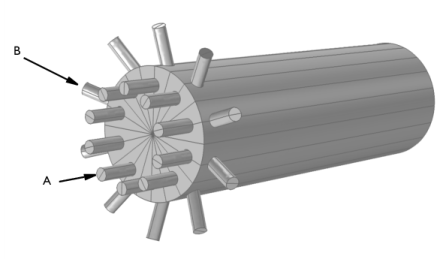
The geometry of the inlet section of a multijet tubular reactor is illustrated in Figure 1.
Figure 1: Inlet section of a multijet tubular reactor. Monomer A (diol) enters through the axial inlets while monomer B (diacid) enters through the radial ports.
Two reacting monomers enter through separate inlet ports. Monomer A enters through the axial inlets while monomer B enters through the radial ports.
Chemistry
Condensation reactions are fundamental to the production of many important polymers, such as polyamides, polyesters, polyurethanes, and silicones.
This model simulates a polyester reactor. Condensation polymerization of monomers A (a diol) and B (a diacid), forms the polyester linkage, L (Ref. 1, Ref. 2). The reactions take place in the presence of a solvent catalyst, S.
The catalytic species, S, is temporarily trapped in an intermediary H2O complex, S · C, where C represents the complex-forming water in the irreversible reaction
(1)
The regeneration of solvent is governed by the reversible reaction
(2)
The reaction rates for each chemical reaction is determined by the law of mass action and the eddy dissipation concept (EDC) model. The law of mass action gives the rates (mol/(m3·s))
(3)
and
(4)
for reactions Equation 1and Equation 2, respectively, where the rate constants are given by the Arrhenius expression
(5)
In Equation 5, Aj is the frequency factor and Ej the activation energy (J/mol) for the jth reaction. The table below lists the values of the Arrhenius parameters for the reactions. The rates are adjusted for turbulent conditions according to the EDC model: If the time scale of the turbulent mixing is larger than the reaction kinetics derived by the law of mass action above, the turbulent mixing will be rate determining. For detailed information, see the section Eddy Dissipation Model in the CFD Module User’s Guide.
Transport
The 3D model geometry is illustrated in Figure 1.
Velocities and Pressure
The average velocities at the radial and axial inlets are set to 5 m/s. Furthermore, a constant pressure is set at the outlet and logarithmic wall functions are specified at the solid walls.
Mass Transport
Concentration boundary conditions apply at the inlets:
(6)
The catalytic solvent S is set as solvent in the mass transport model.
Energy Transport
The reactor is assumed to be insulated at the walls and all inlet streams are specified to 440 K temperature.
Summary of Input Data
For the rate expressions in Equation 3 and Equation 4 the following data is used (Ref. 1):
Table 2: kinetic data.
The material properties and boundary conditions used are (Ref. 1 and Ref. 2).
Table 3: Input data.
Modeling in COMSOL
For the 3D model, the Reacting Flow, Turbulent interface is used for the mass transport, reactions, and fluid flow simulation. The Heat Transfer in Fluids interface is used to do the heat transfer simulation including the heat of reactions, coupled with the reacting flow.
Staged Solution
Since the chemical reactions are strongly depending on the fluid movement, the fully coupled system may be difficult to converge in the first iterations due insufficient start guesses on the velocity field. Therefore the following staged solutions is used. Each study step uses the converged solution from the previous step as a start guess:
1
2
3
4
Geometry
Thanks to symmetry observations, a sector of one 1/20 of the geometry shown in Figure 1 is modeled. The modeling results are rotated to the full geometry by sector datasets.
Mesh
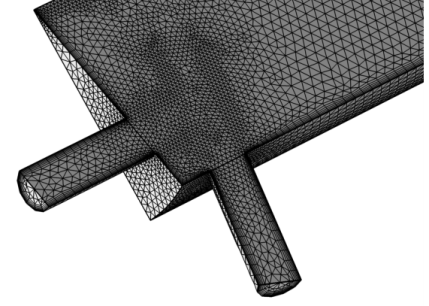
The mesh is calibrated to resolve the shear layers that appear near the inlets of the reactor. Further downstream where the flow profile is expected to be more uniform, a simpler extruded mesh is used to save time and memory.
Results and Discussion
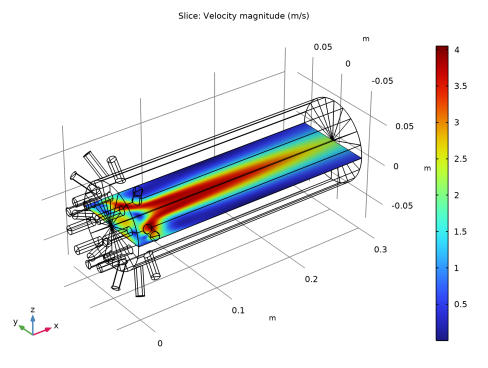
Results of the flow field calculations are presented first. Figure 2 shows the velocity field in the multijet tubular reactor, plotted in two perpendicular planes through the reactor.
Figure 2: Velocity field (m/s) in the multijet tubular reactor.
The plot illustrates the impinging axial and radial jets.
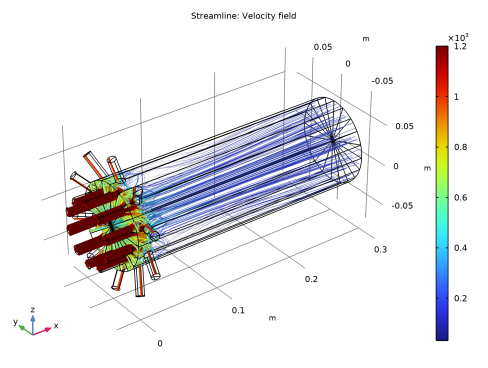
Plotting the streamlines of the velocity field provides additional information, indicating flow paths. Figure 3 shows such a plot. Closer inspection at the entrance of the reactor reveals several recirculation zones.
Figure 3: Streamlines of the velocity field shows some recirculation behavior near the inlet orifices. The concentration of reactants decrease rapidly at after the inlet stretch.
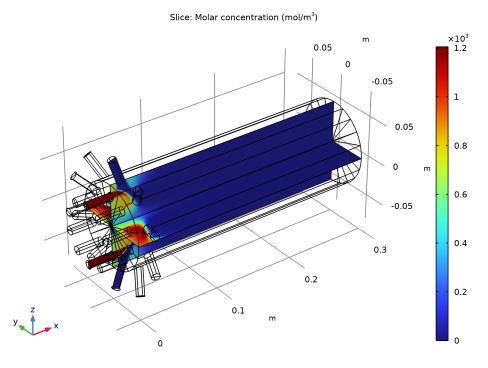
Next, mass is transported with the calculated flow field. Once monomer A comes into contact with the radial streams of monomer B, polymerization starts. Figure 4shows the concentration field of monomer A.
Figure 4: Concentration distribution of monomer A (mol/m3).
Figure 5 shows isosurfaces for the polymer linkage L concentration. Isolevels at the entrance of the reactor clearly mark the positions of where the inlet streams mix. However, the azimuthal concentration gradients increase quickly with axial position, indicating that inlet streams are well mixed for reaction to take place approximately 5 cm down the reactor.
Figure 5: Isosurfaces for the concentration of L (mol/m3) visualized using a clip plane.
As mentioned above, recirculation is evident in the entrance of the reactor. Recirculation will increase the effective residence time of the reactor. Figure 6 shows the concentration of polymer linkage, cL, with a surface slice plot.
Figure 6: Concentration distribution of polymer linkage, cL (mol/m3).
Clearly, the concentration of L is relatively low in the recirculation region. In polymerization processes, increasing linkage concentration can lead to dramatic changes in the properties of the reacting fluid, particularly viscosity. This in turn may cause fouling or even reactor failure.
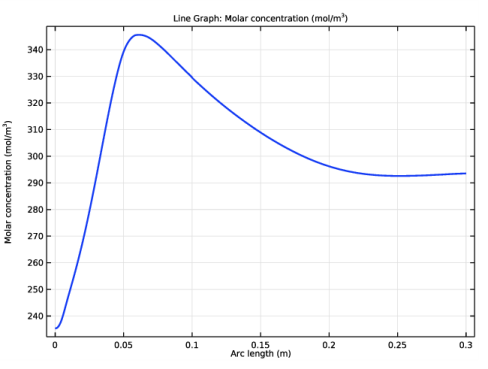
Figure 7 shows the concentration of product L in a cross section plot along the axis of the reactor. The recirculation effects in the beginning of the multijet tubular model are evident. Results also point to the influence of mixing on the reaction rate. The mixing in the space-dependent reactor is influenced by the detailed flow field.
Figure 7: Concentration of polymer linkage, cL, as a function of axial position in the reactor. The space-dependent model accounts for recirculation effects near the reactor inlet.
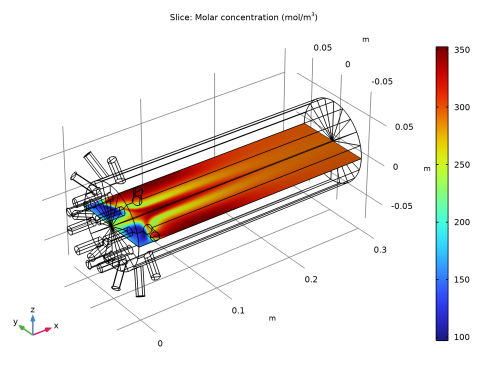
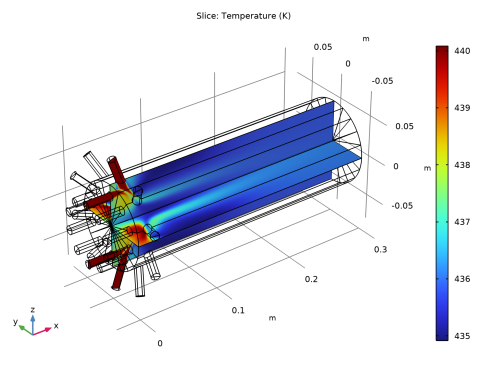
The total condensation chemistry is endothermic. Figure 8 displays the resulting temperature field in the reactor.
Figure 8: Temperature distribution in the multijet tubular reactor. The inlet temperatures of radial and axial streams are 440 K.
The endothermic reactions efficiently cool down the reacting flow.
References
1. N.H. Kolhapure, J.N. Tilton, and C.J. Pereira, “Integration of CFD and condensation polymerization chemistry for a commercial multi-jet tubular reactor,” Chem. Eng. Sci., vol. 59, p. 5177, 2004.
2. https://en.wikipedia.org/wiki/Polyester.
Application Library path: Chemical_Reaction_Engineering_Module/Reactors_with_Mass_and_Heat_Transfer/polymerization_multijet
Modeling Instructions
From the File menu, choose New.
New
In the New window, click  Model Wizard.
Model Wizard
1
In the Model Wizard window, click  3D.
2
In the Select Physics tree, select Chemical Species Transport>Reacting Flow>Turbulent Flow>Turbulent Flow, k-ε.
3
Click Add.
4
In the Added physics interfaces tree, select Transport of Concentrated Species (tcs).
5
In the Number of species text field, type 6.
6
In the Mass fractions table, enter the following settings:
7
In the Select Physics tree, select Heat Transfer>Heat Transfer in Fluids (ht).
8
Click Add.
9
Click  Study.
10
In the Select Study tree, select General Studies>Stationary.
11
Global Definitions
Parameters 1
1
In the Model Builder window, under Global Definitions click Parameters 1.
2
In the Settings window for Parameters, locate the Parameters section.
3
Click  Load from File.
4
Geometry 1
Start by creating the geometry. You can simplify this by inserting a prepared geometry sequence from file. You can read the instruction for building the geometry in the appendix.
1
In the Geometry toolbar, click Insert Sequence and choose Insert Sequence.
2
3
In the Geometry toolbar, click  Build All.
Mesh Control Domains 1 (mcd1)
1
In the Geometry toolbar, click  Virtual Operations and choose Mesh Control Domains.
2
On the object fin, select Domain 4 only.
Mesh Control Faces 1 (mcf1)
1
In the Geometry toolbar, click  Virtual Operations and choose Mesh Control Faces.
2
On the object mcd1, select Boundary 11 only.
Mesh Control Domains 1 (mcd1)
1
In the Model Builder window, click Mesh Control Domains 1 (mcd1).
2
In the Settings window for Mesh Control Domains, locate the Input section.
3
Find the Domains to include subsection. Click to select the  Activate Selection toggle button.
4
In the Geometry toolbar, click  Build All.
Turbulent Flow, k-ε (spf)
Fluid Properties 1
1
In the Model Builder window, under Component 1 (comp1)>Turbulent Flow, k-ε (spf) click Fluid Properties 1.
2
In the Settings window for Fluid Properties, locate the Fluid Properties section.
3
From the μ list, choose User defined. In the associated text field, type 0.001*(1.17817558982837+(-298[K]+T)/223[K])^(-3.758)[Pa*s].
Initial Values 1
1
In the Model Builder window, click Initial Values 1.
2
In the Settings window for Initial Values, locate the Initial Values section.
3
In the k text field, type 7e-8.
4
In the ep text field, type 1e-11.
Symmetry 1
1
In the Physics toolbar, click  Boundaries and choose Symmetry.
2
Inlet 1
1
In the Physics toolbar, click  Boundaries and choose Inlet.
2
3
In the Settings window for Inlet, locate the Boundary Condition section.
4
From the list, choose Fully developed flow.
5
Locate the Fully Developed Flow section. In the Uav text field, type 5.
Outlet 1
1
In the Physics toolbar, click  Boundaries and choose Outlet.
2
Transport of Concentrated Species (tcs)
1
In the Model Builder window, under Component 1 (comp1) click Transport of Concentrated Species (tcs).
2
In the Settings window for Transport of Concentrated Species, locate the Transport Mechanisms section.
3
From the Diffusion model list, choose Fick’s law.
4
Locate the Species section. From the From mass constraint list, choose wS.
Species Molar Masses 1
1
In the Model Builder window, under Component 1 (comp1)>Transport of Concentrated Species (tcs) click Species Molar Masses 1.
2
In the Settings window for Species Molar Masses, locate the Molar Mass section.
3
In the MwA text field, type MwA.
4
In the MwB text field, type MwB.
5
In the MwS text field, type MwS.
6
In the MwL text field, type MwL.
7
In the MwSC text field, type MwSC.
8
In the MwAC text field, type MwAC.
Transport Properties 1
1
In the Model Builder window, click Transport Properties 1.
2
In the Settings window for Transport Properties, locate the Density section.
3
From the ρ list, choose User defined. In the associated text field, type rho_S.
4
Locate the Diffusion section. In the DfwA text field, type D.
5
In the DfwB text field, type D.
6
In the DfwS text field, type D.
7
In the DfwL text field, type D.
8
In the DfwSC text field, type D.
9
In the DfwAC text field, type D.
Initial Values 1
1
In the Model Builder window, click Initial Values 1.
2
In the Settings window for Initial Values, locate the Initial Values section.
3
In the ω0,wA text field, type 1e-6.
4
In the ω0,wB text field, type 1e-6.
5
In the ω0,wL text field, type 1e-6.
6
In the ω0,wSC text field, type 1e-6.
7
In the ω0,wAC text field, type 1e-6.
Inflow 1
1
In the Physics toolbar, click  Boundaries and choose Inflow.
2
3
In the Settings window for Inflow, locate the Inflow section.
4
From the Mixture specification list, choose Molar concentrations.
5
In the c0,wA text field, type 1200[mol/m^3].
6
In the c0,wB text field, type 1e-3[mol/m^3].
7
In the c0,wL text field, type 1e-3[mol/m^3].
8
In the c0,wSC text field, type 1e-3[mol/m^3].
9
In the c0,wAC text field, type 1e-3[mol/m^3].
Inflow 2
1
In the Physics toolbar, click  Boundaries and choose Inflow.
2
3
In the Settings window for Inflow, locate the Inflow section.
4
From the Mixture specification list, choose Molar concentrations.
5
In the c0,wA text field, type 1e-3[mol/m^3].
6
In the c0,wB text field, type 1000[mol/m^3].
7
In the c0,wL text field, type 1e-3[mol/m^3].
8
In the c0,wSC text field, type 1e-3[mol/m^3].
9
In the c0,wAC text field, type 1e-3[mol/m^3].
Outflow 1
1
In the Physics toolbar, click  Boundaries and choose Outflow.
2
Symmetry 1
1
In the Physics toolbar, click  Boundaries and choose Symmetry.
2
Reaction 1
1
In the Physics toolbar, click  Domains and choose Reaction.
2
3
In the Settings window for Reaction, locate the Reaction Rate section.
4
In the νwA text field, type -2.
5
In the νwB text field, type -1.
6
In the νwS text field, type -1.
7
In the νwL text field, type 1.
8
In the νwSC text field, type 2.
9
Locate the Rate Constants section. Select the Use Arrhenius expressions check box.
10
In the Af text field, type 25.6.
11
In the Ef text field, type 61.3e3.
12
In the Ar text field, type 0.
13
Locate the Turbulent Flow section. From the Turbulent-reaction model list, choose Eddy-dissipation.
Reaction 2
1
In the Physics toolbar, click  Domains and choose Reaction.
2
3
In the Settings window for Reaction, locate the Reaction Rate section.
4
In the νwA text field, type -1.
5
In the νwS text field, type 1.
6
In the νwSC text field, type -1.
7
In the νwAC text field, type 1.
8
Locate the Rate Constants section. Select the Use Arrhenius expressions check box.
9
In the Af text field, type 3.9e3.
10
In the Ef text field, type 56.8e3.
11
In the Ar text field, type 4.7e3.
12
In the Er text field, type 102e3.
13
Locate the Turbulent Flow section. From the Turbulent-reaction model list, choose Eddy-dissipation.
Heat Transfer in Fluids (ht)
Fluid 1
1
In the Model Builder window, under Component 1 (comp1)>Heat Transfer in Fluids (ht) click Fluid 1.
2
In the Settings window for Fluid, locate the Heat Convection section.
3
From the u list, choose Velocity field (spf).
4
Locate the Heat Conduction, Fluid section. From the k list, choose User defined. In the associated text field, type 0.21+Cp_S*spf.muT/0.72.
5
Locate the Thermodynamics, Fluid section. From the Fluid type list, choose Gas/Liquid.
6
From the ρ list, choose Density (tcs/cdm1).
7
From the Cp list, choose User defined. In the associated text field, type Cp_S.
8
From the γ list, choose User defined.
Initial Values 1
1
In the Model Builder window, click Initial Values 1.
2
In the Settings window for Initial Values, locate the Initial Values section.
3
In the T text field, type 440[K].
Temperature 1
1
In the Physics toolbar, click  Boundaries and choose Temperature.
2
3
In the Settings window for Temperature, locate the Temperature section.
4
In the T0 text field, type 440[K].
Outflow 1
1
In the Physics toolbar, click  Boundaries and choose Outflow.
2
Symmetry 1
1
In the Physics toolbar, click  Boundaries and choose Symmetry.
2
Heat Source 1
1
In the Physics toolbar, click  Domains and choose Heat Source.
2
3
In the Settings window for Heat Source, locate the Heat Source section.
4
In the Q0 text field, type -100[kJ/mol]*tcs.treac1.r-40[kJ/mol]*tcs.treac2.r.
Mesh 1
Free Tetrahedral 1
In the Mesh toolbar, click  Free Tetrahedral.
Size
1
In the Model Builder window, click Size.
2
In the Settings window for Size, locate the Element Size section.
3
From the Calibrate for list, choose Fluid dynamics.
Free Tetrahedral 1
1
In the Model Builder window, click Free Tetrahedral 1.
2
In the Settings window for Free Tetrahedral, locate the Domain Selection section.
3
From the Geometric entity level list, choose Domain.
4
Size 1
1
Right-click Free Tetrahedral 1 and choose Size.
2
In the Settings window for Size, locate the Geometric Entity Selection section.
3
From the Geometric entity level list, choose Edge.
4
5
Locate the Element Size section. From the Calibrate for list, choose Fluid dynamics.
6
From the Predefined list, choose Extra fine.
Swept 1
1
In the Mesh toolbar, click  Swept.
2
In the Settings window for Swept, locate the Domain Selection section.
3
From the Geometric entity level list, choose Domain.
4
Distribution 1
1
Right-click Swept 1 and choose Distribution.
2
In the Settings window for Distribution, locate the Distribution section.
3
From the Distribution type list, choose Predefined.
4
In the Number of elements text field, type 40.
5
In the Element ratio text field, type 4.
Boundary Layers 1
1
In the Mesh toolbar, click  Boundary Layers.
2
In the Settings window for Boundary Layers, click to expand the Corner Settings section.
3
In the Maximum angle per split text field, type 50.
Boundary Layer Properties
1
In the Model Builder window, click Boundary Layer Properties.
2
3
In the Settings window for Boundary Layer Properties, locate the Layers section.
4
In the Number of layers text field, type 6.
5
In the Thickness adjustment factor text field, type 2.4.
6
Click  Build All.
Study 1
Step 1: Stationary
1
In the Model Builder window, under Study 1 click Step 1: Stationary.
2
In the Settings window for Stationary, locate the Physics and Variables Selection section.
3
In the table, clear the Solve for check boxes for Transport of Concentrated Species (tcs) and Heat Transfer in Fluids (ht).
4
In the table, clear the Solve for check box for Reacting Flow 1 (nirf1).
Stationary 2
1
In the Study toolbar, click  Study Steps and choose Stationary>Stationary.
2
In the Settings window for Stationary, locate the Physics and Variables Selection section.
3
In the table, clear the Solve for check boxes for Turbulent Flow, k-ε (spf) and Heat Transfer in Fluids (ht).
Stationary 3
1
In the Study toolbar, click  Study Steps and choose Stationary>Stationary.
2
In the Settings window for Stationary, locate the Physics and Variables Selection section.
3
In the table, clear the Solve for check boxes for Turbulent Flow, k-ε (spf) and Transport of Concentrated Species (tcs).
4
In the table, clear the Solve for check box for Reacting Flow 1 (nirf1).
Stationary 4
In the Study toolbar, click  Study Steps and choose Stationary>Stationary.
Solution 1 (sol1)
1
In the Study toolbar, click  Show Default Solver.
2
In the Model Builder window, click Study 1.
3
In the Settings window for Study, locate the Study Settings section.
4
Clear the Generate default plots check box.
5
In the Study toolbar, click  Compute.
Results
Sector 3D 1
1
In the Model Builder window, expand the Results node.
2
Right-click Results>Datasets and choose More 3D Datasets>Sector 3D.
3
In the Settings window for Sector 3D, locate the Data section.
4
From the Dataset list, choose Study 1/Solution Store 3 (sol4).
5
Locate the Axis Data section. In row Point 2, set x to 1 and z to 0.
6
Locate the Symmetry section. In the Number of sectors text field, type 20.
7
From the Transformation list, choose Rotation and reflection.
8
Find the Radial direction of reflection plane subsection. In the x text field, type 0.
9
In the z text field, type 1.
10
11
Click the  Zoom Extents button in the Graphics toolbar.
Cut Plane 1
1
In the Results toolbar, click  Cut Plane.
2
In the Settings window for Cut Plane, locate the Data section.
3
From the Dataset list, choose Sector 3D 1.
4
Locate the Plane Data section. From the Plane list, choose xy-planes.
5
Cut Line 3D 1
1
In the Results toolbar, click  Cut Line 3D.
2
In the Settings window for Cut Line 3D, locate the Data section.
3
From the Dataset list, choose Sector 3D 1.
4
Locate the Line Data section. In row Point 2, set x to 0.4.
5
6
Click the  Zoom Extents button in the Graphics toolbar.
Figure 2 is created with the following steps.
Velocity, xy-Plane
1
In the Results toolbar, click  3D Plot Group.
2
In the Settings window for 3D Plot Group, type Velocity, xy-Plane in the Label text field.
3
Locate the Data section. From the Dataset list, choose Sector 3D 1.
Slice 1
1
Right-click Velocity, xy-Plane and choose Slice.
2
In the Settings window for Slice, locate the Plane Data section.
3
From the Plane list, choose xy-planes.
4
In the Planes text field, type 1.
5
In the Velocity, xy-Plane toolbar, click  Plot.
6
Click the  Zoom Extents button in the Graphics toolbar.
Figure 4 showing the monomer A concentration is reproduced in the following way.
Concentration, A
1
In the Model Builder window, right-click Velocity, xy-Plane and choose Duplicate.
2
In the Settings window for 3D Plot Group, type Concentration, A in the Label text field.
Slice 1
1
In the Model Builder window, expand the Concentration, A node, then click Slice 1.
2
In the Settings window for Slice, click Replace Expression in the upper-right corner of the Expression section. From the menu, choose Component 1 (comp1)>Transport of Concentrated Species>Species wA>tcs.c_wA - Molar concentration - mol/m³.
3
Locate the Coloring and Style section. Clear the Color legend check box.
Slice 2
1
Right-click Results>Concentration, A>Slice 1 and choose Duplicate.
2
In the Settings window for Slice, click to expand the Title section.
3
From the Title type list, choose None.
4
Locate the Plane Data section. From the Plane list, choose zx-planes.
5
In the Planes text field, type 1.
6
Locate the Coloring and Style section. Select the Color legend check box.
7
In the Concentration, A toolbar, click  Plot.
8
Click the  Zoom Extents button in the Graphics toolbar.
Figure 6 showing the polymer linkage L concentration is reproduced in the following way.
Concentration, L
1
In the Model Builder window, right-click Concentration, A and choose Duplicate.
2
In the Settings window for 3D Plot Group, type Concentration, L in the Label text field.
Slice 1
1
In the Model Builder window, expand the Concentration, L node, then click Slice 1.
2
In the Settings window for Slice, click Replace Expression in the upper-right corner of the Expression section. From the menu, choose Component 1 (comp1)>Transport of Concentrated Species>Species wL>tcs.c_wL - Molar concentration - mol/m³.
3
Locate the Coloring and Style section. Select the Color legend check box.
Slice 2
In the Model Builder window, right-click Slice 2 and choose Disable.
Concentration, L
1
Click the  Zoom Extents button in the Graphics toolbar.
2
In the Model Builder window, click Concentration, L.
3
In the Concentration, L toolbar, click  Plot.
Concentration, A
Figure 8 shows the temperature within the reactor and is created with these steps.
Temperature
1
In the Model Builder window, right-click Concentration, A and choose Duplicate.
2
In the Settings window for 3D Plot Group, type Temperature in the Label text field.
Slice 1
1
In the Model Builder window, expand the Temperature node, then click Slice 1.
2
In the Settings window for Slice, click Replace Expression in the upper-right corner of the Expression section. From the menu, choose Component 1 (comp1)>Heat Transfer in Fluids>Temperature>T - Temperature - K.
Slice 2
1
In the Model Builder window, click Slice 2.
2
In the Settings window for Slice, click Replace Expression in the upper-right corner of the Expression section. From the menu, choose Component 1 (comp1)>Heat Transfer in Fluids>Temperature>T - Temperature - K.
3
Click the  Zoom Extents button in the Graphics toolbar.
4
In the Temperature toolbar, click  Plot.
Use a 1D Plot Group to create Figure 7, showing the axial concentration distribution of L.
Concentration, L (Axial)
1
In the Home toolbar, click  Add Plot Group and choose 1D Plot Group.
2
In the Settings window for 1D Plot Group, type Concentration, L (Axial) in the Label text field.
3
Locate the Data section. From the Dataset list, choose Cut Line 3D 1.
Line Graph 1
1
Right-click Concentration, L (Axial) and choose Line Graph.
2
In the Settings window for Line Graph, click Replace Expression in the upper-right corner of the y-Axis Data section. From the menu, choose Component 1 (comp1)>Transport of Concentrated Species>Species wL>tcs.c_wL - Molar concentration - mol/m³.
3
Click to expand the Coloring and Style section. From the Width list, choose 2.
4
In the Concentration, L (Axial) toolbar, click  Plot.
5
Click the  Zoom Extents button in the Graphics toolbar.
Figure 3, showing the velocity field streamlines, can be reproduced using the following steps.
Velocity Streamlines
1
In the Home toolbar, click  Add Plot Group and choose 3D Plot Group.
2
In the Settings window for 3D Plot Group, type Velocity Streamlines in the Label text field.
3
Locate the Data section. From the Dataset list, choose Sector 3D 1.
Streamline 1
1
Right-click Velocity Streamlines and choose Streamline.
2
In the Settings window for Streamline, locate the Streamline Positioning section.
3
In the Points text field, type 150.
4
Locate the Coloring and Style section. Find the Line style subsection. From the Type list, choose Tube.
5
In the Tube radius expression text field, type tcs.c_wA+tcs.c_wB.
Color Expression 1
1
Right-click Streamline 1 and choose Color Expression.
2
In the Settings window for Color Expression, locate the Expression section.
3
In the Expression text field, type tcs.c_wA+tcs.c_wB.
4
In the Velocity Streamlines toolbar, click  Plot.
5
Click the  Zoom Extents button in the Graphics toolbar.
Adjust the view angle of the plot with the mouse.
Velocity Streamlines
1
In the Model Builder window, under Results click Velocity Streamlines.
2
In the Velocity Streamlines toolbar, click  Plot.
Figure 7 shows the isosurface concentration of L. Follow these step to create this figure.
Concentration, L (Isosurface)
1
In the Home toolbar, click  Add Plot Group and choose 3D Plot Group.
2
In the Settings window for 3D Plot Group, type Concentration, L (Isosurface) in the Label text field.
3
Locate the Data section. From the Dataset list, choose Sector 3D 1.
Isosurface 1
1
Right-click Concentration, L (Isosurface) and choose Isosurface.
2
In the Settings window for Isosurface, click Replace Expression in the upper-right corner of the Expression section. From the menu, choose Component 1 (comp1)>Transport of Concentrated Species>Species wL>tcs.c_wL - Molar concentration - mol/m³.
3
Locate the Levels section. In the Total levels text field, type 8.
4
Click the  Zoom Extents button in the Graphics toolbar.
5
In the Concentration, L (Isosurface) toolbar, click  Plot.
Add a clip plane to visualize the solution inside the reactor. First add a separate view to be used in the current plot group only.
Concentration, L (Isosurface)
1
In the Model Builder window, click Concentration, L (Isosurface).
2
In the Settings window for 3D Plot Group, locate the Plot Settings section.
3
From the View list, choose New view.
4
Clear the Plot dataset edges check box.
5
In the Concentration, L (Isosurface) toolbar, click  Plot.
6
In the Graphics window toolbar, clicknext to  Clipping, then choose Add Clip Plane.
7
In the Graphics window toolbar, clicknext to  Scene Light, then choose Ambient Occlusion.
Use the mouse to hover over the gizmo in the frame outlining the clip plane. Right-clicking the gizmo displays a context menu with clip-plane options.
8
9
Using the clip plane, the solution can be traversed by dragging the frame in the normal direction of the plane. The gizmo can be used to interactively change the cut plane orientation.
For the time being, hide the gizmo for a more tidy view.
10
In the Graphics window toolbar, clicknext to  Clipping Active, then choose Show Gizmos.
Add transparency to the concentration isosurfaces. Also plot the exterior of the reactor to visualize the full geometry.
Transparency 1
1
In the Model Builder window, right-click Isosurface 1 and choose Transparency.
2
In the Settings window for Transparency, locate the Transparency section.
3
In the Transparency text field, type 0.1.
Surface 1
1
In the Model Builder window, right-click Concentration, L (Isosurface) and choose Surface.
2
In the Settings window for Surface, locate the Expression section.
3
In the Expression text field, type 1.
4
Locate the Coloring and Style section. From the Coloring list, choose Uniform.
5
From the Color list, choose Gray.
Transparency 1
1
Right-click Surface 1 and choose Transparency.
2
In the Settings window for Transparency, locate the Transparency section.
3
In the Transparency text field, type 0.3.
Filter 1
1
In the Model Builder window, right-click Surface 1 and choose Filter.
2
In the Settings window for Filter, locate the Element Selection section.
3
In the Logical expression for inclusion text field, type (sqrt(y^2+z^2)>r_r*0.995)||(x<r_r*0.005).
4
In the Concentration, L (Isosurface) toolbar, click  Plot.
5
Right-click Filter 1 and choose Copy.
Filter 1
1
In the Model Builder window, right-click Isosurface 1 and choose Paste Filter.
2
In the Settings window for Filter, locate the Element Selection section.
3
In the Logical expression for inclusion text field, type (sqrt(y^2+z^2)<r_r*0.995)&&(x>r_r*0.005).
4
In the Concentration, L (Isosurface) toolbar, click  Plot.
Appending — Geometry Modeling Instructions
From the File menu, choose New.
New
In the New window, click  Model Wizard.
Model Wizard
1
In the Model Wizard window, click  3D.
2
Geometry 1
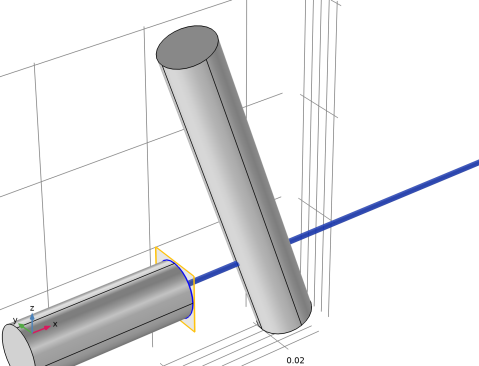
Cylinder 1 (cyl1)
1
In the Geometry toolbar, click  Cylinder.
2
In the Settings window for Cylinder, locate the Size and Shape section.
3
In the Radius text field, type 0.005.
4
In the Height text field, type 0.06.
5
Locate the Position section. In the x text field, type 0.01318.
6
In the z text field, type 0.0205.
7
Click  Build Selected.
Rotate 1 (rot1)
1
In the Geometry toolbar, click  Transforms and choose Rotate.
2
3
4
In the Settings window for Rotate, locate the Rotation section.
5
In the Angle text field, type -19.2.
6
Locate the Point on Axis of Rotation section. In the x text field, type 0.01318.
7
In the z text field, type 0.05.
8
Locate the Rotation section. From the Axis type list, choose y-axis.
9
Click  Build Selected.
Cylinder 2 (cyl2)
1
In the Geometry toolbar, click  Cylinder.
2
In the Settings window for Cylinder, locate the Size and Shape section.
3
In the Radius text field, type 0.005.
4
In the Height text field, type 0.03.
5
Locate the Position section. In the x text field, type -0.03.
6
In the z text field, type 0.036.
7
Locate the Axis section. From the Axis type list, choose x-axis.
8
Click  Build Selected.
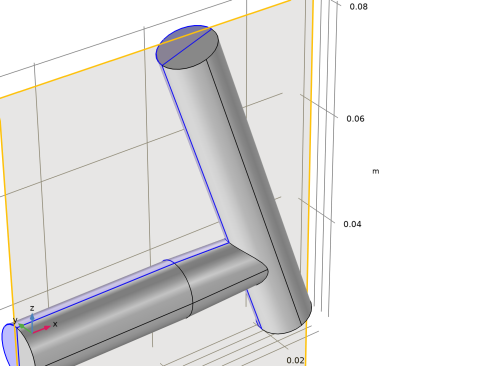
Extrude 1 (ext1)
1
In the Geometry toolbar, click  Extrude.
Select the far edge of the lying cylinder to add face 4 to the list.
2
On the object cyl2, select Boundary 4 only.
3
Click the  Zoom Extents button in the Graphics toolbar.
4
In the Settings window for Extrude, locate the Distances section.
5
6
Click to expand the Scales section. In the table, enter the following settings:
The scales creates a slightly tapered cylinder section.
7
Click  Build Selected.
Union 1 (uni1)
1
In the Geometry toolbar, click  Booleans and Partitions and choose Union.
Now click both geometry parts to add them to the selection list.
2
Click in the Graphics window and then press Ctrl+A to select both objects.
3
In the Settings window for Union, locate the Union section.
4
Clear the Keep interior boundaries check box.
5
Click  Build Selected.
Work Plane 1 (wp1)
1
In the Geometry toolbar, click  Work Plane.
2
In the Settings window for Work Plane, locate the Plane Definition section.
3
From the Plane list, choose zx-plane.
Partition Objects 1 (par1)
1
In the Geometry toolbar, click  Booleans and Partitions and choose Partition Objects.
2
3
In the Settings window for Partition Objects, locate the Partition Objects section.
4
From the Partition with list, choose Work plane.
5
Click  Build Selected.
6
In the Graphics window toolbar, clicknext to  Select Objects, then choose Select Domains.
7
On the object par1, select Domain 2 only.
8
Click the  Zoom Extents button in the Graphics toolbar.
Delete Entities 1 (del1)
In the Geometry toolbar, click  Delete.
Work Plane 2 (wp2)
1
In the Geometry toolbar, click  Work Plane.
2
In the Settings window for Work Plane, locate the Plane Definition section.
3
From the Plane list, choose yz-plane.
4
Click  Show Work Plane.
Work Plane 2 (wp2)>Circle 1 (c1)
1
In the Work Plane toolbar, click  Circle.
2
In the Settings window for Circle, locate the Size and Shape section.
3
In the Radius text field, type 0.05.
4
In the Sector angle text field, type 18.
5
Locate the Rotation Angle section. In the Rotation text field, type 90.
6
Click  Build Selected.
Extrude 2 (ext2)
1
In the Model Builder window, under Component 1 (comp1)>Geometry 1 right-click Work Plane 2 (wp2) and choose Extrude.
2
In the Settings window for Extrude, locate the Distances section.
3
4
Click  Build Selected.
Form Union (fin)
1
In the Model Builder window, click Form Union (fin).
2
In the Settings window for Form Union/Assembly, click  Build Selected.