



You are viewing the documentation for an older COMSOL version. The latest version is available here.
PDF

1D Step Bearing
Introduction
This benchmark model computes the load-carrying capacity of a one-dimensional hydrodynamic step bearing. The results are compared with analytic expressions obtained by solving the Reynolds equations directly in this simple case (Ref. 1 provides the derivation of the results used).
Model Definition
Although the model is defined in 2D within COMSOL Multiphysics, the Thin-Film Flow, Edge interface is used, which means that it is effectively 1D. The Thin-Film Flow interfaces are defined in this manner to facilitate easy coupling to structural problems in higher dimensions.
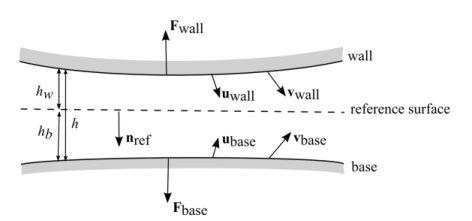
Figure 1: An example illustrating definitions used in the Thin-Film Flow, Edge interface. Here u denotes a displacement vector and v a velocity vector.
When Thin-Film Flow is assigned to boundary, the boundary represents a reference surface in the physical device. In practice a small gap exists at the boundary and two impermeable structures, the wall and the base, are located either side of it. The problem formulation, including definitions of the terms used, is shown in Figure 1.
In this example, the geometry consists of a single line, with length, L (set to 1 mm in the model parameters). The line is located at the origin and aligned with the x-axis. The base is coincident with the reference surface. At the origin the wall height is h0+sh (2.2 μm in the initial configuration). A step in the wall height is located a fraction ns along the line at coordinate (Ls,0) where Ls=Lns.(initially ns=0.6 and Ls=0.6 mm). After the step the wall height is h0 (0.2 μm in the initial configuration). The model defines a number of dimensionless parameters to facilitate easy comparison with theory and h0 and Ls are defined in terms of these parameters. A pressure is generated in the bearing by a tangential velocity of the base along the reference plane (vb,x).
For non-slip boundary conditions at the wall and the base, the Reynolds equation takes the following form for a general stationary problem:
here ρ is the fluid density, μ is its viscosity, and pf is the pressure developed as a result of the flow (this is the dependent variable in COMSOL Multiphysics). Other terms are defined in Figure 1. For this 1D problem the Reynolds equation is greatly simplified and can be written as:
For a constant value of h and assuming that ρ and μ are independent of pf this equation simplifies further to:
Thus pf takes the form of a straight line in the two regions in the bearing. The pressure is maximal at the step, where a discontinuity in the gradient exists. Using the boundary condition that pf= 0 at x =0 and x = L and ensuring that pf is continuous at the step (with value pm), gives the following equation:
(1)
where the subscript i refers to the inlet and the subscript o refers to the outlet. The flow rate q=vav,xh must also be continuous at the step so that:
(2)
Equation 1 and Equation 2 can be solved simultaneously to give the values of the pressure gradients at the inlet and outlet. The resulting equations are:
pm is therefore given by:
Using the dimensionless variables adopted in Ref. 1:
the dimensionless maximum pressure (Pm) can be expressed as:
The dimensionless flow rate, Q = 2q/(shvb,x), where q is the flow rate per unit depth, q = vavh, is:
Finally the dimensionless total vertical load (Lv) and the horizontal shear forces acting on the wall (Lw,h) and the base (Lb,h) are given by:
The vertical load results from the pressure, while the horizontal loads result from the shear forces from the fluid. An additional horizontal load on the wall results from the pressure acting on the vertical surface of the step, which is not considered by the model. For details of the derivation of these loads, see Ref. 1.
In this example, the COMSOL Multiphysics model solves the bearing problem on a specific geometry, but the results are expressed in the dimensionless forms given above, for ease of comparison with the expressions and plots shown in Ref. 1.
Results and Discussion
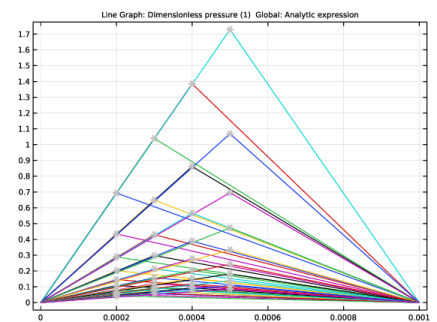
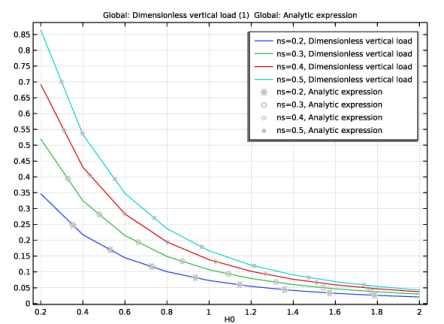
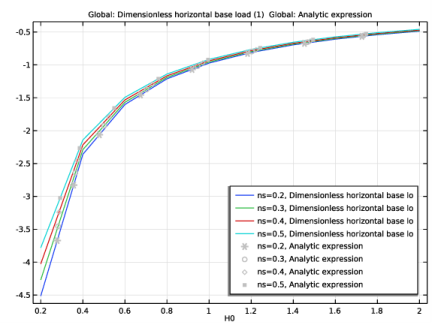
The results of the simulation are compared with the analytic expressions discussed above in Figure 2 to Figure 7. In all cases the agreement between COMSOL and the analytic results is excellent. The ratio H0= h0/sh is a measure of the step height relative to the outlet height — for smaller values of H0 the step height is greater in relation to the exit height of the bearing. These results show a trend of increasing load bearing capacity with reduced H0 and increased ns, with a corresponding increase in the maximum pressure in the bearing. As discussed in Ref. 1, there is, in fact, an optimum value of H0 and ns, but this optimum occurs at larger values of ns. The flow rate of gas through the bearing increases with increasing H0 as the flow tends toward a pure Couette flow, which produces no back pressure.
Figure 2: Non-dimensional pressure vs distance along the bearing, plotted for different values of the film thickness ratio, H0=h0/sh The computed results are shown as the continuous curves and the theoretical results as the gray symbols.
Figure 3: Non-dimensional maximum pressure vs film thickness ratio, H0=h0/sh. The computed results are shown as the continuous curve and the theoretical result as gray symbols. Different values of the step location ns =Ls/L are shown.
Figure 4: Non-dimensional flow rate vs film thickness ratio, H0=h0/sh. The computed results are shown as the continuous curve and the theoretical result as gray symbols.Different values of the step location ns =Ls/L are shown.
Figure 5: Non-dimensional vertical load vs film thickness ratio, H0=h0/sh. The computed results are shown as the continuous curve and the theoretical result as gray symbols. Different values of the step location ns =Ls/L are shown.
Figure 6: Non-dimensional horizontal wall load vs film thickness ratio, H0=h0/sh. The computed results are shown as the continuous curve and the theoretical result as gray symbols. Different values of the step location ns =Ls/L are shown.
Figure 7: Non-dimensional horizontal base load vs film thickness ratio, H0=h0/sh. The computed results are shown as the continuous curve and the theoretical result as gray symbols. Different values of the step location ns =Ls/L are shown.
Reference
1. B.J. Hamrock, S.R. Schmid, and B.O. Jacobson, Fundamentals of Fluid Film Lubrication, Marcel Dekker, New York, 2004.
This model is based on the discussion entitled Parallel-Step Slider Bearing in section 8.6 of the above reference.
Application Library path: CFD_Module/Thin-Film_Flow/step_bearing_1d
Modeling Instructions
From the File menu, choose New.
New
In the New window, click  Model Wizard.
Model Wizard
1
In the Model Wizard window, click  2D.
2
In the Select Physics tree, select Fluid Flow>Thin-Film Flow>Thin-Film Flow (tff).
3
Click Add.
4
Click  Study.
5
In the Select Study tree, select General Studies>Stationary.
6
Global Definitions
Parameters 1
1
In the Model Builder window, under Global Definitions click Parameters 1.
2
In the Settings window for Parameters, locate the Parameters section.
3
Geometry 1
Polygon 1 (pol1)
1
In the Geometry toolbar, click  Polygon.
2
In the Settings window for Polygon, locate the Object Type section.
3
From the Type list, choose Open curve.
4
Locate the Coordinates section. From the Data source list, choose Vectors.
5
In the x text field, type 0 L Ls.
6
In the y text field, type 0 0 0.
7
Click  Build Selected.
Definitions
Integration 1 (intop1)
1
In the Definitions toolbar, click  Nonlocal Couplings and choose Integration.
2
In the Settings window for Integration, locate the Source Selection section.
3
From the Geometric entity level list, choose Boundary.
4
Click in the Graphics window and then press Ctrl+A to select both boundaries.
Integration 2 (intop2)
1
In the Definitions toolbar, click  Nonlocal Couplings and choose Integration.
2
In the Settings window for Integration, locate the Source Selection section.
3
From the Geometric entity level list, choose Point.
4
Variables 1
1
In the Definitions toolbar, click  Local Variables.
2
In the Settings window for Variables, locate the Variables section.
3
Note that the tangential load at the step is not included in the expression for the analytic horizontal wall load. This is because this load acts at a point in the geometry where the height is discontinuous. COMSOL does not automatically include the additional force acting at this point, but you can add it manually if desired. In this case the force is given by the maximum pressure multiplied by the step height.
Materials
Material 1 (mat1)
1
In the Model Builder window, under Component 1 (comp1) right-click Materials and choose Blank Material.
2
In the Settings window for Material, locate the Material Contents section.
3
Thin-Film Flow (tff)
Fluid-Film Properties 1
1
In the Model Builder window, under Component 1 (comp1)>Thin-Film Flow (tff) click Fluid-Film Properties 1.
2
In the Settings window for Fluid-Film Properties, locate the Wall Properties section.
3
In the hw1 text field, type h0.
4
Locate the Base Properties section. From the vb list, choose User defined. Specify the vector as
Fluid-Film Properties 2
1
Right-click Component 1 (comp1)>Thin-Film Flow (tff)>Fluid-Film Properties 1 and choose Duplicate.
2
3
In the Settings window for Fluid-Film Properties, locate the Wall Properties section.
4
In the hw1 text field, type h0+sh.
Study 1
Parametric Sweep
1
In the Study toolbar, click  Parametric Sweep.
2
In the Settings window for Parametric Sweep, locate the Study Settings section.
3
From the Sweep type list, choose All combinations.
4
5
From the list in the Parameter name column, choose H0 (Dimensionless height at end).
6
Click  Range.
7
In the Range dialog box, type 0.2 in the Start text field.
8
In the Step text field, type 0.2.
9
In the Stop text field, type 2.
10
Click Replace.
11
In the Settings window for Parametric Sweep, locate the Study Settings section.
12
13
From the list in the Parameter name column, choose ns (Dimensionless step location).
14
Click  Range.
15
In the Range dialog box, type 0.2 in the Start text field.
16
In the Step text field, type 0.1.
17
In the Stop text field, type 0.5.
18
Click Replace.
19
In the Study toolbar, click  Compute.
Results
1D Plot Group 2
1
In the Home toolbar, click  Add Plot Group and choose 1D Plot Group.
2
In the Settings window for 1D Plot Group, locate the Data section.
3
From the Dataset list, choose Study 1/Parametric Solutions 1 (sol2).
Line Graph 1
1
Right-click 1D Plot Group 2 and choose Line Graph.
2
Click in the Graphics window and then press Ctrl+A to select both boundaries.
3
In the Settings window for Line Graph, locate the y-Axis Data section.
4
In the Expression text field, type Pd.
Global 1
1
In the Model Builder window, right-click 1D Plot Group 2 and choose Global.
2
In the Settings window for Global, locate the y-Axis Data section.
3
4
Click to expand the Coloring and Style section. Find the Line style subsection. From the Line list, choose None.
5
From the Color list, choose Gray.
6
Find the Line markers subsection. From the Marker list, choose Asterisk.
7
Locate the x-Axis Data section. From the Parameter list, choose Expression.
8
In the Expression text field, type Ls.
9
Click to expand the Legends section. Clear the Show legends check box.
Pressure Distribution
1
In the Model Builder window, under Results click 1D Plot Group 2.
2
In the Settings window for 1D Plot Group, type Pressure Distribution in the Label text field.
Maximum 1
1
In the Results toolbar, click  More Datasets and choose Evaluation>Maximum.
2
In the Settings window for Maximum, locate the Data section.
3
From the Dataset list, choose Study 1/Parametric Solutions 1 (sol2).
4
Locate the Settings section. From the Geometry level list, choose Line.
1D Plot Group 3
1
In the Results toolbar, click  1D Plot Group.
2
In the Settings window for 1D Plot Group, locate the Data section.
3
From the Dataset list, choose Maximum 1.
4
Click to expand the Title section. From the Title type list, choose Manual.
5
In the Title text area, type Maximum dimensionless pressure.
Global 1
1
Right-click 1D Plot Group 3 and choose Global.
2
In the Settings window for Global, locate the y-Axis Data section.
3
4
Locate the x-Axis Data section. From the Axis source data list, choose H0.
Global 2
1
In the Model Builder window, right-click 1D Plot Group 3 and choose Global.
2
In the Settings window for Global, locate the y-Axis Data section.
3
4
Locate the x-Axis Data section. From the Axis source data list, choose H0.
5
Locate the Coloring and Style section. From the Color list, choose Gray.
6
Find the Line markers subsection. From the Marker list, choose Cycle.
7
From the Positioning list, choose Interpolated.
8
Find the Line style subsection. From the Line list, choose None.
Maximum Pressure
1
In the Model Builder window, under Results click 1D Plot Group 3.
2
In the Settings window for 1D Plot Group, type Maximum Pressure in the Label text field.
1D Plot Group 4
1
In the Results toolbar, click  1D Plot Group.
2
In the Settings window for 1D Plot Group, locate the Data section.
3
From the Dataset list, choose Study 1/Parametric Solutions 1 (sol2).
4
Locate the Legend section. From the Position list, choose Lower right.
Global 1
1
Right-click 1D Plot Group 4 and choose Global.
2
In the Settings window for Global, locate the y-Axis Data section.
3
4
Locate the x-Axis Data section. From the Axis source data list, choose H0.
Global 2
1
In the Model Builder window, right-click 1D Plot Group 4 and choose Global.
2
In the Settings window for Global, locate the y-Axis Data section.
3
4
Locate the x-Axis Data section. From the Axis source data list, choose H0.
5
Locate the Coloring and Style section. Find the Line style subsection. From the Line list, choose None.
6
From the Color list, choose Gray.
7
Find the Line markers subsection. From the Marker list, choose Cycle.
8
From the Positioning list, choose Interpolated.
Flow Rate
1
In the Model Builder window, under Results click 1D Plot Group 4.
2
In the Settings window for 1D Plot Group, type Flow Rate in the Label text field.
1D Plot Group 5
1
In the Results toolbar, click  1D Plot Group.
2
In the Settings window for 1D Plot Group, locate the Data section.
3
From the Dataset list, choose Study 1/Parametric Solutions 1 (sol2).
Global 1
1
Right-click 1D Plot Group 5 and choose Global.
2
In the Settings window for Global, locate the y-Axis Data section.
3
4
Locate the x-Axis Data section. From the Axis source data list, choose H0.
Global 2
1
In the Model Builder window, right-click 1D Plot Group 5 and choose Global.
2
In the Settings window for Global, locate the y-Axis Data section.
3
4
Locate the x-Axis Data section. From the Axis source data list, choose H0.
5
Locate the Coloring and Style section. Find the Line style subsection. From the Line list, choose None.
6
From the Color list, choose Gray.
7
Find the Line markers subsection. From the Marker list, choose Cycle.
8
From the Positioning list, choose Interpolated.
Vertical Load
1
In the Model Builder window, under Results click 1D Plot Group 5.
2
In the Settings window for 1D Plot Group, type Vertical Load in the Label text field.
1D Plot Group 6
1
In the Results toolbar, click  1D Plot Group.
2
In the Settings window for 1D Plot Group, locate the Data section.
3
From the Dataset list, choose Study 1/Parametric Solutions 1 (sol2).
Global 1
1
Right-click 1D Plot Group 6 and choose Global.
2
In the Settings window for Global, locate the y-Axis Data section.
3
4
Locate the x-Axis Data section. From the Axis source data list, choose H0.
Global 2
1
In the Model Builder window, right-click 1D Plot Group 6 and choose Global.
2
In the Settings window for Global, locate the y-Axis Data section.
3
4
Locate the x-Axis Data section. From the Axis source data list, choose H0.
5
Locate the Coloring and Style section. Find the Line style subsection. From the Line list, choose None.
6
From the Color list, choose Gray.
7
Find the Line markers subsection. From the Marker list, choose Cycle.
8
From the Positioning list, choose Interpolated.
Horizontal Load, Wall
1
In the Model Builder window, under Results click 1D Plot Group 6.
2
In the Settings window for 1D Plot Group, type Horizontal Load, Wall in the Label text field.
1D Plot Group 7
1
In the Results toolbar, click  1D Plot Group.
2
In the Settings window for 1D Plot Group, locate the Data section.
3
From the Dataset list, choose Study 1/Parametric Solutions 1 (sol2).
Global 1
1
Right-click 1D Plot Group 7 and choose Global.
2
In the Settings window for Global, locate the y-Axis Data section.
3
4
Locate the x-Axis Data section. From the Axis source data list, choose H0.
Global 2
1
In the Model Builder window, right-click 1D Plot Group 7 and choose Global.
2
In the Settings window for Global, locate the y-Axis Data section.
3
4
Locate the x-Axis Data section. From the Axis source data list, choose H0.
5
Locate the Coloring and Style section. Find the Line style subsection. From the Line list, choose None.
6
From the Color list, choose Gray.
7
Find the Line markers subsection. From the Marker list, choose Cycle.
8
From the Positioning list, choose Interpolated.
Horizontal Load, Base
1
In the Model Builder window, click 1D Plot Group 7.
2
In the Settings window for 1D Plot Group, locate the Legend section.
3
From the Position list, choose Lower right.
4
In the Label text field, type Horizontal Load, Base.